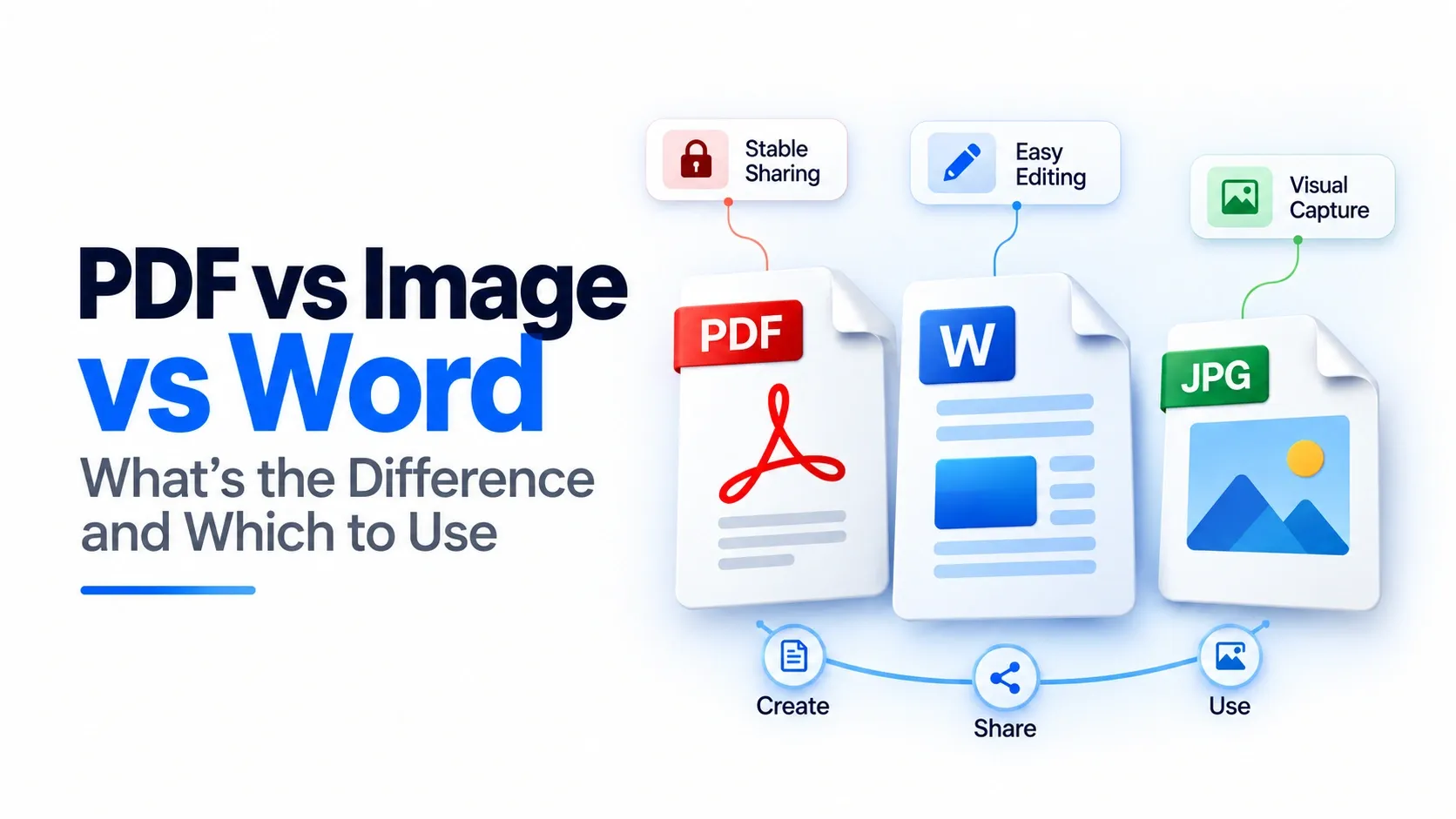
When a document needs to keep the same layout on every screen, people usually choose PDF. When the file needs drafting, comments, and easy changes, Word or .docx is the better working format. When the goal is only to capture a visual copy, an image such as JPG or PNG can work, but it stores pixels rather than real document text.
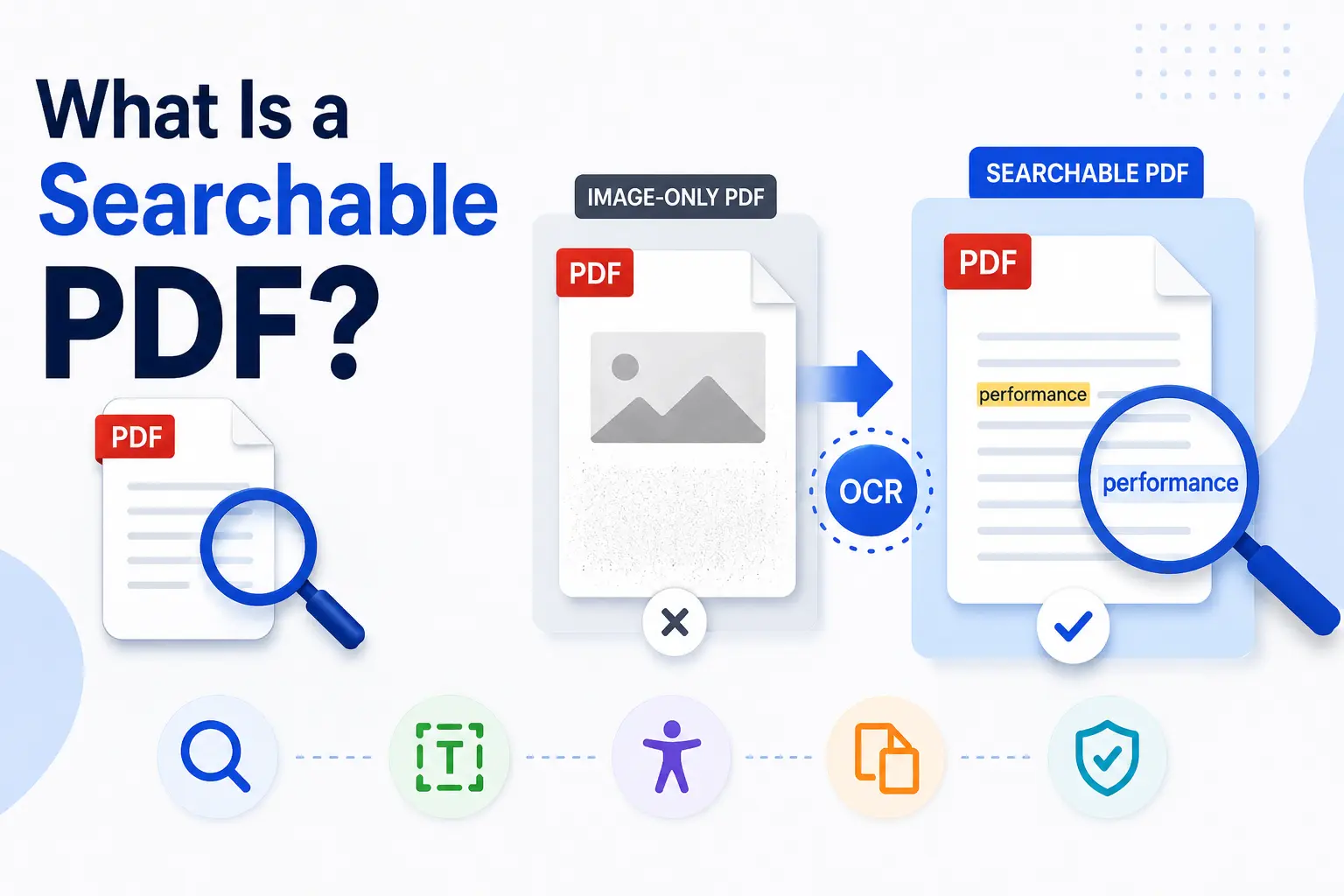
The biggest difference starts with searchable text. Word files and many PDFs can carry selectable words that you can search, copy, and edit with the right tool. An image of a document has no searchable text unless OCR is used, even if the words are clearly visible on the screen.
This article compares the three formats by how they are used, not only by their names. You will see what each format does, how they differ in editing, compatibility, file size, security, printing, and storage, and when each one makes the most sense. It also covers the common workflow of drafting in Word, finalizing in PDF, using images only for visual captures, and converting between the formats when needed.
The goal is to make the format use cases clear: choose Word when the content must stay editable, choose PDF when the layout needs to stay fixed, and choose an image only when the visual appearance matters more than text, structure, or reuse.
What Are the PDF, Image, and Word Formats?
PDF, Word, and image files are built for different document jobs. A PDF, short for Portable Document Format, keeps a document in a fixed layout so the page looks consistent when shared, printed, or opened on another device.
A Word file, especially .docx, is made for drafting and editing. In Microsoft Word, the text can reflow as you change margins, fonts, images, and page breaks. That makes Word better while a document is still being written, reviewed, or revised.
Image formats such as JPEG and PNG store visual data as pixels. A screenshot, scan, or photo of a document may look like a page, but it is still a raster image. Unless OCR is applied, it has no selectable or searchable text. You can view the words, but the file does not treat them as real text.
So, the basic split is simple: use Word for active editing, PDF for stable sharing, and images for visual capture.
What Are the Key Differences Between PDF, Image, and Word?
The key difference between PDF, Image and Word is that PDF preserves a finished document, Word is built for editing, and an image captures visuals as pixels. That purpose affects editability, compatibility, file size, security, print consistency, and long-term storage.
| Aspect | Word Document | Image (JPG/PNG) | |
|---|---|---|---|
| Primary Purpose | Preserves a finished document with a fixed layout | Created for writing and editing content | Displays visual content as pixels |
| Editability | Limited; requires a PDF editor for changes | Easy to edit with word processing software | Difficult to edit text or layout without image editing tools |
| Compatibility | Opens consistently across most devices and platforms | May display differently depending on software or fonts | Supported by nearly all devices and browsers |
| File Size | Usually moderate, depending on text, images, and compression | Typically smaller for text-heavy documents | Can range from small to very large depending on resolution and format |
| Security | Supports passwords, encryption, and permission controls | Basic protection such as passwords or restricted editing | Limited security features; usually relies on external protection |
| Print Consistency | Maintains the same layout and formatting when printed | Formatting may change due to fonts, margins, or software differences | Prints exactly as the image appears but text is not easily selectable |
| Long-Term Storage | Excellent for archiving, especially with PDF/A | Less suitable because formatting and compatibility can change over time | Good for preserving visuals, but not ideal for searchable documents |
The takeaway is simple: choose PDF when the document needs to stay stable, choose Word when the content still needs work, and choose an image only when a visual copy is enough.
Which of PDF, Image, or Word Is Easiest to Edit?
Microsoft Word is the easiest to edit because the content is natively editable. You can rewrite text, move sections, adjust spacing, add comments, and use track changes while the document is still in progress.
PDF is harder to edit because it is usually made for a finished layout. You can change text, images, or pages with a PDF editor, but the process depends on how the file was created. A clean digital PDF is easier to edit than a scanned PDF.
An image is the hardest format to edit because the document is stored as raster pixels, not separate words, lines, or paragraphs. To change text inside an image, you usually need to redraw the area, retype the content, or run OCR first. JPG images can also suffer re-save quality loss, so repeated edits may make the document look blurrier or more compressed.
Which Is Most Compatible and Portable: PDF, Image, or Word?
PDF is the most reliable choice for sharing documents across devices because it is built for cross-platform viewing and consistent display. A PDF usually opens in a PDF reader or web browser without changing the page layout, fonts, spacing, or pagination.
Images are even easier to open in one sense. A JPG or PNG can display on almost any phone, computer, browser, or image viewer. That gives images strong universal compatibility, but they are not reliable as true documents. They do not reflow like text, they do not preserve document structure, and the visible words are not searchable unless OCR is used.
Word is portable only when the receiver has the right software or a compatible editor. A .docx file may open in Word, Google Docs, Apple Pages, or LibreOffice, but formatting can shift between apps. When comments, tracked changes, fonts, or exact layout matter, Microsoft Word may be required for the most accurate result.
So, for document sharing, PDF is usually the safest format. Images are widely openable but limited, and Word is best when the receiver also needs to edit the file.
Which Has the Smallest File Size — PDF, Image, or Word?
The smallest file size depends on what the file contains. For a text-heavy document, Word is often the lightest because .docx size stays compact by storing text, styles, and document rules instead of a full visual copy of every page.
Images can be smaller or larger depending on format and quality. JPEG lossy compression can make a single page image very small, but it removes detail to reduce size. PNG lossless keeps sharper detail, which is useful for screenshots and graphics, but PNG files can become large when the page has many colors or great detail.
PDF usually sits in the middle for mixed documents. It may store text, images, layout data, embedded fonts, and page structure, so it can be larger than a simple Word file. But PDF compression can reduce the size well, especially when the document contains scanned pages or high-resolution images.
A rough same-document ranking is often: JPEG can be smallest for one visual page, DOCX is usually smaller for editable text, and PDF is often larger when it preserves layout, fonts, and images. For multi-page documents, the final size depends heavily on image resolution, compression settings, and whether the PDF contains scans.
Which Is More Secure: PDF, Image, or Word?
PDF is usually the strongest format for sharing protected documents because many PDF tools support password protection, AES-256 encryption, PDF permissions, digital signature workflows, and proper redaction. That makes PDF better for contracts, forms, reports, and files that need controlled access or verified approval.
Word can also be protected, but Word protection is usually better for basic editing control than final document security. You can restrict editing or require a password, but the file is still mainly designed for collaboration and revision, not locked distribution.
Images are the weakest option for document security because JPG and PNG files do not have a native document-security layer. You can place an image inside a secure folder or encrypted archive, but the image format itself does not provide permissions, signatures, or redaction.
So, if security matters inside the document format itself, PDF is the safest choice. Word offers lighter protection, while images rely on external storage or sharing controls.
Which Prints Most Consistently — PDF, Image, or Word?
PDF prints most consistently because it is built around a fixed layout. A well-prepared PDF can preserve page size, margins, spacing, and embedded fonts, which gives stronger PDF print fidelity when the file moves from one device or printer to another.
Word is less predictable for final printing because the document can change when opened in another app, version, or device. DOCX reflow may shift page breaks, margins, fonts, image positions, or line spacing, especially if the receiver does not have the same fonts installed.
Images print differently because they are locked to pixels, not document layout. A JPG or PNG may look fine on screen, but print quality depends on image resolution and DPI. If the image is enlarged beyond its available pixels, pixelation can make text, logos, and edges look blurry or jagged.
So, for print-ready documents, PDF is usually the safest choice. It gives a stronger WYSIWYG result: what you see on screen is much closer to what should come out on paper.
Which Is Best for Long-Term Storage: PDF, Image, or Word?
PDF is the best choice for long-term document storage when it is saved as PDF/A. PDF/A is an archival standard based on ISO 19005, designed to keep documents self-contained so they can still be opened and reproduced years later.
A PDF/A file can store required resources such as embedded fonts, color information, images, and metadata inside the file. That reduces proprietary format risk because the document is less dependent on the original software, system fonts, or editing environment.
Word is weaker for long-term storage because .docx version drift can change how a file appears across different Word versions, operating systems, or compatible editors. A document may still open, but margins, fonts, comments, tracked changes, or page breaks can shift over time.
Images are useful for preserving a visual snapshot, especially formats like TIFF lossless, but they are not ideal for document archiving by themselves. A scanned image may preserve how a page looked, but it can lose searchable text, document structure, and useful metadata unless OCR and proper archiving steps are added.
For long-term records, PDF/A is usually the safest format. Word is better for working drafts, and images are better as supporting visual evidence than as the main archival document.
When Should You Use PDF, Image, or Word?
Use Word when the document is still changing, use PDF when the document needs to be shared in a stable form, and use an image only when you need a visual copy. The best choice depends on whether the file is being written, finalized, stored, printed, signed, or simply captured.
- Use Word when you need to draft and edit in Word: A proposal, report, essay, or resume draft is easier to revise in Word because the text, comments, formatting, and structure remain flexible.
- Use PDF when you need to share and lock in PDF: A final contract, completed form, official letter, or approved resume should usually be sent as PDF so the layout stays consistent and the content is harder to change accidentally.
- Use an image for visual capture: A receipt photo, screenshot, whiteboard picture, or quick scan can work as an image when you only need visual proof
- Avoid images for real documents: An invoice, agreement, or application saved only as an image may be hard to search, copy, edit, archive, or process later.
A common workflow is to write and revise in Word, then export the final version as PDF. Use images only when the visual appearance is enough and document text does not need to stay searchable or reusable.
How Do You Convert Between PDF, Image, and Word?
To convert between PDF, image, and Word formats, use the method that matches the direction of the conversion. Word to PDF is usually the simplest path because you can export, save, or use Print to PDF from the document app. PDF to Word needs a converter that rebuilds the PDF content into an editable .docx file.
Image-based conversions need more care. An image to PDF tool can place JPG or PNG files into a PDF container, and a PDF to JPG converter can turn PDF pages into image files. But those conversions do not automatically create editable text.
The important rule is that image-to-text conversion requires OCR. If a scanned page, screenshot, or document photo contains visible words, a normal online converter can change the file format, but OCR is what turns those visible words into searchable or editable text.
So, use Print to PDF for app-based exports, use a converter for PDF and image format changes, and use OCR whenever the source is an image but the final result needs real text.
How Do You Convert PDF to Word?
To convert PDF to Word, upload the PDF to a converter and export the result as a .docx file. The converter reads the PDF content, rebuilds the text and layout as a Word document, and gives you a file you can open in Microsoft Word or another compatible editor.
For a browser-based option, you can use a PDF to Word converter, upload the file, start the conversion, and download the Word version when it is ready. After downloading, check headings, tables, spacing, images, and page breaks before using the file as a final document.
A digital PDF with real text usually converts into editable text more cleanly. A scanned or image-only PDF needs OCR for scanned PDF first, because the visible words are stored as pixels, not text. Even after OCR, complex designs, multi-column pages, forms, and heavy graphics can create formatting shifts, so the Word file may need manual cleanup.
How Do You Convert an Image to PDF?
To convert JPG to PDF or PNG to PDF, upload the image to an image-to-PDF tool, arrange the page order, and export the result. You can also combine images when several screenshots, receipts, photos, or scanned pages need to stay together.
For a browser-based option, use an Image to PDF converter, add your JPG or PNG files, place them in the right order, and download them as a single PDF. This is useful when you want to send several image pages as one document instead of attaching separate files.
A mobile scan can also be converted this way. Take the scan or document photo, upload it to the converter, and save it as PDF. The result will still be an image inside a PDF, so the text will not be searchable or selectable unless OCR is applied.