In most cases, you can open a PDF by double-clicking the file, selecting Open With, or using your device's default application. Because the Portable Document Format works across platforms, you can access your file on Windows, Mac, iPhone, Android, or online through a browser.
Opening a document shouldn't depend on which device you're using. Whether a file arrives through email, cloud storage, messaging apps, or a download folder, there are several ways to access it using built-in tools, dedicated readers, or web browsers.
This guide brings together the most common methods for opening PDF files across different devices, along with practical solutions when a file won't open properly. You'll learn which tools work best, when to use built-in viewers or dedicated readers, and how to troubleshoot common PDF opening problems.
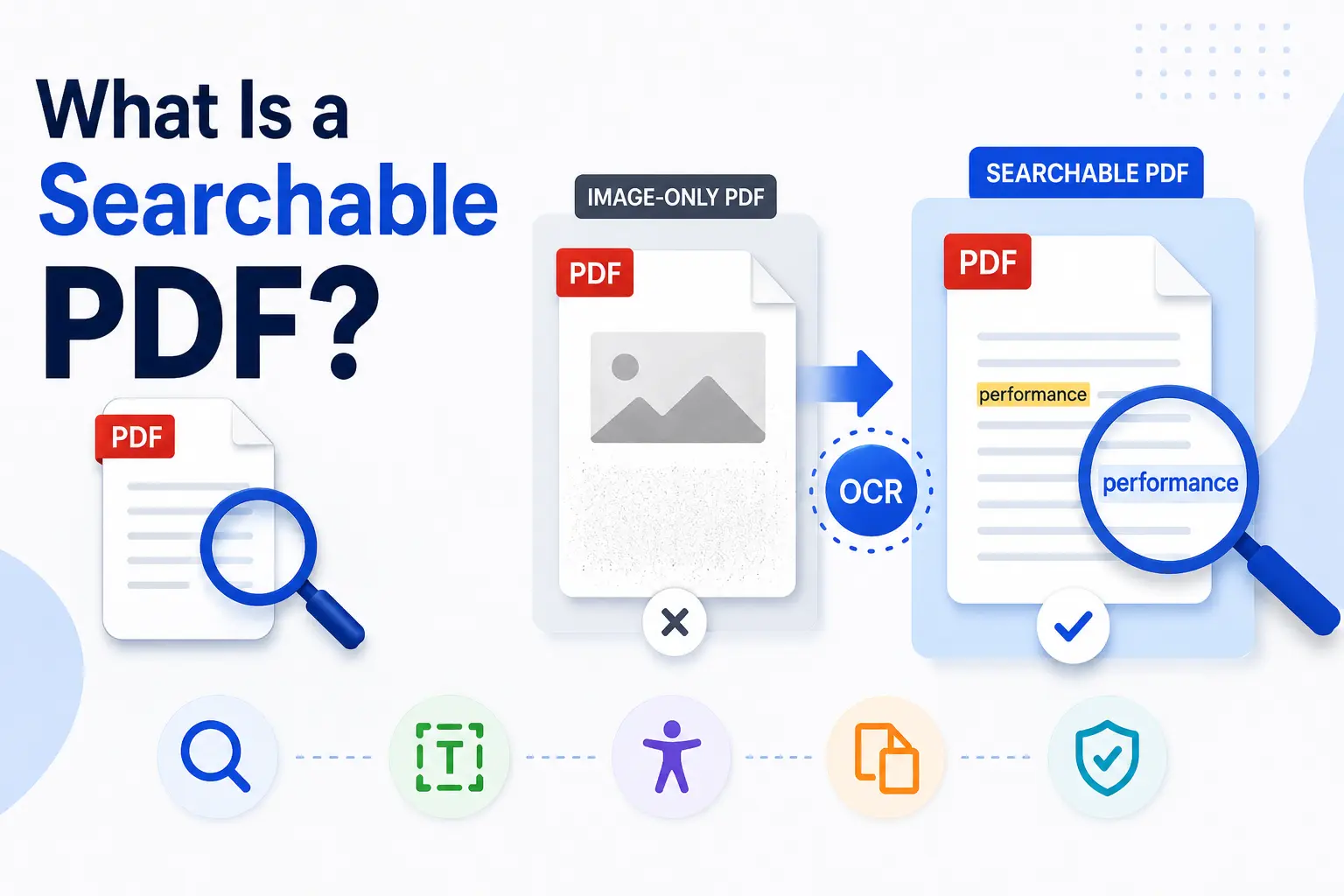
If you prefer a free, browser-based solution with no account requirements and stronger privacy controls, tools like PDFNoob can help you open or file documents without installing additional software.
What Do You Need to Open a PDF?
You only need a compatible application, browser, or online service to open a PDF file. Today, users can open in many different ways, depending on the device they use and the features they need.
When choosing between reader vs browser vs online tools, the right option depends on your workflow. If you simply want to open and read a document, built-in applications and browsers often work well. If you regularly edit, annotate, or sign files, online tools may be the better choice. There are several common ways to access PDF files.
| Method | Best For | Examples |
|---|---|---|
| Built-in viewers | Quick viewing and basic tasks | Preview, Microsoft Edge |
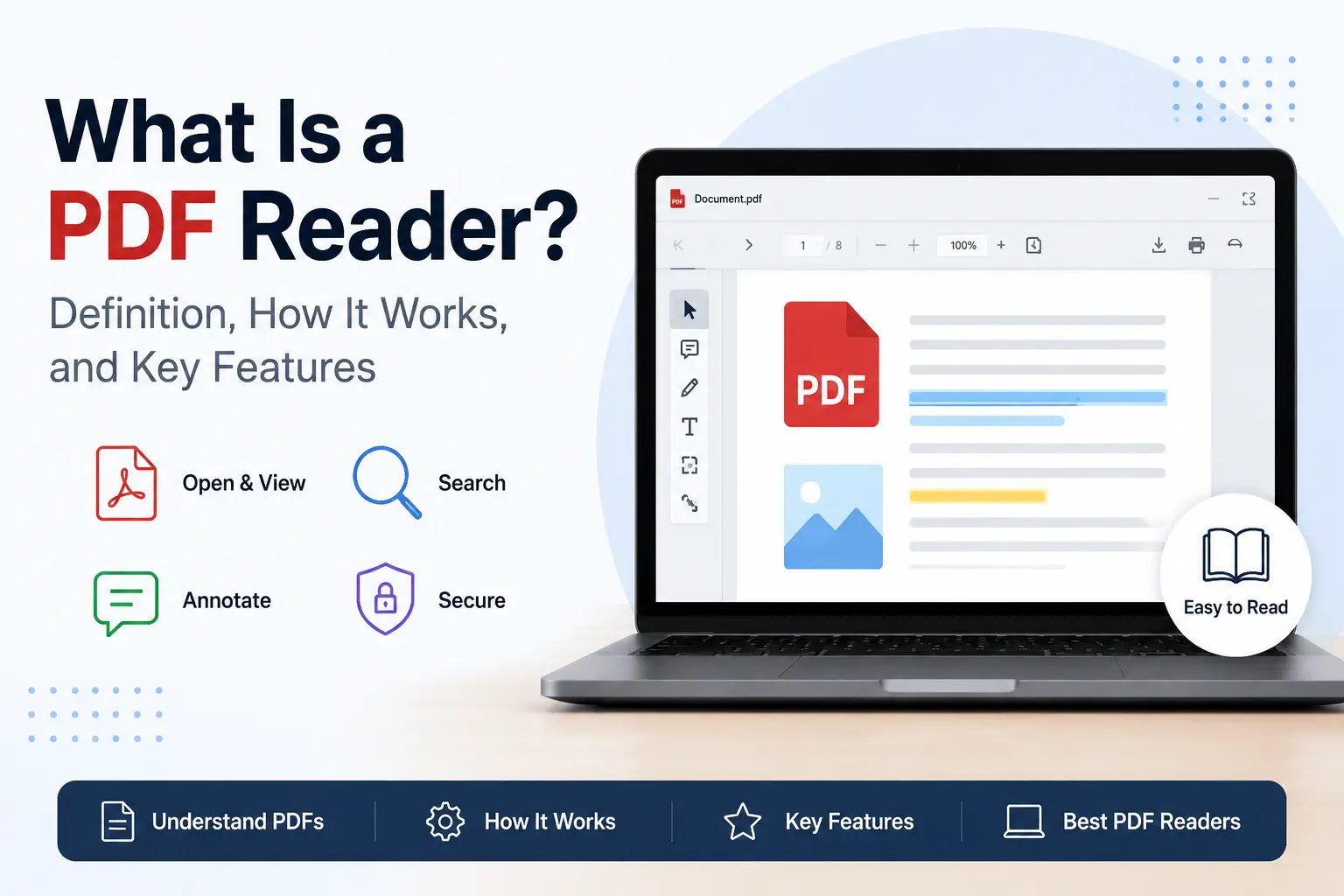
| Dedicated PDF readers | Annotation, forms, editing | Adobe Acrobat Reader, SumatraPDF, Okular |
| Browser and online tools | No installation required | Chrome, Firefox, browser-based viewers |
You can open in many ways, including directly within the browser, in your browser, or open from the file manager on your device. Popular open-source readers include SumatraPDF, known for its lightweight performance, and Okular, which provides bookmarking and note-taking features.
If you need more advanced capabilities, LibreOffice Draw offers PDF editing functions, while Stirling PDF supports dozens of PDF operations. Apple's Preview application remains one of the most capable built-in PDF tools, allowing users to view, highlight, fill forms, and create signatures. Recommendations from xda-developers frequently include these tools because they balance usability, features, and accessibility.
How Do You Open a PDF on Windows?
You can open a PDF on Windows by double-clicking the file, using the Open With option, or opening it through a dedicated PDF reader such as Microsoft Edge or Acrobat Reader.
The quickest method is to locate the PDF in File Explorer and double-click it. If Windows already has a default app configured for PDFs, the document opens automatically. On most modern Windows systems, Microsoft Edge acts as the built-in PDF viewer and supports zooming, searching, printing, and basic annotations.
If the PDF doesn't open with your preferred software, right-click the file, select Open With, and choose Acrobat Reader or another installed application. You can also check the option to always use that program as your default app for future PDF files.
For occasional reading, Microsoft Edge works well. However, users who work from within the Acrobat environment or within the Acrobat application often prefer Adobe's tools because they provide forms, signatures, comments, and document management features that go beyond the browser's read mode default experience.
How Do You Open a PDF on Mac?
You can open a PDF on Mac by double-clicking the file, which usually opens it in Preview, the built-in default app for viewing PDF documents.
If you want another option, Control-click the PDF in Finder, choose Open With, and select Adobe Acrobat, Safari, Chrome, or another installed reader. For a quick look without fully opening the file, select the PDF and press the Space Bar.
You can also change the default viewer from Get Info > Open With > Change All. This is useful if you prefer Acrobat for forms or browser viewing for quick reading.
For users searching how to open pdf on mac, Preview is often enough because it lets you view, highlight, fill forms, add text boxes, and sign documents without installing extra software.
How Do You Open a PDF on iPhone and iPad?
You can open, save, and annotate PDFs on iPhone and iPad using built-in Apple tools like Files, Books, and Safari, or third-party readers such as Adobe Acrobat and PDF Expert.
If you want to save a PDF for later reading, use Apple Books. Open the PDF, tap the Share icon, choose Books, and the file will be saved to your Books library, where you can read, bookmark, and organize it.
If the PDF is already stored on your device or in iCloud Drive, open the Files app, browse to the document, and tap it to view. This is the method most iPhone and iPad users rely on because it doesn't require installing additional software.
When a PDF is shared through a website or email, tapping the file usually opens it directly in Safari. If you need to edit, sign, or annotate the document, tap the Share button and open it in Adobe Acrobat, PDF Expert, or another PDF reader.
Since these tools are built into iOS and iPadOS, most users can view and manage PDF files without paying for additional apps.
How Do You Open a PDF on Android?
You can open a PDF on Android by locating the file in your phone's file manager and tapping it, or by using a dedicated reader such as Adobe Acrobat Reader from Google Play.
The easiest approach is to open Files by Google, Samsung My Files, or your device's default file manager. Browse to the folder containing the PDF and tap the document. Depending on your settings, Android may open the file using Drive, Chrome, or another installed PDF application.
If the PDF is shared through a website or email link, tapping it usually opens the document directly in Chrome or your preferred browser. You can also use Google Drive to store, organize, and access PDF files across devices.
Some users try opening PDFs through Google Docs to edit the content. In that case, Google converts the PDF into an editable document instead of preserving the original layout. Similarly, Google Slides isn't intended for viewing PDF files directly.
If a PDF still won't open, check whether it was downloaded as a .zip archive. Extracting the file first solves many Android PDF opening problems.
How Do You Open a PDF in a Web Browser?
You can open a PDF in a web browser by dragging the file into an open browser tab, or by right-clicking the file and choosing Open With.
If you use Google Chrome, Edge, or Safari, the PDF usually opens directly in the web browser without extra software. This is useful when you only need to read, print, zoom, or download the document.
In Google Chrome, go to Settings > Privacy and Security > Site Settings > PDF documents, then choose to view PDFs in the browser instead of downloading them. In Mozilla Firefox, open Settings > Applications, find PDF, and set the action to open in Firefox.
For Microsoft Edge, check Settings > Downloads or PDF documents and turn off automatic downloading if you want PDFs to open within web browser viewing mode. This helps when you need files to open in web tabs instead of saving first.
If a PDF link comes from a shared network from within web tools or email, the same browser viewer usually handles it. So when a PDF within web browser open behavior feels wrong, your browser’s PDF settings are the first place to check.
Why Won't My PDF Open?
A PDF usually won't open because the file is damaged, password-protected, connected to the wrong app, or your device does not have a suitable PDF reader.
Start with the fastest fixes first. Drag the PDF into a browser tab, or right-click the open file option and choose a trusted reader such as Adobe Acrobat, Preview, Edge, or Chrome. If the issue is a wrong app, reset the default PDF viewer.
If Adobe Acrobat is installed but still fails, force-close Acrobat from Task Manager or Activity Monitor, then reopen the document. Repairing or reinstalling the app can also help when Acrobat keeps freezing.
A corrupt file may open blank, show an error, or fail after downloading. Try downloading it again from the original source. If the file asks for a password, enter the correct password before trying other fixes.
If you planned to edit the document, opening a PDF in Word can change the layout, so use that option only when you need editable text rather than the original PDF view.
How Do You Open a PDF Without Installing Software?
You can open a PDF without installing software by dragging the file into Chrome, Edge, or Safari, since these browsers include built-in PDF readers.
Open your browser, locate the PDF on your device, and drag it into the browser window. The file should render instantly, letting you scroll, zoom, print, and read the document without downloading a separate app.
A cloud drive works too. Upload the PDF to Google Drive or another cloud service, then click the file to open it in a preview window. This is useful when the document is already stored online or shared across devices.
For simple viewing, a browser is usually enough. If you need highlighting or annotation, use an online reader or dedicated online viewer that works inside the browser. This is the most practical answer for anyone trying to open PDFs without Adobe, while opening a PDF in Word without losing formatting is better handled only when you need editable text.
How Do You Open a PDF Online?
You can open a pdf online by dragging and dropping the file into any web browser (Chrome, Edge, Firefox, Safari) or by using a dedicated online viewer such as Adobe Acrobat online.
If the file is on your device, drag it into a browser tab, or right-click the PDF, choose Open With, and select your browser. If the PDF is already on a website, clicking the link usually opens it directly in the browser for quick reading.
For more than basic viewing, use an online PDF viewer. Adobe Acrobat Online supports reading, commenting, and e-signing, while other drag-and-drop web tools let you view, fill, highlight, or mark up PDFs without registering.
How Do You Change the Default PDF Viewer?
You can change the default PDF viewer by updating the app your device uses to open PDF files automatically.
On Windows, open Settings, go to Apps, then Default apps. Search for the .pdf file type, click the current app, and choose the viewer you prefer. This is the easiest way to set default app behavior for all PDFs.
On Mac, right-click any PDF, select Get Info, open the Open With menu, choose your preferred viewer, and click Change All.
On Android, open Settings, go to Apps, clear the current PDF app defaults, then choose a new viewer the next time you open a PDF. If you prefer Adobe, select Adobe viewer when Android asks which app should handle the file.
How Do You Open a Password-Protected PDF?
You can open a password-protected PDF using any PDF reader or web browser by entering the correct password when prompted.
If you know the password, open the file in Adobe Acrobat, Chrome, Edge, Safari, Preview, or another PDF reader. After entering the password, the document opens normally for reading, printing, and editing, depending on the permissions set by the file owner.
In Adobe Acrobat, authorized users can permanently remove password protection. Open the PDF, enter the password, go to Protect or Encrypt settings, remove the security restrictions, and save a new copy of the file.
Another option is the browser "Print to PDF" method. Open the protected PDF in a browser, enter the password, choose Print, then select Save as PDF. This creates a new version of the document without the original restrictions.
If you have permission to access the document but need an easier workflow, you can also unlock a PDF using a trusted online tool.