


Convert Word to PDF Online and Free
Drop in a .doc or .docx and get a PDF that holds its fonts and spacing. Free to use, no watermark. Larger files need a free account.
- Converts DOC and DOCX to PDF, 1 file at a time.
- Keeps your original Word page breaks. No auto-reflow.
- Hyperlinks stay clickable. Word headings become PDF bookmarks.
- A file under 5 MB converts in about 10 seconds.

Drop your files here
1 file at a time · 20 MB per file free, 30 MB signed in
Files deleted in 1 hour. We don't index your content or use it for AI training.

Files Deleted Within 1 Hour
HTTPS in transit. We never train AI on your files.

Fonts Embedded, Not Guessed
Embed fonts in your .docx and the PDF keeps them, not a lookalike.

Free to Use, No Watermark
20 MB per file as a guest, 30 MB on a free account.

Checked Before It Converts
Format, size, corruption, and password protection are checked first.
How To Convert Word to PDF
Three steps in any browser. Nothing to install.
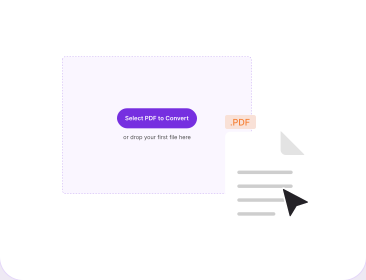
Upload Your Word File
Drag a .doc or .docx into the box above, or click to select it. One file per run, laptop or phone.
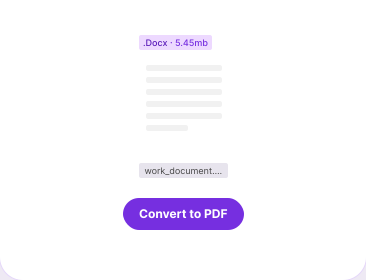
Let the File Validate
PDFNoob checks the format, the size, and whether the file is corrupted or password-protected.
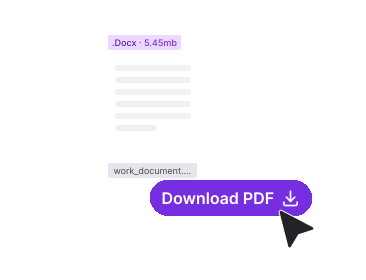
Download Your PDF
Click Convert. A file under 5 MB is usually ready within 10 seconds. The PDF arrives with selectable text, live hyperlinks, and no watermark.
Why Convert Word to PDF With PDFNoob?
Every Word to PDF converter says formatting is preserved. This one tells you when it is not.

Page Breaks Do Not Move
The PDF follows the pagination Word already set. Page breaks are kept and nothing reflows onto a new page.

Fonts That Do Not Swap
Font substitution is the real reason a converted file looks wrong. Embed fonts in Word and the PDF carries the exact typeface.

Links and Bookmarks Survive
Web links stay clickable, a Word-generated contents page still jumps, and headings become the PDF bookmark panel.

No Surprise Markup
Tracked changes and comments print exactly as your review view shows them. We show you how to clear them.

Honest Limits and Timings
20 MB as a guest, 30 MB signed in, one file per run. Under 5 MB converts in about 10 seconds.

Privacy by Design
Files delete within one hour. We don't index your file contents. We never use them to train AI.
Word to PDF Conversion, Explained
A Word document is a live layout that reflows on a different font, printer driver, or version of Word. Converting it to PDF freezes the page.
What the PDF Keeps: Page Breaks, Links, and Bookmarks
Pagination is the part every other converter stays quiet about. The rule here is to keep your original Word page breaks and not auto-reflow the content, so a heading that starts page four in Word starts page four in the PDF. Nothing is pushed onto a fresh page to suit the renderer.
Around that, the file carries your text, basic formatting, page layout, images, tables, paragraph structure, and font styling where the font allows it. Hyperlinks survive as real PDF link annotations, and a contents page Word built from heading styles still jumps. Those styles also become the PDF bookmark panel and the accessibility tags a screen reader follows, with table header rows and image alt text.
Why Your PDF Looks Different From the Word File
Almost always a font. A .docx stores the font name, not the font itself, unless embedding is on. The renderer substitutes the closest match, letter widths change, and lines rewrap, which is the one thing that can still shift a break. Prevent it: in Word open File, Options, Save and tick Embed fonts in the file. Large photographs are downsampled during rendering, so use vector images for diagrams that must stay sharp.
Tracked Changes, Comments, and Hidden Text
This is the mistake that costs people contracts. With Display for Review set to All Markup, every insertion and comment balloon lands in the PDF. Accept or reject each change on the Review tab, delete the comments, then set No Markup. For confidential files, run File, Info, Inspect Document to catch hidden text and stray properties.
My PDF Looks Wrong: What to Check
- Text rewrapped or a break shifted: a font was substituted. Embed fonts and convert again.
- Markup visible: accept the changes, then set No Markup.
- Contents page will not click: rebuild it with References, Table of Contents.
- Images look soft: the source was low resolution or scaled up.
- Upload rejected: wrong format, over the tier limit, corrupted, or password-protected.
- Page numbers wrong: select all, press F9, then save.
If a document may not be uploaded anywhere, use File, Save As, PDF inside Word. Otherwise the converted file goes straight into merging or compressing, and the reverse trip is PDF to Word.
Related PDF Tools
Other tools you might need today.


Frequently Asked Questions
Common questions about converting DOC and DOCX files to PDF.
How Do I Convert Word to PDF for Free?
Upload your .doc or .docx, let it validate, then click Convert. A file under 5 MB is usually ready within 10 seconds, and 5 to 25 MB within 30 seconds. The PDF downloads with no watermark.
Is DOCX to PDF the Same as DOC to PDF?
The tool takes both. DOCX is the zipped XML format Word has used since 2007 and it stores styles and font-embedding settings cleanly. DOC is the older binary format and can carry layout quirks, so save as .docx first.
How Large a Word File Can I Convert?
20 MB per file as a guest, 30 MB signed in to a free account, one file per run. Anything above 25 MB can take longer than the usual half minute.
Why Do My Fonts Change in the PDF?
Because the font was never embedded in the .docx. Word stores the font name, not the font itself, so the converter substitutes a similar face and your line breaks shift. Fix it under File, Options, Save, tick Embed fonts in the file.
Will My Page Breaks Move When I Convert?
No. The conversion follows the pagination your Word file already has: original page breaks are kept and content is not reflowed, so a heading that starts page four in Word starts page four in the PDF. If a break does move, a substituted font changed the line widths.
Will My Table of Contents Still Be Clickable?
Yes, if Word generated it from real heading styles. Those entries are internal links and the conversion keeps them, and the same headings become the PDF bookmark panel. A hand-typed list will not click.
Do Tracked Changes and Comments Show Up in the PDF?
They can, and it is the most common accident in this conversion. The PDF renders whatever markup view the file was in. Accept or reject every change on the Review tab, delete the comments, then set Display for Review to No Markup.
Why Was My File Rejected Before It Converted?
Validation stops four things: a file that is not a DOC or DOCX, a file over your tier limit, a damaged file it cannot read, and a password-protected file, which returns "This file is password-protected. Please remove the password and try again." To clear that, use File, Info, Protect Document in Word, empty the password box, then convert the copy.
Is It Safe to Convert Word to PDF Online?
Files travel over an encrypted HTTPS connection. We delete them within one hour, we do not index your file contents, and we never use them to train AI. For confidential work, Word's own Save As PDF keeps the file local.