

Extract Pages From PDF Online and Free
Pull out specific pages from a PDF and save them as a new file. Pick pages by thumbnail, type a range, or isolate non-contiguous pages. No sign-up. No watermark.
- Free PDF page extractor. No account required.
- Lift non-contiguous pages: 1, 3, 7–9, 15.
- Works on Mac, Windows, iPhone, and Android in any browser.

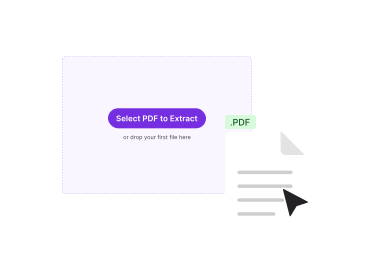
or drop your first file here
Up to 100 MB per file · Free forever
Files deleted in 1 hour. We don't index your content or use it for AI training.

Files Deleted Within 1 Hour
HTTPS encryption in transit. We never train AI on your file contents.

Extract in Under 15 Seconds
Most extractions finish at once, even on 500-page reports.

No Sign-Up, No Watermark
Free. No trial. No email gate. No page-count cap.

Source File Untouched
The extractor builds a new file. Your source PDF stays exactly as it was.
How To Extract Pages From a PDF
Three steps. No installs. No accounts. No hidden limits.
Upload Your PDF
Drag your file into the box above, or click to browse. A thumbnail strip of every page loads in the picker.
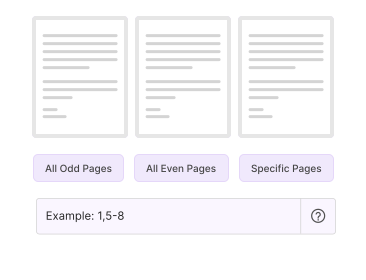
Pick the Pages
Click thumbnails to select pages. Or type a range like 3,5,12–15 to lift non-contiguous pages.
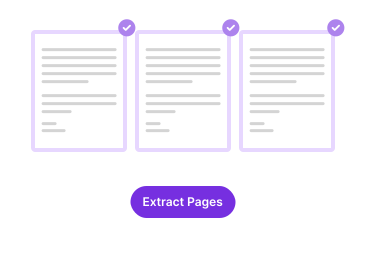
Download the New PDF
Click Extract. A new PDF with only the pages you picked downloads at once. No watermark.
Why Extract PDF Pages With PDFNoob?
Pick pages by thumbnail or range, in any order. The workflow other extractors charge for.

Lift Non-Contiguous Pages
Need pages 1, 3, and 7–9 only? Type the range. Or click any mix of thumbnails. Most extractors force you into one contiguous block.

Reorder While You Isolate
The output PDF uses the order you picked, not the source order. Useful when you want to surface key pages first.

Privacy by Design
Files delete within one hour. We don't index your file contents. We never use them to train AI.

Lossless Quality
Fonts, images, and form fields on the picked pages stay intact. No re-rendering. No downsample.

Mobile-Friendly Picker
The thumbnail picker works on phones. Tap pages, scroll, and copy them out directly from iPhone or Android.

No Page-Count Limit
Pull out one page or two hundred. The free tier has no per-extract page cap. Only the 100 MB source-file limit applies.
About Extracting PDF Pages
Extracting pages from a PDF means picking a subset of pages and building them into a new, smaller PDF. The original file stays untouched. This is the right tool when you only need a few pages from a long file. Examples include the appendix of a 200-page report, the signed page out of a contract, or one recipe from a cookbook scan.
The extractor clones the picked page objects into a fresh PDF container. The fonts, images, and form fields they depend on come along. No re-rendering takes place. The visual fidelity of the output is byte-identical to those pages in the source. PDFNoob keeps bookmarks or links that point inside the lifted set. The tool quietly drops references to pages you didn't pick.
Extract Pages vs. Split PDF
The two operations are related but solve different problems. Extracting pages produces one output file with just the pages you picked, even if those pages are non-contiguous. Splitting a PDF produces multiple output files. You can get one PDF per page, one per range, or one per chapter. Use Extract when you want the subset stitched into one file. Use Split when you want the whole document broken into pieces.
When Pulling Out Pages Is the Right Move
- Sharing only what is relevant: Save the executive summary out of a long report.
- Isolating signed pages: Copy the signature page out of a returned contract for filing.
- Building a personal subset: Save certain pages of a textbook for offline study.
- Removing pages indirectly: If you want to keep most of a file, it is often easier to extract the pages you want than to use Remove Pages on the ones you don't.
For a full walkthrough, read our guides on how to extract pages from a PDF and how to split a PDF.
Related PDF Tools
Other tools you might need today.


Frequently Asked Questions
Common questions about extracting and isolating PDF pages.
How Do I Pull Out Pages From a PDF for Free?
Upload your PDF to PDFNoob. Click thumbnails to pick the pages you want, or type a range like 3,5,12–15. Click Extract. A new PDF with only those pages downloads at once. No account is required. The output carries no watermark.
What Is the Difference Between Extract Pages and Split PDF?
Extract Pages makes one new PDF that holds the pages you picked. Use it when you want only chapter 3 and the appendix from a long report. Split PDF makes many output files from one source. Use it when you want to break a file into many pieces.
Can I Isolate Non-Contiguous Pages?
Yes. Click any mix of page thumbnails. Or type a range like 1,3,5–8,12. The new PDF keeps the order you picked. You can also reorder pages as you copy them.
Is It Safe to Extract Pages From a PDF Online?
Yes. Files travel over an encrypted HTTPS connection. We delete them within one hour. We don't index your file contents. We never use them to train AI. If you prefer never to upload at all, our desktop app does the lift entirely on your computer.
How Large a PDF Can I Pull Pages From?
Up to 100 MB per file on the free tier. There is no cap on how many pages you can save from inside that file. Larger files work on the desktop app.
Does the Extracted PDF Have a Watermark?
No watermark, ever. PDFNoob is genuinely free. We never brand your output.
Can I Save Pages Without Software?
Yes. PDFNoob is a web tool. Nothing to install. The extractor runs in your browser session. No download. No sign-up. No email. Open the page, drop a file, pick pages, and download.
Will the Original PDF Be Changed?
No. The operation is non-destructive. A new PDF appears from your selection. The original file stays untouched on your device. If you actually want to delete pages from the source, use the Remove Pages tool instead.