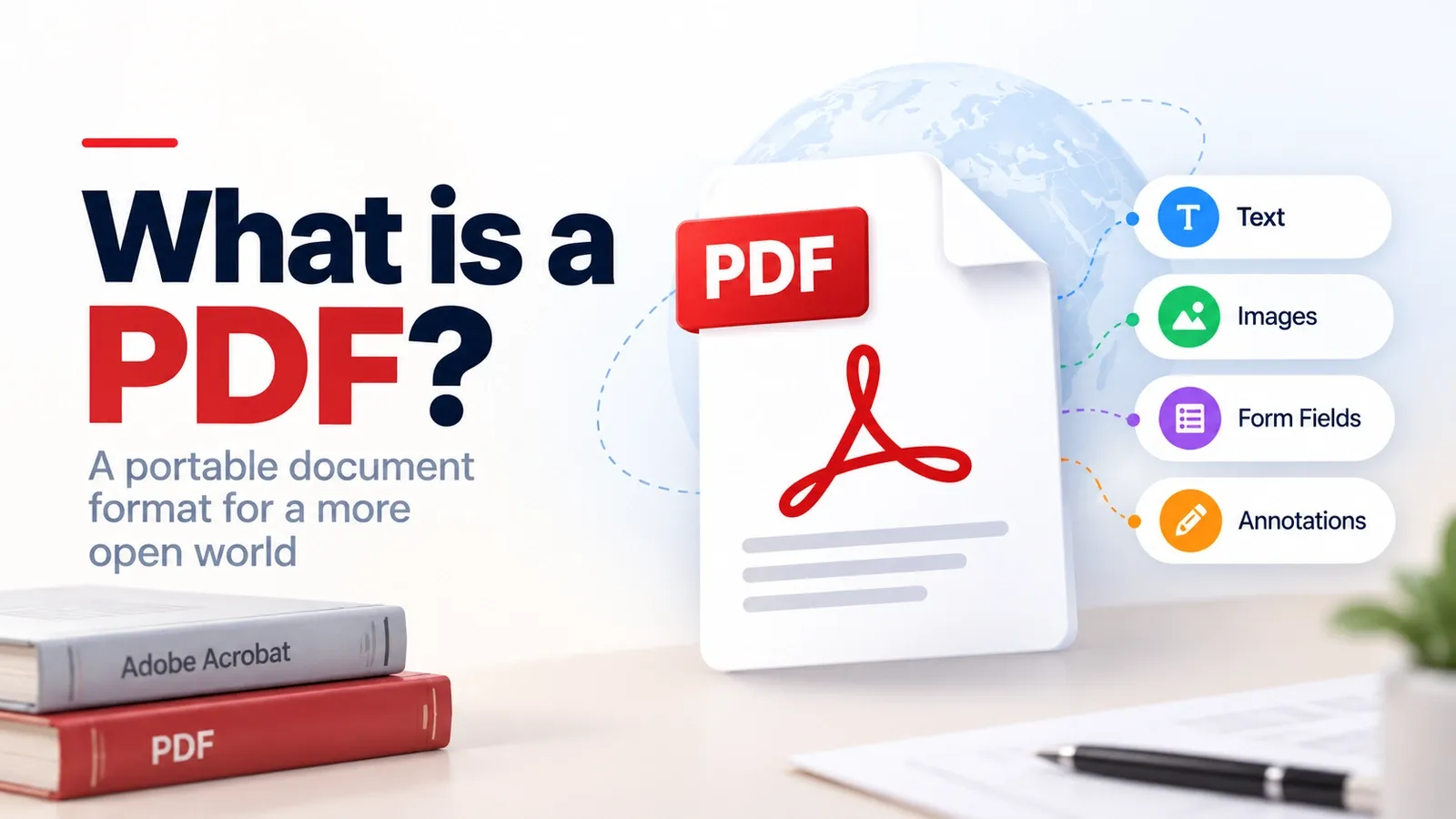
A PDF, or Portable Document Format, is a universal document format created by Adobe that preserves a document's layout, fonts, images, and formatting across documents from any device or operating systems. The popularity of the .pdf format comes from its ability to make documents easy to share, print, archive, and protect while maintaining a consistent appearance.
In this guide, you will know about the meaning of PDF, its history, structure, standards, security, versions, limitations, and how to open, create, edit, and search PDF files.
For users who need to work with PDFs efficiently, PDFNoob provides free, online tools with no account required while maintaining user privacy by not using uploaded files for AI training.
What Does "PDF" Mean?
PDF stands for Portable Document Format, a universal file format developed by Adobe to preserve a document's visual structure when shared. One of the main reasons PDF became widely adopted is its ability to preserve a document's appearance across different devices and platforms.
That is why PDFs became the preferred format for contracts, forms, academic papers, resumes, and e-books. The abbreviation meaning of PDF reflects its original purpose: creating a format for reliable document exchange. PDF stands for portable document format; it stands for portable access across different systems.
A portable document format file prioritizes presentation over editing. This makes it useful for portable document distribution, where preserving appearance matters more than modifying content.
Modern PDFs support:
- Hyperlinks
- Interactive forms
- Embedded fonts
- Digital signatures
- Security controls
- Accessibility features
Because a portable document can be opened on computers, phones, tablets, and browsers, PDFs remain useful for portable access across many environments.
Adobe created the PDF format, while platforms like Smallpdf helped expand modern PDF workflows. Educational support resources such as NWTC Library demonstrate how frequently people encounter PDFs in everyday academic and professional settings.
How Did the PDF Format Originate?
The PDF format was invented in 1990 by Adobe co-founder John Warnock through an internal initiative called The Camelot Project. At the time, businesses struggled to exchange digital documents consistently across different computers, and operating systems.
The vision of the Camelot Project was simple: create a document format that could be viewed anywhere while preserving fonts, graphics, and layouts. To achieve this, Warnock and his team combined Adobe's PostScript page-description technology with Adobe Illustrator, the company's cross-platform design software. This allowed documents to maintain their visual structure regardless of the device or software used.
Adobe officially introduced PDF technology and Adobe Acrobat at COMDEX in 1993. The release of Adobe Acrobat Reader then helped make PDF accessible to the public by providing a free way to open documents.
Today, many historians of digital publishing consider the Camelot project one of the most important advances in document technology because it changed how businesses, governments, schools, and publishers exchange information.
How Is a PDF File Structured?
A PDF stores information through a structured system of objects, a document body, a cross-reference table, and a trailer. This internal structure allows PDF readers to locate content efficiently while preserving the document's appearance and functionality.
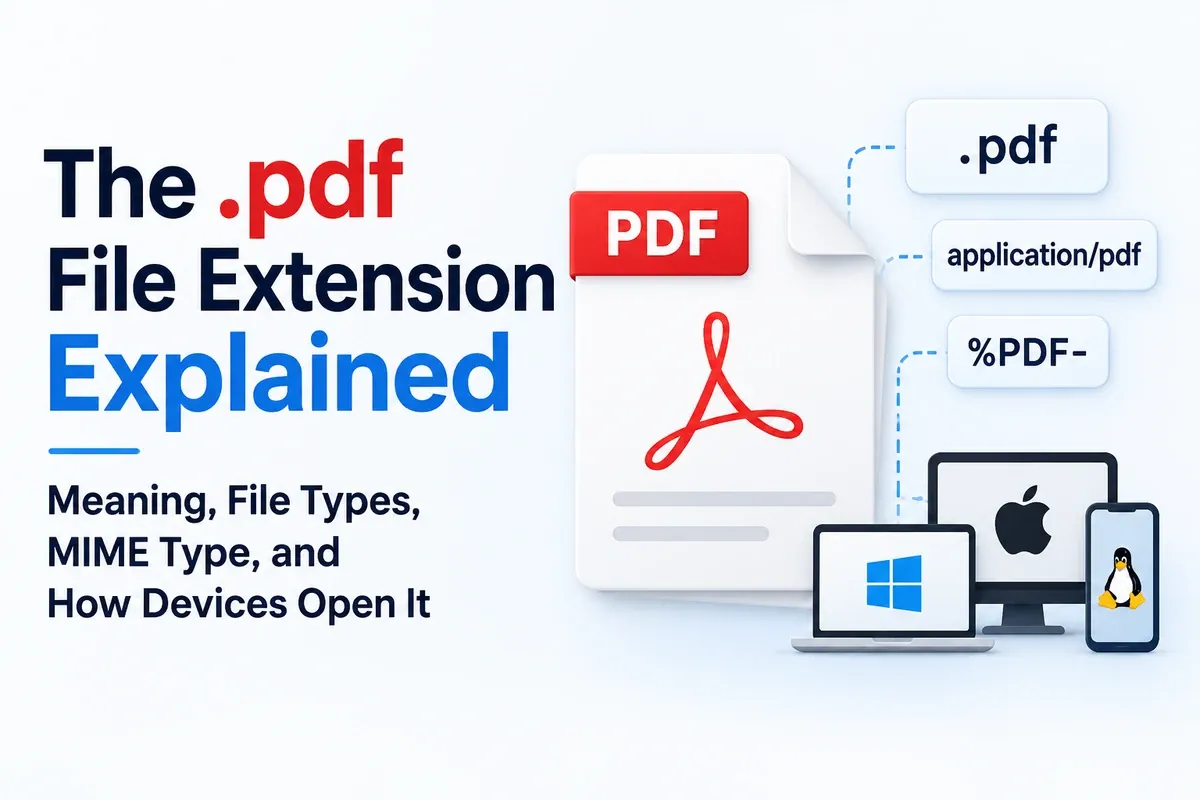
Every PDF begins with a header, such as %PDF-1.7, which identifies the file version. The body then stores all document data as numbered objects, including text, images, metadata, and fonts. These objects can contain strings, numbers, arrays, dictionaries, streams, and null values.
To avoid scanning the entire document every time it opens, PDFs use a cross-reference table (xref), which acts as an index pointing to the location of each object. The trailer, located at the end of the file, tells the PDF reader where this indexing information begins.
As described by Apryse, Wikipedia, and engineering discussions on Medium, this object-based design allows PDFs to support vector graphics, interactive forms, annotations, layers, and embedded resources. Because it embeds all fonts, a PDF preserves fonts and visual elements consistently across devices. This is also why discussions about what is a pdf vector file often focus on PDFs containing scalable graphics rather than fixed-resolution images.
What Are PDFs Used For?
PDFs are used to present and exchange documents reliably, regardless of the software, hardware, or operating system used to create or open them. Many professional documents require consistent formatting, security controls, and reliable printing regardless of where they are opened.
That is why PDF became the preferred file format used across business, legal, education, and government environments. In business, PDFs are commonly used for reports, invoices, contracts, proposals, and presentations. In legal settings, they help preserve document integrity and support digital signatures. In education, PDFs are used for research papers, assignments, and e-books, while many public institutions rely on PDFs for official government forms.
PDFs also support:
- Document sharing
- Professional printing
- Interactive forms
- Password protection
- Editing restrictions
- Digital signatures
- Long-term archiving through PDF/A
Creative professionals often use PDFs for design and digital portfolios, while organizations benefit from their security and consistency. These benefits explain why people searching what is a pdf file used for or what is a pdf used for continue to encounter PDFs in nearly every industry.
Which Standards Define the PDF Format?
PDF is defined and maintained as an open standard by the International Organization for Standardization (ISO), as documented on iso.org. This standardization matters because it ensures that PDF files remain compatible, reliable, and accessible across industries and software platforms.
It also allows specialized PDF formats to support specific professional requirements. As Adobe and Wikipedia both note, the core PDF specification is defined by ISO 32000. ISO 32000-1 standardized PDF 1.7 in 2008, while ISO 32000-2 introduced PDF 2.0 as the current foundation of the format. Mapsoft's format documentation further details how these standards underpin PDF compatibility across software platforms.
Several specialized standards extend PDF capabilities:
| Standard | Primary Purpose |
|---|---|
| PDF/A | Long-term archiving |
| PDF/X | Commercial printing |
| PDF/UA | Accessibility |
| PDF/VT | Variable printing |
| PDF/E | Engineering and technical documents |
| PAdES | Digital signatures |
These standards allow PDF technology to support archives, publishing, accessibility, engineering, and secure document workflows. This standardized ecosystem is one reason PDFs continue to serve diverse industries worldwide.
How Secure Is a PDF?
While PDFs are widely used for secure document sharing, they can also contain malware, phishing links, and other security risks if they come from untrusted sources. Many users trust PDF files by default, but the format can also contain scripts, attachments, and malicious content.
At the same time, PDF technology includes several built-in security features designed to protect sensitive information. PDFs can use passwords, AES-256 encryption, digital signatures, redaction, and permissions to control who can open, edit, print, or copy a document. Strong encryption and digital signatures help verify authenticity and protect confidential data.
However, attackers can abuse the format in several ways. Embedded JavaScript inside a PDF can silently download malware when the file is opened. Fake invoices and similar documents may contain clickable links that redirect users to fraudulent login pages designed to steal credentials. A PDF can also conceal dangerous file types such as .exe or .doc attachments that execute harmful programs when extracted.
This is why security experts at Modern Networks, Adobe, Kaspersky, and ExpressVPN recommend opening unknown PDFs with a secure reader, disabling JavaScript where possible, and scanning suspicious files with an online security tool before opening them.
Password protection, AES-256 encryption, and access controls all improve document security, but these digital safeguards are only effective when the file comes from a trustworthy source.
How Have PDF Versions Evolved?
The PDF evolved from a proprietary Adobe technology into an international standard, expanding from a static document format into a platform that supports accessibility, security, interactivity, and specialized workflows. As PDF adoption expanded, industries demanded new capabilities without sacrificing compatibility with existing documents.
As PDF Generator API's version history documents, early PDFs were essentially un-editable — designed purely to lock text and image layouts for consistent viewing across systems. Each new version gradually extended the format beyond that static origin. The PDF 1.0 to 2.0 timeline began with Adobe's original release in 1993 and grew to include fillable interactive forms, vector graphics, transparency, compression, digital signatures, accessibility features, and advanced color management — capabilities that would have been impossible in the format's earliest iterations.
Some of the most important developments include:
| Version | Major Advancement |
|---|---|
| PDF 1.0 | Original document format |
| PDF 1.4 | Transparency support |
| PDF 1.5 | Object compression |
| PDF 1.7 | ISO standardization |
| PDF 2.0 | Modern architecture and color handling |
The evolution of PDF also led to specialized standards such as PDF/A for archiving, PDF/X for printing, PDF/UA for accessibility, and PDF/E for engineering and CAD workflows. These developments helped PDF remain a universal document standard rather than a fixed legacy format.
What Are the Limitations of a PDF?
PDF restrictions are permissions set by document owners to control how users interact with a file. These restrictions help protect documents, but they can also make certain tasks more difficult for legitimate users. This tradeoff between document stability and editing flexibility remains one of PDF's biggest limitations.
Common PDF limitations include:
- Hard to edit content compared to word-processing documents
- Larger files when using high-resolution images, embedded fonts, or scanned pages
- Accessibility issues when documents are not properly tagged for assistive technologies
- Password-protected files that require authorization to open
- Owner permissions that restrict printing, copying, or editing
- Limited editing options for scanned or image-based PDFs
Although you can edit many PDFs using Adobe Acrobat and other PDF tools, the editing experience depends on how the original file was created. Users with permission may also use print-to-PDF workflows or authorized conversion tools to work with restricted documents.
How Do You Work With a PDF?
Working with a PDF typically involves opening, creating, converting, editing, or making documents searchable using OCR. In practice, PDFs are used for much more than viewing, including sharing, editing, converting, archiving, and searching documents.
Modern PDF tools simplify these tasks through desktop software, browsers, and online services. Because PDF is an open standard, users can open, create, and edit documents across different platforms without relying on a single application. Fill & Sign features also allow users to add text boxes and signatures directly to a PDF without converting it to another format. When dealing with scanned documents, optical character recognition technology enables users to extract searchable and selectable text.
The most common PDF tasks include:
- Open a PDF
- Create a PDF
- Edit a PDF
- Apply OCR
- Use optical character recognition to search scanned documents
The following sections explain how these PDF workflows operate in practice.
How Do You Open a PDF?
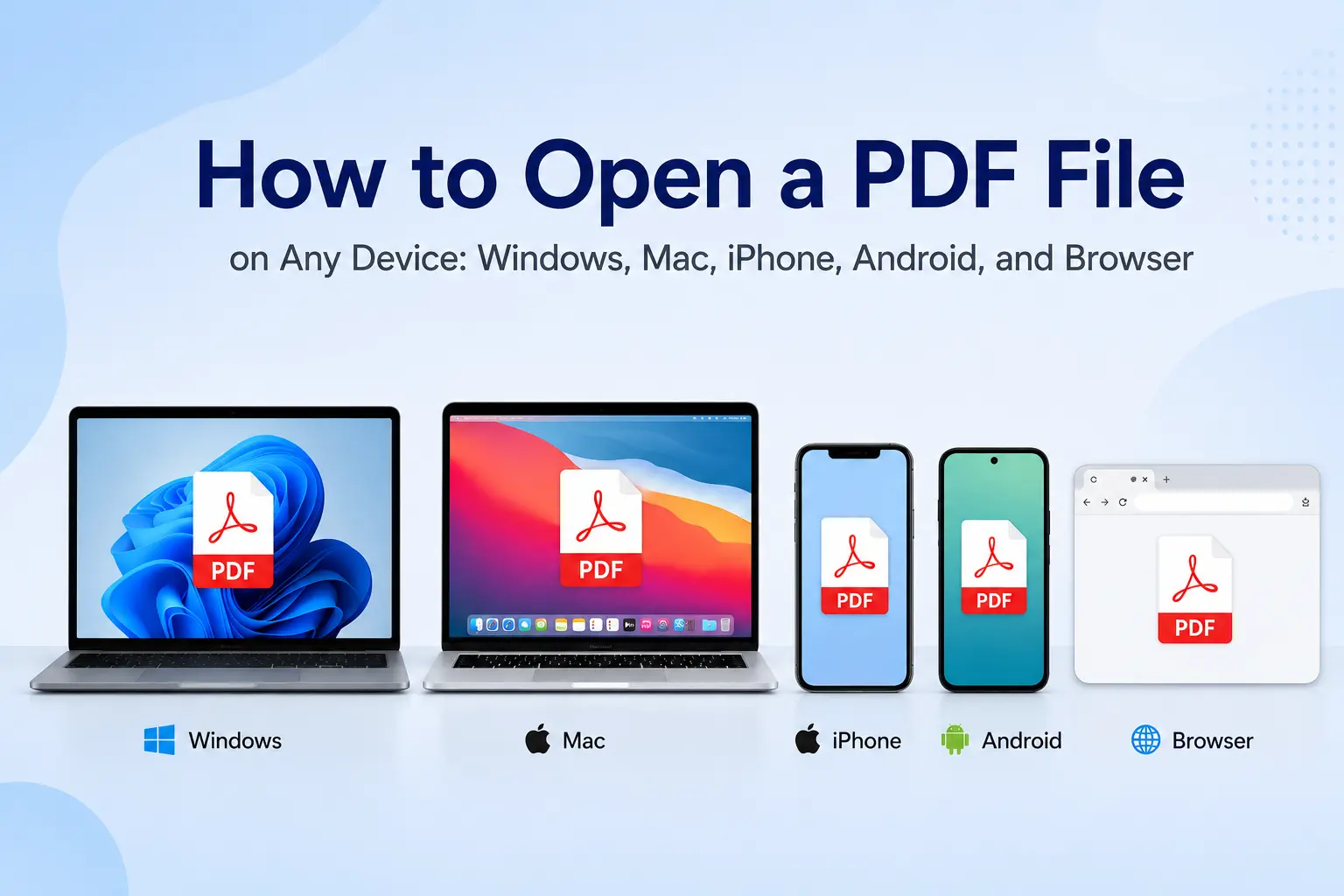
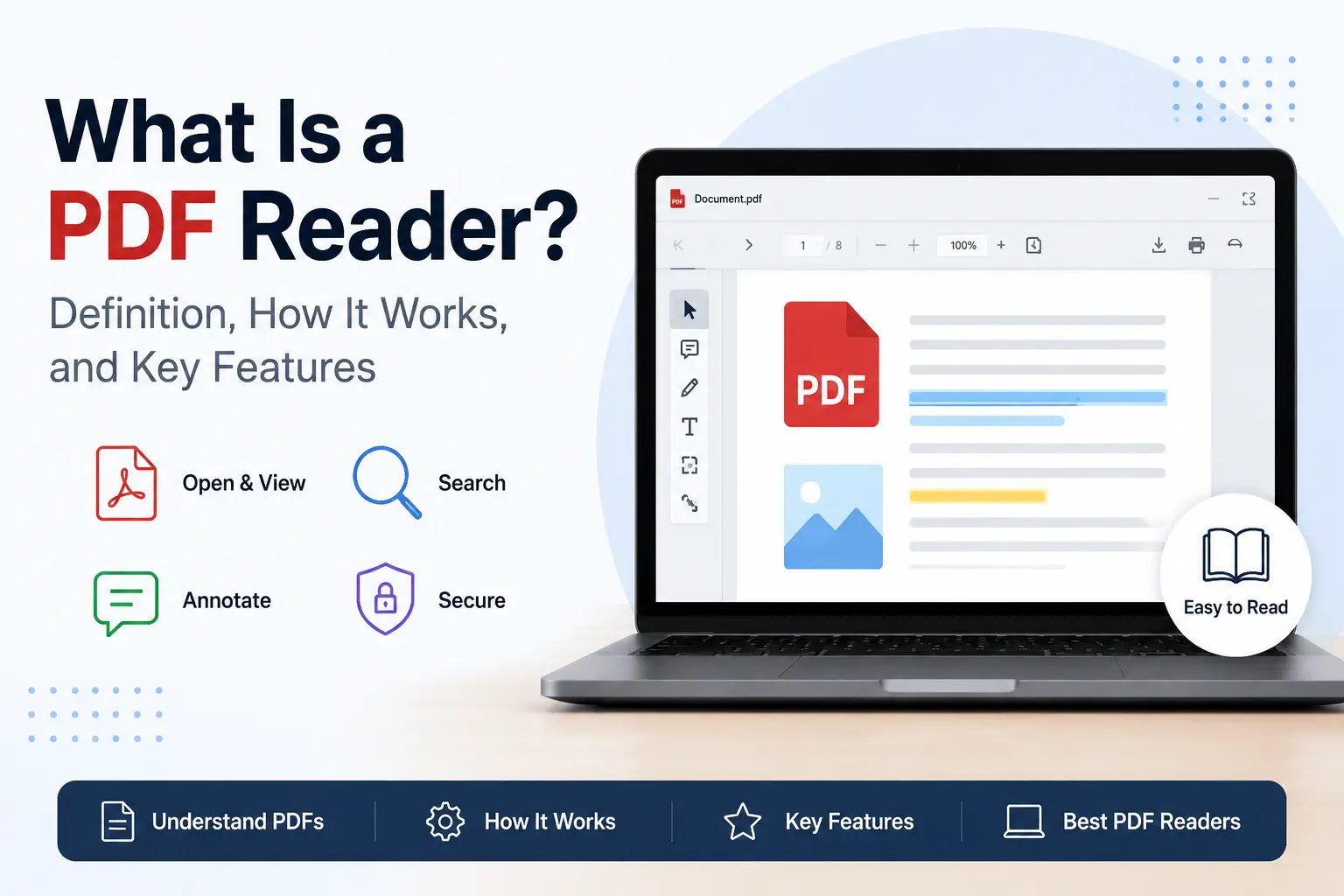
To open a PDF, simply double-click the file, and your device will usually launch its default PDF application automatically. Most operating systems already include built-in PDF support, which means additional software is often unnecessary. This built-in compatibility is one reason PDFs remain easy to open on any device.
Windows users typically open PDFs with Microsoft Edge or Adobe Acrobat Reader, while macOS uses Preview by default. On iPhone and iPad, PDFs can open through Files, Books, Safari, or Mail. Android devices commonly rely on Google Drive PDF Viewer or installed PDF readers.
Modern browser applications such as Chrome, Edge, Firefox, and Safari can also display PDFs directly. If you're unsure which option works best for your device, our detailed guide on how to open a PDF file on any device walks through the process for desktops, smartphones, tablets, and browsers.
How Do You Create or Convert a PDF?
Creating or converting a PDF usually requires only a few clicks because most modern apps and operating systems already support the format.
Microsoft Word, Google Docs, browsers, and many desktop applications can save or export files directly as PDFs. Windows and macOS also include "Print to PDF" features that turn documents, web pages, and other content into PDF files.
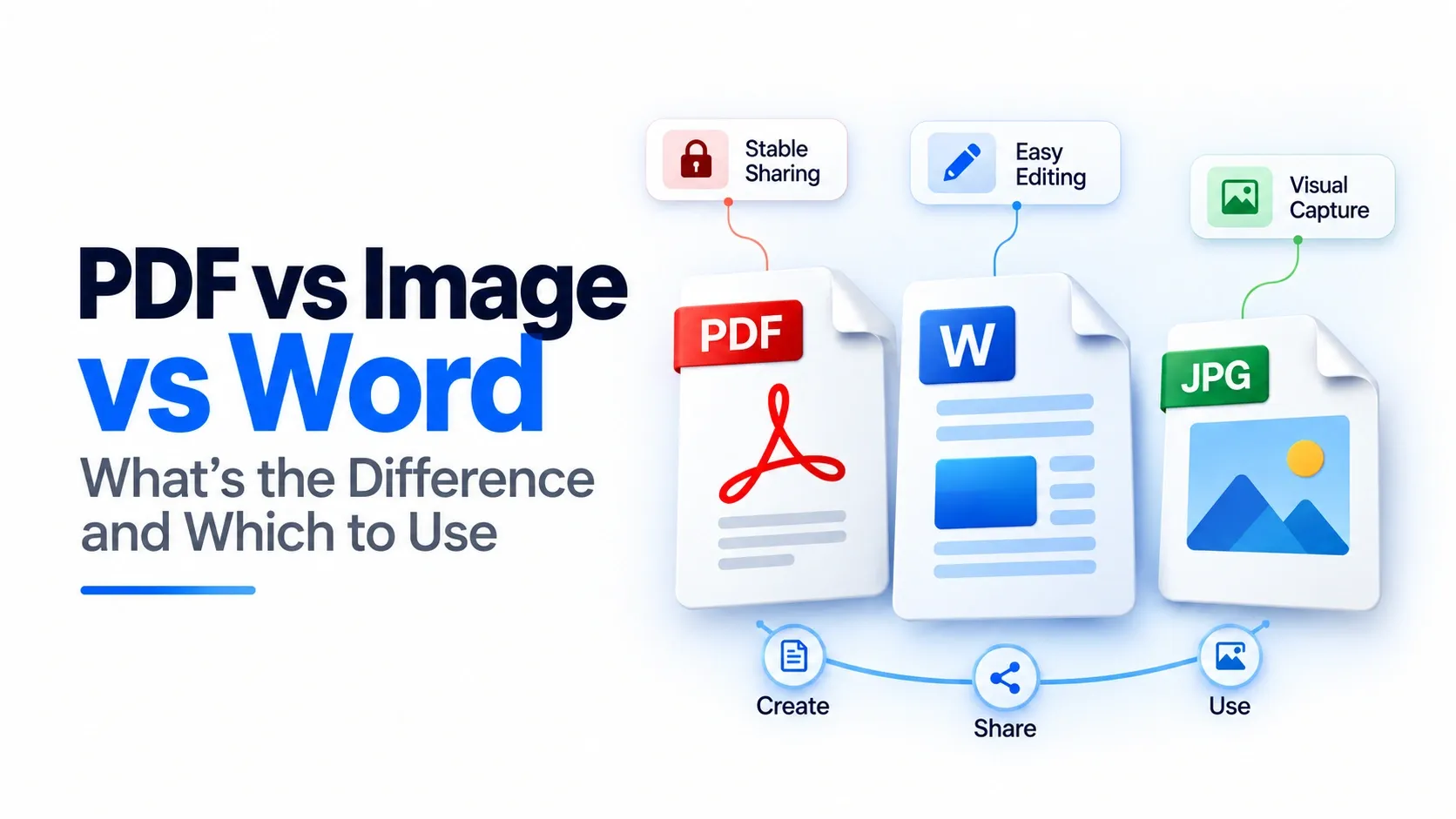
PDF conversion is equally flexible. Users can create PDFs from documents, spreadsheets, presentations, and images, or convert from Word or JPG depending on the workflow. Some of the most common PDF conversions include:
| Conversion | Method |
|---|---|
| Word → PDF | Save or export as PDF |
| Google Docs → PDF | Download as PDF |
| JPG → PDF | Image-to-PDF tools |
| Web page → PDF | Print to PDF |
| PDF → Word | PDF conversion tools |
YouTube tutorials demonstrate each of these conversion methods step by step for users who want a visual walkthrough of the process. If you need a browser-based solution, PDFNoob's PDF converter lets users create and convert PDF files online without installing additional software.
How Do You Edit a PDF?
The best way to edit a PDF depends on the type of changes you want to make. Simple edits, such as correcting text or adding comments, require different tools than redesigning layouts or modifying scanned documents. The editing experience also depends on whether the PDF was created digitally or from a scanned image.
Users can edit text and images directly with tools like Adobe Acrobat and online PDF editors. Another approach is converting the PDF into Microsoft Word, making changes, and exporting it back to PDF. Design-focused documents can also be opened and modified in Canva. Common PDF editing tasks include:
- Changing text
- Replacing images
- Filling forms
- Adding signatures
- Annotating pages
- Rearranging document pages
When direct editing is more practical than conversion, PDFNoob's PDF editor can help users update content, manage pages, and modify document elements while preserving the original PDF structure.
How Do You Make a PDF Searchable?
A scanned PDF becomes searchable by applying OCR (optical character recognition) technology. Scanned documents are usually stored as images, which means users cannot search, copy, or select the text inside them. OCR solves this problem by identifying characters and converting them into machine-readable text.
Organizations often apply OCR to contracts, books, invoices, archives, and historical records so these documents can be searched, indexed, and reused. Modern OCR tools can recognize multiple languages and preserve much of the original document layout. Once processed, users can search keywords, highlight content, copy text, and improve document accessibility.
Three ways to make a PDF searchable:
Method 1 — Adobe Acrobat Pro: Open the PDF, go to Scan & OCR, and select Recognize Text. Most recommended on Reddit and LinkedIn for professional results.
Method 2 — Free online OCR tools: Upload your PDF to a browser-based OCR service and download the searchable version. YouTube has quick walkthroughs for several free options.
Method 3 — PDFgear: Use the free desktop app's text recognition tool to run OCR locally without uploading files online.
For scanned files that behave like images, PDFNoob's OCR PDF tool can turn visible page text into searchable content while keeping the document layout intact.