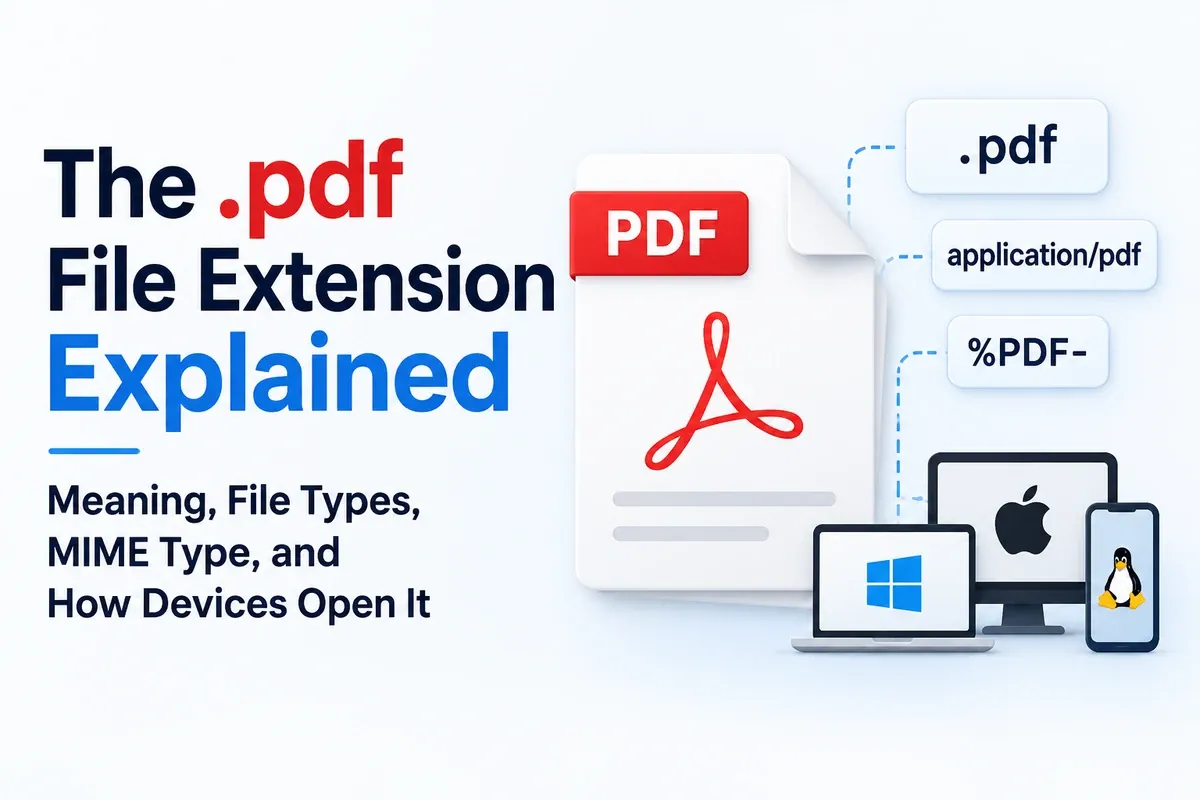
Most people recognize a PDF by the .pdf ending in its filename, but that label is only one way a device identifies the format. Behind it, two technical identifiers confirm the actual file type: the registered MIME type application/pdf and the internal %PDF- file signature. These identifiers matter because changing a filename to end in .pdf does not turn another file type into a real PDF.
Your operating system reads the extension and connects the file to a PDF reader, browser, or another default application. Windows, macOS, and Linux handle that connection differently, but each uses the file’s type information to decide what should open it.
This article focuses specifically on the extension rather than repeating the full definition of PDF. It explains what .pdf means, how devices recognize and open it, how to change the default viewer, and which standards belong to the PDF family. It also covers the registered MIME type, why renaming a file does not convert it, whether PDF belongs to Adobe or Microsoft, and the correct ways to convert other files to .pdf.
What Does the .pdf File Extension Mean?
The .pdf extension is the file label that tells your device a file is meant to be opened as Portable Document Format. In simple terms, when a filename ends with .pdf, your device treats it as a PDF file and sends it to a browser, PDF reader, or another app linked to that file type.
The format itself was created by Adobe as a fixed-layout file type, so the document keeps its page design, fonts, images, and spacing across different devices. That is the purpose of the format, but this section is only about the extension label, not the full PDF definition.
The important part is that .pdf is not the real proof of the file’s format. A genuine PDF normally begins with a %PDF- header inside the file data. If you rename a Word document, image, or spreadsheet so it ends in .pdf, the label changes, but the actual file does not become a PDF. It must contain real PDF structure inside.
What Does a File Extension Do and How Does Your Device Read .pdf?
A file extension is the suffix at the end of a filename, such as .pdf, .docx, or .jpg. It helps the operating system understand what kind of file it is and which default application should open it.
When you open a .pdf file, your device checks the file’s file association and hands it to a PDF reader, browser, or another app set to handle that format. This is why the same PDF might open in Chrome on one computer, Edge on another, and Preview on a Mac.
Different systems make that decision in slightly different ways. Windows relies heavily on the visible extension and its saved app association. macOS uses its Uniform Type Identifier framework to classify the file type and connect it to apps like Preview. Linux often uses the file’s MIME type and desktop file-association rules to decide which viewer should open it.
The result is the same for the user: the system recognizes .pdf as a PDF-related file and sends it to the app assigned to open that type.
How Do You Set the Default PDF Viewer for .pdf Files?
To set your default PDF viewer, right-click any .pdf file, choose Open with, select the app you prefer, and choose the option to always open .pdf files with that app. This updates the file association, so future PDF files open in the viewer you selected.
On Windows, right-click the PDF, choose Open with > Choose another app, select your preferred reader, then enable Always use this app to open .pdf files. You can also go to Settings > Apps > Default apps, search for .pdf, and choose the app you want.
On Mac, Control-click the PDF, choose Get Info, open the Open with section, select macOS Preview or another PDF app, then click Change All. This applies the choice to every .pdf file on your Mac.
If PDFs suddenly open in Chrome or Edge, the browser may have claimed the PDF association after an update or installation. To switch it back, repeat the same default-app steps and choose your preferred reader again.
Which File Types and Extensions Belong to the PDF Family?
The standard filename extension is still .pdf, but the PDF family includes specialized ISO profiles for different document jobs. These profiles usually do not create separate filename extensions. A file may still end in .pdf while following a more specific PDF standard.
- PDF/A: ISO 19005. Long-term archiving
- PDF/X: ISO 15930. Print and prepress
- PDF/UA: ISO 14289. Accessibility
- PDF/E: ISO 24517. Engineering
The important point is that these are PDF subtypes, not everyday replacement extensions. A PDF/A archive, PDF/X print file, PDF/UA accessibility file, or PDF/E engineering file can all still use the .pdf extension. The extension tells your device it is a PDF, while the subtype standard tells software what rules the file is meant to follow.
Which MIME Type Does a .pdf File Use?
The registered MIME type for a PDF is application/pdf. A MIME type, also called a media type, tells software what kind of content a file contains, even when the filename or extension is not enough.
This matters most when files move through systems. An email attachment can be marked as application/pdf so the mail client knows it should be handled as a PDF. A web server can send the same value in the response header, telling the browser to display or download the file as a PDF. A file upload system can also check the MIME type to decide whether the uploaded file is allowed.
The key point is that application/pdf identifies the file independently of the .pdf extension. A file can be named incorrectly, but servers, email clients, and upload systems can still inspect the declared or detected MIME type to understand what the file is supposed to be.
Can You Change a File's Extension to .pdf?
You can rename a file so its file extension ends in .pdf, but that does not convert the file into a real PDF. The filename label changes, while the actual data inside the file stays the same.
This is why a renamed image, Word document, spreadsheet, or download may fail to open as a PDF. A real PDF has PDF structure inside the file, usually starting with a %PDF- header. If that header and structure are missing, a PDF reader may treat the file as unsupported, damaged, or a corrupted file.
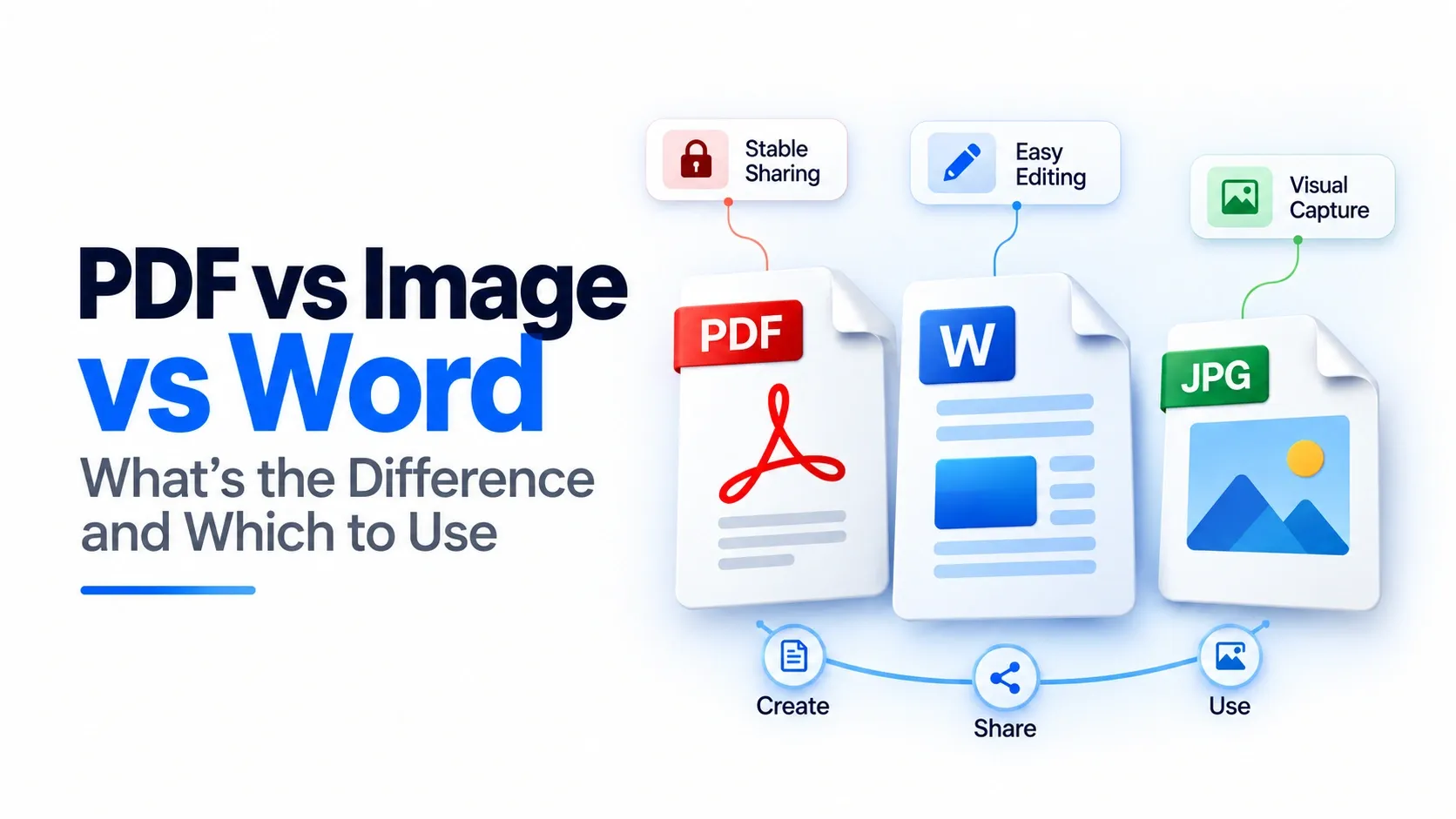
Renaming and converting are different actions. Renaming only changes what the file is called. Converting creates a new PDF version of the content. To make a true PDF, use an export option, a converter, or Save as PDF so the file is rebuilt in the correct format.
Is .pdf an Adobe or a Microsoft Format?
Adobe created the PDF format, but .pdf is not a Microsoft format and it is not controlled as a private proprietary format today. Since 2008, PDF has been maintained as an open standard under ISO 32000, which means the format is documented through an international standard rather than owned for exclusive use by one software company.
The confusion usually comes from everyday use. Microsoft Word, Excel, and PowerPoint can export documents as PDF, so many people see .pdf inside Microsoft Office and assume Microsoft owns the format. Office can create PDF files, but that does not make PDF a Microsoft file type.
The clearest way to understand PDF ownership is this: Adobe invented PDF, Microsoft supports PDF export, and modern PDF is an ISO-standardized format that many apps can create, open, and process.
How Do You Convert Other Files to .pdf?
The easiest universal way to convert another file to .pdf is to use Print to PDF. Open the file in its normal app, press Ctrl+P on Windows or Cmd+P on Mac, then choose a PDF option instead of a physical printer. This works from many apps without installing extra software.
On Windows, choose Microsoft Print to PDF from the printer list and save the new PDF file. On Mac, open the Print dialog, choose the PDF option, then select Save as PDF. This method is useful for web pages, notes, images, invoices, receipts, and documents that do not have their own export button.
For Office files or Google Docs, a native export option is usually better because it can preserve layout, links, and selectable text more cleanly. Use Save As, Download, or Export, then choose PDF as the output format.
An online converter is the fallback option when the app does not support printing or exporting to PDF. Upload the file, convert it, and download the .pdf version, but avoid uploading sensitive files unless you trust the service and its privacy handling.
How Do You Convert a Document to .pdf?
To convert a document to .pdf, use the built-in export option in the app where the document was created. In Microsoft Word, open the file, choose Save As, select PDF as the file type, and save the new version. In Google Docs, use File > Download > PDF Document, or use File > Export if the app offers that option.
You can also use Print to PDF from almost any document app. Open the document, press Ctrl+P or Cmd+P, choose a PDF printer or Save as PDF option, and save the output file.
When possible, use Save As or Export instead of scanning the document. A proper export keeps the text as selectable text, which means readers can search, copy, and highlight it. Scanning the document or printing it as an image creates a non-searchable .pdf that looks correct but behaves like a picture.
On mobile, many document apps offer a Share, Export, or Print option that includes PDF. The exact button varies by app, but the best result usually comes from exporting the original document rather than capturing it as an image.
Why Won't a .pdf File Open?
If a .pdf file will not open, re-download it first, then make sure a PDF reader is installed and set as the default. An interrupted download is one of the most common reasons a PDF fails, especially when the file looks complete, but the data inside is missing or damaged. You can right-click the file, choose Open with, and force it to open in a trusted PDF reader instead of the app your device selected automatically.
Browser issues can also block a PDF from opening. Update your reader or browser, then clear your cache if the file keeps failing in Chrome, Edge, Safari, or another browser. A stale cached version can keep loading the broken copy even after you try again.
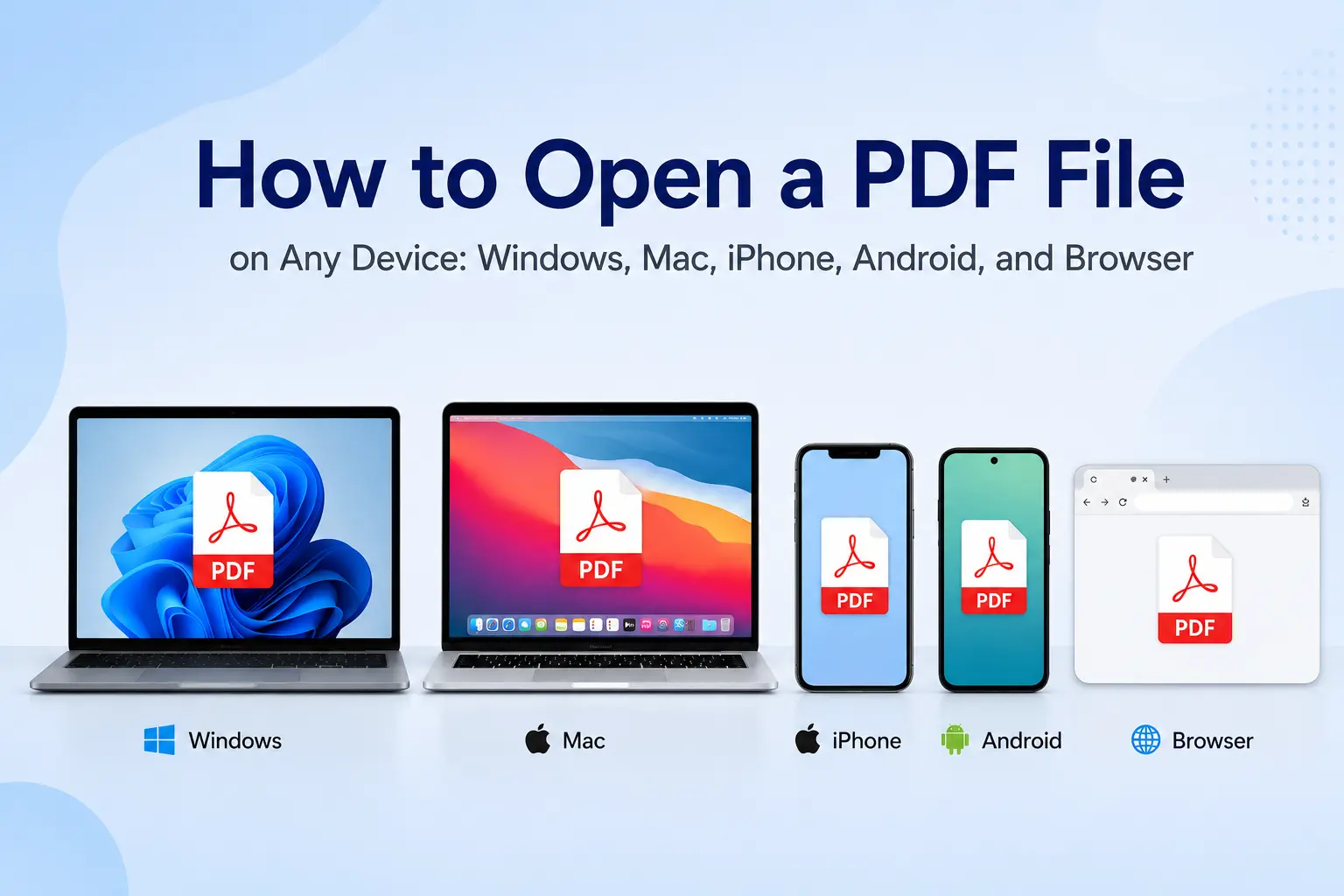
If none of these fixes work, the file may be corrupted file or may not be a real PDF despite ending in .pdf. The right fix can also depend on the device or browser you are using, so the next step is to follow the matching instructions for your setup in this guide on how to open a PDF on any device.
Where Can You Learn More About the PDF Format?
For the full format-level explanation, use the complete PDF guide on what a PDF is. It covers the meaning, history, internal structure, security features, and practical uses of the Portable Document Format in more depth.
This page stays focused on the .pdf extension: what the label means, how devices read it, which MIME type it uses, and how files get opened or converted. The full guide is the better place for the broader explanation of PDF as a document format, so this article does not repeat the same background in detail.