


PDF to BMP Converter, Free Online
Turn PDF pages into uncompressed BMP images. Pick exactly the pages you need, get one bitmap per page at 150 to 300 DPI, and download several as a single ZIP. No sign-up. No watermark.
- Free PDF to BMP converter online. No account required.
- Choose your pages, up to five per conversion, from documents of up to 300 pages.
- Works on any device, Mac, Windows, iPhone or Android, in any web browser.

Drop your PDF here
Up to 50 MB per file · Free
Files deleted within 1 hour. We don't index your file contents or use them to train AI.

Files Deleted Within 1 Hour
HTTPS encryption in transit. We never train AI on your file contents.

One BMP Per Page
Each selected page becomes its own bitmap, numbered in document order.

Multi-Page Arrives as a ZIP
Several images come back in one archive, so nothing goes missing.

No Sign-Up, No Watermark
Free. No trial. No email gate. No branding on your images.
How To Convert PDF to BMP Online
Three steps to change PDF to BMP. No installs. No accounts. No hidden limits.
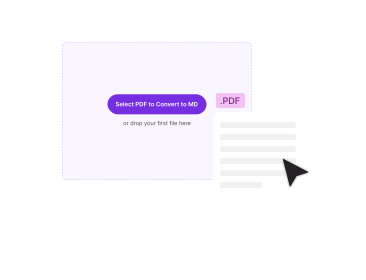
Upload Your PDF
Drag and drop your PDF file into the box above, or choose it from your device. Files up to 50 MB are accepted, and the file's name and size are shown back to you before anything starts.
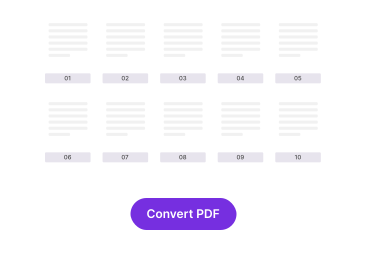
Select the Pages You Need
The page numbers appear in document order once the file is read. Tick up to five pages — a selection is required, so nothing converts by accident.
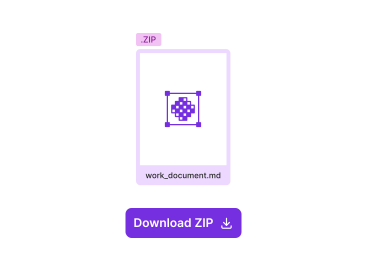
Download Your BMP Images
Click Convert. One page downloads as a single .bmp file; two or more arrive together in a ZIP, each named after the page it came from.
Why Convert PDF to BMP With PDFNoob?
What a BMP converter should tell you, and what most of them leave out.

Genuinely Uncompressed Output
BMP stores the page pixel by pixel with no compression stage at all. Nothing is approximated, nothing is smoothed away, and repeated saves never degrade the image the way a JPG does.

Named by Real Page Number
Files come back as yourfile_page_1.bmp, yourfile_page_7.bmp and so on, using the page numbers from the document rather than a re-counted sequence. Sorting a folder puts them back in order.

Multi-Page Packaged as One ZIP
Bitmaps are large and there is one per page, so several downloads at once is a mess. We bundle them into a single archive that every operating system opens without extra software.

You Choose the Pages
Convert page 4 of a 200-page scan without splitting the file first. The page list is shown before conversion, so you're picking from what's actually in the document.

Privacy by Design
Files are sent over an encrypted HTTPS connection and deleted within 1 hour. We never index your file contents or use them to train AI. Some free converters claim the opposite in their own privacy policy; ours is worth reading.

No App, No Sign-Up
Runs in any web browser on any device. Nothing to install, no account, no daily cap you discover only after opening a file, and no watermark on the way out.
About Converting PDF Pages to BMP
Converting a PDF to BMP is a rasterisation job: a page in Portable Document Format stops being a set of drawing instructions and becomes a fixed grid of pixels in a BMP image format file. That trade is the whole point. BMP files open in image editors, imaging pipelines and older Windows software that will not read PDF files at all, and they do so without any compression stage that could alter a single pixel. It is also why the files are enormous, and why picking the right resolution matters more here than in almost any other conversion.
What BMP Actually Stores, and Why the Files Are So Large
BMP, short for bitmap, is a Microsoft raster file format built for device independence. It records a file header, an information header and then every pixel of the image, usually in 24-bit colour, with no compression applied. Nothing is shared, predicted or referenced the way it is in PNG. The size follows directly from the pixel count: an A4 page rendered at 300 DPI is about 2,480 by 3,508 pixels, which is roughly 26 MB as raw 24-bit data. The same page might be 80 KB as a PDF. Neither number is wrong; they are measuring different things. A PDF stores the recipe, a BMP stores the finished picture.
Which Resolution to Choose Between 150 and 300 DPI
We render between 150 and 300 DPI, and the choice is genuinely a trade rather than a quality dial. Around 150 DPI is enough for on-screen review, for dropping a page into a document as an illustration, or for anything that will be looked at rather than printed. Go to 300 DPI when the bitmap will be printed, fed to OCR, or examined for fine detail such as a stamp, a signature or small print in a scanned form. Doubling the resolution roughly quadruples the file size, so a five-page conversion at 300 DPI can easily produce a ZIP larger than the original PDF by two orders of magnitude. Choose the lower setting unless something downstream actually needs the pixels.
When BMP Is the Right Choice, and When PNG Is Better
Be honest about why you need BMP, because it is rarely the best format on merit. PNG is also lossless, produces visually identical output, and is usually a fraction of the size. If nothing is forcing your hand, PNG is the better default and our PDF to PNG converter handles it. BMP earns its place when something else in the chain requires it: legacy Windows applications, certain print RIPs, embedded systems, imaging or machine-vision tools that read raw bitmaps, and a surprising number of internal utilities that were written when BMP was the obvious choice and never updated. In those cases a converter that quietly hands you a PNG with a renamed extension is worse than useless, which is why this tool writes real BMP data.
Working Around the Five-Page Limit
Each conversion takes up to five selected pages. That cap exists because uncompressed bitmaps are memory-hungry to render and to package, and a run that fails halfway through is worse than a run that never started. The document itself can be much longer: the page list shows up to 300 pages, so you can reach into a long report and pull out the pages you actually need. If you want a large stretch of a document as images, run the conversion in batches, or use Split PDF to cut the file first and convert each piece.
For a similar walkthrough, read our guide on how to convert PDF to PNG.
Related PDF Tools
Other tools you might need today.


Frequently Asked Questions
Common questions about converting PDF pages into BMP bitmap images.
How Do I Convert a PDF to BMP for Free?
Drop your PDF into the converter above. Once the file is read, the page numbers appear in document order and you tick the ones you want. Click Convert and each selected page is rendered and saved as its own BMP image. No account, no trial, and no watermark on the way out.
How Many Pages Can I Convert at Once?
The converter lists every page in your document, in order, and converts up to five selected pages per run. A page selection is required, so nothing converts until you pick at least one page. For a longer document, run the converter more than once, or use Split PDF first to cut the file into smaller pieces.
Why Do I Get a ZIP File Instead of an Image?
Because BMP holds one image per file, a multi-page conversion produces several files. Rather than firing several downloads at your browser, we package them into a single ZIP. Select one page and you get a plain .bmp file instead. Any operating system opens a ZIP without extra software.
What Are the Converted Files Named?
Each image follows the pattern originalname_page_1.bmp, originalname_page_2.bmp and so on, using your source file's name and the real page number from the document. Page order survives the round trip, which matters when the ZIP lands in a folder alongside other work.
Is BMP Better Quality Than JPG or PNG?
BMP and PNG are both lossless image formats, so neither throws detail away, and a BMP file is not visually sharper than a PNG of the same page. The difference is compression: PNG compresses losslessly, the BMP format usually stores every pixel raw. JPG is the odd one out because it is lossy and softens text edges. High quality is not the reason to pick BMP; compatibility is. Choose the BMP format when a program or a print workflow specifically asks for it.
Why Is My BMP So Much Larger Than the PDF?
A PDF page stores text as drawing instructions, often only a few kilobytes. A BMP stores the finished picture pixel by pixel with no compression at all. An A4 page rendered at 300 DPI is roughly 2,480 by 3,508 pixels, which is about 26 MB in 24-bit colour before anything else is added. That size is the format working as designed, not a fault in the conversion.
Can I Convert a Password-Protected PDF to BMP?
Not directly. An encrypted PDF cannot be rendered until the protection is removed, so the converter stops and tells you the file is protected. Remove the password first with our Unlock PDF tool, then convert the unprotected copy.
Is It Safe to Convert PDF to BMP Online?
Your file is sent over an encrypted HTTPS connection and rendered on our server, because BMP conversion and ZIP packaging happen there. We delete the upload and the output within one hour. We don't index your file contents. We never use them to train AI.
Does the BMP Have a Watermark?
No watermark, ever. Several free BMP converters stamp the output or cap you at a handful of files a day; we do neither. There is no sign-up, no trial period, and no branding added to your images.