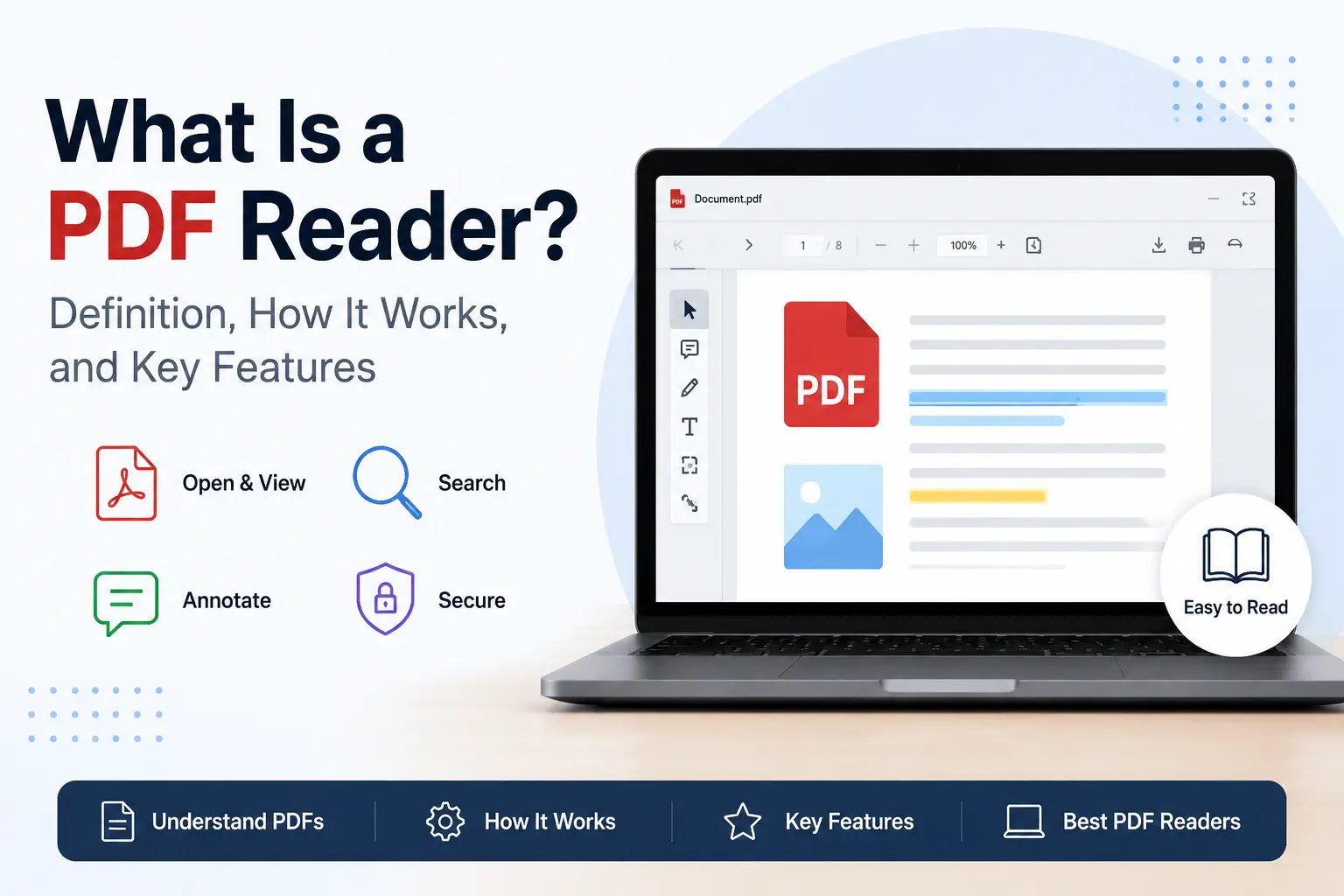
A PDF reader allows you to open, view, and print a PDF file while preserving the layout, fonts, images, and formatting of the original document. Whether you use dedicated software, a browser-based viewer, or a free online option like PDFNoob, the reader interprets the underlying document format file and renders it consistently across platforms.
Every day, people open contracts, ebooks, invoices, bank statements, research papers, and forms expecting them to appear exactly as the sender intended, regardless of the device, browser, or operating system they’re using. The Portable Document Format (PDF) was created to solve this document format problem, and a PDF reader is the technology that makes it possible.
This guide explains how PDF readers work, what features they offer, how privacy changes when you use online tools, and when you need a reader instead of a PDF editor. For simple viewing, many tools work with no account, but more advanced actions may require extra features.
What Is a PDF Reader?
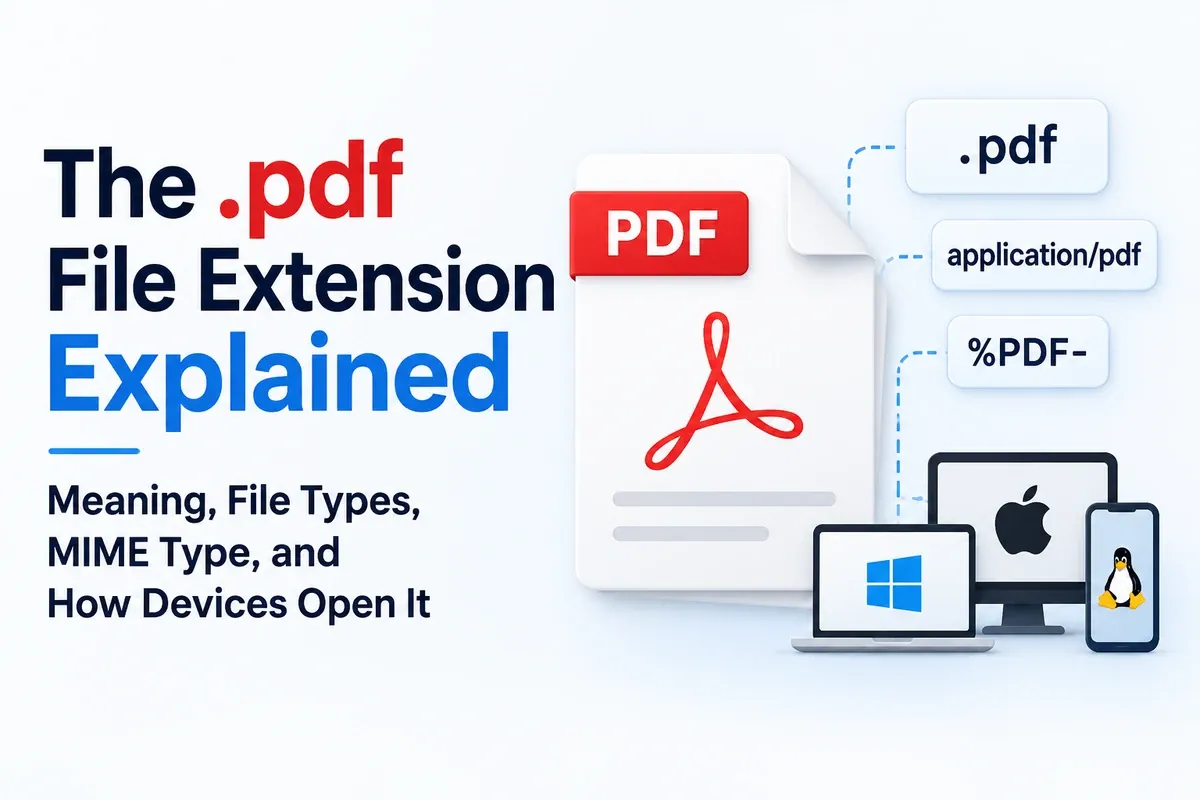
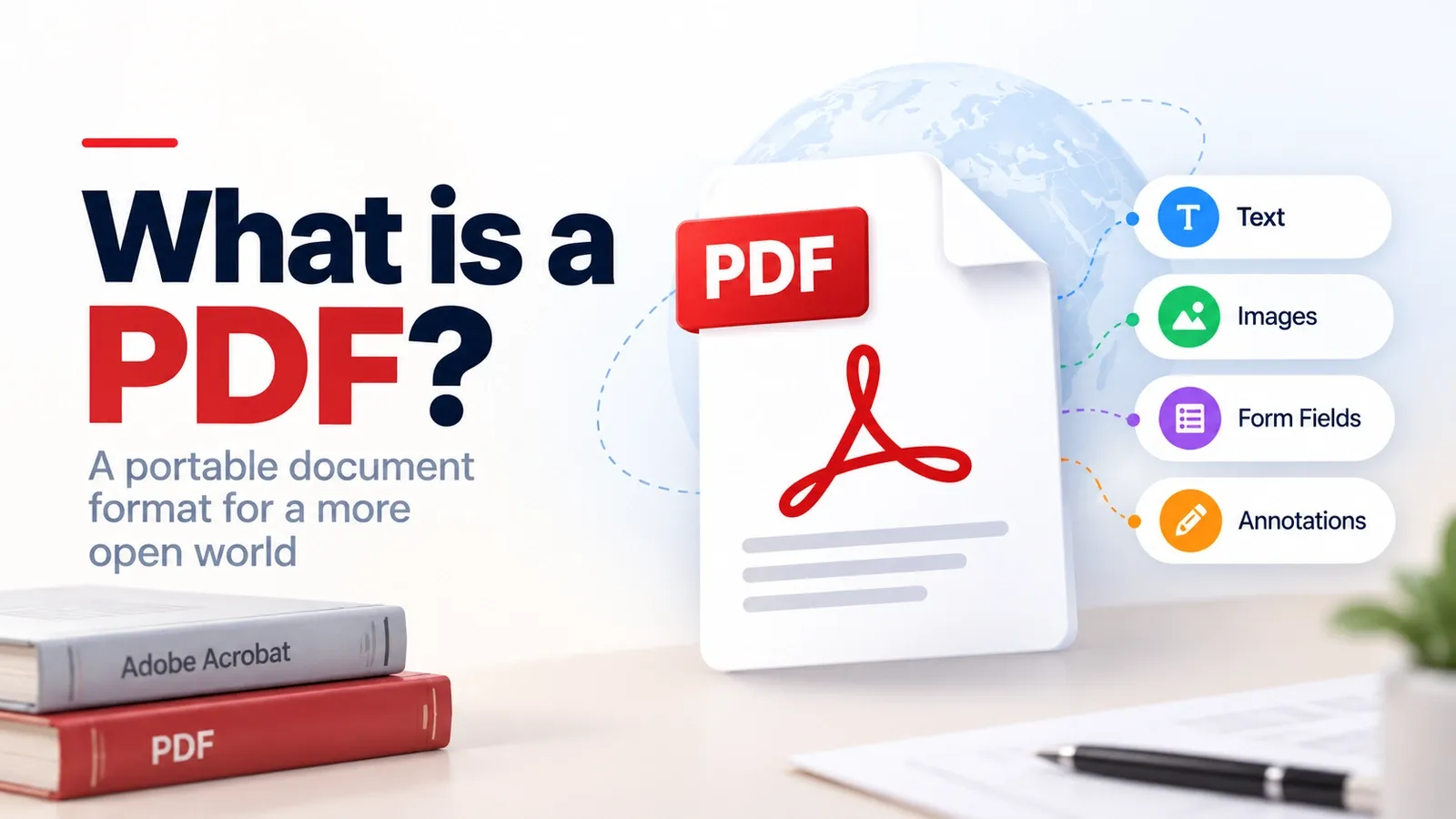
A PDF reader is a software application used to open, view, and print PDF (Portable Document Format) files while preserving their original formatting, layout, fonts, and images across different devices. Unlike standard document viewers, a PDF reader interprets the structure of a PDF so that the file appears exactly as its creator intended.
At its core, viewer software for PDFs acts as a rendering engine. When you open a PDF, the reader processes the document's internal instructions, embedded fonts, graphics, metadata, and page objects before displaying them on your screen. This is why the same file looks nearly identical whether you open it on Windows, macOS, Android, or a web browser.
Modern reader software does more than display documents. Most PDF readers allow you to:
- Navigate pages
- Zoom and rotate documents
- Search for text
- Highlight and underline content
- Add comments and sticky notes
- Fill interactive forms
- Read documents aloud using accessibility tools
- Print files while maintaining their original layout
Today, PDF readers generally fall into two categories:
| Type of PDF Reader | Examples | Best For |
|---|---|---|
| Built-in readers | Chrome, Edge, Safari, macOS Preview | Quick viewing and basic annotation |
| Dedicated readers | Adobe Acrobat Reader, Foxit Reader, SumatraPDF | Forms, annotations, signatures, and advanced features |
Although people often use the terms interchangeably, a PDF reader and a PDF editor are not the same. A reader focuses on viewing and interacting with documents, while an editor allows you to modify the content itself.
How Does a PDF Reader Work?
A PDF reader works by reading the instructions stored inside a PDF file and turning them into the pages you see on screen. It keeps the layout, formatting, and embedded fonts consistent, so the same document opens almost the same way on a laptop, phone, tablet, or browser.
Unlike a standard text file, a PDF contains instructions that tell the reader exactly how to display each page. When you open a PDF, the reader follows a series of steps.
| Step | What the PDF Reader Does |
|---|---|
| 1. Read the file structure | Identifies page objects, fonts, images, metadata, annotations, and permissions. |
| 2. Render the page | Converts the PDF instructions into visual elements displayed on your screen. |
| 3. Apply viewing options | Supports single-page, two-page, or continuous scrolling modes, along with zoom and rotate controls. |
| 4. Enable interaction | Allows highlighting, underlining, comments, form filling, and digital signatures without changing the original document. |
| 5. Check security rules | Verifies passwords and permissions that restrict viewing, copying, editing, or printing. |
This rendering process is what makes PDFs reliable for contracts, reports, forms, ebooks, and other documents that must maintain consistent formatting.
A full-featured reader doesn't rewrite the original file when you add a highlight or comment. Instead, it creates an annotation layer that sits on top of the existing content. This approach preserves the integrity of the document while still allowing collaboration and review.
What Can a PDF Reader Do?
A PDF reader can open, view, and print PDF files while preserving their original formatting, but modern readers also allow you to interact with documents in several practical ways without changing the original content.
For example, if you're reading a lengthy report, ebook, or research paper, you can switch between single-page, two-page, or continuous scrolling views depending on how you prefer to read. Most readers also provide zoom and rotate controls, making it easier to review diagrams, scanned pages, and detailed documents.
When working with contracts, forms, or collaborative documents, a PDF reader can help you:
- Highlight important information
- Underline key sections
- Add comments and notes
- Fill interactive forms
- Search for specific words or phrases
- Add digital signatures in supported readers
These actions typically create an annotation layer rather than modifying the original document itself, which helps preserve the integrity of the file.
Many PDF readers also include security features. Depending on the document's permissions, you may need a password to open the file, while restrictions can prevent copying, editing, or printing sensitive content.
Popular readers such as Adobe Acrobat Reader, Foxit Reader, and built-in browser readers provide these capabilities while maintaining the consistent viewing experience that PDFs are designed to deliver.
What Is the Difference Between a PDF Reader and a PDF Editor?
A PDF reader is designed to open, view, navigate, and interact with PDF documents, while a PDF editor allows you to change the actual content and structure of the file. In simple terms, readers help you consume documents, whereas editors help you modify them.
The distinction becomes important when you need to do more than read a file. For example, if you receive a contract and only need to review, highlight, sign, or print it, a PDF reader is usually enough. However, if you need to correct text, replace an image, reorganize pages, or create a form, you'll need a PDF editor.
| Task | PDF Reader | PDF Editor |
|---|---|---|
| Open and view documents | ✅ | ✅ |
| Zoom, search, and navigate | ✅ | ✅ |
| Highlight and annotate | ✅ | ✅ |
| Fill interactive forms | ✅ | ✅ |
| Edit text and fonts | ❌ | ✅ |
| Add, replace, or delete images | ❌ | ✅ |
| Merge, split, or reorder pages | ❌ | ✅ |
| Create forms from scratch | ❌ | ✅ |
This difference exists because PDF readers preserve the integrity of the original document. When you highlight text or add comments, the reader typically stores those changes as annotations rather than rewriting the content itself. PDF editors, on the other hand, modify the underlying structure of the file.
For everyday tasks such as reading reports, reviewing contracts, or signing documents, a PDF reader is often sufficient. Editing workflows, however, require specialized PDF editing tools.
Do You Need to Download a PDF Reader?
No, you generally do not need to download a PDF reader to open, view, print, or share PDF documents. Most modern operating systems and web browsers already include built-in PDF readers that can handle everyday viewing tasks.
For example, browsers such as Chrome, Edge, and Firefox can open PDF files directly in a tab, while operating systems like Windows, macOS, Android, and iOS provide their own built-in viewing capabilities. For many users, these tools are enough to read reports, contracts, ebooks, and forms without installing additional software.
You may want to download a dedicated PDF reader if you regularly need to:
- Fill complex interactive forms
- Add annotations and comments
- Digitally sign documents
- Work with PDF files offline
- Access advanced accessibility or enterprise features
The right choice often depends on how you work with PDFs:
| If You Need To | A Browser or Built-in Reader | A Dedicated PDF Reader |
|---|---|---|
| Read and print PDFs | ✅ | ✅ |
| View PDFs without installation | ✅ | ❌ |
| Work offline | ⚠️ Limited | ✅ |
| Fill advanced forms | ⚠️ Sometimes | ✅ |
| Add annotations | ⚠️ Basic | ✅ |
| Digitally sign documents | ⚠️ Limited | ✅ |
For users who need advanced functionality, tools such as Adobe Acrobat Reader and Foxit PDF Reader remain popular choices. If you only need quick access to a document, built-in readers and browser-based tools are often the simplest solution.
Which Are the Most Popular PDF Readers?
The most popular PDF readers fall into three categories: industry-standard readers for professional workflows, lightweight readers for speed and performance, and built-in readers for everyday document viewing. The best choice depends on how you work with PDF files rather than on popularity alone.
| PDF Reader | Best For | Key Strength |
|---|---|---|
| Adobe Acrobat Reader | Forms, signatures, and professional workflows | Industry-standard compatibility |
| Foxit PDF Reader | Business and collaboration | Rich features with a smaller footprint |
| SumatraPDF | Fast document viewing on Windows | Lightweight and open-source |
| Apple Preview | Mac users | Built directly into macOS |
| Browser Readers (Chrome, Edge) | Quick viewing | No installation required |
Adobe Acrobat Reader remains the most popular PDF reader worldwide because it supports complex forms, digital signatures, accessibility features, and enterprise document workflows. Since the PDF file type was developed by Adobe, many organizations still use Acrobat Reader as their default solution.
Foxit PDF Reader is a popular alternative for businesses that need collaboration tools, cloud integration, and multimedia support without the larger resource requirements of Adobe software.
If speed is your priority, SumatraPDF is one of the lightest PDF readers available. It launches quickly, uses minimal memory, and works well with large documents. Meanwhile, users on macOS often rely on Preview, while many casual users simply open PDFs directly in Chrome or Edge.
Are Free PDF Readers Safe?
Yes, many free PDF readers are safe to use, but their safety depends largely on where you download them and how they handle security and privacy. Trusted PDF readers from established developers generally provide secure document viewing, while unverified tools can expose users to malware, tracking, or unwanted software.
The biggest risk usually comes from downloading PDF readers from unofficial websites rather than from the PDF reader itself. Some third-party installers bundle toolbars, browser extensions, advertising software, or other unwanted programs. In rare cases, malicious PDF files may also attempt to exploit vulnerabilities in outdated readers. Below is the comparison table of some popular free PDF readers.
| PDF Reader | Security Reputation | Privacy Considerations |
|---|---|---|
| Adobe Acrobat Reader | Strong security updates and enterprise support | Large software ecosystem and telemetry features |
| Foxit PDF Reader | Robust security controls and business features | Additional cloud and collaboration services |
| SumatraPDF | Lightweight and open-source | Minimal data collection and low attack surface |
| Okular | Open-source and privacy-focused | Strong transparency and community oversight |
| Modern Browsers | Frequent security updates | Security depends on browser settings |
To stay safe when using a free PDF reader:
- Download software only from official websites or trusted app stores
- Keep your PDF reader updated
- Be cautious when opening PDFs from unknown sources
- Disable JavaScript features if you don't need them
- Review the application's privacy settings and permissions
For most users, trusted free PDF readers such as Adobe Acrobat Reader, Foxit Reader, SumatraPDF, or modern browser-based readers provide a safe and reliable way to work with PDF documents.
How Do You Read a PDF Online?
To read a PDF online instantly, drag and drop the file into a modern browser like Chrome, Edge, or Safari, and it will open automatically in the built-in browser reader. This is the fastest option when you only need to view, scroll, zoom, search, or print the document.
If the PDF is stored in Google Drive, you do not need to download it first. Open Drive, click the file, and it will load in a preview window where you can read it directly from your browser.
For more active document work, use a dedicated online PDF tool. This helps when you need to highlight text, add comments, annotate pages, or fill forms without installing desktop software.
If you want the PDF read aloud, upload it to an AI-powered text-to-speech browser platform. That option is useful for accessibility, long reports, or reading while multitasking.
How Do You Open a PDF With a Reader?
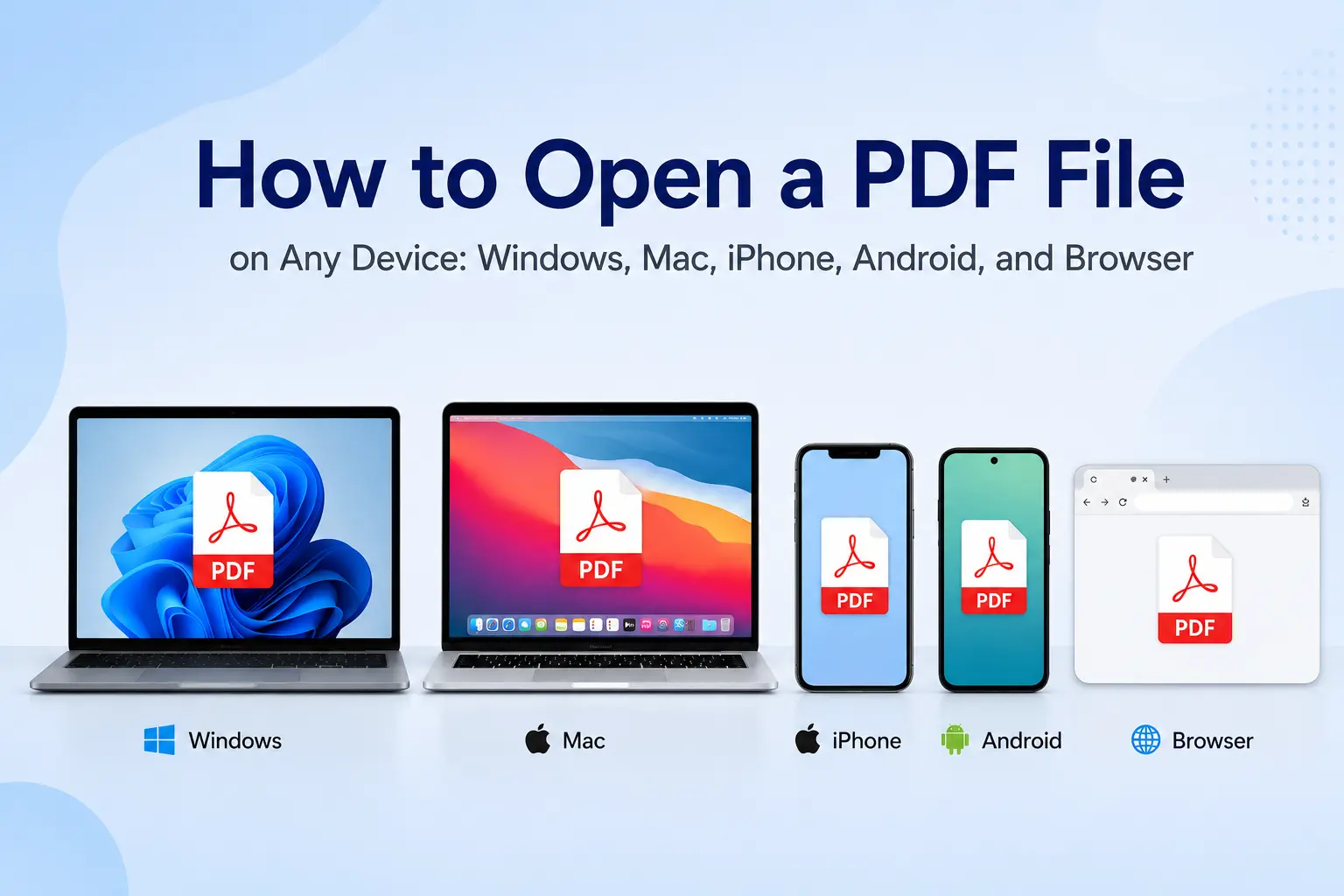
To open a PDF with a reader, locate the file on your device, right-click it (or long-press on mobile), select Open With, and choose a PDF reader such as Adobe Acrobat Reader. Once selected, the reader will render the document while preserving its original formatting and layout. The exact steps depend on the device you're using.
| Device | How to Open a PDF |
|---|---|
| Windows | Double-click the PDF if a default reader is set. Otherwise, right-click → Open With → select a PDF reader. |
| Mac | Double-click the file to open it in Preview, or right-click → Open With to choose another reader. |
| Web Browser | Drag and drop the PDF into Chrome, Edge, or Safari, or press Ctrl+O (Windows) / Cmd+O (Mac) to open a file. |
| iPhone & Android | Install a PDF reader app, open the Files app or file manager, then tap the PDF to open it. |
If you regularly work with PDF documents, setting a default reader can save time. The easiest way to open a PDF depends on where the file is stored: your desktop, browser, cloud drive, or mobile file manager.
Which Free PDF Reader Should You Choose?
The best free PDF reader depends on how you work with PDF files. If speed is your priority, choose SumatraPDF. If you regularly fill forms or sign documents, Adobe Acrobat Reader remains the most reliable option. For simple viewing tasks, your web browser may be all you need.
| Reader | Best For | Main Advantage |
|---|---|---|
| SumatraPDF | Fast document viewing | Lightweight, open-source, and memory efficient |
| Adobe Acrobat Reader | Forms and signatures | Industry-standard compatibility |
| Foxit PDF Reader | Business and collaboration | Rich features with a smaller footprint than Adobe |
| Chrome, Edge, Firefox, and cloud viewers | Quick reading | No installation required |
If you only need to read a PDF online, browser and cloud-based readers are often the simplest solution. They provide enough functionality for everyday tasks such as reviewing reports, checking forms, and reading ebooks.