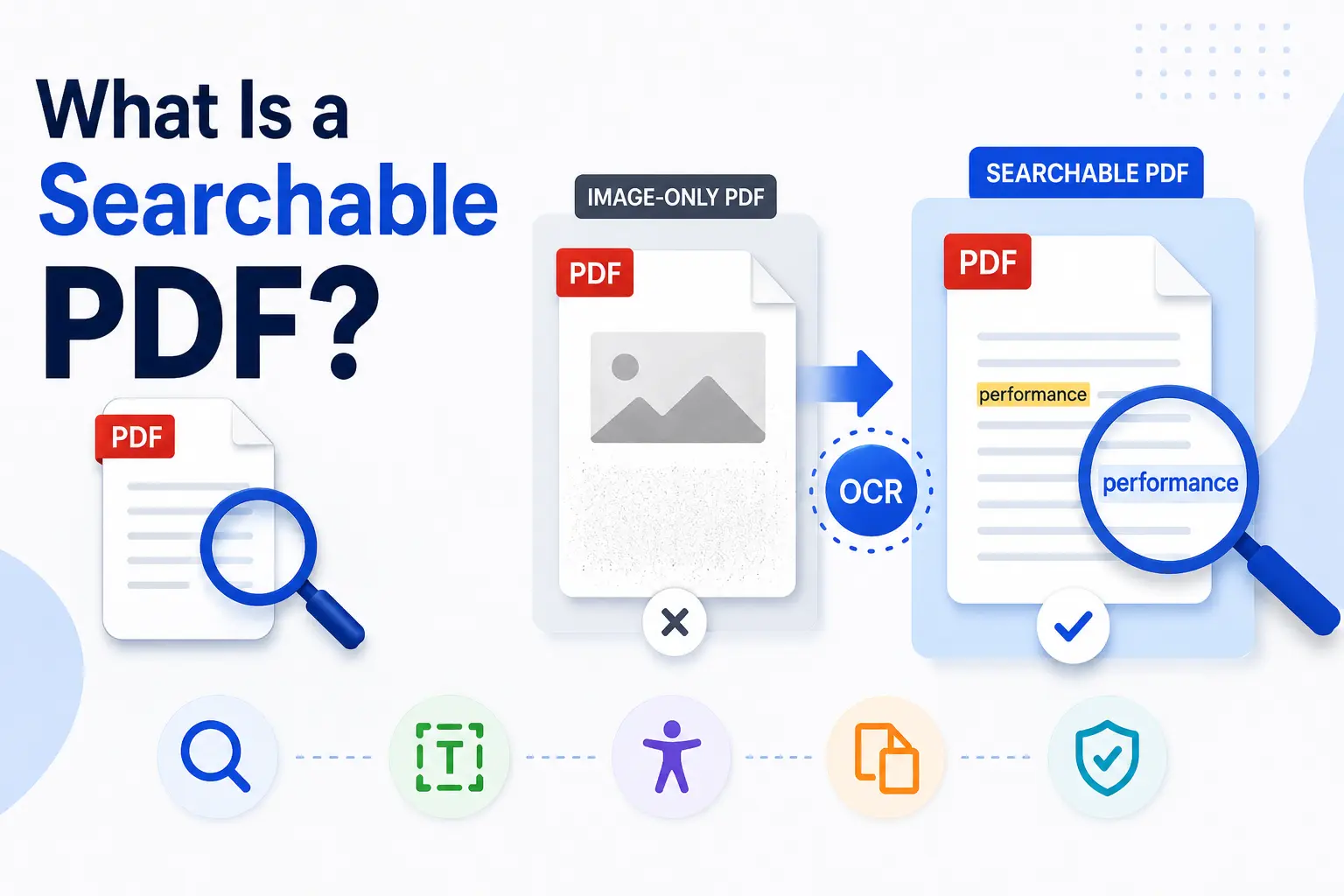
A searchable PDF contains machine-readable text that you can find, select, and copy instead of treating every page as one flat image. For people working with PDF documents, this makes it easier to locate a name, date, phrase, or number without reading the document page by page.
Scanned files often contain only images of words. OCR examines those characters and adds a hidden text layer while preserving the original appearance of the Portable Document Format (PDF).
This article explains how searchable text works, how an image-only scan differs from a searchable file, and how the OCR layer is formed. It also shows how to check the file with a 30-second Ctrl+F test, why searchable text is useful, and how OCR creates it from a scanned document.
PDFNoob keeps the process practical by showing what happens on your file, how to tell whether the file is already searchable, and when you need to apply OCR.
What Is a Searchable PDF?
A searchable PDF is a digital document with real, selectable text, so you can press Ctrl+F on Windows or Cmd+F on Mac to find a specific word or phrase. Unlike an unedited scan or photo-based PDF, the computer can recognize individual letters instead of seeing the page only as pixels.
A scanner normally captures a paper document as an image. If there is no text layer behind that image, the file is not searchable. OCR reads the shapes of the visible characters and adds an invisible text layer over the scanned page. This creates an OCR text over image structure, making the document searchable using the recognized text without changing its original appearance.
Once searchable, you can locate names, dates, or keywords across long documents, copy and paste passages, use screen readers, and preserve the visual layout for digital archiving. Pages that contain only images stay unsearchable until OCR is applied — you can confirm this in seconds with Ctrl+F.
Adobe, PDF Pro, and iLovePDF describe the same basic structure: the visible page stays unchanged while OCR adds a selectable text layer that software can recognize and search. Reddit discussions and YouTube walkthroughs often show the practical side, with users checking a file by dragging across individual words or pressing Ctrl+F or Cmd+F to find text they can already see.
How Does a Searchable PDF Differ From an Image-Only PDF?
An image-only PDF is essentially a digital photograph of each page, so the computer sees pixels rather than individual letters. A searchable PDF keeps the same visible page but adds a hidden, machine-readable text layer, usually created through OCR.
| Area | Image-only PDF | Searchable PDF |
|---|---|---|
| Search | Ctrl+F cannot find visible words. | Ctrl+F can locate specific words and phrases. |
| Text selection | Dragging may select the whole page as one image or nothing at all. | You can highlight and copy individual words or sentences. |
| Indexing | Desktop search tools and search engines cannot reliably read the content. | The text can be indexed and discovered through search. |
| Accessibility | Screen readers cannot interpret the words inside the page image. | Assistive technology can process the underlying text layer. |
This is the practical difference between searchable vs scanned files. To convert a scanned PDF to a searchable PDF, OCR must add the missing text layer. The page may look identical afterward, but software can now recognize its contents.
Adobe and ABBYY explain the technical distinction through the OCR text layer, while Smallpdf and Mapsoft show how that same structure supports practical PDF conversion and search.
How Is a Searchable PDF Formed?
A searchable PDF is formed when Optical Character Recognition (OCR) analyzes a flat, image-only document, identifies the shapes of its letters and numbers, and places an invisible, selectable text layer over the scanned page. This OCR text layer over the image lets software read the content while the original layout remains visible.
In Adobe Acrobat Pro, open the non-searchable PDF and go to Tools > Scan & OCR or Enhance Scans. Choose Recognize Text > In This File, select the correct document language in the OCR settings, run the recognition process, and save the file.
Adobe Acrobat Online OCR and Smallpdf OCR use a similar browser-based process. Upload the document, choose OCR PDF or Recognize Text, select the language, process the file, and download the searchable PDF.
To verify the result, reopen the document and press Ctrl+F on Windows or Command+F on Mac. Search for a word that is clearly visible on the page. You can also drag across a sentence to confirm that individual text is selectable.
These steps reflect the OCR workflows documented by Adobe, Smallpdf, and Tungsten Automation. Reddit discussions and YouTube walkthroughs commonly demonstrate the final search and text-selection checks in real use.
How Do You Check if a PDF Is Searchable?
To check whether a PDF is searchable, open it in a reader such as Adobe Acrobat or Mac Preview, press Ctrl+F on Windows or Cmd+F on Mac, and search for a word you can clearly see on the page. If the reader finds it, the document contains a searchable text layer.
A second check is to drag your cursor across one line of text. If you can highlight, select, and copy individual words, the PDF is searchable. If the whole page becomes selected as one image—or nothing happens—the file is image-only. This quick Ctrl+F text-selection test is the fastest way to confirm the difference.
If you are using a professional document manager such as DEVONthink, you can also check the document statistics. A zero or empty word count usually indicates that no text layer exists.
If the PDF fails these checks, you must perform Optical Character Recognition (OCR) to make it searchable. In Adobe Acrobat Pro or Standard, go to Tools > Scan & OCR > Recognize Text, process the document, and then repeat the Ctrl+F or text-selection test to confirm that the new text layer works.
Adobe and Foxit document the search and selection checks, while DEVONthink supports the word-count method. Parseur and Litera explain OCR as the next step for image-only files, and YouTube walkthroughs often demonstrate the complete testing and conversion process.
What Are the Benefits of a Searchable PDF?
A searchable PDF contains a hidden, machine-readable text layer over the page image. OCR creates this layer by turning a static scan into a dynamic file that people, software, and assistive technologies can read without changing its visible layout. Below are the main benefits of a searchable PDF.
- Instant information retrieval: You can find a name, date, phrase, or number across hundreds of pages by using the find command—Ctrl+F on Windows or Cmd+F on Mac—instead of reading the document page by page.
- Easy copying and text extraction: You can select and copy exact quotes, data, or details, or extract text for use in another application without manually retyping it.
- Improved accessibility: Screen readers and other assistive technologies can process the underlying text layer, allowing visually impaired users to navigate and understand the document.
- Better indexing and discovery: Enterprise document-management systems can index the words, making archived files easier to retrieve. Search engines may also read and index a publicly accessible, crawlable PDF, giving it better search visibility than an image-only scan.
Folderit connects searchable text with faster retrieval and document indexing, while Mapsoft explains its value for accessibility and text reuse. Docsie shows how machine-readable content improves knowledge management and discovery.
How Do You OCR a Scanned PDF?
To OCR a scanned PDF, convert its image-based pages into searchable and editable text. You can use built-in desktop features for small extracts, a dedicated PDF editor for full-document conversion, or a web-based OCR tool when you do not want to install software.
Using built-in desktop tools
On macOS, Preview can automatically detect text in many scanned images and pages, allowing you to select and copy it. Windows users can install the free Microsoft PowerToys app and open Text Extractor by pressing Windows + Shift + T or dragging over the scanned words. These tools are useful for extracting a section, but they may not add a searchable text layer to the entire PDF.
Using a dedicated editor
In Adobe Acrobat Pro, open the scanned document and go to All Tools > Scan & OCR > Recognize Text > In This File. ABBYY FineReader and PDFgear are also useful for batch OCR and high-fidelity conversion when a file contains many pages, tables, or complex formatting.
Using a web converter
Adobe Acrobat Online and iLovePDF let you upload a non-selectable PDF, apply OCR, and download a searchable version. You can follow the same process to make a PDF searchable with PDFNoob by uploading the scanned file and applying OCR directly in your browser.
After processing, search for a visible word with Ctrl+F or Cmd+F and try selecting a sentence. If both actions work, the new text layer has been added successfully.
Is a Searchable PDF the Same as PDF/A?
A searchable PDF describes whether you can digitally find, select, and copy text, while PDF/A describes whether the file is structured for long-term archiving.
| Area | Searchable PDF | PDF/A |
|---|---|---|
| Main purpose | Makes text searchable, selectable, and machine-readable. | Preserves the document so it can be reproduced reliably in the future. |
| How it works | Usually contains a hidden text layer created through OCR. | Requires essential resources, including fonts, color profiles, and images, to be embedded in the file. |
| What it describes | How the document’s content behaves. | How the document is built and stored. |
| Searchability | You can use Ctrl+F or Cmd+F and select individual text. | It may be searchable, but only when a text layer already exists. |
| Typical use | Finding, copying, indexing, and accessing document text. | Records management, legal archives, government files, and long-term preservation. |
A file can meet both conditions. For example, you can apply OCR to an image-only scan to create a searchable text layer, then save the result as a PDF/A for archiving.
PDF/A compliance alone does not make a scanned file searchable. If its pages contain images without an underlying text layer, you must still run OCR. This is the main PDF/A difference: searchability concerns readable text, while PDF/A concerns preservation and file structure. The distinction becomes clearer when you understand what is PDF/A, since the format focuses on preserving fonts, color profiles, images, and other file resources.