


JPG to PDF Online and Free
Bind JPG, PNG, HEIC, WebP, GIF, BMP, or TIFF images into a single PDF. Drag to reorder. Pick a page size. No sign-up. No watermark. Files deleted within 1 hour.
- Free image-to-PDF converter. No account required.
- Supports JPG, PNG, HEIC, WebP, GIF, BMP, and TIFF.
- Works on Mac, Windows, iPhone, and Android in any browser.

Drop your images here
Up to 50 images · 100 MB total · Free
Files deleted in 1 hour. We don't index your content or use it for AI training.

Files Deleted Within 1 Hour
HTTPS encryption in transit. We never train AI on your file contents.

Packaged in Under 20 Seconds
Most conversions finish at once, even on 50-image batches.

No Sign-Up, No Watermark
Free. No trial. No email gate. No image-count cap.

No Compression Artifacts
Images embed at native resolution. No extra compression on top of your originals.
How To Convert JPGs Into a PDF
Three steps. No installs. No accounts. No hidden limits.
Upload Your Images
Drag JPG, PNG, HEIC, WebP, GIF, BMP, or TIFF files into the box above. You can add up to 50 at once.
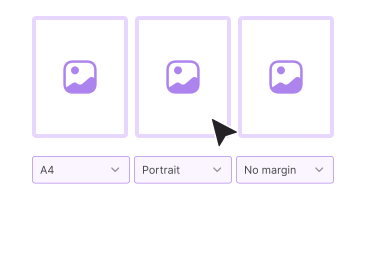
Reorder and Configure
Drag thumbnails to set the page order. Pick page size (A4, Letter, or Original), orientation, and fit.
Download the PDF
Click Convert. A single PDF with one image per page in your chosen order downloads at once. No watermark.
Why Bind Images Into PDF With PDFNoob?
Seven supported formats, drag-to-reorder, real page-size control. The workflow paid converters charge for.

Seven Image Formats in One Tool
JPG, PNG, HEIC, WebP, GIF, BMP, and TIFF. Mix any combination in a single batch. No separate convert step for iPhone HEIC photos.

Drag To Reorder
Set the page order before you assemble the file. Drag thumbnails into the sequence you want without re-uploading.

Page Size and Fit Control
A4, Letter, or Original. Portrait or landscape. Fit (whole image visible) or fill (image covers the page).

No Compression Artifacts
Source images embed at native resolution. No extra compression sits on top of whatever the originals had.

Privacy by Design
Files delete within one hour. We don't index your file contents. We never use them to train AI.

iPhone HEIC Supported Natively
Drop iPhone photos straight in. HEIC is a first-class format. No manual convert-to-JPG step.
About Converting Images Into PDF
Binding images into a PDF is one of the most common file-handling workflows in 2026. People do it to turn a batch of scanned receipts into one expense document, to package design renders into a single deliverable, to assemble product photos for a sales packet, or to wrap iPhone scans of a paper contract into a sendable file. PDF works well for this. The format bundles many images into a single, easily-shareable container. It opens the same way on every device.
PDFNoob embeds your source images directly into the PDF at their native resolution. The converter does not re-encode them. No extra compression layer sits on top of whatever the originals had. Each image becomes one page. You control the order by dragging thumbnails. You set the page geometry (size, orientation, fit vs fill) by picking from a small set of presets. The output opens in Preview, Acrobat, Chrome, Edge, mobile Safari, and any other PDF viewer without surprises.
Picking a Page Size
- A4: Standard international page size. The default for most documents shared in Europe and Asia.
- Letter: Standard US page size. The default for documents shared in North America.
- Original: Each PDF page sizes to match its source image. Good for photo galleries where you don't want letterboxing or cropping.
Fit vs Fill: Which Should I Pick?
If your source images have varied aspect ratios and you pick a fixed page size like A4, fit keeps the whole image visible with white space on the short edges. Fill scales the image so it covers the whole page. The long edges crop in. Fit is usually right for documents. Fill is right for image-first presentations where letterboxing would look wrong.
iPhone HEIC and the Others
HEIC is the format iPhones use by default for photos. Most online converters require you to turn HEIC into JPG before they accept it. PDFNoob handles HEIC natively. Drop your iPhone photos directly. Same for WebP, GIF, BMP, and TIFF. Any combination. No pre-conversion needed.
For a full walkthrough, read our guides on how to convert an image to PDF and how to convert PNG to PDF.
Related PDF Tools
Other tools you might need today.


Frequently Asked Questions
Common questions about converting JPG and other images into a PDF.
How Do I Convert JPGs Into a PDF for Free?
Upload your JPG files to the converter above. Drag them into the order you want. Click Convert. A single PDF with one image per page downloads at once. No account is required. The output carries no watermark.
Which Image Formats Are Supported?
JPG, PNG, HEIC (iPhone photos), WebP, GIF, BMP, and TIFF. Mix any combination in a single batch. PDFNoob handles each format natively. No separate convert step.
Can I Bind Multiple Images Into One PDF?
Yes. Drop as many images as you want into the upload area, up to 50 per batch on the free tier. Drag thumbnails to reorder them. PDFNoob packages them into a single PDF with one image per page in the order you set.
Can I Pick the Page Size?
Yes. Pick A4, Letter, or Original. Original sizes each PDF page to match its source image. Choose portrait or landscape orientation. Set fit (whole image visible) or fill (image covers the full page) behaviour for how the image sits on the page.
Is It Safe to Wrap Images Into a PDF Online?
Yes. Files travel over an encrypted HTTPS connection. We delete them within one hour. We don't index your file contents. We never use them to train AI. If you prefer never to upload at all, our desktop app assembles entirely on your computer.
Will Image Quality Be Preserved?
Yes. PDFNoob embeds the source images at their native resolution. The converter does not re-compress them. No extra compression artifacts appear on top of whatever the originals had.
Does the Output PDF Have a Watermark?
No watermark, ever. PDFNoob is genuinely free. We never brand your output.
Can I Assemble iPhone HEIC Photos Into a PDF?
Yes. HEIC is a first-class supported format. No need to convert to JPG first. Drop HEIC files directly. PDFNoob packages them into a PDF in one step.