


Convert PDF to Word Online and Free
Drop in a PDF, get back an editable Word document with your fonts, images, and tables right where you left them. Scanned file? OCR sorts it out on its own. Free, no sign-up, no watermark.
- Free PDF to Word converter. No account required.
- Layout preserved. OCR fallback for scanned pages.
- Works on Mac, Windows, iPhone, and Android in any browser.

or drop your PDF here
Up to 100 MB per file · Free forever
Files deleted in 1 hour. We don't index your content or use it for AI training.

Files Deleted Within 1 Hour
HTTPS encryption in transit. We never train AI on your file contents.

Editable in Seconds
Digital PDFs convert instantly. OCR runs only on scanned pages.

No Sign-Up, No Watermark
Free. No trial. No email gate. No page limits.

Layout Preserved
Fonts, headings, images, and tables rebuild in their original positions.
How to Convert PDF to Word
Three steps. No installs, no accounts.
Upload Your PDF
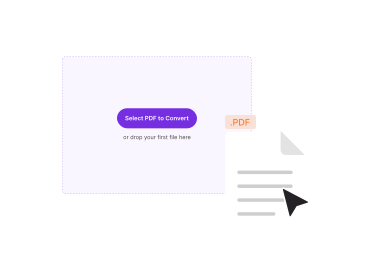
Drag your file into the box above, or click to browse. PDFNoob detects digital vs scanned pages automatically.
Pick DOCX or DOC
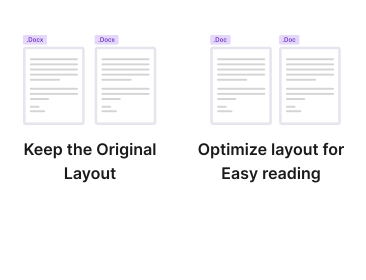
Choose to keep the original layout or optimize it for easy reading. Select DOCX for modern Word, or DOC for legacy software.
Download Your Word File
Your Word file downloads instantly. Open it in Microsoft Word, Google Docs, or LibreOffice.
Why Convert PDF to Word With PDFNoob?
Editable output that keeps your layout. Automatic OCR for scans. The smartest converter you can use without an account.

Truly Editable Output
The converted Word document lets you change every word, heading, image, and table. No locked fields. No read-only sections.

Layout Preserved
Fonts, paragraph spacing, images, bullet lists, and tables rebuild in their original positions. Most documents convert almost exactly.

Convert Scanned PDFs With OCR
Scanned PDFs are image-only. PDFNoob runs OCR automatically on those pages so you get editable text without any extra steps.

DOCX and DOC
Export as DOCX for modern Word, Google Docs, and LibreOffice, or as DOC when legacy software requires the older Word 2003 format.

Privacy by Design
Files delete within one hour. We don't index your file contents. We never use them to train AI.

Works on Phones
Convert a PDF to Word on your phone. The .docx file saves back to your Files app the same way it would on a desktop.
PDF to Word Conversion, Explained
A PDF looks the same everywhere, which is exactly what you want for sharing, and exactly what gets in your way when you need to fix one sentence, update a figure, or reuse a table. Converting it to Word hands you the editable source back as a .docx or .doc you can rework in Microsoft Word, Google Docs, or Pages. How clean the result is depends on one thing: was the PDF made digitally, or scanned from paper? Digital PDFs come from Word, Google Docs, design tools, or any app that writes text directly. Their text and structure are already data inside the file, so the conversion is fast and faithful. Scanned PDFs are only images of text. To make them editable, OCR (optical character recognition) has to read the images first. PDFNoob auto-detects which case each page is and applies the right method in a single pass.
Will the Layout Stay Intact?
For most documents, yes. You can convert PDF to Word without losing formatting. The PDF to Word converter rebuilds fonts, headings, paragraph spacing, images, bullet lists, and tables in their original positions, producing editable Word documents that match the source. A standard report, contract, or letter usually converts almost exactly. Where it gets harder is heavily designed pages: overlapping text frames, unusual embedded fonts, multi-column magazine layouts, or complex nested tables. Those may need light cleanup after conversion. That is true of every PDF to Word tool, not just this one, because the PDF format does not store the editing structure that Word expects.
DOCX or DOC: Which Should I Pick?
Choose DOCX in almost every case. It is the modern Word format used since Word 2007, it produces smaller and more reliable files, and it opens cleanly in Word, Google Docs, LibreOffice, and Pages. Pick DOC only when a piece of legacy software specifically requires the older Word 2003 format.
When the Output Looks Messy
If you only need the raw words, with no formatting, fonts, or images, PDF to Text is faster and gives you a clean .txt file. Choose PDF to Word when you need an editable document that looks like the original, ready to revise and resend.
To choose the right format, read our guide on PDF vs image vs Word, or see how to extract text from a PDF into Word.
Related PDF Tools
Other tools you might need today.


Frequently Asked Questions
How Do I Convert a PDF to Word for Free?
Upload your PDF to PDFNoob. Choose DOCX or DOC as the output. Click Convert. An editable Word file downloads at once. No account is required. The output carries no watermark.
Will the Converted Word File Be Editable?
Yes. The output is a true Word document, not an image inside a Word wrapper. You can edit the text, change fonts, move images, and rework tables in Microsoft Word, Google Docs, or Pages.
How Do I Convert a PDF to Word Without Losing the Formatting?
Our PDF to Word converter rebuilds fonts, headings, images, lists, and tables in their original positions, so most documents convert without losing formatting. Simple documents convert almost exactly. Heavily designed pages with overlapping frames or unusual fonts may need light cleanup after conversion.
What Is the Difference Between DOC and DOCX?
DOCX is the modern Word format used since Word 2007. It is smaller, more reliable, and opens in Word, Google Docs, and Pages. DOC is the older binary format for Word 2003 and earlier. Choose DOCX unless you specifically need DOC for legacy software.
Is It Safe to Convert a PDF to Word Online?
Yes. Files travel over an encrypted HTTPS connection. We delete them within one hour. We don't index your file contents. We never use them to train AI. If you prefer never to upload at all, our desktop app converts entirely on your computer.
How Large a PDF Can I Convert to Word?
Up to 100 MB per file on the free tier. That covers most reports, contracts, and books. For larger files use the desktop app, which converts on your computer with no size cap.
Can I Convert a Password-Protected PDF?
Not directly. Remove the password first with the Unlock PDF tool. You'll need the password. Then convert the unlocked file to Word. We do this for security, so the tool can't be misused to bypass document protection.