


Add Page Numbers to PDF Online and Free
Number a PDF in seconds. Pick one of six positions, choose which number to start from, and number the whole file or just a range of pages. See the result on the page before you download it.
- Six positions: combine top or bottom with left, centre, or right.
- Start numbering on any page, from any number.
- Live preview on the first 300 pages.

or drop your PDF file here
Up to 50 MB per file · Free Forever
Files deleted within 1 hour. We don’t index your file contents or use them to train AI.

Files Deleted Within 1 Hour
HTTPS encryption in transit. We never train AI on your file contents.

Original Content Untouched
Numbers are drawn in the margin. Your text, images, and layout stay as they were.

No Sign-Up, No Watermark
Free. No trial. No email gate. No page-count paywall.

Preview Before You Commit
Every setting redraws the preview, so nothing is a guess.
How To Add Page Numbers to a PDF
Three steps. No installs, no accounts, no hidden page limits.
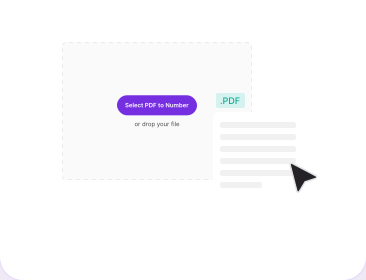
Upload Your PDF
Drag the file into the box above, or click to browse. The page count is read automatically and every page loads as a preview.
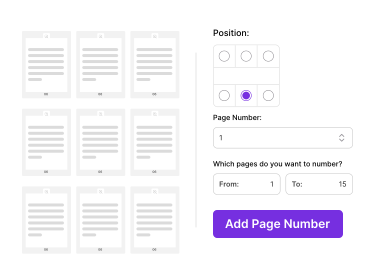
Choose Position and Range
Pick one of six positions on the grid, set the first number, and set which pages to number. The preview updates as you change each one.
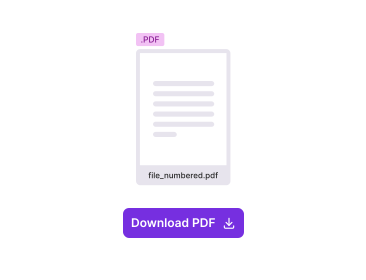
Add Numbers and Download
Click Add Page Numbers. The numbered PDF downloads immediately, with the rest of the document untouched.
Why Insert Page Numbers With PDFNoob?
Control over where numbering starts and what it counts from, not just where the number sits.

Six Positions, One Grid
Top or bottom, left, centre, or right. A 2×3 grid shows exactly where the number lands, and the same position is applied to every page in the range.

Start On Any Page
Front matter usually should not be numbered. Set From Page to 3 and the cover and contents stay clean while numbering starts where the body does.

Start From Any Number
The printed number is independent of the page it sits on, so a chapter that continues from an earlier volume can start at 47 instead of 1.

Number a Range, Not Everything
From Page and To Page bound the run. Pages outside it come back byte-identical, which matters when an appendix is numbered separately.

Preview Before You Commit
Every setting redraws the preview, so you see the number in place on the actual page rather than guessing from a diagram.

Works Past the Preview Limit
Previews stop at 300 pages to keep the page responsive. Numbering does not, so a 500-page manual is still numbered end to end.
Adding page numbers to a PDF means stamping a sequential number into the margin of each page so readers can cite and navigate the document. It matters most on the files people argue over: contracts where a clause has to be pointed at, theses with a required numbering style, court bundles, manuals, and any report long enough that “see the table near the middle” stops being useful. A PDF does not carry page numbers of its own, which is why a file exported from a design tool or assembled from several sources so often arrives without them.
The numbers are added as a new content element in the page margin rather than by rebuilding the page. Existing text, images, and vector artwork are left exactly as they are, and the page keeps its original dimensions, so a numbered file stays visually identical to the original apart from the number itself.
Page Position vs. Printed Number
These are two separate controls and confusing them is the usual reason a numbered PDF comes out wrong. The page position is where in the document a page physically sits, counted from the front and fixed by the file. The printed number is what appears in the margin, and you decide it. First Number sets what the first numbered page displays; From Page and To Page decide which pages get a number at all. Set From Page to 4, To Page to 10, and First Number to 5, and page 4 shows 5, page 5 shows 6, and so on to page 10 showing 11. Pages 1 to 3 and anything after 10 stay blank.
Numbering a Document That Starts With Front Matter
Reports and dissertations usually carry a cover, a contents page, and sometimes an abstract before the body begins, and those pages are conventionally left unnumbered or numbered separately. Set From Page to the first page of the body and leave First Number at 1, and the body is numbered from one while the front matter stays clean. To change which pages count as front matter in the first place, reordering the pages before numbering is the cleaner order of operations, because moving a page afterwards leaves its printed number behind.
Related PDF Tools
Other tools you might need today.


Frequently Asked Questions
Common questions about adding and inserting page numbers in PDFs.
How Can I Add Page Numbers to a PDF?
Upload the PDF to PDFNoob, pick one of six positions on the 2×3 grid, set the first number, choose the page range, and click Add Page Numbers. The numbered PDF downloads straight away. No account and no watermark.
How Can I Add Page Numbers to a PDF Online?
Entirely in the browser, with nothing installed. This page is the tool: drop a file in the box above and the settings panel opens with a live preview. It works the same on Windows, macOS, Linux, iOS, and Android.
How Do I Start Page Numbering on Page 3?
Set From Page to 3. Pages 1 and 2 stay untouched and numbering begins on page 3. If you also want that page to read “1”, leave First Number at 1. If it should continue a count that started elsewhere, set First Number to whatever it should show.
How Do I Do Automatic Page Numbering?
Numbering is automatic once you set the range. The tool walks the pages in order and increments by one, so you never type a number per page. A 200-page report takes the same three clicks as a two-page letter.
Can I Number Only Part of the Document?
Yes. From Page and To Page bound the range. On a 20-page file set 5 to 15 and only those eleven pages are numbered; pages 1 to 4 and 16 to 20 come back exactly as they went in.
What If My PDF Has More Than 300 Pages?
Only the preview caps at 300 pages. Numbering still applies to every page you select, so a 500-page file gets numbers on all 500 even though thumbnails stop at page 300.
Does Adding Page Numbers Change the Original Content?
No. The number is drawn as a new element in the margin. Existing text, images, tables, and layout are untouched, and the page keeps its original size. Nothing is re-rendered or recompressed.
How Do I Add Page Numbers Without Adobe Acrobat?
Open this page and upload the file. Everything runs in the browser, so no desktop PDF software is involved at any point. Pick a position, set the first number and the range, and download the numbered file.
Can I Add Page Numbers to a Password-Protected PDF?
Not directly. Run the file through Unlock PDF with the password first, then number the unlocked copy. This is deliberate, so the tool cannot be used to modify a protected document.
Does It Work on iPhone, iPad, or Android?
Yes. Open this page in Safari or Chrome and tap Select PDF to pick a file from Files, iCloud, or Google Drive. The position grid and the number fields are sized for touch, and the preview scrolls on small screens.