


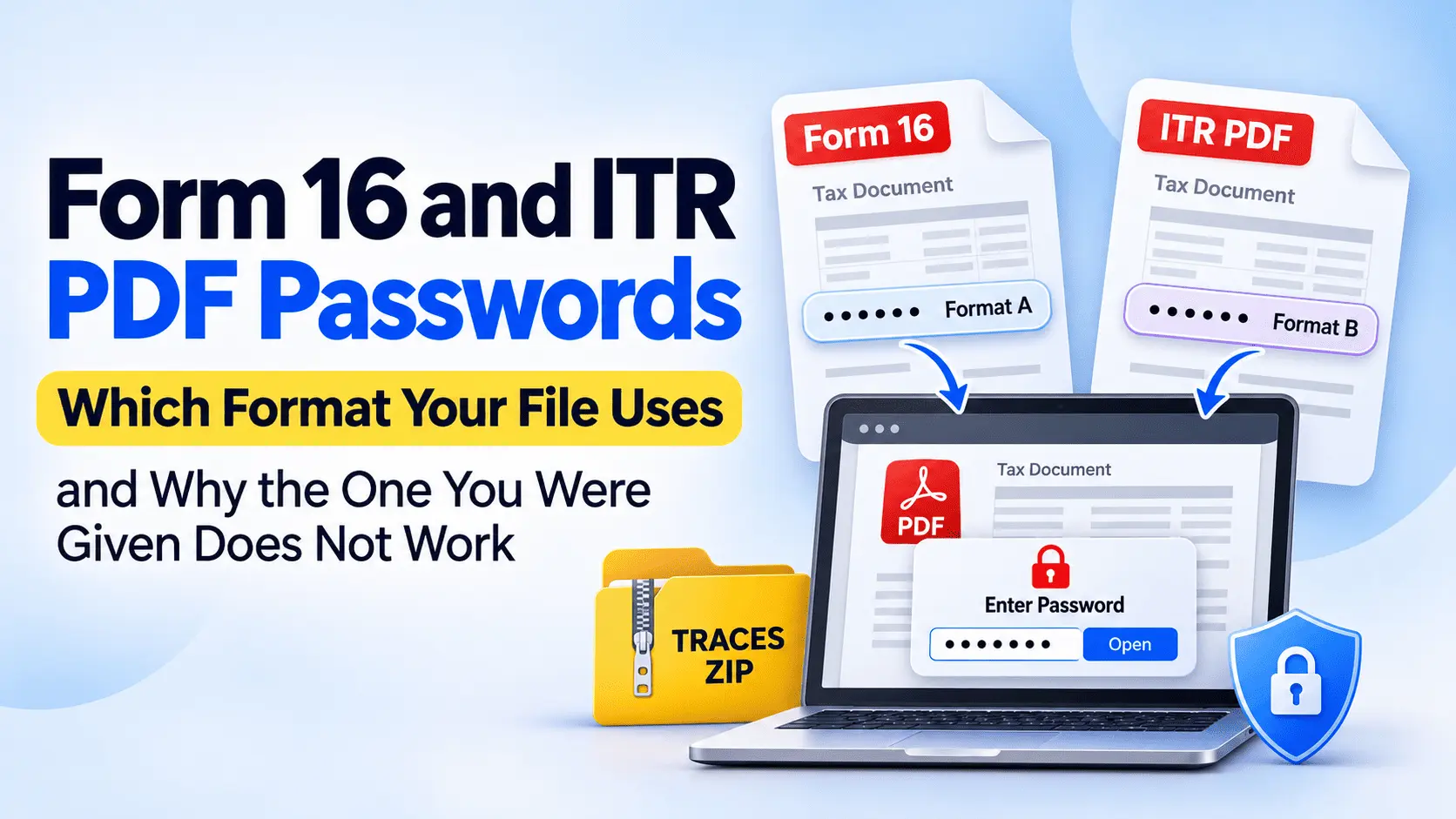
Indian tax-document passwords restrict access to the personal and financial information inside a PDF, but the correct password depends on the system that produced the file. A Form 16 received from an employer, an ITR-V downloaded from the e-Filing portal, and a TRACES download may all ask for different combinations of PAN, date of birth, or TAN.
Here are the three formats most useful to check first.
| Document | Where it came from | Password format | Worked example |
|---|---|---|---|
| Form 16 PDF | Employer or payroll system | Commonly, the first five PAN letters in UPPERCASE + date of birth in DDMMYYYY. Confirm with the employer. | QWERT07041992 |
| ITR-V acknowledgement PDF | Income Tax e-Filing portal | All ten PAN characters in lowercase + date of birth in DDMMYYYY | qwert4321p07041992 |
| Form 16 / 16A download file | TRACES, for the employer or deductor | Employer's TAN in UPPERCASE | MUMA12345B |
All examples are fictional. They use PAN QWERT4321P, a date of birth of 7 April 1992, and an illustrative employer TAN MUMA12345B. The Form 16 PDF format is commonly used, while the TRACES TAN rule applies to the deductor-side download, not automatically to every PDF an employee receives.
The difference matters because the issuing system determines which password instructions apply. TRACES supplies tax-deduction certificates to employers, the e-Filing portal provides return acknowledgements, and an employer's own payroll system may apply additional protection before sending a document to an employee. A password that works for one document may not work for another belonging to the same taxpayer.
This guide explains the Form 16 and ITR password formats, why they differ, and how the TRACES download password fits into the process. It also covers Section 143(1) intimation documents, DigiLocker files, and Form 16A and other TDS certificates, where the document type or source can change what the reader needs to enter.
You will also learn why a password that looks correct may be rejected, how to open a protected tax PDF on a phone, and when it makes sense to remove the password before sending a copy to a bank, employer, or another recipient.
Start by identifying where your file came from. For an emailed Form 16, check your employer's instructions. For an ITR-V, use the password guidance associated with the return acknowledgement. If you received a TRACES archive instead of the final certificate, don't assume your personal PAN-based password will open it.
Which Password Does a Form 16 PDF Use?
A commonly used Form 16 PDF password combines the first five letters of your PAN in uppercase with your date of birth in DDMMYYYY format, without spaces or separators. This is a common format for employee copies, although your employer may supply a different password.
For example, take the fictional PAN QWERT4321P and a date of birth of 7 April 1992. The first five characters are QWERT, and the date becomes 07041992.
Password: QWERT07041992
The result contains five uppercase letters followed by eight digits, making 13 characters in total. Do not insert spaces, hyphens, or slashes between them.
Use the date of birth associated with your PAN record, particularly if it differs from the date recorded in your employer's HR system. If the password fails, confirm the format with your employer rather than assuming that every Form 16 PDF follows the same rule.
TRACES (TDS Reconciliation Analysis and Correction Enabling System) is the official system through which a deductor, such as your employer, obtains Form 16 certificate data. Form 16 Part-A contains salary TDS details, while Form 16 Part-B provides the salary and tax-computation details. When both parts arrive together as one protected PDF, the same opening password applies to that combined file.
However, the employee PDF password should not be confused with the password for the original TRACES download. TRACES documents the employer's TAN as the password for its deductor-side download file. An employer may also apply its own password after generating or combining the certificate.
For the Form 16 PDF you actually received, the password instructions in your payroll email or employee portal should take priority over a general formula.
Which Password Does an ITR PDF Use?
The ITR-V acknowledgement PDF opens with your complete ten-character PAN in lowercase, followed immediately by your date of birth in DDMMYYYY format. The Income Tax Department uses this rule for the acknowledgement it emails after filing and for the copy you download from the e-Filing portal.
For example, with the fictional PAN QWERT4321P and a date of birth of 7 April 1992, write the whole PAN in lowercase (qwert4321p) and the date as 07041992.
Password: qwert4321p07041992
The result contains 18 characters: all ten PAN characters followed by eight date digits. Enter them together without spaces, slashes, hyphens, or symbols.
This is different from the Form 16 password. The commonly used Form 16 format takes only the first five PAN letters in uppercase, while the ITR PDF format uses the entire PAN in lowercase. If you entered the Form 16 combination into an ITR-V password prompt, the PDF may reject it even though your PAN and birth date are correct.
For a company, trust, firm, or another non-individual taxpayer, use the date of incorporation or formation in place of an individual's date of birth, in the same DDMMYYYY format, where the document follows this password rule.
The acknowledgement relates to the return filed for a particular Assessment Year, but the assessment year is not part of the password. Use the taxpayer details associated with the return, not the financial year or the date the acknowledgement was downloaded.
If the combination is rejected, check the password instructions accompanying the PDF or provided by the issuing portal before trying another format.
Why Do Form 16 and ITR Ask for Different Password Formats?
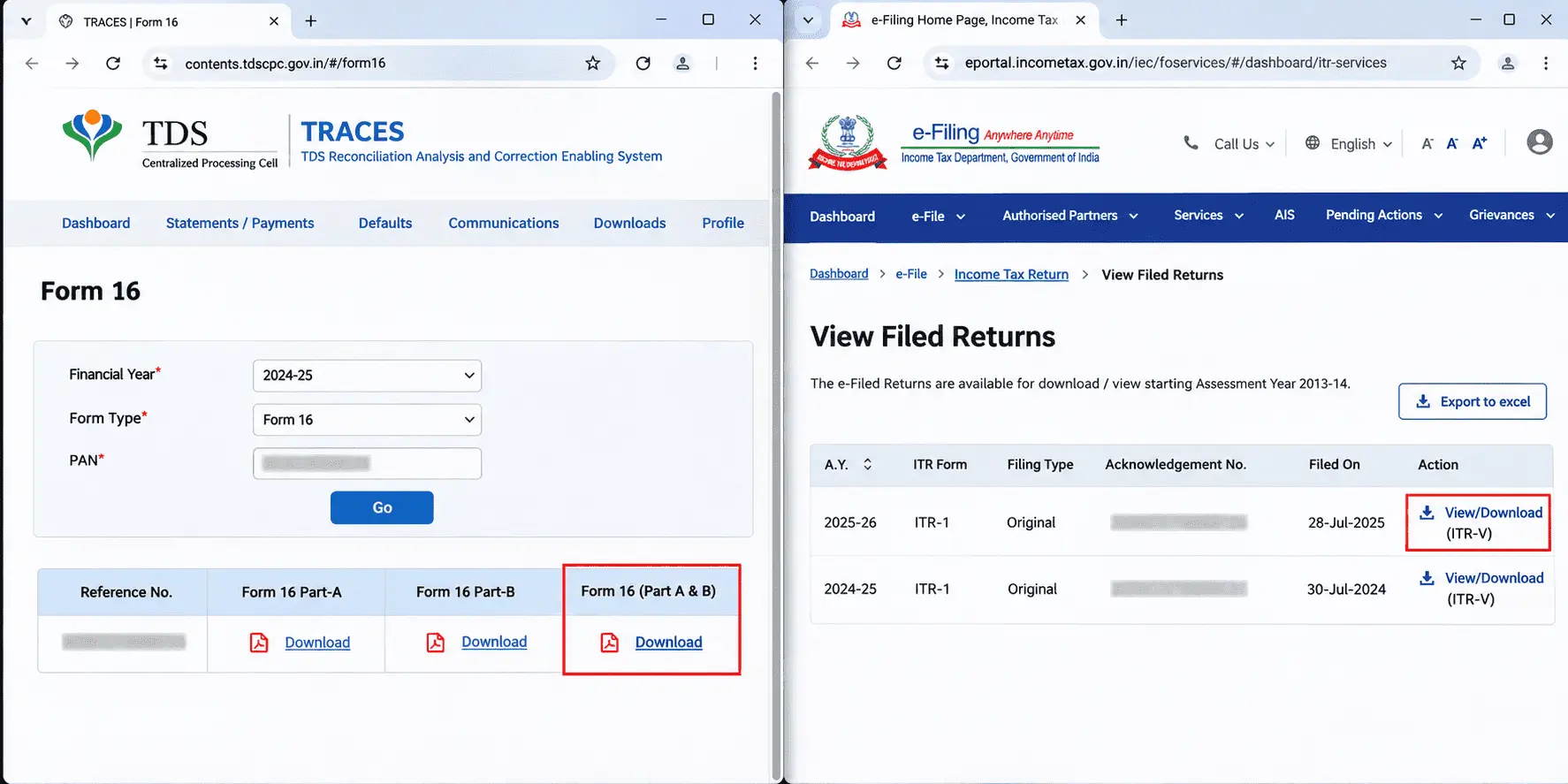
Form 16 and ITR PDFs use different password formats because they come from different issuing systems. The Income Tax e-Filing portal provides the ITR-V acknowledgement, while TRACES supplies the certificate data used to generate Form 16. Each system has its own document-generation process and applicable encryption instructions.
A salaried taxpayer may encounter four systems during a financial year:
- e-Filing portal: The Income Tax Department provides filed income-tax returns, ITR-V acknowledgements, and related documents through this portal. The commonly documented ITR-V password uses the complete PAN in lowercase followed by the date of birth.
- TRACES: The TDS system allows an employer or another deductor to download Form 16 and Form 16A certificate data. Its official instructions specify the deductor's TAN in capital letters for opening the downloaded file.
- DigiLocker: This service provides access to documents issued through participating organizations and lets users store their own uploaded files. The password requirements depend on the document and how it entered DigiLocker, not simply on the taxpayer's PAN.
- Employer payroll system: After obtaining Form 16 data from TRACES and generating the certificate, an employer may distribute the PDF through email or its own payroll system. If the employer adds another password, that protection can differ from the original TRACES download password.
This explains why there is no single password that opens every document associated with income-tax filing. The commonly used employee Form 16 password begins with five uppercase PAN letters, the ITR-V format uses the complete PAN in lowercase, and the TRACES deductor download uses the employer's TAN.
The distinction also corrects a common misunderstanding: an employer does not choose the password for the original TRACES download. TRACES publishes a specific rule for that file. The TRACES FAQ on downloading Form 16 states: “The password for opening Form 16 / 16A will be your TAN in capital letters.”
What the employer can control is how the certificate is subsequently generated, combined, password-protected, and delivered to the employee. The TAN-based TRACES download password should therefore not be treated as the automatic password for every employee-facing Form 16 PDF.
If a password is rejected, identify the file's source before changing the characters you enter. An ITR-V from the e-Filing portal, a TRACES download held by payroll, and a Form 16 attachment sent by your employer are not interchangeable documents.
Which Password Does a Form 16 ZIP File From TRACES Use?
A Form 16 ZIP archive downloaded from TRACES uses the employer's TAN in capital letters as its password. This is the deductor-side password used by HR or accounts teams, not the employee's personal Form 16 PDF password.
The official TRACES E-Tutorial, Download Form 16 (Part-A & Part-B), states:
Password to open Form 16 is TAN number in Capital letters
A TAN contains ten characters: four letters, five digits, and one final letter. Although a PAN also contains ten characters, its arrangement is different.
| Identifier | Character pattern |
|---|---|
| PAN | Five letters + four digits + one letter |
| TAN | Four letters + five digits + one letter |
The employer downloads the Form 16 data as a ZIP file from TRACES. The TRACES PDF Generation Utility then uses that download to create individual Form 16 PDFs for employees. The archive contains the certificate data needed for this conversion, rather than a finished employee-facing PDF.
If your employer accidentally forwards you the original ZIP file, entering your own PAN and date of birth will not open it. Ask the payroll or accounts team to send you the generated Form 16 PDF, including the Form 16 Part-A certificate and the applicable Part B details, along with the correct opening instructions.
The key distinction is simple: the TAN unlocks the employer's TRACES download; the password for the PDF you receive as an employee may be different.
Which Password Does an Income Tax Intimation Order Use?
A Section 143(1) intimation PDF uses the same password as your ITR-V acknowledgement: your complete ten-character PAN in lowercase, followed immediately by your date of birth in DDMMYYYY format, without spaces or separators.
For example, with the fictional PAN QWERT4321P and a date of birth of 7 April 1992, the password is qwert4321p07041992.
A Section 143(1) intimation is a document issued after the Income Tax Department processes your return and compares the reported figures with its calculations. It may confirm the return, indicate a refund, or show a tax payable. The intimation can arrive as an email attachment, and you can also download it from the e-Filing portal under View Filed Returns.
The same password convention is commonly documented for several related tax PDFs, but the distinction between documents matters:
- ITR-V and Section 143(1) intimation: The commonly documented format is the full PAN in lowercase followed by DDMMYYYY.
- Annual Information Statement (AIS): The Income Tax Department also documents the lowercase PAN and date combination for the AIS PDF.
- Demand notice: Some CPC-issued notices follow the same convention, but check the password instructions accompanying the particular demand notice rather than assuming every notice uses one format.
- Form 26AS: Do not automatically use the ITR-V password. A downloaded Form 26AS PDF may instead use the date of birth in DDMMYYYY format without the PAN, depending on the download process.
If your intimation arrives by email, the password is associated with the issued document, not the email account that received it. Downloading the corresponding intimation again from the portal does not, by itself, change its password instructions. However, a separately generated or differently protected copy may behave differently.
Start with the lowercase PAN and date-of-birth combination for your Section 143(1) intimation. For other tax documents, confirm the password rule for that particular file before trying the ITR-V format.
Which Password Does a Form 16 From DigiLocker Use?
A Form 16 accessed through DigiLocker does not have one verified, universal PDF password. The first step is to check whether it appears as an issued document or an uploaded document, because these are two different ways of accessing files in DigiLocker.
DigiLocker separates them into two sections:
- Issued Documents: These are records provided directly by organizations connected to DigiLocker. If your Form 16 is available here, open it through the issued-document section. DigiLocker does not publish a universal PAN-based password formula for every issued Form 16 PDF, so follow any instructions supplied with the document.
- DigiLocker Drive (Uploaded Documents): These are files you added to your account yourself. If you uploaded a password-protected Form 16 PDF, uploading it does not automatically remove its existing encryption. Try the password supplied with the original document by your employer or issuing system.
If the document opens inside DigiLocker but asks for a password after you download it, check whether you downloaded an issued document or retrieved a previously uploaded PDF. The in-app preview and the downloaded file may use different viewing methods, and a successful preview does not necessarily establish that the downloaded PDF has no opening password.
For an uploaded Form 16, check the instructions that came with the original file before trying a PAN-based combination. If it was issued directly through DigiLocker and the downloaded copy requests a password, check the issuing organization's guidance or contact DigiLocker support.
The important distinction is where the document came from, not simply where you opened it. DigiLocker can provide access to official records and store documents you upload, but neither category alone establishes a guaranteed Form 16 PDF password.
Which Password Do Form 16A and Other TDS Certificates Use?
A Form 16A PDF may use the first five letters of your PAN in uppercase followed by your date of birth in DDMMYYYY format, as commonly described for employee-facing Form 16 files. However, this is not a verified universal Form 16A password. The correct combination depends on how the certificate was generated and delivered.
TRACES, the official system that provides these certificates, documents a different password for its deductor-side Form 16A download: the deductor's TAN in capital letters. If you receive Form 16A from a bank or another organization, check the instructions accompanying that PDF before trying a PAN-based combination.
Form 16A is a TDS certificate for tax deducted from income other than salary, including interest, rent, and professional fees. For example, when a bank deducts TDS from fixed deposit interest, the bank acts as the deductor and issues Form 16A to the account holder, who is the deductee.
That distinction also matters when identifying whose details belong in a password. Your PAN identifies you as the recipient of the income, while the bank or other payer has its own PAN and TAN. Do not substitute the issuer's PAN for yours unless the password instructions explicitly require it.
Other TDS certificates have different purposes and may use different opening passwords:
- Form 16B: Covers TDS on the purchase of immovable property. TRACES specifies the buyer's date of birth in DDMMYYYY format for its downloaded PDF.
- Form 16C: Covers TDS on certain rent payments. TRACES specifies the tenant's date of birth, as recorded against the PAN, in DDMMYYYY format for the downloaded ZIP file.
The practical rule is to identify the certificate and its issuing or download channel first. A password that works for an employee's Form 16 should not automatically be used for Form 16A, Form 16B, or Form 16C.
Why Is Your Form 16 Not Opening With the Password You Were Given?
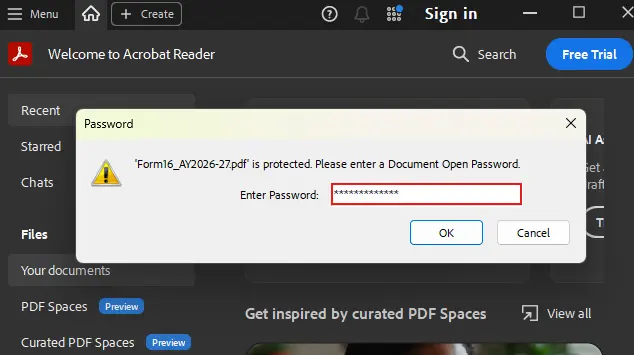
If your Form 16 is not opening, the problem may be with the details entered rather than the password format itself. Check whether the date of birth matches your PAN database record, whether you typed every character correctly, and whether your employer added a different password after downloading the certificate.
Go through these checks in order:
- Verify your date of birth against your PAN record: The date recorded in the Income Tax Department's PAN database may differ from the one in your employer's HR records. If your PDF uses a PAN-and-DOB password, confirm which date the issuing system expects. You can use the official e-Filing portal's Verify PAN Status service to check whether your details match the PAN record.
- Remove any trailing space: Copying a password from an email or message can add an invisible trailing space or line break. Type the combination manually if pasting repeatedly fails. Do not include spaces, hyphens, or separators unless the issuer specifically instructs you to.
- Check capitalization and autocorrect: A phone keyboard may automatically capitalize the first letter or alter characters through autocorrect. The commonly used Form 16 combination begins with five uppercase PAN letters, while an ITR-V password uses the complete PAN in lowercase. Entering the correct letters in the wrong case can cause the password to fail.
- Ask whether your employer changed the password: Some employers distribute Form 16 through their own payroll system and apply separate password protection. If you received a re-protected file, the usual PAN-based combination may not work. Ask your HR or payroll team for the instructions associated with that attachment rather than guessing alternative passwords.
- Check the taxpayer type: For an ITR or other tax PDF belonging to a company, trust, or another non-individual taxpayer, the password may require the date of incorporation instead of an individual's birth date. This does not automatically apply to a salaried employee's Form 16.
- Confirm which document you received: An employee-facing Form 16 PDF, an ITR-V acknowledgement, and a TRACES download can use different passwords. If the attachment came from the employer, the deductor or payroll team should confirm the applicable instructions.
If none of these checks works, request a fresh copy from the original issuer. Your employer can retrieve or regenerate the relevant Form 16 documents through its authorized process, while ITR acknowledgements can be downloaded again from the e-Filing portal. Re-downloading the correct document is generally more useful than repeatedly trying unrelated password combinations.
The important distinction is between a format error and an input error. Before assuming the password formula is wrong, confirm the recorded birth date, letter case, and exact characters. If those are correct, check whether the issuer applied a different password to the file.
How Do You Open a Password-Protected Tax PDF on a Phone?
You can open a password-protected Form 16 or ITR PDF using a compatible mobile PDF reader on Android or iOS. The important part is entering the password exactly as required, especially when the format begins with lowercase PAN characters that your phone's autocapitalisation may change.
Follow these steps:
- Download the tax PDF: Open the email containing your Gmail attachment and save the document to your phone. If Gmail's preview does not open the protected file, download it rather than repeatedly trying the password in the preview.
- Find the downloaded file: On Android, open Files or your device's file manager and check Downloads. On an iPhone, open the Files app, select Browse, and check the Downloads folder under iCloud Drive or On My iPhone, depending on where the file was saved.
- Open the PDF in a compatible reader: Select the downloaded file and open it using Adobe Acrobat Reader or another PDF app that supports password-protected documents.
- Check the keyboard before typing: If you are opening an ITR-V that requires the complete PAN in lowercase, make sure the first letter is not automatically capitalized. Disable autocapitalisation if necessary, and check the letters again after switching from the alphabetic to the numeric keyboard.
- Enter the password and open the file: Type the required PAN and date combination without unwanted spaces or separators, then select Open or OK.
If the password fails, check whether the keyboard inserted a space when you switched to numbers or added one after punctuation. These changes can be easy to miss because password fields usually hide the characters you enter.
You can also type the password into a temporary note first, check its capitalization and character count, and paste it into the PDF's password field using the clipboard. However, tax-document passwords contain personal identifiers, so avoid keeping them in synced notes or clipboard-history apps. Delete the temporary note after opening the file.
Opening the attachment directly through Gmail may work, but its preview can ask for the password again when you reopen the document. A compatible PDF reader provides another way to access the downloaded file without depending on the email preview.
If the PDF still refuses the password, confirm whether you downloaded an ITR-V, received a Form 16 from payroll, or obtained another tax document. The password format may be different even though you are opening all three files on the same phone.
Should You Remove the Password Before You Send a Form 16 or ITR to Someone Else?
Remove the password from your Form 16 or ITR PDF only when the recipient specifically requires a password-free document. Even then, remove it only from the copy you plan to send. Keep your original tax PDF protected and unchanged.
This situation commonly arises when someone needs to review or process your tax documents:
- Home loan or personal loan: A bank may request Form 16 as proof of income for a home loan file or personal loan application. If its submission system cannot accept a password-protected PDF, you may need to provide an unlocked copy.
- New employer onboarding: During onboarding, your new employer may request the previous year's Form 16 to review salary and tax-deduction details. Check whether its HR portal accepts the protected PDF before removing the password.
- Visa or rental application: A visa application or rental application may require an ITR-V acknowledgement as evidence of tax filing. Follow the recipient's document-submission instructions rather than removing the password automatically.
An encrypted PDF can cause problems when an upload form cannot process password-protected attachments. If the recipient confirms that its system requires an unprotected document, creating a separate unlocked copy is a practical solution.
However, a Form 16 contains sensitive information, including your PAN, full name, salary breakdown, and your employer's TAN. Sending an unlocked copy through email or WhatsApp can expose those details to anyone who gains access to the message, attachment, or a stored chat backup.
Whenever possible, use the recipient's secure document-upload portal instead of sending an unprotected tax PDF through an ordinary message. If the recipient accepts encrypted files, follow its approved method for providing the opening password.
For longer-term storage, keep the encrypted original and avoid leaving unlocked copies in shared folders or automatically synchronized cloud storage; the broader storage and cloud-sync considerations are covered in the bank-statement PDF password guide.
Treat password removal as a decision about the copy being shared, not the original document. Unlock a separate copy only when the receiving organization needs it, and preserve the protected file for your own records.
How Do You Remove the Password From a Form 16 or ITR PDF?
You can remove the password from a Form 16 or ITR PDF by entering its existing password and downloading a new, unprotected copy. PDFNoob's browser-based tool lets you do this without installing software or creating an account. However, you must already know the password that opens the original document.
➤ Visit PDFNoob's Unlock PDF tool to remove the password from a PDF in your browser.
➤ Click Select a PDF to Unlock to upload your password-protected PDF.
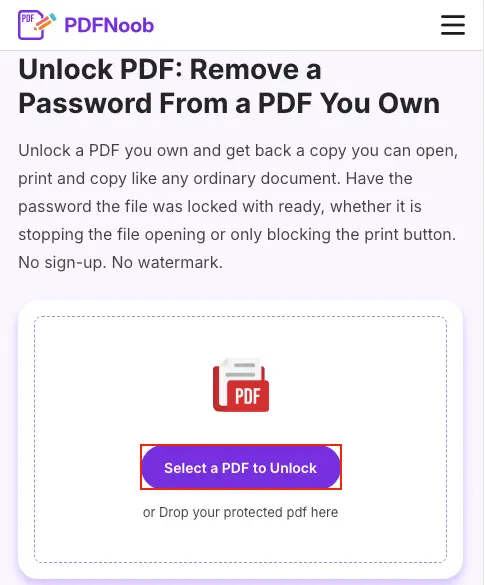
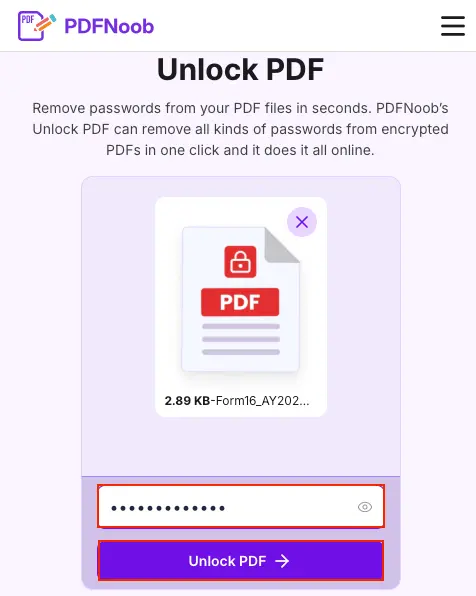
➤ Enter the PDF's existing password in the password field, then click Unlock PDF.
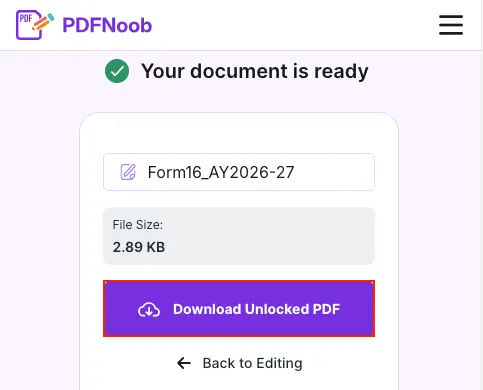
➤ Click Download Unlocked PDF to save the unlocked file.
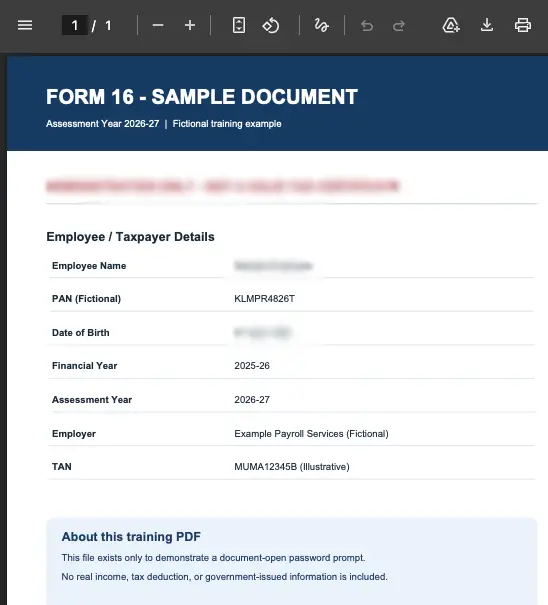
Open the downloaded PDF to confirm that it opens without asking for a password.
PDFNoob's Unlock PDF tool is free to use and does not require an account. Files are sent over HTTPS and deleted from the server within one hour. The tool takes one PDF at a time, up to 10 MB, which is far more than any Form 16 or ITR-V needs.
There is also a difference between two types of PDF protection. A user password, also called a document-open password, prevents the file from being viewed without the correct combination. An owner password controls permissions, such as printing, editing, or copying. Some PDF utilities can remove permission restrictions without knowing an opening password, but that does not mean they can decrypt a Form 16 or ITR PDF whose contents are locked.
PDFNoob's tool removes a password you already know; it does not recover a forgotten one. If you cannot open the original tax document, obtain the correct password from its issuing portal or your employer before attempting to remove the protection.
Keep your original PDF unchanged and use the unlocked copy only when a recipient specifically requires a password-free document.
Does Removing the Password Affect the Digital Signature on an ITR-V?
Removing the password from an ITR-V can affect its digital signature if the PDF contains one. Password-removal tools often create a new PDF, and that process may invalidate or discard an existing signature. To preserve document integrity, keep the original download from the Income Tax e-Filing portal unchanged.
A digital signature and PDF encryption serve different purposes. Encryption restricts access to the document until the correct password is entered. A digital signature helps verify who signed the PDF and whether its signed contents have changed. Removing the opening password does not necessarily change the information you can read, but recreating the file can change the data against which an embedded signature is validated.
Not every ITR-V PDF contains an embedded, certificate-based digital signature. If yours does, check its signature status in a PDF reader before and after creating an unlocked copy. A signature that becomes invalid or disappears from the new file cannot be treated as proof that the modified copy retains the original certification.
There is also an important distinction between a PDF's digital signature and e-verification of your income-tax return. Downloading, opening, or removing the password from an ITR-V does not verify the return with the Income Tax Department.
Under the department's current rules, an unverified return generally must be verified within 30 days of filing. You can complete verification electronically through an eligible method, such as Aadhaar OTP, an Electronic Verification Code, or a Digital Signature Certificate. If you choose the paper route, you must sign the prescribed ITR-V and send it to the Centralized Processing Centre (CPC) in Bengaluru. The signed form must reach CPC within the applicable 30-day period to preserve the original filing date.
If you use the physical submission route, print and sign the official ITR-V downloaded from the portal rather than relying on a password-removed, reconstructed PDF. Use the department's current submission instructions.
The simplest rule is to keep the original ITR-V for official purposes and use an unlocked copy only for convenience. Removing a PDF password is not the same as preserving its signature or completing your tax-return verification.
Which Copy Should You Keep in Your Own Records?
Keep the encrypted original of your Form 16 or ITR-V downloaded from the issuing system. Treat any password-free version as a temporary working copy rather than your main archive copy.
Banks, lenders, employers, and the Income Tax Department may ask for tax documents years after they were issued. An original Form 16 preserves the certificate provided by your employer, while an original ITR-V retains the acknowledgement associated with your filed return. Keeping these files unchanged also avoids questions about whether a later PDF conversion altered their contents or digital signatures.
Organize your tax documents by Assessment Year so you can find the correct return without opening every PDF. For example, name the files Form-16-AY-2026-27.pdf and ITR-V-AY-2026-27.pdf. The assessment year identifies the tax return period, while consistent file naming makes it easier to match certificates, acknowledgements, and supporting records.
The password for an older tax PDF does not automatically change when a new assessment year begins. Where the original password format is based on your PAN and date of birth, the same combination should continue to work for older files if those details remain unchanged and the documents use that same format. The assessment year itself is not added to the password.
However, a PDF may have a different password if the issuing system used another rule, your employer applied separate protection, or the original document was replaced. Keep the password instructions supplied with each file instead of assuming every year's Form 16 and ITR-V use one universal combination.
For long-term retention, store the protected originals in an access-controlled location, with a backup you can recover if your device fails. When you create an unlocked copy for a loan, visa, or employment application, keep it separate from your permanent records and dispose of it securely once it is no longer needed.
Your original protected document is the record. An unlocked copy is useful for a specific task, but it should not replace the file you originally received.