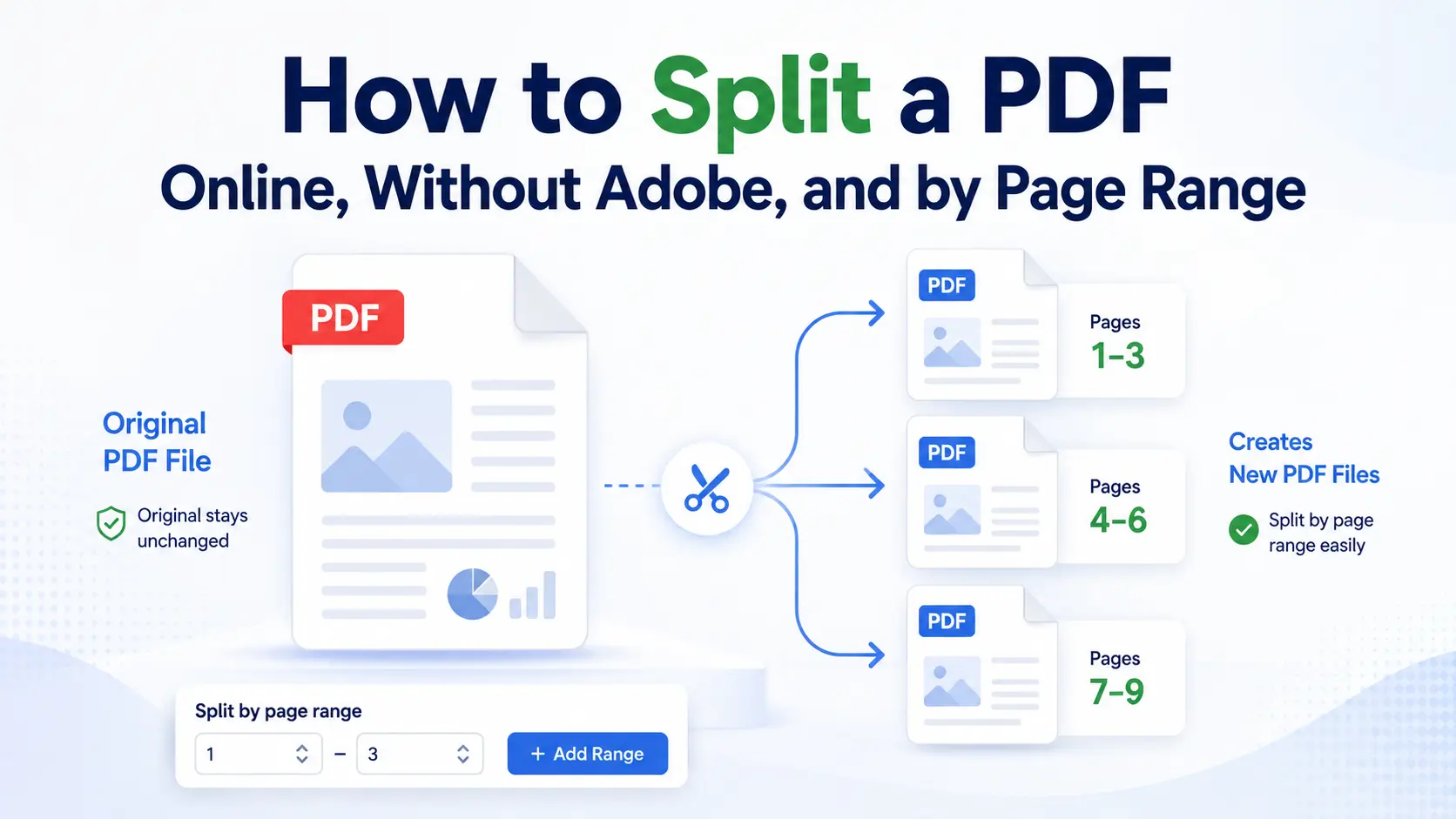
A split takes chosen pages from a PDF, copies them into new output files, and leaves the original file untouched.
The uploaded file is the source document. It is not edited, overwritten, or changed during splitting. The splitter only creates new files from the pages you choose.
That means there is nothing to undo in the original PDF. If the result is not right, you can split the same source document again with a different page range, page selection, or divider line.
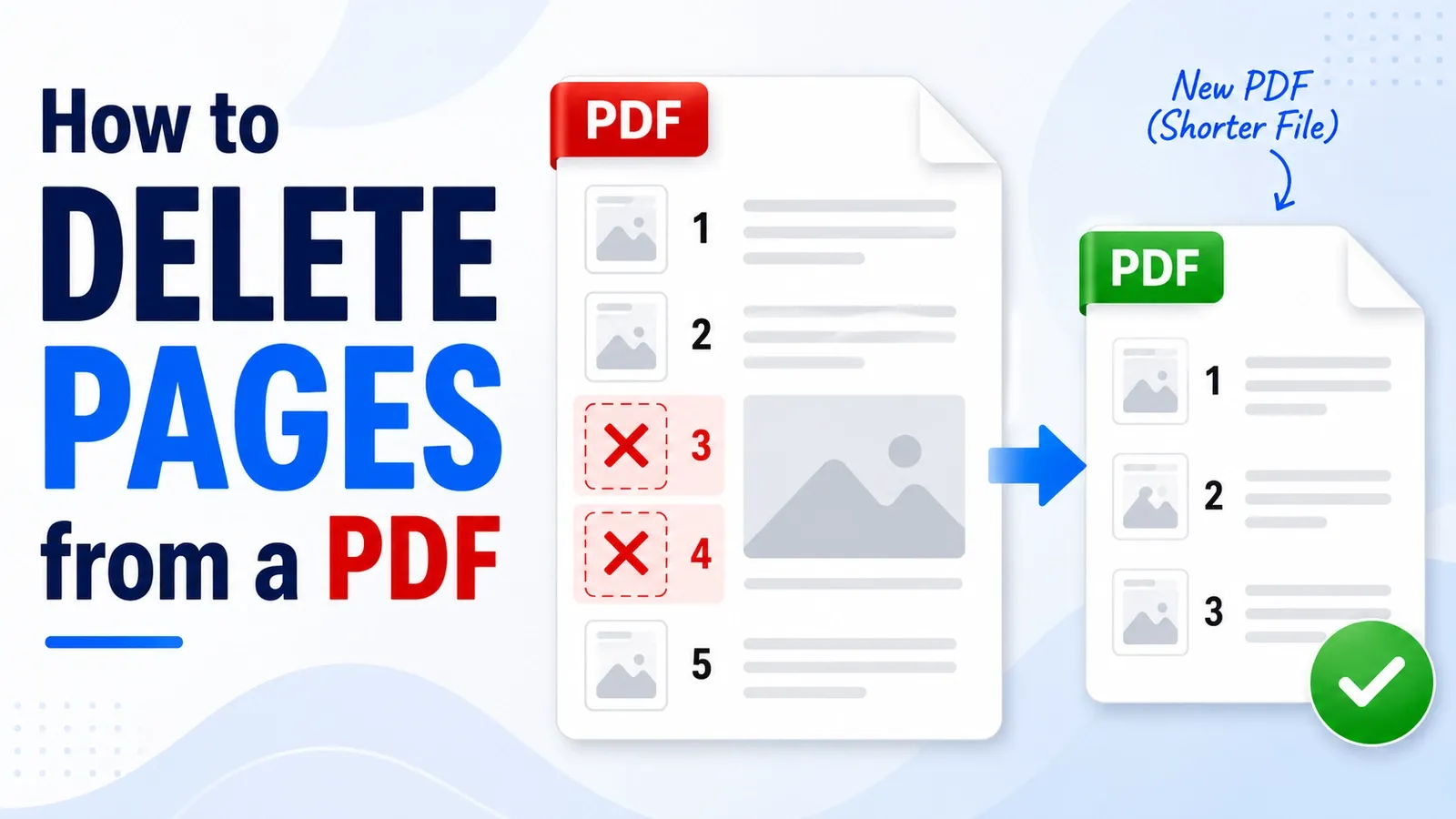
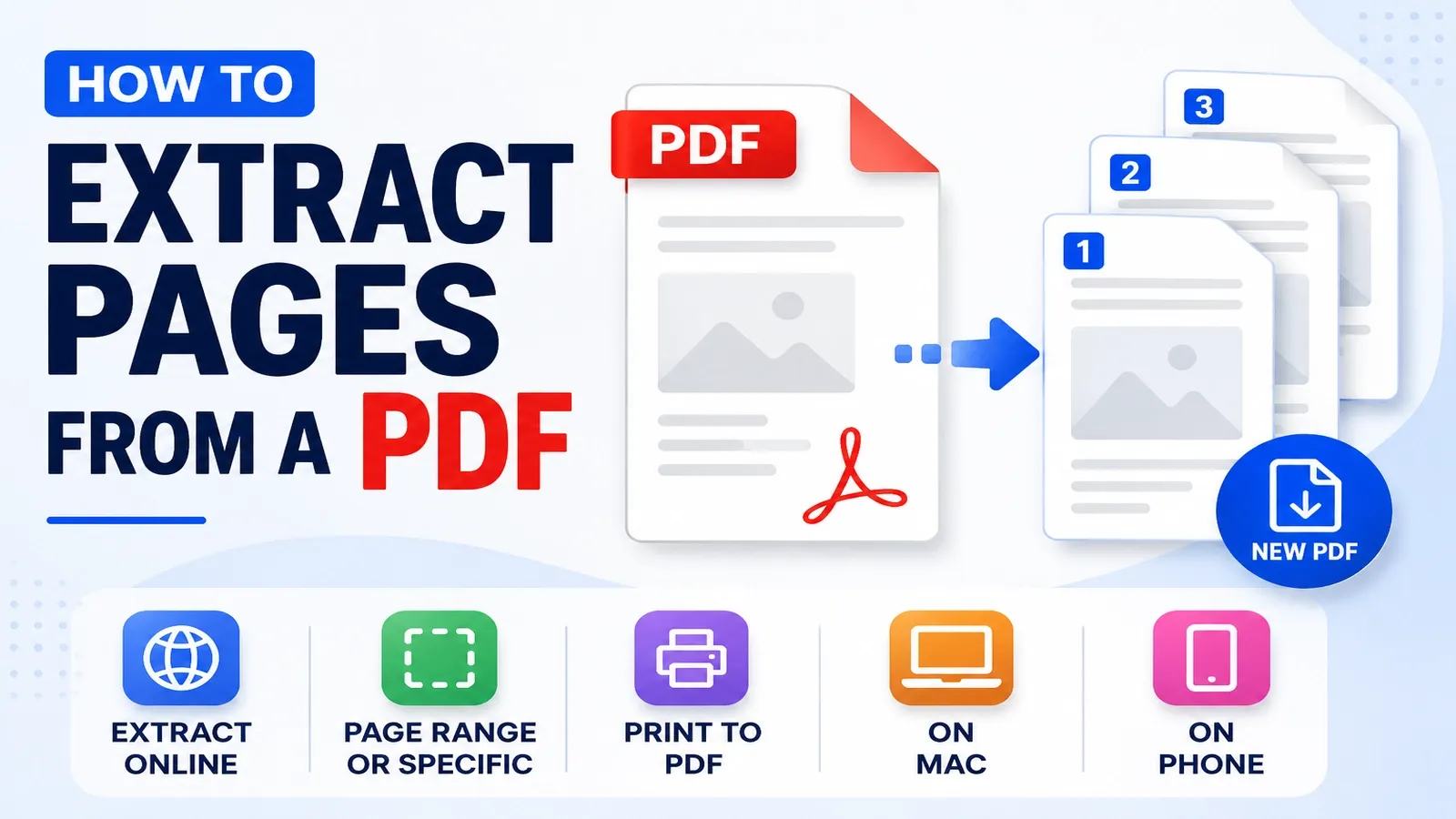
Splitting, extracting, and deleting pages are not the same thing. Splitting creates several new PDF files from one PDF. Extracting pulls selected pages into one new PDF. Deleting removes pages from the document itself.
This difference matters because choosing the wrong job gives the wrong result. If you need separate chapter files, split the PDF. If you need only a few chosen pages in one file, extract them. If you want the original document to lose pages, delete them instead.
This guide explains what splitting does, splitting online, splitting by page range, splitting without Adobe, how many files you can make, whether quality changes, and what to decide first.
What Does Splitting a PDF Actually Do?
Splitting copies selected pages out of one source PDF into one or more new PDF files, and the file you uploaded stays exactly as it was.
The split tool reads the pages you choose, copies them into new output files, and leaves the original PDF unchanged. It does not cut pages out of the uploaded file, overwrite it, or remove anything from it.
There are two common results. The first is one file per page, where every page becomes its own separate PDF.
The second is a few files made from the ranges you choose. For example, a page range such as pages 1–4 can become one PDF, while pages 5–12 can become another.
The new files keep the page setup from the pages they came from. If page 1 is portrait and page 2 is landscape, the split files keep that same page orientation.
This is useful for mixed documents, such as reports with portrait text pages and landscape tables. The split pieces do not force every page into one direction just because they are now separate files.
In a nutshell, splitting creates new PDFs from selected pages, while the uploaded source PDF stays safe and unchanged.
How Do You Split a PDF into Separate Files Online?
Upload the PDF, mark where each new file should start, then download the split pieces. If the result creates more than one file, it usually downloads as a ZIP archive. Follow the steps below.
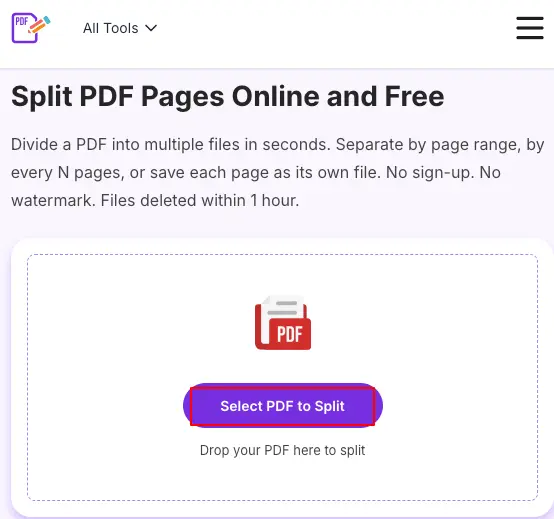
➤ Open the PDFNoob Split PDF tool.
➤ Click Select PDF to Split.
➤ Choose the file and click Open.
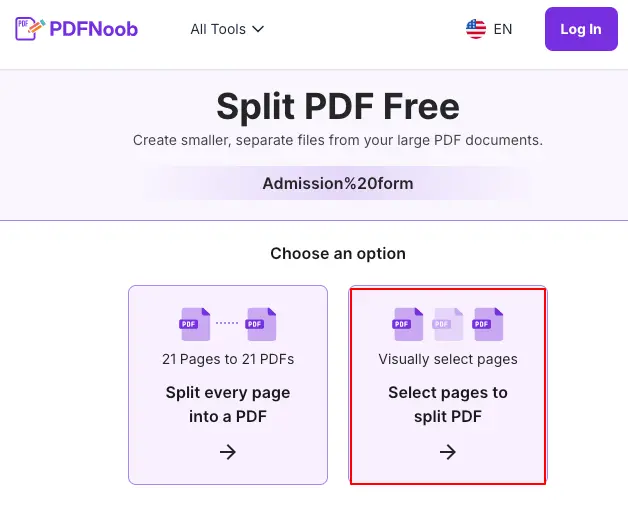
➤ Click Select pages to split PDF to preview the pages and place a divider line wherever a new output file should begin.
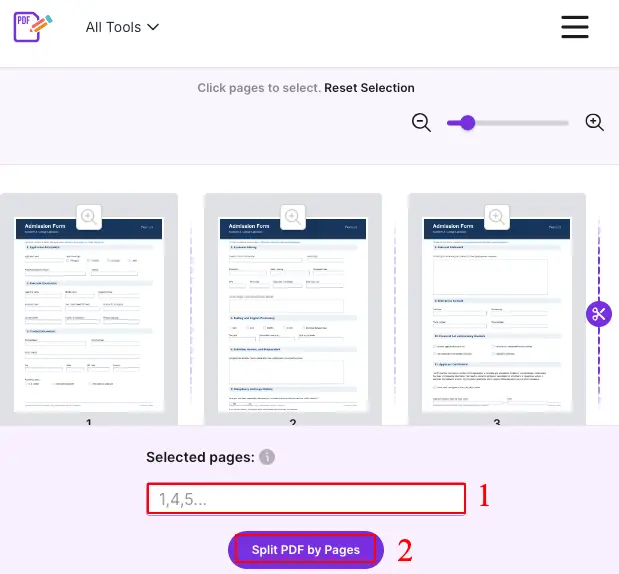
You can choose from the preview section where to split, or you can define pages in the Selected pages box.
➤ After entering the chosen page number, click Split PDF by Pages.
➤ Hit the Download button to save the output files.
If several files are created, open the ZIP archive and extract the PDFs before uploading or sharing them.
No account is needed on PDFNoob, so the workflow is simply upload, place divider lines, split, and download.
The ZIP detail is easy to miss on phones. A multi-file result may not open as separate PDFs right away, because the phone may first ask you to extract the ZIP archive or save it to Files.
So before sending the split pieces from a phone, open the ZIP archive and confirm the separate PDF files are inside.
How Do You Split a PDF by Page Range?
Enter the page numbers you want, such as 1 to 4 and 5 to 12, and each custom range becomes its own PDF.
This is useful when a long PDF already has clear sections. For example, pages 1–4 might be the cover and introduction, pages 5–12 might be Chapter 1, and pages 13–20 might be Chapter 2.
With a custom range, you choose the exact start and end page for each output file. The splitter then creates separate PDFs based on those ranges.
A fixed range works differently. Instead of typing every range yourself, you choose a repeated size, such as every 5 pages, every 10 pages, or every 25 pages.
For example, a 90-page scan split every 10 pages gives 9 files without typing 9 separate ranges. The tool divides the document into equal parts based on the page interval.
Some tools also let you create a merged output from selected ranges. That means you can choose separate page ranges, such as 1–3 and 20–25, and combine those selected sections into one new PDF instead of making separate files.
In summary, the choice depends on the job. Use custom ranges when you know the exact sections, fixed ranges when the document needs even chunks, and merged output when selected sections should stay together in one file.
How Do You Split a PDF Without Adobe?
You do not need Acrobat to split a PDF. A browser tool can split the file without installing anything, and macOS Preview can split pages by dragging page thumbnails into a new window.
On Windows, the browser route is usually the practical option. Windows can open and print PDFs, but it does not include a native PDF splitter for choosing pages and creating separate PDF files.
The built-in Windows workaround is Print to PDF, but that is not true splitting. It prints selected pages into a new PDF, which can re-render the pages instead of copying them as they are.
That matters if the file has selectable text, form content, sharp images, bookmarks, links, or a layout you do not want changed. A proper split tool copies pages into new files, while Print to PDF rebuilds the pages through a print workflow.
On Mac, Preview can handle simple splits. Open the PDF in macOS Preview and show the thumbnail sidebar. Then, select the pages you want, and drag them into a new Preview window or into Finder to create a separate PDF.
This works best for small or simple documents. For long reports, many page ranges, or several output files, a browser splitter is easier because it lets you place split points or choose ranges more clearly.
Overall, use a browser tool on Windows, use macOS Preview for quick Mac splits, and avoid Print to PDF when you need a true page-copy split.
How Many Files Can You Split One PDF Into?
You can split one PDF into as many files as the tool allows. Adobe’s online splitter stops at 20 files, using up to 19 divider line markers, while splitting every page has no practical limit beyond the PDF’s page count.
That means the limit is usually not about the PDF format itself. It is about the splitter you are using and how many separate output files that tool allows in one job.
Some tools set a file limit for manual splitting. For example, if a tool allows 20 output files, you can divide the PDF into 20 pieces at most in that single split.
Splitting every page works differently. If a PDF has 35 pages and the tool supports one-file-per-page output, the result can be 35 separate files because the page count controls the output.
For larger documents, batch splitting helps. A long PDF can be split by fixed ranges, such as every 10 pages, every 25 pages, or every chapter section, instead of placing every divider manually.
If your document needs more pieces than the tool allows, split it in stages. First split the PDF into larger sections, then split those sections again into smaller files.
In short, check the tool’s file limit first, then choose divider lines, page ranges, or one-file-per-page output based on how many final PDFs you need.
What Happens to the Original Quality When You Split a PDF?
Nothing happens to it. Splitting uses page copying, so the selected pages move into the new PDFs exactly as they were.
That means selectable text stays selectable. If the original PDF lets you highlight, search, or copy text, a proper split should keep that text behavior in the output file.
Images also keep their original image resolution. A split tool does not redraw, resize, compress, or soften the image just because it creates a new PDF from selected pages.
Quality loss usually comes from compression, not splitting. Compression rewrites file data to make a PDF smaller, and aggressive compression can reduce image detail.
The bottom line is that splitting copies pages, while compression rewrites them. Only compression can soften an image, blur fine details, or lower visible quality.
So if you only split a PDF, the new files should look like the original pages. The file may be smaller because it contains fewer pages, but the copied pages should keep the same text and image quality.
What Should You Decide Before You Split?
Before you split a PDF, decide three things: your task choice, your device, and what should happen to the file’s document structure.
The first decision is the job you actually need. If you want several new files, split the PDF. If you want selected pages in one new file, extract the pages. If you want the original PDF to lose pages, splitting is the wrong tool.
That is the quickest test. Splitting never changes the source document. It only copies chosen pages into new files, so the uploaded PDF stays exactly as it was.
The second decision is the device you are using. A browser splitter works on most devices, macOS Preview can handle simple splits on a Mac, and Windows does not have a true built-in PDF splitter.
The third decision is what should happen to parts of the PDF that are not plain pages. Bookmarks, internal links, table-of-contents links, and form fields may not survive the split in the same way as normal page content.
The sections below settle these three decisions in order: how split, extract, and delete pages differ; how to split a PDF on a Mac; and what happens to bookmarks, links, and form fields when a PDF is split.
How Do Split, Extract, and Delete Pages Differ in a PDF?
Splitting cuts one PDF into several new PDFs. Page extraction pulls chosen pages into one new PDF. Page deletion removes pages from the document itself.
Follow this rule for splitting: choose the Split PDF tool when one PDF should become several separate files.
For page extraction: select an extract pages tool when selected pages should become one new PDF, while the original file stays as it was.
For page deletion: choose a delete pages tool when the same document should lose pages and continue as one edited file.
The deciding question is simple: what output count do you want at the end?
If the answer is one new file with selected pages, extract. If the answer is several files, split. If the answer is the same file minus unwanted pages, delete.
How Do You Split a PDF on a Mac?
Open the PDF in macOS Preview, show the thumbnail sidebar, then drag the pages you want onto the desktop to make a new PDF.
Simply open the PDF in Preview, choose View > Thumbnails, then select the pages from the sidebar.
To select pages next to each other, click the first page, hold Shift, and click the last page in the range. To select pages that are not next to each other, hold Command and click each page you need.
After selecting the pages, use drag and drop to move them from the thumbnail sidebar to the desktop or a Finder folder. Preview creates a new PDF from those selected pages. If you drag several selected thumbnails at once, Preview creates one combined PDF, not one separate PDF per page.
That works well when you want one new file from selected pages. For one-file-per-page output or many page ranges, the Preview drag method gets slow because you may need to repeat the process manually.
What Happens to Bookmarks, Links, and Form Fields When You Split?
Page content survives, but bookmarks and internal links that point to pages outside the new file usually break, and form fields can lose their connection to the rest of the form.
Bookmarks are navigation shortcuts inside a PDF. If a bookmark points to a page that is still inside the split file, it may continue to work. If it points to a page that was left behind in another split piece, the bookmark may stop working or lead nowhere.
Internal links work the same way. A link from page 2 to page 8 may work if both pages stay in the same new PDF. If page 8 is moved into another output file, the link may no longer have a valid page to open.
Form fields can be more sensitive. Simple fields may remain visible, but connected fields, calculations, signatures, buttons, or submit actions can behave differently if the form is separated from the pages or scripts it depends on.
This is worth checking when you split reports, contracts, application forms, manuals, or PDFs with a clickable table of contents.
After splitting, open the new file and check the table of contents first. Broken internal links usually show up there first because the table of contents often points to many different pages across the original document.
If the split PDF is only plain pages, there may be nothing to fix. If it has bookmarks, internal links, or form fields, review the new file before sending it.