


Indian banks protect many bank statement PDFs with passwords generated from information they already hold about the account holder. Depending on the bank and statement type, the password may use a Customer ID, CIF, date of birth, account number, or part of the customer's name. The purpose of PDF encryption is to prevent someone from immediately reading sensitive financial information if the file reaches the wrong person.
The complication is that knowing your bank's name may not be enough to identify the correct password. A statement downloaded through net banking can use different instructions from one received as an e-statement by email or generated through a mobile banking app. Even the same bank may apply different password formats to account statements and credit-card statements.
That is why a list showing only one password format per bank can be misleading. The more useful comparison is bank + statement type + delivery channel, because the format that opens one PDF may fail for another statement issued to the same customer.
This guide brings those differences together in one place. It first explains which customer details banks use to generate statement passwords and why they protect the files. You will then find a channel-specific comparison table for major Indian banks, with worked examples, character counts, and a verification date, alongside guidance on identifying the correct format when you do not know where your PDF came from.
The later sections explain how to open a protected statement, distinguish temporary unlocking from permanent password removal, and save an unlocked copy without unnecessarily exposing your financial information. They also cover getting transaction details into a spreadsheet while preserving the searchable text needed for accurate extraction.
The first place to check is always the password instruction accompanying your actual statement. A bank's download screen or covering email can identify the format for that particular file, while an online comparison may describe a different channel or an older process.
Which Details Do Banks Build Statement Passwords From?
Banks typically generate statement PDF passwords using details already stored in their customer records, such as your date of birth, account number, Customer ID, or part of your name. The exact combination depends on the bank, the statement type, and how the file was delivered.
Most reported password formats use one or more of these four details:
- Date of birth: Banks may use your birth date in DDMMYYYY, DDMMYY, or another specified format. The order of the digits and any required leading zeros matter.
- Account number: Some statements use the complete account number or a specified number of its digits. Follow the exact instructions rather than removing leading zeros.
- Customer ID or CIF: A CIF (Customer Information File) number identifies your customer record within a bank. A Customer ID or customer relationship number serves a similar identification purpose, although the terminology and identifiers vary by institution.
- Name characters: Some password formats combine the first few letters of your registered name with a date or another customer detail. Uppercase and lowercase letters may make a difference.
Banks use these details because many e-statements are generated automatically and delivered without asking customers to create a separate PDF password. The bank therefore needs a predefined combination that the intended account holder can work out from information already associated with the account.
If your statement requires a Customer ID or CIF, check your bank's welcome letter, passbook, account details in its official banking app, or net-banking portal, depending on where that bank displays the identifier. For example, SBI identifies the CIF in its passbook and provides a CIF enquiry service through its official Contact Centre. If you cannot locate yours, contact the bank through a verified support channel.
There is an important security limitation: a password built from your name, birth date, or account details may be guessable by someone who already knows that information. It can help prevent casual access to a misdelivered statement, but it should not be treated as a strong, independently chosen password.
For that reason, keep statement PDFs in a secure location and avoid sharing the customer details used to construct their passwords. Knowing the correct format helps you open the document, but it does not make the underlying personal information secret.
Why Is My PDF Locked With a Password?
Your bank locks a statement PDF to prevent someone from reading your financial details if the file is intercepted, forwarded to the wrong person, or sent to an incorrect email address. The bank applies PDF encryption when generating the statement, so the recipient must enter the correct password before viewing its contents.
This protection is particularly useful for e-statements sent as email attachments. Unlike a statement viewed after signing in to net banking, an emailed PDF can be downloaded or forwarded without requiring another banking login. If a message reaches an unintended recipient through misdelivery, the password provides an additional barrier to accessing the account number, transaction history, and balances.
The password stays attached to the PDF after email delivery. Downloading the attachment, saving it to another device, or forwarding it through WhatsApp does not automatically remove the protection. Anyone receiving the original locked file must still enter the correct password to open it.
Banks use this measure partly to support their customer-confidentiality responsibilities and reduce the risk of accidental disclosure. However, a password derived from a name, birth date, or account identifier is not necessarily strong protection against someone who already knows those details.
There is also an important difference between protecting a statement during delivery and protecting it after you open it. Entering the password lets you read the document, but does not remove the protection from the original PDF. Once the statement is visible, someone with access to your unlocked computer, an exported copy, or a screenshot may still see its information.
This is different from a PDF you password-protect yourself. With a bank-generated statement, the bank applies the original password using its statement system. When you protect your own PDF, you choose the password and decide which document to secure.
A password prompt on a bank-issued statement is therefore usually an expected security measure, not a sign that the file is damaged. The important next step is identifying the instructions supplied with that statement rather than trying to bypass the protection.
Which Password Format Does Each Indian Bank Use?
Indian banks use different password formats depending on the institution, statement type, and delivery channel. A PDF downloaded through net banking may not use the same password as an emailed e-statement or credit-card statement, even when both belong to the same customer.
The table below compares formats published by banks with additional formats reported in third-party guides. Where a bank does not publicly confirm a rule, that limitation is stated rather than presenting an uncertain password as guaranteed.
Password format verification date: November 8, 2026. This date refers to checking available documentation, not testing passwords against live customer statements.
| Bank | Channel / statement type | Password format | Worked example | Characters |
|---|---|---|---|---|
| State Bank of India (SBI) | SBI Quick SMS-requested e-statement | Four-digit code chosen when requesting the statement. Bank-confirmed. | 2468 | 4 |
| SBI | YONO SBI app download | Date of birth in DDMMYYYY is reported, but other guides give different formats. Not bank-confirmed. | 15031990 | 8 |
| SBI | OnlineSBI PDF download | Account number is commonly reported; some downloads may not require an opening password. Not bank-confirmed. | 12345678901 | 11, or no password |
| SBI | Regular emailed account statement | Last five digits of the registered mobile number + DOB in DDMMYY. Reported, not bank-confirmed. | 43210150390 | 11 |
| HDFC Bank | NetBanking account statement PDF | Numeric Customer ID (CustID). Bank-confirmed. | 123456789 | 9 in this example; actual ID length varies |
| HDFC Bank | Mobile app account statement PDF | Customer ID is reported for downloaded account statements. Check the app's instructions. | 123456789 | 9 in this example; actual ID length varies |
| HDFC Bank | Emailed account statement | Customer ID is commonly reported. Not independently confirmed for every emailed statement. | 123456789 | 9 in this example; actual ID length varies |
| ICICI Bank | Emailed credit-card statement | First four letters of the name on the card in lowercase + DOB in DDMM. Bank-confirmed. | raje1503 | 8 |
| Axis Bank | Credit-card e-statement | First four letters of the statement name in uppercase + four DOB digits. Bank-confirmed. | RAJE1503 | 8 |
| Axis Bank | Credit-card e-statement, alternative | First four uppercase name letters + nine-digit Customer ID. Bank-confirmed alternative. | RAJE123456789 | 13 |
| Kotak Mahindra Bank | Account e-statement | Customer Relationship Number (CRN) is reported. Not independently bank-confirmed for this PDF channel. | 123456789 | 9 in this example; actual CRN length may vary |
| Bank of Baroda | bob World app-requested emailed statement | Password-protected PDF confirmed; exact password formula not established in the reviewed bank guidance. | Check the covering email | Not established |
| Punjab National Bank | Emailed account statement | Published guides disagree between DOB-based and customer-identifier formats. Not bank-confirmed. | Check the covering email | Not established |
| Canara Bank | Emailed or downloaded account statement | Published guides disagree between DOB, account-number, and customer-identifier formats. Not bank-confirmed. | Check the download instructions | Not established |
All numerical examples use the same fictional customer, Rajesh Kumar, born on 15 March 1990, with registered mobile number 9876543210, account number 12345678901, Customer ID or CRN 123456789, and an illustrative SBI Quick request code of 2468. The account identifiers are invented and do not imply that different banks assign the same identifier length.
The examples also show why the correct order of a date matters. DDMM means day followed by month, so Rajesh's birthday, 15 March, becomes 1503. For ICICI Bank's documented lowercase credit-card format, the result is raje1503; for Axis Bank's uppercase name-and-date format, it is RAJE1503.
A circulating example gives RAJE1508 for someone named Rajesh born on 15 March. That calculation is incorrect: 1508 represents 15 August, not 15 March. The correct uppercase DDMM example for 15 March is RAJE1503. Also note that ICICI Bank's documented credit-card format requires lowercase letters, making raje1503 the corresponding example for that issuer.
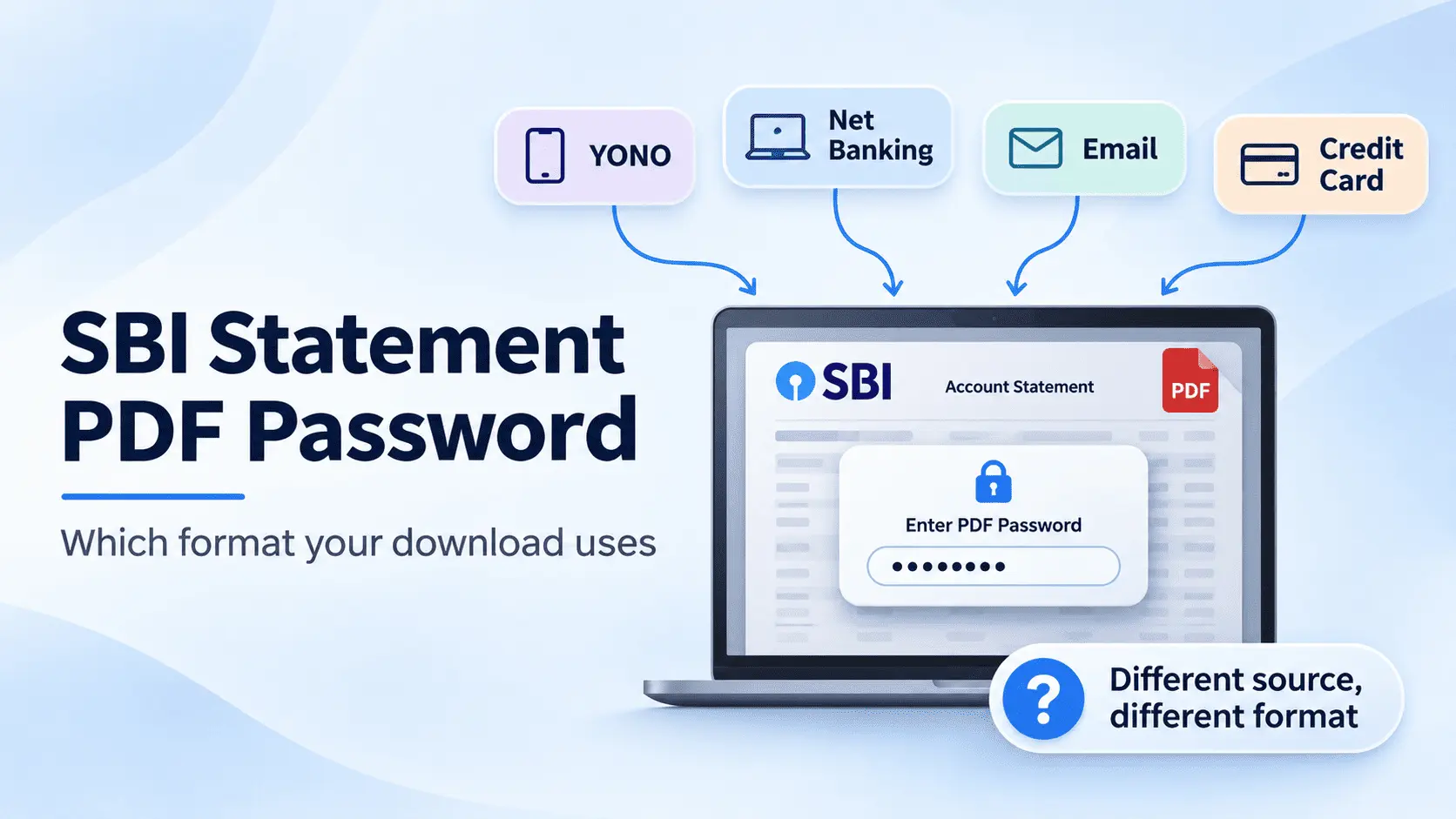
Use the table to identify the format associated with your statement's bank and channel, then confirm it against the password instructions supplied with the actual PDF. For SBI and HDFC statements, the dedicated bank guides provide the fuller channel-specific explanations without repeating them here.
How Do You Find Your Password If You Do Not Know the Format?
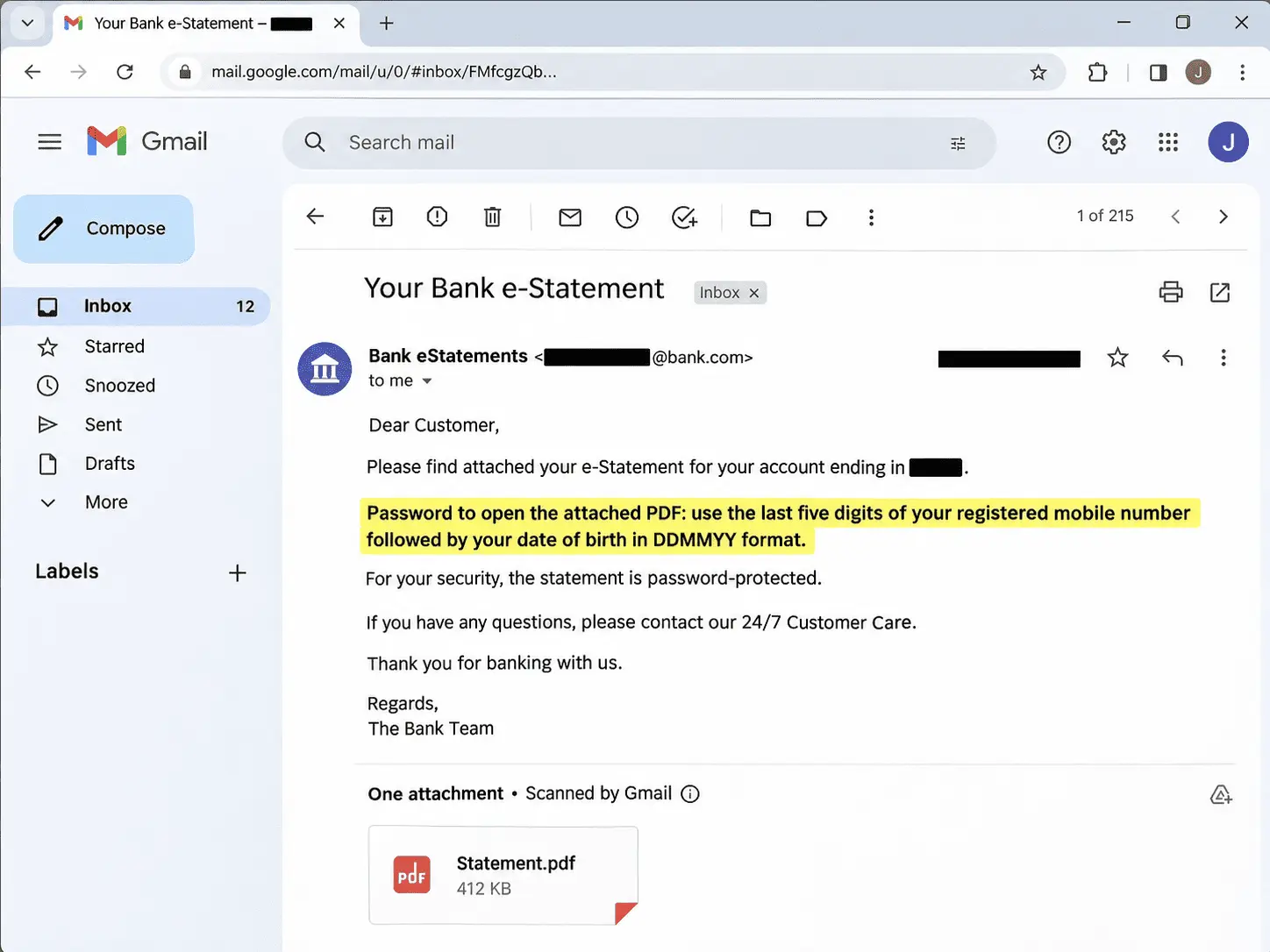
The fastest way to find your bank statement PDF password is to check the covering email or SMS that came with the statement. Banks often include the password formula in the accompanying message, so check those instructions before relying on a general password table, including the one in this guide.
If you cannot find the instructions, check these three places in order:
- Check the covering email or SMS: Open the original message that delivered your statement and look near the PDF attachment or download link. Search for phrases such as “password to open,” “password format,” or “date of birth.” The message may specify which customer details to combine, the order of the characters, and whether letters should be uppercase or lowercase.
- Return to the bank's download page: If you generated the statement through a net banking portal or mobile app, revisit the account statement section. Look for password instructions near the Download, Generate, or Email Statement option. Some banks display the applicable rule during statement generation rather than inside the PDF itself.
- Contact the bank's customer care: If the original message and download page do not explain the password, use the official helpline or secure support channel. Tell the representative whether your statement came from an app, net banking, or email. They may be able to confirm the applicable format or help you request a fresh statement.
Instructions supplied with your particular statement are generally more relevant than a password formula published on another website. They can identify the delivery method and statement type used to generate the file, whereas a general guide may describe a different banking channel or an older process. However, not every covering message contains a password hint, and an accompanying instruction is not guaranteed to be error-free.
If you received the statement through WhatsApp, email forwarding, or another messaging service, ask the original sender for the bank's accompanying password instructions. Forwarding an existing PDF does not change its password, so the relevant format still comes from the original statement-generation method.
If the statement belongs to another person, only the account holder or an authorized sender should provide the information needed to open it. You should not need anyone's banking login password, OTP, PIN, or complete card credentials to identify a statement PDF password.
When no instructions are available, use the earlier bank-and-channel comparison table to narrow down the possibilities, then confirm the format through an official banking channel rather than trying unrelated combinations.
What If My Bank Statement PDF Is Password Protected?
A password-protected bank statement PDF is usually normal, especially when the bank sends it as an e-statement by email. The PDF encryption helps prevent unauthorized access to your financial information. You do not need to repair the file or remove its password just to read it. First, identify where the statement came from, find the correct password format, and open it.
Follow this short decision path:
- Identify the download channel: Did you receive the statement by email, download it through net banking, or save it from a mobile banking app? The correct password may depend on that download channel, even when the statements come from the same bank.
- Find the password instructions: Check the email or SMS that accompanied the statement, or return to the original download screen. Look for instructions explaining which customer details to use and the order in which to enter them.
- Enter the password: Open the PDF in a compatible reader and type the required combination exactly, including uppercase letters, lowercase letters, symbols, or leading zeros where specified.
- Check the original source if it fails: If the password is rejected, confirm that you followed the instructions for the correct bank and statement channel rather than trying a different bank's formula.
If you received a forwarded file from someone else, ask the original account holder or authorized sender which banking channel generated it and whether the bank provided password instructions. Forwarding the PDF through WhatsApp or email does not change its existing password, and the recipient's own banking details will not unlock another person's statement.
A password prompt does not mean the statement is corrupted or that you need a password-recovery service. It usually means the PDF is protected as intended. Once you have the correct password, you can open and read the statement without removing that protection from the original file.
How Do You Open a PDF Bank Statement?
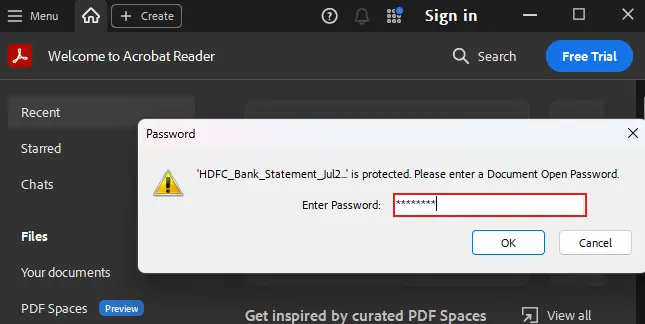
Download your bank statement to your device, open it in a compatible PDF reader, and enter the password exactly as specified by your bank. Do not add spaces or change the capitalization. If the file arrived by email, saving the attachment first is more reliable than trying to open it directly in the email's preview pane.
Follow these steps:
- Download the bank statement PDF: Save the attachment from your email, banking app, or net-banking portal to your phone or computer. Keep the original filename so you can identify the statement later.
- Open it in a PDF reader: Use Adobe Acrobat Reader or another application that supports password-protected PDFs. If the email or browser preview cannot display the statement, open the saved file directly in the reader instead.
- Enter the correct password: When the password prompt appears, type the combination required for your bank and statement channel. Include all letters, numbers, symbols, and leading zeros exactly as instructed.
- Open and check the statement: Select Open or OK. Once the password is accepted, the PDF should display your account details and transactions. The original file remains password-protected the next time you open it.
If the reader rejects a password you believe is correct, check how you entered it before trying another formula.
On a phone, autocapitalisation can change a lowercase name fragment into an uppercase one. For example, raje1503 and Raje1503 are different passwords. A mobile keyboard may also insert a space after a symbol, or autocorrect may change characters when you type a combination containing separators such as @.
Copying a password from a message can cause similar problems. An extra space or line break at the beginning or end makes the entered password different from the one the bank generated. If pasting fails, type the combination manually and check each character.
Finally, a browser or email preview may fail to display a protected PDF even when the password is valid. Download the attachment and try opening it in a dedicated PDF reader before concluding that your password is wrong.
If the statement still does not open, return to the password instructions for its original download channel. A password from another bank's statement or a different delivery method may not work, even when your personal details are correct.
How Do You Unlock a Bank Statement PDF?
To unlock a bank statement PDF for reading, open the file in a PDF reader and enter its correct password. This gives you session access to the statement, but it does not remove the password from the original file. The next time you open that file, the reader may ask for the password again.
Follow these steps:
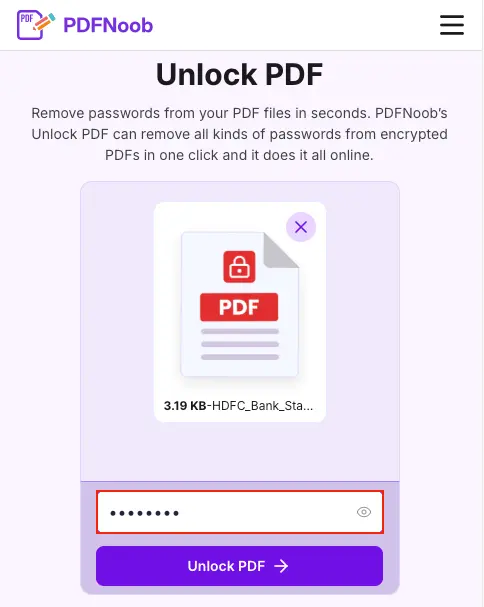
- Choose how you want to access the statement: If you only need to read it, open the protected file in your PDF reader. If you eventually need a password-free copy, PDFNoob's Unlock PDF tool can remove the existing password, but that is a separate process from temporarily opening the file.
- Enter the existing password: Type the combination specified by your bank into the password prompt and select Open or OK.
- Read the unlocked statement: Once the password is accepted, you can view the account details and transactions. Closing the document does not remove its original protection.
The distinction matters when you need to send the statement to someone else. Suppose you unlock a PDF to review your transactions and then email the original file to a lender for a loan application. Your ability to read it does not mean the person receiving it can open it without a password.
A forwarded file keeps its existing password protection. Whether the recipient is a lender, an accountant, or a visa office, they may encounter the same password prompt when opening the original attachment. That can delay a document submission if the organization requires a password-free PDF.
Before forwarding the statement, check the recipient's document requirements. If they accept password-protected statements, follow their approved method for supplying access instructions. If they require an unlocked document, you will need to create a separate password-free copy rather than simply opening the original.
Unlocking a statement to read it and permanently removing its password are therefore two different tasks. The first gives you access to the protected document; the second changes the protection on a saved copy.
How Do You Permanently Unlock a PDF?
To permanently unlock a bank statement PDF, open it using the correct password and save a separate unencrypted copy. The new file opens without a password prompt, while your original bank statement stays protected.
Follow these steps:
- Open the protected statement: Enter the password provided by your bank to access the PDF.
- Remove the password protection: Use a trusted PDF unlocking tool or a PDF editor that supports removing document security. Supply the existing password when prompted.
- Save a separate copy: Download or export the unlocked statement with a different filename. Do not overwrite the original PDF.
- Check the result: Close the unlocked copy and reopen it. If it displays without requesting a password, the removal was successful.
A password-free statement is useful when a lender, visa office, or accountant needs to read the document without requesting the password. However, removing the lock is less suitable when the file will remain in the Downloads folder of a shared computer, where another person could open it.
For safer document retention, keep the encrypted original in your protected records and treat the unlocked version as a temporary working copy. Delete that copy from your device when the submission or accounting task is complete, and you no longer need it.
You may also see print to PDF recommended as a password-removal method, but some printing workflows rasterise the pages and destroy the searchable text layer, making transaction amounts difficult to copy or extract. Our SBI statement password guide shows how to spot this in five seconds.
Whenever possible, use a password-removal method that preserves the statement's original text and layout rather than rebuilding its pages through printing.
How Do You Save a Password Locked PDF?
Keep the password-protected bank statement exactly as your bank issued it, and save any unlocked version as a separate file. This preserves the original file while giving you another copy to use for applications, accounting, or document submissions.
Use a consistent file naming system so you can identify each statement without opening it. For example:
- BankName_Statement_2026-10_Original.pdf
- BankName_Statement_2026-10_Unlocked.pdf
Include the bank name, statement period, and file type, but avoid adding your account number, date of birth, or PDF password to the filename. Never overwrite the encrypted original with an unlocked copy. If you later need the statement again, the original preserves the bank-issued document and its password protection.
For document retention, keep statements for as long as they support your tax records, loan obligations, or other financial requirements. In India, certain business accounting records and supporting documents may need to be retained for at least six years from the end of the relevant assessment year, with longer retention in some circumstances. Personal tax records, loan documents, and statements connected to an ongoing dispute may have different requirements, so there is no single retention period for every bank statement.
Store your protected statements in a private folder on a secured device or within an appropriately protected document-storage system. Avoid leaving an unlocked copy in Downloads, on a shared computer's desktop, or in a folder accessible to other users.
Pay particular attention to cloud sync. If you save an unlocked statement inside a folder synchronized with Google Drive, OneDrive, or another service, the file may be uploaded to your cloud account and become available on other connected devices. Deleting the local copy may not remove every synchronized or previously downloaded copy.
For temporary submissions, save the unlocked PDF outside automatically synchronized folders when possible. After the recipient confirms that the file has been accepted and you no longer need the working copy, delete unnecessary copies while retaining the protected original for your records.
How Do You Get a Bank Statement Into a Spreadsheet?
Getting a bank statement into a spreadsheet starts with extracting its transaction data, not simply converting the PDF pages into another file. The useful information is in the transaction dates, descriptions, withdrawals, deposits, and balances, which you need as separate rows and columns.
This matters for bank reconciliation, loan applications, employee expense claims, and tax filing. A spreadsheet lets you sort transactions, calculate totals, identify duplicate payments, and compare bank records with invoices or accounting entries.
Follow these steps:
- Open the protected statement: If the PDF requires a password, enter the correct one first. When you need a password-free working copy, use PDFNoob's Unlock PDF tool with the existing password.
- Check whether the text is selectable: Open the statement and try highlighting a transaction amount or description. If you can select individual characters, the PDF has a usable text layer.
- Extract the transaction details: Use a PDF text-extraction tool or a suitable table-conversion method to obtain the transaction dates, descriptions, amounts, and balances.
- Organize the results in a spreadsheet: Place each transaction on a separate row, with columns for the date, description, debit, credit, and balance. Review the imported data before using it for financial calculations.
If the statement is a rasterised page, its text has been converted into an image. This is often why a PDF looks perfectly readable but refuses to let you copy its transaction amounts. In that situation, ordinary text extraction may return little or nothing because there are no stored characters to extract. Optical character recognition (OCR) can recover the visible text, although the numbers must be checked carefully afterward.
Even when the PDF already has selectable text, its tables may not transfer neatly into spreadsheet columns. Descriptions can wrap onto several lines, debit and credit amounts may appear together, and headers or closing balances can be mistaken for transactions. Expect to clean up the extracted information and compare its totals against the original statement.
The goal is not to recreate the statement's page layout. It is to turn the transaction information into accurate, usable data while keeping the original PDF available for verification.
How Do You Unlock a PDF Password in a Browser?
You can remove a PDF password in your browser using PDFNoob's Unlock PDF tool. Upload the protected bank statement, enter its existing password, and download a new copy without password protection. You do not need to install a desktop application.
Follow these steps:
➤ Open the PDFNoob Unlock PDF tool.
➤ Click Select a PDF to Unlock and choose your password-protected statement.
➤ Enter the correct password in the password field and select Unlock PDF.
➤ Click Download Unlocked PDF to save the password-free copy.
➤ Open the downloaded file to confirm that it no longer asks for a password.
The tool performs password removal, not password recovery. You must already know the password required to open the statement. If you have forgotten it, check the bank's original password instructions or request help from the issuing bank.
There is also a privacy point worth knowing. Working in the browser means you install nothing, and the file stays on your device: the statement is sent to PDFNoob's server over an encrypted (HTTPS) connection to remove the password, and it is deleted within an hour. If you would rather your statement never leaves your computer, use a desktop PDF reader that can save a copy without its password.
Keep the original protected statement and use the unlocked file only when you need a copy that opens without a password.
How Do You Pull the Transactions Out of a Statement?
The most reliable starting point is to extract the existing text layer from your bank statement PDF rather than manually retyping the transaction rows. This lets you reuse the dates, descriptions, amounts, and balances already stored in the document, reducing the risk of a transcription error.
First, check whether your statement contains selectable text:
- Open the PDF in a compatible reader and try highlighting a transaction date or amount.
- If you can select individual characters, the statement has a text layer that can be extracted.
- Use PDFNoob to extract text from a PDF, then download the extracted text and organize the transactions in a spreadsheet.
- Compare the extracted figures with the original bank statement before using them for reconciliation, accounting, or tax records.
If you cannot select any text, the statement may contain scanned or rasterised pages. In that case, optical character recognition (OCR) is needed to identify the characters in the images. OCR can misread digits, decimal points, and transaction descriptions, so every financial amount should be checked against the original.
Extracting existing digital text avoids the mistakes that can occur when copying figures by hand. However, it does not guarantee that transaction columns, line breaks, or number formats will transfer correctly. Check those details before relying on the extracted data.
Which Bank's Statement Password Do You Need?
Choose the guide for your bank and the channel that issued your statement. A password instruction for one delivery method may not apply to another.
- State Bank of India (SBI): Read the SBI Statement PDF Password guide for YONO, OnlineSBI, and emailed statements. You can also consult SBI's official e-statement instructions.
- HDFC Bank: Read the HDFC Bank Statement PDF Password guide for account statements, emailed statements, and credit-card documents.
- ICICI Bank: Check the official ICICI Bank credit-card statement guidance.
- Axis Bank: Check the official Axis Bank e-statement guidance.
Start with the instructions accompanying your actual PDF, then use the relevant bank guide for any channel-specific details.