


Delete Pages From PDF Online and Free
Drop unwanted pages from a PDF in seconds. Preview page thumbnails. Click X to take a page out. Use undo if you change your mind. No sign-up. No watermark.
- Free page remover. No account required.
- Thumbnail preview, undo, and batch drop.
- Works on Mac, Windows, iPhone, and Android in any browser.

Drop your PDF here to remove pages
Up to 100 MB per file · Free forever
Files deleted in 1 hour. We don't index your content or use it for AI training.

Files Deleted Within 1 Hour
HTTPS encryption in transit. We never train AI on your file contents.

Trimmed in Under 15 Seconds
Removals are instant. No waiting on a re-render of the whole PDF.

No Sign-Up, No Watermark
Free. No trial. No email gate. No page-count cap.

Undo Until You Save
Every drop is reversible until you click Save and download.
How To Delete Pages From a PDF
Three steps. No installs. No accounts. No hidden limits.
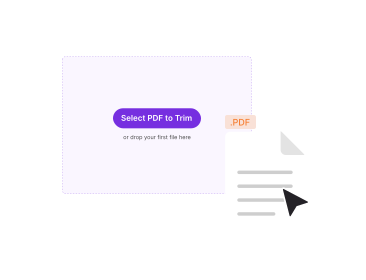
Upload Your PDF
Drag your file into the box above, or click to browse. A thumbnail strip of every page loads.
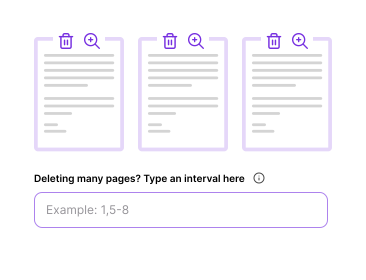
Click X To Drop a Page
Tap the X on any thumbnail to mark a page for removal. Use the undo button or click again to restore it.
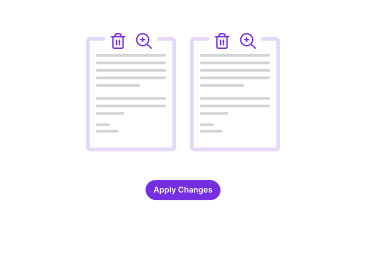
Save the Trimmed PDF
Click Save. A new PDF without the excluded pages downloads at once. No watermark.
Why Remove PDF Pages With PDFNoob?
Preview, undo, and batch drop. The workflow other page removers charge for.

Page-Thumbnail Preview
See every page as a thumbnail before you decide what to strip. No guessing by page number on a long document.

Undo Any Time
Every drop is reversible until you click Save. Restore individual pages, or undo the entire session.

Batch Exclude by Range
Type a range like 5,7,12–15 to mark a batch of pages for removal in one go. Or click thumbnails one by one.

Privacy by Design
Files delete within one hour. We don’t index your file contents. We never use them to train AI.

Mobile-Friendly
Trim PDFs from your phone. The thumbnail picker scales to small screens on iPhone and Android.

Kept Pages Stay Perfect
Fonts, images, links, and form fields on the surviving pages stay byte-identical to the source.
About Removing PDF Pages
Removing pages from a PDF means dropping one or more pages and saving the rest as a new file. Common scenarios include stripping a cover sheet, taking out blank pages that a scanner added, excluding a confidential appendix before sharing, or trimming a 50-page export down to four pages. The operation is non-destructive. The source file stays untouched. A new PDF appears without the excluded pages.
Under the hood, a page-remove operation works at the page-tree level. Every PDF stores pages as objects in a hierarchical tree. The tool drops the entries for the marked pages. It cleans up any internal links or bookmarks that pointed to them. It writes the remaining objects into a fresh PDF container. No re-rendering of the surviving pages takes place. That is what makes the operation fast. The output stays byte-identical to the source on the pages you keep.
Common Reasons To Delete PDF Pages
- Cover sheets and separators: Strip blank or filler pages a scanner added before the real content.
- Confidential appendices: Strip an internal-only section before sending a contract to a counterparty.
- Duplicate scans: Multi-feed scanners sometimes double-feed. Drop the duplicate after a quick visual check.
- Quick trim before sharing: Take out the four pages a colleague actually needs from a long report.
Remove Pages vs. Extract Pages
If you want to keep most of a file and drop a few pages, this remover is the right tool. If you want to keep only a few pages and exclude most of the file, extracting pages is usually faster. You pick what to keep instead of clicking through everything you want gone. Both produce a new PDF. The difference is which set is easier to select.
For a full walkthrough, read our guides on how to delete pages from a PDF and how to split a PDF.
Related PDF Tools
Other tools you might need today.


Frequently Asked Questions
Common questions about deleting and removing pages from PDFs.
How Do I Delete Pages From a PDF for Free?
Upload your PDF to PDFNoob. Click the X on any thumbnail to mark pages for removal. Click Save. A new PDF without those pages downloads at once. No account is required. The output carries no watermark.
Can I Drop Multiple Pages at Once?
Yes. Click as many thumbnails as you want. There is no per-session cap. You can also type a range like 5,7,12–15 to mark a batch of pages for removal in one go.
Can I Undo if I Strip the Wrong Page?
Yes. Every drop is reversible until you click Save. Use the undo button. Or click the page again to restore it. Nothing commits until you download the trimmed file.
Is It Safe to Take Out Pages From a PDF Online?
Yes. Files travel over an encrypted HTTPS connection. We delete them within one hour. We don't index your file contents. We never use them to train AI. If you prefer never to upload at all, our desktop app trims entirely on your computer.
Can I Drop Pages From a Password-Protected PDF?
Not directly. Use the Unlock PDF tool with the password to strip protection first. Then exclude pages from the unlocked file. We do this for security. We never want to be misused to bypass document protection.
Does Removing Pages Change the Rest of the PDF?
No. The pages you keep stay byte-identical to the source. Fonts, images, links, and form fields all stay intact. Only the dropped pages and any internal links pointing to them get removed.
Does the Output PDF Have a Watermark?
No watermark, ever. PDFNoob is genuinely free. We never brand your output.
Does It Work on iPhone, iPad, or Android?
Yes. PDFNoob is a web app. No install is needed. Open this page in Safari or Chrome. Tap Select PDF and pick a file from Photos, Files, iCloud, or Google Drive. Tap thumbnails to mark pages for removal. Then download the trimmed file.