


Split PDF Pages Online and Free
Divide a PDF into multiple files in seconds. Separate by page range, by every N pages, or save each page as its own file. No sign-up. No watermark. Files deleted within 1 hour.
- Free PDF splitter. No account required.
- Split by range, by interval, or one file per page.
- Works on Mac, Windows, iPhone, and Android in any browser.

Drop your PDF here to split
Up to 100 MB per file · Free forever
Files deleted in 1 hour. We don't index your content or use it for AI training.

Files Deleted Within 1 Hour
HTTPS encryption in transit. We never train AI on your file contents.

Split in Under 20 Seconds
Most splits finish at once, even on 500-page files.

No Sign-Up, No Watermark
Free. No trial. No email gate. No page limits.

Lossless Output
Fonts, images, form fields, and bookmarks stay intact in every output file.
How To Split a PDF Online
Three steps. No installs. No accounts. No hidden limits.
Upload Your PDF
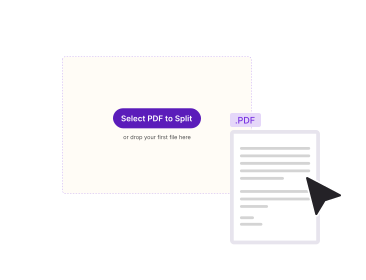
Drag your file into the box above, or click to browse. A thumbnail strip of every page loads.
Choose a Split Mode
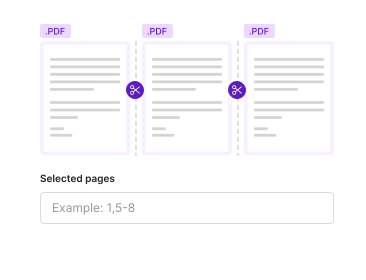
Pick page ranges (1–5, 6–10), every N pages, or one file per page. Preview the output before you commit.
Download as a ZIP
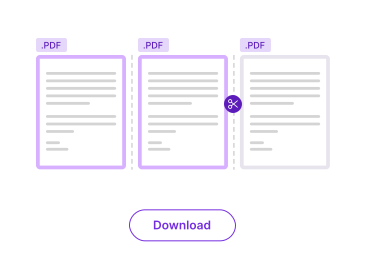
Click Split. The output files arrive bundled in a ZIP. Your download starts at once. No watermark.
Why Use PDFNoob as Your PDF Splitter?
Three split modes. Lossless output. No upsell. The workflow other splitters charge for.

Three Split Modes
By page range, by every N pages, or one file per page. Most online splitters give you only one. Pick the mode that fits the job.

Batch ZIP Download
Output files arrive bundled in a single ZIP. Filenames carry page numbers. No clicking through ten download links.

Privacy by Design
Files delete within one hour. We don't index your file contents. We never use them to train AI.

Preserves Bookmarks
Per-section bookmarks survive the partition. Useful when you separate chapters of a long report.

Mobile-Friendly
Divide a PDF directly on your phone. The thumbnail strip and range picker scale to small screens.

No 3-Range-Per-Split Cap
Many free splitters limit you to two or three ranges per session. PDFNoob has no such cap.
About Splitting PDF Files
Splitting a PDF means taking one source document and producing two or more output PDFs from it. This is one of the most common PDF workflows. You might need to separate a multi-chapter report so each chapter goes to a different reviewer. You might pull individual receipts out of a combined bank statement. Or you might hand a class roster off to teachers as one PDF per student. The split is non-destructive. Your original file stays untouched while new files appear.
A PDF splitter works at the page-tree level. Every PDF is a hierarchy of page objects. The splitter clones a subset of those pages into a new PDF container. The fonts, images, and form-field references they depend on come along too. No re-rendering takes place. That is what makes the operation fast and lossless. PDFNoob keeps bookmarks within their output files. The tool keeps font subsets intact. It never downsamples images during the partition.
Split vs. Extract: What Is the Difference?
Split produces multiple output files from a single input. A 100-page file divided into ten 10-page chunks gives you ten new PDFs. Extracting pages produces one output file with only the pages you picked. Pulling pages 5, 12, and 30 from a long document gives one new three-page PDF. Pick split when you want to break a file apart into many pieces. Pick Extract Pages when you just need a subset stitched into one new file.
When To Split a PDF
- Email size limits: Divide a 50 MB file in half so both halves clear a 25 MB mailbox cap.
- Multi-recipient delivery: Send each chapter of a report to its owner without forwarding the whole file.
- One-per-page archiving: Turn a combined invoice pack into one file per invoice for accounting systems.
- Form bundling: Separate a packet of forms collected in one scan back into individual submissions.
For a full walkthrough, read our guides on how to split a PDF and how to extract pages from a PDF.
Related PDF Tools
Other tools you might need today.


Frequently Asked Questions
Common questions about splitting and separating PDF files online.
How Do I Split a PDF File for Free?
Upload your PDF to the splitter above. Choose a split mode: by range, by every N pages, or one file per page. Click Split. The output files download as a ZIP. No account is needed. No email is required. No watermark appears on the output.
What Is the Difference Between Split PDF and Extract Pages?
Split PDF breaks one PDF into many output files. Use it to separate chapters, send half a document to one person, or generate one file per page. Extract Pages pulls a subset of pages into one new PDF. Use it when you only need a few pages from a long file.
Is It Safe to Divide PDFs Online?
Yes. Files travel over an encrypted HTTPS connection. We delete them within one hour. We don't index your file contents. We never use them to train AI. If you prefer never to upload at all, our desktop app does the split entirely on your computer.
How Large a PDF Can I Split?
Up to 100 MB per file on the free tier. There is no page-count cap within that size budget. For larger PDFs, the desktop app handles files of any size locally on your computer.
Can I Separate a Password-Protected PDF?
Not directly. Remove the password first with the Unlock PDF tool. You'll need the password. Then split the unlocked file. We do this for security — we never want to be misused to bypass document protection.
Does the Split PDF Have a Watermark?
No watermark, ever. PDFNoob is genuinely free. We never brand your output files.
Can I Break a PDF Into Single Pages?
Yes. Pick the "one file per page" mode. PDFNoob saves every page as its own PDF. The files arrive packaged in a ZIP. Page numbers in the filenames keep the order clear.
Does It Work on iPhone, iPad, or Android?
Yes. PDFNoob is a web app. No install is needed. Open this page in Safari or Chrome. Tap Select PDF and pick a file from Photos, Files, iCloud, or Google Drive. The split files save back to your phone the same way.