

PDF to JPG Online and Free
Export PDF pages as JPG, PNG, or WebP images in seconds. Per-page output. Resolution control. Embedded color profile preserved. No sign-up. No watermark.
- Free PDF-to-image converter. No account required.
- JPG, PNG, or WebP at 72, 150, or 300 DPI.
- Works on Mac, Windows, iPhone, and Android in any browser.

or drop your first file here
Up to 100 MB per file · Free forever
Files deleted in 1 hour. We don't index your content or use it for AI training.

Files Deleted Within 1 Hour
HTTPS encryption in transit. We never train AI on your file contents.

Exported in Under 30 Seconds
Most conversions finish at once, even on 500-page PDFs.

No Sign-Up, No Watermark
Free. No trial. No email gate. No image-count cap.

Color Profile Preserved
sRGB, CMYK, or Adobe RGB. The tool keeps the embedded profile from the source PDF.
How To Turn a PDF Into JPG Files
Three steps. No installs. No accounts. No hidden limits.
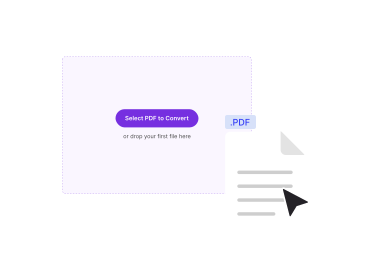
Upload Your PDF
Drag your file into the box above, or click to browse. PDFNoob loads the page thumbnails for preview.
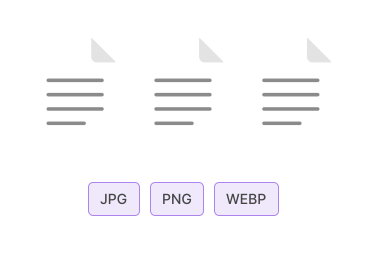
Pick Format and Resolution
Choose JPG, PNG, or WebP. Set DPI: 72 for web, 150 for screen reading, 300 for print.
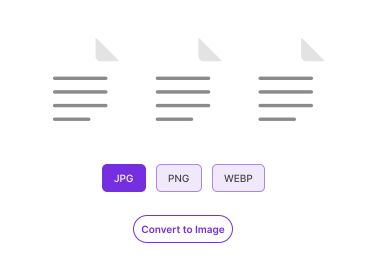
Download the ZIP
Click Convert. Each page renders into its own image. The set arrives bundled in a ZIP. No watermark.
Why Render PDFs as Images With PDFNoob?
Three output formats, three DPI presets, color-profile aware. The workflow paid converters charge for.

Three Output Formats
JPG for photos and scans. PNG for lossless text-heavy pages. WebP for smaller modern files. Pick what fits your use.

Resolution Control
72 DPI for web, 150 DPI for screen reading, 300 DPI for print. Pick the right balance between quality and file size.

Color-Profile Aware
sRGB, CMYK, and Adobe RGB profiles embedded in the PDF carry through. Colors don't shift on export.

Per-Page Output
Each PDF page renders as its own image file. Filenames carry page numbers. The set arrives bundled in a ZIP.

Privacy by Design
Files delete within one hour. We don't index your file contents. We never use them to train AI.

Mobile-Friendly
Render on the phone. Tap, pick the format, and save the ZIP straight to your Files app.
About Rendering PDFs as Images
Rendering a PDF to an image format means turning each page into a bitmap. The result saves as JPG, PNG, or WebP. This is the right move when you need a PDF in a context that doesn't understand PDF natively. Examples include posting a page to social media, embedding a snippet in a Word doc or slide deck, attaching a preview to a chat message, or generating thumbnails for a document gallery.
PDFNoob renders each page through a high-quality rasteriser. The converter keeps the embedded color profile from the source PDF where present. The output writes at the resolution you pick. Higher DPI produces sharper images at the cost of larger files. 150 DPI is the sweet spot for on-screen viewing. 300 DPI fits print.
Which Format Should I Pick?
- JPG: Best for photographic content, scans, and full-page documents. Smaller files than PNG. Quality loss is imperceptible at high settings. The default for most uses.
- PNG: Lossless. Ideal for text-heavy pages, diagrams, and screenshots where you need crisp edges. Larger files than JPG.
- WebP: A modern format that pairs PNG-class quality with smaller files. Web browsers support it everywhere. Some older desktop apps still don't.
PDF to JPG vs. PDF to Text
PDF-to-image gives you a picture of each page. Pixels, not text. If you want the actual text from a PDF, use PDF to Text for digital PDFs or OCR PDF for scanned ones. Image export is for visual reuse. Text extraction is for data reuse.
For a full walkthrough, read our guides on how to convert PDF to JPG and how to convert PDF to PNG.
Related PDF Tools
Other tools you might need today.


Frequently Asked Questions
Common questions about turning PDFs into JPG, PNG, or WebP files.
How Do I Export a PDF as JPG for Free?
Upload your PDF to PDFNoob. Pick JPG as the output format. Set the resolution. Click Convert. Each page renders as its own JPG image. The set downloads as a ZIP. No account is required. The output carries no watermark.
Which Output Formats Are Supported?
JPG, PNG, and WebP. JPG is best for photographs and scans. PNG is lossless and good for text-heavy pages. WebP is a modern format with smaller file size. Pick the one that matches your downstream use, whether that is print, web, or social media.
Can I Control the Resolution?
Yes. Three presets are available. 72 DPI is web. 150 DPI is good for print and on-screen reading. 300 DPI is high-quality print. Higher DPI means larger files but more detail per page.
Is It Safe to Render PDFs as Images Online?
Yes. Files travel over an encrypted HTTPS connection. We delete them within one hour. We don't index your file contents. We never use them to train AI. If you prefer never to upload at all, our desktop app exports entirely on your computer.
How Many Pages Can I Turn Into Images at Once?
Up to 100 MB per file on the free tier. There is no page-count cap within that size. A 500-page PDF exports in one job and downloads as a single ZIP.
Will the Colors Stay the Same?
Yes. PDFNoob preserves the embedded color profile (sRGB, CMYK, or Adobe RGB) where possible. PNG and WebP outputs are lossless. JPG uses a high-quality setting that is visually identical to the source for most pages.
Does the Output Have a Watermark?
No watermark, ever. PDFNoob is genuinely free. We never brand your output.
Does It Work on iPhone, iPad, or Android?
Yes. PDFNoob is a web app. No install is needed. Open this page in Safari or Chrome. Tap Select PDF, pick a file, and download the images back to your Photos or Files app.