


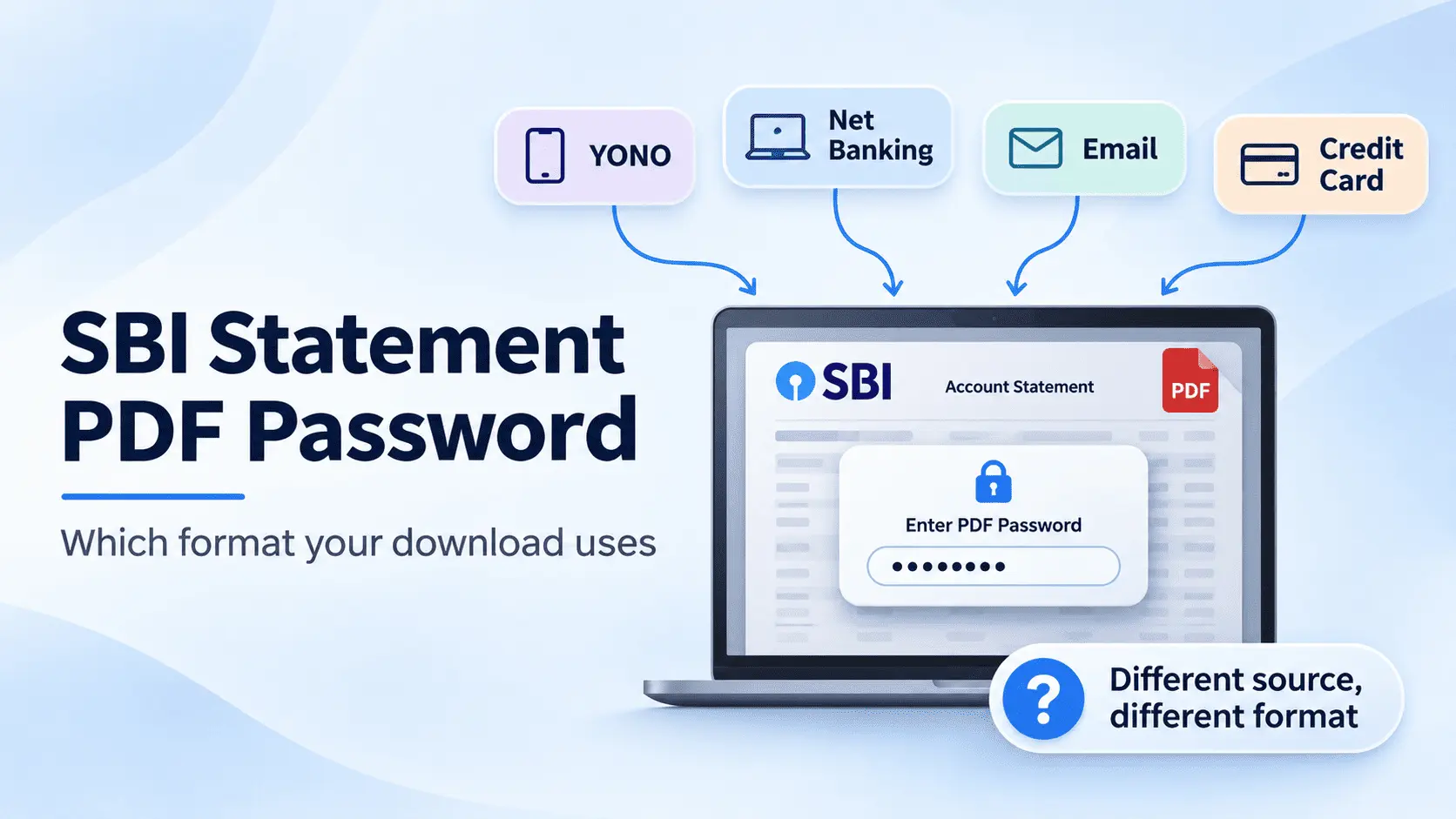
State Bank of India protects many statement PDFs with a password linked to the account holder's banking details. Depending on how the statement was generated, the password may use an account number, date of birth, or digits from a registered mobile number. The complication is that a statement downloaded through YONO SBI may not follow the same instructions as one obtained through OnlineSBI or delivered as an e-statement.
If you search for an SBI PDF password, you will find several conflicting answers. Some guides recommend an eight-digit birth date, others use mobile-number digits combined with a birth date, and some specify the account number alone. Even instructions attributed to YONO differ, leaving readers unsure whether they have the wrong password or the wrong formula.
The distinction is not simply which bank issued the PDF. Where and when the statement was generated can determine which password instructions apply. Different SBI delivery channels have used different formats, and published guidance may describe older workflows without identifying them as such. Reports of changed e-statement formulas add to the confusion, although a bank-wide change date has not been independently established.
This guide separates the reported password formats by download channel, explains why the answers online disagree, and shows how to identify where your particular PDF came from. It then covers password instructions for YONO, OnlineSBI, emailed statements, and SBI credit-card statements.
You'll also learn how to open a statement in a PDF reader, troubleshoot rejected passwords, and remove PDF encryption from a file you can already access. The final sections explain the difference between opening and removing a PDF password, why printing to a new PDF can affect searchable transaction text, and how SBI's approach compares with other Indian banks.
The most reliable starting point is the password instruction displayed when your statement was generated or included in its accompanying message, rather than a formula copied from a guide describing another download channel.
Which Password Does an SBI Statement PDF Ask For?
There is no single password format for every SBI statement PDF. The password depends on whether the file came from YONO SBI, OnlineSBI, an emailed e-statement, or SBI Card, and some published instructions differ even within the same channel.
The table below compares the reported formats as of November 4, 2026. These are documented or published password candidates, not four universally confirmed SBI rules. Always follow the instructions supplied with your particular statement.
| Where the PDF came from | Reported password format | Worked example | Characters |
|---|---|---|---|
| YONO SBI app | Date of birth in DDMMYYYY. Some YONO-generated statements instead use DDMM + @ + last four mobile digits. | 15081990 or 1508@3210 | 8 or 9 |
| OnlineSBI net banking | Full 11-digit account number. Some downloads may open without a password. | 12345678901 | 11, or none |
| Email e-statement | Last five digits of the registered mobile number + date of birth in DDMMYY. | 43210150890 | 11 |
| SBI Card credit card statement | Reported format: date of birth in DDMMYYYY + last four card digits. Another reported format uses the first four name letters + DDMM. | 150819904521 or RAHU1508 | 12 or 8 |
All four examples use the same fictional customer, Rahul Sharma, born on 15 August 1990, with mobile number 9876543210, SBI account number 12345678901, and a credit card ending in 4521. His name, birth date, and account details remain the same, yet the resulting passwords change according to the statement type and reported format.
The YONO row needs particular care because published sources disagree about whether the app uses an eight-digit birth date, a birth-date-and-mobile combination, or the account number. Likewise, some OnlineSBI statements may not request a password at all. These differences mean the table should be used to identify a candidate, not to override a password hint shown when the PDF was generated.
For an emailed statement, check the accompanying message for the exact format. For a credit-card statement, use the instructions supplied by SBI Card rather than those for a regular savings or current account.
If you requested an SBI statement through the bank's SMS-based SBI Quick service, there is another important exception: SBI's official instructions say the emailed PDF uses the four-digit password you selected when making that request.
The download channel is your first clue, but the password instructions issued with the file are the deciding evidence.
Why Do Different Websites Give You Different SBI Passwords?
Different websites give different SBI statement passwords because they often describe separate download channels or older statement formats without making that distinction clear. YONO SBI, OnlineSBI, and emailed e-statements do not necessarily follow the same instructions, so a formula that worked for one document may fail when applied to another.
The disagreement is especially noticeable with YONO. Published guides recommend at least four different combinations for statements associated with the app:
| Claimed password format | Which channel it actually belongs to |
|---|---|
| Date of birth in DDMMYYYY, such as 15081990 | Reported for some YONO app downloads, although other sources give different YONO instructions. |
| Last five digits of the registered mobile number + date of birth in DDMMYY, such as 43210150890 | Commonly reported for SBI account statements delivered by email. Some guides also attribute it to YONO-generated statements. |
| First five uppercase letters of the account holder's first name + date of birth in DDMMYYYY, such as RAHUL15081990 | Reported for certain SBI documents, including YONO-related statements or interest certificates. Its application to ordinary YONO account statements is disputed. |
| Date of birth in DDMM + @ + last four mobile digits, such as 1508@3210 | Reported for statements requested through YONO and delivered by email, rather than necessarily for PDFs downloaded directly to the device. |
All four examples use Rahul Sharma, born on 15 August 1990, with registered mobile number 9876543210. His personal details have not changed; only the reported password format and statement-delivery method differ.
The problem is that some guides group YONO app downloads and YONO-generated email attachments under the same label. Others describe the format used for an emailed account statement as though it applies to every SBI PDF. A reader following those instructions may enter the correct details in the wrong combination and assume they have mistyped the password.
There is a similar disagreement about OnlineSBI. Some guides identify the account number as the password for a net-banking statement, while others report that certain downloads open without PDF encryption. A PDF that opens immediately without requesting a password does not have an opening-password problem. However, the available sources do not establish which OnlineSBI versions, if any, account for this difference.
Another complication is that published formats can remain online after banking services change. Some guides describe older instructions, while newer pages report different combinations. That does not prove every conflicting formula was once officially valid, or establish a specific date when SBI changed its e-statement system.
The practical lesson is to identify the exact channel that generated your PDF before choosing a password. Check the hint on the download screen or in the accompanying email, including whether it calls for six or eight birth-date digits. Those document-specific instructions are more useful than a formula presented without its source or date.
How Can You Tell Where Your SBI Statement PDF Was Downloaded From?
Check how your SBI statement reached you, not just how the PDF looks. A statement received as an e-statement attachment, downloaded through YONO SBI, or saved from OnlineSBI may follow different password instructions, even when all three contain transactions from the same bank account.
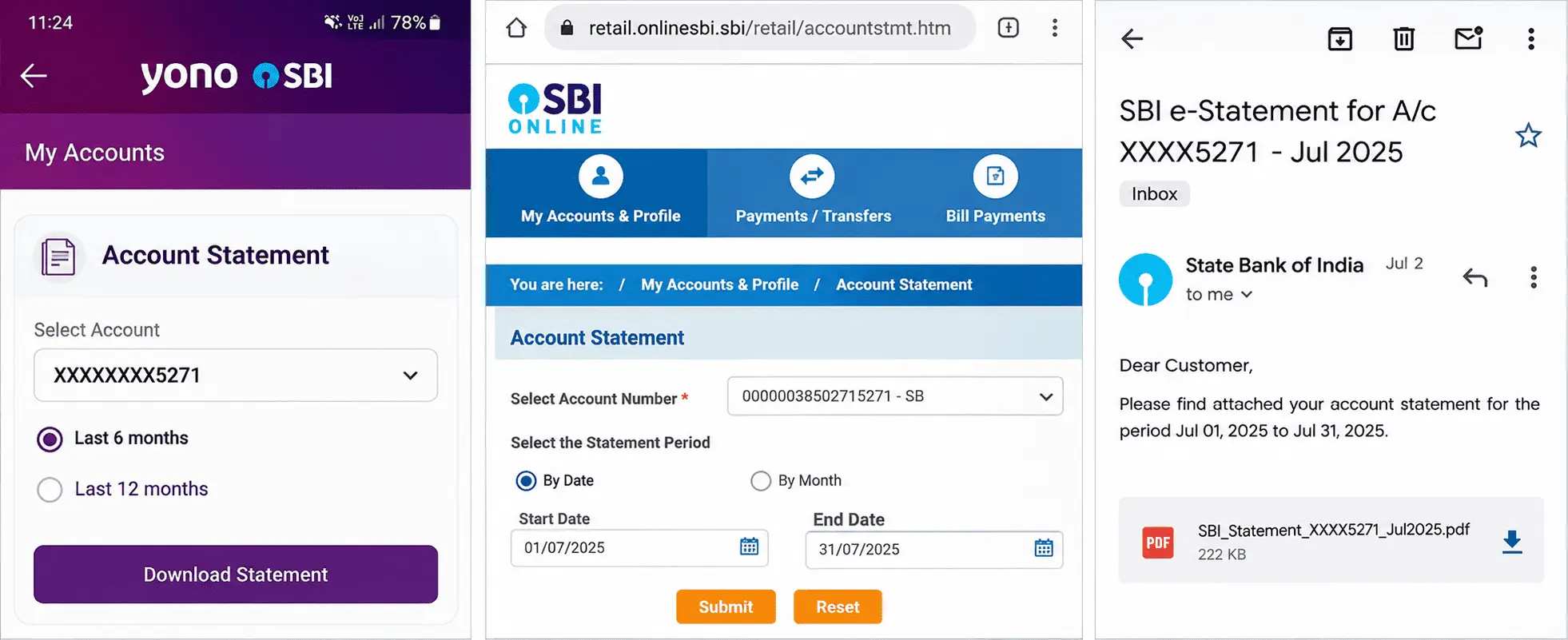
You can usually identify the original download channel in under a minute:
- Did the statement arrive by email? Check your inbox for the original message and its covering email. Look for password instructions in the message or near the attachment. An emailed statement may have a different password format from one downloaded directly through the app.
- Did you download it inside YONO SBI? Check your phone's Downloads folder or the location where you saved or shared the file. If you still have access to the app, return to the statement screen and look for any password hint displayed during the download.
- Did you save it from a browser? If you signed in to OnlineSBI, opened Account Statement, and selected a PDF download, the file came through net banking. Check your browser's download history if you cannot remember where you saved it.
If you no longer remember the source, the file's location, download history, and any accompanying email or SMS may help you trace it. A filename alone is not reliable proof of the channel, and not every statement message necessarily includes a password hint.
A forwarded statement keeps the protection applied when the original file was generated. Forwarding it does not create a new password based on your mobile number or date of birth. If the statement belongs to someone else, the relevant details are those of the original account holder, not yours.
This is the usual story with a statement someone forwards to you on WhatsApp. The password still belongs to the original download and the original account holder, which is why your own date of birth and mobile number never open it. If SBI sent the statement to you directly through its WhatsApp Banking service, treat it as your own download and follow the note SBI sent with it.
If you received the file from a family member, employer, or another authorized sender, ask them which SBI channel originally produced it and whether the original message included password instructions. That information is more useful than repeatedly trying formulas for different download methods.
Which Password Does a YONO SBI Statement Download Ask For?
For a YONO SBI statement downloaded directly to your phone, some published guides give your date of birth in DDMMYYYY format as the PDF password. However, newer guides also report the account number for direct downloads, while statements requested through YONO and delivered by email may use a different combination. The correct format depends on the instructions accompanying your particular file, not simply on whether you used the YONO app.
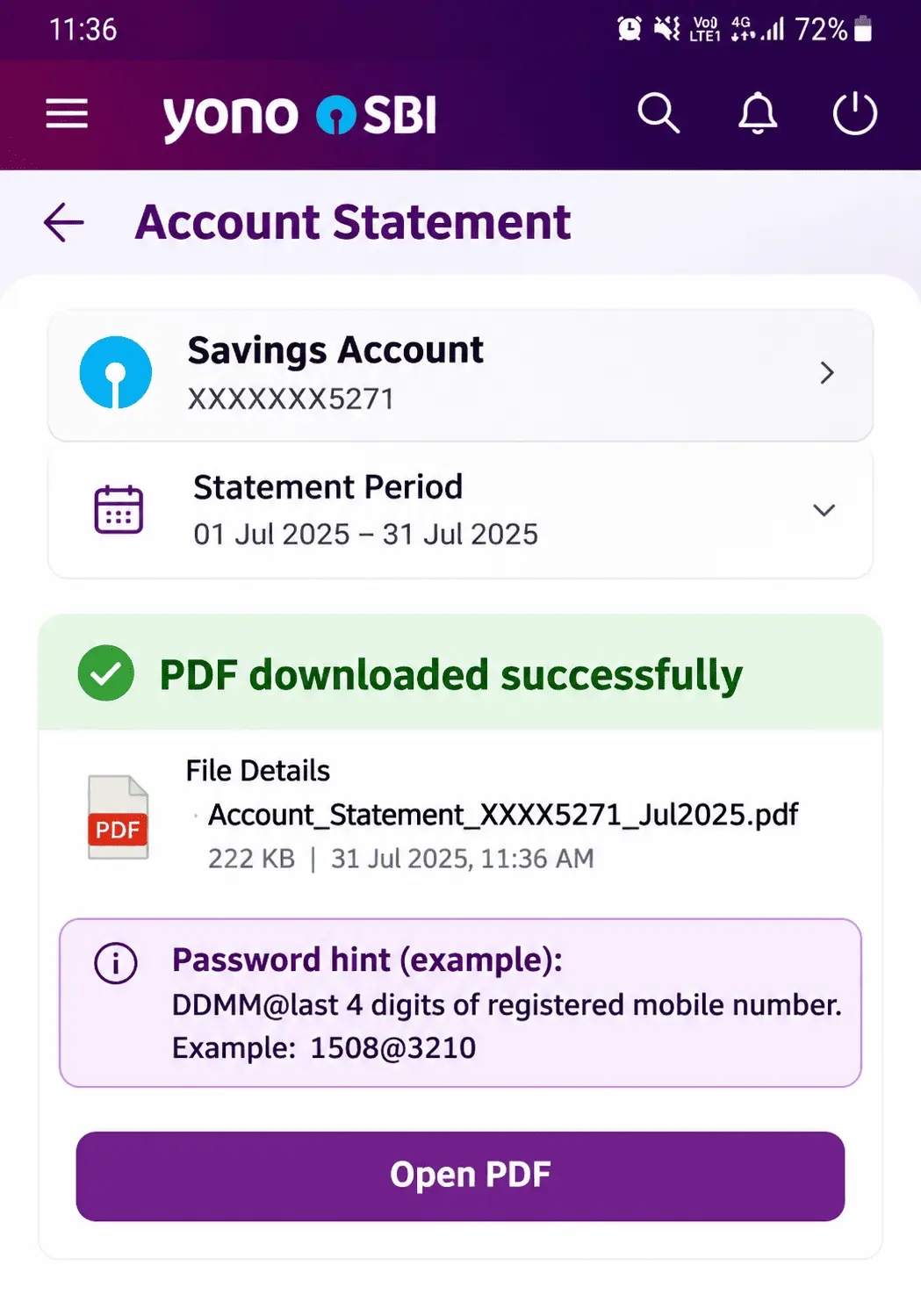
If your download instructions specify an eight-digit birth date, enter the day, month, and four-digit year without spaces or separators. For someone born on 15 August 1990, the password would be 15081990.
Another reported YONO format combines the birth day and month with the last four digits of the registered mobile number, separated by an @ symbol. Using the same birth date and a mobile number ending in 3210, that produces 1508@3210. Published guidance associates this format particularly with YONO statements sent by email, so it should not automatically be treated as the replacement for every direct app download.
The most useful check is the password hint shown when you generate the statement. After selecting your statement period and choosing Download or Email in YONO, look for any on-screen password note or instructions in the accompanying message.
Follow the format specified for that file rather than assuming an older or newer formula applies. The issuing system's instructions are more directly relevant to your download than a general online guide, although an incorrect or outdated hint is still possible.
Use the date of birth recorded in SBI's bank records, not necessarily the date you ordinarily enter elsewhere. If the account was opened with an estimated or incorrectly recorded birth date, a password derived from the bank's stored details may differ from the combination you expect.
If neither reported format opens your statement, check whether you selected Email instead of Download, and whether the file's accompanying instructions identify a different password. A correctly generated PDF uses its existing PDF encryption settings regardless of what another website claims the YONO password should be.
Which Password Does an OnlineSBI Net Banking Statement Ask For?
An OnlineSBI statement downloaded through net banking is commonly reported to use your full 11-digit account number as its PDF password, including any leading zeros. However, some OnlineSBI downloads open without requesting a password at all. Check the password instructions displayed when you download the statement before assuming either rule applies.
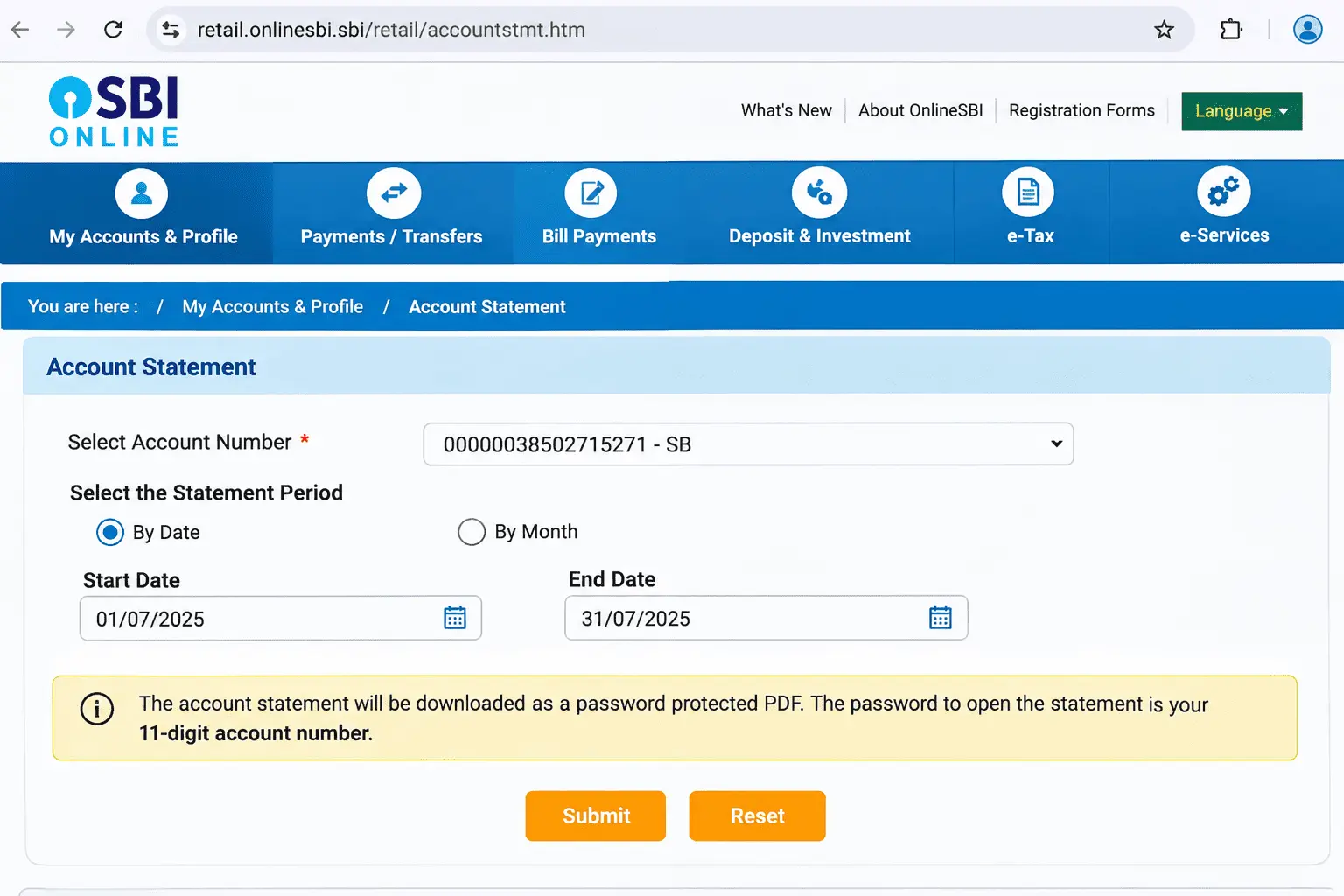
For example, if your SBI account number is 12345678901, enter all 11 digits without spaces or additional characters. If the number begins with zeros, keep them because removing those digits changes the password. Do not automatically shorten a longer number printed in your passbook or cheque book to 11 digits; first confirm which account identifier the download instructions require.
Some published guides also describe an alternative password combining the last five digits of the registered mobile number with the date of birth in DDMMYY format. For someone born on 15 August 1990 with a mobile number ending in 43210, the result would be 43210150890. This combination is also associated with emailed SBI statements, so use it for an OnlineSBI download only when the accompanying instructions specify that format.
There is a simple way to tell whether password protection applies to your file: open the downloaded PDF in a reader. If the statement displays immediately without a password prompt, no password is needed to read it. If a prompt appears, follow the instructions associated with that specific download rather than assuming the file is damaged.
Your PDF statement password is also different from your OnlineSBI profile password. The profile password protects certain banking settings and transactions inside your online account, while a PDF password controls access to the downloaded statement. Resetting the profile password will not change the password already applied to a statement PDF.
If you cannot identify the correct format, return to the Account Statement section under My Accounts & Profile, download a fresh copy, and check for any password note beside the download option. That note is more relevant to your file than a formula published for another SBI statement channel.
Which Password Does an Emailed SBI e-Statement Ask For?
An SBI e-statement sent to your email is commonly reported to use the last five digits of your registered mobile number, followed by your date of birth in DDMMYY format. This creates an 11-digit password without spaces or separators. It is the most consistently reported format for regular emailed SBI account statements, although SBI's public e-statement FAQ does not confirm it as a universal rule.
For example, using the same fictional customer from the earlier sections:
- Name: Rahul Sharma
- Registered mobile number: 9876543210
- Date of birth: 15 August 1990
- Last five mobile digits: 43210
- Birth date in DDMMYY: 150890
The resulting password is 43210150890.
The important detail is the six-digit birth date. DDMMYY uses only the final two digits of the year, so 15 August 1990 becomes 150890, not 15081990. Using the eight-digit version would produce a different password.
The format is repeated across several published SBI statement guides, making it a reasonable candidate when you know the file is a regular emailed account statement. It is also the one format nearly every guide agrees on, which makes it the best first guess when you cannot tell where a file came from. Keep the two known exceptions in mind: statements generated through YONO and sent by email, and statements requested through SBI Quick, follow their own rules.
Before entering the password, check the covering email that arrived with the PDF. Look for a sentence identifying the mobile-number digits and birth-date format. An instruction might be worded like this:
Illustrative password instruction: Enter the last five digits of your registered mobile number, followed by your date of birth in DDMMYY format.
This is an example of the wording to look for, not a quotation from a verified SBI email. The instructions accompanying your actual statement take priority.
If the combination fails, first check whether the mobile number registered with SBI has changed. An older statement may have been generated using details recorded before you updated your number, so entering the final five digits of your current number may not work.
Next, check whether you entered six birth-date digits instead of eight, including any leading zeros. For someone born on 5 March 1990, the DDMMYY portion is 050390, not 50390 or 05031990.
There is also an important exception for statements requested through SBI Quick. SBI officially states that its SMS-based e-statement service uses the four-digit code selected when making the request. If you received your PDF through that service, use the chosen code rather than the mobile-number-and-birth-date formula.
For an ordinary emailed statement, start with its accompanying password instructions. If those are missing, the last-five-mobile-digits-plus-DDMMYY format is a useful reported candidate, but the original delivery method determines whether it applies.
Which Password Does an SBI Credit Card Statement Ask For?
An SBI Card credit card statement uses password instructions that differ from those for a regular State Bank of India account statement. Published guides report combinations of the cardholder name and a date, or the date of birth and the last four card digits. Check the instructions accompanying your SBI Card statement before choosing either format.
Two commonly reported formats are:
| Reported password format | Example using the same fictional cardholder |
|---|---|
| First four letters of the cardholder's name + birth date in DDMM | Rahul Sharma, born 15 August 1990: RAHU1508 |
| Date of birth in DDMMYYYY + last four digits of the card number | Rahul Sharma, born 15 August 1990, card ending 4521: 150819904521 |
The first format uses four letters from the name registered with SBI Card, followed by the day and month of birth. Some guides specify uppercase letters, while others specify lowercase. For Rahul Sharma, that difference produces RAHU1508 or rahu1508. Enter the case required by your statement's instructions rather than assuming every SBI Card PDF follows the same capitalization rule.
The second format does not use the name. It joins the complete eight-digit date of birth with the card's final four digits, producing a 12-digit password. Both formats are reported in published guides, but neither has been confirmed as a universal current rule in SBI Card's public statement FAQ.
For an add-on card, SBI Card normally issues a consolidated statement covering the primary card and its add-on cards. The statement is associated with the primary cardholder, so check that person's registered name and birth date when the password instructions require cardholder details. Do not assume the add-on cardholder's information will work simply because their transactions appear in the statement.
The same distinction matters for business or corporate cards. Check which cardholder or account contact the statement identifies, because the name printed on an individual card may not be the name used in the password instructions.
Do not treat the full 16-digit credit card number as a routine PDF password. Some third-party guides recommend it, but SBI Card's reviewed official guidance does not confirm that rule. Entering the entire card number unnecessarily exposes sensitive payment information, especially if it is copied into an unfamiliar website, saved in a filename, or shared with someone else.
If neither reported format works, return to the original SBI Card statement email or download a fresh statement through the official SBI Card portal. Use the password instructions provided for that document rather than applying a bank-account statement formula.
How Do You Open a Password-Protected SBI PDF?
Download your SBI statement to your device, open it in a compatible PDF reader, and enter the correct password in the password prompt without adding spaces or changing the required characters. Avoid relying on an email or browser preview pane, which may not handle protected PDFs correctly.
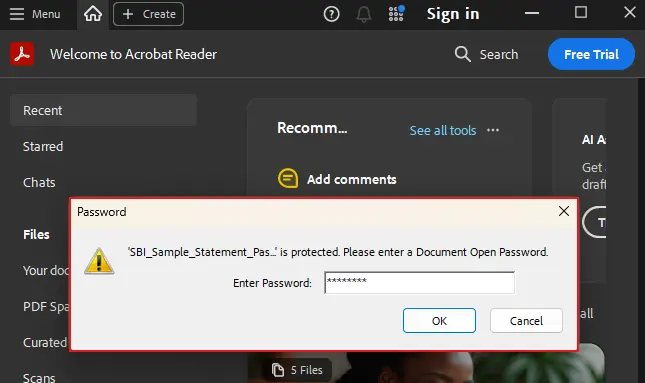
Follow these steps to open the statement:
- Download the PDF: Save the SBI statement attachment or downloaded file to your device. If you prefer an online tool without installing software, PDFNoob's Unlock PDF tool accepts a password-protected PDF and its existing password to create an unlocked copy.
- Open the file: Select the downloaded statement in a PDF reader, such as Adobe Acrobat Reader or another application that supports password-protected PDFs.
- Enter the password: When the password dialog appears, type the combination specified for your statement's download channel. Enter the characters exactly, with no extra spaces before or after them.
- Confirm and read: Select OK or Open. Once the password is accepted, the statement will display your account details and transactions.
If you're opening the PDF on a phone, pay attention to the mobile keyboard. Automatic capitalization can change a lowercase name fragment into an uppercase one, causing a case-sensitive password to fail. For example, rahul1508 and Rahul1508 are not the same combination.
Also check for any @ symbol required by your statement's format. Mobile keyboards may insert an unwanted space after a symbol, while copying a password from an email can introduce a trailing space or line break. Type the password manually if a pasted version is repeatedly rejected, and check for autocapitalisation before submitting it.
A correct password may also appear to fail when you're opening the attachment directly inside an email app or browser preview. Download the PDF first, then open the saved file in a dedicated reader. This helps distinguish a preview compatibility problem from an incorrect password.
For statements opened through PDFNoob, remember that its Unlock PDF tool removes password protection after you supply the existing password. It is not simply a PDF viewer, and the resulting file is no longer protected by the original opening password.
If the downloaded statement still refuses to open, confirm that you're using the password format for its original SBI delivery channel before assuming the PDF is damaged.
What Should You Do When the SBI Password Still Does Not Work?
If your SBI statement password keeps getting rejected, check the original download channel, your registered mobile number, and the date of birth format before assuming the PDF is damaged. Most reported SBI password combinations depend on information associated with the account, so using the wrong formula or outdated details can prevent the statement from opening.
Work through these checks in order:
- Confirm where the statement came from: Was it downloaded through YONO SBI, saved from OnlineSBI, or received as an email attachment? Each channel has different published password instructions. Check the download screen or original covering email instead of trying every formula you find online. If the PDF came through SBI Quick, use the four-digit code you selected when requesting it.
- Check whether your registered mobile number has changed: If the format requires the last four or five digits of your mobile number, make sure you are using the number associated with the statement when it was generated. For example, a statement issued before you updated your number may not accept digits from your current phone number.
- Check the date format and leading zeros: Some published formats use DDMMYY, while others use DDMMYYYY or only DDMM. For someone born on 5 March 1990, those combinations are 050390, 05031990, and 0503. Use the format specified for your document, including every leading zero.
- Compare your name with SBI's bank records: If the password includes letters from your name, the spelling and order must match the details used to generate the file. A shortened first name, different spelling, or unexpected capitalization can change the result. Use the name recorded with SBI rather than assuming the name you normally use will work.
- Download the statement again: An interrupted download can leave you with an incomplete PDF that fails to open even with the correct password. Obtain a fresh copy from the original SBI channel, save it to your device, and open it in a compatible PDF reader.
If the password still fails, return to the statement's covering email or SMS and look for its exact instructions. You can also contact SBI customer care through the bank's official helpline or visit your nearest branch to confirm the account details involved. SBI supports updating registered mobile numbers through several verified channels, including internet banking, ATMs, and branches, depending on eligibility and verification requirements.
Do not upload your bank statement to an unknown password-recovery website or use a password-cracking service. The PDF may contain your account number, balances, personal details, and complete transaction history. Giving an untrusted service access to that file can expose more financial information than the password problem is worth.
If you still cannot identify the correct password, ask SBI for the instructions associated with your particular statement or request a fresh copy through an official channel. A verified password instruction is safer and more useful than continuing to guess.
How Do You Remove the Password From an SBI Bank Statement PDF?
Once you know the correct password for your SBI statement, you can remove its PDF encryption by opening the protected file and saving an unencrypted copy. The new PDF will open without asking for the original password, making it easier to attach to a loan application, visa application, or document request from your accountant.
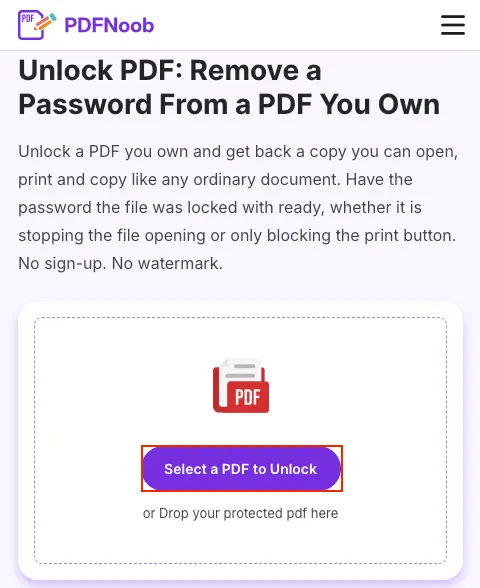
➤ Open the Unlock PDF tool and click Select a PDF to Unlock to upload your password-protected SBI statement.
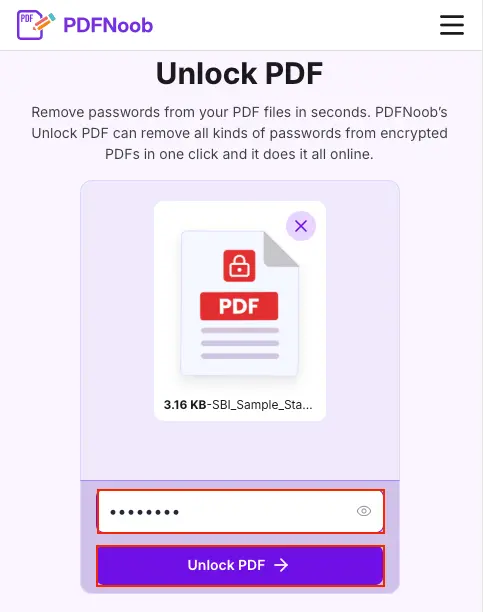
➤ Type the PDF's existing password in the password field and click Unlock PDF.
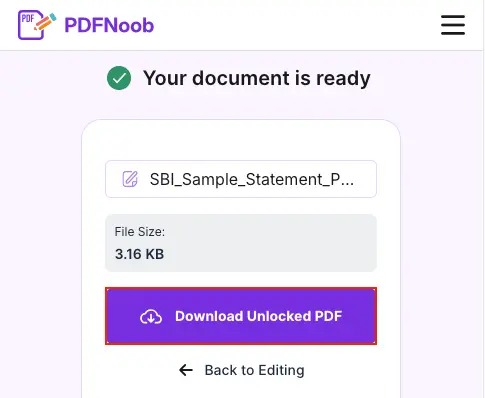
➤ Once your document is ready, click Download Unlocked PDF to save the password-free statement.
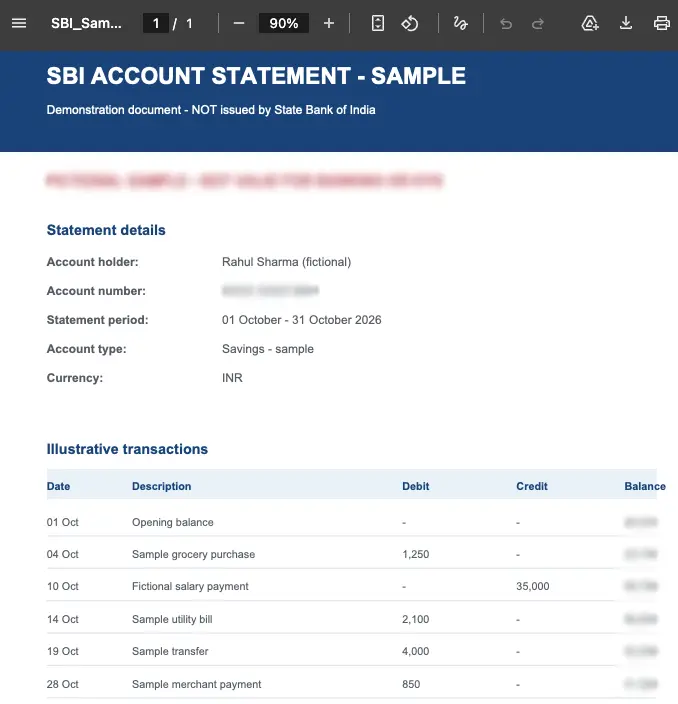
Open the downloaded PDF to confirm that you can view the SBI statement without entering a password.
PDFNoob processes the uploaded file on its server rather than entirely in your browser. Its published guidance says files are transmitted over HTTPS and deleted within one hour, while the password is used for processing and not stored. If you do not want your bank statement uploaded to a server, use a trusted desktop PDF application that can remove the password locally.
Keep the encrypted original in your protected records and store the unlocked copy somewhere accessible only to you. Removing the password makes sharing and submitting the statement easier, but anyone who obtains that unencrypted file can read its financial information.
After verifying that the new PDF opens without a password, use the unlocked copy for the specific application or document request. You will no longer need to remember the SBI password formula to open that copy.
Which Kind of PDF Password Does an SBI Statement Use?
An SBI statement that asks for a password before displaying any account information uses an open password, also called a document-open password. This type of PDF encryption prevents the reader from accessing the file until the correct password is entered.
A permissions password works differently. The PDF may open and display its contents normally, but certain actions, such as printing, copying text, or editing, can be restricted.
For a password-protected SBI statement, the distinction is easy to recognize:
- Password prompt before the statement opens: The PDF requires an open password. This is the password generated from the relevant SBI statement details or specified when the file was requested.
- Statement opens, but printing or copying is restricted: The PDF may have permissions restrictions instead. These do not necessarily require a password just to read the document.
Opening and removing a password are also different actions. When you enter the correct open password, the statement becomes readable in that session, but the original file remains protected. Removing the password creates a separate PDF that opens without asking for it again.
If you already know the correct password and need a copy without the opening restriction, you can unlock a password-protected PDF in your browser. The tool uses the existing password to produce an unlocked copy; it does not recover a forgotten SBI password.
An SBI statement can also have both types of restrictions, so opening the file successfully does not guarantee that printing, copying, or editing will be allowed.
Why Does Printing an SBI Statement to a New PDF Lose Its Searchable Text?
Printing an SBI statement to a new PDF can remove its searchable text layer if the browser or PDF printer converts the pages into images. This process, called rasterisation, preserves how the statement looks but may turn account details and transaction amounts into pixels rather than selectable characters.
The problem matters when you need to extract transaction data for a spreadsheet or accounting tool. A statement that originally let you copy dates, descriptions, and amounts may become an image-only PDF after printing. Although the numbers remain visible, you cannot reliably select, search, or extract them as ordinary text.
You can check the new file in five seconds:
- Open the PDF created using Print to PDF.
- Try selecting one transaction amount, such as ₹2,450.00.
- If you can highlight and copy the individual characters, the file still has usable text. If you can only select the entire page as an image, the text layer may have been lost.
Not every Print to PDF operation causes this problem. Some browsers and PDF printers preserve selectable text, while others flatten or rasterise the page. The result depends on the software and how the original statement was rendered.
If you need the statement's numbers for further processing, preserve the original PDF's text layer whenever possible instead of printing it into a new file. Once you have an accessible copy, you can also pull the text out of a PDF using PDFNoob's PDF to Text tool.
If the statement has already become image-only, optical character recognition (OCR) may recover the text, but check every transaction amount afterward. Even a small recognition error can change the financial data you intended to extract.
Which Passwords Do Other Indian Banks Use for Their Statements?
Like SBI, HDFC Bank, ICICI Bank, Axis Bank, and Kotak Mahindra Bank protect many statement PDFs using passwords based on customer information. Depending on the bank and statement type, the password may use a customer identifier, part of the account holder's name combined with a date, or an account number. However, each bank sets its own rules, and formats can also differ between emailed statements, net-banking downloads, and credit-card statements.
Do not assume the password that opens an SBI statement will work for another bank's PDF. Check the instructions in the original statement email or download screen, then use that bank's dedicated password guide for the exact format and any exceptions.