


Removing a password from a PDF writes the document without its PDF encryption, so the file opens straight away instead of stopping at a password prompt.
There are two different situations here. If you know the password, you can remove it with an online unlock tool, a desktop PDF editor, print to PDF, or a mobile browser. If you forgot the password, the job changes from removing protection to recovering, reissuing, or replacing the document.
This article covers removing a password from a document you are entitled to open: your own file, or one sent to you. It does not cover getting into a file you have no right to open, and nothing here defeats encryption on someone else’s document.
Before you upload anything, you need to know which kind of protection the PDF uses. A document-open password stops the file before it opens. A permissions password lets the file open but blocks actions like printing, copying, editing, or extracting pages.
The guide walks through removing a PDF password online, identifying which kind of password the file carries, clearing printing and copying restrictions, using a desktop PDF editor, using the print-to-PDF route, doing the same job on mobile, handling a forgotten password, understanding why issued documents like statements arrive locked, and deciding whether to remove the password, change it, or keep an unlocked copy beside the protected original.
Adding a password, choosing encryption strength, and setting permission rules belong in the password-protect article, not here.
The most useful check comes before the tool choice: in about thirty seconds, you can tell whether the PDF carries a document-open password or a permissions password, and that answer decides what you should do next.
How Do You Remove a Password from a PDF Online?
Open the PDFNoob unlock PDF tool, add the protected PDF, type the password the file asks for, and download a copy that opens without a password prompt.
➤ Open the PDFNoob unlock PDF tool.
➤ Click Select a PDF to Unlock to upload your password-protected PDF.
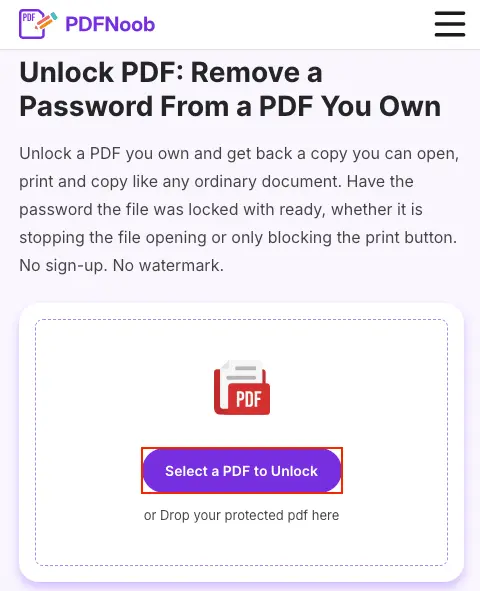
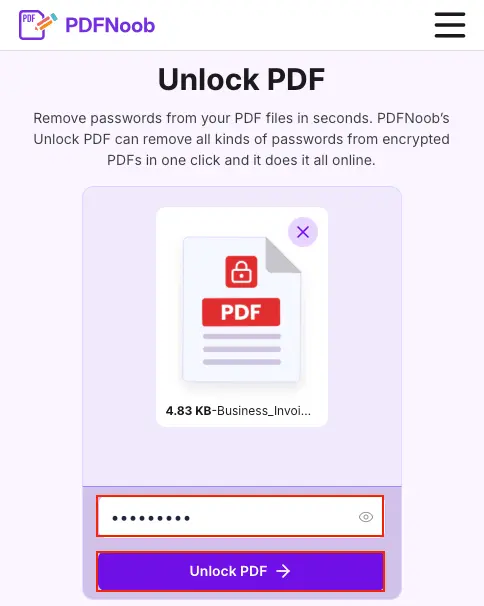
➤ Enter the PDF password in the password field and click Unlock PDF.
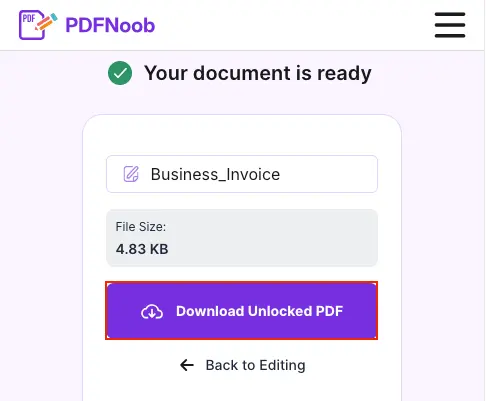
➤ Once your document is ready, click Download Unlocked PDF to save the PDF without password protection.
➤ Open the downloaded PDF to check that you can access it without entering a password.
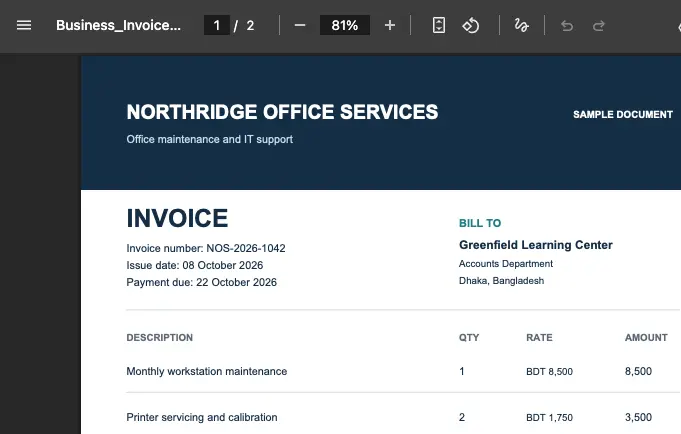
The file on your device stays untouched while you use the online unlock tool. The unlocked result is a new copy, so your original protected file is not replaced unless you choose to replace it yourself.
You do not need an account or an installation. You do need to type the password, because decryption cannot happen unless the file is opened with the password it asks for. Computers, sadly, still insist on knowing the thing that unlocks the thing.
If the PDF asks for a password before it opens, type that password. If the PDF opens normally but blocks printing, copying, editing, or another action, type whatever password the file prompts for when the tool asks. The next section explains how to tell those two cases apart before you start uploading anything.
The output should be a plain PDF with the same pages, same layout, and nearly the same file size. If only the password is removed, the file is not being redesigned or rebuilt; it is simply saved as a copy that opens without stopping you first.
Which Kind of PDF Password Do You Have?
A PDF carries one of two kinds of password, and you can tell which one you have in about thirty seconds by whether the file asks for anything when you double-click it.
A document-open password, also called the user password, stops the file from opening at all. A permissions password, also called the owner password, lets anyone open the file but restricts what they can do next, such as print, copy text, edit, or extract pages. A file can carry either one, or both, because apparently one lock was not dramatic enough.
Run the quick test. Double-click the file. If it asks for a password before opening, that is a document-open password. If it opens but printing, copying, editing, or page extraction is greyed out or refused, that is a permissions password. If it asks for a password first and then still blocks printing or copying, it carries both.
You can also check instead of guessing. Open the document properties panel in any PDF reader and look at the security settings. It will show whether actions such as printing, copying, editing, and extracting pages are allowed or not allowed.
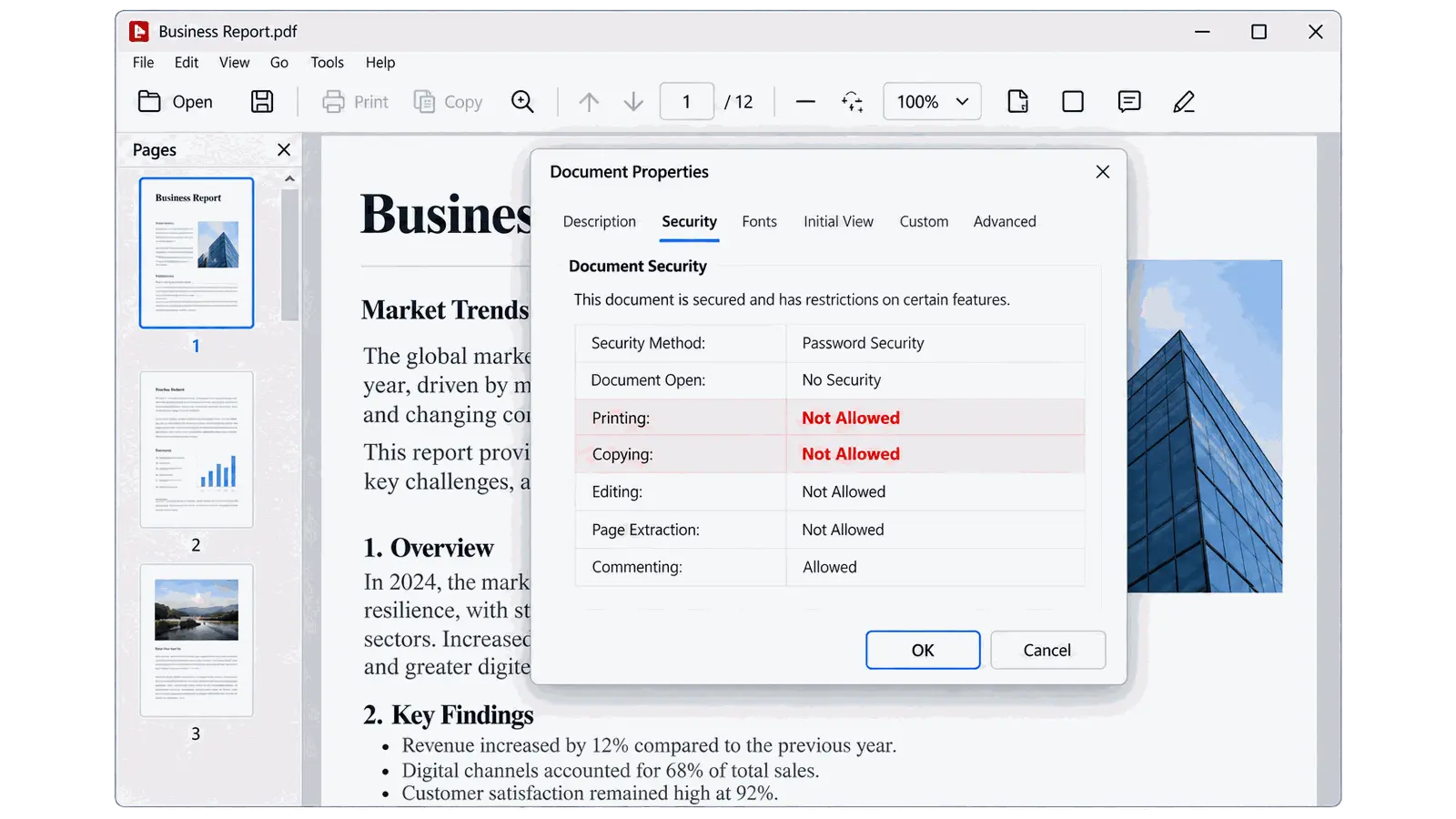
This matters before you start because the two cases need different things typed in. If the file asks before opening and you do not know that password, removing a password is not the right job yet; you need to recover, replace, or reissue the document. Adding either kind of password belongs in the password-protect article, not here.
How Do You Remove Editing and Printing Restrictions from a PDF?
The restriction sits in the file’s security settings, so removing it means clearing those settings and saving the file again, not typing a password at the front door.
A restricted PDF may open normally and still block printing, high-quality printing, copying text, editing, filling forms, extracting pages, or adding comments. These limits are usually stored as permission flags, and the reader application decides how to follow them.
That is why the same file can print in one viewer and refuse in another. The PDF is not necessarily corrupt, and the download is not automatically broken; the file opened fine, but the security settings told the app not to allow that action.
To fix it, clear the restrictions with an unlock tool or a desktop PDF editor, then save the file again. Expect to be asked for whatever password the file prompts for. A restricted file is not automatically a password-free file.
If the owner deliberately restricted the PDF and you do not have the password it asks for, removing the restriction is not the right next step. Use the forgotten-password or reissued-document route instead.
| Restricted action | What the reader sees when it is blocked | Does removing the restriction fix it? |
|---|---|---|
| Printing | Print button is greyed out, or the app says printing is not allowed | Yes, if the required password is supplied |
| High-quality printing | Only low-quality printing is available | Yes, if high-quality print permission is cleared |
| Copying text | Text selects but will not copy, or copy is disabled | Yes, if the copy permission is cleared |
| Editing | Edit tools are greyed out or changes refuse to save | Yes, if editing is restricted by permissions |
| Filling forms | Form fields cannot be typed into or saved | Yes, if form filling is blocked by permissions |
| Extracting pages | Extract, split, or organize pages is unavailable | Yes, if page extraction is blocked by permissions |
| Adding comments | Comment tools are unavailable or annotations will not save | Yes, if commenting is blocked by permissions |
How Do You Remove a PDF Password in a Desktop PDF Editor?
Open the file in a desktop PDF editor, enter its password, clear the security settings, and save.
➤ Open the protected PDF in Adobe Acrobat Pro or another desktop PDF editor.
➤ Enter the password when the file asks for it.
➤ Go to the Security, Protection, or Document Properties menu.
➤ Open the Security Settings and check the current encryption level if the editor shows it.
➤ Choose the option to remove security, clear password protection, or set the file to no security.
➤ Confirm the change when the confirmation dialog appears.
➤ Save the file, or use Save As if you want the unlocked result as a separate saved copy.
Keep a copy of the protected file until you have checked the result. Some editors overwrite the original file, while others create a new copy, and discovering which one happened after the fact is a very modern little punishment.
The free-versus-paid line matters here. Viewing and printing usually come free, but changing security settings often requires a paid desktop editor, which is why the online route exists for simple unlock jobs.
A desktop editor will not open a file whose document-open password you do not have. Paying for the editor does not turn a forgotten password into a known one.
After saving, reopen the PDF and try the thing that was blocked, such as printing, copying, editing, or extracting pages. Do not trust the confirmation dialogue alone; test the saved file.
How Do You Remove a PDF Password with Print to PDF?
Open the file with its password, send it to a PDF print destination instead of a paper printer, and the new file carries no password.
In a browser, open the PDF, choose Print, open the destination dropdown in the print dialog, select Save as PDF or another PDF destination, then save the new file. On a desktop app, use the same idea: open the file, choose Print, pick a PDF printer such as Microsoft Print to PDF or Save to PDF, and save the output.
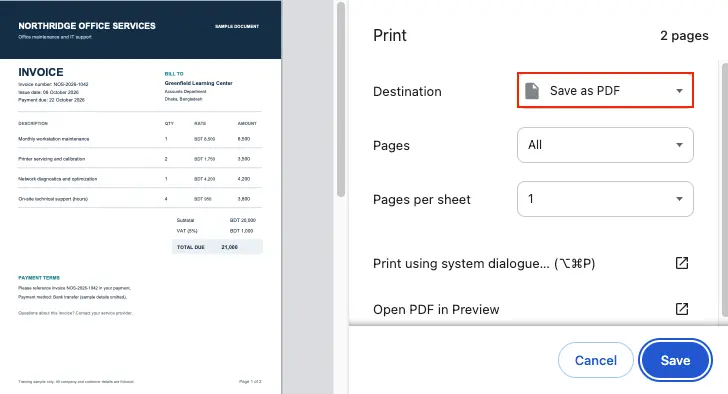
This route silently discards structure. A printed PDF can lose every bookmark, clickable link, form field, comment, and text layer. If the file is a scanned document, printing it back out can leave you with a stack of page pictures, so the text can no longer be selected or searched.
If you need selectable text again, the OCR article and text-extraction article own that next step. Do not treat print to PDF as a clean unlock method for files where links, forms, comments, or searchable text still matter.
There are two hard limits. First, the file has to open, so this is not a way past a password you do not have. It is only a way to keep a password-free copy of a file you can already open. Second, it will not work if the permission flags block printing, because printing is the mechanism.
Print to PDF is useful for a one-off file when you do not want to install software and nothing matters except the visible pages. If the PDF needs to stay interactive, searchable, or structured, use an unlock tool or editor instead.
How Do You Remove a PDF Password on Mobile?
Open the unlock tool in your phone’s mobile browser, pick the PDF from your files app or from the app where it arrived, type the password, and save the unlocked copy back to the phone.
On mobile, the hard part is usually finding the file, not unlocking it. The PDF is often either in a downloads folder or still inside a mail or messaging app.
If the file is already saved in Downloads or the Files app, open the browser, choose the file from the picker, enter the password, and save the unlocked result. If the PDF is still inside an email or message, use the share sheet or save option to hand it to the browser or save it into Files first.
The exact handoff depends on the phone. On one platform, the file often has to be saved out of the mail app before another tool can use it. On the other, it can usually be shared straight across to the browser. Both platforms also include a print-to-a-PDF-file option inside the mobile print sheet, if you are working with a file you can already open.
After unlocking, check where the result lands. It may go to downloads, the browser’s download list, the Files app, or the folder you chose during saving. “It worked, but I cannot find it” is basically the national anthem of phone file handling.
One caution: if the PDF is a bank statement, ID document, payslip, or anything sensitive, the unlocked copy may sync through cloud backup. That means removing the password can create an unprotected version on more than one device.
| Where the file is | How to hand it to the browser | Where the unlocked result usually lands |
|---|---|---|
| Downloads folder | Pick it from the browser upload/file picker | Downloads, browser downloads, or the chosen save folder |
| Files app | Select it directly from the file picker | Files app, downloads, or the folder selected during saving |
| Mail app | Save the attachment to files, or share it to the browser if available | Files app or downloads, depending on the save option |
| Messaging app | Use the share sheet, or save the PDF first and upload it from files | Downloads, files app, or the app’s saved media/file area |
| Cloud storage app | Open the file picker and choose the cloud location if available | Cloud folder, downloads, or local files, depending on where you save it |
What Can You Do If You Forgot the PDF Password?
Without the password, the file cannot be decrypted, so the job changes from removing a password to password recovery, replacing the document, or getting a reissued file.
You can follow the steps below.
➤ Check your password manager or browser store. Look where saved passwords are kept first.
- Where to look: password manager, browser saved passwords, notes where you keep document passwords.
- Who to ask: no one yet.
- What it costs: usually nothing.
➤ Ask the sender for a new copy. If someone sent the PDF to you, ask them to resend it without the password or send the password again through a safer channel.
- Where to look: the original email, chat, or file-sharing thread.
- Who to ask: the person or team that sent the file.
- What it costs: usually nothing.
➤ Download the document again from the account or portal that issued it. If it came from a bank, school, employer, insurer, government portal, or service account, sign in and download a fresh copy.
- Where to look: the account dashboard, document section, statement area, or download page.
- Who to ask: the document issuer if the portal does not show the file.
- What it costs: usually nothing.
➤ Find the source document if you created the PDF yourself. If you exported the locked PDF from Word, Google Docs, Excel, design software, or another app, go back to the source file and export a new PDF.
- Where to look: the original source document, project folder, cloud drive, or older backups.
- Who to ask: anyone who worked on the original file with you.
- What it costs: usually nothing, unless the source file is lost and must be recreated.
Issued PDFs are often locked with a standard pattern instead of a password someone chose manually. That is common with statements, identity documents, payslips, and result files. So “forgotten” sometimes means you never knew where to look.
Some tools claim they can unlock any PDF by trying different passwords. However, they can take a long time and often fail when a PDF has strong security. If you don't have permission to open a PDF, you shouldn't try to unlock it. The password is there to protect the document from unauthorized access.
If none of the recovery routes work, the document has to be reissued or recreated. There is no clean password-removal step without the password.
Why Is Your Bank Statement or Aadhaar PDF Locked?
The organisation that issued the document locked it before sending it, using a password built from details it already holds about you, so the password was never chosen and never lost.
This is common with an issued document such as an Aadhaar PDF, bank statement, card statement, payslip, insurance or policy document, exam document, or result document. The sender does this because the file often travels by email, and email is not private enough for personal or financial documents.
The password is usually written in the covering email or on the download page. Most issuers describe it as a password pattern, not as the actual password, such as a few letters from a name plus a date, or an identifier plus a birth date.
Read the email or download page again before trying anything else. Do not search for random per-issuer formulas first, because the correct pattern is usually stated with the file, and different issuers can change their own rules.
Once the PDF opens, do two things. Remove the password only on a copy if you need to attach the file to a form or upload it to a portal. Then, keep the protected original because the unlocked copy is now an unprotected identity or financial document.
If the pattern does not work, use the issuer’s own help page or support channel. A password tool is not the right route when the issuer’s stated pattern fails.
| Document type | Who usually issues it | Does it usually arrive locked? | Where the password is usually stated |
|---|---|---|---|
| Aadhaar or identity document | Government or identity authority | Often yes | Covering email, download page, or issuer instructions |
| Bank statement | Bank or financial institution | Often yes | Email body, statement download page, or banking portal message |
| Card statement | Card issuer or bank | Often yes | Email body, statement notice, or account portal |
| Payslip | Employer or payroll provider | Sometimes yes | Payroll email, HR portal, or payslip download page |
| Insurance or policy document | Insurer or agent portal | Sometimes yes | Covering email, policy download page, or portal instructions |
| Exam or result document | School, board, university, or exam authority | Sometimes yes | Result page, download notice, or official email |
Should You Remove the PDF Password, Change It, or Unlock a Copy?
Choose between removing, changing, or copying the password based on one question: after this, who should be able to open the file, and what protection are you giving up?
Removing the password leaves a plain PDF. Anyone who has the file can open it. That is fine when the protection has already done its job, and the file now needs to go into a form, an upload portal, or an archive where a password would only get in the way.
A password change keeps the file protected but swaps the secret. Choose this when the old password was shared too widely, came from someone else, or no longer feels safe. That belongs to the protect side of the job, so use the password-protect article for setting the new password.
The safest default is to unlock a copy and keep the protected original for anything with identity, financial, employment, medical, or account details. You get an unlocked copy for the task in front of you, while the original stays protected for your protected archive.
This matters because an unlocked statement or ID document is now readable by anything that touches it, including a phone’s automatic cloud backup. Removing a password is not just a repair step. It is a decision about where the file is going next.
So, remove the password if the file is leaving your hands as a plain document, change the password if it still needs protecting, and unlock a copy if the original matters.
| Option | Who can open it afterwards? | When to choose it |
|---|---|---|
| Remove the password | Anyone who has the PDF file | When the file must be submitted, uploaded, attached, or archived as a plain document |
| Change the password | Only people with the new password | When the file still needs protection, but the old password was shared too widely or came from someone else |
| Unlock a copy and keep the protected original | Anyone with the unlocked copy can open that copy; the original still stays protected | When the file contains identity, financial, employment, medical, or account details |
Is It Safe to Remove a PDF Password with an Online Tool?
It depends on one thing: whether the PDF and its password leave your device. So check how the tool handles files before uploading anything sensitive to an Unlock PDF tool.
Use this quick safety check before you upload.
| What to check | What it means | Why it matters |
|---|---|---|
| Secure connection | The page uses HTTPS and does not show a browser security warning | Your upload is not being sent through an obviously unsafe connection |
| File retention | The tool states how long uploaded and unlocked files are kept | You should know whether the file is deleted quickly or stored for longer |
| Deletion | The tool says whether files are automatically deleted after processing | This matters more for IDs, bank statements, payslips, and contracts |
| Browser processing | The tool says processing happens in your browser | This usually means the file is handled locally instead of being uploaded to a server |
| Server processing | The tool says files are uploaded for processing, or does not clearly say otherwise | The PDF and password may leave your device, so the privacy policy matters more |
| Privacy policy | The site explains how uploaded files and passwords are handled | If the policy is vague, do not upload sensitive documents |
Here is how our own tool scores on the same checks. The PDFNoob Unlock PDF tool sends your PDF to our server over HTTPS, because the decryption runs there. The file is deleted within one hour, and the password is used once for that job and is not stored.
For an identity document, bank statement, payslip, tax file, medical document, or legal document, be more careful. If you would rather not upload it anywhere, use the print-to-PDF route or a desktop PDF editor instead.
Online tools are convenient for ordinary files, but convenience is not the same as privacy. Before uploading a protected PDF, check the tool’s retention, deletion, and processing details first.
How Do You Edit a Locked PDF After Removing Its Password?
Once the restrictions are gone, the file behaves like any other PDF, so open it in a PDF editor and change what you need.
Clear the restrictions first, then edit. If you ask an editor to work on a restricted file, it may refuse the tool, keep text editing disabled, block an annotation, prevent changes to page order, or silently drop the change when you save.
The simple order is: unlock first, edit second, save once. After editing, reopen the saved output and check the exact thing you changed instead of assuming the file saved correctly.
If the PDF came from a scan, removing the password does not automatically create editable text. You may be able to add notes, rearrange pages, or mark up the page, but changing the words depends on whether the file has a text layer. The OCR and text-layer question belongs in the OCR article, not here.
How Do You Copy Text from a Locked PDF?
Separate the two reasons text will not copy: the PDF may have a copy restriction on normal selectable text, or the page may be a scanned page that has no text for the computer to copy.
Try selecting a single word. If the cursor cannot select anything at all, the page is probably a scan or image. If the word selects but nothing copies, or the copy option is disabled, the file probably has a copy restriction.
The fix depends on which problem you found. For a normal PDF with selectable text, clear the restriction first, then copy the text again. For a scanned page, add a text layer first; the OCR PDF article and the text-extraction article cover that next step.
That is why unlocking alone does not always make copying work. A restriction blocks text that already exists. A scan has no text to copy until optical character recognition adds it.