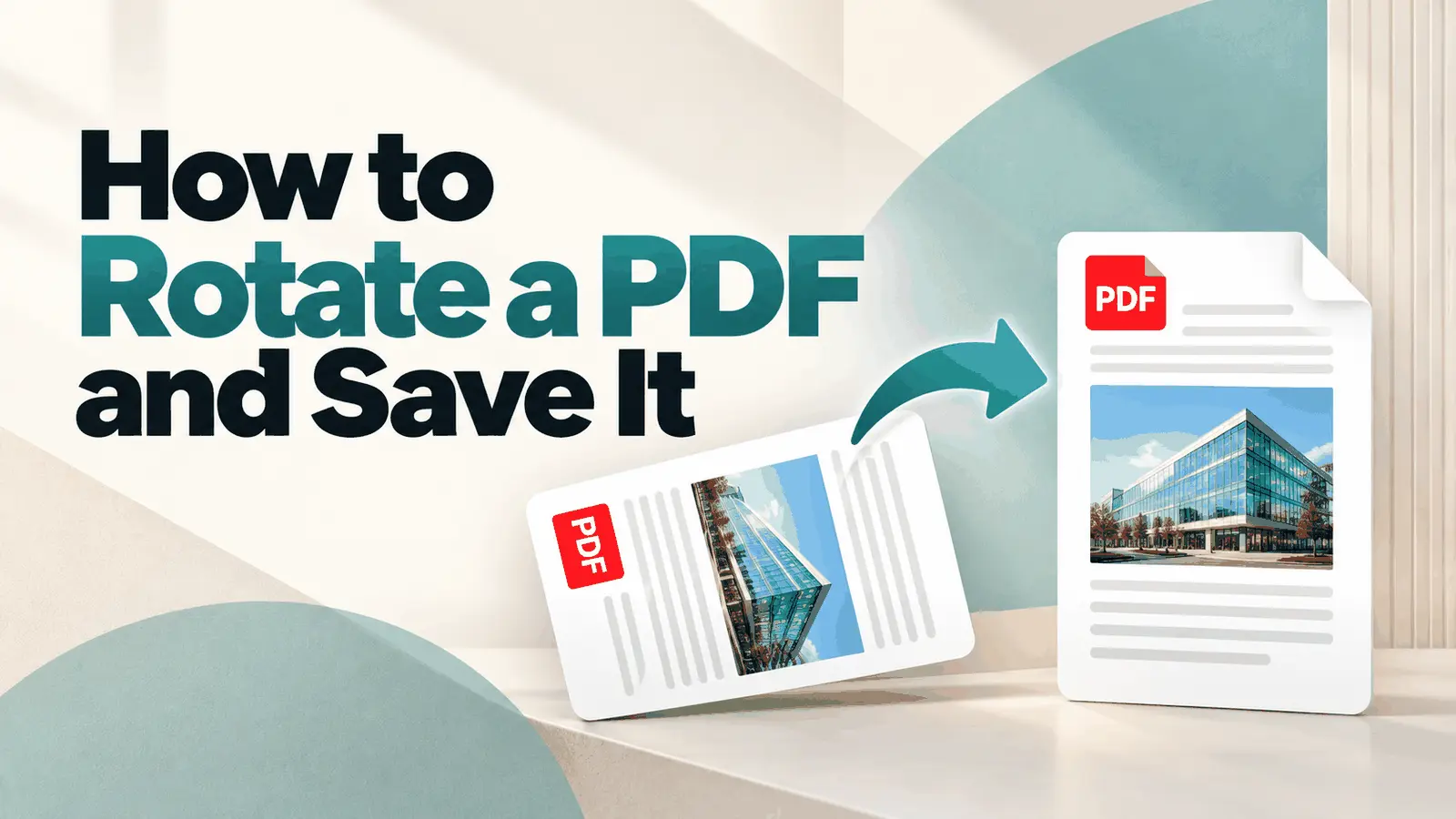
A saved page rotation writes a 90, 180, or 270 degree turn into the PDF page itself, so every app that respects the file’s page data shows the page the new way up.
That is different from turning the view inside a PDF viewer. A view rotation may help you read the page on your screen, but it does not always change the document that someone else opens later.
This is why the exact button you use matters. A saved turn can survive the next time the document is opened, printed, or emailed, while a view-only turn can disappear as soon as the file is reopened in another app.
Rotation is stored as a page attribute rather than a redrawing of the page. That is why the file size usually does not move much after a real rotation, and why some viewers may ignore the turn entirely if they do not read that attribute correctly.
This guide explains how to rotate a PDF online, on Windows, and on Mac. You'll learn the difference between view rotation and saved page rotation, plus how to rotate a single page without affecting the others.
It also covers why rotation may not save, which keyboard shortcuts work, and why a PDF might still print sideways due to print orientation settings.
The issue comes up most often with a scanned document, where one or two sideways pages make the whole file feel broken. In most cases, the real fix is not changing the picture on screen. It is saving the correct PDF page orientation into the pages that need it.
How Do You Rotate a PDF Online and Save It?
Open the PDFNoob rotate PDF tool, drop the PDF into the online rotate tool, turn the pages that need turning, then download the file with the rotation saved into it.
➤ Open the PDFNoob rotate PDF tool.
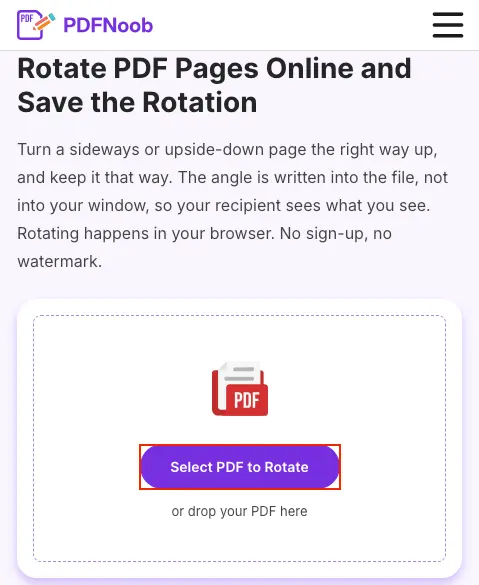
➤ Click Select PDF to Rotate and choose the PDF file you want to rotate.
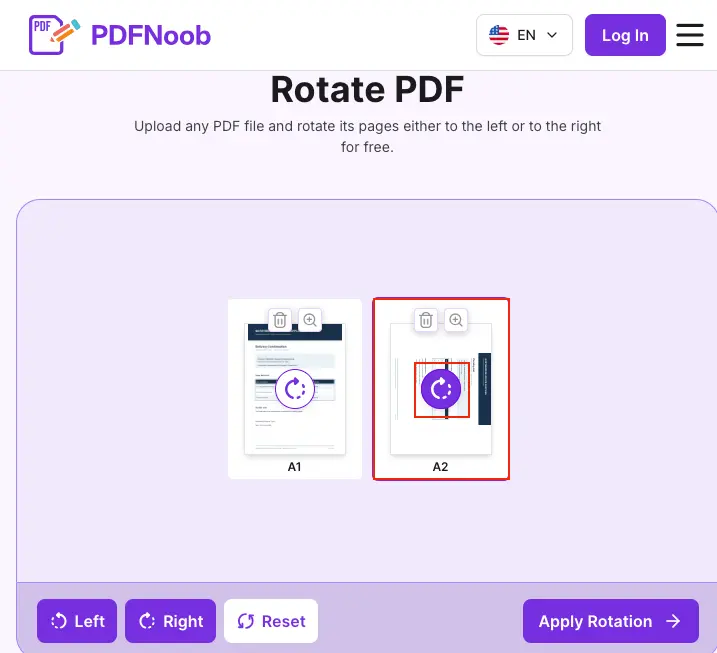
➤ Select the PDF page you want to rotate from the uploaded page previews.
➤ Click Left to rotate the selected page counterclockwise or Right to rotate it clockwise.
You can repeat the rotation until the page is in the correct orientation. Click Reset if you want to undo the rotation.
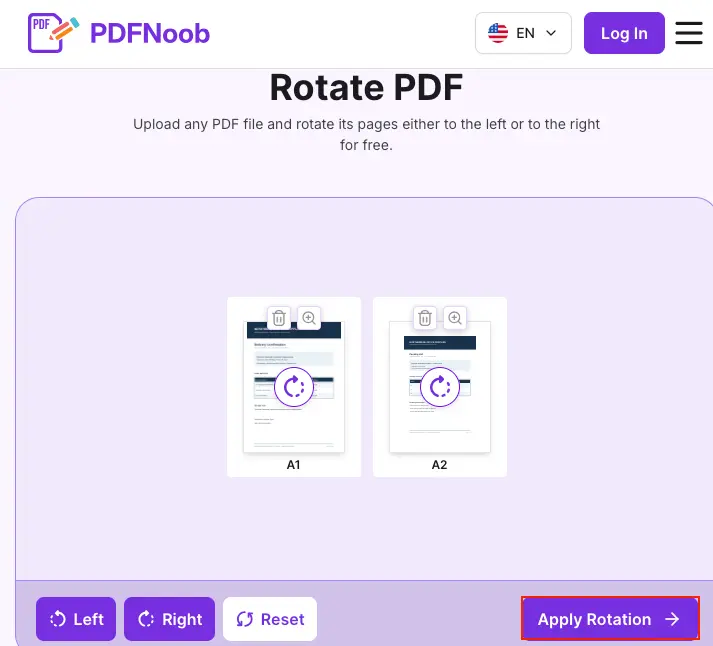
➤ Click Apply Rotation to save the changes to your PDF.
➤ Click Download PDF to save the rotated PDF to your device.
You can also click Back to Editing if you need to make additional changes before downloading.
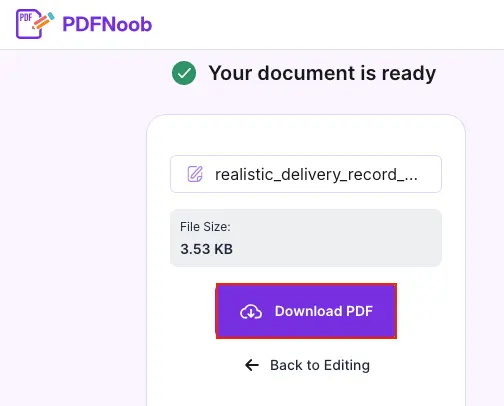
Use clockwise rotation or counter-clockwise rotation depending on which way the page is facing. You can select one page thumbnail and turn only that page, or select all pages when the whole document came in sideways.
The source file on your device stays untouched while you work online. The PDFNoob rotate PDF tool turns the pages in your browser, so your file is not uploaded to a server. Nothing replaces it until you download the rotated PDF and choose to use that new file instead.
A saved rotation should stay close to the original file size because the pages are being turned, not re-encoded. If the downloaded file jumps sharply in size, the tool likely rebuilt the document instead of only saving the rotation.
How Do You Permanently Rotate a PDF Instead of Just the View?
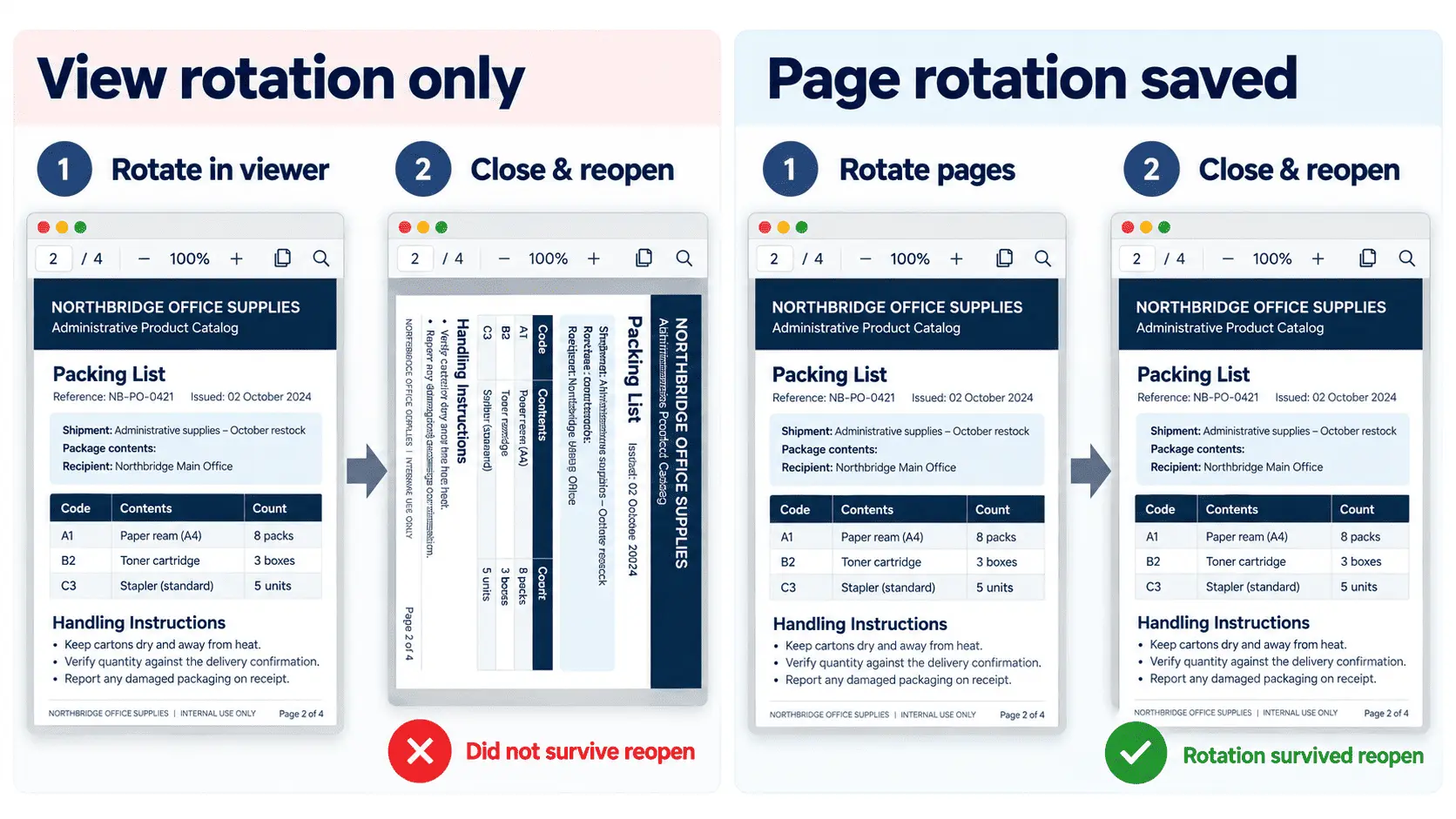
Rotating the view only turns the page on your screen and changes nothing in the document. Rotating the pages writes the turn into the file, so the page is still rotated when someone else opens it.
A viewer’s rotate button, the Chrome browser PDF viewer, and the Google Drive preview usually create a view rotation only. That may help you read the page for the moment, but it does not change the saved document state.
A rotate tool or a PDF editor’s page-rotation command works differently. It saves a page rotation value into the page object, usually one of 0, 90, 180, or 270 degrees.
That is the reason one turn survives and the other disappears. A view rotation is a setting inside the application. A saved page rotation is a value inside the file.
The quick test is to close the PDF and reopen it in another app. If the page is still turned, the rotation was saved into the document. If it returns to the old direction, only the view was rotated.
How Do You Rotate a PDF on Windows Without Adobe?
Windows has no built-in way to save a PDF rotation, so use a rotate tool in the browser or a PDF editor that can write page rotation into the file.
The confusing part is that Microsoft Edge, Chrome, and many free PDF reader apps all show a rotate button. That button usually turns the view only, so the page looks fixed on your screen but returns to the old direction when the file is reopened somewhere else.
The free Acrobat Reader has the same limit for page rotation. It can turn the view, but it cannot save page rotation into the file as a normal reader action.
That is what sends people in circles. The file is not always broken; the app simply has no write path for saving the turn.
| App or method | Does it rotate the view? | Can it save the rotation? |
|---|---|---|
| Microsoft Edge PDF viewer | Yes | No |
| Chrome PDF viewer | Yes | No |
| Free Acrobat Reader | Yes | No, not as saved page rotation |
| Online rotate tool | Yes, it turns the pages | Yes, by downloading a rotated file |
| PDF editor with page rotation | Yes | Yes |
| Print to PDF workaround | Creates a reprinted copy | Yes, but with trade-offs |
You can use Print to PDF as a workaround, but it creates a reprinted document rather than saving the original PDF structure. That can remove links, bookmarks, and form fields, so it is a last-resort fix, not the cleanest way to rotate a PDF on Windows.
How Do You Rotate a PDF on a Mac?
Open the PDF in Preview, show the thumbnail sidebar, select the page or pages you want to turn, use the rotate button or the keyboard shortcut Command+R, then save with Command+S.
If you do not select a page in the thumbnail sidebar, Preview turns the page currently shown. If you select several thumbnails, it turns those pages together.
Duplicate the file before editing if it is shared, important, or easy to damage by mistake. Preview saves the rotation back into the original file when you save, so file duplication is the safer move before changing a document someone else may still need unchanged.
To undo a turn before saving, press Command+Z or rotate the selected pages back the other way. After saving, do not rely on autosave to protect the original; keep a duplicated copy so a mistaken turn does not become the only version you have.
How Do You Rotate Just One Page of a PDF?
Select that page in the thumbnail view before you turn it, so the rotation applies to that page alone and the rest of the document stays untouched.
If more than one page needs fixing, use page selection for several scattered pages or choose a page range when the sideways pages sit together. If the whole scan came in sideways, select every page and turn them all in one step.
A PDF can carry mixed orientation without causing a problem. The turn belongs to each page separately rather than to the whole document, so one page can face a different way while the next page stays as it was.
That is why fixing one sideways page does not disturb the others. Pages that were not selected keep their existing rotation because their own page-level setting was never changed.
Why Can't You Rotate a PDF?
In most cases, the PDF is rotating, but the turn is not being saved because the app can only change the view. When that is not the issue, the file itself is usually blocking changes.
The first case is a viewer with no write path. It may show a rotate button, but that button only changes what you see on screen, so the page goes back when the file is reopened.
The second case is a PDF protected with an owner password. The file may open normally, but a permissions restriction can still block editing, saving, or page changes.
A stricter case is an encrypted PDF that will not open at all without a password. In that situation, rotation is not the real problem yet because the file cannot be accessed for editing.
There is also a sharing problem. Someone may send back a read-only document or a file where they saved a view rotation instead of a page rotation, so it looked fixed in their app but not in yours.
Run two checks before blaming the PDF. First, rotate one page, save if the app allows it, close the file, and reopen it to see whether the change survived. Second, try another simple edit, such as moving or deleting a page; if that fails too, the document is restricted rather than rotation being unsupported.
What Is the Keyboard Shortcut to Rotate a PDF?
In most desktop PDF reader apps on Windows, the keyboard shortcut is Shift+Ctrl+Plus(+) for clockwise rotation and Shift+Ctrl+Minus(-) to turn the view back. On a Mac, use Command+R in Preview.
The important difference is what gets saved. Windows reader shortcuts usually rotate the view only, so they help you look at a sideways page but do not write page rotation into the PDF.
Preview works differently. Command+R turns the selected page or pages, and the change is saved when you press Command+S.
Browser viewers do not have a rotate shortcut that saves the file. A free reader cannot have a saving shortcut if the app has no ability to write page rotation into the document; the shortcut can only do what the app is built to do.
Why Does Your PDF Still Print Sideways After You Rotate It?
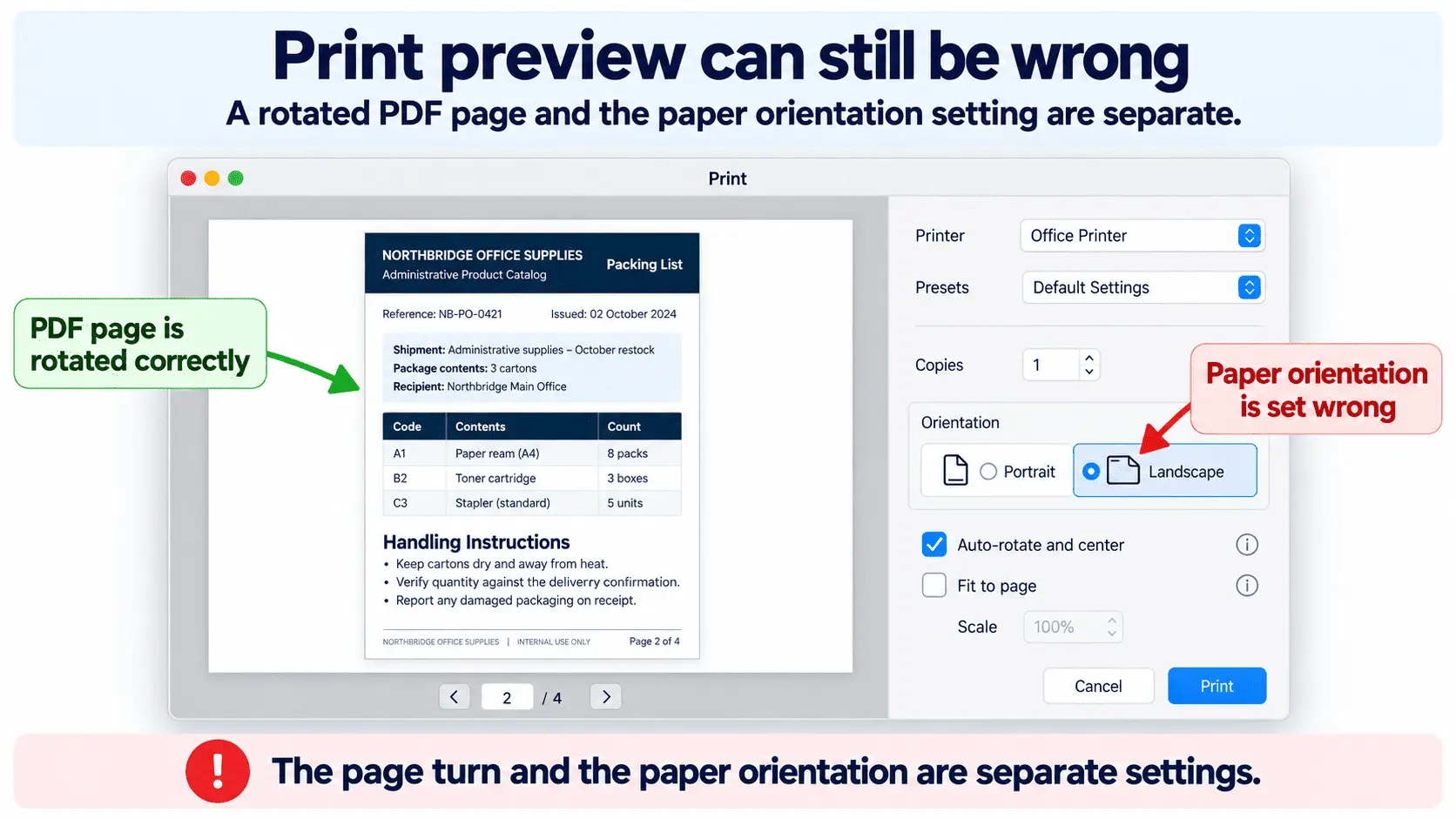
Your PDF can still print sideways because the printer is following the print dialog settings for the sheet, not only the page rotation stored in the PDF. The paper orientation setting, such as portrait or landscape, can override what the document appears to be doing on screen.
Check the print preview before printing. It shows which setting is winning: the page’s saved rotation or the sheet orientation selected for the printer.
If the page looks rotated correctly but sits on the wrong sheet direction, change the paper orientation to match the page rather than forcing the page to match the paper. Then check auto-rotate and centre, plus fit to page, so the printer places and scales the page correctly inside the chosen sheet.
If only some pages come out sideways, only some pages were probably turned inside the PDF. Rotate the remaining sideways pages, save the file again, and check the print preview before using paper, because apparently paper still has to suffer for our PDF choices.
How Do You Change a PDF From Portrait to Landscape?
Turn the pages 90 degrees with Rotate PDF and save the file. For an existing PDF, that changes the page from portrait orientation to landscape orientation by presenting the same page the other way round, while the page dimensions stay the same.
It does not reflow the text, resize the page, or redesign the layout. If you want the content re-laid-out for a true landscape page, go back to the source document, change the page setup there, and export a new PDF.
How Do You Rotate a PDF in Google Drive or Chrome?
You can turn the page in the Google Drive preview or the Chrome browser PDF viewer, but neither writes the turn into the file. Reopen it anywhere else and the shared document is back as it was.
That is why the same PDF can look rotated in one app and unchanged in another. Drive or Chrome may remember a view state inside that app, but the document itself has not been changed.
Before sharing the file, save the rotation with a tool that writes the turn into the PDF, such as the PDFNoob rotate PDF tool. Then other people will see the same page orientation when they open it, instead of the temporary view you saw. If the file also needs text or page changes before you send it, make them in Edit PDF once the rotation is saved.
Does Rotation Affect a PDF's Text Quality or File Size?
No. Rotating a PDF is a lossless operation because it writes a turn into the page and leaves the images, fonts, and text untouched, so the quality stays identical and the file size should change by a few bytes at most.
That happens because no image data is re-encoded during normal page rotation. The exception is an editor that rebuilds or flattens the document while saving; if the file shrank or grew noticeably after rotation, it went through a document rebuild instead of a simple turn.
If the goal is to make the PDF smaller, use Compress PDF separately rather than expecting rotation to reduce the file size.