Extracting pages from a PDF copies the pages you choose into one new PDF and leaves the source document exactly as it was.
That means the uploaded file does not lose pages. The extractor creates a separate file from the pages you selected, whether you choose one page, a page range, or several pages from different parts of the document.
There are four common routes, and each fits a different situation. An online tool works when you want the fastest option with page thumbnails and previews. A range box works when you already know the page numbers. A browser Print to PDF route works when you have no tool installed. A desktop app works when you handle sensitive files often.
The route matters because not every method behaves the same. A locked PDF may block extraction until the restrictions are removed, while a scanned file can be extracted but may stay image-only if it was not searchable before.
The browser Print to PDF route is the one people try first, but it has the biggest hidden trade-off. It flattens the page by re-rendering it, so selectable text can become a picture of itself. Internal links, bookmarks, and form fields may stop working.
So the best method is not just “whatever opens first”. It depends on whether you need the original text, links, form fields, page structure, and file behavior to survive.
This guide explains what extracting does, extracting online, picking certain pages, pulling every page at once, and the browser Print to PDF route. It also covers doing it without Acrobat, working fast on a long document, choosing an app, and what to check first.
What Does Extracting Pages from a PDF Do?
Extracting pages copies the selected pages into one new document, while the source PDF keeps every page it had.
The original PDF does not lose anything. If you extract pages 4 to 9 from a 40-page file, the 40-page file still stays complete, and the extracted pages are saved separately.
Readers usually need this for two simple jobs. One is pulling a chapter out of a long report so it can be shared without sending the whole file.
The other is pulling one signed page out of a contract when only that page needs to be sent, stored, or reviewed.
The result is one PDF file, not one file per page. If you extract pages 4, 5, and 6 together, they come out as one new PDF holding those three pages in order.
The extracted file also keeps the original page size and page orientation of the pages it came from. If page 3 in a mixed-orientation report is landscape, extracting that page gives you a landscape PDF, even if most of the original document was portrait.
So extraction is best when you want a smaller copy of specific pages without changing the full source file.
How Do You Extract Pages from a PDF Online?
Upload the PDF, tick the pages you want, then download the new file.
➤ Open PDFNoob’s Extract PDF Pages tool in your browser.
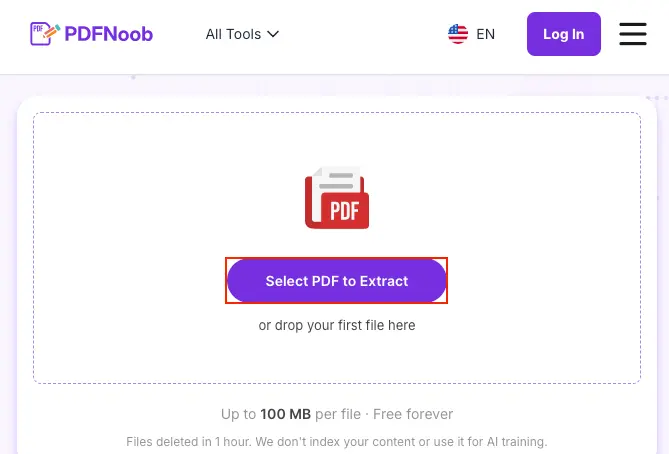
➤ Click Select PDF to Extract and upload the PDF file you want to extract pages from.
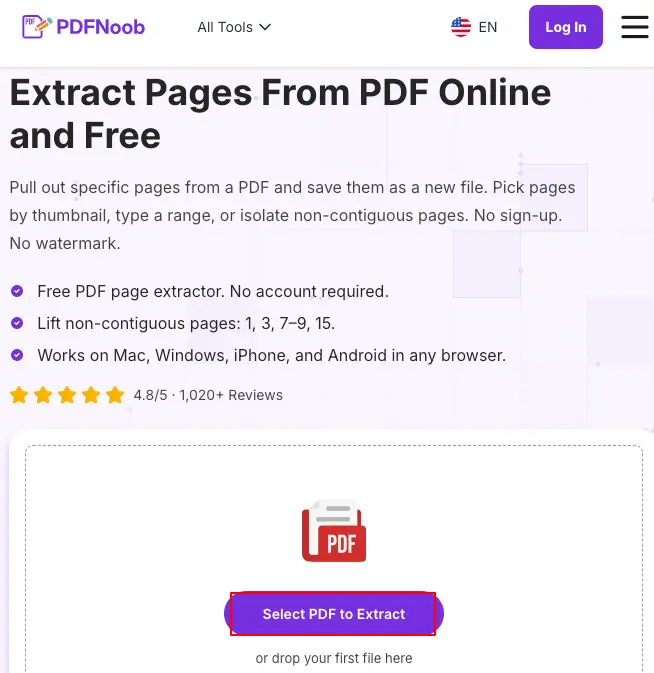
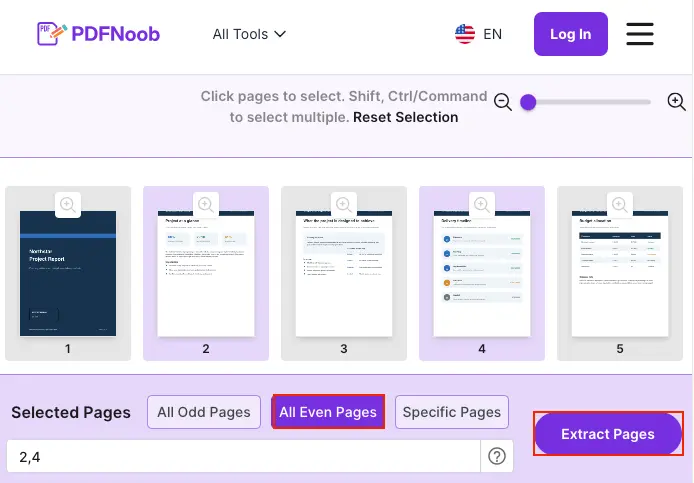
➤ Choose All Even Pages to extract page 2,4.
➤ Click Extract Pages to create a new PDF containing only those pages.
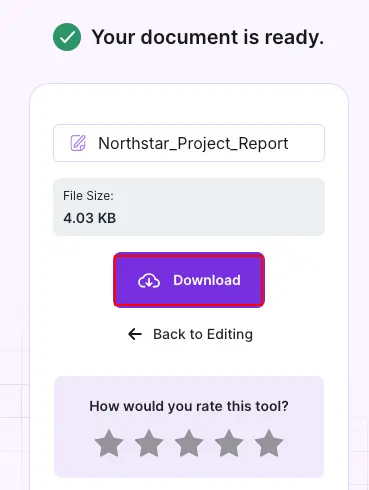
➤ Click Download to save the PDF to your device.
If you want to return to the page selection screen and make changes before extracting the PDF again, click Back to Editing.
No account is needed on PDFNoob, and the upload is deleted within an hour. The tool has a 100MB file size limit, so check the file size before uploading a large report, scan, or document bundle.
The page preview is useful because it lets you confirm the visual page before downloading. This helps when the page number in the file does not match the number printed on the page.
Before closing the tab, open the downloaded PDF and check the page count. A mistyped range can still produce a valid PDF, just with the wrong pages inside it.
How Do You Extract Certain Pages Instead of All of Them?
Type the pages you want as a page range, such as 4-9, or as a page list, such as 2, 5, 11. Both create one PDF holding those pages in document order.
➤ Go to PDFNoob’s Extract PDF Pages tool in your browser.
➤ Click Select PDF to Extract and upload the PDF.
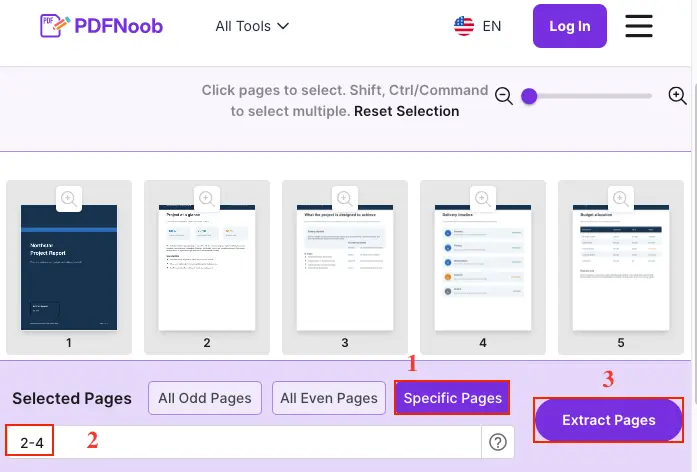
➤ Once the page thumbnails appear, select Specific Pages.
➤ Enter the page range you want to extract.
For example, type 2-4 to extract pages 2, 3, and 4.
➤ Click Extract Pages to create a new PDF containing only the selected page range.
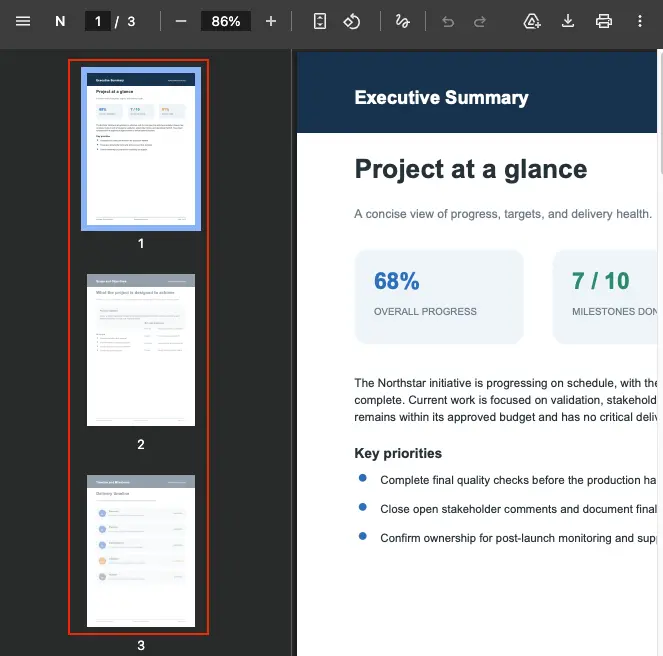
➤ Now, download the new PDF.
The new PDF will contain 3 pages, corresponding to pages 2-4 from the uploaded PDF.
Use a range when the pages sit next to each other. For example, 4-9 extracts pages 4, 5, 6, 7, 8, and 9 into one new file.
Use a list when the pages are not next to each other. For example, 2, 5, 11 extracts those three pages and keeps them in the same order they appear in the PDF.
The page numbers you type usually mean the page position inside the file, not the printed page number shown on the page itself.
This is where cover pages, title pages, and roman-numeral front matter cause mistakes. A page printed as “1” may not be file page 1 if the document starts with a cover, table of contents, or intro pages.
Use the offset rule before typing the range. If the document has a cover and two roman-numeral pages, printed page 1 is file page 4.
So every range needs shifting by three. If you want printed pages 4-9 in that file, you should type file pages 7-12.
The safest habit is to check the page preview before extracting. Match the visual page you want, then type the range or list based on the page’s position in the file.
How Do You Extract Pages Using Print to PDF in a Browser?
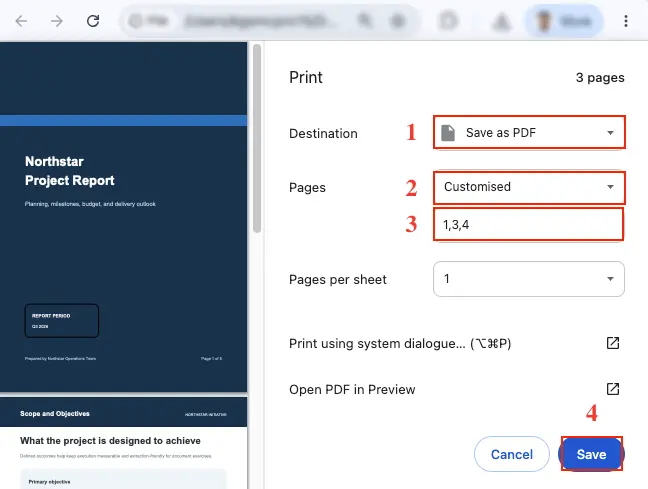
Open the PDF in a desktop browser, press CTRL+P on Windows or Cmd+P on Mac, set the destination to Save as PDF, choose custom pages, type the page range, then save.
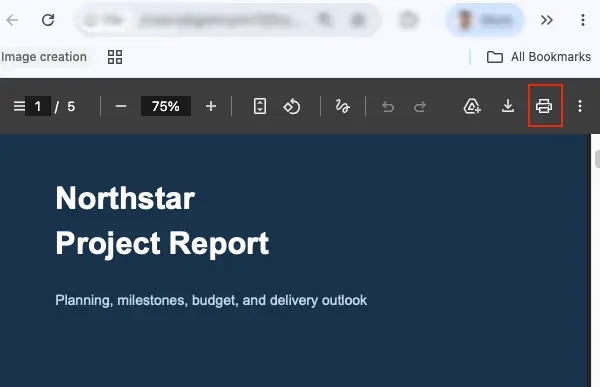
➤ Open the PDF in Chrome, Edge, Safari, or another desktop browser.
➤ Press the Print icon to open the print dialog.
➤ In the Print window, set Destination to Save as PDF.
➤ Under Pages, select Customised, then enter the page numbers you want to extract, such as 1, 3, 4.
➤ Click Save after confirming the selected pages.
➤ Enter a name for the new PDF, and click Save again.
The new PDF will contain only the pages you selected.
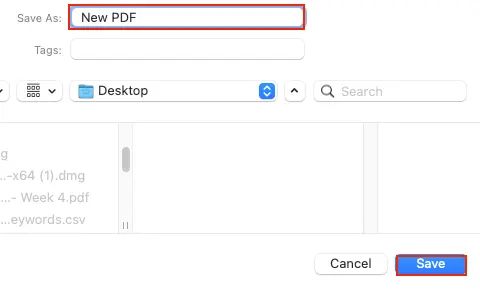
This route needs nothing installed, which makes it useful when you only have a browser and need a quick copy of a few pages.
The trade-off is flattening. Print to PDF does not copy the original PDF structure in the same way a page extractor does.
It re-renders each page as a print output, so selectable text, internal links, bookmarks, and form fields may not survive.
Use this method only when that loss does not matter, such as when the pages are already scans or image-only pages.
If the PDF has working links, fillable fields, selectable text, or bookmarks you still need, use a real extraction tool instead of the browser print route.
How Do You Extract Pages from a PDF Without Adobe?
You do not need Acrobat to extract pages from a PDF. A browser tool works on any device, macOS Preview can do it by dragging thumbnails, and the browser print dialog can do it in a pinch.
The best route depends on what you have available and what you are willing to lose.
| Route | What it needs | What it costs you |
|---|---|---|
| Browser tool | A browser and the PDF file | The file is uploaded, so check the tool’s privacy and file-handling details first. |
| macOS Preview | A Mac with Preview, which is already included | It works well on Mac, but it is not available on Windows. |
| Print dialog | Any desktop browser with Save as PDF | It can flatten the file, so links, form fields, bookmarks, and selectable text may not survive. |
On a Mac, Preview is the closest thing to a built-in page extractor. Open the PDF, show the thumbnails, select the pages you want, and drag them out to create a new file.
On Windows, the situation is different. Windows has Microsoft Print to PDF, but it does not ship with a native page extractor like Preview.
That is where many “built-in tools” guides become misleading. They make Mac and Windows sound equal, but they are not. Mac has Preview for page extraction. Windows mostly has Print to PDF unless you use a browser tool or install a PDF editor.
For a one-time extraction on Windows, the browser route is usually the practical answer. It avoids installing a full desktop editor just to pull out a few pages.
Use the print dialog only when preserving PDF behavior does not matter. If you need selectable text, links, bookmarks, or form fields to survive, use a real extraction tool instead.
How Do You Extract All the Pages from a PDF at Once?
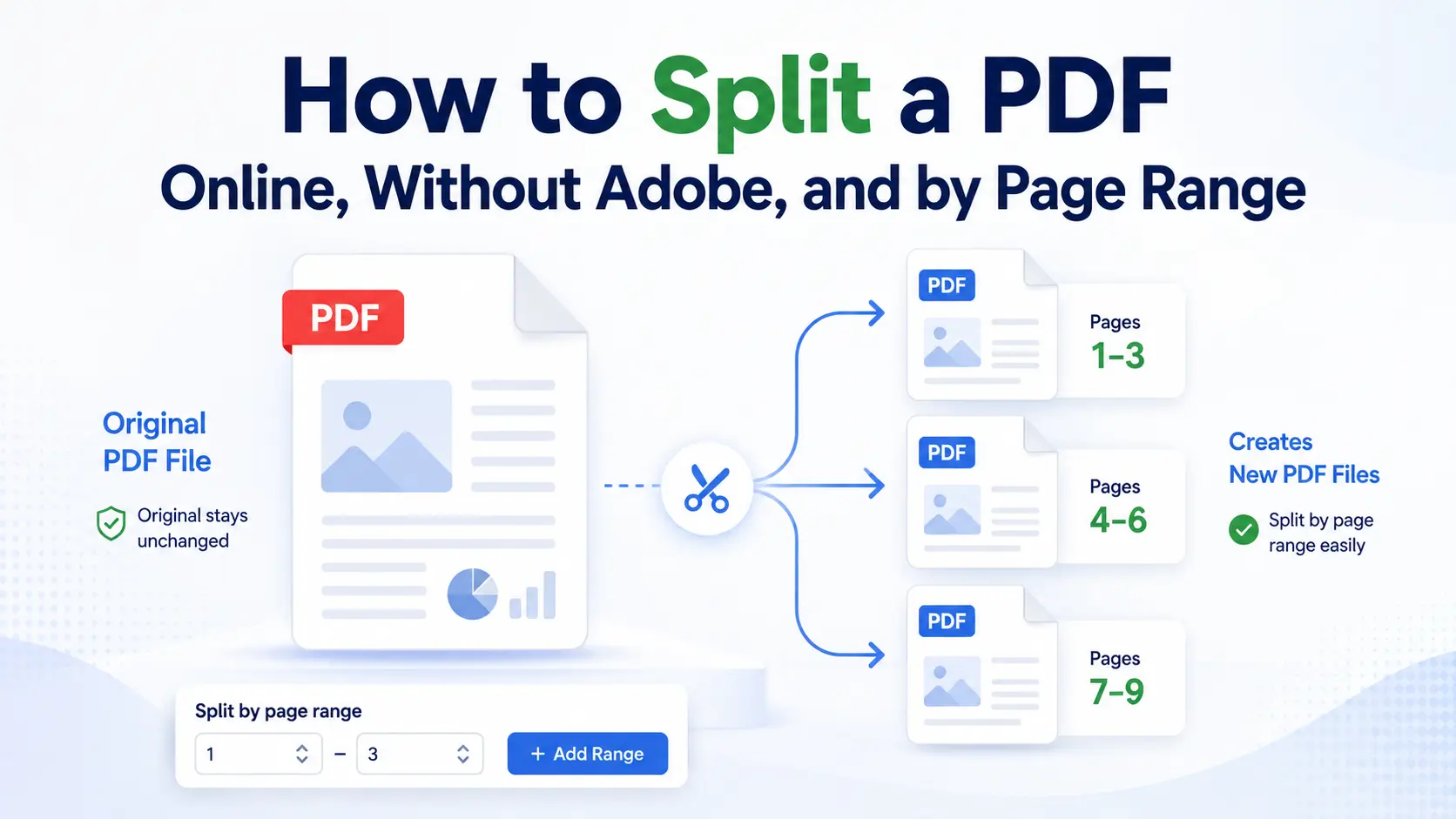
This is where extraction stops, and splitting begins. Our extractor always gives you one new PDF, however many pages you pick, so there is no all-pages mode inside it. When you want one file per page, that is Split PDF instead. It has a one-file-per-page setting, and because there is more than one file at the end, the set downloads as a ZIP archive.
This is different from extracting a page range. If you extract pages 4-9, you usually get one PDF holding those six pages together.
If you extract all pages, you get one file per page. A 20-page PDF becomes 20 separate PDF files, usually packed into one ZIP download.
This is useful when one long file is really a bundle of separate records. For example, a scanned batch of receipts, forms, certificates, invoices, or signed pages can be broken back into individual files.
The ZIP is the tell. If the download is a ZIP folder, you probably chose extract-all mode. If the download is one PDF, you probably extracted a selected range.
On a desktop, opening the ZIP is usually simple. Download it, double-click it, then open the folder that contains the separate page files.
On a phone, there may be one extra step. The ZIP usually lands in Downloads or the Files app, and you may need to tap it first to expand the folder before opening the individual PDFs.
Use extract-all when you want separate page files. Use a range when you want one smaller PDF holding a set of pages together.
How Do You Extract Pages from a Large PDF Quickly?
Type the page range instead of clicking through thumbnails. On a large document with a few hundred pages, typing 120-134 takes seconds, while scrolling a thumbnail grid can waste time.
Use the range box when you already know the file page numbers. Enter the first page, a hyphen, and the last page, then extract that set into one new PDF.
For example, 120-134 pulls pages 120 through 134 together. This is faster than waiting for every page thumbnail to load, scrolling down the preview area, and clicking each page one by one.
The slow part is often not the extraction itself. In a browser, the delay usually comes from rendering the page previews, especially when the PDF has hundreds of pages, high-resolution scans, images, or heavy layouts.
A page preview helps check a short file, but it can slow the workflow on a long one. If the tool lets you collapse, skip, or avoid the full preview, use the range box first and preview only the final selection.
If the file is near the size ceiling, check the file size before uploading. Large scans and image-heavy reports can hit the limit before the tool even reaches the extraction step.
When that happens, use a smaller source file, compress the PDF first, or use a desktop editor if the document is too large for the browser route.
So, confirm the file page numbers, type the range, avoid unnecessary thumbnail scrolling, extract the pages, then check the downloaded file’s page count.
Which App Should You Use to Extract Pages from a PDF?
It depends on where you are and how often you do this. A browser tool is best for a one-off extraction, a desktop editor is better for repeat work on sensitive files, and a mobile app is rarely necessary because the browser route already works on phones.
| Option | What it costs | Whether it installs | Whether the file leaves the device |
|---|---|---|---|
| Browser tool | Usually free for simple extraction | No installation | Yes, the PDF is uploaded, so check the tool’s file-handling and deletion policy. |
| Desktop editor | Often paid or limited in the free version | Yes | Usually no, because the file can be handled locally. |
| Mobile app | Often free with ads, limits, or upgrades | Yes | It depends on the app, and some mobile apps upload files for processing. |
A browser tool suits quick work when you need to pull a few pages and move on. It works on Windows, Mac, iPhone, Android, and tablets without installing anything.
A desktop editor suits regular work, private documents, or company files where file privacy matters more than speed. Adobe Acrobat, PDF Expert, and similar editors fit this category when the workflow needs local control.
A mobile app only makes sense if you extract pages often from your phone and want a dedicated interface. For a quick task, opening a browser tool on the phone is usually enough.
For a one-off extraction, there is no strong reason to install a new app. Many “best app” lists push installation because app installs are the monetised outcome, not because a simple page extraction actually needs one.
In short, choose the job according to the requirement. Use a browser tool for speed, a desktop editor for sensitive repeat work, and a mobile app only when phone-based extraction is part of your regular workflow.
What Should You Check Before You Extract Pages?
Check that extraction is the right task choice, that your device can handle the method you plan to use, and that the file is not blocked by a permissions password or changed by scanned pages.
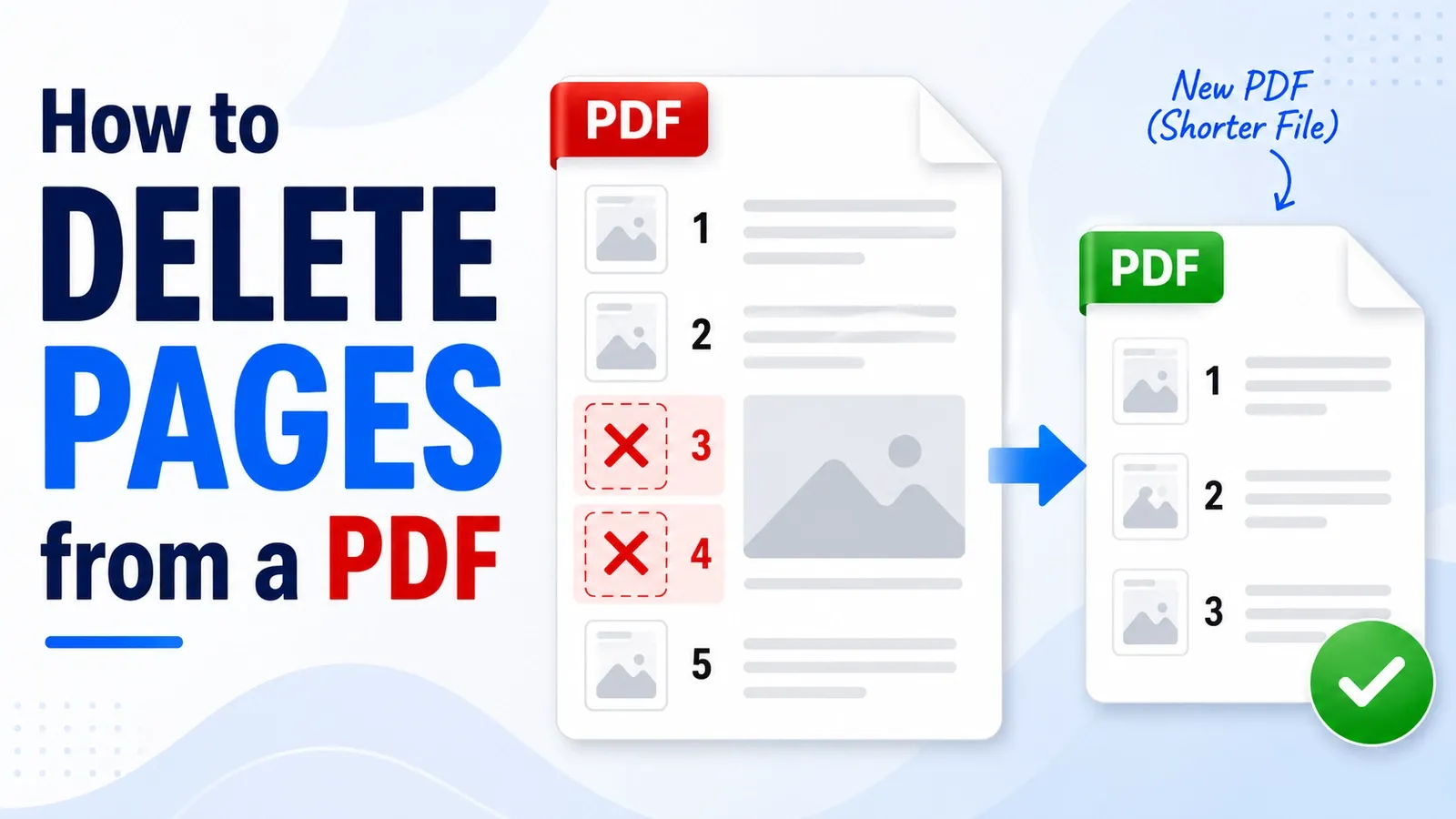
The first check is the output count. If you want one new file holding the chosen pages, extract them. If you want several separate files, split the PDF instead. If you want the same PDF with some pages removed, delete those pages instead of extracting.
The second check is your device. A browser extractor works on most devices; Mac users can use Preview, and Windows users usually need a browser tool or Print to PDF because there is no built-in Preview-style page extractor.
The third check is the file itself. A locked PDF may stop extraction until the password or permission restriction is handled.
A scanned PDF can still be extracted, but the extracted pages will stay image-only if the original pages were image-only.
The quick test is to count the files you want at the end. One file means extract, several files mean split, and the same file minus pages means delete.
How Do You Separate Pages Out of a PDF?
Separating pages can mean three different jobs: page extraction, splitting, or page deletion.
Use Extract PDF Pages when you want chosen pages copied into one new PDF while the original file stays complete.
Use Split PDF when you want one PDF cut into several separate files, such as one file per page or one file per section.
Use Remove Pages when you want the same PDF back with certain pages taken out.
The deciding detail is output count. One new file with selected pages means extraction, several files means splitting, and the same file with unwanted pages means deletion.
This is where many tools make the choice harder than it needs to be. Extraction and splitting often sit behind similar buttons, so readers pick the wrong mode and end up with a folder of single pages when they wanted one clean file.
Check the result you want before choosing the tool. If the goal is one smaller PDF made from chosen pages, use extraction.
How Do You Extract Pages from a PDF on a Mac?
Open the PDF in macOS Preview, show the Thumbnails sidebar, Command-click the pages you want, then use drag and drop to move them onto the desktop.
➤ Open the PDF in Preview on your Mac.
➤ From the top menu, click View > Thumbnails to display all PDF pages in the sidebar.
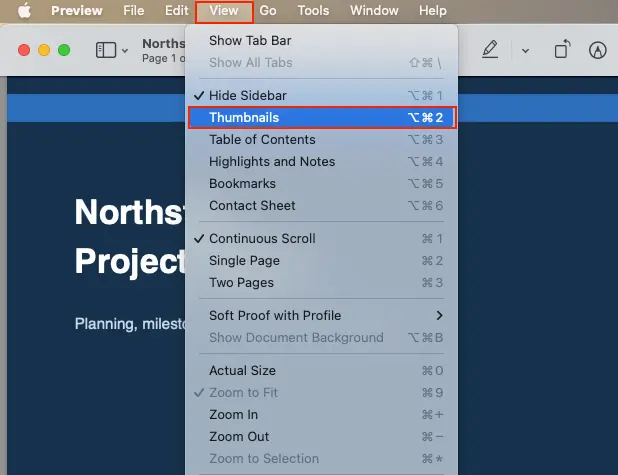
➤ In the thumbnail sidebar, hold the Command (⌘) key and click each page you want to extract.
➤ Keep the selected pages highlighted, then drag them from the sidebar to your Desktop or a folder.
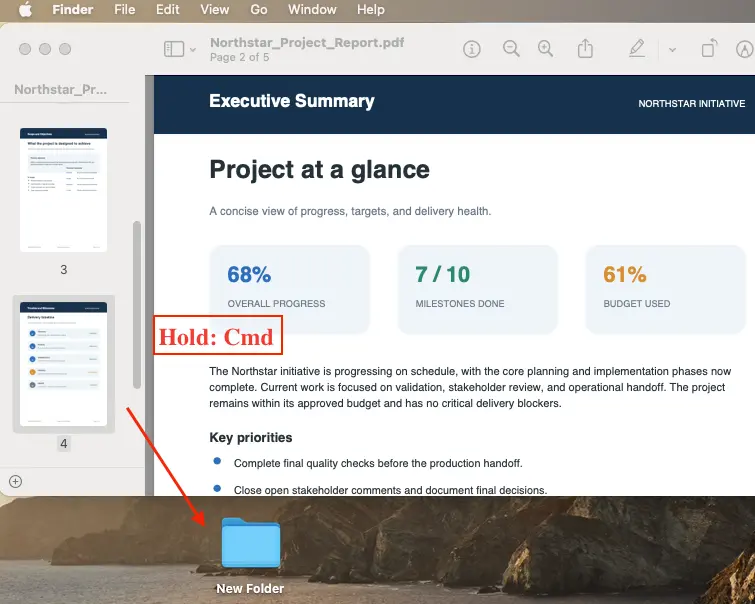
Preview will automatically create a new PDF containing only the selected pages.
➤ Open the new PDF to confirm that the correct pages were extracted.
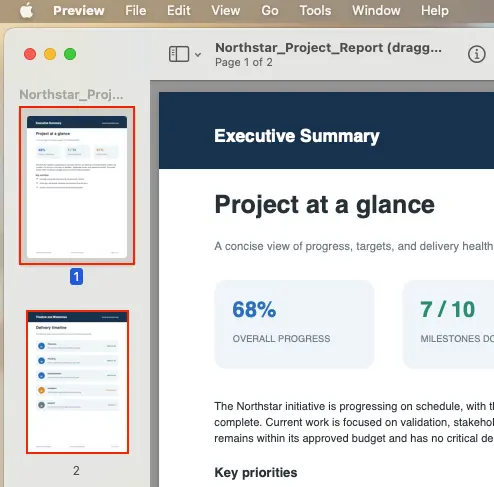
This needs nothing installed because Preview already comes with macOS. The important detail is how you drag the pages. If you select several thumbnails and drag them together, Preview creates one combined PDF from those selected pages.
That is the step people often get wrong. Dragging selected pages as a group gives you one file, not one file per page.
So keep the pages selected, drag the group once, and then check the new PDF before closing the original file.
How Do You Extract Pages from a PDF on a Phone?
Use a mobile browser tool in your phone browser. The steps are the same as desktop extraction: upload the PDF, select the pages, extract them, and save the finished file.
On iPhone, the extracted PDF usually lands in the Files app, Downloads folder, or the browser’s download area, depending on your Safari and iCloud settings.
On Android, the finished file usually lands in Downloads, Google Drive, or the browser’s download folder, depending on where you choose to save it.
The page-selection screen matters more on a phone because the tap targets are smaller. Zoom in if needed, then check the page preview before extracting so you do not tap the wrong page.
Be careful with the iOS share sheet route many guides suggest. That method often sends the selected pages through a print-style workflow instead of copying the original pages.
When that happens, the file can be flattened in the same way as the desktop Print to PDF route. Selectable text, links, form fields, and bookmarks may not survive.
Use the browser extraction route when you want to copy pages out of the PDF. Use the share sheet only when flattening does not matter or the pages are already scans.
How Do You Extract Pages from a Scanned PDF?
Extract pages from a scanned PDF the same way as any other PDF, because extraction copies whole pages and does not care whether the page contains real text or a photograph of text.
Use the same routes: upload it to an online extractor, type a page range, use a desktop editor, or use Preview on a Mac if you are working there.
The important difference is what comes out after the page copy. If the original page was an image-only page, the extracted page stays image-only too.
You can still pull page 6 out of a scanned packet, but the new PDF will not gain searchable text just because it was extracted.
Readers often assume a scanned PDF has to be converted before pages can be pulled out of it. It does not. Extraction works at the page level, so the scan can be copied untouched.
Use OCR PDF if you need the extracted pages to become searchable later. OCR is a separate step from extraction, not a requirement before extraction.
So the practical order is to extract the scanned pages first, then run OCR only if you need to search, copy, or select the text later.