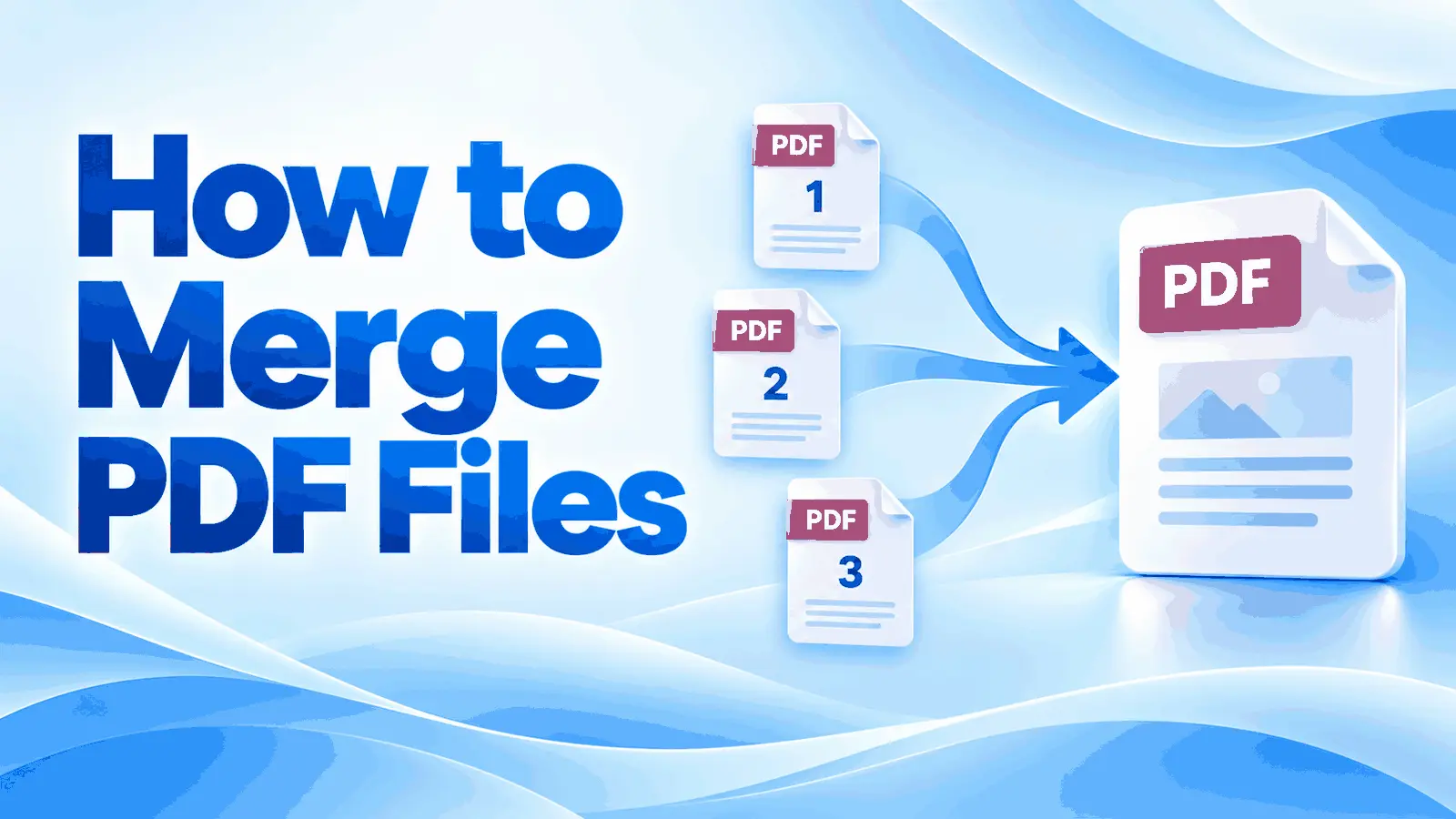
PDF merging stacks several documents into one file, one after another, in the file order you set.
That order matters more than most people expect. If File A goes before File B, the merged PDF follows that sequence. If the files are dragged in the wrong order, the final page order will be wrong too.
Most guides show how to combine files and stop there. The harder part is knowing what survives the join. Pages usually carry over, but bookmarks, links, and form fields may not behave the same way after several PDFs become one file.
This guide covers how to merge PDF files online, how to combine PDFs on Windows without Adobe, how to combine PDFs on a Mac, how to set the right order before merging, whether “merge” and “combine” mean different things, why PDF files sometimes refuse to combine, and whether it is safe to merge PDFs in a browser.
Two things are especially worth knowing before you start: Windows does not have a built-in PDF merger, and a merge can quietly break document features that worked perfectly before the files were joined.
How Do You Merge PDF Files Online?
Open the PDFNoob merge PDF tool, add the PDFs through file upload, drag them into the right file order, click the merge button, then download the merged PDF.
➤ Open the PDFNoob merge PDF tool.
➤ Click Select PDFs to Merge and choose the PDF files you want to combine.
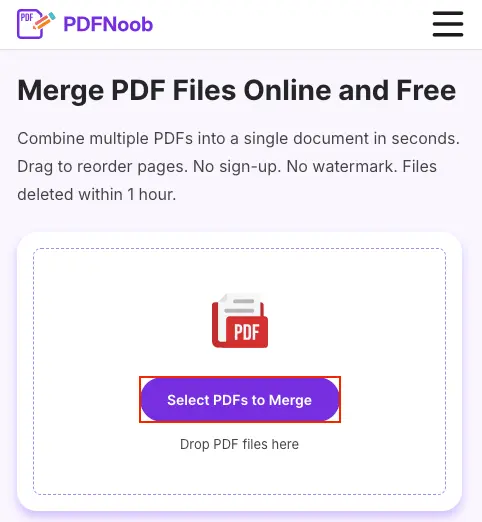
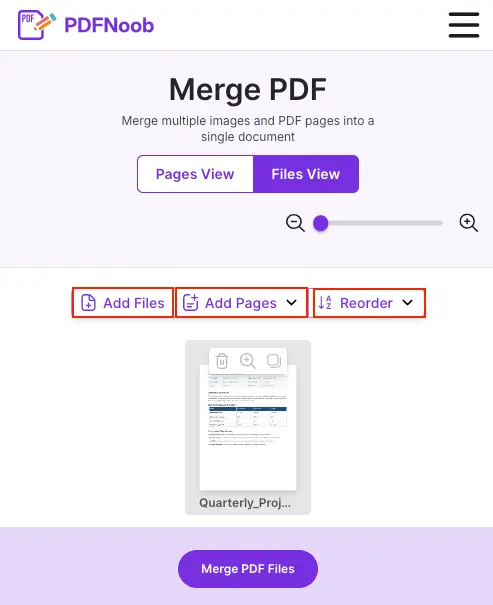
After uploading your PDF, use Add Files to include another PDF, Add Pages to insert pages, or Reorder to change the page order before merging.
➤ Click Add Files to add PDF files.
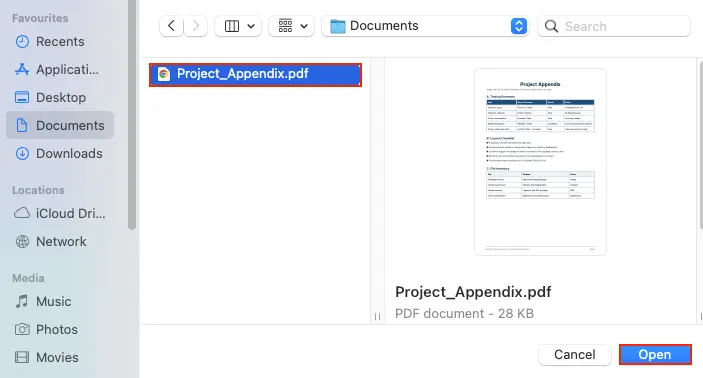
➤ Select the additional PDF file from your computer.
➤ Click Open to add it to the existing PDFs.
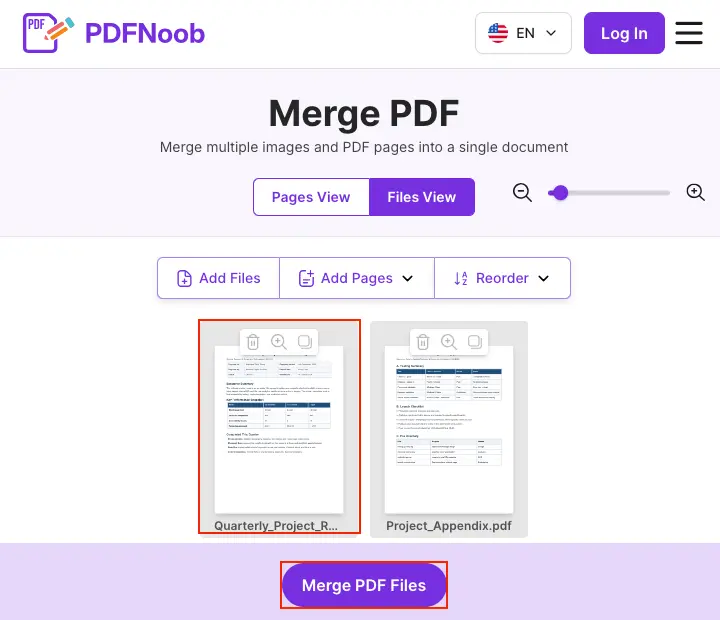
You can drag pages to rearrange them if needed.
➤ Click Merge PDF Files.
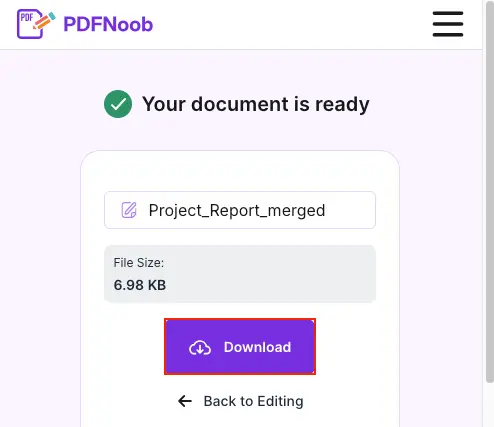
Once the merge is complete, click Download to save the combined PDF to your device.
After the first upload, you can add more files before starting the merge. The order shown on screen is the order that will appear in the final file, so use drag-and-drop to place the cover, main document, appendix, invoice, or extra pages exactly where they should go.
Check the limits before you start a large batch. The PDFNoob merge PDF tool takes up to 20 files and 100 MB in total per merge. A small two-file merge is simple, but a folder of large scanned PDFs can hit upload limits before you even reach the merge step.
The drag-to-order stage is the decision that matters most. If the files are merged in the wrong order, fixing it afterwards means reordering pages inside one merged PDF instead of simply re-dragging two file thumbnails.
How Do You Combine PDF Files on Windows Without Adobe?
Windows has no built-in PDF merger, so without Adobe you need either a free desktop application or a browser merge tool.
Do not expect Microsoft Print to PDF to solve it. That driver can print one single document into a new PDF, but it cannot take two separate PDFs and join them into one file.
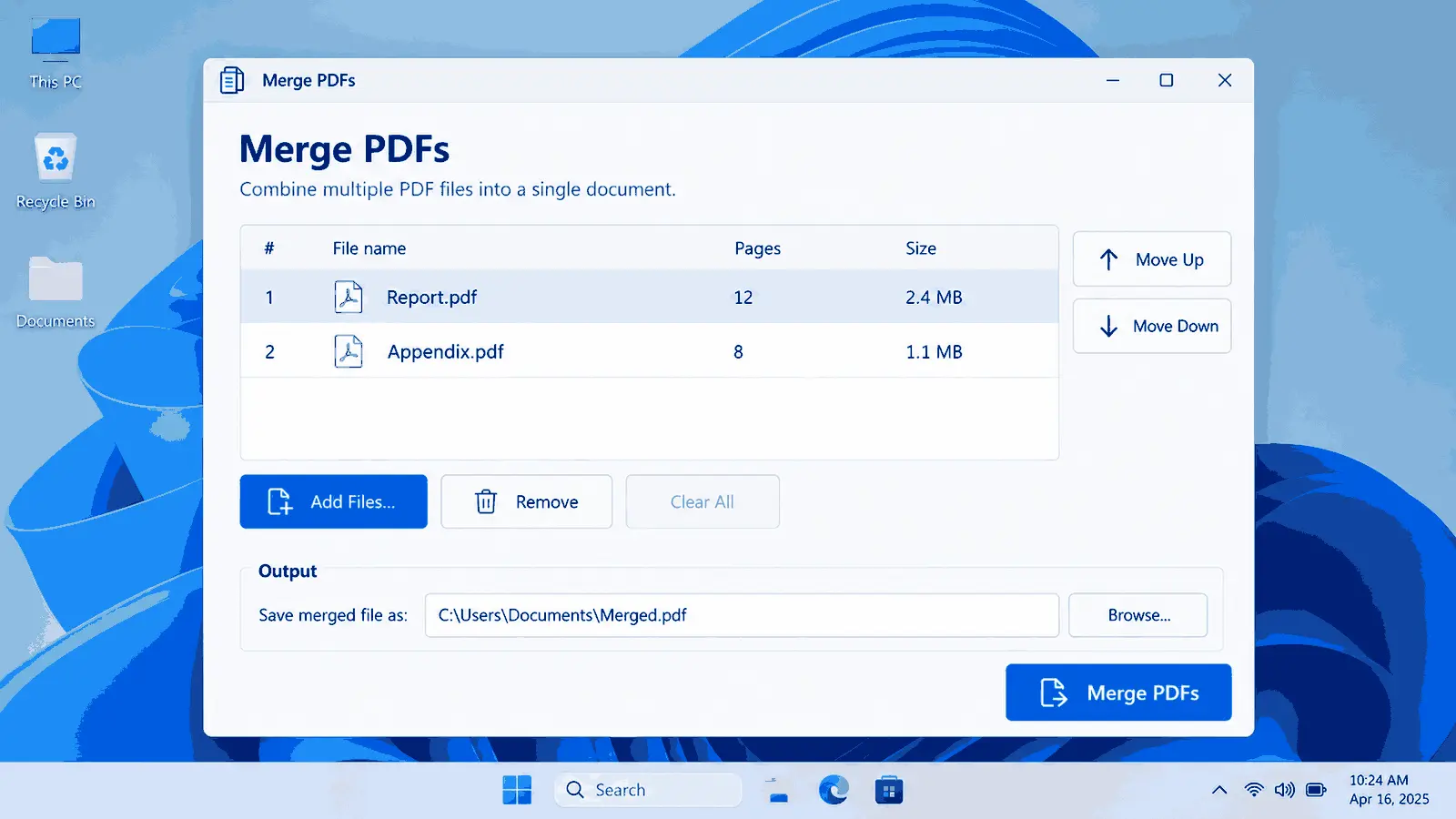
Free desktop options such as PDFsam Basic and PDF24 Creator can work well if you merge PDFs often, especially when you need offline access or repeatable control over the file order.
For a one-off merge, the browser route is usually faster. You add the files, put them in order, merge them, and download the combined PDF without setting up extra Windows software.
How Do You Combine PDF Files on a Mac?
Select the PDFs in Finder, right-click, choose Quick Actions, then Create PDF, or use Preview and its thumbnail sidebar when you need more control.
Finder’s Quick Action is the fastest route, but it uses the current sort order in the Finder window. If the files are sorted by name, date, or another column, that sorting can decide the order of the merged PDF.
For more control, open the first PDF in Preview, show the thumbnails if the sidebar is hidden, then drag the second PDF into the thumbnail sidebar where it belongs. Place it before, after, or between existing pages, then export the combined PDF.
➤ Open the main PDF in Preview.
➤ Drag the additional PDF file into the thumbnail sidebar.
➤ Drop the PDF where you want its pages to appear in the document.
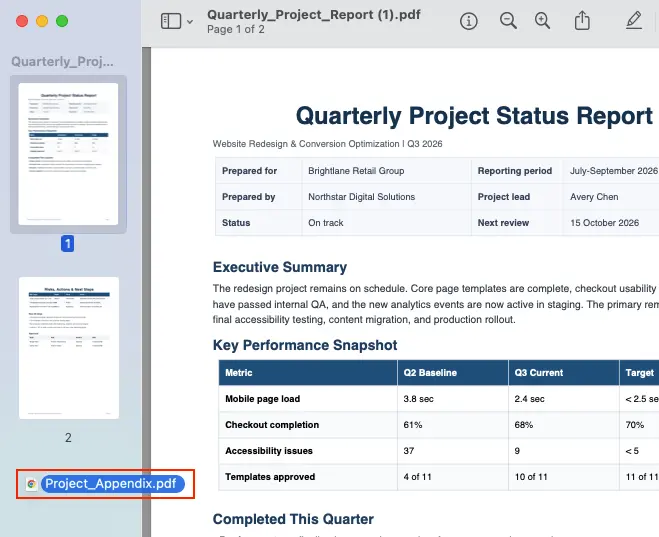
Check the thumbnail sidebar to confirm that the new PDF pages have been added in the correct position.
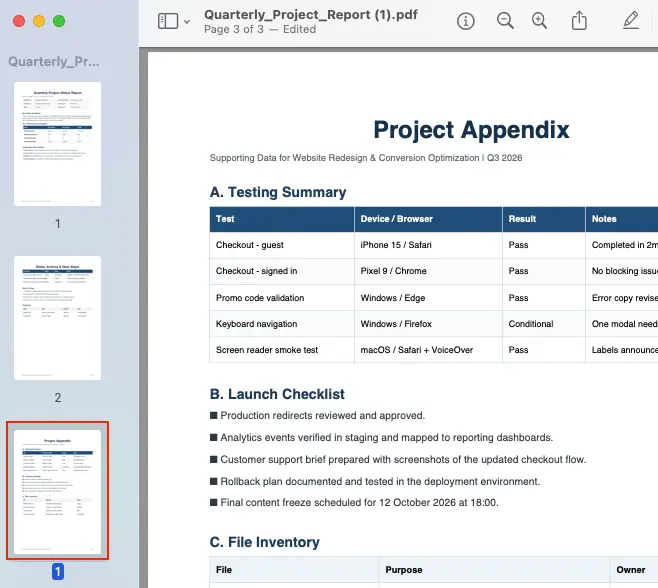
You can use Quick Actions when the files are already sorted correctly. Use Preview when the order matters enough that you want to place each document deliberately.
How Do You Merge Multiple PDF Files Into One in the Right Order?
Set the file order before you merge. Drag the PDFs into sequence first, because after the merge you are reordering pages inside one PDF, not moving separate files.
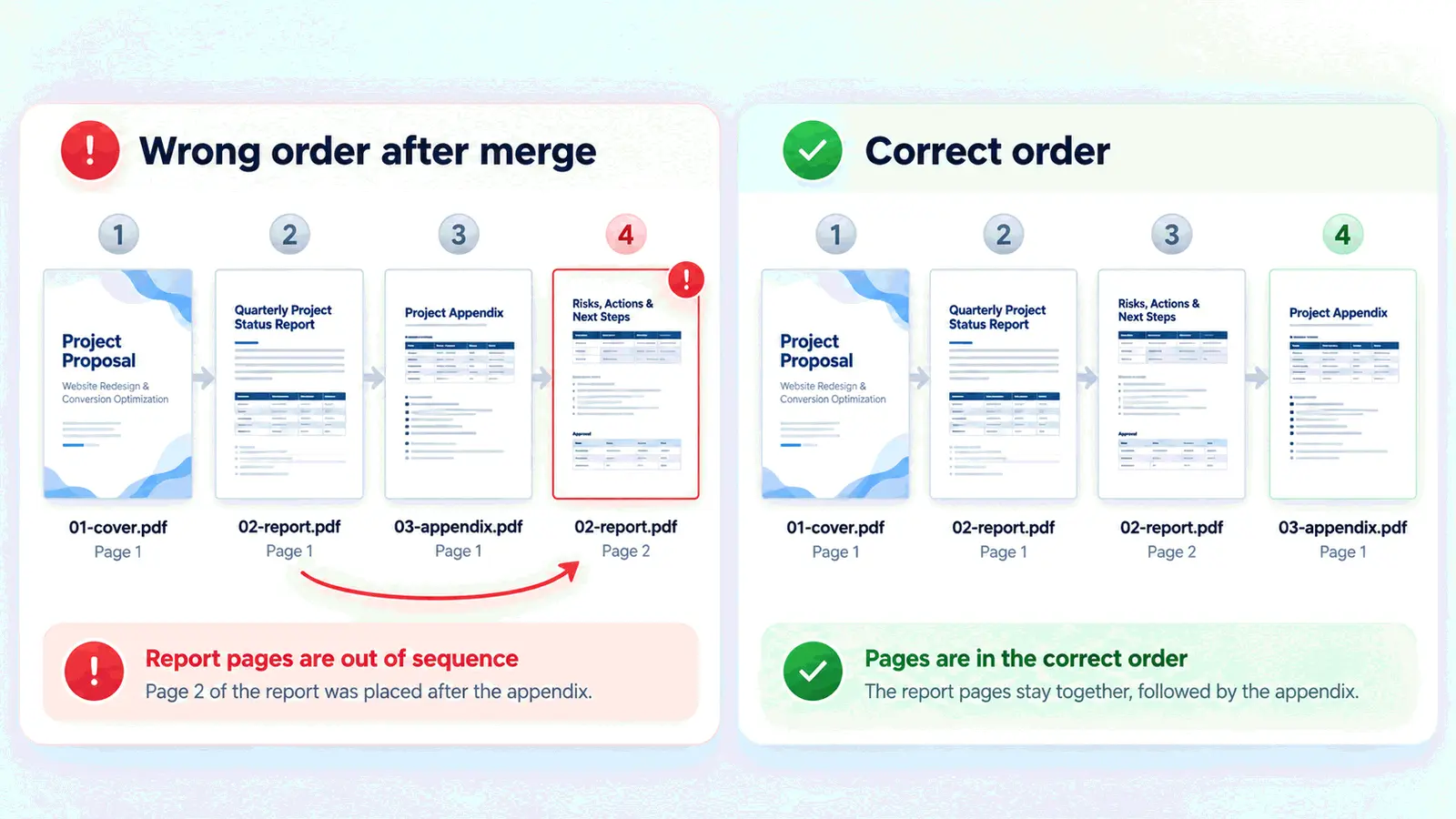
Each route decides the default order a little differently. Online tools usually follow upload order or the order shown on screen. Mac Finder follows its current sort order. Desktop apps usually follow the order you added the files, unless you move them with reorder buttons.
For large batches, use batch renaming before you upload: 01-cover.pdf, 02-report.pdf, 03-appendix.pdf, and so on. This makes filename sorting work in your favour when a tool loads files automatically.
After merging, do not only check the start of the document. Check each join point, especially the first page of every new section, because that is where the wrong page order usually shows up.
Is It Better to Combine or Merge PDFs?
Combining and merging PDFs are the same operation with two names. No tool creates a different result just because one button says “combine” and another says “merge.”
The confusion starts because tools label the same action differently, while a few nearby actions actually do mean something else. If your goal is one final PDF made from several PDFs, choose the tool that lets you set the order clearly instead of hunting for a separate “combine” feature.
| Term | What it actually does |
|---|---|
| Combining | Joins two or more PDFs into one file. |
| Merging | Joins two or more PDFs into one file. It behaves the same as combining. |
| Appending | Adds another PDF or selected pages to the end of the current file. |
| Insertion | Places a PDF or selected pages at a specific position inside an existing PDF. |
| Splitting | Breaks one PDF into separate files or page ranges. |
Why Won't Your PDF Files Combine?
PDF files usually will not combine because one file has password protection, is damaged, or is not really a PDF.
Some files open normally but still refuse to merge because their permissions block editing, copying, or page changes. A tool may be able to display the file, but that does not always mean it can rewrite the file into a new combined PDF.
Large batches can also fail when they pass the tool’s file limit, size limit, or page-count ceiling. A file still finishing cloud sync can cause the same problem because the merge tool may only receive a partial or unavailable version of the PDF.
One corrupted file can stop the whole batch, even when the other PDFs are fine. To find the blocker, merge the files two at a time. When one pair fails, test those two files separately until you find the document that is actually causing the problem.
| Symptom | Likely cause | What to check |
|---|---|---|
| The tool asks for a password or refuses to open one PDF | Password protection | Unlock the file first, then try the merge again. |
| The file opens but will not join with the others | Restricted permissions | Use a copy that allows editing or page changes. |
| The upload fails before merging starts | File limit, size limit, or page-count ceiling | Merge fewer files at once or reduce oversized PDFs first. |
| One file looks like a PDF but keeps failing | Not really a valid PDF | Re-save or export it as a fresh PDF before merging. |
| The batch works without one document but fails with it | Corrupted file | Replace that file or rebuild it from the original source. |
| A file from Drive, Dropbox, or iCloud will not upload correctly | Cloud sync still running | Wait until the file is fully synced and available offline. |
Is It Safe to Merge PDFs Online?
It depends entirely on whether the files leave your device. A tool with browser-based processing merges the PDFs in your browser, while a tool that uses a server upload sends the files away before creating the merged PDF.
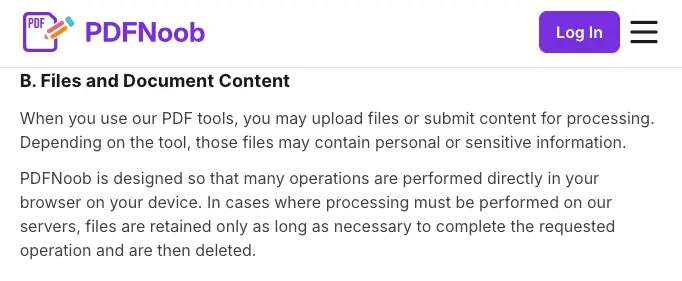
Before uploading anything sensitive, check the tool’s privacy statement, file retention policy, deletion timing, and whether an account is required. If the tool does not clearly say what happens to your files, do not use it for confidential documents.
This matters most for contracts, ID scans, tax files, medical records, HR paperwork, legal documents, private business reports, and any PDF that contains personal or financial information. For public handouts, blank forms, or non-sensitive files, the risk is lower.
The easiest way to tell which route you are using is the wording around processing. Phrases like “processed in your browser” or “files never leave your device” point to browser-side merging. Phrases like “upload”, “stored”, “deleted after 24 hours”, or “account history” usually mean the file is going to a server.
For sensitive files, use an offline desktop tool or an online merger that does the work in your browser. The PDFNoob merge PDF tool is one of these: it joins the files in your browser, so your PDFs are not uploaded to a server.
What Are the Common Issues After Merging PDFs?
After merging PDFs, the pages usually survive intact, but the things that point to pages often do not.
That means internal links can break when page numbering shifts, especially if a link was built to jump to a specific page in the original file. Bookmarks from the second document may also arrive flattened, missing, or disconnected from the right section.
Forms can cause another problem. If two PDFs contain form fields with the same names, those fields may collide after the merge, so typing into one field can affect another field elsewhere in the combined document.
A digital signature is even stricter. Any change to the file, including merging, can invalidate the signature because the signed document is no longer the exact file that was approved.
| Usually survives | Can break or change |
|---|---|
| Page content | Internal links that point to old page positions |
| Text and images on the page | Bookmarks from later documents |
| Basic page layout | Form fields with matching names |
| Visible pages in order | Digital signatures |
| The merged file itself | Page numbering references inside links or bookmarks |
Run one check straight after merging: open the contents list and click two entries, especially one from the first file and one from the second. If the entries jump to the wrong place, the outline tree needs attention, but that is a separate cleanup step.
How Do You Merge Only Some Pages From Each File?
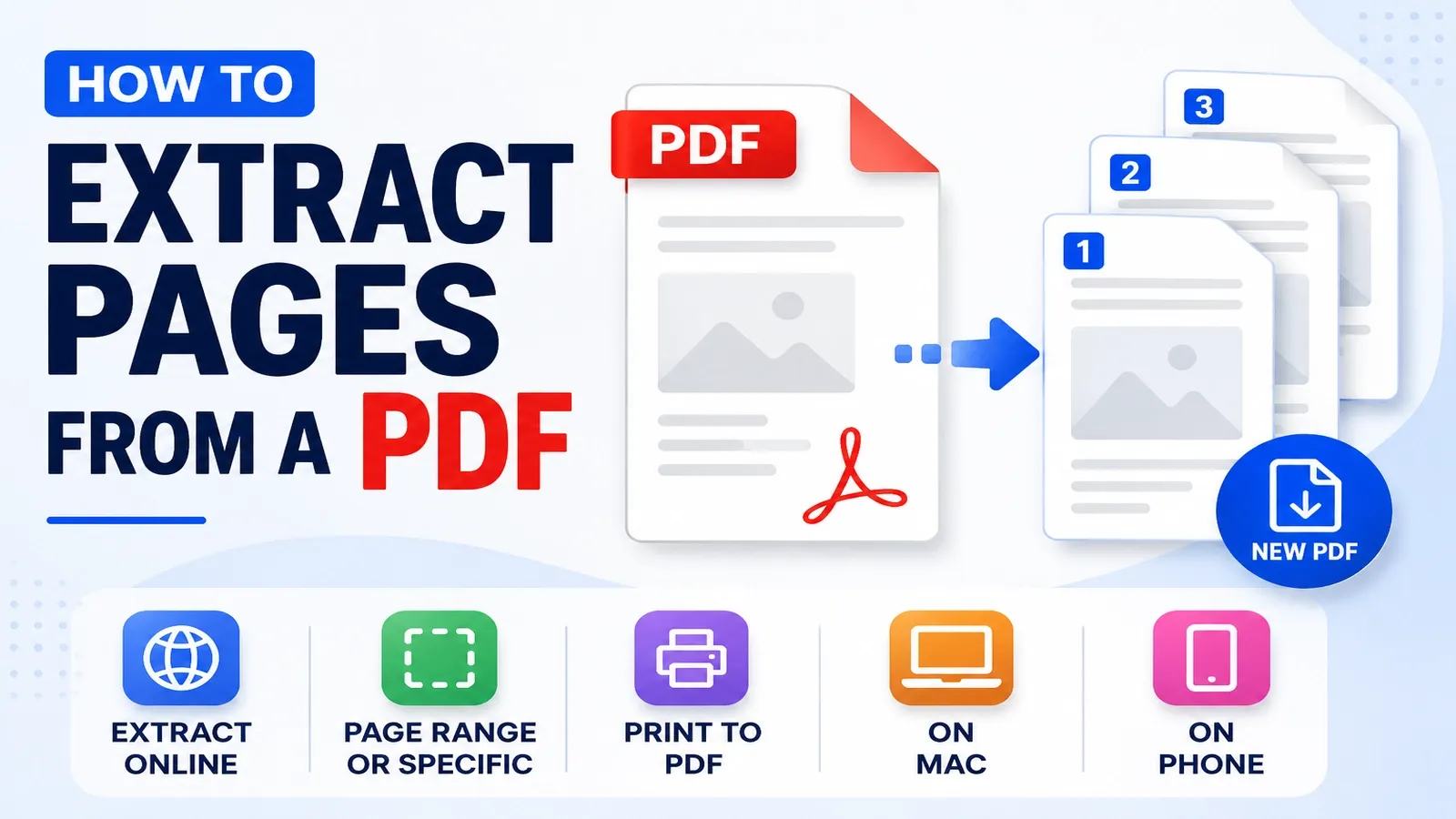
Pull the pages you want out of each source document first with Extract PDF pages, then merge those extracted page files in the final order.
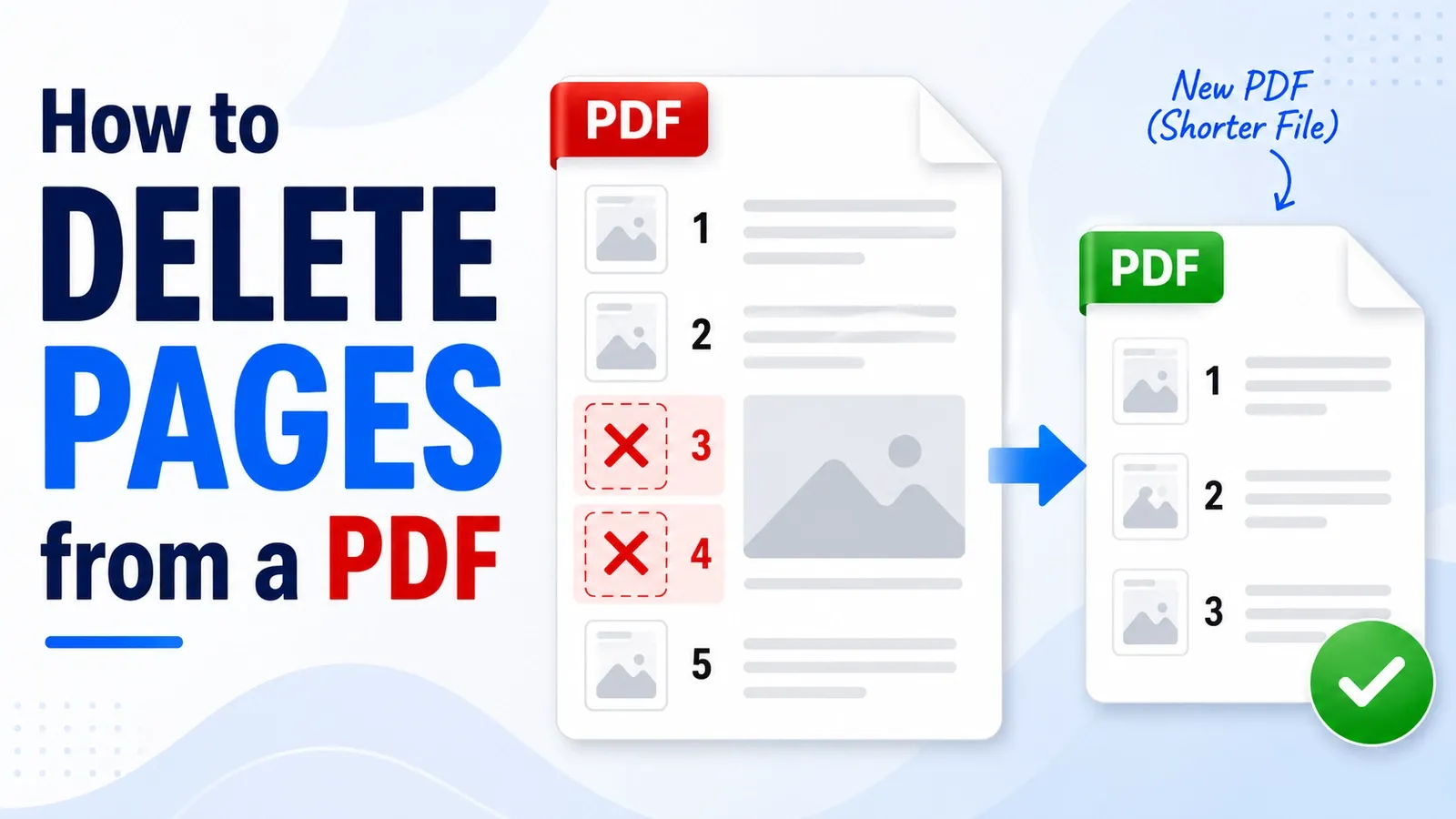
This is two operations, not one: first page extraction, then merging, and the original PDFs stay untouched because you create new extracts instead of cutting pages out of the source files.
For cleaner ordering, choose the page range for each extract and use extract naming that matches its final position, such as 01-intro-pages.pdf, 02-contract-pages.pdf, and 03-appendix-pages.pdf, because the merge tool may sort by filename, not by where the pages came from.
How Do You Undo a Merge?
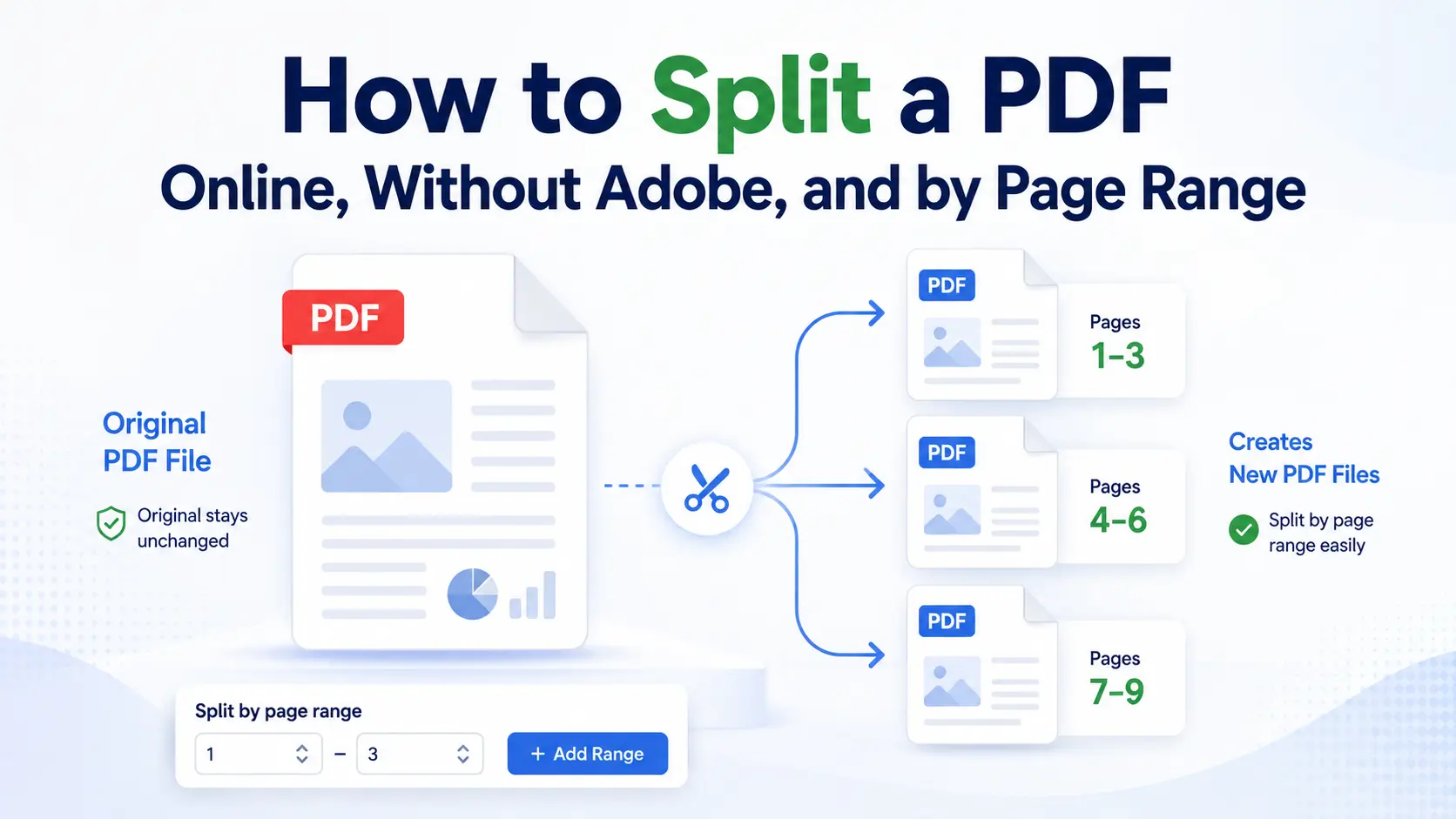
You cannot reverse a merge inside the merged file. Use Split PDF to split it back into a page range, or go back to the original source files.
Keep the source files until the merged PDF is checked, because splitting recreates page ranges, not the original document properties.
By the time you split the merged file, the bookmarks and metadata that belonged to each source file may already be gone, so the split pieces will not behave exactly like the originals.
How Do You Merge PDF Files on a Phone?
Use the PDFNoob merge PDF tool in a mobile browser. Android has no built-in PDF merger, and while the iPhone Files app can join selected PDFs with its Create PDF option, the browser tool gives you much more control over the order.
Before opening the tool, make sure the PDFs are saved somewhere the browser can access, such as the Files app on iPhone or Google Drive, Downloads, or another file manager on Android.
When the file picker opens, select the PDFs from that location, then upload and merge them.
Reordering files by dragging can be fiddly on a small screen, so rename the PDFs first if the order matters: 01-cover.pdf, 02-main-file.pdf, 03-appendix.pdf.