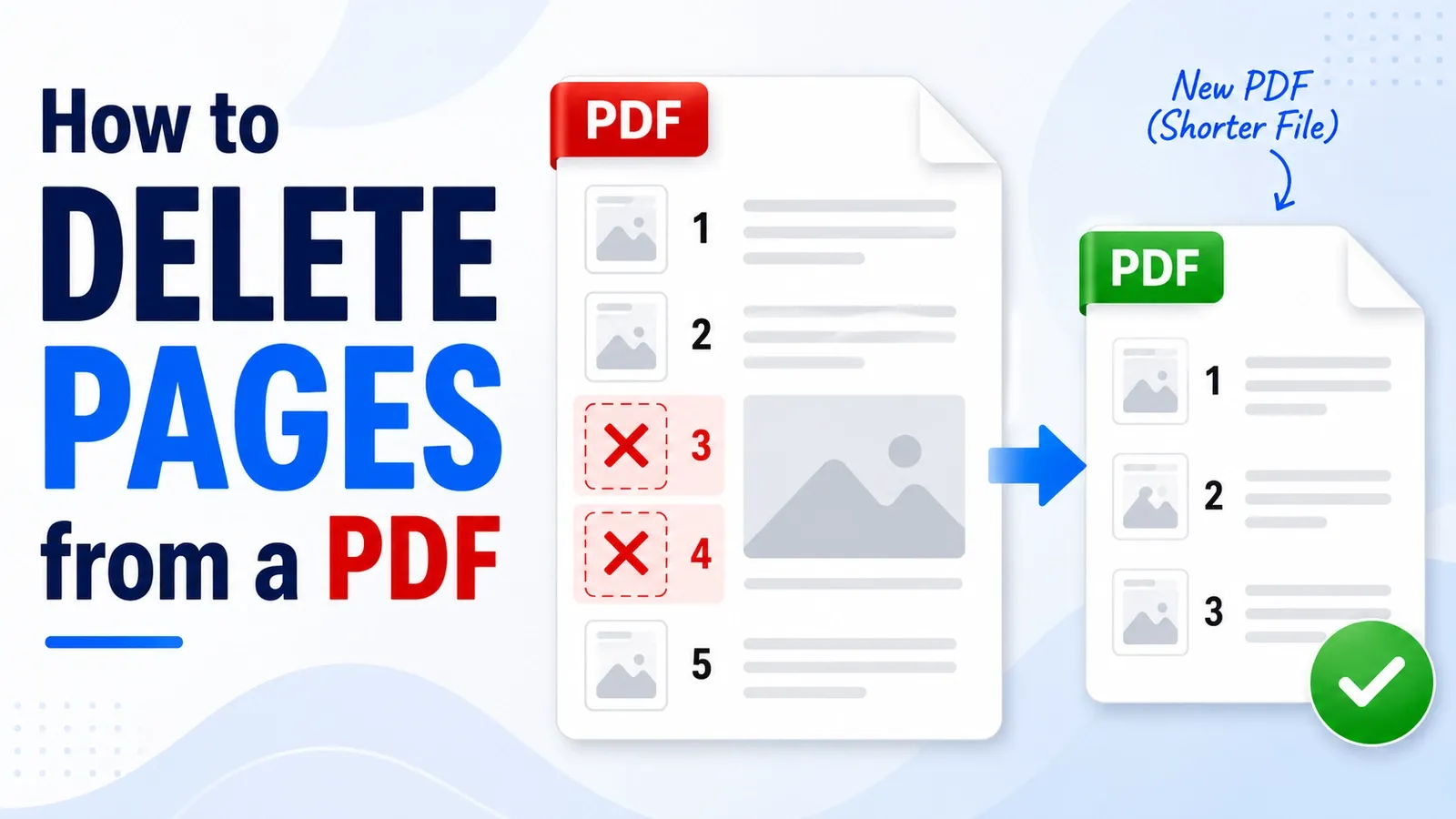
Deleting pages from a PDF drops the pages you pick and writes everything else back out as a shorter file.
The original file is not edited in place when you use an online removal tool. The tool creates a new PDF from the pages that remain, while the source document stays whole.
That means a wrong choice does not destroy the uploaded file. If the wrong page is removed, you can go back, fix the page selection, and download the corrected shorter PDF again.
The method you choose changes the question you answer. Online tools usually ask which pages you want to remove, often through page thumbnails.
The browser Print to PDF route works in reverse. It asks which pages you want to keep, so typing the pages you wanted gone creates the exact wrong result.
This guide explains what deleting does, deleting online, the Print to PDF route, the Windows route, the Mac route, clearing out blank pages, removing many pages at once, secured files, and what to check first.
What Happens When You Delete Pages from a PDF?
After page removal, the pages you choose are dropped, and the remaining pages are written back out as a new, shorter PDF with the pages renumbered in order.
The pages you keep usually stay in the same order they had before. If you remove pages 3 and 4 from a 10-page PDF, the old page 5 becomes the new page 3.
The content on the kept pages also stays with those pages. Text, images, tables, signatures, and layout elements remain on the pages that are still in the document.
The part that changes is the document structure. The gaps close, the page count drops, and the file becomes shorter.
The file size usually gets smaller too, roughly in proportion to what came out. Removing image-heavy pages can reduce the file more than removing simple text pages.
The hidden issue is renumbering. A table of contents, cross-reference, or note that says “see page 12” may now point to the wrong page after earlier pages are removed.
The same problem can happen with bookmarks. A bookmark that pointed beyond a deleted page may still exist, but it may no longer land where the reader expects.
So deleting pages is safe for removing unwanted content, but it is not the same as intelligently updating the document. After deleting pages, check page numbers, bookmarks, tables of contents, and cross-references before sending the file.
How Do You Delete Pages from a PDF Online?
Upload the PDF, click the thumbnails of the pages you want gone, then download the shorter file. No account is needed on PDFNoob, and the uploaded file is deleted within an hour.
➤ Open PDFNoob’s Remove PDF Pages tool in your browser.
➤ Click Select PDF to Trim and upload the PDF file.
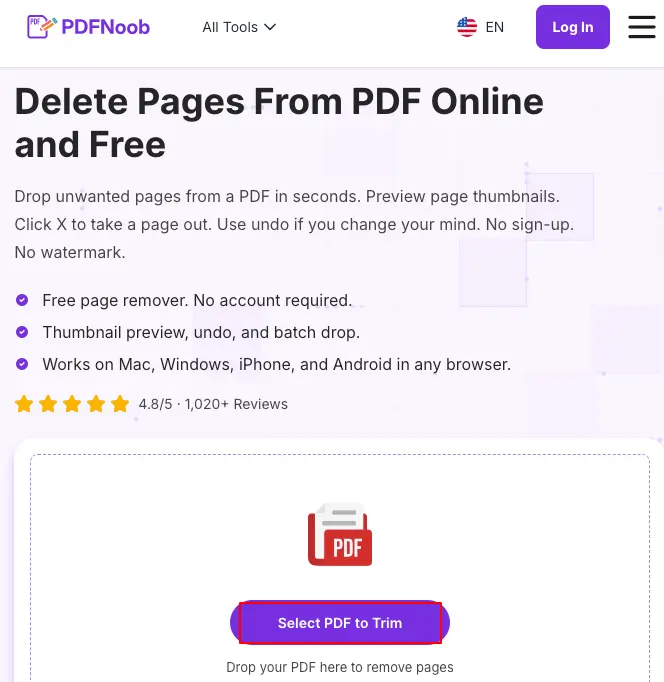
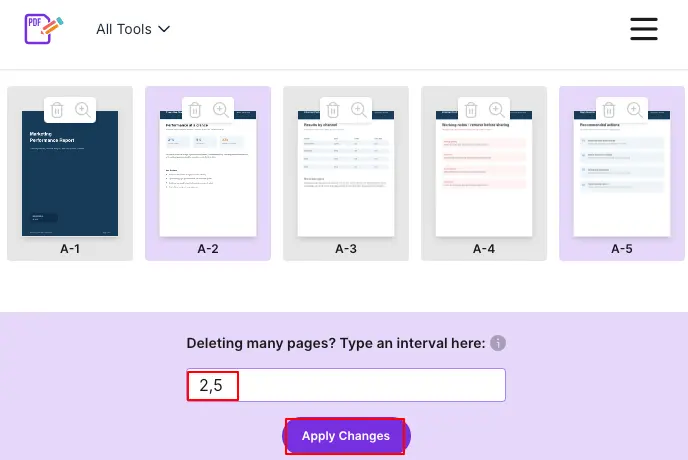
➤ Click the X on a page thumbnail to mark that page for removal.
The page stays on screen with the mark on it, so you can undo it if you change your mind.
➤ Removing a long run of pages instead? Type the interval into the box at the
bottom, such as 2,5, and skip the clicking.
➤ Click Apply Changes.
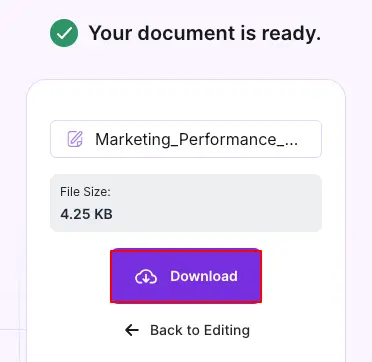
➤ Press Download to save the new PDF.
You can also use Back to Editing if you want to make further changes before downloading the PDF again.
Clicking a thumbnail usually marks that page for removal. It does not always delete the page instantly, so review the marks before confirming the final file.
The tool has a 100MB file size limit, so check large scans, reports, or document bundles before uploading them.
After downloading, open the result and read the page count. Do not rely only on the thumbnails you clicked.
A one-page mistake can still create a perfectly valid PDF. The file may open normally, but the wrong page may be gone.
So the safest online workflow is to upload, mark the pages, confirm the removal, download the shorter file, and check the final page count before closing the tab.
How Do You Delete Pages from a PDF Using Print to PDF?
Open the PDF in a browser, press CTRL+P on Windows or Cmd+P on Mac, set the destination to Save as PDF, choose custom pages, type the pages to keep, then save.
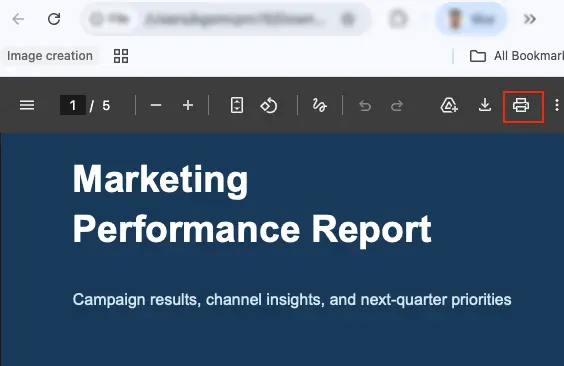
➤ Open the PDF in Google Chrome, then click the Print icon in the top-right corner.
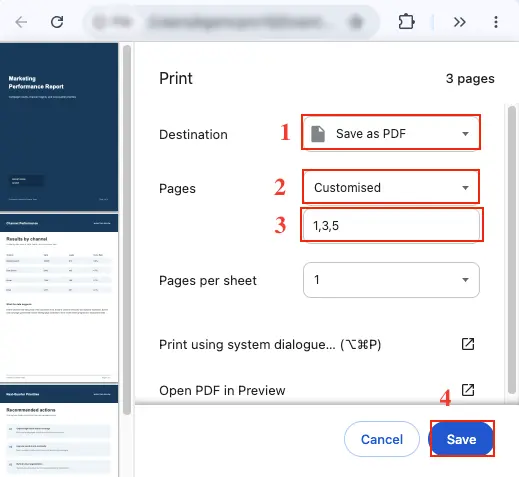
➤ In the Print window, set Destination to Save as PDF.
➤ Under Pages, select Custom (labeled Customized on some browsers) and enter only the page numbers you want to keep.
For example, enter 1, 3, 5 to delete pages 2 and 4. The pages typed here are the ones you are keeping, not the ones you are deleting.
➤ Click Save.
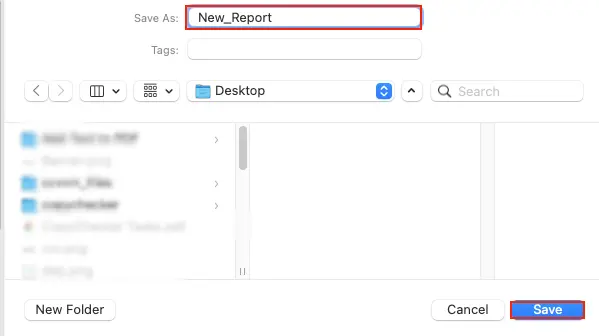
➤ Type a new name for the PDF, and click Save again.
The new PDF will exclude the pages you left out.
This route installs nothing because it uses the browser’s print dialog. The key point is Print to PDF does not ask which pages you want to delete. It asks which pages you want to keep.
For example, if you have a 10-page PDF and want to drop page 5, type 1-4, 6-10 into the Custom box. That keeps pages 1 through 4 and pages 6 through 10, then saves a new PDF without page 5.
The reversal is the common mistake. Online deletion tools ask which pages to remove, but Print to PDF asks which pages to keep. If you type 5 because page 5 is the page you wanted gone, the saved file will contain only page 5.
There is also a file-quality trade-off that is flattening. Print to PDF re-renders the pages as print output, so selectable text and form fields may not survive.
Use this route only when you need a quick copy and do not care about keeping the original PDF behavior. If the file has fillable fields, selectable text, links, or structure you still need, use a real page-removal tool instead.
How Do You Delete Pages from a PDF on Windows?
Windows ships with no built-in PDF page editor, so the practical routes are a browser removal tool or the Microsoft Edge print dialog.
Use a browser tool when you want to click the pages you want gone and download a shorter PDF.
Use Edge when you only need a quick workaround and can type the pages you want to keep.
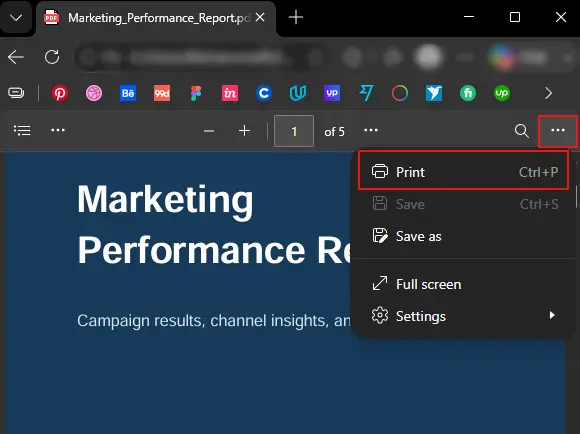
➤ Open the PDF in Microsoft Edge.
➤ Click the three-dot menu (⋯) in the PDF toolbar, and select Print or press CTRL+P.
➤ In the Print window, choose Save as PDF as the printer.
➤ Under Pages, select the custom page option and enter only the pages you want to keep.
For example, enter 1-3 to keep pages 1 through 3 and leave out pages 4 and 5.
➤ Click Save, choose a location and file name, and save the new PDF.
The pages you excluded will no longer appear in the saved PDF.
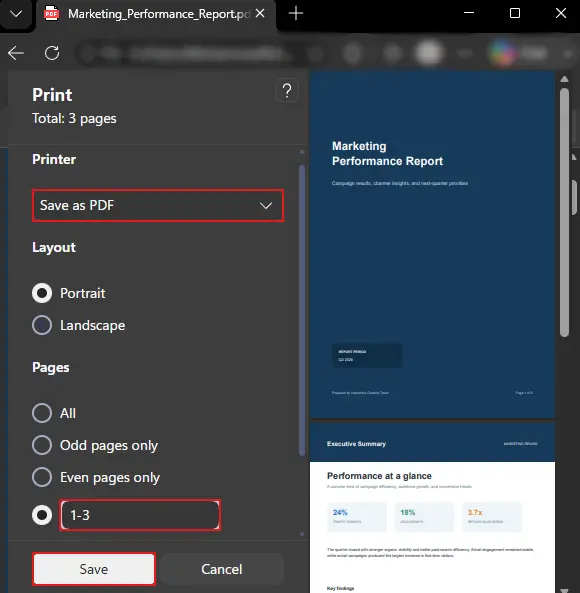
That is the route Microsoft community answers usually point toward for Windows 11. Save a new copy with only the needed pages, or use a PDF editor when you need actual page removal.
The limitation is that Edge Print to PDF does not remove pages directly. It keeps the pages you select and leaves the others out of the saved copy.
The Photos app does not solve this either. Photos is not a PDF page editor, and it does not give you a page-removal workflow for a PDF.
This is where many built-in tool guides overstate the Windows route. Mac has Preview for direct page deletion, but Windows has no native Preview-style PDF page editor.
So, if you are on Windows and want real page removal, use a browser tool. If you only need a quick copied version without certain pages, use the Edge print route.
How Do You Delete Pages from a PDF on a Mac?
Open the PDF in macOS Preview, show the Thumbnails sidebar, select the pages you want gone, press Delete, then save the file.
➤ Open the PDF in Preview.
➤ Choose View, then Thumbnails, if the sidebar is not already visible.
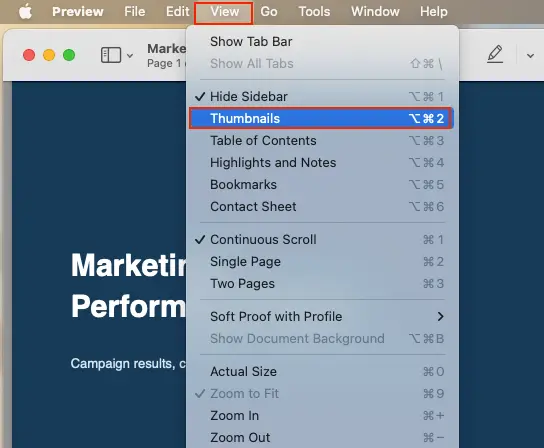
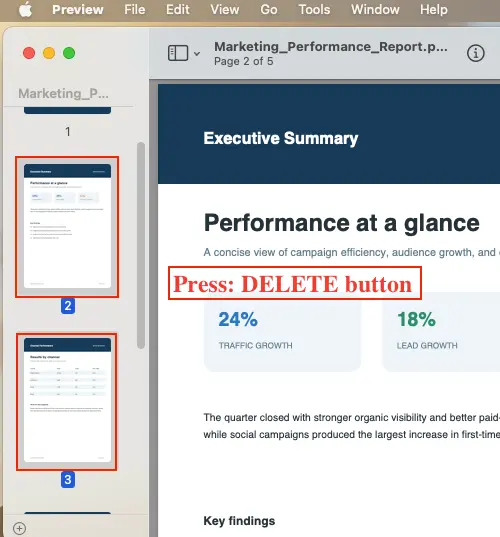
➤ In the thumbnail sidebar, click the page you want to remove.
To select multiple pages, hold the Command (⌘) key while clicking each page.
➤ Press the Delete key on your keyboard to remove the selected pages from the PDF.
Preview saves over the original file - duplicate it in Finder before you press Delete.
➤ Go to File > Save to save the PDF with the selected pages removed.
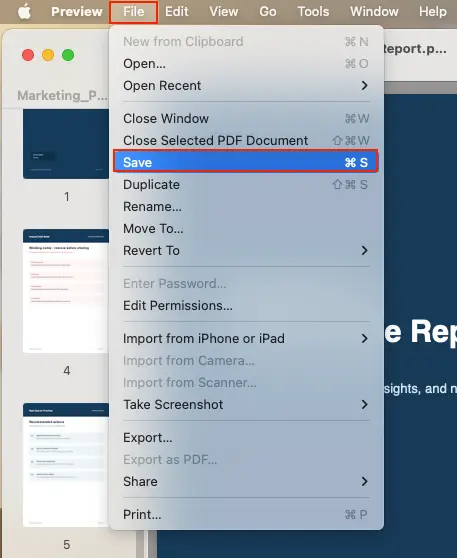
Use Command-click when the pages are not next to each other. This lets you select several separate thumbnails before pressing Delete once. The important difference is saving in place. Preview changes the actual file you opened once you save it.
That is not how the online routes work. Online tools usually create a separate shorter PDF, while the uploaded original stays untouched.
Preview does not automatically give you that safety copy. If you save after deleting pages, the original version is gone unless you already made a duplicate.
Before editing an important PDF, duplicate the file in Finder first. Then delete pages from the copy, check the result, and keep the original untouched.
How Do You Delete All the Blank Pages from a PDF?
There is no reliable one-click blank pages remover. Open the PDF in thumbnail view, find the blank-looking pages, and remove them the same way you remove any other page.
Blank pages often come from duplex scanning, where the scanner captures the empty back side of each sheet along with the front.
They can also come from a section break in the source document, especially when a file was exported from Word, Google Docs, or a layout tool that pushed a new section onto the next page.
In a short PDF, check the thumbnails manually and mark each blank page for removal. In a long file, zoom out in the thumbnail grid or use the page preview to scan for mostly white pages. Blank pages often appear after title pages, chapter ends, divider pages, or scanned form packets.
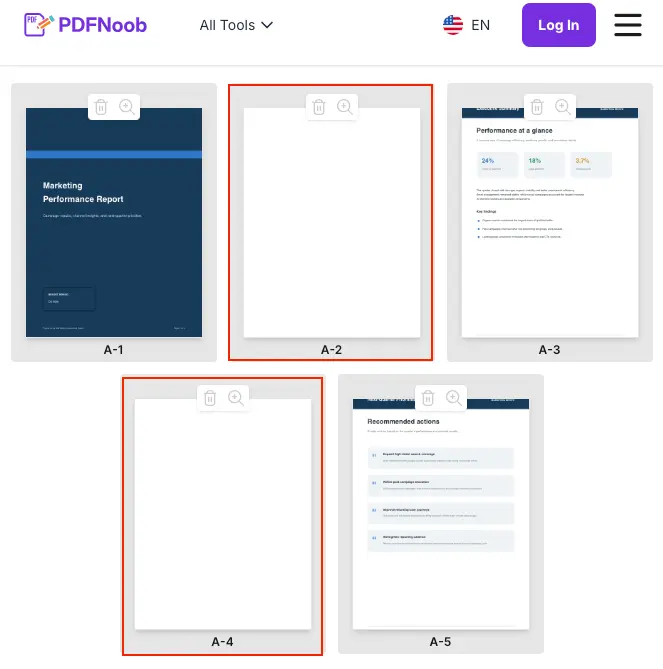
Automatic blank-page detection sounds useful, but it is not reliable on scanned files.
A scanned blank page is not actually empty. It can contain a faint image of paper grain, edge shadows, dust marks, or scanner noise. That means a size test or content test may read the page as having content, even when it looks blank to you.
This is why the reader still has to look. Find the blank-looking pages in the thumbnail view, confirm they are not intentionally blank, then delete them like normal pages.
How Do You Delete a Lot of Pages from a PDF at Once?
Use range selection instead of clicking every thumbnail one by one. Typing the pages to remove, or selecting the first and last thumbnail with Shift, lets you clear dozens of pages in one action.
If the tool has a range box, enter the full range you want to delete, such as 20-45. This is faster than clicking 26 separate thumbnails, and much harder to miscount.
If the pages are shown as thumbnails, click the first page in the page run, hold Shift, then click the last page. This selects the whole run between them.
Use Shift-select when the unwanted pages sit next to each other. Use individual clicks when the unwanted pages are scattered across the file.
For bulk removal, check the selected pages before confirming. A range mistake can remove a whole section, and the output may still look like a valid PDF.
There is also a safer inverse approach. When you are removing more pages than you are keeping, extract the few pages you want into a new file instead.
For example, if you only need pages 2, 8, and 19 from an 80-page PDF, extracting those three pages is safer than deleting the other 77.
So, delete when the unwanted pages are the smaller group. Extract when the pages you want to keep are the smaller group.
How Do You Delete Pages from a Secured PDF?
You cannot delete pages from a secured PDF until the restriction is lifted. A file secured against editing may open and display normally, then refuse to save any page change.
That is the confusing part. The PDF may not look locked when you open it, because viewing and editing are controlled separately.
You can usually tell the file is restricted when the delete option is disabled, the save action fails, or the PDF properties show an editing restriction.
If you are the document owner or you have the correct permissions password, use a legitimate PDF editor to remove the restriction first, then delete the pages and save a new copy.
If you do not own the file or do not have permission to edit it, do not try to bypass the protection. Ask the owner, sender, or issuer for an editable copy or a version with the unwanted pages already removed.
This happens often with a bank statement, invoice, certificate, or official form. The file may belong to you in a practical sense, but the issuer can still lock editing so the document cannot be changed after release.
In that case, another page-deletion tool is not the real solution. The correct next step is to contact the issuer or use the unlocked original file if you have one.
What Should You Check Before You Delete Pages?
Check that deletion is the right task choice, that the file will let you edit it, and that the document structure will still make sense after the page numbering shifts.
The first check is what you want to be left holding. The same document minus pages means delete.
A new file holding only the good pages means extract.
The second check is whether the PDF will allow editing. A file with a permissions password may open normally but refuse to save page changes.
The third check is what depends on the current page numbers. Tables of contents, bookmarks, cross-references, and notes can point to the wrong place after pages are removed.
Use these checks before choosing a route. They help you avoid deleting when you meant to extract, fighting a restricted file, or sending a shorter PDF with broken references.
Why Can't You Delete a Page from a PDF?
You usually cannot delete a page from a PDF because the file has a permissions password that blocks editing, or because you opened it in a read-only viewer that can display PDFs but cannot write changes.
Those two problems feel similar, but they are not the same.
A permissions password is not always the password you type to open the file. The PDF may open normally, display every page, and only refuse when you try to delete a page or save the change.
That is why the tool may look broken when the real problem is restricted editing.
The giveaway is when the refusal arrives: the file opens and scrolls perfectly well, and nothing goes wrong until the moment you try to save.
The legitimate fix is to use the correct owner password, ask the document owner for an editable copy, or work from an unlocked original if you have permission to change the file.
A read-only viewer is different. It does not block editing because of a document restriction; it simply does not have page-editing tools.
That happens when you open the PDF in an email preview, a basic browser preview, a file manager preview, or another viewer that only reads the file.
In that case, open the PDF in a real page-removal tool such as Remove PDF Pages, then select the page and create a shorter copy.
So check the cause first. If the file is restricted, you need permission or an unlocked version. If the viewer is the problem, switch to a tool that can actually save page changes.
How Do You Delete Pages from a PDF Without Acrobat?
You do not need Acrobat to delete pages from a PDF. A browser tool, macOS Preview, and the print dialog can all remove pages or create a shorter copy without a subscription.
Use a browser tool when you want the simplest route on any device: upload the PDF, mark the pages to remove, and download the shorter file.
Use macOS Preview when you are on a Mac and want a built-in editor, but duplicate the file first because Preview saves changes in place.
Use the print dialog when you only need a quick workaround and can type the pages you want to keep instead of the pages you want to remove.
That last route is useful, but it is not a true page editor. It saves a new copy through Print to PDF, and it may flatten the file.
Acrobat is the paid route many guides treat as the default, but it is not required for the jobs covered in this article.
One detail comparison pages often leave out is the sign-in step. Acrobat’s free online page-delete tool may be called free, but it requires signing in before it lets you download the finished file.
Without Acrobat, the practical choice is to use a browser tool for quick deletion, Preview for built-in Mac editing, or Print to PDF only when the keep-pages workaround is good enough.
How Do You Delete Pages from a PDF on a Phone?
Open a browser tool in your mobile browser and use it the same way you would on a desktop: upload the PDF, mark the pages to remove, create the shorter file, and save it.
On iPhone, the finished PDF usually lands in the Files app, Downloads folder, or Safari’s download area, depending on your settings.
On Android, the shorter file usually lands in Downloads, Google Drive, or the browser’s download folder, depending on where you save it.
The main difference on a phone is thumbnail selection. The page thumbnails are smaller, so tap deliberately and check the marked pages before confirming the removal. This matters more when the PDF has many similar-looking pages, blank pages, scanned forms, or repeated layouts.
The iOS Files app can preview a PDF, but it cannot remove a page from it. That is why many readers start in Files, tap around, find no delete-page option, and assume page removal cannot be done on a phone.
It can be done. You just need a browser page-removal tool instead of the built-in preview. After downloading the result, open the shorter PDF and check the page count before sharing it.