


A Word document adjusts its layout according to the program and fonts used to open it. Convert that document to PDF, and the text, images, and page positions are placed into a fixed layout designed to look consistent across devices. This makes PDF useful when you need to share, print, or submit a document without unexpected formatting changes.
How you convert Word to PDF depends on your device and what you need to preserve.
- Online: Upload your DOCX or DOC file to a browser-based converter and download the PDF. This works without installing a word processor.
- In Microsoft Word: Open the document, choose File > Save As, select PDF as the file type, and save it. You can also use the Export option.
- Without Word installed: Use LibreOffice, Google Docs, or your device's built-in print-to-PDF feature.
- On a Mac: Save the document as a PDF in Word, or use Pages and macOS's PDF export or print options.
- On a phone: Open the document in a compatible app and use its PDF export or Save as PDF option.
One difference is worth understanding before choosing a method. Exporting a document and printing it to PDF do not always preserve the same information.
A dedicated PDF export can retain clickable hyperlinks, heading-based navigation, and document structure. Some Word export options can also include review comments. Print-to-PDF, on the other hand, prepares a page for printing. It may preserve the visible appearance while losing structural information or interactive features, depending on the application.
That distinction matters if you're converting a report with a table of contents, a contract with comments, or a document containing links. The finished file may look correct but behave differently from the original.
The Portable Document Format (PDF) keeps pages in a fixed arrangement, while a Word file leaves more layout decisions to the layout engine of the application opening it. Choosing the appropriate conversion method helps you preserve not just the appearance of your document but also the features your readers need.
Below, you'll learn how to convert Word files online, inside a word processor, and on Windows, Mac, and mobile devices. You'll also see how to prevent formatting changes, fix failed conversions, convert multiple documents, understand what an AI chatbot can do with uploaded files, and choose the best free method for your situation.
How Do You Convert a Word Document to PDF Online?
To convert a Word document to PDF online, open a converter in your browser, upload your DOCX or DOC file, click Convert, and download the finished PDF. You do not need to install software, and the same process works on Windows, Mac, and mobile devices.
➤ Go to PDFNoob Word to PDF in your browser.
➤ Tap Upload your files and select the DOC or DOCX file you want to convert from your device.
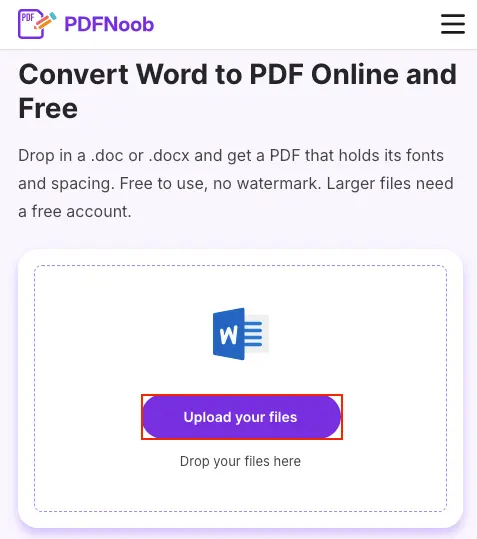
➤ Click Convert to PDF to start the conversion process.
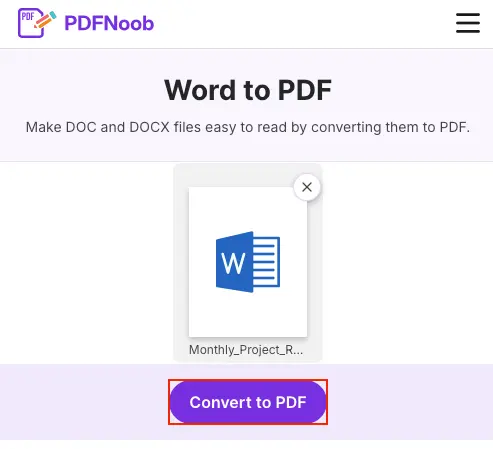
➤ Click Download to save the converted PDF file to your device.
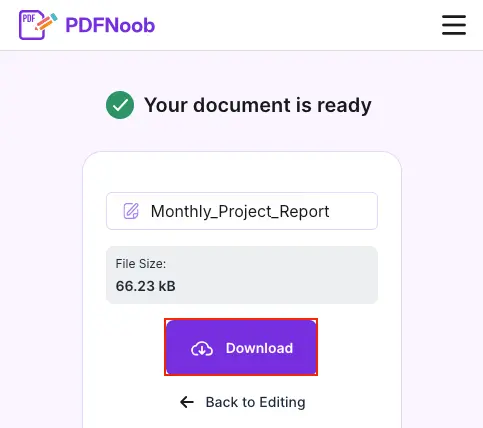
PDFNoob accepts both DOC and DOCX files, but its file size limit depends on whether you are signed in. You can upload one file at a time, up to 20 MB as a guest or 30 MB with a free account. According to PDFNoob's published guidance, a document smaller than 5 MB usually converts in about 10 seconds.
If your document exceeds the limit, the upload will be rejected before conversion. You can reduce the source file's size or use another conversion method that accepts larger documents.
Before uploading a Word file to any online converter, check two things:
- Supported formats: Some converters accept DOCX but not the older DOC format. If your file ends in .doc, confirm that the service supports it or save the document as DOCX first.
- Upload limits and file handling: Check the maximum file size and what happens to your document after processing, especially if it contains personal or confidential information.
PDFNoob states that uploaded files are transferred over HTTPS, deleted from its servers within one hour, and not used to train AI models. These are the service's published file-handling practices.
Online conversion is convenient when you do not have Microsoft Word installed or need to convert a document on a different device. If your file contains confidential information that cannot be uploaded to an external service, use a local conversion method instead.
How Do You Save a Word File as PDF Inside a Word Processor?
To convert a Word document to PDF in Microsoft Word, open the file, go to File > Save As, change the Save as type dropdown from Word Document (.docx) to PDF (*.pdf), and click Save. This creates a PDF copy without needing an online converter.
➤ Open your Word document in Microsoft Word and click File in the top-left corner.
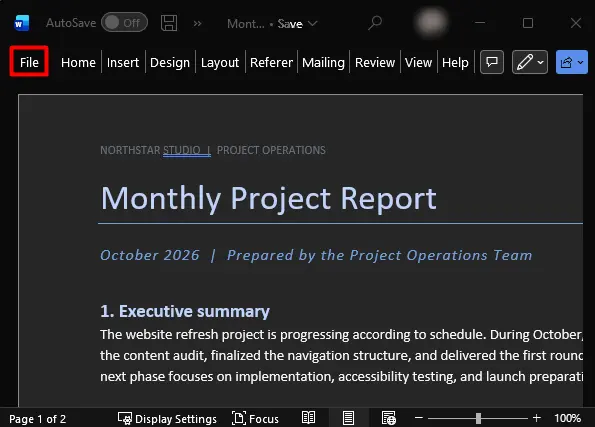
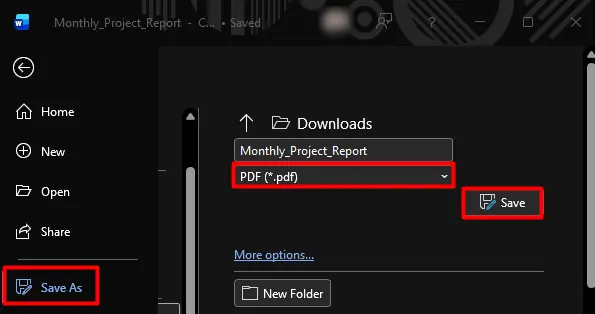
➤ Select Save As, choose PDF (*.pdf) from the file type drop-down menu, and click Save.
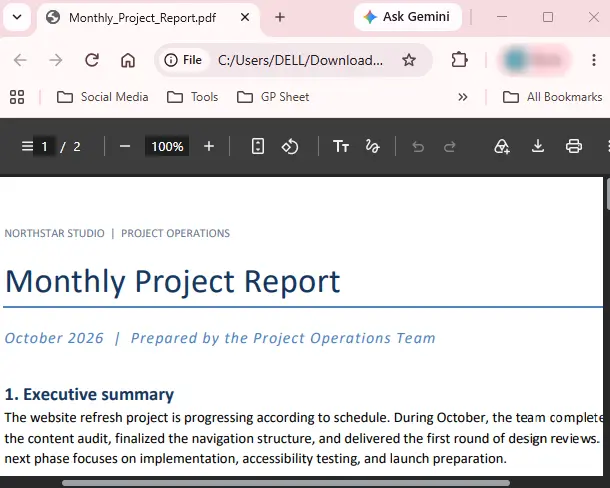
Open the saved PDF file to check that your document's formatting and layout are preserved.
Word also provides a second built-in route: File > Export > Create PDF/XPS > Publish. This creates a PDF without using the regular Save As workflow. It is particularly useful when the expected PDF option is difficult to find in the Save As dialog.
Before you click Save or Publish, select Options. This is where you set a page range, turn your headings into PDF bookmarks (Create bookmarks using: Headings), and choose whether document properties such as the title and author are carried into the PDF. The same Options button appears in both the Save As and the Create PDF/XPS routes.
If you use Word in a browser, there is a third route with an important difference. Go to File > Export and choose one of these downloads:
- Download as PDF: Creates a PDF without the document's comments.
- Download as PDF with comments: Includes the review comments in the exported PDF.
The second option is useful when sharing a draft for review or approval, because the recipient can see the feedback alongside the document. A plain PDF is usually preferable when you want to share a finished copy without those discussions.
Choose the route based on what your PDF needs to contain: Save As for everyday conversion, Create PDF/XPS as an alternative desktop export, or Word for the web's PDF-with-comments option when the reviewer needs the comments included.
How Do You Convert a Word File to PDF Without Word Installed?
You can convert a Word file to PDF without installing Microsoft Word by using an online converter, LibreOffice, Google Drive, or your computer's print-to-PDF feature. All four methods can work with DOCX files, but they differ in software requirements and how much document structure they preserve.
Here are four ways to do it:
- Use an online converter: Open a browser-based Word-to-PDF converter, upload your DOCX or DOC file, and download the PDF. You do not need a desktop word processor, although the file must be uploaded to the service.
- Export with LibreOffice: Open your Word document in LibreOffice Writer, then select File > Export As > Export as PDF. Review the PDF options, click Export, and choose where to save the file. This route works offline after LibreOffice is installed.
- Convert through Google Drive: Upload the Word file to Google Drive and open it in Google Docs. If necessary, convert it into Google Docs format, then select File > Download > PDF Document (.pdf). Google Docs can also open and edit supported Word files without first converting them into a native Google document.
- Use your computer's PDF printer: Open the document in any application that can display and print it, press Ctrl+P on Windows or Command+P on Mac, and select Microsoft Print to PDF or Save as PDF. Save the output instead of sending it to a physical printer.
The important difference is what happens to the document before the PDF is created.
| Conversion route | Needs an install? | Converts once or twice? | Keeps document structure? |
|---|---|---|---|
| Online converter | No | Usually one conversion | Depends on the converter |
| LibreOffice | Yes, LibreOffice | One PDF export after opening the DOCX | Can preserve headings, links, and a navigation outline through export options |
| Google Drive and Docs | No desktop install | One or two stages, depending on whether the DOCX is converted into Google Docs format first | Depends on the import and PDF export |
| Print-to-PDF | Uses an available document viewer and PDF printer driver | One print-rendering operation | Often loses heading tags, bookmarks, and other structural information |
The cloud-drive method deserves attention because converting a Word file into Google Docs format changes which application lays out the document. Google Docs may interpret fonts, spacing, tables, or page breaks differently before exporting the PDF. If you keep the file in DOCX format, that extra format-conversion step may not be necessary, but Google Docs still handles the document's layout.
Print-to-PDF has a different limitation. It sends the displayed pages through a virtual printer rather than the document's dedicated PDF exporter. The output can retain selectable text, but heading structure, accessibility tags, a table of contents with working navigation, and hyperlinks may be lost. It does not automatically turn every page into an image.
Choose a dedicated PDF export when headings, hyperlinks, accessibility, or document navigation matter. Use print-to-PDF when you mainly need a printable copy that looks like the displayed page, and check the resulting PDF before sharing it.
How Do You Convert Word to PDF on a Mac?
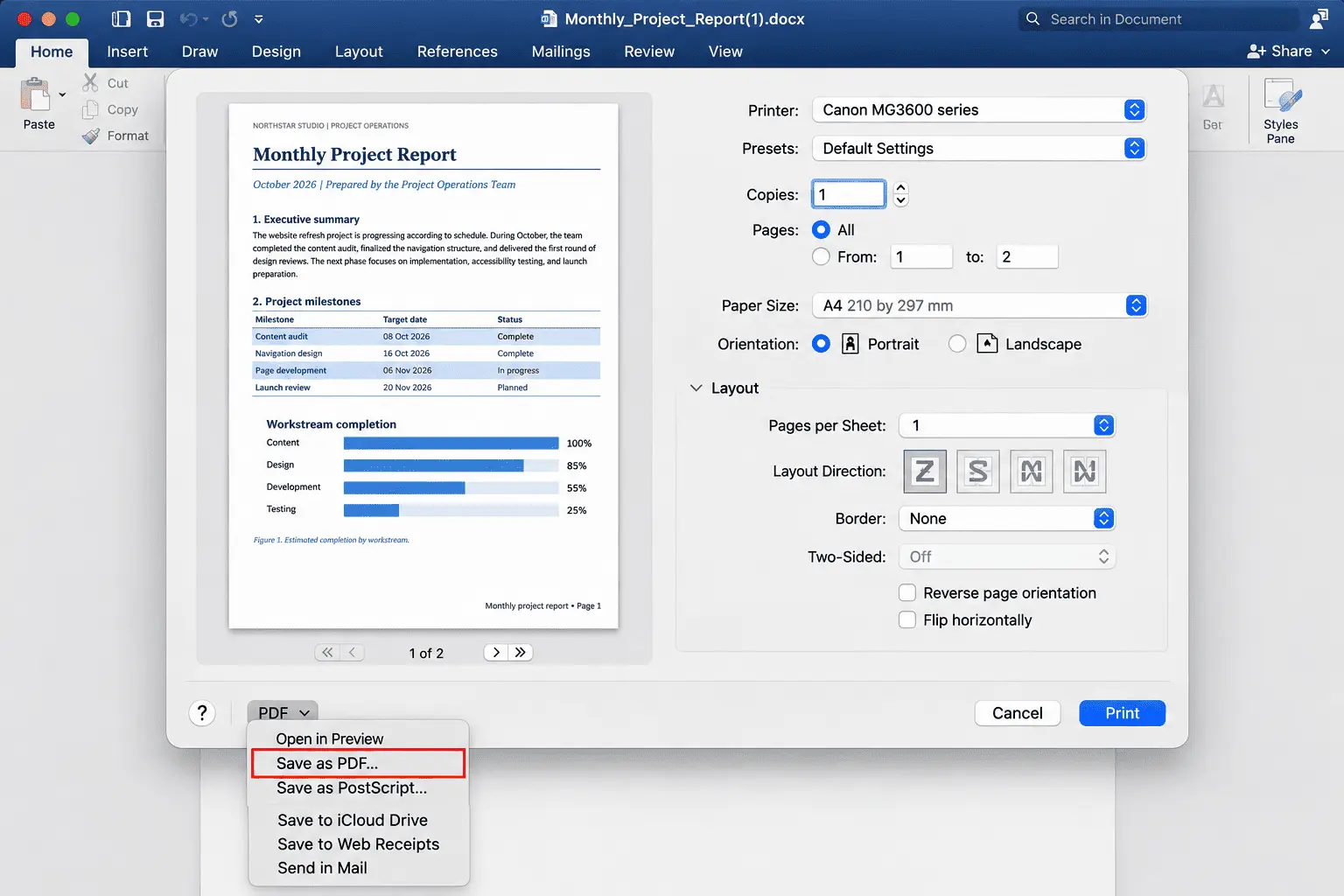
To convert Word to PDF on a Mac, open the document in Microsoft Word, select File > Save As, choose PDF as the file format, and save it. If Word is not installed, open the document in Pages, or use File > Print > Save as PDF in an application that supports printing.
If you have Microsoft Word installed:
- Open your Word document and choose File > Save As or Save a Copy.
- Enter a filename, choose a save location, and select PDF from the File Format menu.
- If your version offers PDF optimization settings, choose Best for electronic distribution and accessibility when you need accessible document structure and working hyperlinks.
- Click Save or Export, then open the PDF to check its formatting and links.
Word for Mac may also offer Best for printing, but Microsoft identifies a known issue in which hyperlinks do not convert correctly with that option. If your PDF contains clickable references, use the electronic-distribution setting when available and test the links afterward.
If you do not have Microsoft Word:
- Open the DOCX file in Pages. If Pages is installed, you can Ctrl-click the document in Finder and choose Open With > Pages.
- Choose File > Export To > PDF to create a PDF directly from Pages. Alternatively, select File > Print, or press Command + P.
- In the macOS print sheet, open the PDF menu and select Save as PDF.
- Choose a filename and destination, then click Save.
You do not need a physical printer for this method. The PDF option is part of the macOS print dialog, and the saved document can be opened in Preview. Preview also supports File > Export for saving an existing PDF or image in another supported format, although it does not directly replace a word processor for opening DOCX files.
There is one formatting difference worth checking when using Pages instead of Word. Pages interprets the DOCX through its own layout system before exporting it. If fonts or document features differ, the page breaks may shift, even though the original file has not changed.
For example, a report that occupies five pages in Word might occupy six after opening in Pages. That is a possible layout difference, not an automatic result of converting on a Mac.
If the document has exact pagination requirements, compare the PDF's page count, page breaks, and hyperlinks against the original before sending it. For reports, forms, and documents prepared for printing, this final check is particularly important.
How Do You Convert Word to PDF on a Phone?
To convert a Word document to PDF on an Android phone, open the file in Microsoft Word, tap the three-dot File menu, choose Print, and select Save as PDF instead of a physical printer. On an iPhone, you can open the document in Word and use Export > PDF to save a copy.
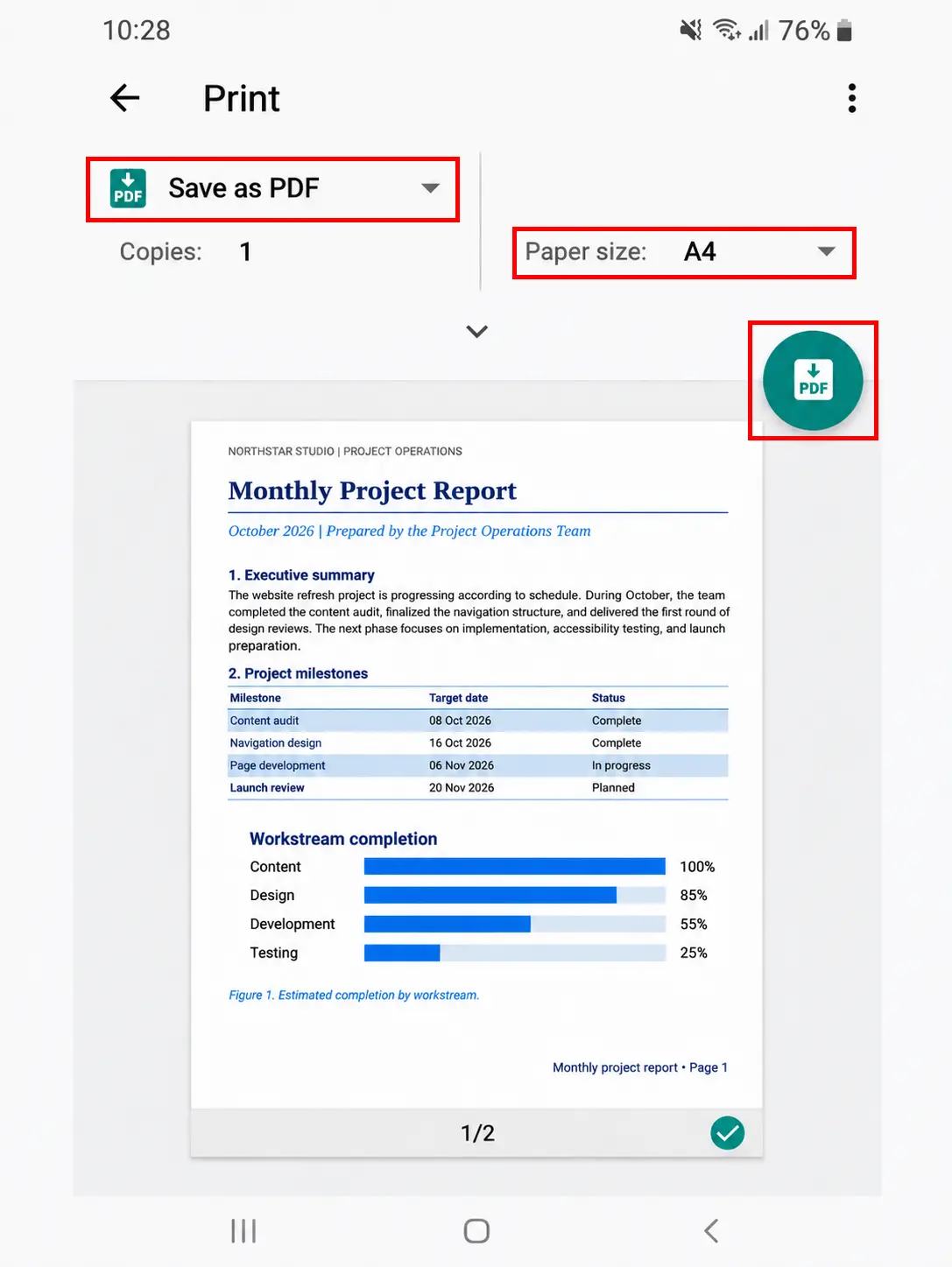
Convert Word to PDF on Android
- Open the Word document: Launch Microsoft Word on your phone and select the DOC or DOCX file you want to convert.
- Open the Print menu: Tap the three-dot File menu and select Print.
- Choose Save as PDF: In the printer selection menu, choose Save as PDF instead of a connected printer.
- Check the page settings: Review the page preview, orientation, and paper size. If your document uses A4, make sure the print settings have not switched to Letter.
- Save the converted file: Tap the PDF icon, choose a folder, enter a filename if needed, and select Save.
Although you select Print, no physical printer is involved when Save as PDF is chosen. Android's print service prepares the document as a PDF file and saves it to your device instead of sending it to a printer.
Convert Word to PDF on an iPhone
Open your document in Microsoft Word, tap the three-dot menu, choose Export, select PDF, and save the file to your preferred location.
If you're using Pages instead, open the Word document, tap the More menu, select Share > Export and Send, and choose PDF. You can then save the converted document to Files or share it through a supported app.
Some iPhone apps also provide a share sheet with a Print option. Where the app supports saving its print preview as a PDF, you can use that route instead of a dedicated export. The available controls depend on the app.
Convert Word to PDF using a cloud app or browser
If your document is stored in Google Drive, open it in the Google Docs app, select the three-dot menu, and choose Share & export > Print. On Android, select Save as PDF as the destination and save the file.
You can also use an online Word-to-PDF converter in your phone's browser if you do not want to install a document app. Upload the Word file, convert it, and download the PDF.
Before saving, check the page size in the preview. A4 and US Letter use different page dimensions, so choosing the wrong setting can affect line wrapping, page breaks, and the number of pages. This is particularly important for forms, resumes, and documents that must match a specified paper size.
For a straightforward mobile conversion, use Word's built-in PDF option or Android's Save as PDF destination. You do not need to connect a printer, and checking the preview before saving helps catch layout changes.
How Do You Stop Your Formatting From Changing in the PDF?
To keep your Word document's formatting intact when converting it to PDF, enable font embedding in the original document where supported, and use a dedicated PDF export instead of print-to-PDF. Missing fonts are a common reason text shifts, lines wrap differently, or a document gains extra pages during conversion.
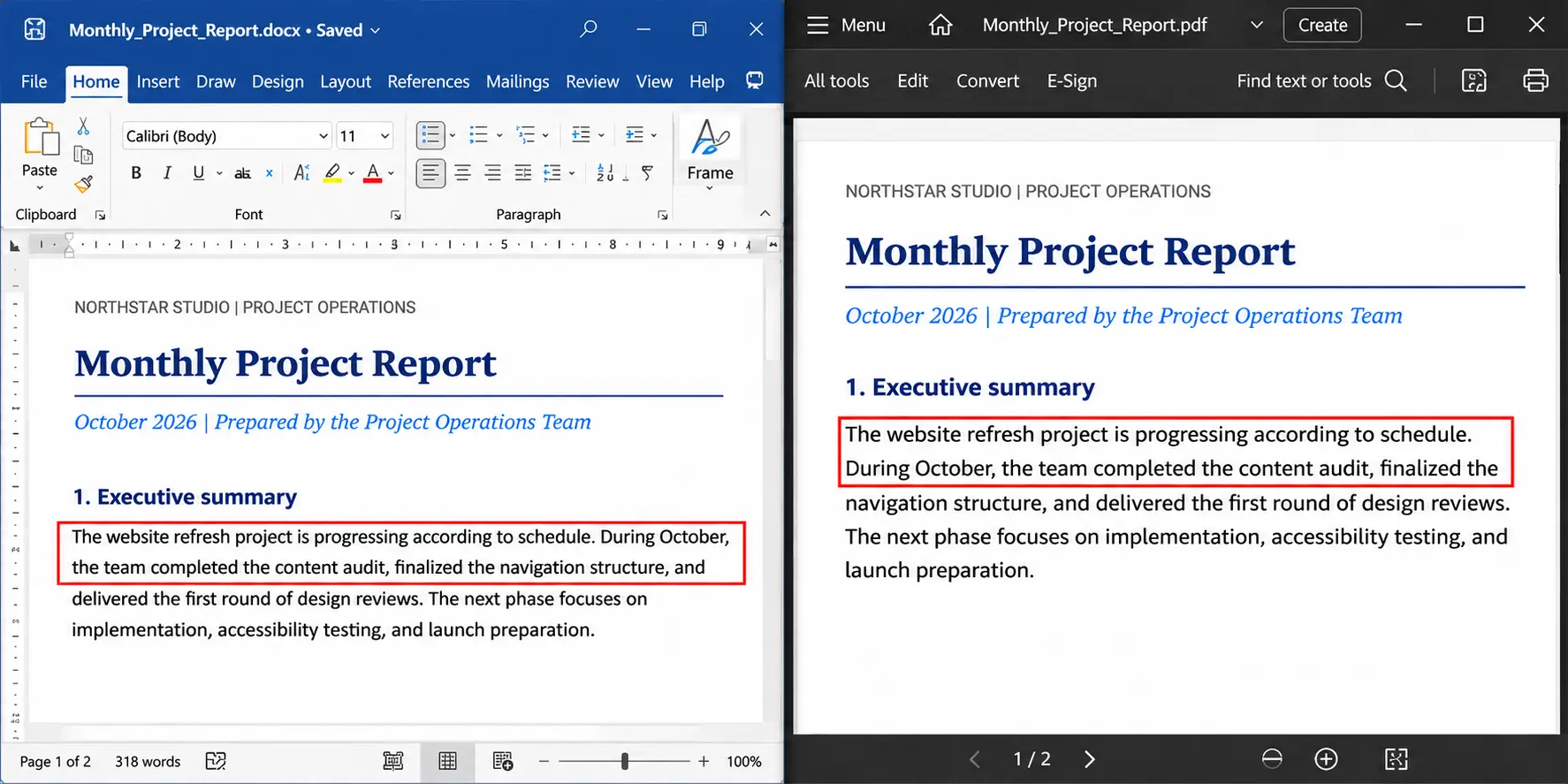
The problem starts with how Word stores its content. A DOCX file is a ZIP container containing XML files that describe text, paragraphs, styles, and other document elements. It normally records which fonts the document uses, but it does not necessarily contain the actual font files.
When another application or online converter opens the DOCX, it must find those fonts to reproduce the layout. If a font is unavailable and was not embedded, the application may replace it through font substitution.
That replacement can change the entire page layout, even when every word remains identical.
Fonts have different font metrics, including character widths, spacing, and line heights. For example, a sentence that fits on one line in the original font may need two lines in a substitute font. The next paragraph moves downward, following paragraphs shift, and the extra text may push content onto another page.
This is how a two-page Word document can become a three-page PDF without any words being added.
It also explains why a document can look correct on the computer where it was created but change when opened elsewhere. The original computer has the required font installed, while the other application or conversion system may not.
To reduce formatting changes, check the original document before exporting:
- Make the fonts available: Embed supported fonts in the Word file before conversion, particularly when using custom typefaces. Font licensing restrictions may prevent some fonts from being embedded.
- Use a dedicated PDF export: Word's Save As PDF or Export feature offers greater control over document structure than a basic print-to-PDF route.
- Preserve accessibility features: In Word, enable document structure tags where available. On supported Mac versions, choose Best for electronic distribution and accessibility to create a tagged PDF that can preserve reading structure and navigation.
- Compare the finished pages: Open the PDF beside the original Word file and check the line breaks, headings, and page count.
If the PDF has a different page count, investigate missing or substituted fonts first. Also check paper size, margins, images, and page-break settings, since these can cause similar changes.
The most reliable fix is to correct the source document before converting it again. That way, the converter can work with the intended fonts and layout rather than trying to reproduce a document using replacements.
Why Can't You Convert a Word Document to PDF?
If you cannot convert a Word document to PDF because the PDF option is missing from the Save As dialog, try File > Export > Create PDF/XPS > Publish instead. Microsoft Word provides this alternative export route, so a missing option in one dialog does not necessarily mean the application cannot create PDFs.
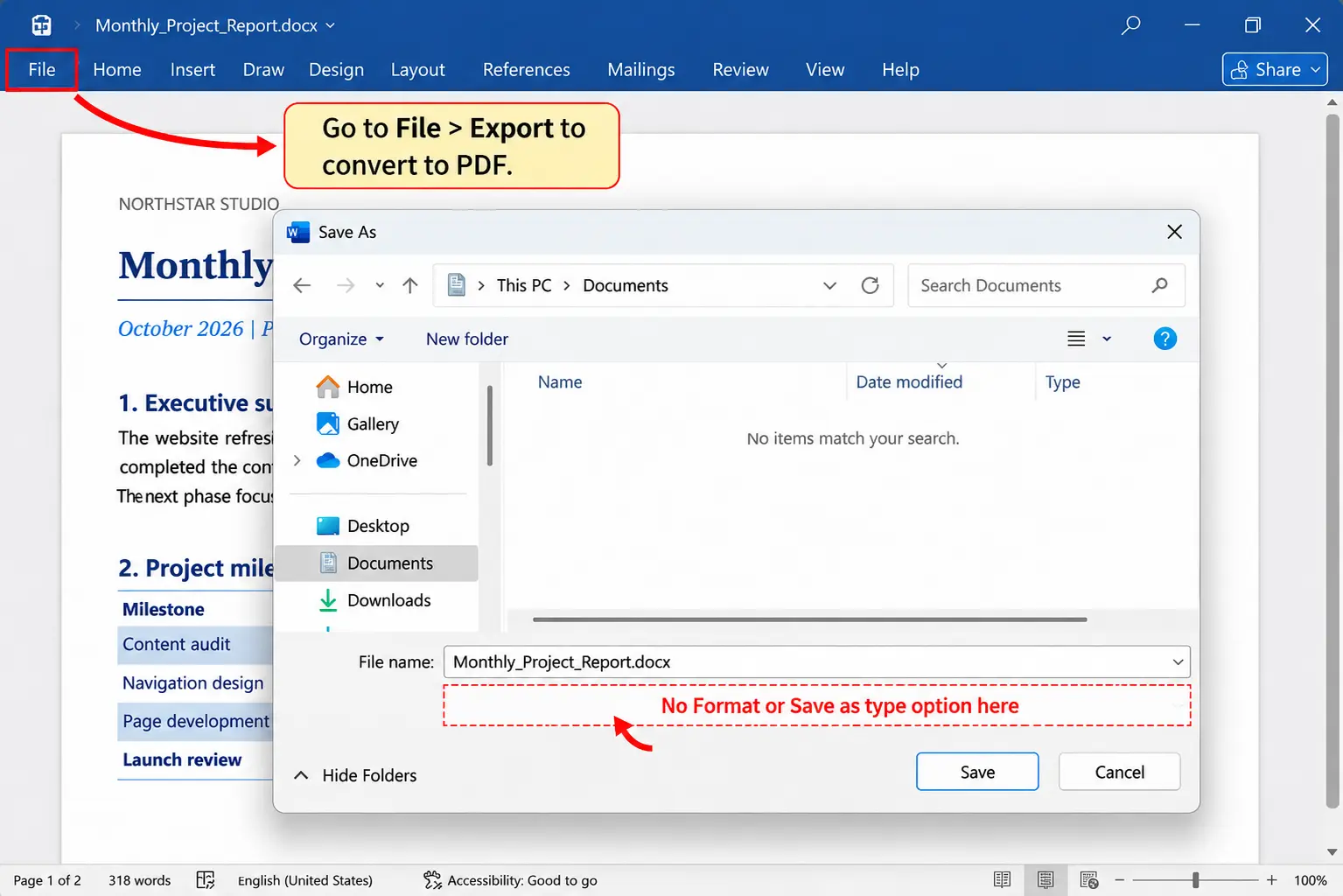
A Microsoft Q&A discussion from March 2025 describes this exact problem. A Windows 10 user could not find the format list in Save As or a PDF button in the Print dialog. The accepted solution directed the user to File > Export and Create PDF/XPS instead.
To use this alternative route:
➤ Open your Word document and select File > Export.
➤ Click Create PDF/XPS.
➤ Confirm that PDF (*.pdf) is selected in the Save as type dropdown.
➤ Choose a filename and save location, then click Publish.
If the export still fails, create a new Word document containing a few lines of plain text and try converting it to PDF. This simple test helps you determine whether the problem affects Microsoft Word itself or only the original document.
Check the following possible causes based on the result:
Only certain Word documents fail to convert
If the simple document converts successfully, investigate the original file. A large document, damaged content, complex embedded objects, or unsupported special characters may be responsible.
Save a separate copy of the problem document and try removing or simplifying the suspected content before exporting again. If you are using an online converter, also check whether the document exceeds its upload limit.
The PDF export settings are unsuitable
If Word creates a PDF but its links or formatting are incorrect, check the optimization settings.
On supported Mac versions, choosing Best for printing can cause hyperlinks to convert incorrectly. Try Best for electronic distribution and accessibility instead, particularly when the document contains clickable references or accessibility features.
This setting addresses problems with the resulting PDF rather than guaranteeing a fix for every failed conversion.
The printer configuration is causing problems
If the Print dialog does not offer a PDF destination, check your printer configuration. On Windows, verify that Microsoft Print to PDF is available and enabled. A missing or faulty printer driver can interfere with print-based conversion and may also affect how Word prepares its pages.
However, Word's built-in PDF export does not require a physical printer. Try the dedicated File Export route before installing or reconnecting printer hardware.
Start with the simplest test: convert a second, smaller Word document. If that works, investigate the original file. If neither document converts, check the application, export options, and printer settings instead of repeatedly attempting to convert the same file.
How Do You Convert Many Word Files to PDF at Once?
To convert multiple Word files to PDF at once, use a desktop PDF application that supports batch processing, an online converter with a multi-file queue, or a folder script. Microsoft Word's standard Save As dialog exports one document at a time, so it cannot convert an entire folder in a single operation.
Before choosing a method, decide whether you want several separate PDFs or one combined document. These are two different tasks.
| Many files in, many PDFs out | Many files in, one PDF out |
|---|---|
| Batch conversion: Converts each Word file into its own PDF. | Conversion and merge: Converts the Word files and combines their pages into one PDF. |
| Use a desktop batch converter, a supported online conversion queue, or a folder script. | Use a PDF application that combines multiple document formats or convert the files individually and then use a PDF merging tool. |
| No merging step is needed. Each output remains a separate document. | An additional merging step is needed, unless the application combines the files automatically. |
| Best for individual invoices, certificates, or reports that need separate PDF copies. | Best for application packages, collected reports, or documents that need to be submitted together. |
Convert multiple Word files into separate PDFs
A desktop application such as Adobe Acrobat Pro provides a batch conversion workflow:
➤ Open Acrobat Pro and choose File > Create > Create Multiple PDF Files.
➤ Select Add Files or Add Folders and choose the Word documents you want to convert.
➤ Review the selected files and configure the output options.
➤ Start the conversion and save the resulting PDFs in your chosen folder.
For output file naming, use the original filenames where possible so each PDF can be matched to its source document. For example, Report-Jan.docx becomes Report-Jan.pdf, while Report-Feb.docx becomes Report-Feb.pdf. Check for duplicate filenames before saving files from different folders into the same destination.
If you regularly convert entire folders, LibreOffice also supports command-line batch conversion. On a system where the LibreOffice command is available, you can run:
libreoffice --headless --convert-to pdf --outdir converted *.docx
Run this command from the folder containing your DOCX files, with an existing output folder named converted. LibreOffice processes the matching documents and creates a separate PDF for each one.
Convert multiple Word files into one PDF
If you want one combined document, convert the Word files to PDF first, then merge the resulting PDFs in the correct order. Some desktop applications can handle both operations together, but the result is still a combined PDF rather than a collection of separate converted files.
For online conversion, check how many files the service accepts per run. PDFNoob's Word-to-PDF tool currently supports one file at a time, with a 20 MB limit per file for guests and a 30 MB limit for signed-in free users. Convert each document separately if you use this tool, then combine the PDFs if you need a single output.
Batch-processing time depends on the number of files, their complexity, and the conversion method. A folder containing ten small text documents may take a few minutes to process, while documents containing large images or complex layouts can take considerably longer.
The key difference is the number of output files: batch conversion produces one PDF per Word document, while merging produces one PDF containing the pages from multiple documents.
What Happens When You Ask an AI Chatbot to Convert Word to PDF?
An AI chatbot can convert a Word document to PDF only if the chat product provides the necessary file handling and document-generation tools. Without those capabilities, it can explain how to convert the file but cannot directly process a document stored on your device.
If the chatbot accepts Word documents and produces downloadable PDFs, there is an important question to ask: Is it exporting your original document or creating a new PDF from its contents?
Some file-processing workflows extract the text from the Word document and use it to build a new PDF. This process is called document reconstruction, and it differs from exporting the original file through a word processor.
During reconstruction, the text may remain intact while other document features change or disappear. These can include:
- Tracked changes and review comments.
- Headers and footers, including page numbers.
- Embedded objects, such as charts, spreadsheets, and equations.
- Tables, text boxes, and images with specific page positions.
- Original fonts, spacing, page breaks, and pagination.
For example, a two-page Word report may become a three-page PDF if the chatbot rebuilds its paragraphs using different fonts, margins, or spacing. The information may be correct, but the layout is no longer identical to the original.
However, a chatbot connected to an actual document-conversion engine may be able to export the Word file directly rather than reconstructing it. The result depends on the tools available and the conversion method used.
Chatbot conversion can be a practical option for simple documents, but its suitability depends on the type of file and how important the original formatting is.
- Suitable for: Plain-text memos, simple notes, and basic documents where preserving the content matters more than maintaining the exact layout.
- Requires careful verification: Contracts, application forms, signed documents, print-ready reports, and files containing complex formatting, tracked changes, or review comments.
Before relying on the converted PDF, compare its page count, layout, tables, and other important features against the original Word document.
If preserving the original formatting is essential, use a dedicated Word-to-PDF export method or a converter that processes the original document directly. A chatbot-generated PDF may be useful, but a downloadable file alone does not prove that the original document has been faithfully converted.
Which Free Word-to-PDF Route Should You Pick?
Choose a free Word-to-PDF conversion method based on what your document needs to preserve. If hyperlinks, headings, and document structure matter, use a dedicated PDF export. If you only need a printable copy, print-to-PDF may be sufficient. For documents exceeding an online converter's file size ceiling, consider converting them locally.
The following table compares the main conversion routes, including their software requirements, internet access, formatting capabilities, and file-processing limits.
| Conversion method | Word processor installed? | Internet connection? | Conversion stages | Keeps hyperlinks? | Keeps document structure? | Multiple files? | File size ceiling |
|---|---|---|---|---|---|---|---|
| PDFNoob online converter | No | Yes | One conversion | Depends on the document and converter | Depends on the converter | No, one file per run | 20 MB guest; 30 MB signed-in free user |
| Microsoft Word Save As / Export | Yes, Word | No for standard local export | One export | Generally yes, depending on settings | Yes, with appropriate export options | No, single-file export | No browser upload limit |
| LibreOffice | Yes, LibreOffice Writer | No | One export | Yes, with appropriate settings | Yes, with appropriate export options | Yes, through command-line batch conversion | No browser upload limit |
| Google Docs | No desktop installation | Yes for the standard cloud workflow | One or two stages, depending on format conversion | May preserve links | Depends on document import and export | No standard batch-export option | Subject to Google's document limits |
| Print-to-PDF | Requires an application that can open and print the document | No for local documents | One print-rendering operation | Not guaranteed | Often loses tags and bookmarks | Usually one document at a time | No browser upload limit |
PDFNoob's guest conversion does not require an account or software installation. LibreOffice is free to install and supports offline conversion, making it useful for confidential documents or files that exceed online upload limits. Google Docs provides another free option with a Google account, while Microsoft Word's built-in export has no additional conversion charge if you already have access to the application.
Remember that a free online converter may accept DOCX but reject the older DOC format. Always check the supported extensions and maximum upload size before choosing a service.
The simplest rule is to export when the document needs to retain its structure and interactive features, and print when it only needs to look right.
How Does the PDF Differ From the Word File It Came From?
A PDF preserves the fixed layout of your Word document, including its page dimensions, text positions, images, and spacing. Unlike a Word file, which remains editable and can adjust its layout as you make changes, a PDF is designed to maintain a consistent page appearance across devices.
This makes PDF particularly useful for printing, sharing completed documents, and submitting formal reports, contracts, and application forms. However, preserving the page layout comes with a trade-off: the document becomes less flexible to edit and read in different formats.
The difference begins with how the two file formats store text.
A Word document stores text as paragraphs, with formatting rules that determine how the content flows across pages. When you insert a sentence, the following text can move downward, and Word adjusts the layout accordingly.
A PDF, by contrast, typically stores text as positioned glyph runs, or groups of characters drawn at specific locations on a page. Instead of asking the reader to calculate where a paragraph should wrap, the PDF describes where its characters should appear.
This difference has two practical consequences:
- Copying text may change its order: The order in which a PDF stores or draws text does not always match its intended reading order. For example, copying paragraphs from a two-column PDF may mix text from both columns if the document lacks suitable structure information or the reader interprets it incorrectly.
- Reading on a phone may require zooming: A standard PDF page does not automatically reflow its text to fit a narrow screen in the same way as a responsive document. Readers may need to zoom in and scroll horizontally. Some PDF applications offer a reflow or reading mode, particularly for properly tagged PDFs, but this depends on the reader and the document's structure.
PDF also supports password protection, allowing you to restrict access to a confidential document. Word documents can be password-protected too, so this is not a feature exclusive to PDF.
For long-term storage, a PDF can serve as an archival document, especially when saved in PDF/A, a standardized format designed for long-term preservation. Its stable page appearance is one reason many organizations prefer PDF for completed records and official submissions.
Keep the Word file while the document is still being written or revised, and create a PDF when you need to preserve its final page layout. If readers will mainly use phones, consider whether an editable document or another reflow-friendly format would be more convenient than a fixed-page PDF.
How Do You Fix a PDF That Converted With the Wrong Formatting?
If your Word document converted to PDF with incorrect formatting, check the finished file before converting it again. Three simple tests can help identify the problem: text selection, a hyperlink test, and a comparison of the page count against the original Word document.
Each test reveals a different type of conversion problem and helps you decide which conversion method to use next.
| Symptom | What it means | What to redo |
|---|---|---|
| You cannot select a sentence of body text. | The PDF may contain a rendered page image instead of selectable text, or text selection may be restricted. | Return to the Word document and use a dedicated PDF export rather than an image-based or print-rendering method. |
| Text is selectable, but hyperlinks do not work. | Interactive links may have been lost during conversion, particularly when using a print-based or print-optimized export. | Export again using the electronic distribution and accessibility option where available. |
| The PDF has more or fewer pages than the Word file. | Font substitution, missing embedded fonts, or differences in page-layout settings may have changed the pagination. | Correct the fonts or layout settings in the original Word file before exporting again. |
To perform these checks, open the PDF in a reader and drag your cursor across a sentence to see whether individual words can be selected. Then click the hyperlinks to confirm that they open the intended destinations. Finally, compare the total number of pages with the source document.
If the PDF contains selectable text but looks different from the original, inspect the affected paragraphs and page breaks. If only the links are missing, check the export settings rather than changing the document's layout.
Once you have identified the cause, you can convert Word to PDF with PDFNoob or use the appropriate built-in export method described earlier.
Always check the new exported document before replacing or sharing the previous PDF. A successful conversion should preserve the appearance and document features that matter for your intended use.
How Do You Turn a PDF Back Into an Editable Word File?
Use a PDF to Word converter to turn a PDF back into an editable Word document. This process involves reconstruction rather than simply undoing the original conversion. Because PDF text is positioned on fixed pages, the converter uses paragraph inference to rebuild paragraphs, lists, and tables. Thus, complex layouts may not match the original Word file exactly.
If you have a scanned document without a selectable text layer, optical character recognition (OCR) is needed to recover the text before reconstructing the editable document.
How Do You Convert a Large Word Document to PDF?
You can convert a large Word document to PDF using the same methods as a smaller file. However, documents containing high-resolution photographs or graphics may exceed a converter's upload limit or produce a PDF that is too large to share.
First, check which size limit you are dealing with:
- Before conversion: PDFNoob accepts Word files up to 20 MB per file for guests and 30 MB for signed-in free users. If your Word document exceeds the limit, reduce the image resolution in the original document or choose a local conversion method.
- After conversion: If the Word file converts successfully but the resulting PDF is too large to email or upload, reduce the PDF's file size using a compression tool.
Photographs often account for much of a large document's size. Reducing their resolution before conversion can help the Word file meet the upload limit. Image re-encoding and compression afterward can make the finished PDF smaller.
If your document converts successfully but the output exceeds your sharing or submission limit, use Compress PDF to reduce the size of the finished file.