PDF to JPG conversion turns each PDF page into a flat picture, so the page becomes an image you can post, embed, or send anywhere an image goes.
You may see the output called JPG or JPEG. The name matters less than the result: the document page is no longer a live PDF page. It is now a picture of that page.
This conversion runs one way. A JPG cannot be turned back into the original document with the same selectable text, links, layers, and structure. Once the page becomes an image, the important choices are the image resolution and how many pages you convert.
This guide covers how to convert a PDF to JPG online, how to do it on Windows, how to do it on Mac, how to handle the pages when you want them back as one file, why the result may look blurry or blocky, why a conversion may refuse to run, and how to do it on a phone.
The part that surprises most people is that a multi-page PDF does not usually become one giant image. It becomes one image per page. If the PDF has ten pages, you usually get ten JPG files, often delivered together in a ZIP archive.
How Do You Convert a PDF to JPG Online?
Open the PDFNoob PDF to image converter, drop the PDF in, click the pages you want, choose JPG, then download the images.
➤ Open the PDFNoob PDF to image converter tool.
➤ Click Select PDF to Convert and upload your PDF file.
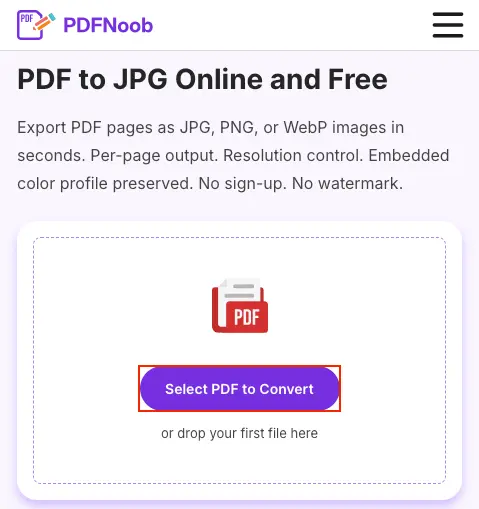
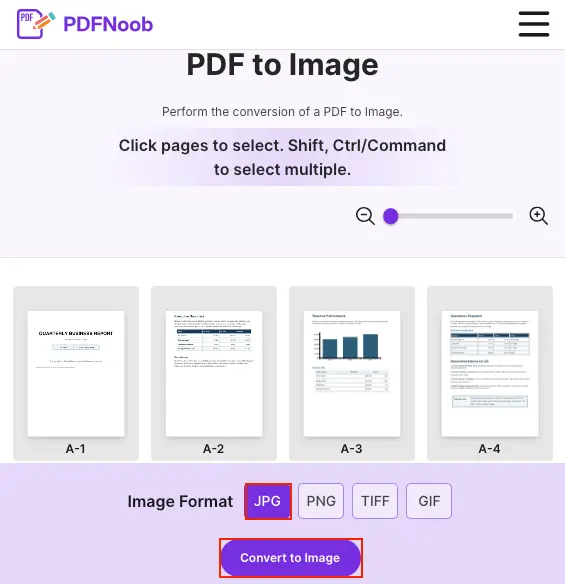
➤ Click the pages you want to convert. Hold Shift or Ctrl/Command to select more than one.
➤ Choose JPG under Image Format.
➤ Click Convert to Image.
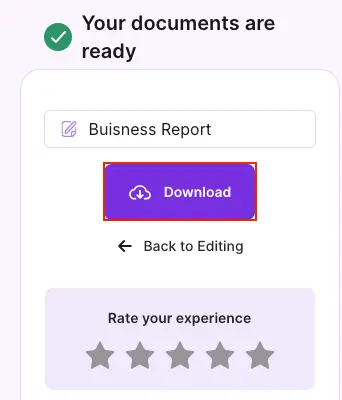
➤ Click Download to save the converted JPG file.
Before converting, check whether you want page conversion or image extraction. Page conversion turns each full PDF page into a JPG, including the text, layout, graphics, margins, and everything visible on the page.
Extracting embedded images is different. That pulls out only the photographs or image files placed inside the PDF. It does not give you a JPG of the whole page layout, so readers often pick the wrong option and wonder why the result looks incomplete.
PDFNoob's converter always converts whole pages. If you only want the photographs placed inside a PDF, use an image extraction tool instead.
Nothing needs to be installed for the online route. The converter runs in the browser, so it is the simplest option when you only need the images and do not want desktop software.
If the PDF has several pages, the result is usually several JPG files. A ten-page PDF usually becomes ten JPGs, often bundled together as a ZIP archive so you can download them all at once.
How Do You Convert a PDF to JPG on Windows?
Use a desktop converter for a proper PDF-to-JPG export, or open one page and capture it with the Snipping Tool if you only need a quick single-page image.
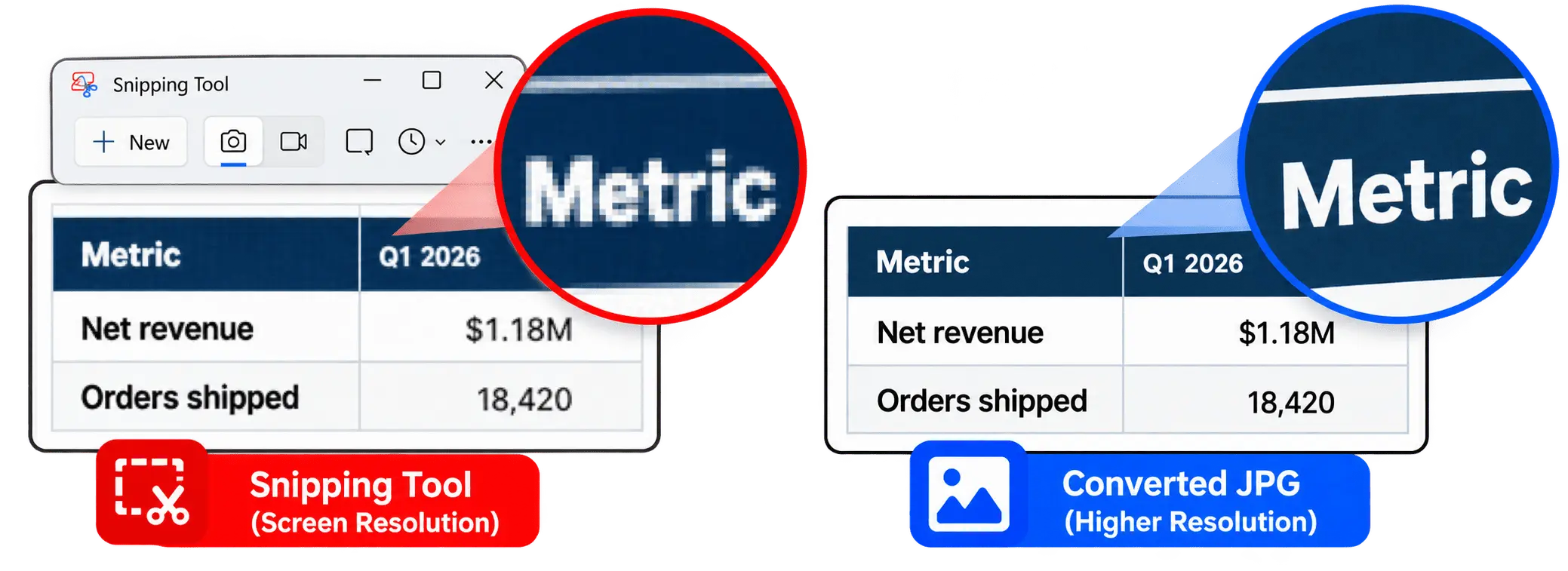
Windows does not have a built-in PDF-to-image export like macOS Preview. That means there is no native “Export as JPG” button for every PDF page. For a full document, a desktop converter is the better route because it can create actual JPG files from the PDF pages.
For one page, you can open the PDF in a browser viewer, zoom the page, and use the Snipping Tool to save what is visible on the screen. This works for a quick preview image, but it is not the same as a real conversion.
The cost is screen resolution. A screenshot captures the page at the size shown on your monitor, so the JPG is fixed to your display size. It may look fine in a message or preview, but it is usually not good enough for printing or for a sharp full-size document image.
So treat the Snipping Tool route as a workaround, not the main method. If you need every page, a printable result, or a clean image file, use a converter instead of a screenshot.
How Do You Convert a PDF to JPG on a Mac?
Open the PDF in Preview, choose File, then Export, and pick JPEG from the Format menu.
➤ Open the PDF in Preview on your Mac and click File in the menu bar and select Export.
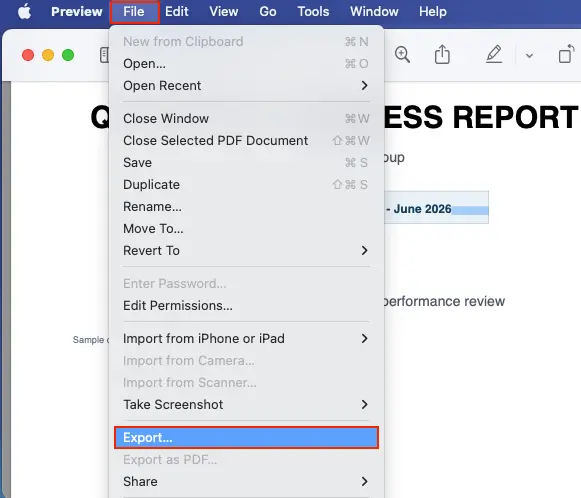
➤ Open the Format menu and select JPEG.
➤ Click Save to export the PDF page as a JPG image.
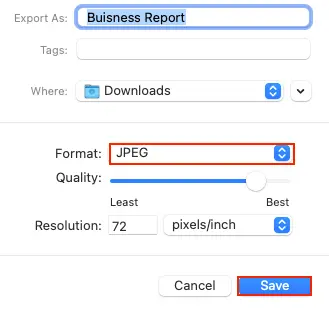
In the export sheet, check the quality slider and the resolution field before saving. The format choice decides that the page becomes a JPEG, but the resolution field decides how sharp the final image will be. Preview starts at 72 pixels/inch, as in the screenshot above. That is screen quality. Type 150 for a page you will read on screen, or 300 if you plan to print it.
Preview exports the page currently shown, not every page in the PDF at once. If you only need one page, open that page first, then export it.
If you need every page converted, use Automator to create a batch export workflow. That is the better route for a multi-page PDF because Preview’s normal export path works one page at a time.
How Do You Merge JPG Pages Into One File?
You usually do not get one file by default. When a PDF is converted to JPG, every page becomes its own image, and those images are often delivered together in a ZIP archive.
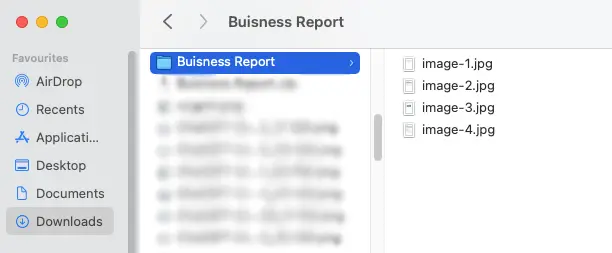
So if you convert a twenty-page PDF, expect twenty JPG files. The file naming follows the page order. In the screenshot below, a four-page PDF gives image-1.jpg, image-2.jpg, image-3.jpg, and image-4.jpg. The number in each file name matches the page, so sorting by name puts the pages back in order.
After the download finishes, extract the ZIP first. On Windows, right-click the ZIP and choose Extract All. On Mac, double-click the ZIP. On a phone, open it through the Files app or the system file manager before using the images.
If what you actually wanted was one tall image containing all pages, that is a second job. You need to stitch the page images together after extraction, because PDF-to-JPG conversion creates one image per page, not one long combined JPG.
Why Does the Converted JPG Look Blurry or Blocky?
The converted JPG looks blurry or blocky because JPG uses lossy compression to save space, and because the PDF page may have been rendered too small before that compression happened.
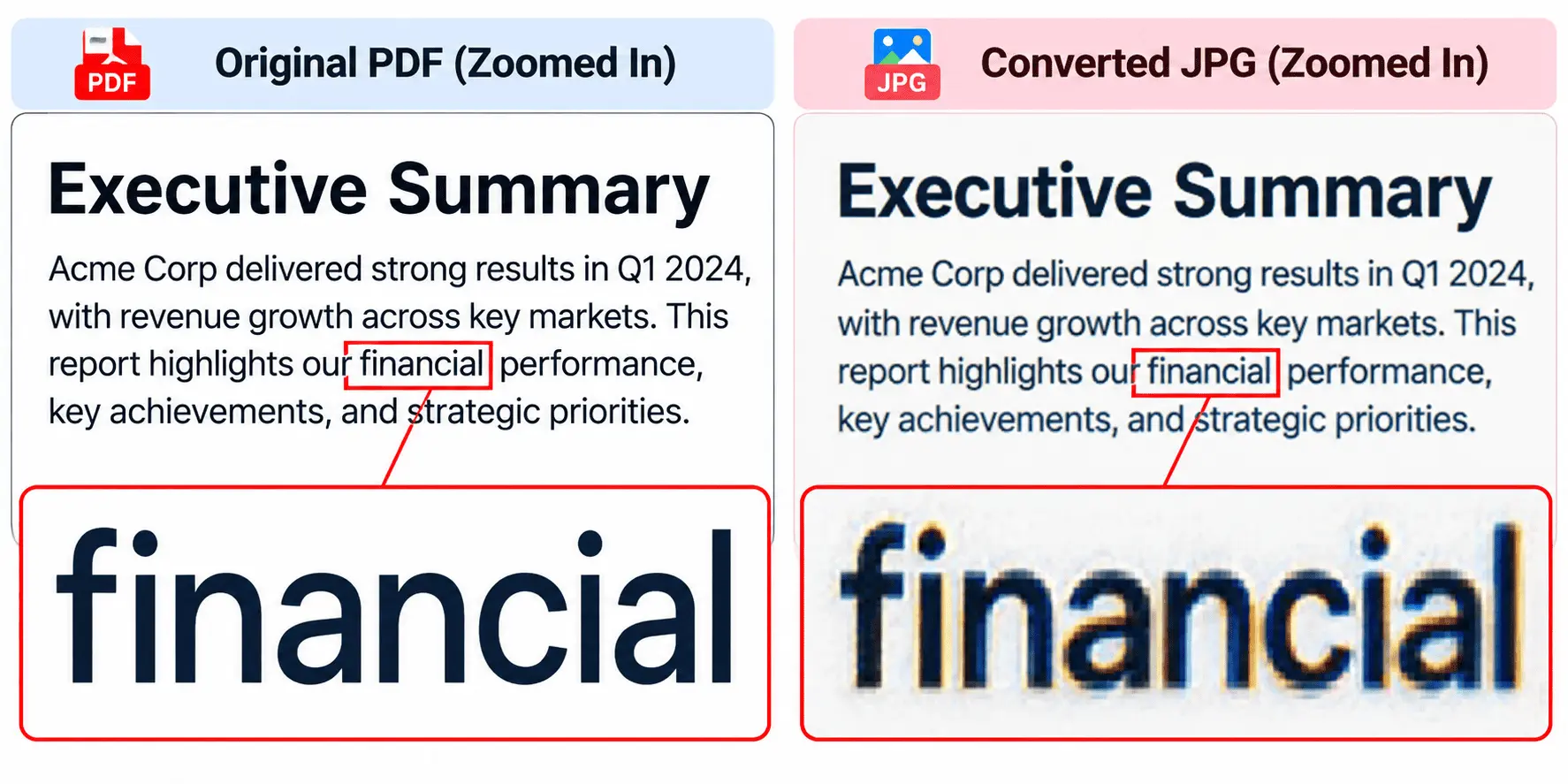
The damage is easiest to see around text, icons, table lines, and sharp edges. Instead of clean black letters on a white background, you may see compression artefacts such as fuzzy edges, grey patches, or a visible halo effect around the letterforms.
A photographic page usually survives JPG conversion better than a page full of small type because JPG was built for photos and smooth colour changes. Document pages are harder because they contain sharp contrast, thin strokes, and exact edges.
Re-saving the same JPG repeatedly can make the problem worse each time. Each save can throw away more detail, so the image may become softer, noisier, or more blocky even if the page looked acceptable after the first conversion.
Resolution and DPI also matter, but the simple rule is if the page is rendered too small first, no JPG setting can bring the missing detail back.
Why Won't Your PDF Convert to JPG?
A PDF usually will not convert to JPG because the file is protected, damaged, or larger than the converter accepts.
Files with password protection may block the converter from opening the PDF at all. Even if the file opens, restricted permissions can prevent exporting, copying, or rendering the pages as images.
A very large PDF can also fail if it passes the tool’s file size limit. This is common with scanned documents because each page may already be a full-page image, so the converter has to process heavy image data instead of simple text and layout.
A corrupted file can fail before conversion starts, stop halfway through, or produce missing pages. In that case, try opening the PDF in another viewer, saving a fresh copy, or getting the original file again before converting.
There is also a second failure that looks like a conversion problem but is not. The conversion may finish successfully, but the browser may block the ZIP download, hide the download prompt, or place the ZIP somewhere unexpected. That is a blocked download, not a failed conversion.
| Symptom | Likely Cause | What to Check |
|---|---|---|
| The converter asks for a password or refuses to open the file | Password protection | Unlock the PDF first, then convert it again |
| The PDF opens, but exporting pages is blocked | Restricted permissions | Use a file you have permission to export |
| The upload fails before conversion starts | File size limit | Make the PDF smaller first, then upload it again |
| The conversion starts but stops halfway through | Corrupted file | Re-save the PDF or get a clean copy |
| The PDF is slow to process and the JPG looks almost the same | The PDF is already scanned images | Expect a large output unless the images are reduced |
| The conversion says it finished, but no JPGs appear | Blocked download | Check browser download permissions, pop-ups, and the Downloads folder |
Can You Convert a PDF to JPG on a Phone?
Yes. You can convert a PDF to JPG in a mobile browser, and both iPhone and Android can also screenshot a single page if you only need a quick image.
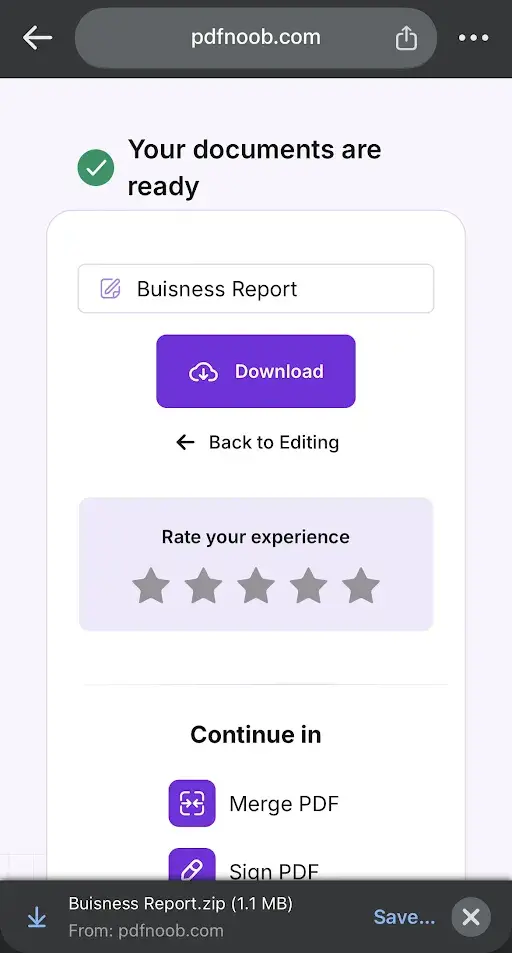
With an online converter, upload the PDF from your phone, run the conversion, and download the JPG files. On iPhone, the files usually land in the Files app unless you choose to save an image to the Photos app. On Android, downloads usually go to the Downloads folder or the phone’s file manager, with image-saving options depending on the browser and gallery app.
The part that quietly causes trouble is the ZIP. If the PDF has several pages, the JPGs may arrive together as a ZIP file, and that ZIP needs to be opened before you can use the images. On iPhone, open it in the Files app. On Android, open it from Downloads or the file manager.
A screenshot is faster for one visible page, but it only captures the page at phone-screen size. For a cleaner image, especially when you need every page, use the mobile browser conversion route and be ready for the extra ZIP extraction step.
Should You Convert Your PDF to JPG at All?
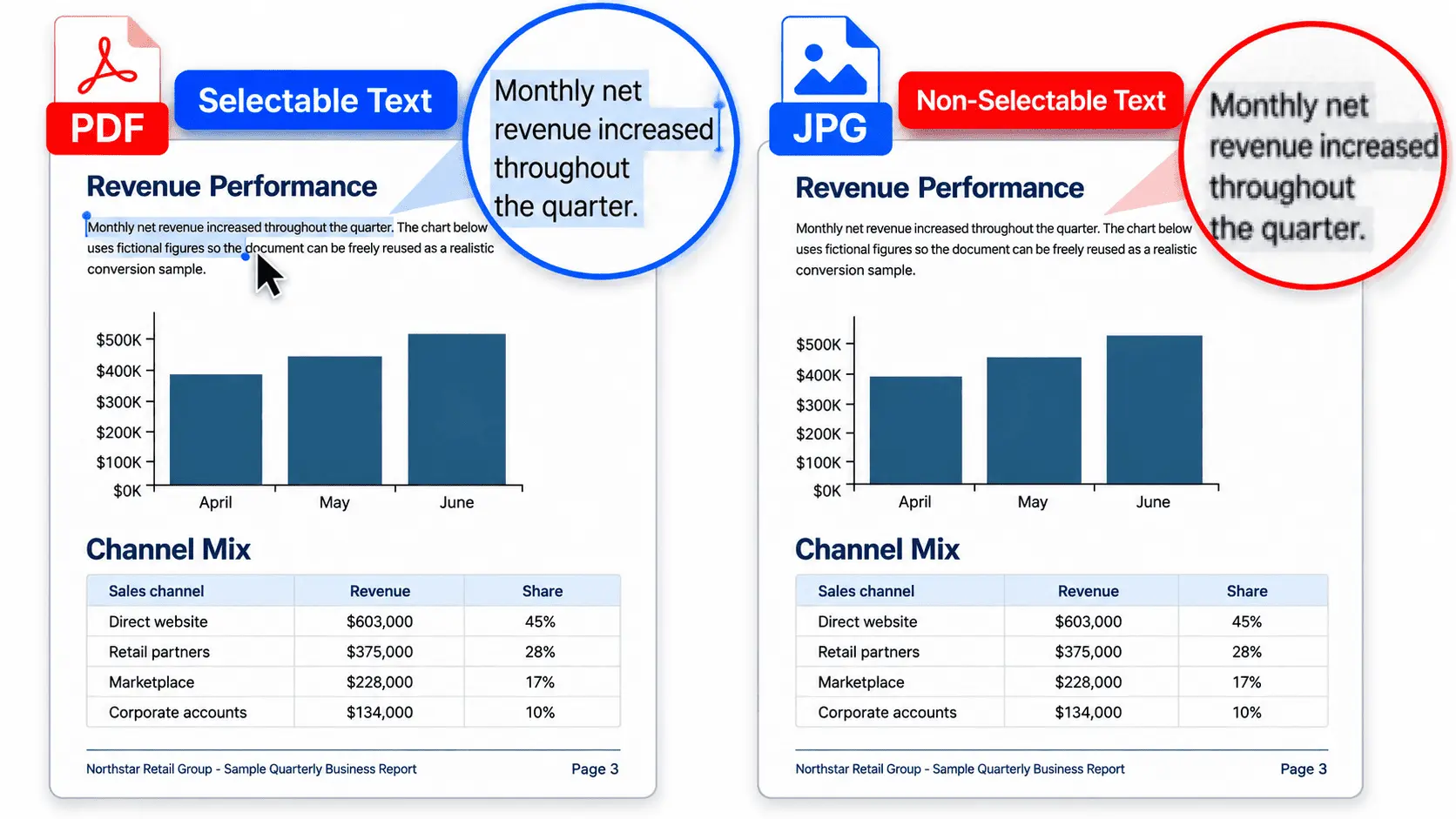
Keep the PDF whenever the document still has to be read, searched, printed, or signed. Converting it to JPG turns each page into a flat image, so the document stops behaving like a document.
The main things you lose are selectable text, working links, multi-page document structure, and reliable print resolution. After conversion, a reader cannot highlight a word, click a link, search a phrase inside the page, or depend on the same print quality the PDF was designed to keep.
A JPG genuinely wins when you need a simple image for posting, embedding, previews, thumbnails, or upload forms that reject PDFs. In those cases, the point is not to preserve the document. The point is to make the page usable anywhere an image is accepted.
But the conversion is a one-way conversion. If anyone downstream needs to select a word, search a phrase, sign the file, or print it at full size, converting the PDF to JPG is the wrong move regardless of which tool does it.
Is It Better to Convert a PDF to JPG or PNG?
Use JPG for PDF pages that are mostly photographs, and use PDF to PNG converter when the page is mostly text, screenshots, or line art.
PNG is a lossless format, so it keeps text sharpness and clean edges better, but the files are usually larger. JPG is smaller, but it softens text, so if the page has more words than pictures, it is not a JPG job.
How Do You Convert Just One Page Instead of the Whole Document?
Open the PDFNoob PDF to image converter and click only the page you want in the thumbnail view. Hold Shift or Ctrl (Command on a Mac) to pick more than one page. You can also pull that page out first with page extraction and convert only that single-page file.
This avoids the ZIP entirely because one selected page creates one JPG, not a folder of images.
Check the page offset before you convert: if a report starts with a cover page, the printed “page 1” may actually be the file’s page 2, which is why people often convert the wrong page.
How Do You Turn the JPGs Back Into a PDF?
Convert the images back with an image to PDF converter, but remember that the text will still be a picture.
That round trip does not restore the selectable text, links, or document structure that were discarded during the first conversion.
The returning PDF may look like the original, but it behaves like a photo album. Its page order depends on the JPG filenames, so check the numbering before you rebuild the PDF.