A ZIP archive wraps one or more PDF files in a single container and hands back one thing to send instead of several.
It does not turn the PDF into a different document format. It creates a file bundle that can be attached, downloaded, opened, and unzipped later.
That makes zipping useful when you have several PDFs to send as one attachment, or when the archive needs password protection before sharing.
It is less useful when your only goal is making one PDF much smaller.
An ordinary text-and-image PDF usually shrinks by only a few percent after zipping, because the streams inside a PDF are already compressed with deflate. Running ZIP compression over already compressed data usually saves very little.
So “PDF to ZIP” is mostly about packaging, not shrinking. If the problem is an email attachment limit, zipping one PDF may not solve it.
The better choice depends on what you need. Zip several PDFs when you want one bundle. Add a ZIP password when the wrapper needs protection. Compress the PDF itself when the file truly needs to become smaller.
This guide explains what the conversion does, how to do it online, how to add a password, and the Windows, Mac, and phone routes. It also covers opening a ZIP at the other end, other archive formats, and what to decide first.
What Does Converting a PDF to ZIP Actually Do?
Converting a PDF to ZIP puts the PDF inside a ZIP archive. The PDF is not changed into another file format; it is packaged inside a container, and when you unzip it, you get the same PDF back.
The word “convert” is a little misleading here. A PDF to ZIP tool does not rewrite PDF pages, change layouts, or turn the document into a new document type.
It wraps the file so it can be handled as an archive. One PDF can go into the ZIP, or several PDFs can be bundled into the same ZIP.
That is useful when you want one downloadable or attachable file instead of sending several separate PDFs.
The recipient needs to unzip the archive before reading the PDFs inside. Until they extract it, the ZIP is just a package around the files.
The important technical detail is that zipping is lossless packaging. After a ZIP round trip, the PDF inside should be byte-for-byte identical to the PDF you put in.
Nothing in the PDF should degrade from being zipped. Text, images, page order, links, metadata, and layout stay inside the original PDF file.
That also explains why zipping usually saves so little space. If the PDF file comes back unchanged after unzipping, the ZIP can only package and lightly compress what is already there.
How Do You Convert a PDF to a ZIP File Online?
Upload one or more PDFs, choose the ZIP option, then download the archive. No account is needed on PDFNoob, and the upload is deleted within an hour.
➤ Open PDFNoob’s PDF to ZIP tool in your browser.
➤ Click Upload PDFs to Convert.
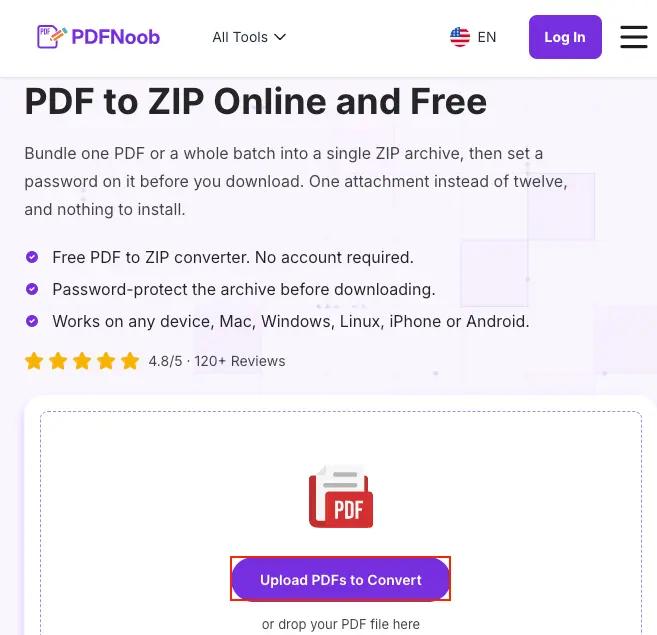
➤ Select one or multiple PDF files from your device and open them.
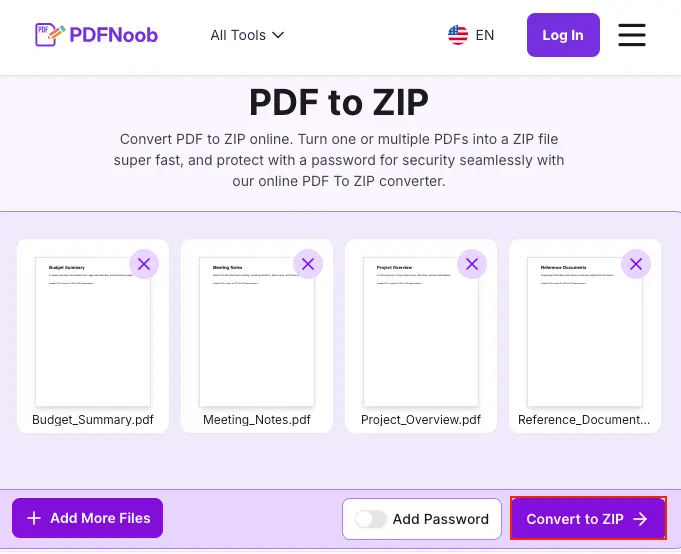
➤ Review the uploaded files.
You can click the Add More Files option if you want to include additional PDFs, or remove any unwanted file using the X icon.
➤ Click Convert to ZIP to bundle the selected PDF files into a single ZIP archive.
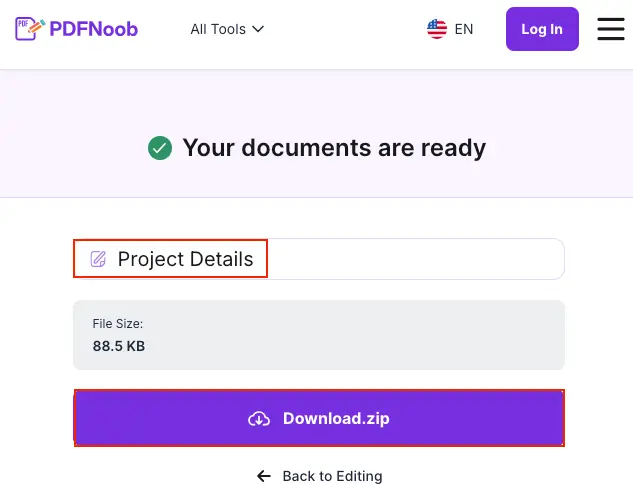
Once the ZIP file is ready, edit the file name.
➤ Click Download.zip to save it to your device.
Press the Back to Editing button if you want to return and change the selected files or conversion settings.
The tool supports multiple PDFs in one go, which is the main reason to use ZIP in the first place. Instead of sending three separate PDFs, you can send one zipped bundle.
The upload ceiling is 100MB, so check the file size limit before adding large reports, scanned packets, or image-heavy PDFs.
The detail people miss is file order. PDFs go into the ZIP in the order you add them, and the ZIP cannot renumber them afterwards.
If the recipient needs the files in a clear order, rename them before uploading. Names like 01-contract.pdf, 02-invoice.pdf, and 03-receipt.pdf sort more clearly than random downloads with vague names.
That small naming step gives the recipient a cleaner archive and avoids the usual “which file is first?” ceremony, because apparently even file names need adult supervision.
How Do You Put a Password on a ZIP of PDFs?
Set the password when you build the archive. PDFNoob offers a ZIP password field before conversion, so the ZIP is written as an encrypted archive from the start.
➤ After uploading your PDF files, turn on the Add Password option before converting them to ZIP.
➤ Enter the password you want to use in the Enter password field.
➤ Type the same password again in the Confirm Password field to make sure it matches.
➤ Click Protect PDF to apply the password protection.
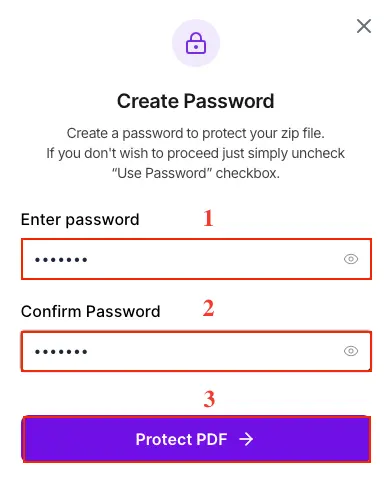
The password protects the ZIP wrapper. The recipient needs the password before extraction, because the archive must be unlocked before the PDFs inside can be opened.
It does not permanently protect the PDF documents themselves.
Once the recipient extracts the files, the PDFs are ordinary unprotected PDFs unless those PDFs already have their own password or security settings.
That distinction matters for document security. A ZIP password protects the package while it is closed, not the documents after they are taken out.
If the PDF itself must stay locked after extraction, put the password on the PDF, not only on the ZIP wrapper.
Use a separate message, call, or trusted password manager to share the password. Sending the ZIP and the password in the same email defeats most of the point of adding protection in the first place.
How Do You Zip a PDF on Windows?
Right-click the PDF in File Explorer and choose Compress to > ZIP file on Windows 11, or Send to > Compressed (zipped) folder on Windows 10. Windows writes the ZIP archive beside the original PDF.
➤ Open File Explorer and select the PDF file you want to zip.
➤ Right-click the PDF file and go to Compress to > ZIP File.
Windows will create a new ZIP archive in the same folder containing your PDF file.
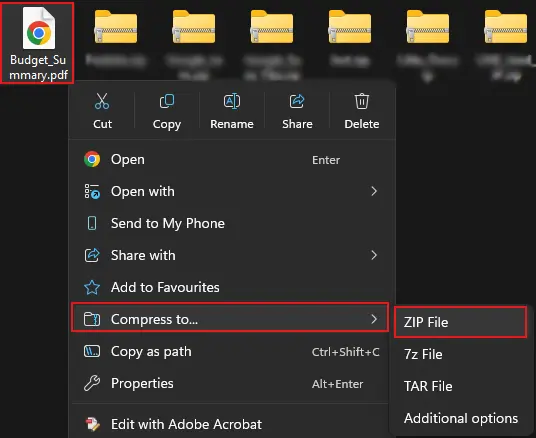
To zip several PDFs at once, select all the files first, then right-click one of the selected files and follow the same path.
Windows creates one ZIP containing the selected PDFs. The original PDF files stay where they were.
The built-in Windows route is useful when you only need a normal ZIP archive, but it does not offer a password option.
That gap is the reason many people use a browser tool instead. The archive itself is not meaningfully different, but the browser tool can add a password while Windows File Explorer cannot.
Windows used to support password-protected ZIP creation through its built-in zipper, but that option was dropped long ago. So if the ZIP needs a password, use a tool that offers encryption before the archive is created.
If no password is needed, the Windows right-click route is enough for quickly bundling one PDF or several PDFs into a ZIP.
How Do You Zip a PDF on a Mac?
Right-click the PDF in Finder and choose Compress. On macOS, the archive appears in the same folder as the file name plus .zip, or as Archive.zip when several files are compressed together.
➤ Open Finder and locate the PDF you want to zip.
➤ Right-click and choose Compress from the menu.
The ZIP file will appear in the same folder.
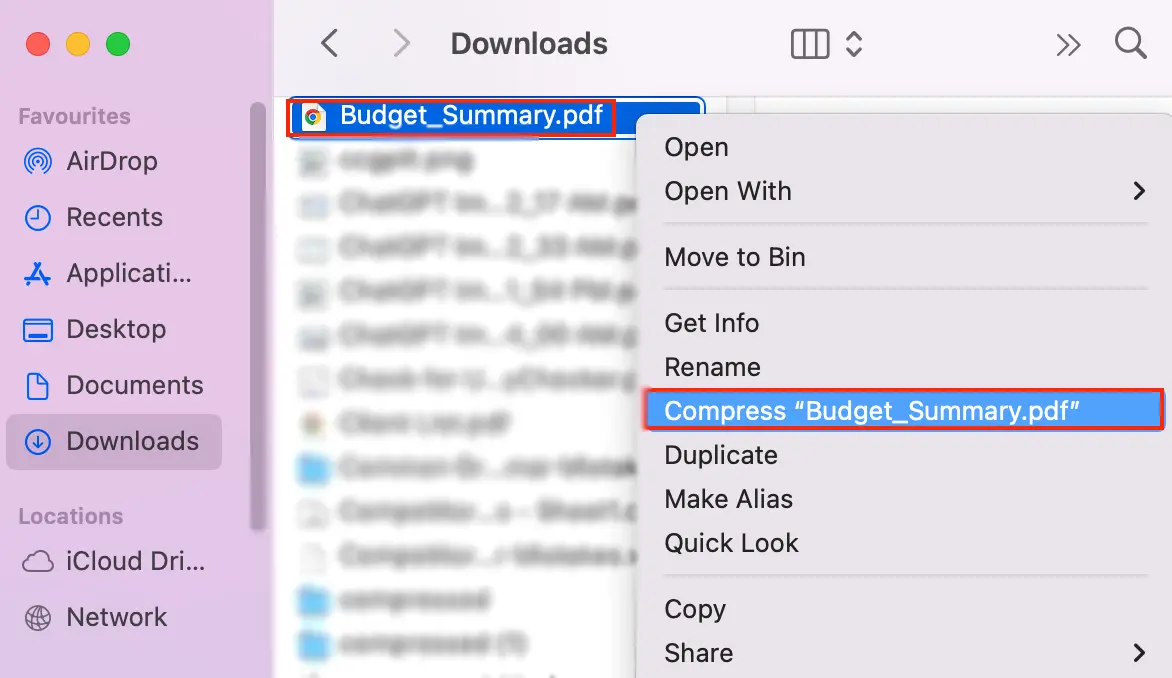
If you compress one PDF, macOS usually names the archive after that file. For example, contract.pdf becomes contract.zip.
If you compress several PDFs at once, select them all first, Control-click one selected file, then choose Compress.
That multi-file route creates one archive, but the naming is less helpful. macOS usually calls it Archive.zip no matter what files went into it.
That creates an easy trap. If you make another batch in the same folder, the next one may become Archive 2.zip.
The ZIP contents are fine, but the file name tells the recipient almost nothing. Rename the archive before sending it, especially when you are sharing contracts, invoices, scanned records, or grouped project files.
So the Mac route is to use Finder’s Compress option for quick zipping, then rename the output before it escapes into someone else’s downloads folder.
How Do You Convert a PDF to ZIP on a Phone?
On iPhone, select the PDFs in the Files app and tap Compress. On Android, use the Files app menu if it offers compression, or use a mobile browser tool the same way you would on a desktop.
On iPhone, open Files, find the PDF, press and hold the file, then tap Compress. If you select several PDFs first, the Files app creates one ZIP from all of them.
The finished archive usually appears in the same folder as the original file. If you created it from downloaded files, check the Downloads folder or the folder where those PDFs were stored.
On Android, the route depends on the file manager. Some Files apps let you select a PDF, open the menu, and choose Compress or Create ZIP.
If that option is missing, use a mobile browser tool instead: upload the PDF, choose ZIP, then save the finished archive.
The downloaded ZIP usually lands in Downloads, Google Drive, or the browser’s download folder, depending on your Android settings and save location.
The built-in phone routes are fine for ordinary ZIP files, but they usually cannot set a password.
If you need a password-protected archive, build it in a mobile browser tool that includes a password field before conversion.
That is the part many mobile guides leave out. The Files app can make a basic ZIP, but password protection needs a tool that supports encrypted archive creation.
How Do You Open a ZIP That Holds a PDF?
Double-click the ZIP. Windows and macOS both open ZIP archives natively, and the PDFs inside come out unchanged.
On Windows, double-click the ZIP to view what is inside, then choose Extract All before opening or saving the PDF.
On macOS, double-click the ZIP and the system usually expands it into a normal folder in the same location.
On a phone, tap the ZIP in the Files app, Downloads folder, or file manager, then open the extracted folder and tap the PDF.
The recipient usually needs nothing extra. Windows, macOS, iPhone, and most Android file managers can open a standard ZIP without installing another app.
The one Windows behavior to watch is archive view. Double-clicking a ZIP may show the files inside without fully extracting them.
That view is fine for checking what is inside, but it can cause odd save behavior if you open a PDF directly from there and try to edit or save it.
The safer workflow is simple: unzip or extract the archive first, then open the PDF from the extracted folder.
Thus, the PDF behaves like a normal file, and the recipient gets the same document that was placed inside the ZIP.
Which Archive Formats Are Supported Besides ZIP?
Use ZIP unless you have a specific reason not to. It is the safest format because Windows and macOS both open it without extra software, which matters when the recipient is someone else.
| Format | Best Use | Recipient Problem |
|---|---|---|
| ZIP | Sending PDFs to almost anyone | Usually none, because it has broad native support. |
| RAR | Smaller archives in some cases | The recipient may need extra software to open it. |
| 7z | Stronger compression in some cases | The recipient may need extra software to open it. |
RAR and 7z can compress a little better than ZIP, especially on file types that are not already compressed.
For PDFs, that advantage usually does not matter much. A PDF is often already compressed internally, so changing the archive format rarely turns it into a much smaller attachment.
The deciding question is not “which format has the best compression ratio?” It is “can the recipient open it without installing anything?”
For sending PDFs, ZIP wins because compatibility matters more than a tiny size difference.
Use RAR or 7z only when you know the recipient can open those formats and you have a real reason to choose them, such as an internal workflow, a required archive standard, or a file set where the compression gain is actually worth it.
For normal sharing, ZIP is the practical answer. It opens more easily, creates fewer support messages, and gives the recipient one less tiny technical crisis to donate to the day.
What Should You Decide Before You Zip a PDF?
Decide whether you actually need a smaller file size or just need bundling, and whether the recipient can open a ZIP before you send it.
The first question is the size problem. If you are sending one PDF and the goal is beating an attachment limit, zipping is usually the wrong tool.
The second question is the bundle problem. If you are sending several PDFs and want one file instead of many attachments, a ZIP makes sense.
The third question is access. If the recipient can open a standard ZIP, the archive is easy to send. If they cannot, another format or a direct PDF may create fewer problems.
A ZIP password is the other valid reason to use a ZIP, as long as you understand that the password protects the archive, not the extracted PDFs.
So, one PDF that needs to be smaller should be compressed, not zipped. Several files, or one archive that needs a password, give ZIP a real job.
How Much Can Zipping Compress a PDF File?
Usually very little. A typical PDF shrinks by only a few percent because its text and image data are already stored in compressed streams inside the file.
ZIP compression works best when the original file has lots of repeated, uncompressed data. Many PDFs do not.
The reason is Deflate compression. PDF files commonly use Deflate internally, while ZIP archives often use the same compression method again. Compressing data that has already been compressed usually produces little additional reduction.
In some cases, the ZIP file can even end up slightly larger because the archive adds its own file headers and metadata.
Typical results may look like this:
| PDF Type | Before ZIP | After ZIP | Typical Saving |
|---|---|---|---|
| Text PDF | 2.0 MB | 1.94 MB | 3% |
| Image-heavy PDF | 18.0 MB | 17.5 MB | 2.8% |
| Scanned PDF | 80.0 MB | 74.0 MB | 7.5% |
These figures are illustrative rather than guaranteed results. The actual reduction depends on how the PDF was created, the compression already applied to its images and other data, and the ZIP compression settings used.
A scanned PDF can sometimes be an exception. If the scan contains uncompressed or lightly compressed images, ZIP may reduce its size more than it would an ordinary text PDF.
The only reliable check is a size comparison. Zip the file, compare the original file size with the ZIP file size, and see whether the savings are worth sending an archive.
If the file barely changes, zipping is not solving the size problem. Use Convert PDF to ZIP when you need bundling or a password-protected archive, not as your main PDF shrink tool.
When Should You Compress the PDF Instead of Zipping It?
Compress the PDF instead of zipping it whenever the goal is a genuinely smaller file.
PDF compression rewrites the images inside the PDF, where most file size usually lives, and the file stays a readable PDF while the dedicated compress PDF guide covers image quality settings and how much loss is safe.
The right order of operations is compress first, then zip if you still need one file to send; zipping first and compressing after does nothing because the compressor cannot reach inside the archive.
How Do You Turn a ZIP Back into a PDF?
You unzip it. Double-click the archive on Windows or Mac, run the extraction, and the PDF comes out exactly as it went in.
If the ZIP holds one PDF, unzipping gives you that same PDF back. Nothing needs to be converted, rebuilt, or reformatted.
If the ZIP holds several PDFs, unzipping gives you several separate PDF files.
The question “ZIP to PDF” often means something else: the user wants all PDFs inside the archive turned into one single document.
That is not an unzip job. It is a merging job.
The right order is to unzip the archive first, open the extracted PDFs, then merge them into one PDF if you need a single combined file.
Extraction gives the files back. Merging combines those files into one document. Treating those as the same step is how people end up blaming the ZIP for a job it was never designed to do.
How Do You Make a ZIP from a Very Large PDF?
Check the file size ceiling first. PDFNoob accepts PDFs up to 100MB, and beyond that, the Windows or Mac built-in zipper can handle any file your disk has room to store.
Use the online route when the PDF is under 100MB, and you want a quick ZIP, especially if you also need browser-based options before creating the archive.
Use the built-in Windows or Mac route when the PDF is larger than 100MB, and you only need a basic ZIP file without extra settings.
The real issue is not always the upload limit. A very large PDF is usually large because it contains high-resolution images, scans, or page graphics.
That makes it a compression problem more than an archiving problem.
For example, zipping a 90MB image-heavy PDF may take a while and still come back around 88MB. The archive worked, but the file did not become meaningfully smaller.
So check the limit before choosing a tool, but set the right expectation before waiting. If the PDF needs to shrink, compress the PDF itself first, then zip it only if you still need one archive to send.