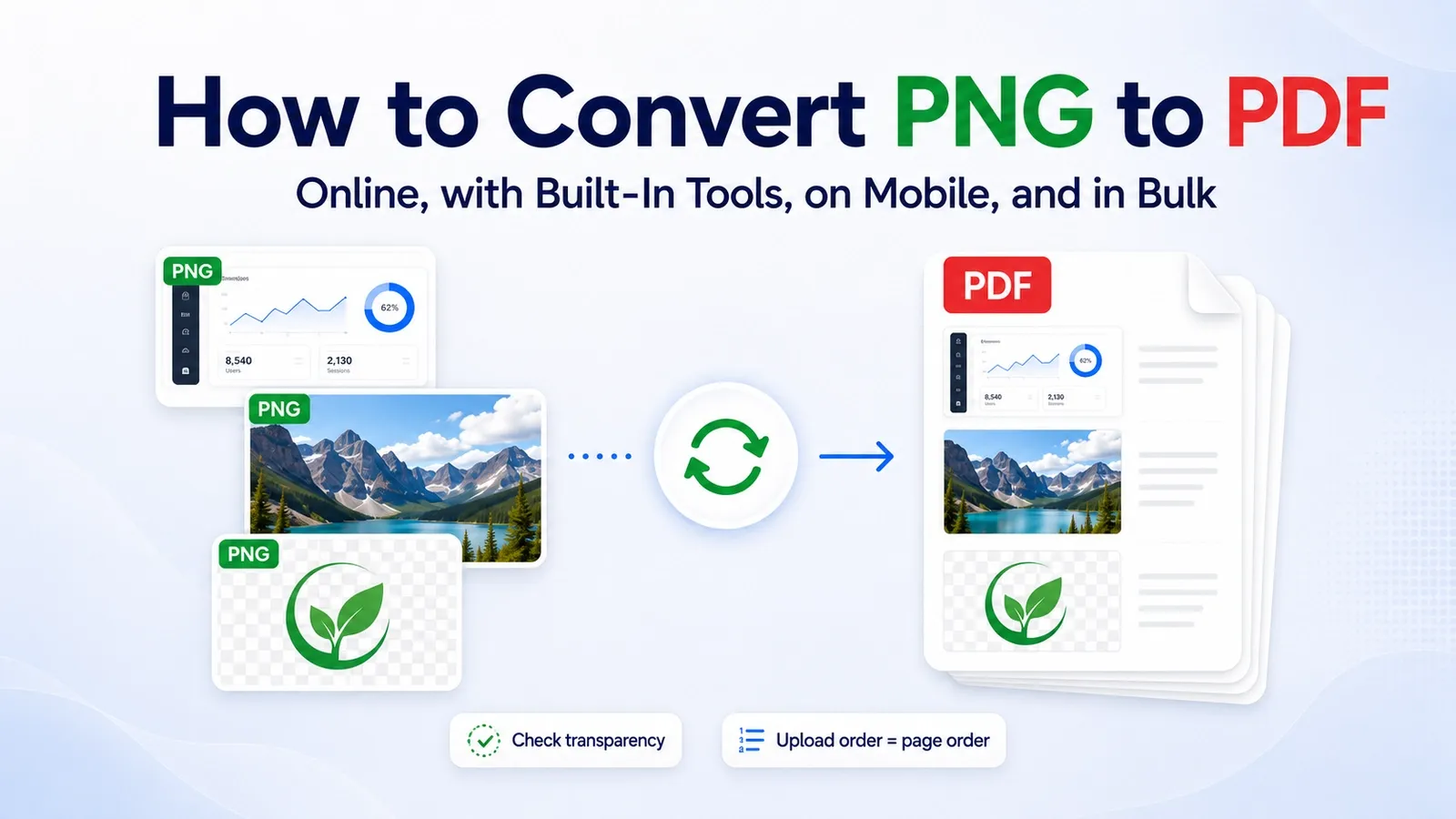
A PDF wrapper fixes a photo or image file such as a JPG, PNG, or HEIC to a page of a set size, so it opens the same way on every device and can hold several images in one file.
The fastest way to convert an image to PDF depends on the device you're using. If the picture is already on your phone, the mobile route is usually faster. If the images are on a laptop, Windows, Mac, or an online converter may make more sense.
This guide covers how to convert an image to PDF online, which image formats work best, how to do it on Windows, how to do it on Mac, how to convert pictures on iPhone and iPad, how to do it on Android, and how to combine several images into one PDF.
The step many guides skip is page order. When you convert several images into one PDF, the final order may come from the upload order, filename sorting, Finder sorting, or Windows sorting, not always the order you expected.
Another thing is that converting an image to PDF does not create selectable text. If the image is a photo of a receipt, form, page, or document, the PDF holds a picture of the words, not the words themselves.
The image resolution still controls how sharp the PDF page looks. Later in this guide, the section on what changes when an image becomes a PDF explains what the file gains, what stays the same, and why text inside the image still cannot be selected.
How Do You Convert an Image to PDF Online?
Open the PDFNoob image to PDF converter, use drag-and-drop to add the image, convert it, then download the PDF. No installation, free to use, and no sign-up required.
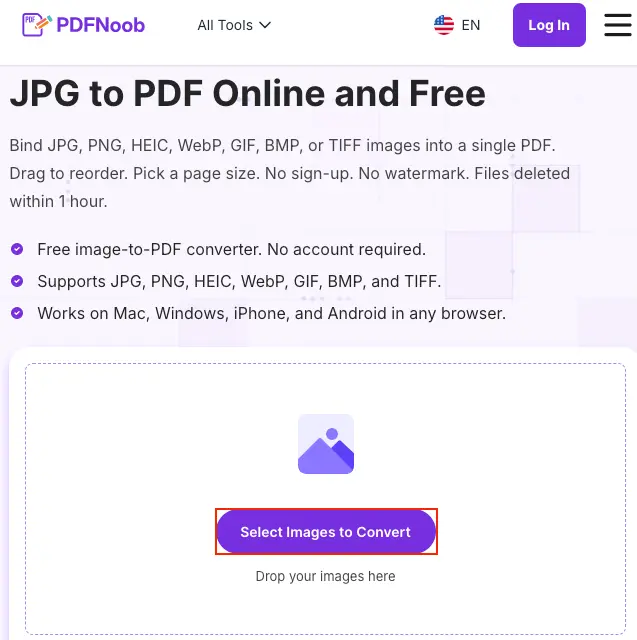
➤ Open the PDFNoob image to PDF tool.
➤ Click Select Images to Convert to choose the JPG or other supported image from your device.
You can also drag and drop your image directly into the upload area.
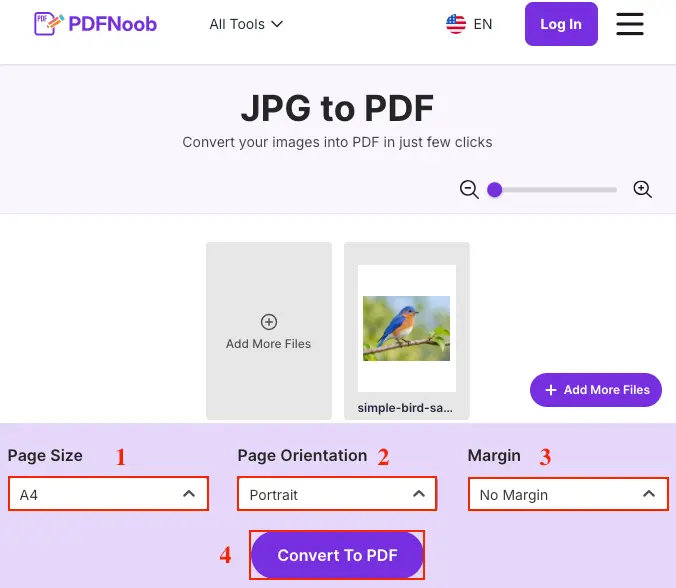
➤ Choose your preferred Page Size, Page Orientation, and Margin.
➤ Once everything looks right, click Convert To PDF.
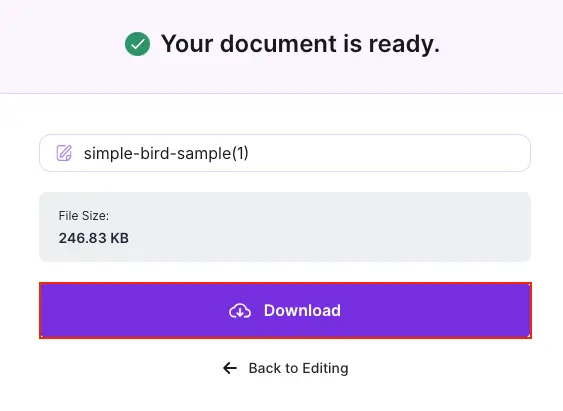
➤ Click Download to save the converted PDF to your device.
If you want to make changes before downloading, click Back to Editing.
PDFNoob accepts common formats such as JPG, JPEG, PNG, HEIC, WEBP, BMP, TIFF, and GIF.
After conversion, the image is placed onto a PDF page. The result opens as a PDF instead of a loose photo, but the image itself is still the visible content inside that page.
You can also add several images in one go. With batch conversion, each image usually becomes a separate page in the same PDF, so check the order before downloading the final file.
Before using any online converter, ask one question: is this image confidential?
If the image is a private document, ID, contract, invoice, or personal photo, check how the tool handles the file. A browser-based tool that processes locally does not upload the image, while a normal file upload sends the file away from your device for processing.
Which Image Formats Can You Convert to PDF?
You can convert JPG and JPEG, PNG, HEIC, WEBP, BMP, TIFF, and GIF images to PDF.
The fastest way to know which format you have is to check the file extension at the end of the filename. A file named photo.jpg, screenshot.png, or IMG_1234.heic tells you the image format before you open it.
Two formats cause the most confusion. JPEG and JPG are the same image format with two spellings. HEIC is what many iPhones save by default, which is why an iPhone photo can look unfamiliar when you move it to Windows.
A screenshot is usually PNG on every platform, while a camera photo is usually JPG or HEIC. A RAW camera file is different because it is not a ready-to-share image format, so it usually needs to be exported to JPG, PNG, or TIFF before you convert it to PDF.
| Format | Where it comes from | Converts cleanly? |
|---|---|---|
| JPG / JPEG | Camera photos, downloads, compressed web images | Yes |
| PNG | Screenshots, transparent graphics, design exports | Yes |
| HEIC | iPhone and iPad camera photos | Yes, if the converter supports HEIC |
| WEBP | Web images saved from websites | Usually |
| BMP | Older Windows images and bitmap exports | Yes, but the file can be large |
| TIFF | Scans, archives, and print workflows | Yes |
| GIF | Simple graphics or web images | Yes for a still image, but animation may not carry over |
| RAW | DSLR or mirrorless camera files | Usually no; export it first |
How Do You Convert an Image to PDF on Windows?
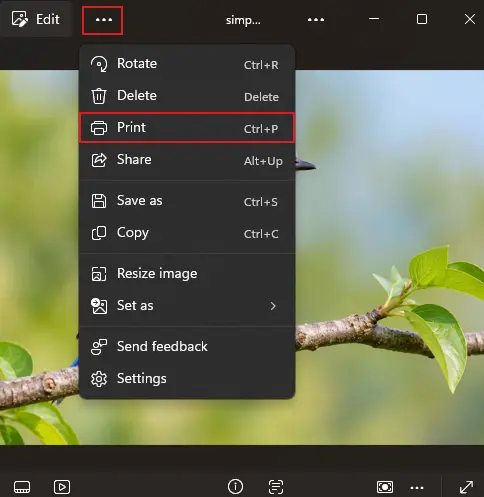
Open the picture in the Photos app, press Ctrl+P, choose Microsoft Print to PDF as the printer, then click Print and pick a folder to save the PDF.
➤ Open the image in the Photos app.
➤ Click the three-dot menu (•••) at the top.
➤ Select Print from the menu.
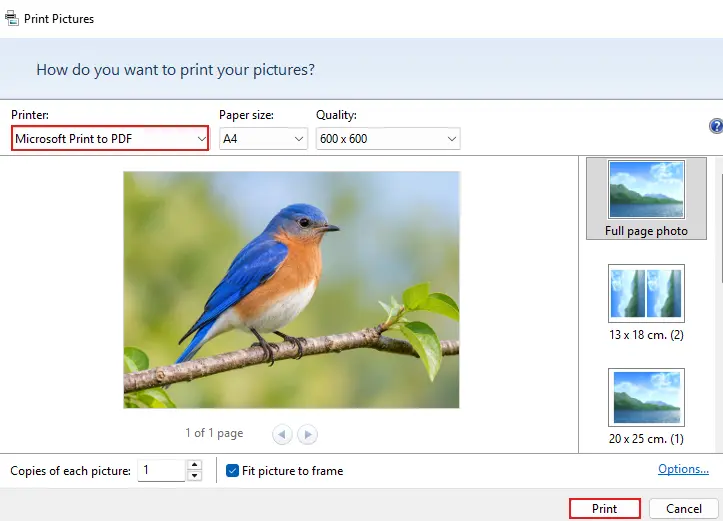
➤ In the Printer dropdown, select Microsoft Print to PDF.
➤ Click Print.
➤ Enter a name for the PDF in the File name field.
➤ Make sure PDF Document (*.pdf) is selected as the file type.
➤ Click Save to create the PDF.
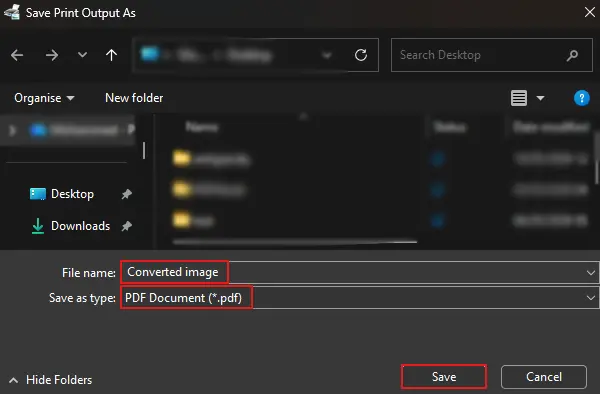
This does not send anything to a real printer. Microsoft Print to PDF is a virtual printer, which means Windows turns the image into a PDF file instead of printing it on paper.
If you want one PDF from several images, select the photos first, then print them together with Microsoft Print to PDF. Windows can place each selected image on its own PDF page.
The important part is the print dialog. Before you click Print, check the paper size, orientation, and preview.
Windows often places the image in the centre of a Letter or A4 page with white margins around it. If the preview shows too much space, tick Fit picture to frame or switch the paper size before printing.
Do not wait until after the PDF is created to fix it. The print dialog is the moment that decides the page size, layout, and how much white space frames the image.
How Do You Convert an Image to PDF on a Mac?
Right-click the image file in Finder, choose Quick Actions, then click Create PDF. The PDF appears next to the original image.
➤ Select the image in Finder and right-click it.
➤ Hover over Quick Actions.
➤ Click Create PDF. The new PDF lands beside the original.
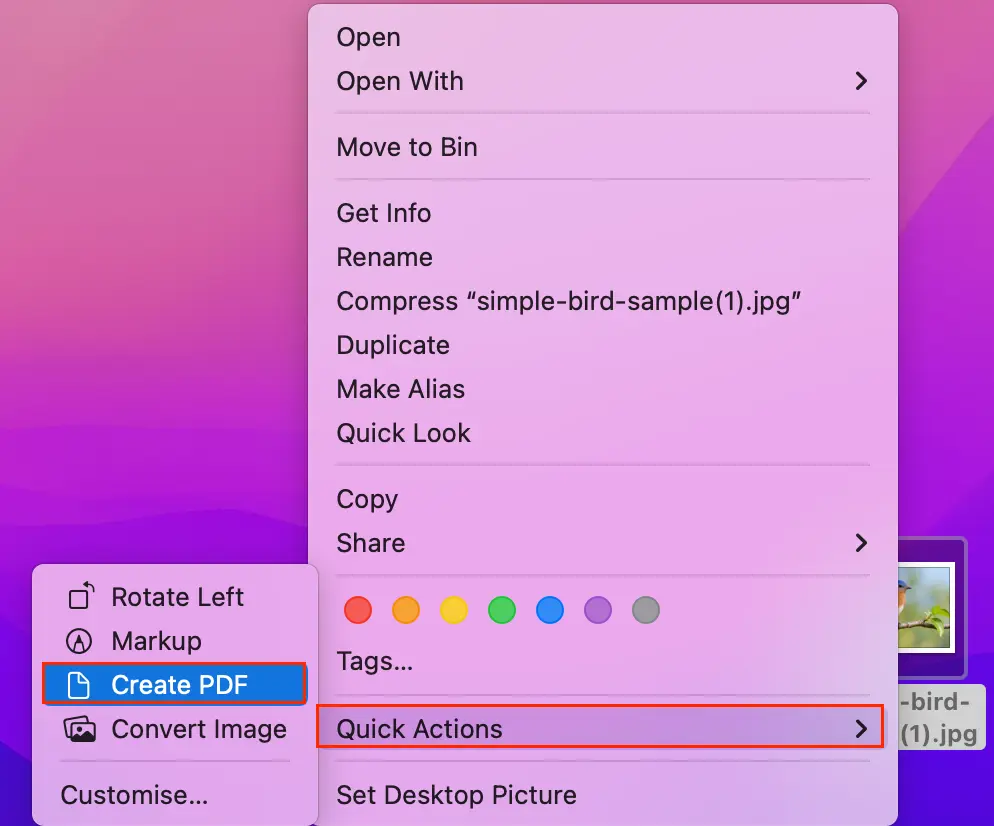
If you want control over the page settings, use Preview instead.
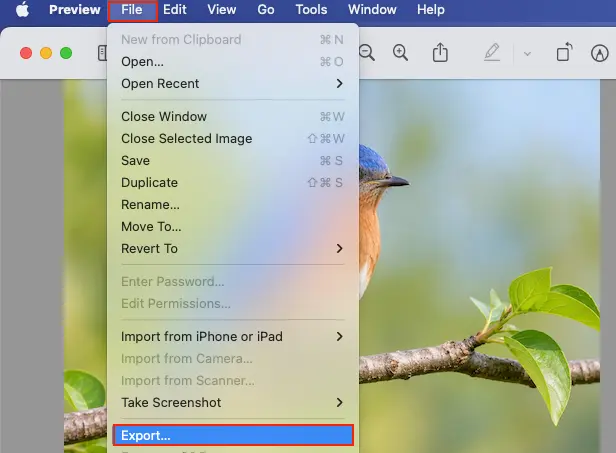
➤ Open the image in Preview on your Mac.
➤ Click File from the top menu bar.
➤ Select Export.
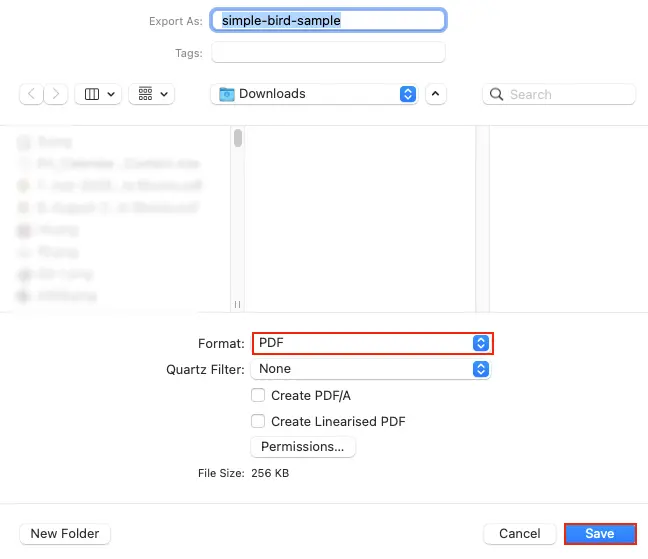
➤ Open the Format dropdown and select PDF.
➤ Click Save to export the image as a PDF.
You can also select several image files in Finder and use Quick Actions to build one PDF from all of them.
Before you do that, sort the Finder window by name or date first. Quick Actions silently uses the Finder sort order for multiple files, not the order you clicked the images.
That sort becomes the final page order in the PDF.
If the pages come out in the wrong order, open the PDF in Preview and drag the pages in the thumbnail sidebar until they are arranged correctly.
How Do You Convert a Picture to PDF on an iPhone or iPad?
Open the picture in the Photos app, tap Share, tap Print, then pinch outward on the preview in Printer Options to open it as a PDF. From there, share the PDF or save it to the Files app.
➤ Open the image in the Photos app on your iPhone.
➤ Tap the Share icon at the bottom-left corner.

➤ Scroll through the sharing options and tap Print.
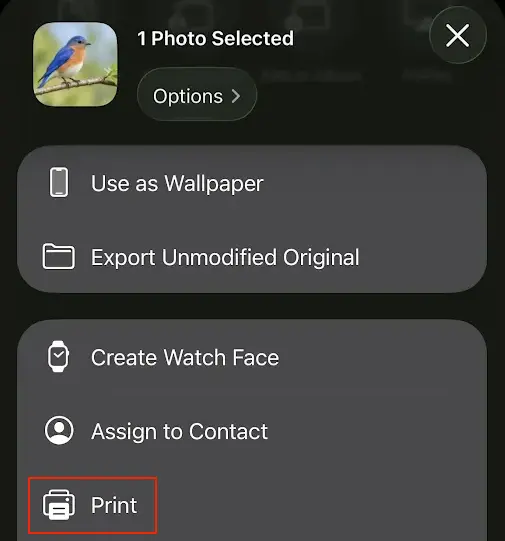
➤ On the Printer Options screen, pinch outward on the preview image. The preview opens full screen - that view is the PDF.
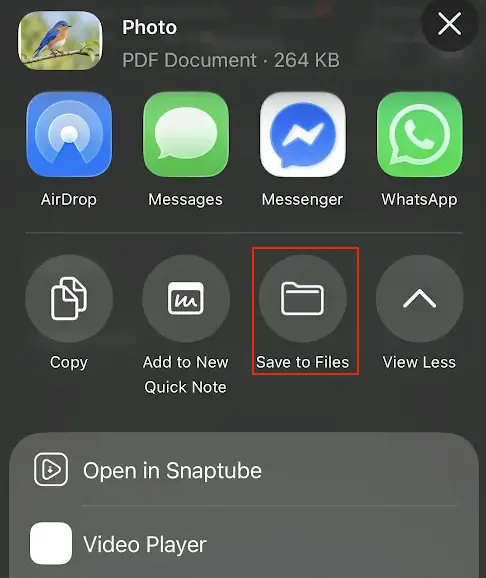
➤ From the PDF preview/share screen, tap Save to Files.
Choose the folder and save the image as a PDF.
If you want several pictures in one PDF, select the photos first in Photos, then open the share sheet and choose Print. The preview will turn the selected images into one PDF, usually with each photo on its own page.
Most iPhone photos are saved as HEIC, but you do not need to convert the image format first. The print route wraps the photo into a PDF from the preview screen.
The pinch step is the part that confuses people. There may not be a visible Save as PDF button on the print screen. When you pinch outward, you are opening the print preview full screen as a PDF view.
So if you are hunting for a separate PDF button, stop there. The enlarged preview is the PDF stage.
On newer iOS versions, the share sheet may also show a direct PDF option. If you see it, use that. If you do not, the Photos > Share > Print and then pinch-out route still works.
How Do You Convert a Picture to PDF on Android?
Open the image in Google Photos or your phone’s gallery, tap the menu, choose Print, pick Save as PDF from the printer list, then save the file.
The menu wording can change depending on the Android phone. On some devices, Print appears under the three-dot menu. On others, you may need to tap Share, More, or a similar option before you see Print- there's no single standard across manufacturers.
After you save the PDF, the file usually lands in your Downloads folder, Documents folder, or the location you choose in the file picker. Some phones may open the file manager so you can name the PDF before saving it.
You can also use Google Drive if you want the PDF saved straight to Drive. Open the image, choose Print, select Save as PDF, then choose Drive as the save location when Android asks where to put the file.
One limit matters on Android: the print sheet usually converts only what is currently on screen. A multi-select inside the gallery does not always create a multi-page PDF the way it can on iPhone or Mac.
If you need one PDF from many images, use the online route instead. Android’s built-in Print option is best for one picture at a time.
How Do You Combine Multiple Images Into One PDF?
Select every image first, then convert once. On Windows, Mac, iPhone, iPad, and most online converters, a multi-select can create one multi-page PDF with one image on each page.
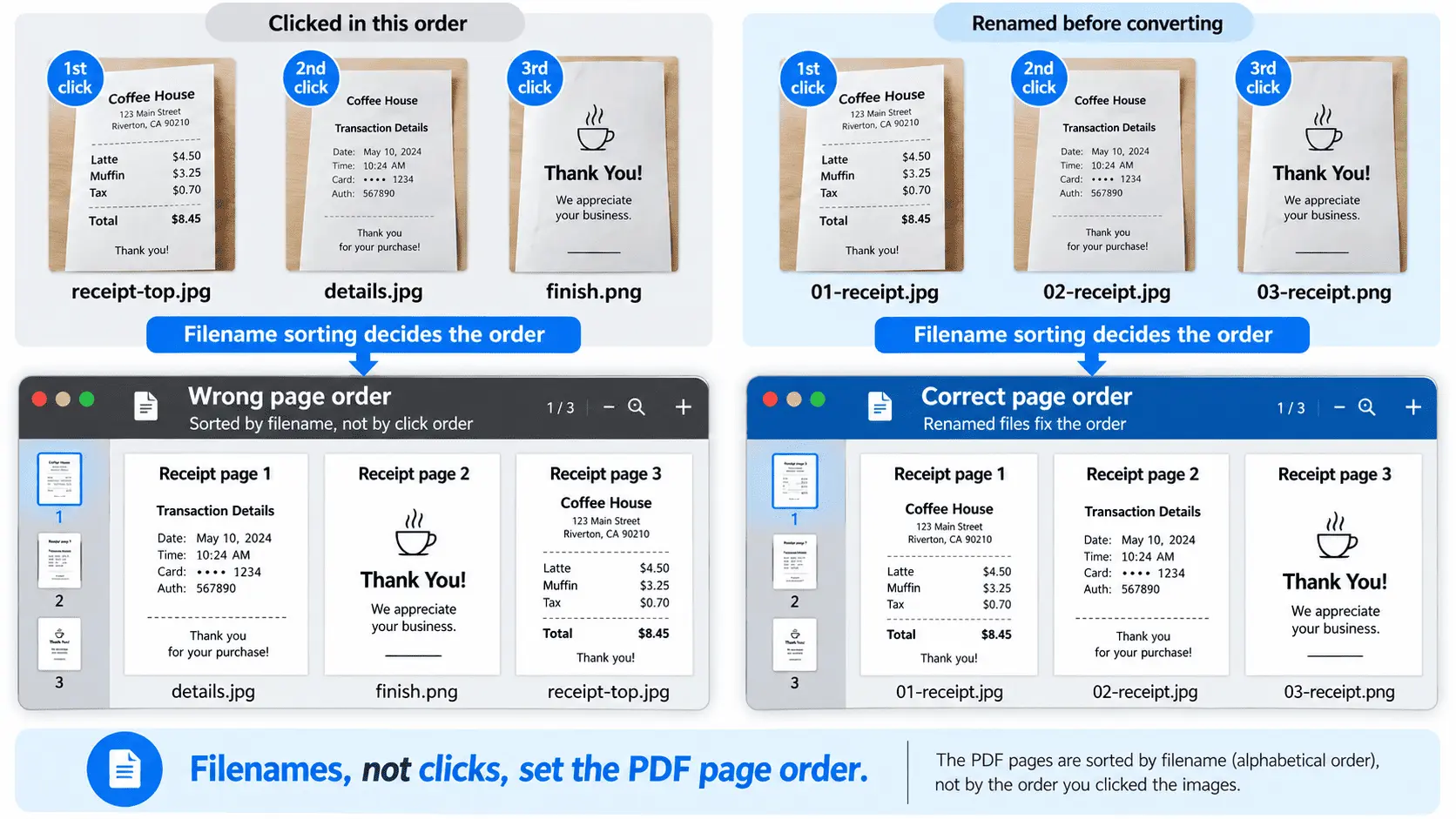
The part that matters most is page order. If the images are added in the wrong order, the PDF will still convert, but page 3 may appear before page 1, which is easy to miss until you send the file to someone.
Each route can decide the order differently. On Mac, Finder sort order usually controls the final PDF. Online tools usually follow the upload or selection order. On Windows, filename sorting often decides how the images are arranged.
The most reliable fix is to rename the source files before converting.
| Wrong order risk | Better filename |
|---|---|
| receipt-top.jpg | 01-receipt.jpg |
| details.jpg | 02-receipt.jpg |
| finish.png | 03-receipt.png |
Numbering files as 01, 02, 03 works across platforms because the converter, file manager, or print dialog can sort the images predictably.
You can also mix formats in one batch conversion. For example, one PDF can contain a JPG photo, a PNG screenshot, and a HEIC iPhone image, as long as the converter or device route supports those formats.
If the finished PDF opens in the wrong order, do not assume the conversion failed. The images were probably sorted by filename, upload order, or Finder order. Rename the source files, convert again, and check the preview before downloading or saving the final PDF.
What Changes When an Image Becomes a PDF?
The picture itself is unchanged, but it is now fixed to a page. That page has a page size, an orientation, and margins, while the original image only had pixels.
So if you convert a phone photo to PDF, the photo is not magically rewritten as a document. It is placed inside a PDF page structure so it opens in a more predictable way on different devices.
The text inside the image is still part of the picture. If the original file was a photo of a receipt, scan, form, or printed page, the PDF does not automatically create selectable text or searchable words. You would need OCR for that.
A straight image-to-PDF conversion also does not normally make the picture lower quality. It usually re-wraps the same image inside a PDF page instead of re-encoding the image itself.
That is why the file size may grow a little. The PDF carries the original image data plus extra page structure, such as page dimensions and layout information.
What actually shrinks a PDF is compression, downsampling, or resizing the image before or after conversion. The conversion step alone mainly changes the container, not the image detail.
| Before conversion | After conversion |
|---|---|
| Pixels only | A fixed page size |
| Image width and height | Page orientation |
| No document margins | Margins around the image |
| Visible text inside the picture | A page that still contains picture text, not selectable text |
| Image data only | PDF structure around the image |
| Device-dependent viewing | More consistent viewing across devices |
How Do You Convert a Transparent PNG Without a Black Background?
PDF pages don't support transparency, so converters flatten a transparent PNG onto a background colour. Usually the background colour is white if the converter handles the alpha channel cleanly, and sometimes black if it does not.
If a logo turns into a black box, flatten the PNG onto white before converting, or use a PNG to PDF converter that handles flattening for you.
How Do You Fix the Page Order After Converting?
You do not need to re-convert right away. Fix the page order by reordering the pages inside the PDF, or rename the source files and convert them again.
For two or three misplaced pages, reordering the PDF is usually faster. It leaves the images untouched and only changes where each page appears in the file.
For more than about five pages, renaming the source files is usually safer. Name the images 01, 02, 03, and so on, then convert them again with the PDFNoob image to PDF converter.
Renaming scales better than dragging pages one by one, especially when the wrong order came from filename sorting.
Why Is the PDF Larger Than the Photos You Started With?
The PDF is larger because it carries the original image data plus page structure, so the file size is normally a little bigger than the photos you started with.
The difference becomes more noticeable with full-resolution phone photos. A twelve-megapixel image does not always need to stay at full image resolution just to sit on an A4 PDF page. But the conversion step may still keep that original image data inside the file.
As a rough expectation, ten full-resolution phone photos can land near a 40 MB PDF. That can pass the usual email attachment limit before you realise the file is too large to send.
The fix is not to convert the images a different way. Convert them first, then use a Compress PDF tool to reduce the finished file size by compressing or downsampling the images inside the PDF.