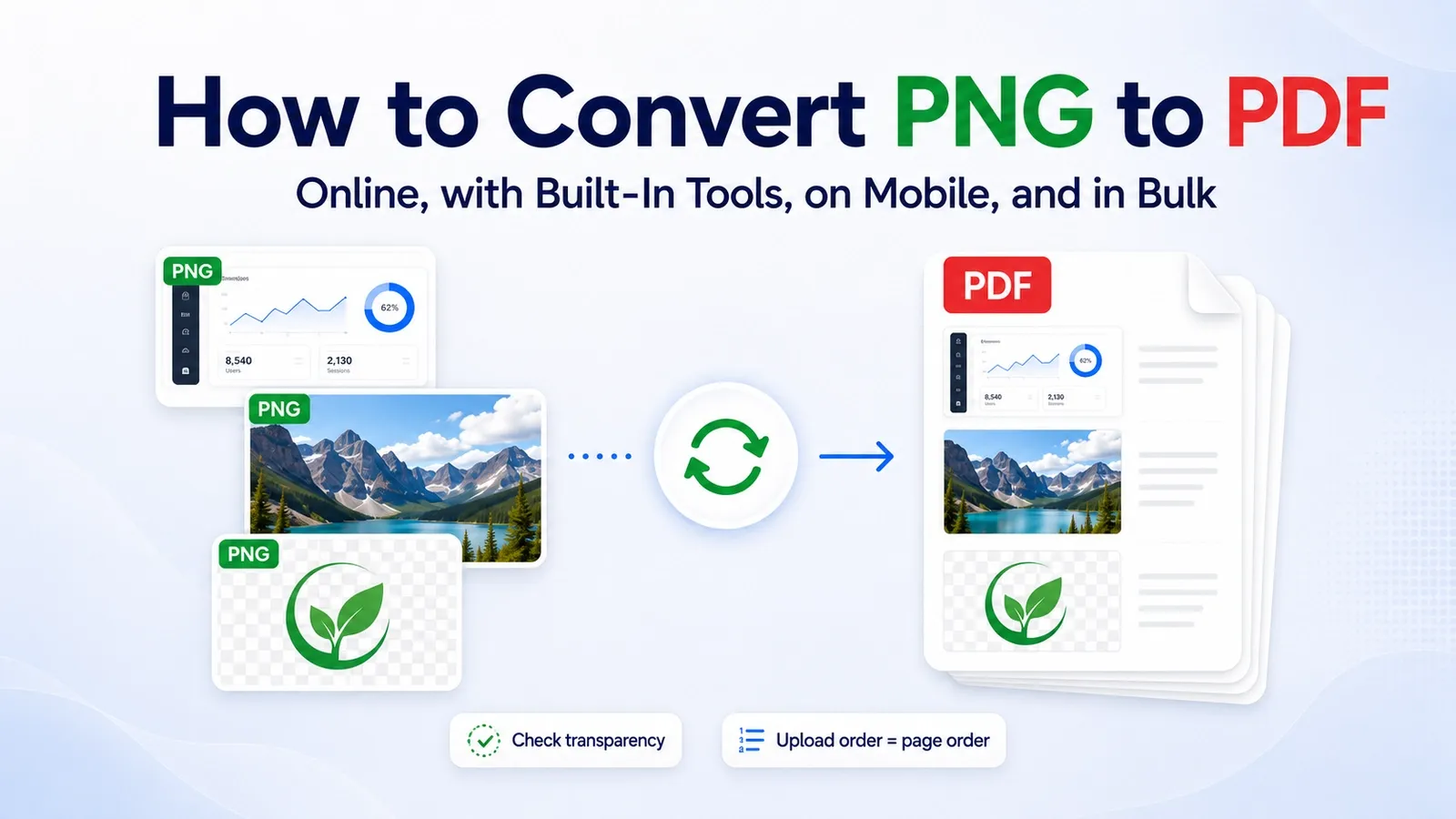
Converting a PNG to PDF wraps the image inside a page, gives that page a fixed size, and lets one or several images travel as a single document.
This changes the file from one image into a page-based document. A PNG normally holds one raster image, while a PDF can hold one page, many pages, and a fixed layout that opens more consistently across devices, printers, and upload portals.
The conversion does not improve the original image resolution. The PNG is placed onto the PDF page, so a blurry screenshot stays blurry, and a sharp image stays sharp only if the original pixels are strong enough.
Two details are especially easy to miss. The first is transparency. A PNG can keep a clear background through its alpha channel, but that transparency may not survive the same way once the image sits on a PDF page or gets printed.
For example, a logo saved on a transparent background can appear on a white fill, black fill, or another page background after conversion. If the final PDF will be printed or submitted, the background should be checked before sending.
The second detail is page order. When you upload several PNG files, the upload order usually becomes the page order in the finished PDF. If the screenshots, scans, or images are uploaded in the wrong sequence, the PDF pages usually follow that same order.
This guide explains why you would convert at all, what conversion changes, converting online, doing it without a converter, doing it on a phone, combining several PNGs, whether it is safe, and what to check before and after.
Why Should You Convert a PNG to PDF?
You convert a PNG to PDF so several images can travel as one multi-page document, open more consistently everywhere, and be printed, signed, or submitted where a PNG is not accepted.
The most common reason is document submission. Many school portals, job forms, tax forms, insurance forms, government sites, and business upload pages ask for PDF files instead of separate image files.
That means the conversion is often not a design choice. It is forced by a file format requirement, because the upload form accepts PDF only and rejects PNG, JPG, or other image formats.
For coursework, converting PNG screenshots or scanned pages into PDF helps keep everything in one file. Instead of sending five separate images, the reader gets one document with pages in order.
For expense claims, a PDF can hold receipts, payment screenshots, invoice images, and proof of purchase together. That makes the claim easier to review, and it means no single receipt gets lost as a separate attachment.
For ID scans, a PDF can keep the front and back of an ID card together in one file. It also makes the file easier to upload when a portal asks for “one document” instead of multiple images.
PDF also works better for printing. A PNG may open at different sizes depending on the app, but a PDF places the image on a page with a fixed layout, which makes printing more predictable.
So the main reason to convert PNG to PDF is simple. PDF is easier to submit, print, sign, organize, and share when the receiver expects a document instead of loose image files.
What Changes When You Convert a PNG to PDF?
Converting a PNG to PDF places the image onto a fixed-size PDF page, so it keeps one layout on screens, printers, and upload systems.
A PNG holds one raster image. It is made of pixels, which means the file stores the visible image itself, not pages, margins, document structure, or multiple page slots.
A PDF works differently because it holds pages. When you convert one PNG, the image becomes an embedded image placed on a page with a set page size.
When you convert several PNG files, each image can become its own PDF page. That is how separate screenshots, scans, receipt images, or ID photos can become one document instead of several loose image files.
The pixels are not redrawn during conversion. The converter places the PNG into the PDF as image content, so the file structure changes, but the original image detail does not magically improve.
That means a blurry screenshot stays blurry after conversion. If the PNG is low resolution, the PDF may be easier to submit or print, but it will not become sharper just because it now sits on a page.
So the main change is format and layout, not image quality. The PNG moves from being a single image file to being image content inside a page-based PDF document.
How Do You Convert a PNG to PDF Online?
Upload the PNG to an online converter, choose whether you want one PDF per image or one combined PDF, then download the result. Here is the simple process:
➤ Open the PDFNoob PNG to PDF converter.
➤ Drag PNG images to the Upload PNG to Convert section.
You can add several PNG files if you want batch conversion.
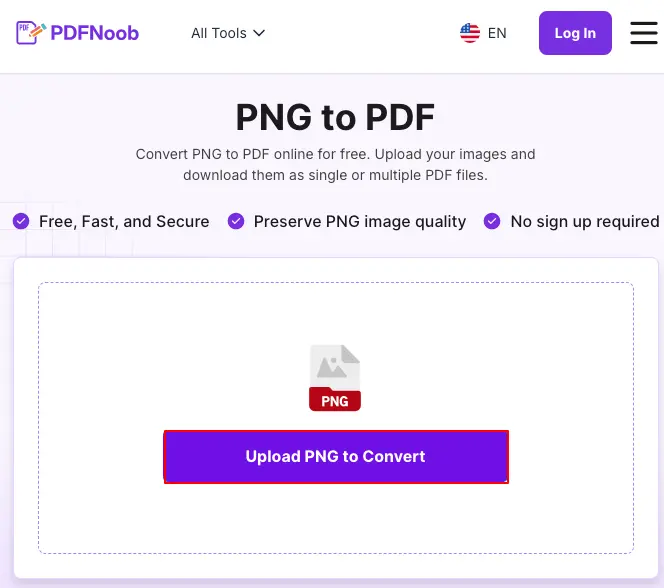
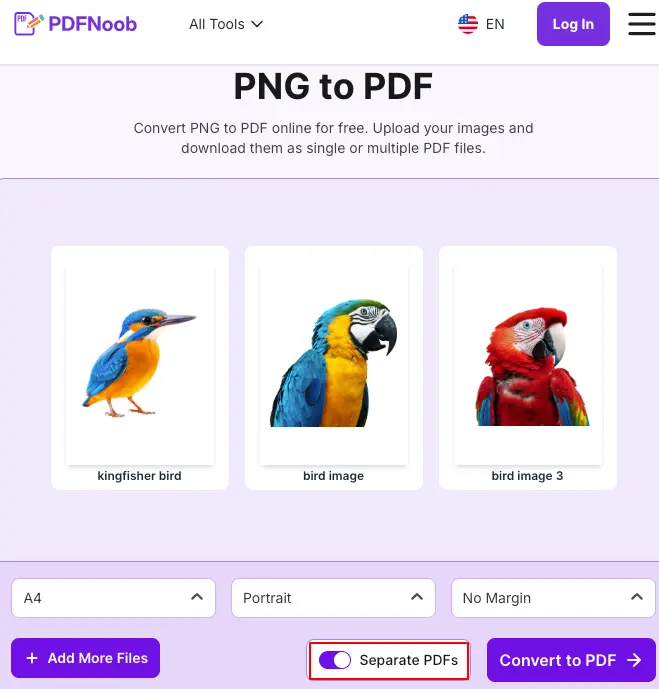
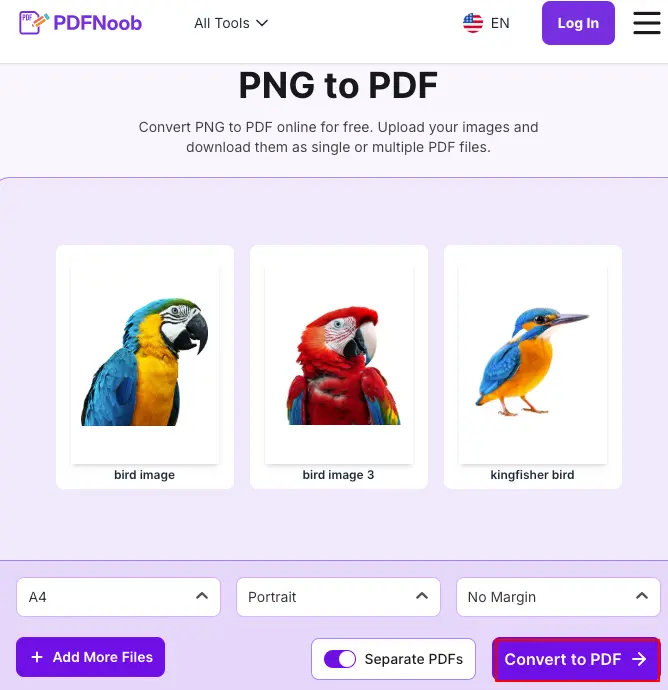
After uploading, check the output settings before you convert. By default, the PNG files should become pages inside one document. If you want separate files for each image,
➤ Turn on the Separate PDFs button.
➤ Drag the images to maintain image order before converting.
This is really helpful when you upload screenshots, scans, receipts, or ID images.
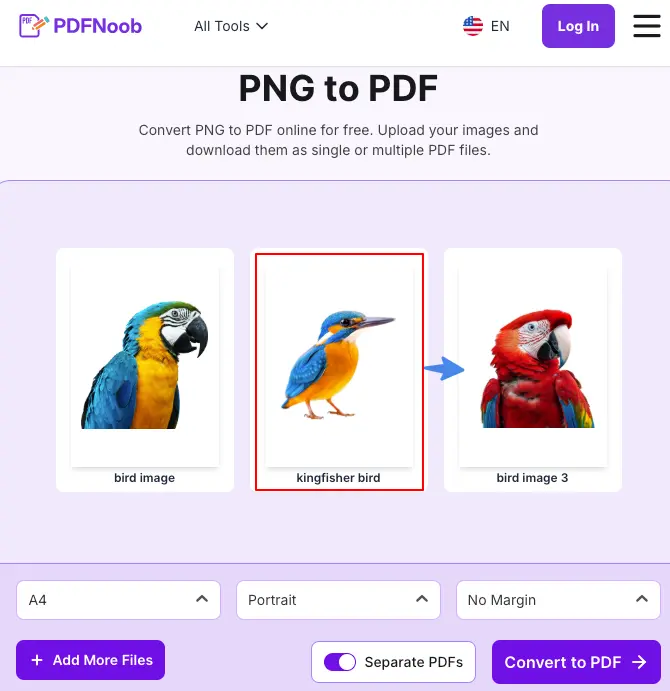
You can also choose the page size and orientation, and set the margins.
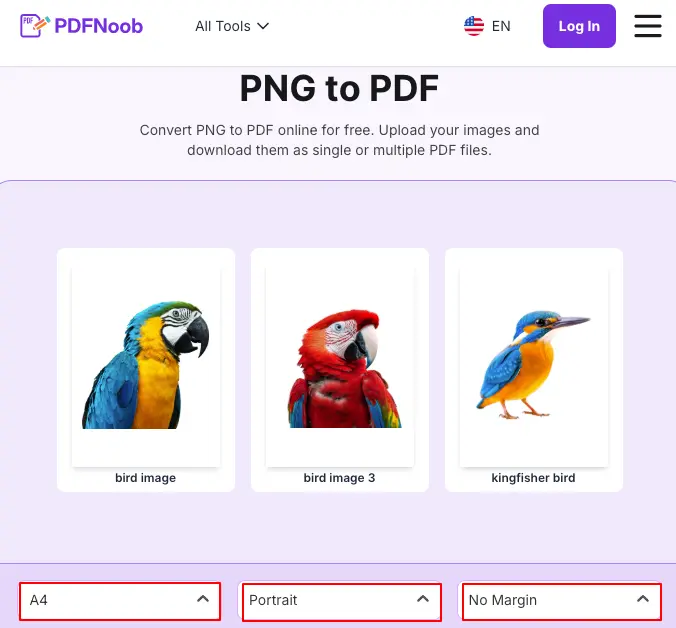
➤ Now, click Convert to PDF to start conversion.
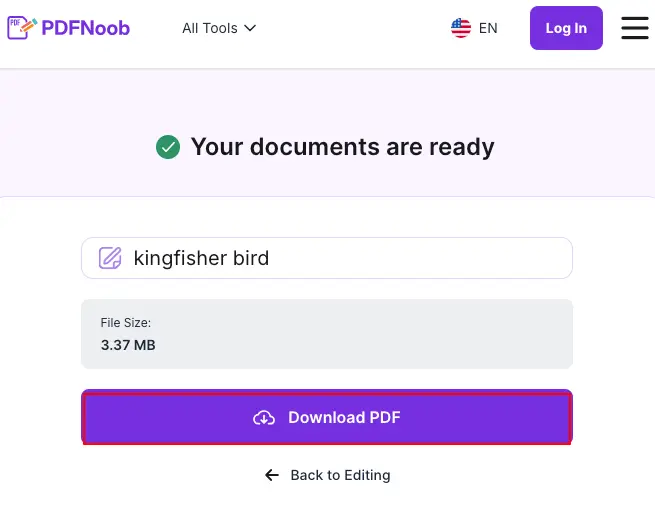
➤ Save the PDF by clicking Download PDF.
That is the full online route. If you want to change something you missed, you do not need to upload the files again. Click the Back to Editing button to return to the editing window.
No account is needed on PDFNoob. The process is mainly upload, choose the output, convert, and download. Check the output option before converting. Choose one PDF for all images or a separate PDF for each image.
How Do You Turn an Image into a PDF Without a Converter?
On Windows, you can open the PNG in Photos and print it to Microsoft Print to PDF. On Mac, you can open the image in macOS Preview and export as a PDF, with no extra software.
For Windows, follow the instructions below.
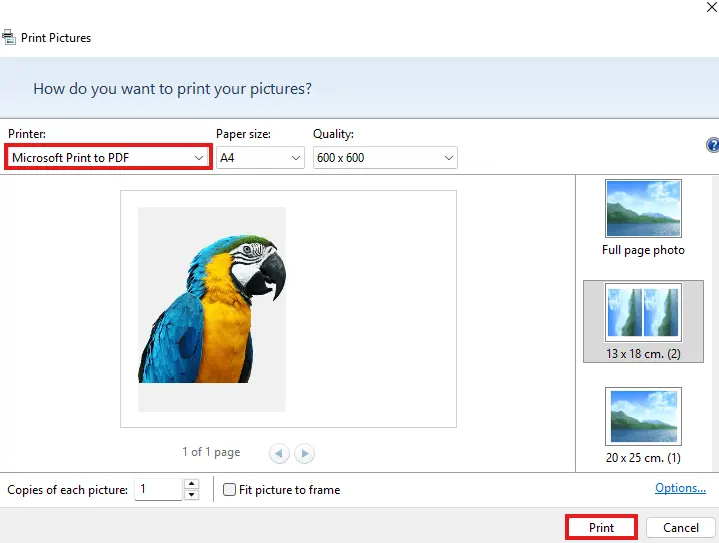
➤ Open the image and go to Edit > Print.
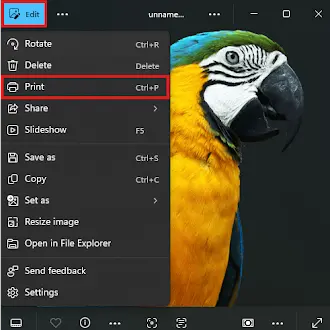
➤ Choose Microsoft Print to PDF as the printer.
➤ Click Print.
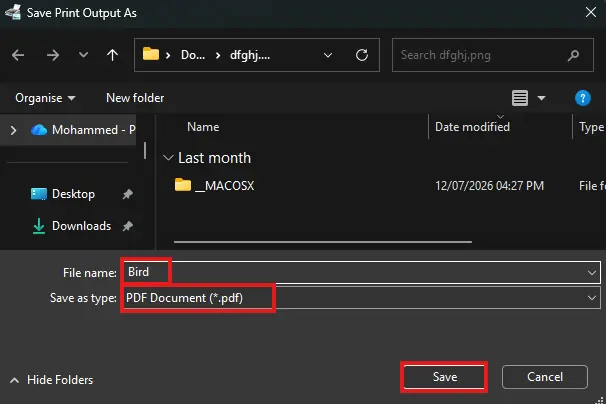
➤ Provide a file name and choose PDF in the Save as type section.
➤ Hit Save.
Thus, you can convert an image into PDF without a converter.
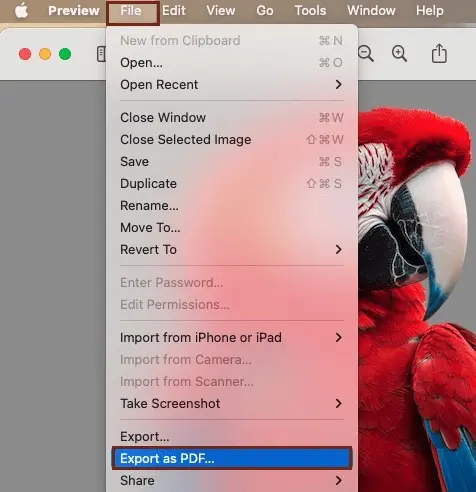
For macOS, follow the instructions below.
➤ Open the PNG image in macOS Preview, and click File > Export as PDF.
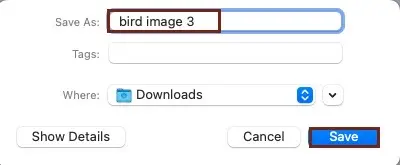
➤ Name the file and click Save.
This way, you can easily convert an image into a PDF using macOS.
This built-in method works comfortably for one image at a time. It is useful for a single screenshot, receipt, scan, logo, or ID image when you do not want to use an online converter.
The main thing to watch is page setup. Built-in print routes apply a printer-style page size, so a wide screenshot may become a letter-shaped PDF page with page margins around it.
On Windows, change the paper size, orientation, and fit settings in the Print screen before saving. On Mac, check the page setup, scale, or export options before saving if the image needs to fit a specific page size.
How Do You Convert a PNG to PDF on iPhone or Android?
On iPhone, open the image in the Files app and use Create PDF, or use the pinch-out gesture on the print preview. On Android, use Print and choose Save as PDF.
For iPhone using the Files app:
➤ Open the PNG in the Files app.
➤ Touch and hold the image.
➤ Choose Quick Actions if it appears.
➤ Tap Create PDF.
➤ Save or move the new PDF where you need it.
For iPhone using the Print sheet:
➤ Open the PNG in Photos or Files.
➤ Tap Share.
➤ Choose Print.
➤ On the print preview, pinch outward on the image preview.
➤ When the PDF preview opens, tap Share again.
➤ Save the PDF to Files or send it where needed.
For Android:
➤ Open the PNG in your Gallery, Google Photos, or file manager.
➤ Tap Share, More, or the three-dot menu.
➤ Choose Print.
➤ Select Save as PDF as the printer or destination.
➤ Check the paper size, orientation, and page fit.
➤ Save the PDF.
The iPhone pinch-out gesture is one of the fastest built-in routes. It is easy to miss because it sits inside the Print sheet. On both iPhone and Android, check the page preview before saving. A tall screenshot, wide image, or cropped scan may need a different orientation or fit setting before the PDF is ready to upload or share.
How Do You Combine Several PNG Images into One PDF?
Upload all the PNG files at once, choose the combine option, and the converter will create one multi-page PDF with one image on each page.
This is useful when several screenshots, scanned pages, receipts, forms, or ID images need to travel as one document instead of separate files.
Before converting, check the page order. The order you upload the PNG files usually becomes the order of the pages in the finished PDF.
If the converter lets you drag and reorder images, arrange them before you start the conversion. Once the PDF is created, changing the order usually means reordering pages afterwards or converting the images again.
File naming can also create problems during a batch upload. Files named screenshot (1), screenshot (10), and screenshot (2) may sort in the wrong order because some systems read the file names alphabetically, not by the order you expect.
A safer method is to rename the files with leading zeros before uploading. For example, use screenshot-001, screenshot-002, screenshot-003, and screenshot-010 so the files stay in the correct sequence.
So the process is to upload all images together, choose one combined PDF, check the order before converting, and rename the files first if the sequence matters.
Is It Safe to Convert PNG Files to PDF Online?
It is safe to convert PNG files to PDF online when the converter clearly states where the file goes, how it is protected, and when it is deleted.
For PDFNoob, uploaded files are sent over HTTPS, deleted within one hour, and not used for AI training. That means the file is transferred securely, kept only for a short file retention window, and not reused to train models.
For any online converter, check two things before uploading. First, look for a clear deletion policy. A tool should say whether files are deleted instantly, after one hour, after a day, or after another fixed time.
Second, check whether the service says anything about training data. If a converter is vague about whether uploaded files are used for AI training, avoid uploading private, legal, financial, school, or business documents.
This matters more with PNG files than many people expect. A screenshot can show names, account numbers, email addresses, order IDs, private messages, browser tabs, or an email in the browser bar.
The contents of those screenshots are the real privacy risk. The file may look like “just an image,” but it can contain personal details that should not sit on someone else’s server longer than necessary.
So use a converter with HTTPS, a clear retention window, short deletion timing, and a direct answer on AI training before uploading sensitive PNG files.
What Should You Check Before and After Converting?
Before converting, check transparency and page order. After converting, check page size, image sharpness, and whether every PNG made it into the PDF.
Follow the short pre-flight list before conversion.
- Check transparent PNGs, especially logos, signatures, icons, and artwork with clear backgrounds.
- Put the images in the correct order before uploading, because upload order often becomes PDF page order.
- Confirm whether you need one combined PDF or separate PDFs before starting the conversion.
Follow the post-flight list after conversion.
- Open the finished PDF and check the page size.
- View the PDF at 100% before sending it, because that is the size a reader will usually print at.
- Check image sharpness, especially for screenshots, scanned pages, receipts, and ID images.
- Count the pages to make sure every PNG was included.
- Look for obvious problems such as cropping, rotation, stretching, white margins, or missing images.
What Happens to a Transparent PNG Background in a PDF?
A transparent background is usually filled with white when the PNG becomes a PDF page, so logo artwork made for a dark site can look boxed-in after conversion.
The reason is the PNG’s alpha channel. In simple terms, the alpha channel is the part of the image file that tells an app which parts should be clear, partly clear, or solid.
A PDF page still needs a visible page background when the file is opened, shared, or printed. When the transparent PNG is placed onto that page, the clear area may be shown as a white fill, a black fill, or another background depending on the converter, PDF viewer, or print setup.
This matters most for logos, signatures, icons, stamps, badges, and product images. A graphic that looked clean on a website can suddenly appear inside a white rectangle when it sits on a PDF page.
If transparency matters, place the image on the background color it will actually sit on before converting. For example, if a white logo will be used on a dark page, put it on that dark background first, then convert it to PDF.
That way, the finished PDF keeps the intended look instead of relying on the PDF viewer or printer to guess how the transparent area should appear.
How Do You Keep a PNG Sharp When It Becomes a PDF?
Sharpness comes from the PNG’s own pixel dimensions, so start with the largest version you have. Converting cannot add detail that was never captured.
A PNG that looks fine on a phone or laptop can still print soft because screens and paper judge detail differently. On screen, the image may look clear because it is shown small. On paper, the same pixels may be stretched across a larger page.
That is where print resolution matters. If the PNG does not have enough pixels for the page size, the PDF can only place the image as it is. It cannot invent clean edges, small text, or missing details.
For a full-page image, a practical target is roughly 2,500 pixels across. That gives the PDF enough image data for a page-sized result without making the file unnecessarily huge.
Avoid heavy upscaling before conversion. Enlarging a small PNG may make the file dimensions bigger, but it usually does not improve real image quality.
After using a PNG to PDF converter, open the finished PDF at 100% and check small text, edges, screenshots, signatures, receipts, or ID details before sending.
In short, use the largest clean PNG available, avoid enlarging tiny images, and check the PDF at the size people will actually read or print.
How Do You Go the Other Way, from PDF Back to PNG?
Converting the other way turns each PDF page into its own PNG image. This reverse trip is called PDF to PNG, and it uses a different tool from PNG to PDF conversion.
The process works through page rendering. Instead of pulling the original PNG back out exactly as it was, the converter draws each PDF page as a new image file.
That means a round trip does not restore the original PNG. If you convert PNG to PDF and later convert that PDF back to PNG, the result is a newly rendered image of the PDF page, not the untouched source image.
This matters when the original file had transparency, exact pixel dimensions, or very sharp small details. Those details may change because the PDF page has been rendered again into a new PNG.
For the reverse workflow, the companion guide on how to convert PDF to PNG covers the steps in detail. That guide belongs to the opposite task: turning PDF pages back into image files.