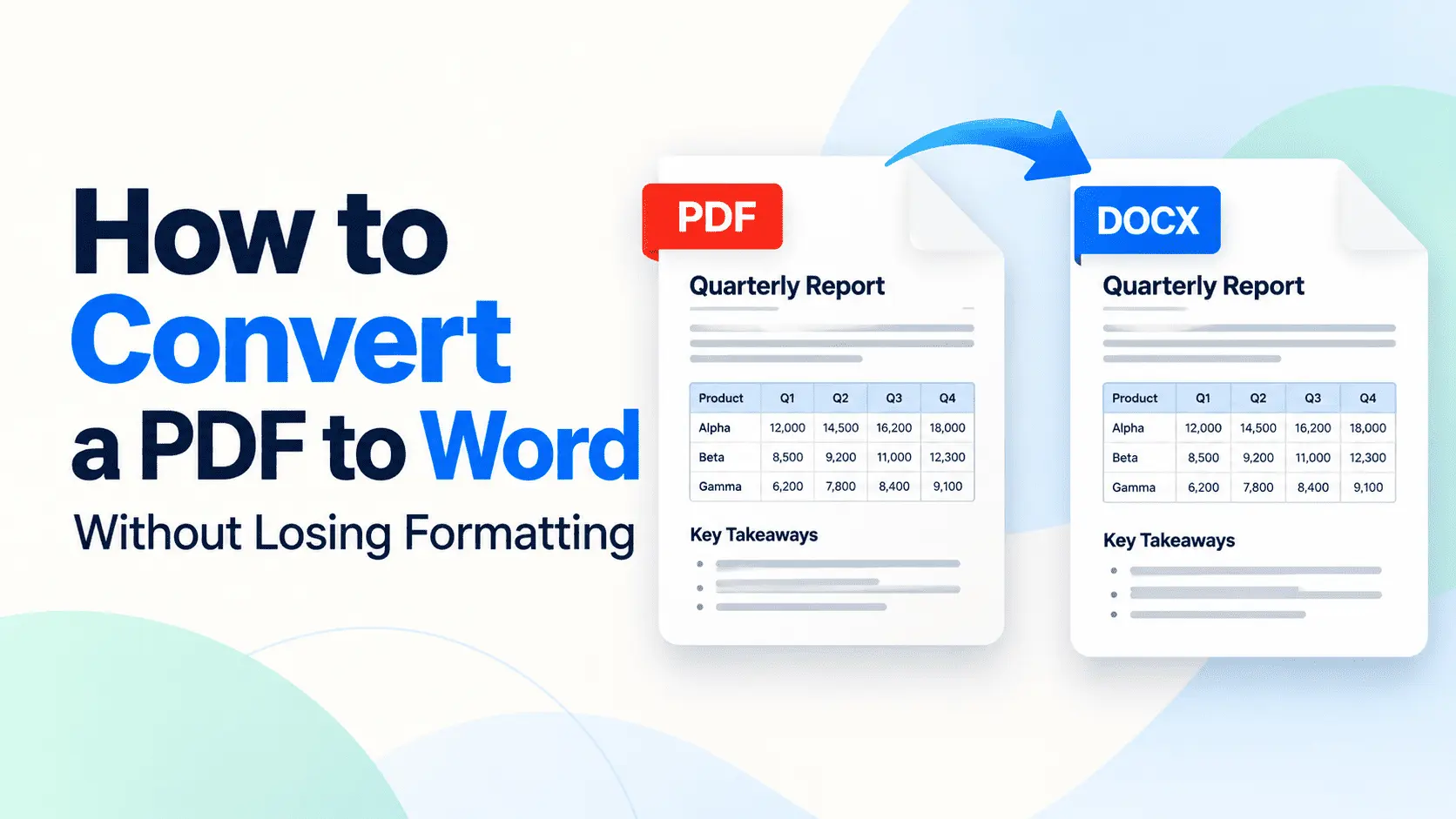
PDF to Word conversion rebuilds the fixed pages of a PDF into flowing paragraphs, tables, and images that you can edit in Microsoft Word. But the converter has to guess how those elements fit together, which is why the finished document may not look exactly like the original.
Before choosing a method, check one thing: is your PDF made of selectable text or scanned images?
Open the PDF and try to highlight a sentence. If you can select individual words, the file likely has a text layer that can become editable text. If the entire page behaves like one picture, converting it without text recognition may leave you with images inside a Word file instead of words you can edit.
This guide starts with what you actually get in DOCX format, then explains how to convert a PDF online, directly in Microsoft Word, through Google Docs, and on a phone. You'll also learn the difference between inserting and converting a PDF, why formatting moves, how to fix tables and fonts, how to check whether online conversion is safe, and which method offers the best layout fidelity.
One important thing to know upfront: simple paragraphs, standard fonts, and single-column documents usually survive conversion well. Complex tables, columns, and footnotes may need repairs, while interactive form fields, original accessibility structure, and some vector graphics may not survive in their original form.
We'll look at exactly what Word can preserve, what usually breaks, and what no converter can guarantee, so you can choose the right method without testing tools.
What Do You Get When You Convert a PDF to an Editable Word File?
Converting a PDF to Word gives you a .docx file you can type in, not an identical copy of the original page. The words and images usually come across, but the converter has to rebuild the layout by guessing where paragraphs, tables, and other elements belong.
Before converting, try a simple test that takes less than a minute. Open the PDF and drag your cursor across a sentence. If individual words highlight, the PDF has selectable text, often stored in a text layer, that can usually become editable text in Word.
If nothing highlights and the entire scanned page behaves like one picture, the PDF may be image-only. Without text recognition, the converted Word file may contain full-page images instead of words you can edit.
You can recognize the difference immediately. In a successful text conversion, you can click inside a paragraph, delete a word, or rewrite a sentence. In an image-only conversion, clicking the page selects a picture, and you cannot change individual words.
The reason is simple: a PDF keeps content in fixed positions on a page, while Word lets paragraphs and other elements move as you edit them.
Not everything in a PDF survives the move to DOCX format. Simple text and layouts usually transfer well, but complex designs can lose their original structure.
| Element | What happens to it | What to do about it |
|---|---|---|
| Words and paragraph text | Usually become editable text | Check for missing words, unusual spaces, and broken paragraphs |
| Single-column layout | Usually stays close to the original | Compare page breaks and paragraph spacing |
| Standard fonts | Often remain the same if the fonts are available | Check for font substitutions before making edits |
| Plain tables | Usually become editable tables, although spacing may change | Check cell borders, widths, and alignment |
| Multi-column layout | Columns may merge or appear in the wrong reading order | Check the column sequence and repair section breaks |
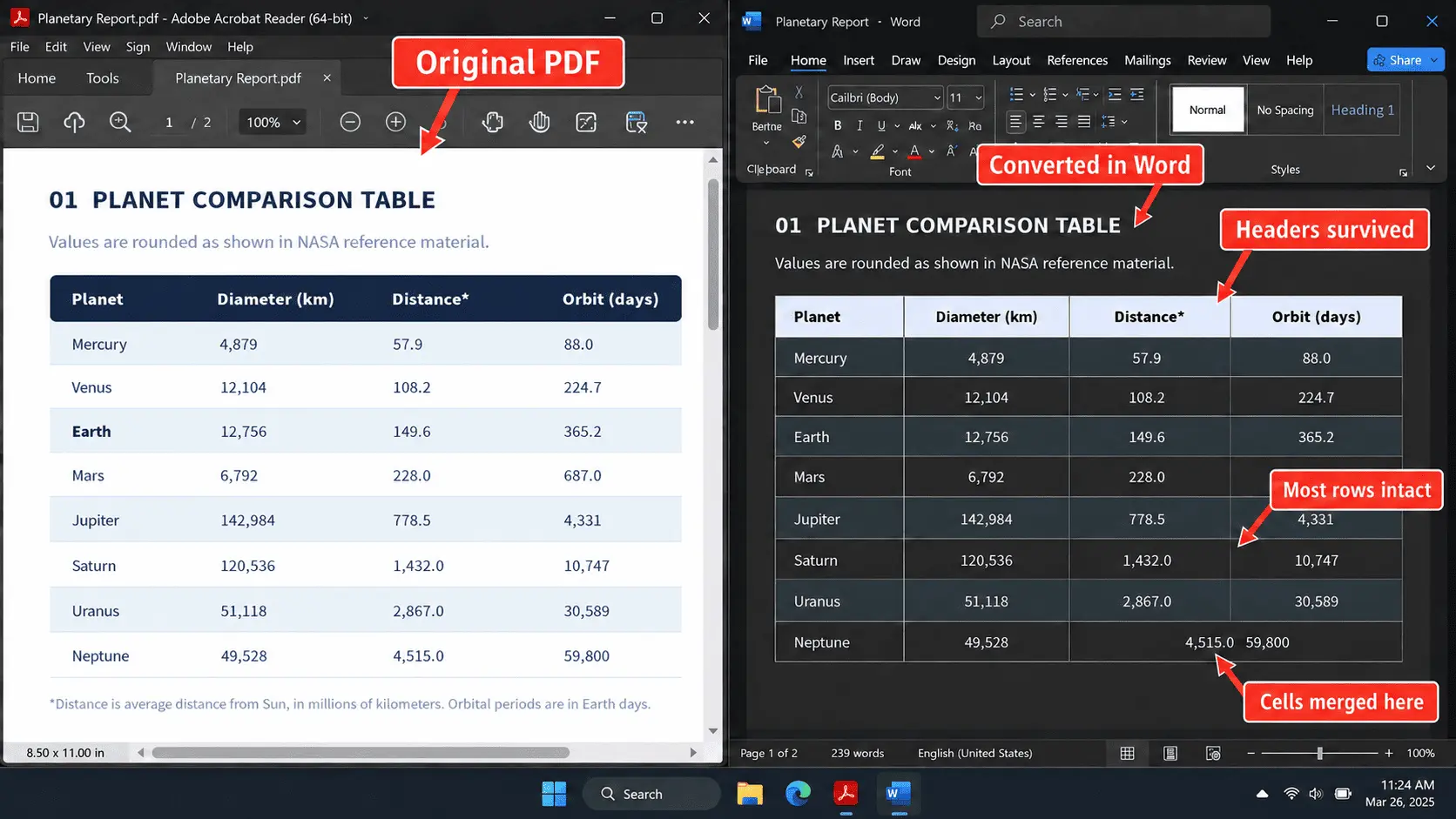
| Tables with merged cells | Cells may split, shift, or lose their original structure | Repair merged cells or rebuild the affected table |
| Footnotes and bullet numbering | Notes, numbering, or indentation may change | Check footnote placement and restart incorrect numbering |
| Complex reading order | Text may appear in the wrong sequence | Rearrange paragraphs and text boxes manually |
| Vector graphics | May become pictures or lose their original vector structure | Keep the original artwork if you need to edit it |
| Interactive form fields | May become static text or shapes rather than editable Word form controls | Recreate the necessary form fields in Word |
| Tagged structure for screen readers | Original PDF accessibility tags may not transfer correctly | Reapply heading styles, image descriptions, and logical reading order |
A simple letter or single-column report may need only minor adjustments. A document with columns, merged tables, illustrations, or interactive fields may require more work.
If the converted document looks different, that does not automatically mean you chose the wrong tool. Some formatting can be repaired in Word, but other elements must be rebuilt because the original PDF structure does not transfer directly.
How Do You Convert a PDF to Word Online?
Open an online converter, drop in your PDF, wait for it to process, and download the converted .docx file. You can do this directly in your browser without installing software or creating an account.
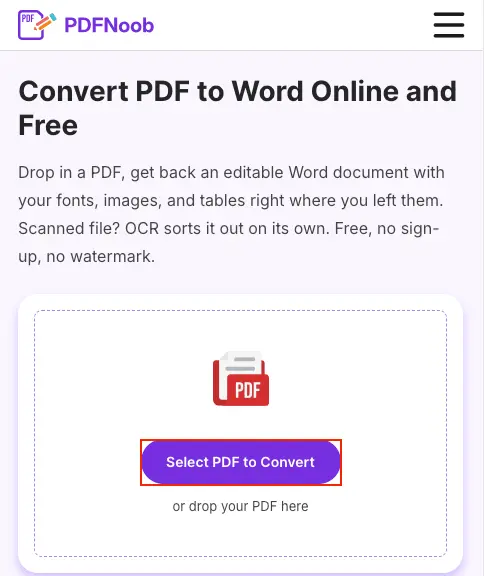
➤ Open the PDFNoob PDF to Word converter tool.
➤ Click Select PDF to Convert to upload your PDF file.
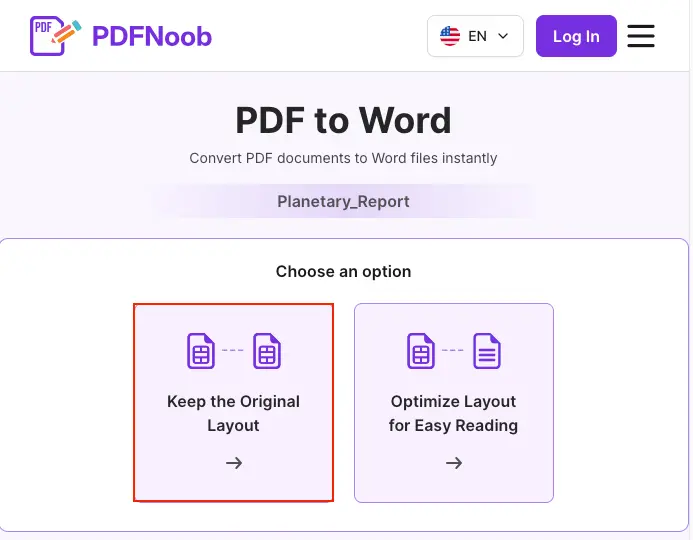
➤ Choose Keep the Original Layout to preserve the PDF's text, images, tables, and formatting as closely as possible.
You can choose Optimize Layout for Easy Reading to prioritize a cleaner, more readable Word document. The text and layout may be reorganized, making the document easier to read and edit.
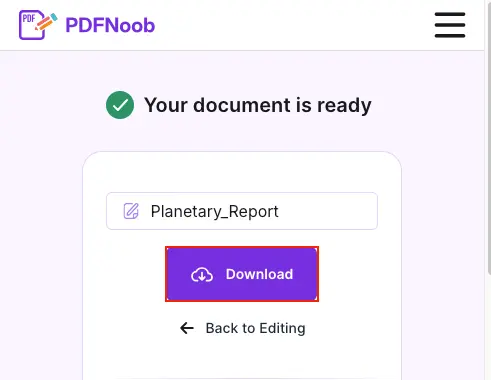
A scanned PDF takes longer, so keep the tab open until the Download button appears.
➤ Click Download to save the editable Word document to your device.
Open the converted Word file and compare it with the original PDF to check whether the text, tables, and formatting are preserved correctly.
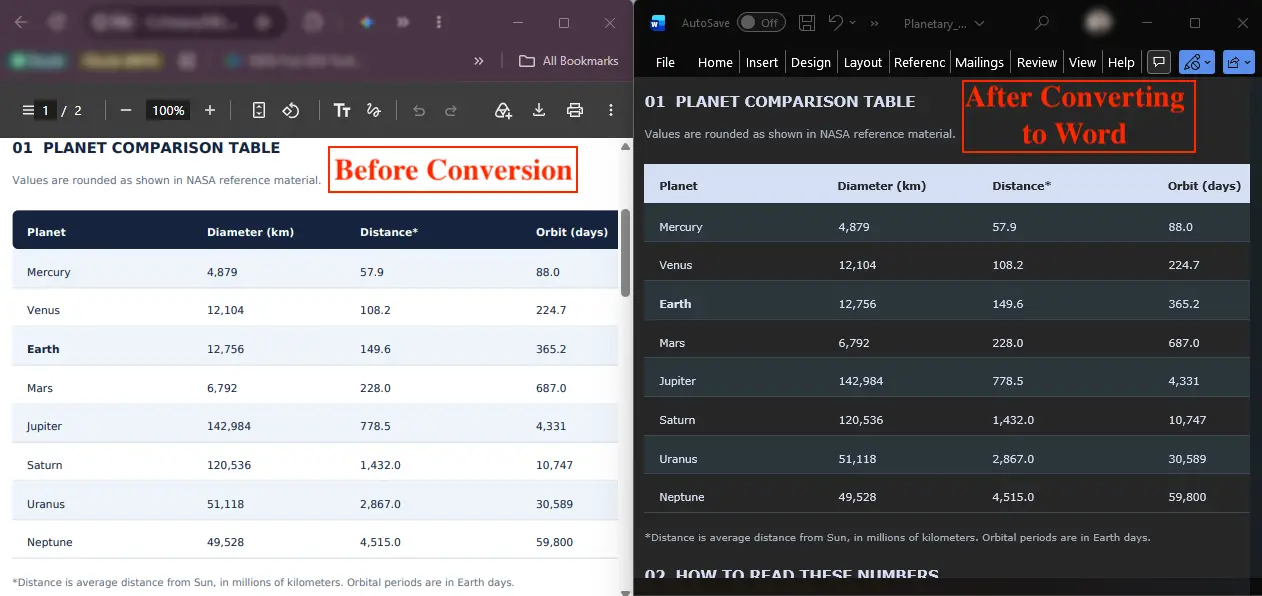
The original PDF on your device stays untouched. The converter creates a separate Word document, so you can return to the original whenever you need to compare them.
But before editing, check the result carefully. Don't start with the first paragraph. Instead, open the first table and the first page that uses two columns, if your document has them. Compare these sections with the original PDF. Are the table cells in the right places? Do the columns follow the correct reading order? Are the images still positioned beside the right text?
These details reveal more about layout fidelity than a page of simple paragraphs.
A single-column text document usually converts with very little formatting change. However, a two-column report, a form, or a page with text wrapped around a table may come back editable but rearranged.
That does not necessarily mean the converter failed. A PDF uses fixed page positions, while Word allows text and other elements to move as you edit. The conversion has to rebuild that structure, and some layouts are harder to reproduce than others.
Trying another converter may improve certain details, but no converter can guarantee that every complex PDF will keep its exact original layout.
How Do You Open and Convert a PDF in Word Itself?
In Microsoft Word, choose File > Open, select your PDF, and accept the conversion prompt that says Word will turn it into an editable document.
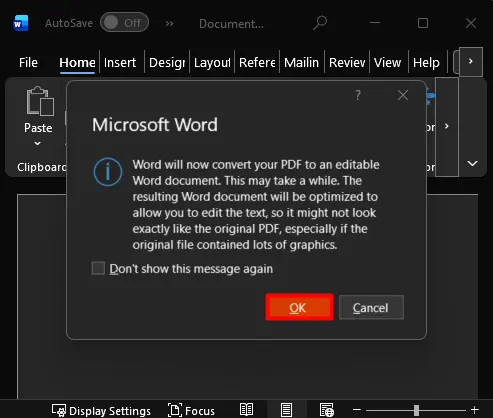
You can use this method in the Word desktop app on Windows or Mac. Word's browser version does not offer the same direct PDF-opening conversion workflow.
One detail is easy to miss: the conversion happens when you accept the prompt, not when you click Save. Word rebuilds the document after you confirm the message, but the original file on your computer remains a PDF until you save the converted version separately in DOCX format.
The warning also matters more than it might seem. Word is not simply copying the PDF's layout into a new file. It uses its own layout engine to recreate paragraphs, tables, images, and other elements.
For a simple text document, the result may look close to the original. But a scanned PDF, a graphics-heavy report, or a document with complex columns and tables can experience a layout shift. Text may move to another line, images may change position, and page breaks may appear in different places.
That is why the conversion prompt is a real warning, not just another button to click.
Before making major edits, keep the original PDF open beside the converted Word file. Compare the tables, images, page breaks, and any heavily designed pages. If the layout has changed too much, a dedicated PDF-to-Word converter may produce a more usable starting point.
How Do You Convert a PDF to Word in Google Docs?
Upload your PDF to Google Drive, open it with Google Docs, then download it as Microsoft Word (.docx) to get an editable document.
This is a free way to convert a PDF to Word without Adobe Acrobat or paid software. You do not need to install anything or have a Microsoft Word licence. All you need is a browser and a Google account.
➤ Open Google Drive, click New > File upload, and choose the PDF from your computer.
➤ Right-click the uploaded PDF, select Open with, and choose Google Docs.
➤ Google Docs opens the document in its cloud word processor. Try selecting and editing a sentence to confirm that the text is editable.
➤ Click File > Download > Microsoft Word (.docx) and save the document to your device.
This method works especially well when you need the words from a PDF for editing, rewriting, or copying into another document.
However, Google Docs is not the best choice for keeping the original formatting. It often gives you clean, editable plain text, but complex columns, precise image placement, headers, and footers may change or disappear during conversion.
For example, a simple letter may convert into paragraphs you can edit immediately. But a two-column research report may come back as one continuous block of text, with images moved away from their original positions.
Here is what you can generally expect.
| What this method does | What happens after conversion |
|---|---|
| Keeps | Most recognizable text, simple paragraphs, headings, and some basic formatting that you can edit in Google Docs or Word |
| Drops or changes | Multi-column layouts, precise image placement, complex tables, page spacing, and some headers or footers |
What about converting a PDF to Word with AI? An AI chat assistant can help extract, retype, or summarize the words in a PDF, but that is different from rebuilding the document's original page structure. Even when an AI tool can create a Word file, it may not preserve the exact columns, tables, and image positions. You still need to check the layout.
You can also open a Word document in Google Docs and download it as a PDF, but that is the reverse process and belongs to a separate guide.
The choice comes down to what matters most. If you mainly need editable words, Google Docs is one of the quickest free options. If you need the Word document to look nearly identical to the original PDF, Google Docs is generally the weakest option for preserving complex layouts among the methods covered here.
How Do You Convert a PDF to Word on a Phone?
Open a PDF-to-Word converter in your phone's browser, select the PDF from Files or Google Drive, and save the converted DOCX file to your phone. You do not need to install an app.
The process works on both Android and iOS devices. But unlike on a computer, the main challenge is often finding the PDF, uploading it, and saving the converted file in the right place.
➤ Find your PDF: Open the Files app, the Downloads folder, or Google Drive. If someone sent the PDF through WhatsApp, email, or another messaging app, open the attachment and save it to your device first. On an iPhone, use the share sheet and choose Save to Files. On Android, use Download or Save, depending on the app.
➤ Open the converter: Launch Chrome, Safari, or another mobile browser and visit a PDF-to-Word converter.
➤ Select the PDF: Tap the upload button to open the file picker. Browse Files, Downloads, or Drive and choose your document.
➤ Convert the file: Start the conversion and keep the browser tab open until the Word document is ready.
➤ Save the Word document: Download the converted DOCX file. On Android, check your Downloads folder. On an iPhone, use the browser's download options or Share > Save to Files to store it somewhere you can find again.
➤ Open or share the result: Open the DOCX in Microsoft Word or another compatible mobile app to make quick edits. You can also share it through email or a messaging app.
If Microsoft Word is already installed on your phone, check whether it offers a Convert to Word option when opening a PDF. This feature can vary by device, app, and version.
If the option is unavailable, convert the PDF in your browser first. Then open the downloaded DOCX in Word to edit or share it.
A phone is convenient for converting a file, but it is not ideal for checking the result.
On a small screen, shifted tables, missing columns, misplaced images, and incorrect page breaks can be difficult to notice. The document may appear normal until someone opens it on a computer.
For an important assignment, application, or office document, convert the PDF on your phone if necessary, but proofread and compare the Word file with the original PDF on a larger screen before sending it.
What Happens If You Insert a PDF into Word Instead of Converting It?
Inserting a PDF into Word usually displays a static picture of its first page, not text you can edit or search within the Word document. Depending on the insertion settings, Word may show a file icon instead.
When you choose Insert > Object > Create from File, Word adds the PDF as an embedded object. You may be able to open the original PDF by double-clicking it, but you cannot click inside the displayed page image and change individual words.
That is different from copying text or converting the entire PDF into Word.
| Method | What you can edit afterward |
|---|---|
| Insert a PDF | The embedded file or its preview can be moved and resized, but its text cannot be edited directly in Word. |
| Copy and paste | You can edit the pasted words, but their original formatting, spacing, and reading order may be lost. |
| Convert PDF to Word | You can edit paragraphs, tables, and other converted elements, although the original page layout may change. |
Object insertion makes sense when you need to show an existing document inside a longer Word report without rewriting its contents.
For example, you might insert a signed approval page, a certificate, or an invoice that readers need to see in its original form.
After inserting it, select the object and drag a corner handle to resize it without stretching the proportions. Then use References > Insert Caption to add a descriptive label, such as Figure 1. Signed Approval Document.
Keep the original PDF separately, especially if the document is legally or financially important.
You may also notice that copied PDF text arrives in Word with words stuck together or unusual word spacing.
This happens because some PDFs store characters in fixed positions on the page rather than as ordinary words separated by spaces. When you copy that text, the extraction process may not recognize every gap correctly.
Instead of repairing the spaces one by one, try converting the PDF into an editable Word document and check the result. A converter may reconstruct the words and paragraphs more accurately, although it cannot guarantee perfect spacing.
Use insertion when you need to display the PDF. Use conversion when you need to change its contents.
Why Does the Formatting Change When You Convert a PDF to Word?
PDF formatting changes during conversion because a PDF stores where characters and images sit on a page, while Word uses paragraphs that move as you edit. The converter must work backward to rebuild the original document structure, and it does not always get everything right.
A PDF uses a page description language to position text, images, and graphics. It may store individual characters, called glyphs, at specific locations rather than as complete paragraphs.
During conversion, the tool uses spacing, character encoding, and other clues to identify words, paragraphs, and reading order. On a complicated page, it may place text inside floating boxes or combine two separate columns into one.
Other formatting problems happen for different reasons:
- Missing fonts: If the original font was not embedded or is unavailable, font substitution may change letter widths. This moves line breaks and affects text wrapping.
- Tables: A PDF may display table borders as drawn lines rather than actual table cells. The converter has to guess the table structure, so cells may merge, split, or collapse into one column.
- Images and graphics: Pictures and vector drawings are positioned at fixed locations in a PDF. When Word rebuilds them as movable objects, they may shift as you type or edit nearby paragraphs.
- Protected PDFs: If copying or extracting content is restricted, some converters may return little or no editable text. You need the necessary permissions before attempting the conversion again.
Instead of trying random fixes, look at what changed in the Word document. Different symptoms point to different causes.
| What you see in Word | Why it happens | Can you fix it? |
|---|---|---|
| Text appears inside floating boxes | The converter rebuilt positioned text as separate objects. | Fix in Word: Move the text into normal paragraphs and remove unnecessary boxes. |
| Two columns merge or read in the wrong order | The converter guessed the original reading order incorrectly. | Reconvert or repair: Try a layout-preserving converter or correct the columns in Word. |
| A table collapses into one column | The PDF's drawn lines were not recognized as real table cells. | Fix or rebuild: Repair simple tables in Word; complex ones may need to be rebuilt. |
| The font changes, and lines wrap differently | The original font is missing, causing font substitution. | Fix in Word: Apply the correct font if available; an unavailable original font may prevent an exact match. |
| Images move when you edit paragraphs | Word uses object anchors and text-wrapping rules instead of fixed PDF coordinates. | Fix in Word: Adjust image positioning, anchors, and wrapping. |
| Letters turn into unusual symbols | The converter interpreted the character encoding incorrectly. | Reconvert: Try another conversion method; some characters may require correction from the original source. |
| Text cannot be extracted from a secured PDF | The document restricts copying or content extraction. | Permission required: Obtain authorized access before retrying. |
Some problems are easy to repair inside Word. Others need a different conversion method. But if the original document lacks clear reading-order information, uses unavailable fonts, or contains structures that cannot be reconstructed reliably, no converter can guarantee an identical result. You may need the original source document or manual rebuilding.
How Do You Fix PDF to Word Formatting Problems in Tables and Fonts?
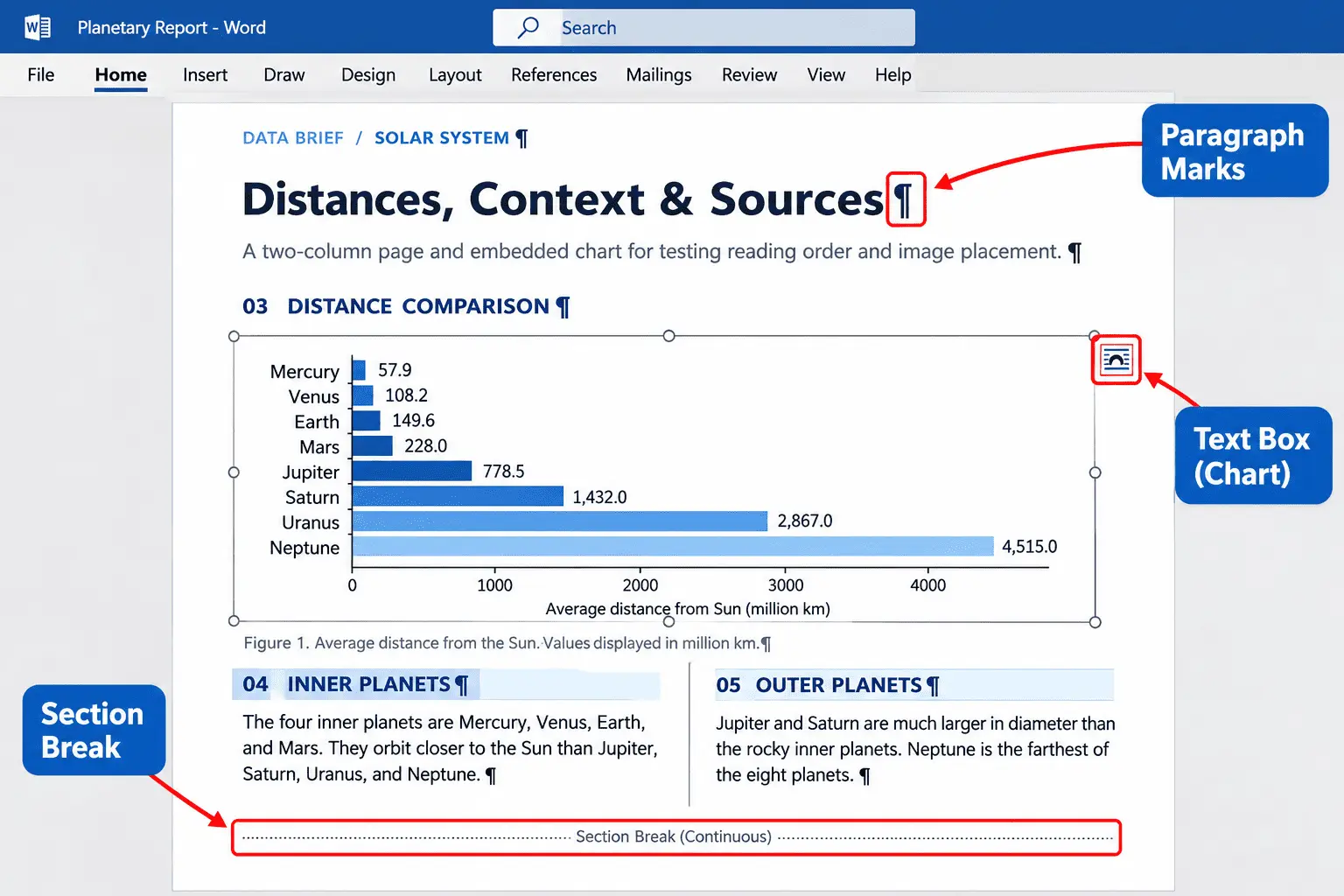
Turn on formatting marks in Microsoft Word first to reveal hidden breaks and spacing, then fix the document in this order: text boxes, section and column breaks, tables, and fonts.
The order matters because each repair can affect the next. If you change the fonts before removing unwanted breaks, the text may shift again. And if you rebuild a table while it is still inside a floating text box, you may have to repeat the work after moving it into the main document.
Start by opening the converted Word file and selecting Home > Show/Hide. This reveals paragraph marks, tabs, spaces, and section or column breaks that may be disrupting the layout.
Fix the formatting in four steps.
- Move text out of floating text boxes: Click inside a floating text box, select its contents, and cut the text. Place your cursor in the correct position in the main document and paste the text using Keep Text Only. Check the paragraph order against the original PDF, then delete the empty box.
- Remove unwanted section and column breaks: With formatting marks visible, find any section break or column break the converter inserted incorrectly. Delete only the unnecessary breaks, then use Layout > Columns to restore the original multi-column layout if needed. Be careful because removing a section break can also change page numbering, headers, or margins.
- Rebuild collapsed tables: If a table has become text separated by tabs, select that text and choose Insert > Table > Convert Text to Table. Under Separate text at, select Tabs. Then check the table structure, restore missing borders, adjust column widths, and merge cells where necessary. If the converter lost the cell boundaries entirely, rebuilding the table may be easier.
- Replace substituted fonts: Once the document structure is correct, compare the fonts with the original PDF. Use Word's Find and Replace formatting options to find the substituted typeface and replace it with the intended font across the document in one pass. Check a sample before replacing all matches, then review the line breaks and spacing.
Not every converted Word document is worth repairing manually.
As a practical rule of thumb, a one- or two-page document with one damaged table is usually manageable in Word.
But if a document has three or more pages with three or more badly damaged tables, especially alongside misplaced text boxes, try converting it again using a different method before spending time on individual repairs.
For a short document where nearly every paragraph is trapped in a separate text box and the tables are completely broken, retyping or rebuilding the content from the original may be faster than repairing every element.
These are starting points for deciding what to do, not fixed limits. The actual effort depends on how complicated the original document is.
If you control the original document, export the PDF directly from Word or another word processor with its fonts embedded.
A PDF created this way generally converts more accurately than one produced by a scanner or a graphic design application, because its text and document structure are easier to reconstruct.
The main rule is simple: restore the structure first, then fix the appearance. Once the text boxes, breaks, and tables are in the right places, adjusting fonts becomes much easier.
Is It Safe to Convert a PDF to Word Online?
Yes, converting a PDF to Word online can be safe, but it depends on where your file is processed and how long the service keeps it. You should check both before uploading a document, especially if it contains personal information.
Not every online converter handles files the same way. Some process the PDF directly in your browser, while others upload it to a remote server for conversion.
Before using any converter, go through these three questions:
- Does the file leave your device? A tool that performs browser-based conversion locally can process the PDF without uploading its contents to a server. If the converter uses server-side processing, your document must be transferred for conversion.
- How long is the file stored? Check the converter's Privacy Policy or FAQ for its data retention rules. Look for information about when uploaded PDFs and converted Word files are deleted. If the service does not explain its retention policy, avoid uploading sensitive documents.
- Is the connection encrypted? Check that the website uses HTTPS and review its security information. An encrypted connection helps protect the file upload while it travels between your device and the server, but it does not guarantee what happens to the file afterward.
For documents containing identity numbers, bank details, salary slips, or examination records, document privacy should take priority over convenience.
Use a converter that processes the document locally in your browser, or open the PDF in the desktop version of Microsoft Word and convert it offline.
Also, remember that a converter requiring no account does not automatically mean it is private. Even without registration, a server-based service may temporarily store uploaded documents or converted files according to its retention policy.
The safest choice is a tool whose processing location, encryption, and file-deletion practices you can verify before uploading.
Here is how the PDFNoob PDF to Word converter answers those three questions. Your file is uploaded for conversion over an encrypted HTTPS connection, and it is deleted within one hour. We do not use your content for AI training. Because the file does leave your device, the offline Word route is still the safer choice for your most sensitive papers.
Which Conversion Route Keeps the Most of Your Formatting?
An online PDF-to-Word converter is usually the best starting point for preserving complex tables and columns, but the right conversion route depends on your document. No method can guarantee perfect formatting when the original PDF has a complicated layout.
An online converter tries to map the PDF's original structure into Word, making it a strong option for preserving table structure and multi-column pages.
Microsoft Word takes a different approach. It rebuilds the PDF using its own layout engine, which usually works well for plain text documents but can move elements on heavily designed pages.
Google Docs focuses more on extracting clean editable text than preserving the original appearance. It is useful when you need to rewrite the content, but columns, tables, and image positions may change.
Converting on a phone does not change how the file is processed. The result depends on the converter you use. The problem is that a small screen makes formatting mistakes harder to notice.
| Conversion route | What it keeps | What it loses | Best for |
|---|---|---|---|
| Online converter | Usually preserves paragraphs, tables, columns, and image positions more reliably | May change complex tables, precise spacing, and some fonts | Two-column reports, structured documents, and forms |
| Microsoft Word | Usually keeps editable paragraphs, simple tables, and basic formatting | May shift images, page breaks, and complex layouts when rebuilding the document | Plain letters, resumes, and simple text-based PDFs |
| Google Docs | Produces editable text, paragraphs, and some basic formatting | Often loses columns, precise table layouts, headers, footers, and image placement | Extracting or rewriting text without paying for software |
| Phone | Keeps whatever the browser converter or mobile app can preserve | No additional formatting is necessarily lost because of the phone, but problems are harder to inspect | Quick conversion when a computer is unavailable |
The best choice becomes clearer when you consider the type of PDF you're converting.
- Plain letter: Use Word itself or an online converter. Simple paragraphs and standard formatting usually transfer with few problems.
- Two-column report: Start with an online converter. It generally offers better layout fidelity for columns and tables, but check their order and alignment afterward.
- Form: An online converter may preserve the visual arrangement better, but interactive form fields may need to be recreated in Word.
- Scanned document: Text recognition is needed before you can reliably convert the page images into editable words. Without a text layer, any route may leave you with pictures rather than editable paragraphs.
Even an embedded font does not guarantee an exact match. If Word cannot use the original typeface, the substituted font may change line breaks and spacing.
For a complex PDF, every route can lose something. A table may need rebuilding, an image may move, or columns may require adjustment. The decision is not which converter is flawless, but which formatting changes you can accept or repair.
The PDF-to-Word converter round-up article covers comparisons between individual tools. We compare individual PDF to Word tools in a separate guide. Here, the focus is the method you use and how much of the layout it keeps.
How Do You Convert a Scanned PDF to Word?
An image-only PDF contains scanned pages as pictures rather than selectable words, so you need to add a text layer before a converter can turn those pages into editable Word text.
Text recognition creates that layer by identifying the words in each scanned page. How accurately it reads them depends on the scan quality and the language setting you choose. Follow these three steps in order.
- Recognize the text first: Use an OCR PDF tool to make the scanned document's words selectable.
- Check the recognized text: Open the PDF and try selecting and copying a sentence. Check that the words, numbers, and punctuation match the original page.
- Convert the PDF to Word: Once the text is recognized correctly, upload the PDF to a PDF-to-Word converter and download the editable DOCX file.
The conversion may appear successful. You download a Word file, open it, and see all the original pages. But when you click on a paragraph, Word selects the entire page as a picture instead of placing a cursor between the words.
That means the converter transferred the images without making the text editable.
Always recognize and check the text before converting. Converting an image-only PDF first can leave you with a Word document full of pictures and another conversion step to complete.
If you use the PDFNoob PDF to Word converter, you can skip the separate OCR step. It detects scanned pages and runs text recognition on them by itself. Still check the result, because recognition is only as good as the scan.
How Do You Check the Converted Word File for Formatting Issues?
Check the converted Word file in this order: page count, the first table, any page with two columns, and fonts.
Start with the page count because it is the fastest way to spot a serious conversion problem. If the converter has dropped or duplicated content, adjusting fonts or repairing tables will not fix it.
However, a different page count does not always mean something is missing. Word may move the same content onto more or fewer pages because its formatting has changed. That is why you need to check what happened before making any repairs.
Follow these four checks in order.
- Compare the page count: Open the original PDF and converted Word document side by side. If the page counts differ, check whether any content is missing, repeated, or simply moved to another page.
- Check the first table: Compare its rows, columns, borders, and merged cells with the original PDF. If the table structure is damaged, inspect the remaining tables before trying to fix their formatting.
- Inspect a two-column page: Check whether the text still follows the correct reading order. If two columns have merged or paragraphs have moved into the wrong positions, the document's structure needs attention before its appearance.
- Compare the fonts: Look for changes in typeface, size, and line spacing. Font substitution can change where lines end and paragraphs begin, even when the text itself is correct.
Once you've checked these four areas, turn on formatting marks in Word using Home > Show/Hide.
Read through the document once with these marks visible. Look for unexpected paragraph breaks, tabs, and section breaks while comparing the Word file with the original PDF side by side.
This is more reliable than proofreading from memory because you can see exactly where the converted document differs.
If you find formatting problems, try converting the original PDF once more using a different method before making manual repairs. For example, if opening the PDF directly in Word produced broken tables or columns, try an online PDF to Word converter and compare the new result.
If the second conversion preserves the document's structure better, use that version. Otherwise, repair the remaining problems in Word.
How Do You Edit a PDF Without Converting It to Word?
For small changes, edit the PDF directly instead of converting it to Word. Converting an entire document just to correct a date, fix a name, or change a single word can create formatting problems that were not there before.
A PDF editor lets you make these changes within the existing document through in-place editing, without rebuilding every page as a Word file.
For example, you can correct a typo, type into a form field, or add a signature. Many PDF editors also let you leave a comment as an annotation. These changes usually do not require converting the whole PDF.
The difference is how much of the document you need to change.
If you're updating a phone number on an application or signing a completed form, editing the PDF directly is usually enough. It preserves the surrounding page layout because the document does not need to be reconstructed in Word.
But if you need to rewrite several paragraphs, rearrange sections, or reuse large amounts of text in another document, converting the PDF to Word makes more sense.
Choose based on the size of the change: edit the PDF for small corrections and additions, but convert it to Word when you need to restructure or rewrite the content.