


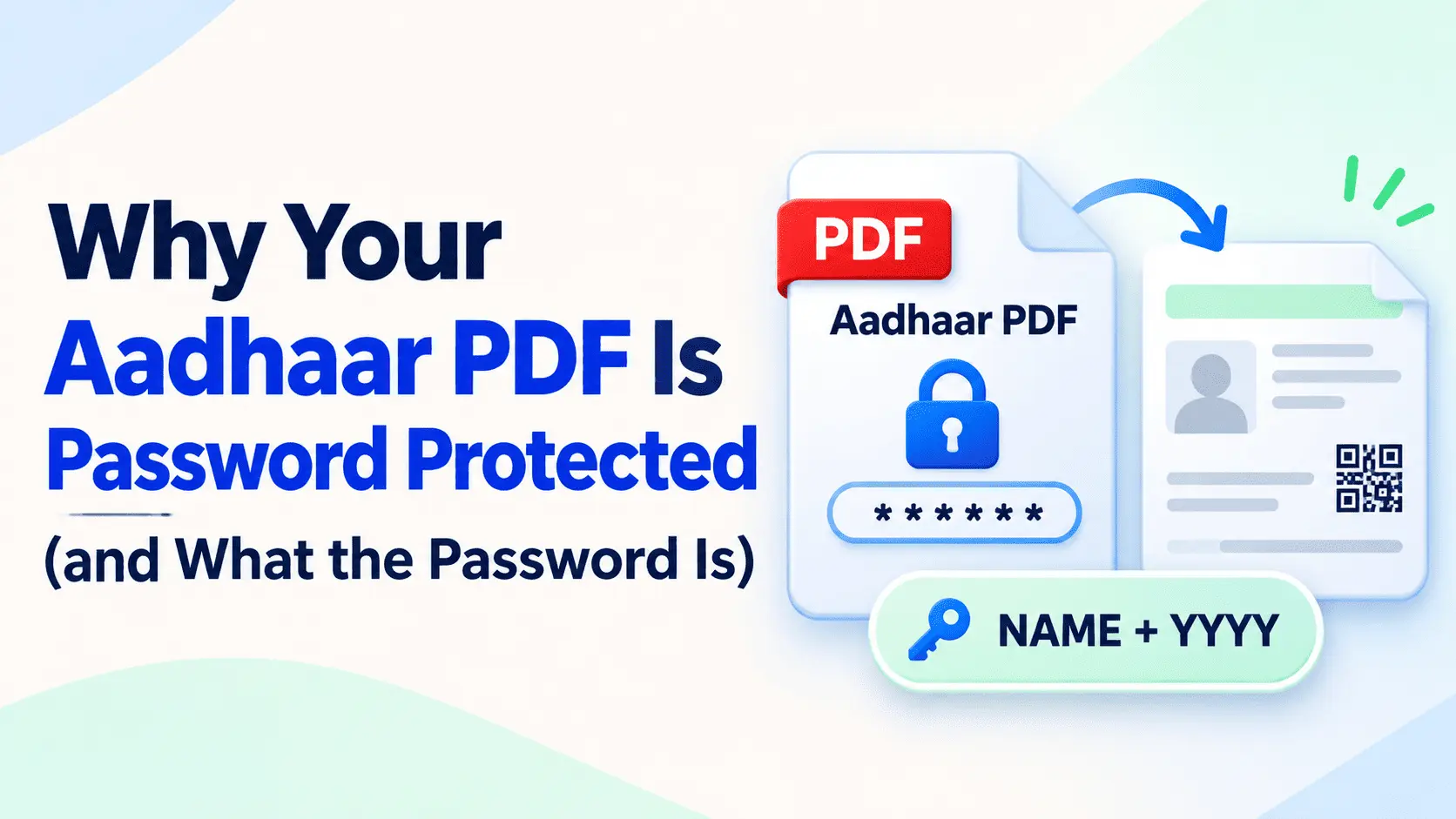
Your e-Aadhaar PDF arrives from UIDAI already password protected. The PDF open password comes with the issued file, so the password prompt you see in your PDF reader is not a lock you created yourself.
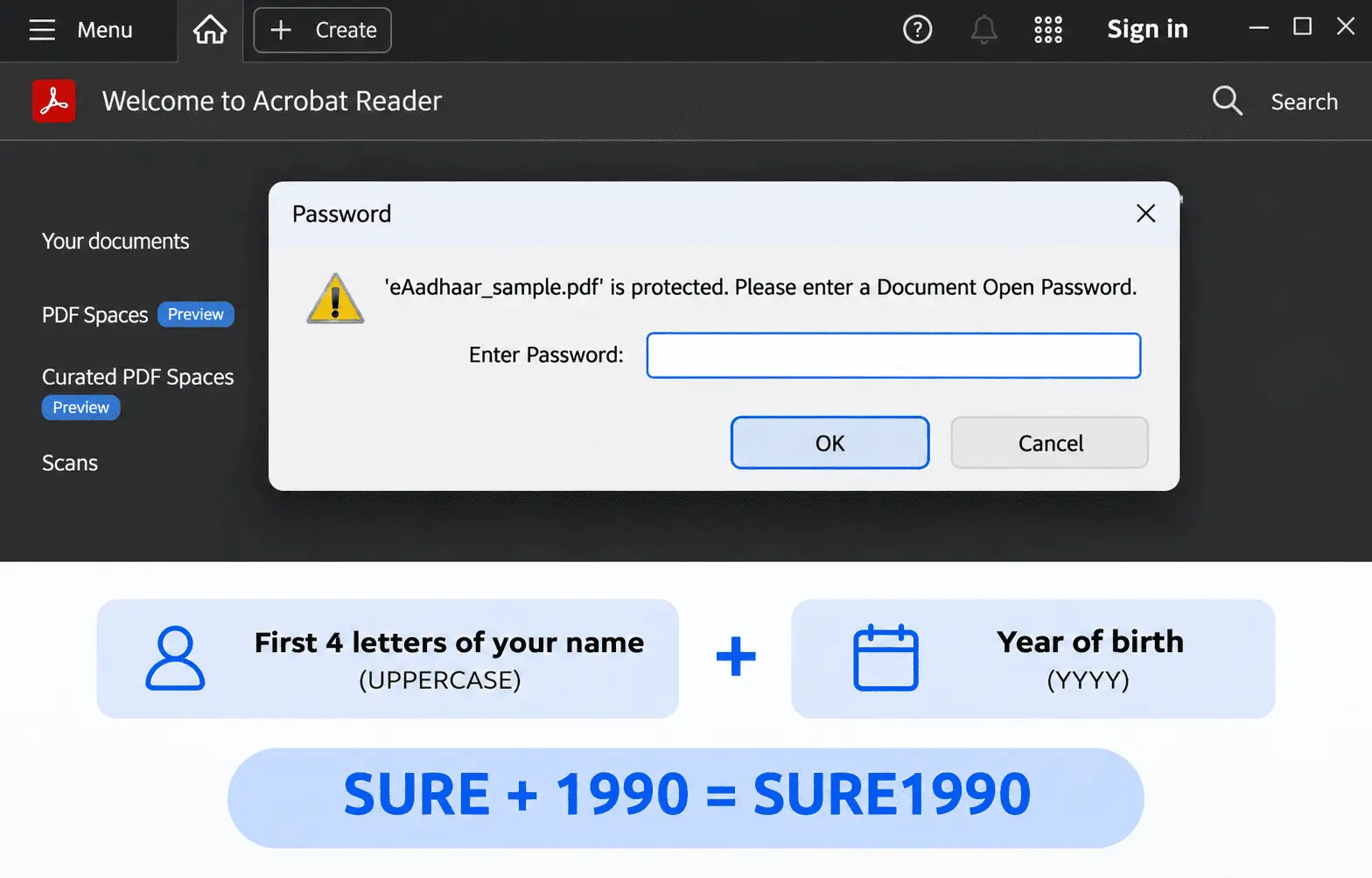
To open the file, combine the first four letters of your name as printed on your Aadhaar card, in capital letters, with your four-digit year of birth. For example, if the name is SURESH KUMAR and the birth year is 1990, the password is SURE1990.
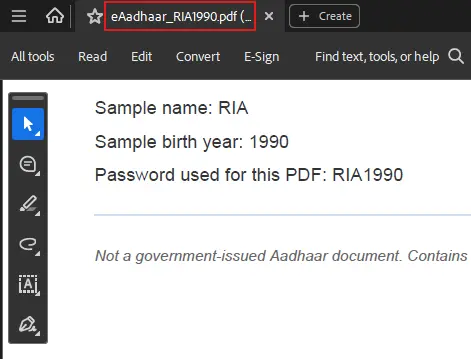
But the password is not always eight characters long. A name with four or more letters produces an eight-character password, while a three-letter name produces seven characters. For someone named RIA, born in 1990, the password is RIA1990.
Knowing the formula does not always mean the Aadhaar PDF will open on the first attempt. Problems can arise if your name has fewer than four letters, you use a name that differs from the one printed on your Aadhaar card, or the file hasn't fully downloaded.
A masked Aadhaar can also cause confusion because it hides the first eight digits of your Aadhaar number. However, masking does not change the password formula.
This guide explains which password opens your e-Aadhaar, why UIDAI protects the file, and how to create the correct password from your name and birth year. It also covers how to open the PDF on different devices, why passwords get rejected, and what changes with a masked download.
You'll also learn where to get the original file through the MyAadhaar portal, how to remove the password from your own copy when necessary, and when sharing a password-free Aadhaar PDF may create problems. Finally, we'll cover password sharing, document uploads, and printing a protected e-Aadhaar.
Which Password Does an Aadhaar PDF Ask For?
The Aadhaar PDF password is the first four letters of your name as printed on your Aadhaar card, written in capitals, followed by your four-digit year of birth. For example, if your name is SURESH KUMAR and you were born in 1990, the password is SURE1990.
This is the PDF open password set by UIDAI for your downloaded e-Aadhaar. You did not choose it when downloading the document, and you cannot choose a different password for the original file issued by UIDAI.
The password comes from information already recorded on your Aadhaar card. As long as your registered name and birth year remain the same, the password will also remain the same each time you download your e-Aadhaar.
Here are some examples based on UIDAI's official password guidance:
| Name as printed | Resulting password |
|---|---|
| SURESH KUMAR (Born in 1990) | SURE1990 |
| SAI KUMAR (Born in 1990) | SAIK1990 |
| RIA (Born in 1990) | RIA1990 |
Notice that the password uses uppercase letters, even if the name on your card appears in mixed case. For example, if your card says "Suresh Kumar," you still enter SURE1990, not Sure1990 or sure1990.
The safest approach is to read the name exactly as printed on your Aadhaar card rather than relying on the spelling you normally use. A nickname, shortened name, or different spelling can produce the wrong password.
The birth year must contain four digits in YYYY format. You do not need to enter your full date of birth.
Remember: UIDAI determines the password from your Aadhaar details, so downloading the same e-Aadhaar again does not create a new password. The formula stays the same unless the underlying details used to calculate it change.
Why Does UIDAI Lock the e-Aadhaar PDF at All?
UIDAI password-protects the e-Aadhaar PDF to prevent someone who gets a copy of the downloaded file from immediately reading the personal information inside it. Even after the document has been downloaded through an OTP-verified process, the password provides another layer of protection when someone tries to open it.
Your e-Aadhaar contains personal information, including your name, date of birth, address, photograph, and Aadhaar number. These details can be used to identify you, which makes protecting the downloaded document important.
The download and opening stages use different checks. UIDAI sends an OTP to the registered mobile number to verify access during the download process. Once the file has been saved, a PDF reader asks for the password before displaying its contents.
However, the password is based on your name and birth year, so it is not as strong as a secret that only you know. It provides an additional barrier to casual access, not a guarantee that nobody else can open the document.
The e-Aadhaar also carries a digital signature from UIDAI, but this serves a different purpose.
- PDF password: Controls whether someone can open and read the document.
- UIDAI digital signature: Helps verify that the document was issued by UIDAI and that its signed contents have not been altered.
This distinction matters because a person who knows the password can read the file, but knowing the password does not allow them to create a valid UIDAI digital signature.
The Aadhaar Act, 2016 provides the broader legal framework for Aadhaar identity information. The PDF password and digital signature are separate technical protections applied to the electronic document.
There is also an important consequence when removing the password. Saving a newly unlocked version can invalidate the original UIDAI signature because the signed PDF data is changed. A copy may still display signature information without passing signature verification.
The password protects access to the document, while the digital signature protects its authenticity and integrity. Keeping the original password-protected, digitally signed e-Aadhaar preserves both protections.
How Do You Apply the Aadhaar PDF Password Format to Your Own Name?
To create your Aadhaar PDF password, take your name as printed on your Aadhaar card, use its first four letters in uppercase, and add your four-digit year of birth in YYYY format.
For example, if your name is SURESH KUMAR and you were born in 1990, your password is SURE1990. You do not need to include your entire name or full date of birth.
However, the format can look slightly different when your name contains fewer than four letters, multiple words, or an initial.
Here are four examples showing how to apply the formula:
- Two-word name: SURESH KUMAR, born in 1990
Password: SURE1990 (8 characters).
The first word already contains four letters, so only SURE is used. The surname KUMAR does not contribute to the password.
- Short name: ROY, born in 1988
Password: ROY1988 (7 characters).
Because ROY contains only three letters, use all three and add the four-digit birth year. You do not need to insert an extra character to make the password eight characters long.
- Name with an initial: P. KUMAR, born in 1990
Password: P.KU1990 (8 characters).
UIDAI's official example keeps the period after P but excludes the separating space. This shows why you should pay attention to punctuation in the name recorded on your Aadhaar card.
- First word shorter than four letters: SAI KUMAR, born in 1990
Password: SAIK1990 (8 characters).
Here, the first word contains only three letters. The password takes SAI and the first letter of KUMAR, skipping the space between the words.
These examples show that spaces between name parts are omitted, while punctuation belonging to an initial may be retained. Follow the name recorded on your Aadhaar rather than changing its spelling or punctuation yourself.
The most important exception is a name with only three letters. For ROY, the password contains three letters plus four digits, making seven characters, not eight. A seven-character password is valid in this case.
If the password is rejected, check the exact spelling and birth year before assuming the character count is wrong.
How Do You Open the Aadhaar PDF Once You Have the Password?
Open your downloaded e-Aadhaar file in a PDF reader and enter the correct password when the password prompt appears. You do not need special software or another UIDAI login to open a file that you have already downloaded.
The process is slightly different depending on whether you are using an Android phone, an iPhone, or a desktop computer.
- On Android: Open your Downloads folder and find the downloaded Aadhaar PDF. Tap the file to open it in your default PDF viewer or Google Drive preview, if available. When the password field appears, enter your Aadhaar PDF password and confirm.
- On iPhone: Open the Files app and locate your downloaded e-Aadhaar, usually under Downloads. Tap the PDF and enter the password if the viewer displays a prompt. If the file cannot be opened there, choose a compatible PDF reader using the file's sharing or opening options.
- On desktop: Find the downloaded PDF on your computer and open it using a PDF reader, such as Adobe Acrobat Reader or another application that supports password-protected PDFs. Enter the password when requested to view the document.
Sometimes, an Aadhaar PDF appears blank or displays an error even though the password is correct. This does not always mean the password was rejected.
On Android, certain gallery-style file previews and basic document viewers cannot open encrypted PDFs or display a password field. They may show a blank page, an unsupported-file message, or a general error instead.
If you never see a password prompt, try opening the same downloaded file in a full PDF reader before changing your password. A viewer that cannot request a password cannot properly test whether the password is correct.
Once a compatible reader accepts the password, the e-Aadhaar opens normally. You can then view the document without signing in to the UIDAI website again.
Why Is Your Aadhaar PDF Password Being Rejected?
Your Aadhaar PDF password cannot be reset because you never created one. UIDAI derives it from your registered name and birth year, so a password rejection error usually means the information you entered does not match the required format. Before assuming the file is faulty, check these possible causes in order.
- You used lowercase letters: The first letters of your name must be in uppercase, followed by your four-digit birth year. For example, if your name is RAHUL and you were born in 1995, enter RAHU1995, not rahu1995.
- You entered a nickname or a different spelling: A name mismatch can happen when you use a shortened name, nickname, or spelling that differs from your Aadhaar record. If your card says SURESH KUMAR, use the letters from that printed name rather than a name you commonly use elsewhere.
- You entered your complete date of birth: The password requires only the four-digit year of birth, not the day and month. For someone born on 15 August 1995, the password ends in 1995, not 15081995. If your Aadhaar displays only the birth year instead of a complete date of birth, use that same year.
- Your name has fewer than four letters: If your printed name is ROY and you were born in 1988, enter ROY1988. This password contains seven characters, not eight. If the first word of a longer name has fewer than four letters, check the exact name printed on your Aadhaar rather than assuming the password must contain eight characters.
- The downloaded PDF is incomplete or damaged: An interrupted download can leave you with a file that cannot be opened properly, even when the password is correct. If you suspect a corrupted download, get a fresh copy from the official MyAadhaar portal and try opening it again.
- You downloaded a masked Aadhaar: A masked Aadhaar follows the same password formula as a regular e-Aadhaar. Masking the Aadhaar number does not create a separate password, so there is no different code to find or reset.
If none of these checks work, try opening the freshly downloaded file in another PDF reader that supports password-protected documents.
There is no Aadhaar PDF password reset or recovery process. UIDAI does not provide a separately chosen password to recover; it derives the code from the details in your Aadhaar record. The solution is to identify the correct details or obtain a working copy of the document, not to request a new password.
Which Password Opens a Masked Aadhaar PDF?
A masked Aadhaar PDF uses the same password as a regular e-Aadhaar: the first four letters of your name as printed on the Aadhaar card, in uppercase, followed by your four-digit birth year. There is no separate masked Aadhaar password. For example, if your name is SURESH KUMAR and you were born in 1990, enter SURE1990 to open either version.
Masking changes what the document displays, not how it is protected. A masked copy hides the first eight digits of your Aadhaar number, leaving only the last four digits visible. The remaining digits appear as Xs, so the number looks like XXXX XXXX 1234. Your name, photograph, and other Aadhaar details remain visible.
You can select the masked version through the download option on the official MyAadhaar portal. Choosing it does not change the password formula or require a different set of personal details.
A masked Aadhaar is useful when someone needs to verify your identity without seeing your complete Aadhaar number. However, whether a verifier accepts it depends on the verification process. A service that permits masked Aadhaar or only needs the last four digits may accept it, while a process that specifically requires the full number or another approved verification method may not.
If your masked PDF refuses to open, check the same name and birth-year combination you would use for the regular file. Searching for a separate masked Aadhaar password will not solve the problem because UIDAI does not issue one.
Where Do You Download the e-Aadhaar PDF From?
You can download your e-Aadhaar PDF from the official MyAadhaar portal or through UIDAI's official mobile app. These are the authorized sources for obtaining your Aadhaar document. Avoid third-party websites that claim to provide e-Aadhaar downloads.
The MyAadhaar portal lets you retrieve your document using one of three identifiers:
- Aadhaar number: Your 12-digit Aadhaar number.
- Enrolment ID: The identification number issued during Aadhaar enrolment.
- Virtual ID: A temporary 16-digit identifier that can be used instead of your Aadhaar number.
Whichever identifier you use, the standard download process requires a one-time password (OTP) sent to your registered mobile number. UIDAI also supports mobile authentication through its official apps, including the mAadhaar app.
If you have lost access to your registered mobile number or changed it without updating your Aadhaar record, you may be unable to receive the OTP needed for the download. You will need to update your mobile number through an authorized Aadhaar update facility before using the standard OTP-based download service.
Be careful with websites advertising instant e-Aadhaar downloads. Some ask for your Aadhaar number and the OTP sent to your phone. Those two details are enough for someone else to authenticate as you and access your personal information. Enter your Aadhaar number and OTP only on official UIDAI services. A genuine PDF unlocking tool never needs either one. It only needs the file and the password you already know.
How Do You Remove the Password From Your Own Aadhaar PDF?
You can remove the password from your own Aadhaar PDF once you have opened it with the correct password. The simplest method is to use a PDF unlocking tool to save a separate password-free copy. However, removing the password can invalidate the document's UIDAI digital signature, so keep the original e-Aadhaar unchanged.
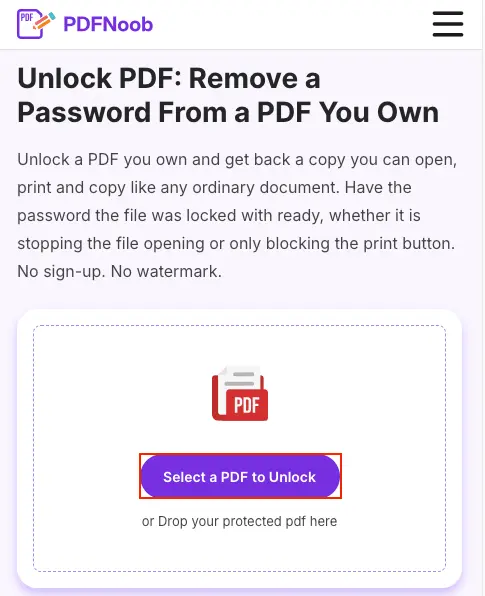
➤ Open the Unlock PDF tool and upload your password-protected e-Aadhaar.
You can select the document from your device or drag and drop it into the upload area.
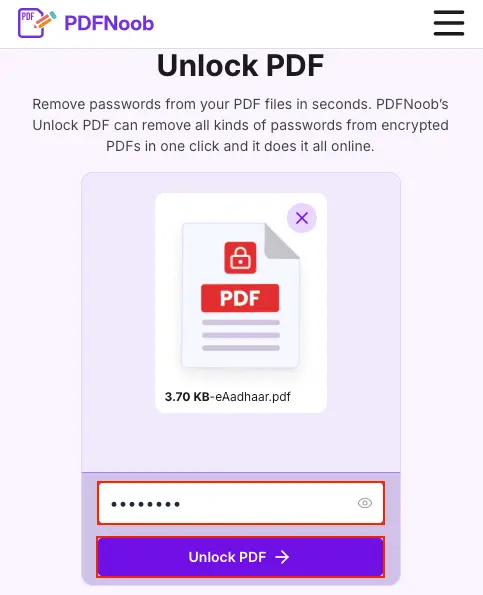
➤ Enter the password you normally use to open your Aadhaar PDF.
The tool requires you to supply the existing password; it cannot find or recover a password you do not know. PDFNoob sends the file to its server over HTTPS to remove the password. The file is deleted within one hour, and the password is used once and not stored. The tool never asks for your Aadhaar number or an OTP.
➤ Click Unlock PDF to remove the password protection from the uploaded file.
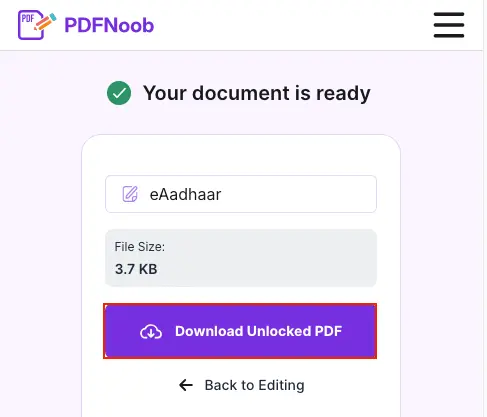
➤ Click Download Unlocked PDF to save the new document.
Open the downloaded copy to confirm that it no longer asks for a password.
PDFNoob’s Unlock PDF works on one PDF at a time, up to 10 MB. A downloaded e-Aadhaar is usually far smaller than that, so the limit rarely matters for this file.
You can also create an unlocked version through Print to PDF. Open your e-Aadhaar with the correct password in a PDF reader, choose Print, and select a PDF printer or Save as PDF instead of a physical printer. Save the resulting file under a new name. This creates a flattened copy of the printable content, which may lose interactive features and the original digital signature.
The important difference is that password removal itself can invalidate the UIDAI signature, not just printing. A digital signature protects the integrity of the signed PDF. When an unlocking tool decrypts and rewrites the document, the saved output no longer matches the data UIDAI originally signed.
Even if the signature panel or a visible signature still appears in the new PDF, that does not prove its cryptographic signature is valid. A verifier checking the UIDAI signature may reject the unlocked copy because its authenticity can no longer be established through the original signature.
For that reason, always unlock a copy of your own e-Aadhaar and preserve the original password-protected download. Use the unlocked version only when necessary, while keeping the original available for verification.
When Should You Send a Password-Free Aadhaar, and When Should You Not?
Send a password-free Aadhaar PDF only when the receiving upload form cannot accept a password-protected document. If the recipient can process the original e-Aadhaar, keep its password and digital signature intact. Wherever the full Aadhaar number is not required, a masked Aadhaar is generally the safer choice because it exposes fewer personal details.
This distinction matters during KYC verification, loan applications, SIM registration, and property paperwork. Some online portals reject locked PDFs immediately because their systems cannot read encrypted files. Check the recipient’s requirements before changing your file.
| Send | Do Not Send |
|---|---|
| An unlocked copy when an authorized upload portal specifically requires a password-free PDF. | An unlocked PDF when the recipient accepts the original password-protected e-Aadhaar. |
| A masked Aadhaar when the verifier does not need your complete Aadhaar number and accepts masked documents. | A full-number Aadhaar when a masked copy meets the verification requirements. |
| The original locked e-Aadhaar when the recipient can open it and verify UIDAI's digital signature. | An unlocked copy as a replacement for your original UIDAI-issued document. |
| A document through the recipient's official, secure submission channel. | An Aadhaar PDF and its password together in an ordinary email when a safer approved submission method is available. |
Emailing a locked Aadhaar PDF with its password in the same message offers little practical protection. Anyone who gains access to that email receives both the document and the information needed to open it. Sending the password separately does not eliminate every risk, but it avoids placing both items together.
The most important rule is to unlock a copy, never the original. Removing password protection can invalidate the UIDAI digital signature in the new file, which may cause problems when a verifier checks the document's authenticity. Your original download remains available for signature verification, and its password can be derived again from your Aadhaar name and birth year.
Keep that original in a secure location and create a separate unlocked file only for the specific submission that requires it. If you no longer have access to the file and need to download it again, the standard MyAadhaar process requires an OTP sent to your registered mobile number.
Is It Safe to Share Your Aadhaar Card Password With Anyone?
You should avoid sharing your Aadhaar password unless it is necessary for an authorized verification process. However, the bigger security concern is who receives your Aadhaar PDF, because the password is not a secret you created. Anyone who knows your name as printed on the card and your four-digit year of birth can work out the same password.
This means sending a locked e-Aadhaar to someone who already knows your name and date of birth offers limited protection. For example, a recipient who has your Aadhaar details from a previous application may already have enough information to open the document without asking you for its password.
Instead, share a masked Aadhaar whenever the recipient accepts it. Masking hides the first eight digits of your Aadhaar number, reducing the amount of information exposed if the document reaches someone else. Use an official upload portal or another secure submission method rather than sending your Aadhaar PDF and password together through ordinary email.
The password alone does not give someone access to your Aadhaar account or allow them to download a new e-Aadhaar without the required authentication. Still, sharing the document unnecessarily can expose personal information and increase the risk of identity theft. Protect the file itself, not just the password.
Should You Send the Aadhaar PDF With Its Password, or Remove It First?
Send whichever version the receiving upload form accepts, but choose the original locked PDF when both locked and unlocked files are allowed. The original retains UIDAI's digital signature, while removing the password can affect signature verification.
If you are uploading your Aadhaar to a KYC portal, check its file requirements before submitting. An error such as "Password-protected PDFs are not supported" or "Please upload an unencrypted PDF" means the system cannot process the locked document. In that case, you can unlock a PDF using the password you already know and submit the new unlocked copy. Check the file size limit as well, since a portal may reject a PDF for being too large rather than password-protected.
There is another problem that may not produce an upload error. Some portals accept a locked PDF but cannot open it during manual review. Your application may then remain pending because the reviewer cannot access the document, even though the upload appeared successful. If the recipient confirms that this is the issue, provide an unlocked copy through its approved submission channel.
Keep the original e-Aadhaar unchanged, regardless of which version you submit. Once the unlocked file has been uploaded successfully and you no longer need it, delete that temporary copy from your device, including unnecessary duplicates in Downloads or other folders. This limits the number of password-free copies containing your personal information.
Can You Print the e-Aadhaar Without Entering the Password?
No, you cannot print an e-Aadhaar PDF without entering its password first. UIDAI protects the document with an open password, which means your PDF reader cannot display, preview, or print its contents until you unlock it using the correct name-and-birth-year combination.
This is different from a permissions password, which allows a PDF to open but may restrict printing or editing. The e-Aadhaar password controls access to the document itself, not printing separately. Once you enter the correct password and open the file, you can print it normally. Our guide to removing a password from a PDF explains both password types in full.
If you need to print your Aadhaar at a shop or through a self-service kiosk, the password still has to be entered before printing. Giving the shop your locked PDF and its password also gives the operator access to the personal details inside, so avoid sharing both unnecessarily.
A safer option is to download a masked Aadhaar, open it with your password, and print it yourself at home or on a trusted printer. This keeps the first eight digits of your Aadhaar number hidden and avoids handing your password to someone else.