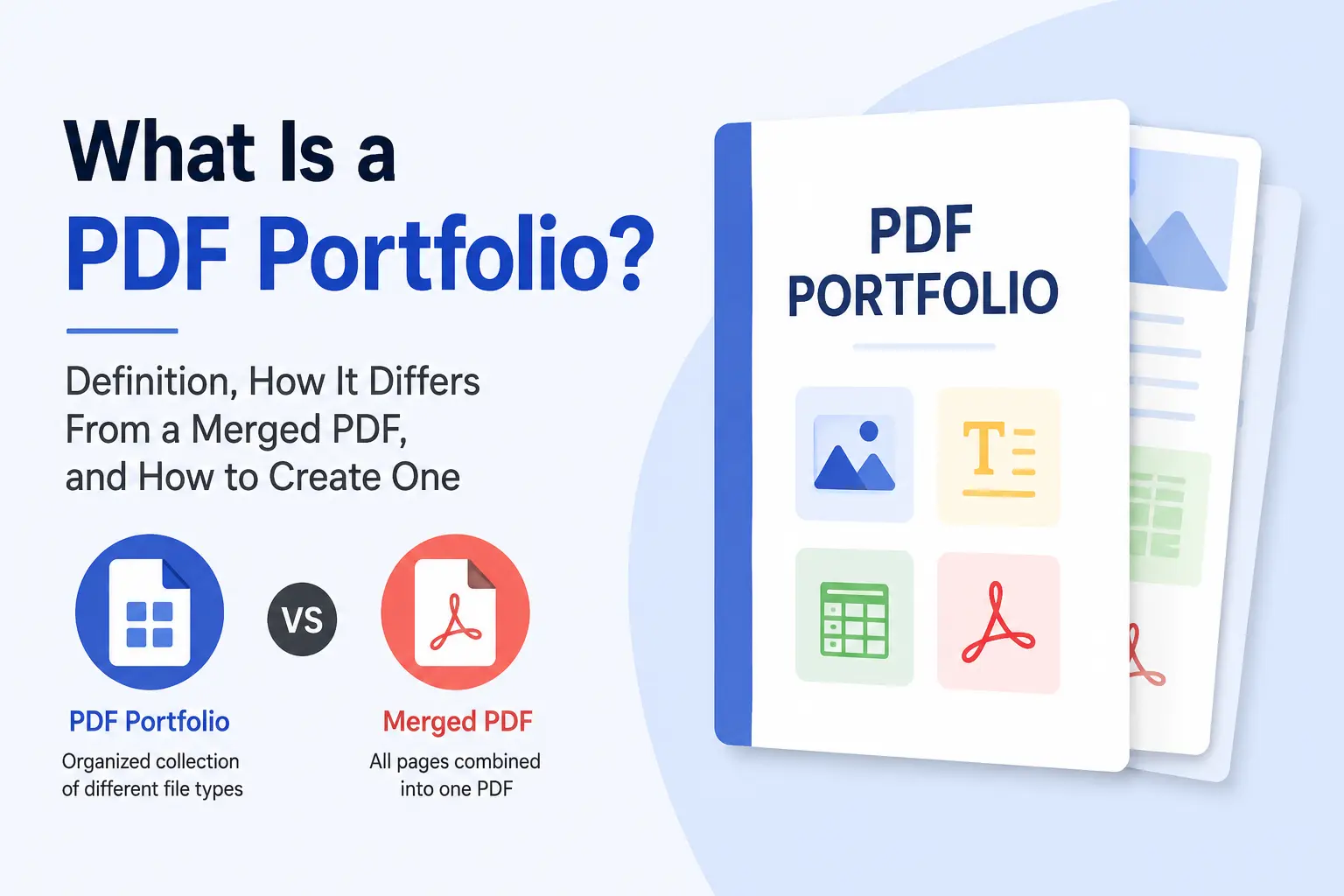
A PDF Portfolio organizes multiple independent documents inside a single package while preserving their original formats and functionality. In creative fields, a PDF portfolio usually refers to a collection of work samples—often 5 to 10 projects gathered into a single file for sharing or presentation. Within the Portable Document Format ecosystem, however, a PDF Portfolio serves a different purpose: it helps organize multiple independent files and related documents while keeping the files in their original formats.
Unlike a merged PDF, a PDF Portfolio doesn't combine everything into one continuous document. Instead, files in the portfolio remain separate, allowing spreadsheets, images, presentations, signed contracts, and other files to keep their original functionality. This makes PDF Portfolios useful for organizing complex document packages, although their specialized structure can create compatibility challenges in some viewers.
In this article, we'll explore how PDF Portfolios work, how they differ from merged PDFs, when they make sense to use, and the different ways professionals create, manage, and share them. PDFNoob also offers free online PDF tools that work with no account, giving users a simple way to handle PDF tasks while keeping privacy in mind.
What Is a PDF Portfolio?
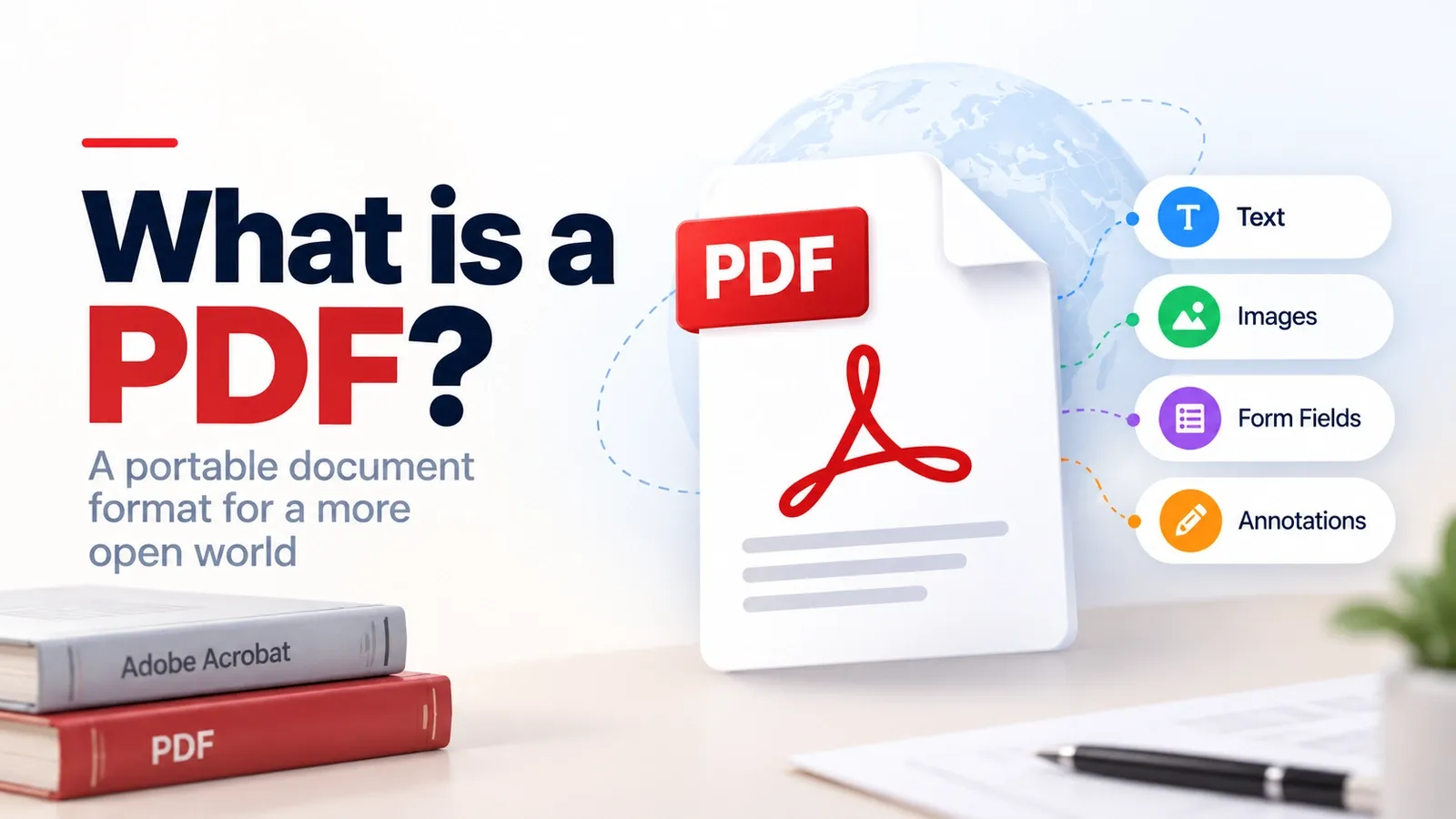
A PDF Portfolio is a special type of PDF file that works as a digital container for multiple documents. Instead of merging everything into one long file, it keeps each document separate while packaging them together in a single location.
Think of it like a ZIP folder with a visual interface. A portfolio can contain multiple files assembled into one package, including Word documents, Excel spreadsheets, images, presentations, emails, videos, and other PDFs.
| Standard PDF | PDF Portfolio |
|---|---|
| Combines pages into one continuous document | Keeps files separate |
| Converts content into PDF pages | Preserves original file formats |
| Requires scrolling through all pages | Lets you open files individually |
| Cannot preserve native file functionality | Maintains editable source files |
Because the files in portfolio remain independent, users can click and open each file separately instead of scrolling through a single merged document. For example, an Excel spreadsheet remains an editable spreadsheet rather than becoming a static PDF page.
This approach also helps preserve digital signatures and official records. Since files in portfolio can retain their original structure, organizations can group signed contracts, financial documents, and supporting materials together without modifying the underlying files.
How Is a PDF Portfolio Structured?
A PDF Portfolio is structured more like a digital container than a traditional document. Instead of converting everything into one continuous PDF, it bundles multiple independent files into a single .pdf package.
The easiest way to understand this structure is to think of a PDF Portfolio as a lightweight file explorer or ZIP archive wrapped inside a PDF file. Rather than displaying one long document, it provides an interface that helps users organize and access different types of files.
A PDF Portfolio typically consists of two main components.
| Component | Purpose |
|---|---|
| The Wrapper | Acts as the main PDF file, providing the interface, layout, and navigation system |
| Embedded Files | Stores the original documents, images, spreadsheets, emails, videos, and other content |
As these files remain separate, component files keep their original formats. A spreadsheet remains editable, a video remains playable, and a document can be opened, edited, and saved independently without affecting the rest of the portfolio.
How Does a PDF Portfolio Differ From a Merged PDF?
A merged PDF combines multiple documents into one continuous PDF, where all pages are flattened and arranged in sequence. A PDF Portfolio works differently: it acts as a wrapper that holds separate files inside one PDF package.
| Area | Merged PDF | PDF Portfolio |
|---|---|---|
| Structure | Converts all files into one flowing PDF document | Holds multiple separate files inside a PDF container |
| File formats | Word, Excel, images, and other files become PDF pages | Word, Excel, audio, video, images, and PDFs can keep their original formats |
| Editing | Edited as one cohesive PDF with standard PDF tools | Individual component files can be opened, edited, and saved in their original applications |
| Navigation | Users move through continuous scroll, page thumbnails, or bookmarks | Users may see a welcome page, custom layout, and navigation pane |
| Compatibility | Opens in most browsers, mobile viewers, and PDF apps | Usually needs a full-featured viewer like Adobe Acrobat |
For simple reading and broad compatibility, a merged PDF is easier to share. For document packages where each file needs to stay separate, editable, or preserved in its native format, the portfolio vs merged choice usually favors a PDF Portfolio.
What Are the Advantages of a PDF Portfolio?
A PDF Portfolio makes it possible to keep different types of documents together without converting them into a single format. Instead of sending multiple attachments or sharing several links, you can organize everything into one file while preserving the original content.
Some of the biggest advantages of a PDF Portfolio include:
Universal presentation consistency
- The layout, branding, and document organization remain the same regardless of where the portfolio is opened.
- Unlike websites, the content isn't affected by screen size or responsive layouts.
Offline accessibility
- Once downloaded, the entire portfolio can be accessed without an internet connection.
- This is particularly useful for presentations, project reviews, and archived records.
Simplified distribution
- Rather than sending separate attachments, users can distribute one organized file containing all supporting materials.
Support for diverse file formats
- A PDF Portfolio can combine text documents, spreadsheets, images, audio files, videos, and technical drawings while keeping each file independent.
In addition, users can often preview, search, print, and rearrange content within the portfolio interface, making complex document collections easier to manage.
How Do You Open and View a PDF Portfolio?
To open and view a PDF Portfolio properly, use a compatible desktop reader such as Adobe Acrobat or Adobe Acrobat Reader. Basic browser viewers and many lightweight PDF apps often cannot display the portfolio interface correctly, so opening the file directly in Chrome, Edge, or a browser extension may show an error or only a limited preview. The process is simple.
- Download the portfolio file to your computer.
- Open Adobe Acrobat Reader on your desktop.
- Go to File > Open.
- Select the portfolio file.
- Click Open.
Once the file loads, you will usually see a list or grid of the documents inside the portfolio. Double-clicking an item opens that individual file for reading, while the portfolio interface helps you move between the bundled documents.
Some portfolios may display a message such as "for the best experience open this pdf portfolio" in Acrobat or Reader. That warning usually appears because the file needs Acrobat or Reader to display its internal structure correctly.
What Is the Difference From a Design Portfolio Saved as a PDF?
A design portfolio saved as a PDF gives you complete control over how your work is presented. Unlike an online portfolio, a PDF portfolio doesn't change based on the browser, device, or screen size. It remains a static, offline document with a fixed layout. This is one reason creative portfolio intent still strongly favors PDFs for job applications, client presentations, and portfolio reviews.
Designers and creative professionals often choose a graphic design portfolio PDF because it offers several practical advantages over an online portfolio.
| Advantage | Why Designers and Professionals Use It |
|---|---|
| Layout Control | A graphic design portfolio PDF preserves exact typography, margins, image placement, and page order without relying on responsive web layouts. |
| Sharability | A graphic design portfolio PDF can be attached directly to emails, shared with recruiters or clients, and downloaded for offline viewing. |
| Customization | Pages can be removed, replaced, or rearranged to create role-specific or client-specific versions before sending. |
| Security | Sensitive projects, NDA-restricted work, and private client materials can be shared with greater control than on a public website. |
Although they share the same name, these two types of PDF portfolios serve completely different purposes: one is designed to showcase work, while the other is designed to organize documents.
How Do You Create a PDF Portfolio?
To create a PDF portfolio, use Adobe Acrobat Pro when you need to bundle multiple files into one container, or use Canva, Google Slides, or Adobe InDesign when you want to build a design portfolio page by page and export it as a PDF. For creating a PDF portfolio in Adobe, follow the steps below.
- Open Adobe Acrobat Pro.
- Go to Tools > Create PDF.
- Choose Multiple Files and select Create PDF Portfolio.
- Click Next.
- Add files or folders.
- Drag and drop the files to arrange them in the desired order.
- Click Create.
- Save the file using File > Save as PDF Portfolio.
For design tools, create pages in Canva, Google Slides, or Adobe InDesign. After that,
- Create a new document using standard page dimensions (for example, 8.5 × 11 inches).
- Arrange your work in a logical or chronological order.
- Export the file as PDF (Standard) or PDF (Print).
- If the file is too large for email, compress it using a tool such as Adobe Acrobat Online Compressor.
If you want to create a PDF portfolio for free, platforms like Flipsnack provide another option.
- Upload existing PDFs or choose a template.
- Customize pages and add clickable links and descriptions.
- Publish the portfolio to generate a shareable web link or QR code.
How Do You Combine Files Into a Portfolio?
To combine files into a PDF Portfolio, use Adobe Acrobat Pro to group PDFs, Word documents, images, and other files inside one portfolio container. This keeps the files organized together without turning them into one long merged PDF. In Adobe Acrobat Pro, the process is simple.
- Launch Adobe Acrobat Pro.
- Go to File > Create > PDF Portfolio.
- In the classic interface, you can also use Tools > Create > PDF Portfolio.
- Click Add Files, or drag and drop your documents into the portfolio.
- Use the Layout pane to choose how recipients move through the files, such as a click-through layout.
- Use the Visual Themes panel to adjust backgrounds, color palettes, and fonts so the portfolio matches your brand.
This is different from using a tool to merge PDFs, where files are flattened into one continuous document instead of remaining separate inside a portfolio.
How Do You Make a Design Portfolio PDF?
Making a design portfolio PDF involves selecting your best 3 to 5 projects, presenting them in a visually consistent layout, and exporting the final document in a shareable PDF format. The goal is to showcase not only the finished work, but also the thinking and process behind it.
Step 1: Curate and plan your projects
Start by selecting your strongest 3 to 5 in-depth case studies. Rather than showing only polished outcomes, include the key stages of your creative process to demonstrate how you developed the final work.
- Initial sketches and concepts
- Wireframes and iterations
- Prototypes and revisions
- Final designs and results
Before designing the portfolio, plan a clear structure so readers can easily navigate your work and understand your experience.
- A title page
- A table of contents and About Me section
- Project case studies (Challenge → Process → Solution)
- A contact page and professional links
Step 2: Design the portfolio
For professional layouts, many designers use Adobe InDesign, while Canva and Google Slides provide simpler alternatives. To create a professional and cohesive portfolio, maintain consistency across the visual and editorial elements.
- Use a standard widescreen format, such as 1920 × 1080 px landscape
- Maintain a unified color palette
- Establish a clear typography hierarchy
- Use white space consistently throughout the portfolio
Step 3: Optimize and export
Before exporting the final portfolio, optimize the document so it remains professional, accessible, and easy to share.
- Keep image dimensions around 3000 px wide and compress them when necessary
- Make email addresses, websites, and social profiles fully clickable
- Export using Interactive PDF or High Quality Print, depending on how the portfolio will be shared
This approach remains the standard workflow used by many designers when creating portfolio PDFs for applications, presentations, and client work.