Extracting text from a PDF pulls out the text layer already stored in the file and gives it back as plain text. This plain text is editable characters you can search, copy, quote, clean, save, or move into another tool.
The important question comes before the extractor. Does the file actually contain text, or only a picture of text?
Run the ten-second test. Simply try to select one line with your cursor. If the words highlight, the file has a text layer and normal extraction should work. If the page highlights as one block, or nothing selects at all, you are dealing with a scanned or image-only PDF and need OCR first.
When extraction does work, it does not recreate the page. Plain text keeps the words and throws away the layout.
Columns, tables, headers, and footers may arrive as one running stream, and that can be the extractor doing its job correctly, not failing.
This guide walks through what extracted text gives you, how to extract text from a PDF online, how to identify the type of PDF you have, and why copying or extraction sometimes fails. From there, you’ll learn what to do with locked files, how to clean the result, how the Chrome route works, which extractor to use, and what to check before choosing plain text.
It also explains when OCR, Word or Excel conversion, Python, or AI tools make more sense than a basic .txt export.
What Does Extracting Text from a PDF Give You?
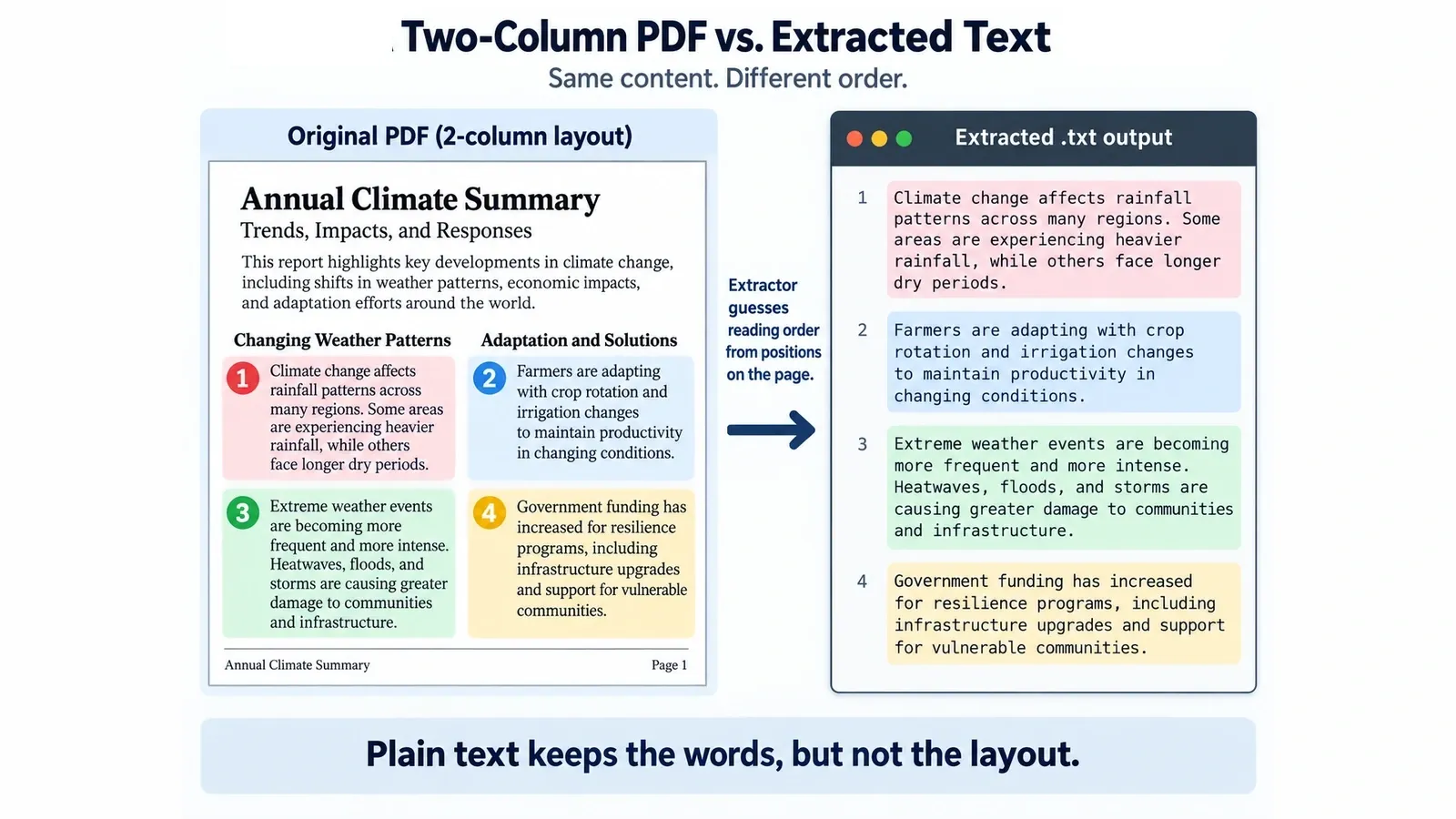
You get the words as editable, searchable characters in a plain text file, without the page formatting, fonts, images, columns, or visual page design around them.
If the PDF has a text layer, extraction reads the stored characters and returns them as text you can copy, search, quote, save, analyze, or feed into another tool.
What survives is the wording. What changes is almost everything that depended on the page: font style, font size, image placement, table shape, column layout, headers, footers, and exact spacing.
That can feel strange because a PDF looks like a finished page, but it does not store text the same way a Word document does. It stores characters with character positions on a page.
When an extractor creates plain text, it has to guess the reading order from those positions. On a simple one-column document, that guess is usually clean. On a two-column report, the result may mix the left and right columns.
That is not always a broken extraction. It is often the PDF format showing its awkward little machinery: the words were stored as positioned characters, not as neat sentences and paragraphs waiting politely in order.
So extracted text is best when you need the words themselves.
- Quoting from a report
- Sending text into a grammar checker
- Searching a long document
- Feeding content into another tool
- Saving a lightweight text copy
If you need the layout too, plain text is the wrong destination. Use Word conversion for document structure or Excel conversion for tables instead.
How Do You Extract Text from a PDF Online?
Upload the PDF, run the conversion, then download the result as a plain text file.
Here is the basic process.
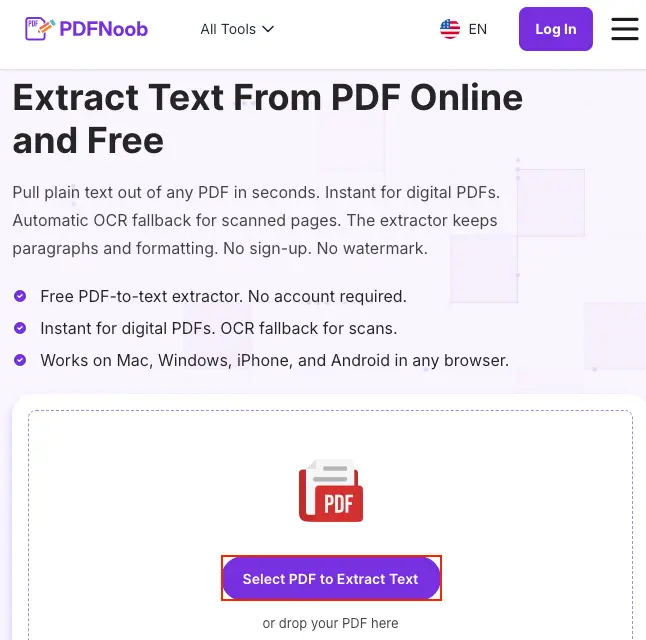
➤ Open PDFNoob’s PDF to text tool in your browser.
➤ Add your PDF by choosing Select PDF to Extract Text.
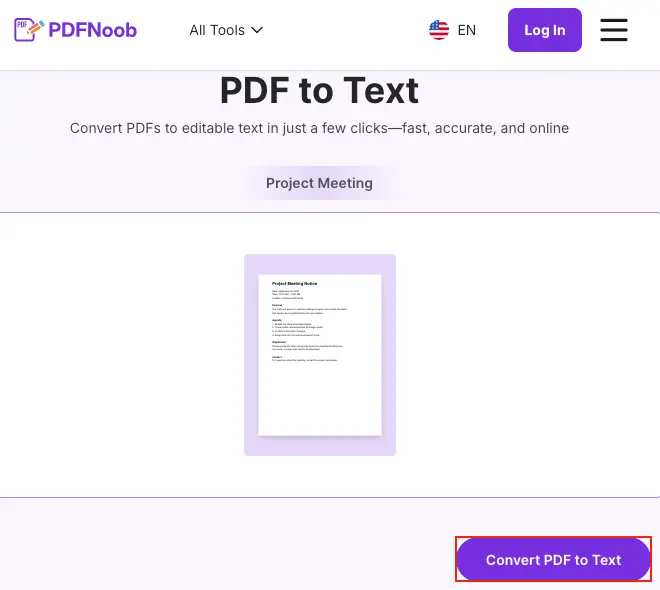
➤ After uploading, check the uploaded PDF preview, then click Convert PDF to Text to start extracting the text.
➤ Click Download to save the extracted text file to your device.
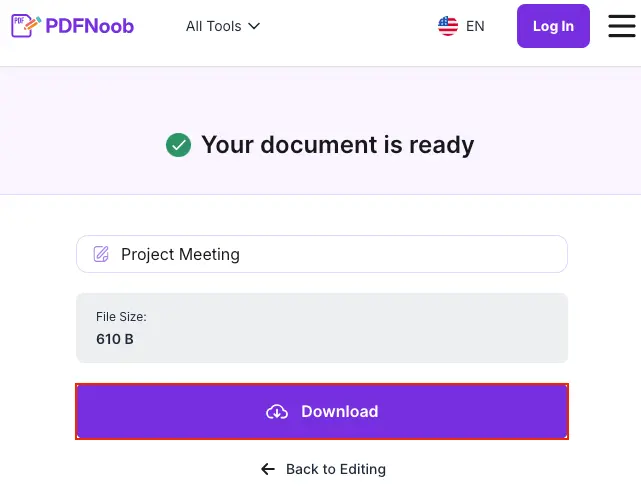
No account is needed on PDFNoob, and the uploaded file is deleted within an hour.
The current file size limit is 100MB, so very large PDFs need to be reduced, split, or handled with another workflow before upload.
If the PDF has a text layer, the output will contain the words from the file. If the pages are scanned images with no stored text, PDFNoob notices that and runs OCR on those pages for you, so you still get text back. That text is recognized rather than stored, so it is worth proofreading.
An empty or near-empty result is not a failed conversion, then. It usually means there was nothing stored to read, and nothing clean enough to recognize either. A very low quality scan, a photograph of a page, or a file that blocks copying will all end this way.
Trying three more PDF-to-text converters at that point rarely changes the answer, because they are all looking at the same page.
How Do You Identify the Type of PDF You Have?
Open the PDF and try the selection test by dragging your cursor across one visible line of text.
If the words highlight like normal text, the file has a text layer, and a PDF-to-text extractor should be able to pull the words out.
If the whole page highlights as one large block, or nothing highlights at all, the page is probably a scanned page or an image-only PDF. In that case, normal extraction will not work because there are no stored characters to read.
Use search as a second check. Press Ctrl+F on Windows or Command+F on Mac, then search for a word you can clearly see on the page. If the viewer finds the word, the file likely has selectable text. If it finds nothing, the page may only be an image.
There is also a third case: a mixed document. Some PDFs contain typed pages and scanned inserts in the same file. A contract may have five selectable pages, and one scanned signature page at the end.
That kind of file can produce a half-empty extraction: some pages return clean text, while the scanned insert returns nothing.
So before blaming the extractor, check the file type page by page. The result often tells you what the PDF actually contains.
Why Can't You Copy or Extract the Text?
If copying or extraction fails, one of three things is usually happening. The page may be an image. The file may have a copy restriction. Or the visible text may be mapped through an embedded font in a way the extractor cannot read correctly.
The first case is the easiest to spot. On an image-only page, the words are only pixels, so your cursor cannot select individual letters, and search may not find visible words on the page.
The second case is a permissions problem. The PDF opens normally, but copying may be blocked by document restrictions, so the viewer lets you read the page while preventing the text from being copied out.
The third case is the most confusing because the text looks real on screen. You can see the sentence, but when you copy or extract it, the result appears as nonsense, missing letters, boxes, or strange symbols.
That usually points to a font-mapping problem. A subsetted embedded font can store the visible shapes as glyph numbers without a usable character map that tells software which letter each shape represents.
To a person, the page still looks readable. To a machine, those marks may not clearly mean “A,” “b,” “7”, or anything useful.
The symptom tells you the route: image-only pages need OCR, restricted files need permission-aware handling, and garbled output usually means the visible text is not mapped cleanly enough for normal extraction.
How Do You Extract Text from a Password-Protected PDF?
If you know the open password, enter it first, then extract the text as normal.
If the PDF opens without asking for a password but will not let you copy text, it is probably protected by a permissions password or document setting that creates a copy restriction.
Those are two different problems. An open password stops the file from being read at all, while a permissions password lets the file open and only blocks actions such as copying, printing, or editing.
Keep this for authorised use. Work only with documents you own, control, or have permission to process.
If a client sent the file, ask for an unlocked copy or written permission before trying to remove restrictions. The goal is to access text you are allowed to use, not to bypass protection on someone else’s file.
Once the file can be opened and copying is permitted, use the same extraction route as any other text-layer PDF: upload it, convert it, and check the output.
How Do You Clean Up the Text After You Extract It?
Expect to fix three things after extraction: line breaks in the middle of sentences, repeated running headers or footers, and columns that arrive in the wrong column order.
First, start with repeated page furniture. Remove headers, footers, page numbers, document titles, or section labels that appear again and again throughout the extracted text.
Then fix broken sentences. Plain text extraction often preserves line endings from the PDF page, so one sentence may be split across several short lines even though it should read as one paragraph.
A simple find and replace pass can help. Replace double line breaks with a temporary marker, replace single line breaks with spaces, then restore the paragraph breaks from the temporary marker.
Check hyphenation next. If the original PDF broke a word across two lines, the extracted text may keep the hyphen.
So a word like trans- at the end of one line and action at the start of the next may become trans-action in the output. Later, a search for transaction may miss it completely.
That small error can quietly damage word counts, keyword checks, search results, and any tool that reads the extracted text afterwards.
Finally, inspect multi-column pages. If the text from the left and right columns is mixed together, repairing it by hand may take longer than re-extracting the page with a tool or workflow that handles columns better.
So, clean small formatting noise, but re-extract when the reading order is broken across whole sections.
How Do You Extract Text from a PDF Using Chrome?
Open the PDF in Chrome, select the text with your cursor, copy it to the clipboard, and paste it wherever you need the text.
For a small section, use the simple selection route: drag across the lines you want, press Ctrl+C on Windows or Command+C on Mac, then paste the copied text into a document, note, or text editor.
For a whole document, click inside the browser viewer and use select all with Ctrl+A on Windows or Command+A on Mac. Then copy and paste the result.
This browser route is useful when the PDF has a real text layer, and you only need quick text, not a clean file conversion.
The browser viewer will not preserve the original layout. Columns, tables, spacing, fonts, headers, and page design may turn into one plain stream of copied text.
There is also a quiet limit on long files. Chrome only keeps the currently rendered pages ready in the viewer, so using select all on a 300-page PDF may copy only part of the document.
Paste the result somewhere and check the beginning, middle, and end before trusting it. The shortcut can look successful while leaving half the file behind, because apparently even “select all” sometimes means “select whatever Chrome currently feels emotionally prepared to render”.
Which PDF Text Extractor Should You Use?
Match the tool to the file. A normal extraction tool works for an ordinary text PDF, an OCR tool is needed for a scan, and scripting is worth it only when the same job repeats.
For a regular text PDF, a browser-based tool such as PDFNoob, Chrome, or Adobe Acrobat can usually pull out the same stored characters. The accuracy difference is often small because the tools are reading the same text layer.
Google Docs is another free route for quick extraction. Upload the PDF to Google Drive, right-click it, choose Open with > Google Docs, and Google will turn the PDF into editable text, although the original formatting may not carry over cleanly.
For a scanned or image-only PDF, tool choice matters much more. You need OCR, because there are no stored characters to extract until the page image has been recognized as text.
For repeated work, such as extracting text from hundreds of invoices, reports, legal files, or research PDFs, use a script with a PDF library instead of clicking through files one by one.
So the best extractor is not the one with the loudest feature list. It is the one that matches the PDF in front of you: text extractor for selectable text, OCR for scans, and code for repeatable batches.
What Should You Check Before You Extract Text?
Before you extract text from a PDF, check three things: whether the file has a text layer, what you plan to do with the text afterwards, and whether plain text is really the right output format.
First, test the file. If the words are selectable or searchable, normal extraction should work. If the page is scanned or image-only, OCR needs to happen before the file can give you usable text.
Second, decide the next job. Plain text works well when you need to quote, search, analyze, copy, clean, or move the words into another tool.
Third, check whether the layout matters. Plain text is for the words, not the shape they sat in. If you need the shape as well, a format conversion is the better route, and the section below says which one to pick.
How Does OCR Differ from Text Extraction?
Text extraction reads a text layer that already exists in the PDF, while OCR looks at a picture of a page and guesses what the letters probably are.
A scanned document or image-only PDF needs OCR first because there are no stored characters to extract until recognition creates a new text layer. That difference also changes the risk: extraction is exact, while OCR depends on recognition accuracy and should be proofread.
Once OCR has created a text layer, PDFNoob’s OCR PDF tool gives you a searchable file, and Extract text from PDF pulls the words out as plain text from there. Our full OCR guide covers recognition accuracy, language settings, and how to check the result.
How Do You Extract Text from a PDF into Word or Excel?
Use a format conversion, not plain text extraction, when you need the PDF content to stay shaped like a document or table.
Choose a PDF-to-Word converter when you want a Word document that keeps headings, paragraphs, lists, and basic styling editable.
Choose a PDF-to-Excel converter when the PDF contains tables, and you need the result as a spreadsheet with rows and columns still usable.
Plain text extraction is the wrong route for tables because it removes the table structure. In many PDFs, column boundaries are just spacing on a page, not real data fields.
That means a table extracted to .txt may become a loose stream of numbers and labels instead of a working table.
If you want the numbers, do not route the table through plain text first. Use Excel conversion for tables and Word conversion for document structure.
How Do You Extract Text from a PDF with Python?
Use a PDF library and read the text page by page. A few lines are enough to pull the existing text layer out of a whole document and save it as a .txt file.
from pathlib import Path
from pypdf import PdfReader
r = PdfReader("sample.pdf")
Path("extracted-text.txt").write_text(
    "\n\n".join(f"--- Page {i} ---\n{p.extract_text() or ''}" for i, p in enumerate(r.pages, 1)),
    encoding="utf-8")
This code opens sample.pdf, runs a page loop, reads the stored text from each page, and writes the result to extracted-text.txt.
For a multi-column PDF, pypdf also has a layout mode that tries to preserve the horizontal position of the text. In the code above, replace p.extract_text() with:
p.extract_text(extraction_mode="layout")
This can keep columns roughly separated instead of flattening them into one text stream, although complex layouts should still be checked after extraction.
It does not OCR a scanned file. If the PDF is scanned or image-only, the script may return blank output because there is no text layer for the library to read.
Python is useful when the same extraction job repeats across hundreds of reports, invoices, statements, legal PDFs, or research files.
Its main advantage over a normal converter is control. With visitor-style extraction in pypdf, a script can read the text position of each piece of text, which is how you can separate columns, ignore headers, or rebuild reading order in code.
How Do AI Tools Extract Text from a PDF?
AI tools usually start the same way any extractor does: they read the text layer already stored in the PDF, then use a language model to clean, reshape, explain, rewrite, or handle summarising.
On a scanned or image-only PDF, they still need OCR first. The AI part does not magically find stored text that is not there; it either works from OCR-created text or returns little to nothing.
The useful part of AI comes after the text is readable. It can turn extracted text into a summary, bullet list, table, cleaner notes, or a more readable draft.
But an AI tool is not automatically better at reading a PDF. A language model can do clever things with text once it has it; getting that text out of the PDF is still the unglamorous first job.
So if plain extraction returns nothing, the AI route can fail for the same reason: there is no readable text layer to work from.
Also, think about document privacy before uploading a file to a chat assistant. Contracts, invoices, academic records, legal documents, medical files, and client work should only be uploaded to tools you are allowed to use for that document.