Converting a PDF page to PNG takes a picture of the page and gives you back one PNG image for each page in the document.
The original PDF can contain text, shapes, lines, images, and layout instructions. During raster conversion, those instructions are rendered into pixels at one chosen size.
That is why a PDF can stay sharp when you zoom in, but the converted PNG may blur. The PDF can redraw vector content from its instructions, while the PNG is already frozen as a fixed pixel image.
The important rule is one-way. Once the page has been converted into PNG, the drawing instructions are gone from that image. Enlarging the PNG later only stretches the same pixels, so it cannot restore the sharpness that was available inside the PDF.
Choose the image size before converting. If the PNG needs to look clear in print, on a website, in a slide, or in a social post, the DPI and render size should be set before the page becomes an image.
This guide explains what you get back, converting online, multi-page PDFs, PNG against JPG, phones, cost, and what controls the quality.
Why Should You Convert a PDF to PNG?
You convert a PDF to PNG when the destination needs an image instead of a document, such as a slide, a website, a social post, or a preview thumbnail.
A PDF works well when someone needs to read, print, search, or preserve a full document. A PNG works better when a platform expects an image upload and cannot place a PDF directly.
This is common when adding a page preview to a slide deck, uploading a document image to a website, posting a page on social media, or creating a thumbnail for a file listing.
The trade is simple. You gain a droppable image that can be inserted almost anywhere images are accepted, but you lose selectable text in the same step.
After conversion, the words on the page become pixels inside the PNG. They may still look like text, but they cannot be highlighted, copied, or searched the way they can in the original PDF.
Keep the PDF if you still need searchable or selectable content. Use the PNG when the page needs to behave like an image.
What Do You Get When You Convert a PDF to PNG?
You get one PNG image for each PDF page, with the page contents flattened into a single picture at a fixed pixel size.
Each page is rendered as an image. Text, shapes, lines, photos, signatures, and layout elements are all captured together through page flattening, so the PNG looks like the page but behaves like an image.
The output also has fixed pixel dimensions. For example, a page may become an image that is 1200 pixels wide, 2000 pixels tall, or another size depending on the tool’s render settings.
The main trade-off is that selectable text stops being selectable. Words that were searchable and copyable in the PDF become pixels inside the PNG.
That means the converted page can no longer be searched, highlighted, or copied from like the original PDF. It may still look the same on screen, but the text is now part of the image.
Keep the original PDF if you still need to copy text, search inside the document, preserve accessibility, or edit the text later. Use the PNG when the page needs to be uploaded, inserted, shared, or displayed as an image.
How Do You Convert a PDF to PNG Online?
Upload the PDF, let the tool render the pages, then download the PNG images.
➤ Open PDFNoob’s PDF to PNG converter in your browser.
➤ Click Select PDF to Convert and select the PDF file from your device.
You can also drag and drop the file into the upload area to convert.
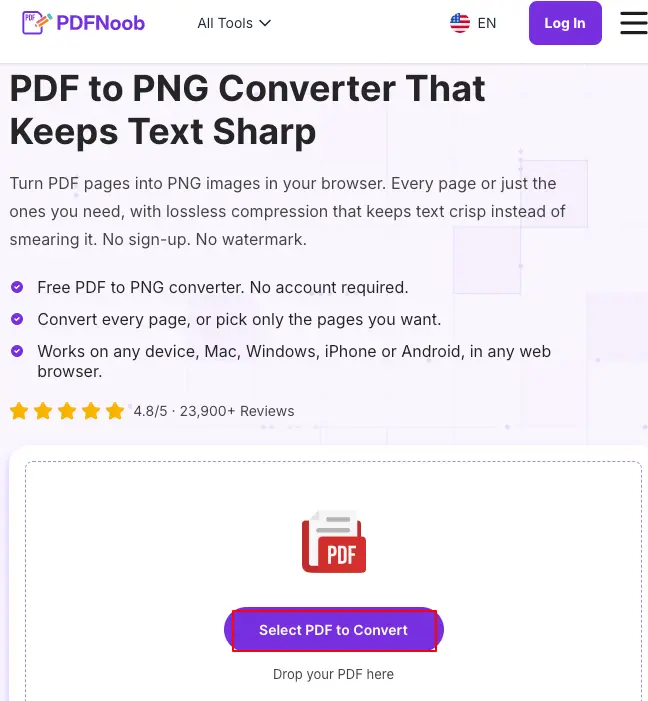
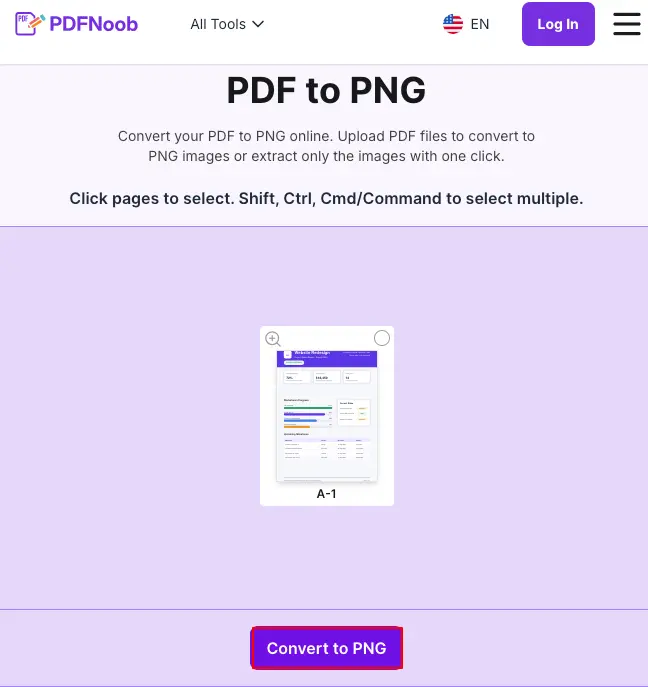
Wait for the tool to upload and display the PDF pages as thumbnails.
➤ Click the page you want to convert.
To select multiple pages, use SHIFT, CTRL, or Cmd/Command while selecting them.
➤ Click Convert to PNG to turn the selected PDF pages into PNG images.
➤ Once Your documents are ready appears, click Download to save the converted PNG file or files to your device.
If you missed something, you can go back to the editing mode by hitting the Back to Editing button.
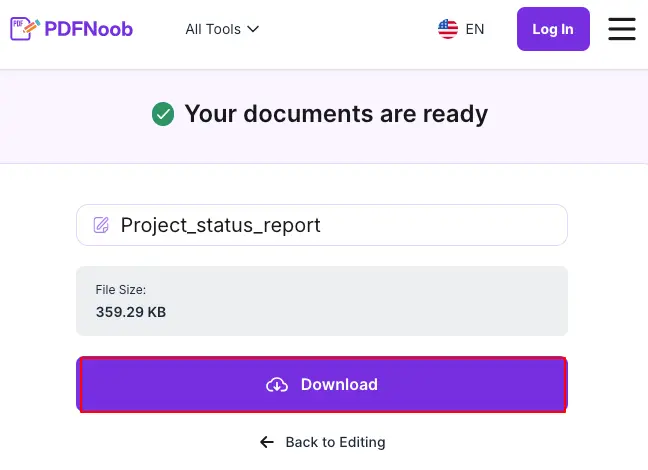
No account is needed on PDFNoob, so you can convert the file without creating a login or installing software.
Check the page count before uploading, especially with long documents. A 2-page PDF gives you 2 PNG files, but a 75-page report gives you 75 images.
That means a long PDF can create a large download. If you only need one page, convert only that page or separate it first instead of creating dozens of images you will delete later.
How Do You Convert a PDF to PNG on Windows?
Windows has no built-in PDF to PNG export, so use a browser converter for a proper conversion, or use Snipping Tool when you only need a quick image of a single page.
The browser route is better when you want clean PNG files from one page or many pages. Upload the PDF, let the converter render the pages, then download the PNG images.
This works well when you need the full page captured, want separate images for multiple pages, or need a result that is not limited by what fits on your screen.
Snipping Tool is different.
➤ Open the PDF using a reader and zoom to the page you need.
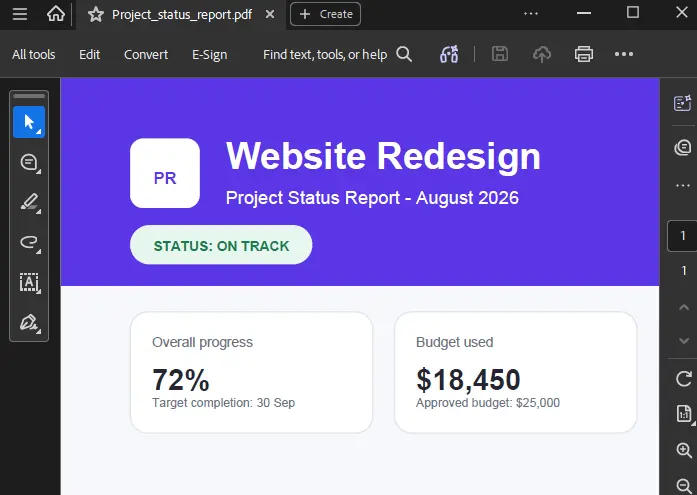
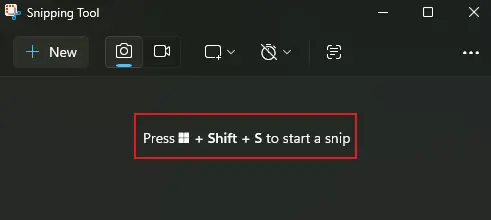
➤ Launch the Snipping Tool and take a screenshot by pressing Windows+SHIFT+S.
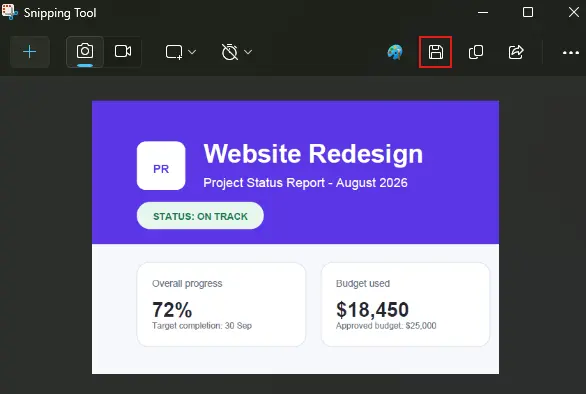
➤ After taking the screenshot, click the Save icon.
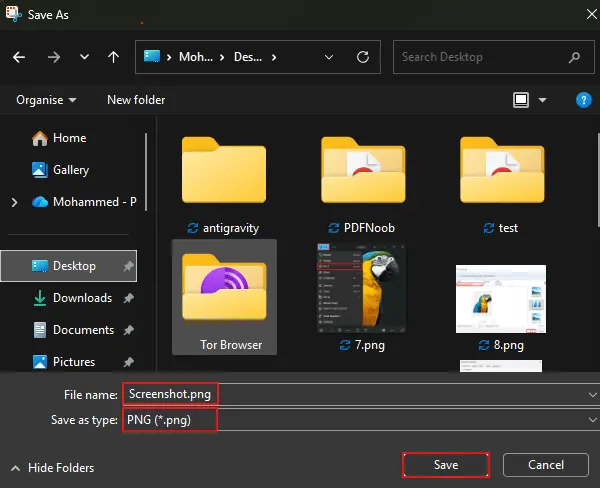
➤ From the Save As window, name the file and choose PNG from the Save as Type dropdown menu.
➤ Finally, click Save to store the image as a PNG.
That route is useful for a quick share, a temporary preview, or a small visual note. It is not the best method when you need a full-quality PNG of the entire PDF page.
The limitation is screen resolution. Snipping Tool captures what your display shows, not the full PDF page rendered at print quality.
So a Snipping Tool image may look fine in a chat message or quick email, but it can look soft when printed, enlarged, or placed into a design. Use a browser converter when the image needs to stay clear beyond a quick screen view.
How Do You Convert a PDF to PNG on a Mac?
Open the PDF in macOS Preview, choose File, then Export, select PNG as the format, set the resolution setting, and save the image.
➤ Launch the PDF in Preview, go to File, and choose Export.
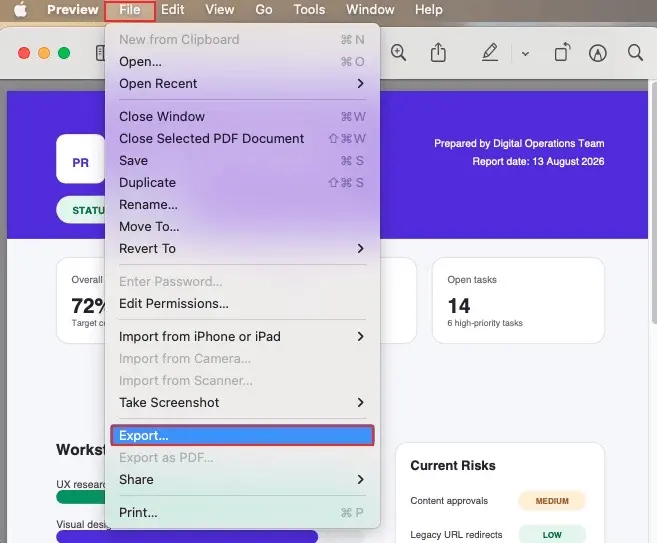
➤ Then open the Format menu, select PNG, and hit Save.
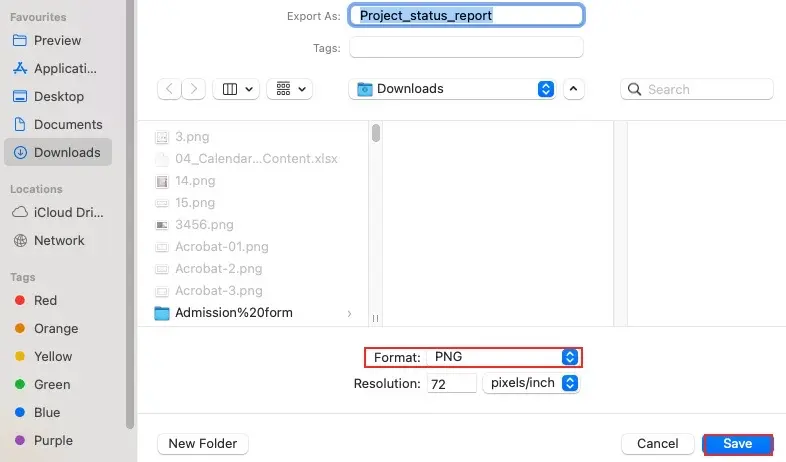
Before saving, check the resolution field in the Export dialog. Preview lets you set the output resolution in pixels per inch, which controls how many pixels are created from each inch of the PDF page.
This field is easy to miss. If the resolution is set to 72 pixels per inch, the PNG can look soft, especially when the image is enlarged, printed, or incorporated into a design.
Use a higher resolution when the PNG needs to stay clear outside a normal screen preview. A page exported at a stronger setting creates a larger image file, but it keeps text edges, lines, and small details cleaner.
Preview’s Export route works one page at a time. If the PDF has several pages, you need to select and export each page separately, or use an online converter when you want all pages turned into PNG files at once.
So on a Mac, Preview is useful for converting one PDF page to PNG with control over resolution. For a long document, a batch converter is usually faster.
How Do You Convert a PDF to PNG on iPhone or Android?
Open the PDF in a mobile browser converter when you need a real PNG file, or take a screenshot when you only need a quick image of one page.
The browser route is better for proper conversion. Open the converter on your phone, upload the PDF from the Files app, Downloads folder, Google Drive, or another file location, let the pages render, then save the PNG images.
Use this route when the image needs to be shared outside your phone, added to a website, placed in a document, or kept clear on a larger screen.
A screenshot is faster when you only need a rough image of a single page. Open the PDF, zoom or fit the page on screen, take the screenshot, then crop the image if needed.
The limitation is screen resolution. A screenshot captures what your phone screen shows, not the full PDF page rendered at a higher image size.
So the screenshot may look fine in a phone chat, message preview, or quick note, but it can look soft when opened on a laptop, printed, enlarged, or uploaded somewhere that displays it bigger.
Use a mobile browser converter when quality matters. Use a screenshot only when speed matters more than clarity.
What Happens When the PDF Has More Than One Page?
Every page becomes its own PNG, and the full set usually arrives as a ZIP archive with the images numbered in page order.
A single-page PDF gives you one PNG image. There is only one page to render, so the result is usually a single image file.
A multi-page PDF works differently. If the document has 10 pages, the converter creates 10 PNG files. If it has 80 pages, it creates 80 PNG files.
The files are usually named in sequence so you can tell which image came from which page. Good file naming keeps the images ordered clearly, such as page-1.png, page-2.png, page-3.png, and so on.
That page order is important when the images need to be uploaded, reviewed, placed into a slide deck, or used as previews in the same order as the original PDF.
If you only need a single page, do not convert the whole document first. Extract that page first, then convert the extracted page to PNG.
That avoids downloading a ZIP full of images you will delete anyway. It also keeps the output smaller, cleaner, and easier to manage.
Should You Choose PNG or JPG for a PDF Page?
Choose PNG for PDF pages with text, line art, screenshots, icons, charts, or a logo. Choose JPG for photographic pages where a smaller file size matters more than crisp edges.
PNG is usually better for document pages because it uses lossless compression. It keeps sharp borders cleaner, especially around letters, thin lines, tables, diagrams, and interface screenshots.
JPG is usually smaller, but it reaches that smaller size by blending and simplifying detail. That works well for photos, gradients, and image-heavy pages where tiny edge changes are harder to notice.
Text suffers most in JPG. On a text-heavy PDF page, JPG can leave faint smudging, haze, or rough blocks around text edges.
That smudging is the visible tell. If you compare the same PDF page as PNG and JPG, the JPG may look acceptable at first glance, but the letter edges often look softer when you zoom in or place the image in a design.
PNG keeps those edges cleaner, which is why it is the safer choice for resumes, invoices, forms, screenshots, certificates, reports, and pages with logos.
Use JPG when the PDF page is mainly a photo or scanned image, and you need a lighter file. Use PNG when the page needs to stay crisp enough to read.
Is It Free to Convert a PDF to PNG?
Yes. PDFNoob lets you convert a PDF to PNG for free, with no account requirement and no watermark added to the output images.
Other converters may also offer a free tier, but the limits are often hidden in how much you can convert. A tool may allow only a few files per hour, a few pages per document, or a small number of downloads before asking you to upgrade.
The usual catch is the page cap. A short 2-page PDF may convert without any problem, while a long report can stop halfway because the free limit counts pages, not just files.
That matters because PDF to PNG conversion creates one image per page. If a 60-page file reaches a 20-page limit, you may only get the first part of the document as PNG images.
Watermarks are another common limit. Some tools let you convert for free but place branding on the PNG output, which can make the result unusable for reports, presentations, client files, or public pages.
So the practical check is simple: before uploading a long PDF, check whether the converter limits files per hour, total pages, downloads, watermarks, or account creation.
What Controls the Quality of the PNG You Get?
The quality of the PNG comes from the render resolution, the kind of content on the page, and whether the original page was vector content or already an image.
The first factor is resolution. When a PDF page is converted, the tool has to decide how many pixels to draw from the page. A higher DPI creates more pixels, which usually gives a sharper PNG and a larger file.
The second factor is the page content. Text, logos, line art, tables, and screenshots need clean edges, so low-resolution output shows softness quickly. Photo-heavy pages can hide small softness better because they do not rely as much on sharp letter or line edges.
The third factor is the source itself. A PDF with vector content can be rendered sharply at a larger size because the page is still built from drawing instructions before conversion.
A scanned page is different. It is already an image inside the PDF, so converting it to PNG cannot recover detail that was never captured in the scan.
The practical rule is to decide where the PNG will be seen before converting. A small website preview, a slide, a social post, and a printed handout do not need the same output size.
Set the resolution once before conversion. After the page becomes a PNG, raising the size later only enlarges the existing pixels instead of creating new sharp detail.
How Do Image Resolution and DPI Settings Change the PNG?
DPI sets how many pixels are drawn for each inch of the PDF page, so a higher number gives you a larger, sharper PNG and a heavier file size.
Think of DPI as the render density. At a low setting, the page is turned into fewer pixels, so text edges, thin lines, tables, and logos can look soft when the PNG is enlarged.
For screen use, about 150 DPI is usually enough for a website preview, slide deck, social post, or normal on-screen viewing. It gives the page enough detail without making the image unnecessarily heavy.
For print, 300 DPI is the safer target. That level gives stronger print resolution, especially when the PDF page contains text, lines, charts, forms, or small details that need to stay readable.
The size difference can be big. A4 at 300 DPI lands near 2,480 pixels wide, so the PNG has much more image data than the same page rendered at a lower setting.
That larger pixel grid is what makes the output sharper, but it also makes the file heavier. Use 150 DPI when the image is mainly for screens, and use 300 DPI when the image needs to print clearly.
A PDF to PNG converter should be used with the final destination in mind. Set the pixels per inch before converting, because raising the size afterwards only stretches the pixels you already have.
Why Does a PDF to PNG Image Look Blurry at Low Resolution?
A PDF to PNG image looks blurry at low resolution because the PDF page is drawn from vector graphics, but the PNG becomes a fixed raster image made from pixels.
In the PDF, text and shapes are often stored as drawing instructions. When you zoom in, the PDF reader can redraw those letters, lines, and curves at the new size.
A PNG cannot do that. Once the page is converted, the output becomes a fixed pixel grid. Zooming in only makes those same pixels bigger.
Text shows the problem quickly. A letter in the PDF can be redrawn with clean edges, but the same letter in a low-resolution PNG has only the pixels created during conversion.
When that PNG is enlarged, the edges of the letters, lines, and small details spread out instead of being redrawn sharply.
The fix is to re-render the PDF page at a higher resolution. Convert the PDF again with a higher DPI or output size instead of enlarging the PNG after conversion.
Enlarging the PNG only stretches the image you already made. Re-rendering creates a new PNG from the original PDF instructions, so the image starts with more pixels and cleaner detail.
How Do You Turn PNG Images Back into a PDF?
Converting PNG images back into a PDF places each PNG onto its own page and joins those pages into one document.
This is the reverse trip, but it uses a different tool. Instead of rendering a PDF page into an image, PNG to PDF conversion uses page assembly to place image files onto PDF pages.
For example, three PNG files can become a three-page PDF. The first image becomes page 1, the second image becomes page 2, and the third image becomes page 3.
For the full reverse workflow, use the companion guide, How to Convert PNG to PDF.
The important limitation is text. A rebuilt PDF made from PNG files holds pictures of text, not real text.
That means the new PDF may look like the original document, but it will not contain searchable text unless OCR is added later.
So converting PNGs back to PDF is useful when you need one shareable document again. It does not restore the original PDF’s selectable, searchable, or editable text by itself.