



AI PDF Translator: Translate PDF Documents Online
Translate PDF to English, Hindi, Spanish and other languages. PDFNoob detects the original language, translates the text and keeps the images, tables and page order in place. Free, no sign-up.
- The PDF’s language is detected automatically.
- Search the target list and pick any language.
- Preview the translated PDF before you download it.

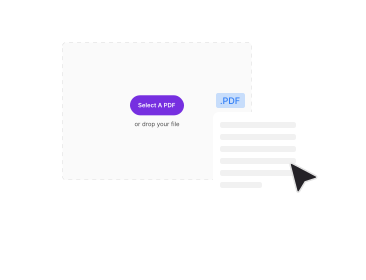
Drop your PDF here
One PDF up to 50 MB · Free · No sign-up
Your original PDF stays unchanged. You download a new, translated copy.

Language Detected for You
PDFNoob reads the PDF and names its language.

Original Layout Kept
Images, tables and page order stay put.

Preview Before Download
Check the translated pages first.

Translate Again, No Re-Upload
Go back and pick another language.
How To Translate a PDF Online
Translate PDF free in four steps, from upload to download.
Upload Your PDF
Drop a PDF of up to 50 MB in the box above. PDFNoob shows the file name and the language it detected.
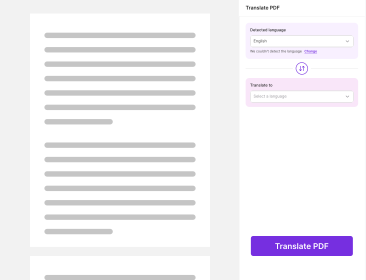
Check the Detected Language
The original language appears as “Automatically detected”. If it is wrong or missing, select the source language yourself.
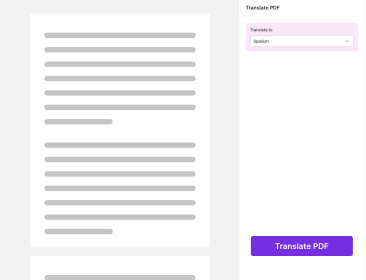
Choose the Target Language
Open Translate To, search by name and pick a language. It must differ from the source language.
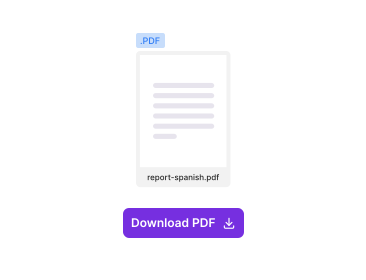
Translate, Preview, Download
Click Translate PDF, review the translated pages, then download. The file you get matches the preview.
Why Translate a PDF With PDFNoob?
An online PDF translator that keeps your PDF looking like your PDF.

Automatic Language Detection
PDFNoob reads the text and names the dominant language, so you only choose the target.

Formatting Stays Where It Was
Page order, page size, orientation, images, charts, tables, headings and lists are kept as closely as possible.

A Searchable Language List
Type a language name to find it fast instead of scrolling a long list.

Preview the Exact File
The preview is the final PDF. What you see is what you download.

Back to Editing, Same Upload
Return to the settings, choose another language and translate again without uploading the PDF twice.

Every Version From the Original
Spanish, then Japanese? Both come from the original PDF, never an earlier translation, so translation quality holds.
About AI PDF Translation
An AI PDF translator, also called a PDF language translator, replaces the text of a PDF with text in another language and rebuilds the file around it. PDFNoob extracts the readable text, keeps a link between each line and its position on the page, translates it, then places the translated text back. Non-text content such as images and charts is carried over unchanged, so a translated report still looks like the original report.
PDF Translate English to Hindi (and Hindi to English)
To translate PDF English to Hindi, upload the English PDF, confirm English is detected and search for Hindi in Translate To. To translate Hindi to English PDF files, upload the Hindi PDF and choose English. The same steps translate English to Hindi PDF notes, French or Arabic PDFs to English, and any other supported pair.
What Changes and What Stays the Same
Only the text changes. Images, charts, backgrounds and page dimensions stay as they were, and text inside an image is not translated. Translated text is fitted to its space so it does not run over tables or pictures, even when the new language is longer than the original.
Mixed-Language and Scanned PDFs
If a PDF mixes languages, PDFNoob detects the dominant one as the source and still translates all readable text into your target language. A scanned PDF has no readable text, so run it through OCR PDF first, then translate the searchable copy.
Why Not Copy the Text Into a Translator?
Copying text out of a PDF loses headings, tables and line breaks, and you still have to rebuild the document. A PDF document translator returns a finished PDF with the same pages, ready to share.
Related PDF Tools
Other tools you might need today.


Frequently Asked Questions
Quick answers about translating PDF files.
Is This a Free PDF Translator?
Yes. You can translate a PDF of up to 50 MB for free, with no sign-up.
How Do I Translate a PDF From English to Hindi?
To translate PDF to Hindi, upload it, check that English is detected, choose Hindi and click Translate PDF.
Can I Translate a PDF to English?
Yes. Upload the PDF in any supported language and pick English as the target.
Does Translation Keep the Original Formatting?
It keeps page order, size, orientation, images, charts and tables as closely as possible. Only the text changes.
Which Languages Can I Translate Into?
Every language the translation engine supports, including English, Hindi, Spanish, French, German, Chinese, Japanese, Arabic, Portuguese, Italian, Turkish, Thai and Vietnamese. Search the list by name.
What if the Language Is Not Detected?
You will see “We couldn’t detect the language of this PDF.” Select the source language yourself and continue.
Can I Translate a Scanned PDF?
Not directly. A scan has no readable text, so convert it with OCR PDF first.
Can I Translate a Password-Protected PDF?
No. A locked PDF cannot be read. Unlock it with Unlock PDF, then translate it.
Can I Translate the Same PDF Into Another Language?
Yes. Click Back to Editing, pick a new language and translate again. No second upload needed.
What Is the Translated File Called?
The original name plus the language, so annual-report.pdf becomes annual-report-spanish.pdf.