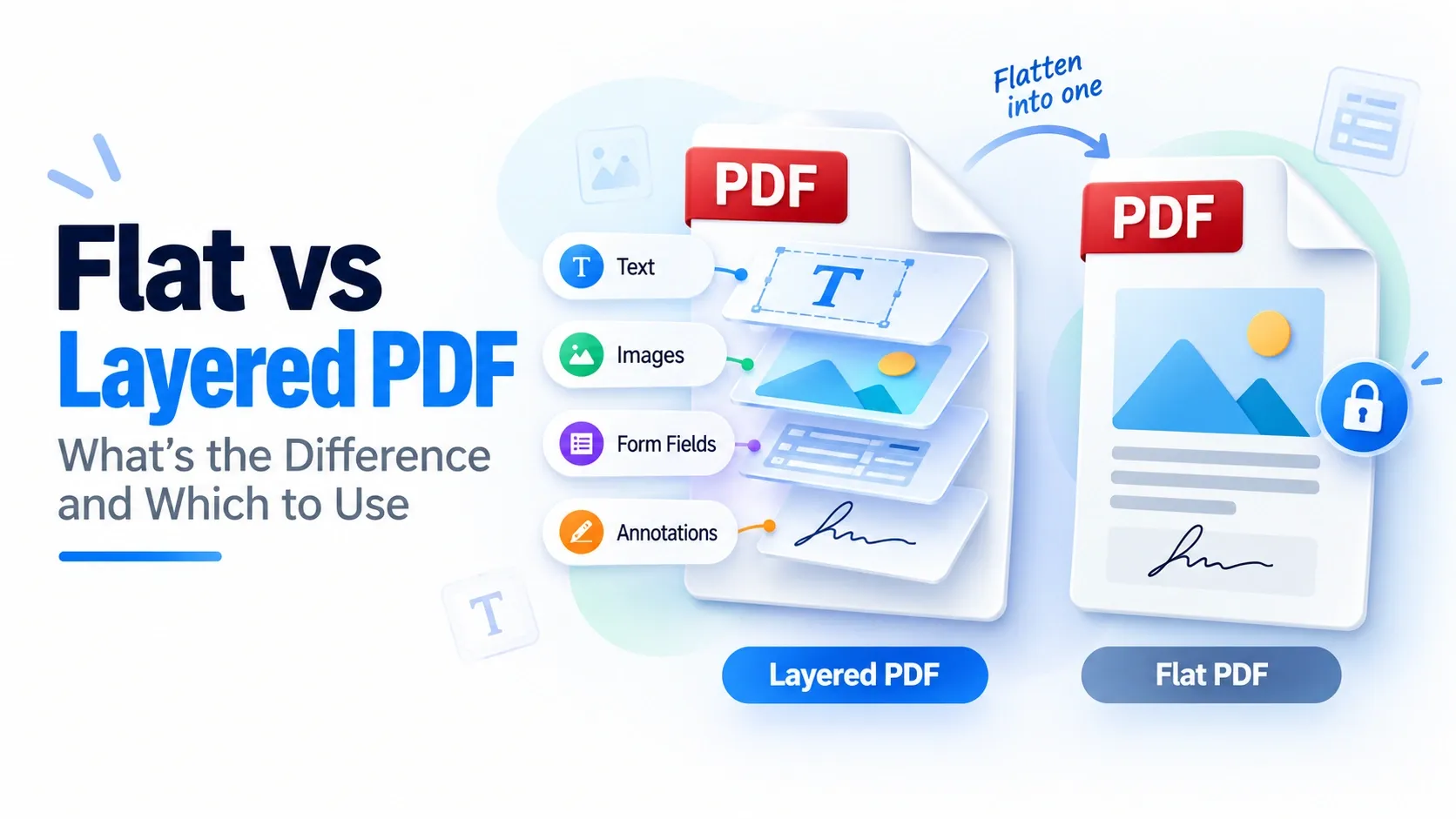
A PDF can look finished on screen but still behave differently when you print, share, sign, or edit it. Sometimes the text, comments, form fields, or design objects remain adjustable. Other times the file is locked into one final visual state. That is where the basic flatten PDF meaning becomes practical: layered means editable and interactive, while flat means locked and consistent.
A layered PDF keeps separate parts of the file available as editable layers or interactive elements. In Acrobat, those layers can be stored as Optional Content Groups, which let certain content be shown, hidden, or managed without changing the whole page.
A flat PDF does the opposite. When you flatten a PDF, the visible content is merged into a single layer so it prints and displays more consistently. This can help when a file has annotations, signatures, transparency, or form fields that might shift, disappear, or behave differently in another viewer.
This guide explains what layered and flat PDFs are and how they compare. It also covers what flattening removes and preserves, when flattening is useful, when layers should stay editable, whether flattening can be reversed, how flattening differs from compression, and the safest ways to flatten a file. By the end, the main flattening use cases should be clear: use layers while the PDF still needs editing or interaction, and flatten the PDF when the final appearance needs to stay fixed.
What Is a Layered PDF?
A layered PDF organizes page content into separate, stackable layers that can be shown, hidden, or managed without rebuilding the whole file. Think of it like transparent sheets placed on top of each other: one sheet may hold text, another may hold artwork, and another may hold technical marks or language-specific content.
In Adobe Acrobat, PDF layers are handled through Optional Content Groups or OCG structures. These are the technical containers that let supported PDF tools turn certain content on or off from the Layers panel. A basic PDF viewer may still open the file, but it may not let users control the layers properly.
Layered PDFs are common in CAD drawings, maps, packaging files, design proofs, and multi-language documents. Tools such as Adobe InDesign and Photoshop can create files where design parts remain separated before final export or review.
A layered PDF can also include form fields, annotations, and other interactive elements that make the file more flexible. That flexibility is useful while the document is still editable, but it can create problems when the file needs to be printed, displayed, or shared in one fixed final state.
What Is a Flat (Flattened) PDF?
A flat PDF is a PDF where layers, form fields, annotations, and other interactive objects have been merged into one single static layer. After flattening, the file keeps the visible page appearance, but the separate working parts become merged elements instead of editable objects.
That makes the PDF more non-editable and predictable for sharing or printing. A flattened file is useful when the page needs to look the same for everyone, especially before sending a final form, signed document, or print-ready file.
Flattening can also reduce visual problems caused by overlapping objects or transparency effects. When transparency is removed during flattening, the visible result can still look the same, but the live transparency behavior is no longer adjustable. The goal is a stronger WYSIWYG result: what appears on screen is closer to what should print or display for the receiver.
Flattening is not the same as compression. It merges the visual stack into one layer, but it does not automatically make the PDF smaller. File size may go down, stay similar, or even increase depending on images, fonts, and how the PDF is processed.
How Do Flat and Layered PDFs Compare?
Layered PDFs stay flexible because the working parts remain separate. They are better for editability and interactivity while a file is still being reviewed, filled, translated, or designed.
Flat PDFs are better when the final appearance matters more than future changes. They turn visible content into a locked page view, which gives stronger consistency and better print reliability across devices, viewers, and printers.
| Area | Layered PDF | Flat PDF |
|---|---|---|
| Editability | Easier to update because layers, objects, and interactive parts can remain separate. | Harder to edit because the visible content is merged into a final static appearance. |
| Interactivity | Can keep form fields, annotations, buttons, and other interactive objects active. | Interactive objects usually become part of the page appearance and stop behaving as live elements. |
| File size | May be larger because separate layers, objects, or resources remain inside the file. | May become smaller, remain similar, or become larger because flattening is not the same as compression. |
| Print reliability | Can create issues if layers, transparency, or interactive objects are not interpreted correctly by the printer or viewer. | Usually prints more predictably because the visible page is locked into one final appearance. |
| Transparency | Can preserve live transparency effects that remain adjustable in supported tools. | Transparency is usually baked into the page appearance, so it is no longer adjustable. |
| Consistency | Can vary if a viewer does not properly support layers or interactive features. | More consistent for final sharing because the viewer has fewer live elements to interpret. |
| Reversibility | The file remains reversible when the original layered version is kept, and its layers stay intact. | Flattening is not reliably reversible because the merged parts usually cannot be restored as real layers. |
The practical choice is simple: keep the PDF layered while people still need to edit, fill, review, or manage parts of the file. Flatten it when the file needs to be shared, printed, signed off, or delivered in one stable final state.
What Does Flattening Remove and Preserve?
Flattening changes live PDF parts into fixed page content. It removes layers, form fields, annotations, hyperlinks, and transparency as editable or interactive features, while it keeps the page looking the same for viewing, sharing, or printing.
| Removed by Flattening | Preserved After Flattening |
|---|---|
| Removes layers that could be shown, hidden, edited, or managed separately. | Preserves the page appearance, so the visible content should look the same after flattening. |
| Removes form fields, such as fillable boxes, checkboxes, and dropdowns, as live inputs. | Preserves text position, so the words remain in their visible place on the page. |
| Removes annotations, such as comments, highlights, stamps, and markups, as separate editable objects. | Preserves image resolution when the flattening process does not resample or downscale the images. |
| Removes hyperlinks as clickable actions when they are flattened into the page appearance. | Preserves the visual appearance of linked text, even when the click behavior is removed. |
| Removes transparency as a live effect, so overlapping objects become part of the final visual page. | Preserves the intended visual result of transparent or overlapping objects. |
The key point is that flattening keeps what the reader sees, but removes the separate controls behind it. The PDF may still look complete, but the layers, fields, links, annotations, and transparency effects no longer behave like live PDF elements.
Why and When Should You Flatten a PDF?
Flatten a PDF when the document is finished and needs to stay locked for print or sharing. Common triggers include sending a signed contract, submitting a print-ready file to a printer, or locking a filled form so the final answers cannot be changed.
For printing and prepress, flattening can make the file more reliable because printer software and a RIP may not handle layers, form fields, annotations, or transparency the same way as your PDF editor. Flattening reduces transparency issues by turning those live effects into a fixed page appearance.
Flattening also helps prevent edits after a document has been approved. If review comments, stamps, form answers, or signature appearances need to become part of the final page, flattening can lock annotations so they do not move, disappear, or remain editable in another viewer.
Do not flatten too early. If the PDF still needs revisions, form filling, translation, accessibility work, or design review, keep it layered and flatten only the final delivery copy.
When Should You Keep a PDF Layered?
Keep a PDF layered when it is still a working file, not the final delivery copy. If the document needs further editing, review comments, design changes, or version updates, keeping layers prevents important working parts from being locked too early.
A layered PDF is also better when a fillable form in use still needs typed answers, checkboxes, dropdowns, buttons, or other interactive elements. If you flatten the file too soon, those live fields can turn into static page content, so users may not be able to complete or update the form.
Keep layers during ongoing revisions and accessibility work as well. Accessibility tags help screen readers understand reading order, headings, tables, and form structure, while reflow can help content adapt for smaller screens or assistive viewing. Flattening can weaken or remove those helpful structures.
The safe workflow is to keep a layered master while the PDF is being edited, reviewed, filled, or checked for accessibility. Flatten only a final copy when the layers, form behavior, and accessibility structure no longer need to stay active.
Is Flattening a PDF Reversible?
Flattening a PDF is usually irreversible because the separate layers, form fields, annotations, and other live objects are merged into fixed page content. After that merge, the PDF no longer knows which visual parts used to be separate editable objects.
That means there is no undo you can rely on after saving and closing a flattened file. Some tools may let you edit visible text or images again, but that is not the same as restoring the original layers, fields, annotations, or form behavior.
The safest rule is to keep an unflattened master copy before flattening. Save a separate unflattened version for revisions, accessibility checks, form updates, or design changes, then flatten only the final delivery copy.
If you need a new final file later, return to the master copy, make the changes, and re-flatten a fresh copy. This keeps the working file flexible while still giving you a locked PDF for printing, sharing, or final approval.
Is Flattening the Same as Compressing?
Flattening and compression are not the same. Flattening locks layers and changes how the PDF behaves, while compression shrinks size and changes how much storage space the file uses.
Flattening merges live layers, annotations, form fields, transparency, or other interactive parts into a fixed page appearance. Compression focuses on file size by reducing data inside the PDF, often through image downsampling, object cleanup, font optimization, or stronger save settings.
Flattening may sometimes make a PDF smaller, but that is only a side effect. A flattened file can also stay the same size or become larger depending on images, fonts, transparency, and how the tool processes the page.
Use flattening when the goal is a locked, consistent final document. Use compression when the goal is a smaller file for upload, storage, or email. They serve a different purpose, and strong compression can affect image quality even when the PDF remains layered and interactive.
How Do You Flatten a PDF?
You can flatten a PDF by using Adobe Acrobat Pro, printing the document to PDF, or using an online PDF flatten tool. Before you flatten a PDF, save a backup or unflattened master copy. Flattening can permanently merge layers, form fields, annotations, and transparency into the final page appearance, so the original working file should stay separate.
In Adobe Acrobat Pro, open the PDF and go to Print Production > Flattener Preview. From there, choose the pages you want to flatten, adjust the raster/vector balance, review the flattening options, and apply the changes to a copy of the file.
The raster/vector setting controls how much of the page becomes raster image data versus preserved vector content. A value of 0 rasterizes everything, while 100 keeps vector content where possible. For some print workflows, you may also use Convert All Text to Outlines, but that should be used carefully because outlined text is no longer normal editable text.
Another route is Print to PDF, which can create a new PDF from the visible page output. This can flatten many form fields, comments, or visual elements, but the result depends on the app, printer settings, and PDF driver.
If you do not have Acrobat, an online flatten tool can usually do the job in a browser. Upload the PDF, flatten the file into a fixed final appearance, download the new copy, and keep the original version stored separately in case you need edits later.
How Do You Flatten a PDF Online?
To flatten a PDF online, upload the file to an online flatten tool, flatten it into one fixed page appearance, and download the new copy. This gives you a browser-based route with no install and no Acrobat required.
For a direct browser workflow, you can flatten a PDF by adding your file, starting the flattening process, and downloading the flattened version when it is ready. The tool will merge layers, form fields, annotations, and other live elements into the visible page result.
Keep an unflattened master copy before using any online flattener. The downloaded file should be treated as the final delivery version, because flattened layers and interactive parts may not be easy to restore later.
How Do You Compress a PDF Instead?
If your goal is a smaller file rather than a locked final page, compress the PDF instead. Compression can reduce file size while keeping layers, form fields, annotations, and other interactive parts intact.
For a browser-based route, you can use a compress PDF tool by uploading the file, choosing a compression level, and downloading the smaller version. Use basic vs strong compression based on the file’s purpose: basic compression usually keeps more visual quality, while strong compression may shrink the PDF more aggressively.
Compression often works through image downsampling, resource cleanup, font optimization, or removing extra data inside the PDF. This is useful when a file is too large for upload, cloud storage, or an email size limit.
Choose compression when size is the problem. Choose flattening when the goal is to lock layers, form fields, annotations, or other interactive elements into one final appearance.