



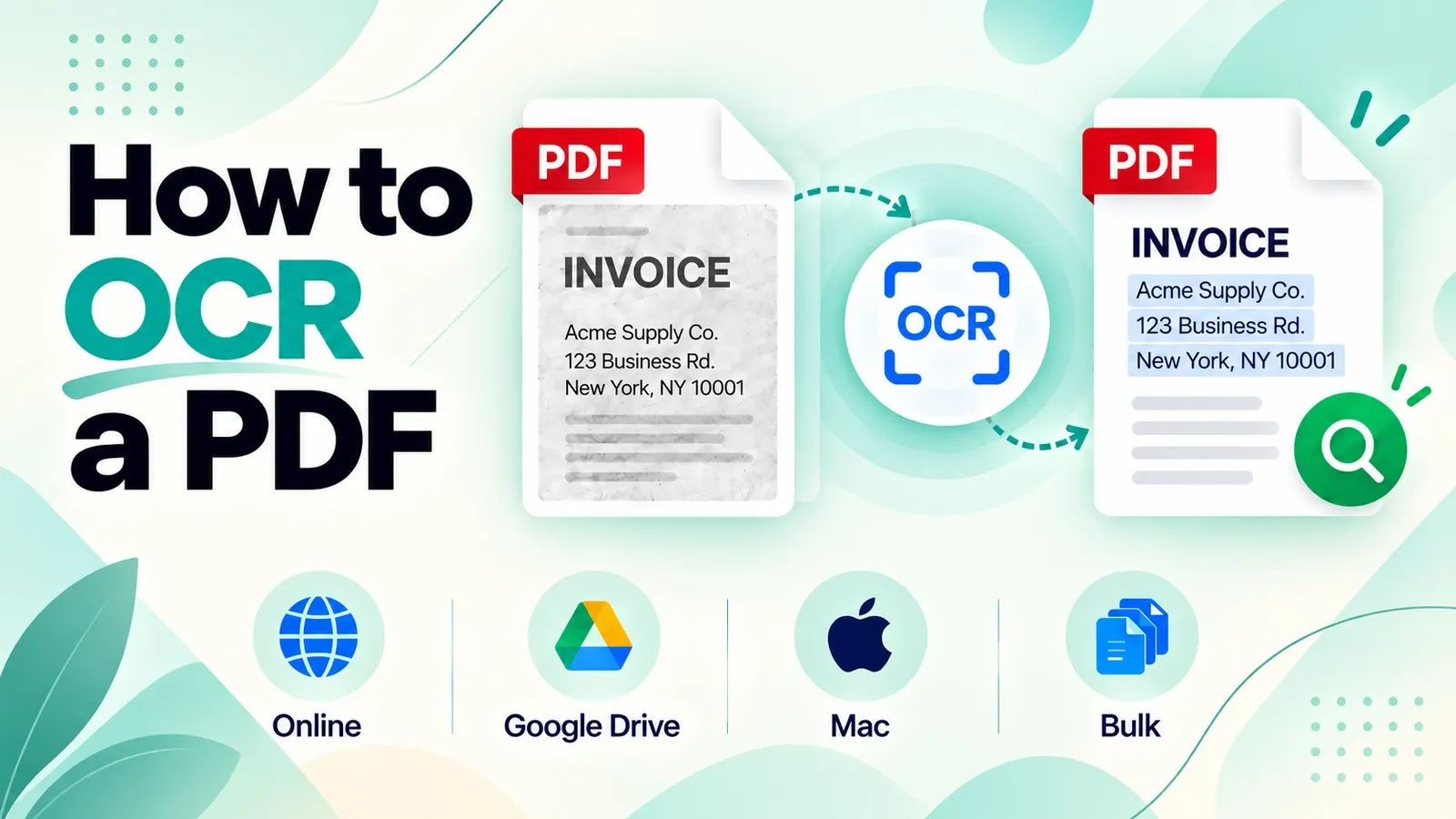
A scanned PDF becomes searchable when OCR reads the picture of each page and writes an invisible text layer of real characters behind it.
Before that, the file is only a page image. You can look at the words, but the computer cannot properly select them, search them, or copy them as text.
After OCR, the same scanned page can behave like a searchable PDF. You can highlight a line, search for a word, copy a sentence, or send the text into another tool.
The important part is that OCR does not rewrite the visible page. The scan stays exactly as it was. The text is added behind it, which is why a finished OCR file may look unchanged when you open it.
That unchanged look is normal. The real test is not whether the page looks different. The test is whether you can select a line of text and search for a word you can see on the page.
OCR is also not a perfect conversion. It is a character recognition process, which means the software is making its best guess about which shapes are letters, numbers, punctuation, and spaces.
A clean, straight scan usually gives a strong result. A faint, crooked, low-resolution, handwritten, or unusual-looking document can produce errors that still look believable.
This guide explains what OCR does to a scan, how to run OCR online, how the Google Drive route works, how to enable OCR in desktop PDF software, how to OCR a scanned PDF on a Mac, and how to convert an OCR’d PDF to Word.
It also covers how to check whether a PDF already has OCR, how accurate OCR is, why OCR sometimes fails, whether OCR changes the look of the PDF, how to improve the result, and what to check before you OCR several files, choose a language, recognise only part of a page, or rely on a free OCR tool.
What Does OCR Do to a Scanned PDF?
OCR looks at the image of each page, works out which shapes are letters, numbers, and punctuation, and stores those characters as an invisible text layer aligned behind the picture.
The page looks the same, but the words become searchable, selectable, and copyable.
Before OCR, a scanned PDF usually holds only a photograph of paper. The words may look readable to you, but the file contains a scanned image or page image, not real letters software can search, select, or copy.
After OCR, the file can become a searchable PDF. You can search for a word, drag across a line as selectable text, and copy the words into another document.
The detail that matters is alignment. The text layer is positioned character by character underneath the matching marks in the image, not added as one loose block of text.
That alignment is what makes highlighting land on the right word.
It also explains why crooked scans can behave strangely. If the original paper was scanned at an angle, the OCR layer may follow that same angle, so selection boxes can appear tilted even though the file is working.
How Do You OCR a PDF Online?
Upload the scanned PDF, choose the document language, run recognition, then download the searchable file. No account is needed, and the upload is deleted within an hour.
➤ Open the PDFNoob OCR PDF tool.
➤ Click Select PDF to OCR and upload the PDF file.
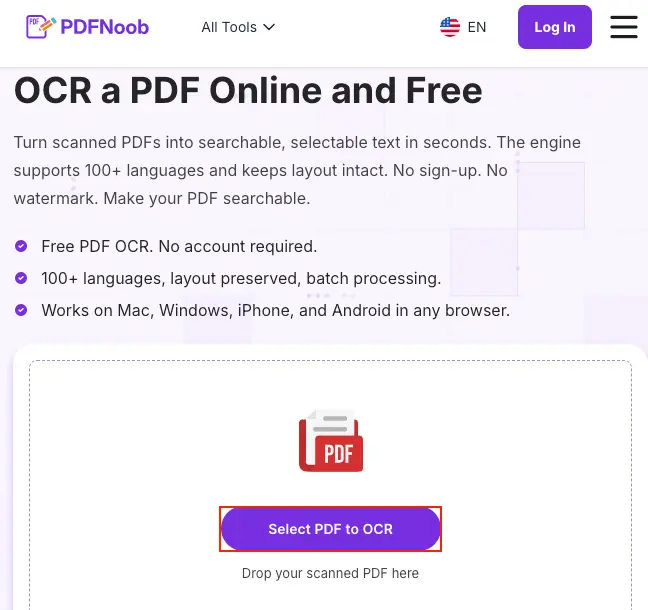
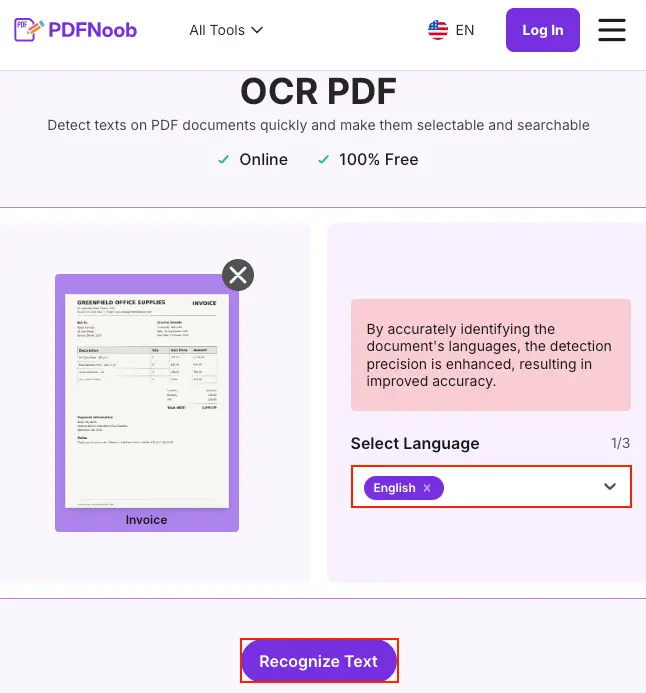
➤ After the file uploads, choose the correct document language from Select Language.
➤ Click Recognize Text to start OCR processing.
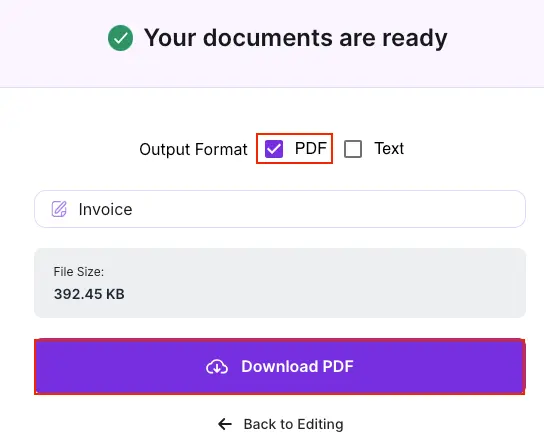
➤ When the file is ready, keep PDF selected as the output format if you want a searchable PDF.
➤ Click Download PDF to save the OCR-processed file.
Open the downloaded file and try selecting a line of text. If the text highlights properly, the OCR text layer has been added successfully.
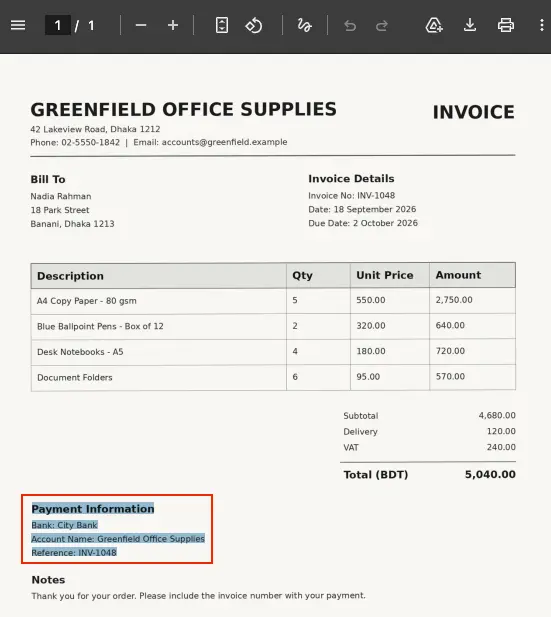
OCR usually takes longer than an ordinary PDF conversion because every page is treated as an image. A one-page scan may finish quickly, while a long document takes more processing time because each page needs its own recognition pass.
The current file size ceiling is 100MB, so larger scans may need to be compressed, split, or processed another way before upload.
Do not trust the result just because the downloaded PDF looks normal. A good OCR pass and a weak OCR pass can look the same on screen because the visible scan usually does not change.
Test the result in two steps. First, drag across one clear line of text and see whether the words highlight. Then search for a word you can see on the page.
If selection and search both work, the OCR pass created a usable text layer. If the file looks the same but the words still cannot be selected or searched, the recognition did not work well. The scan may need better quality, the right language setting, or another OCR pass.
How Do You OCR a PDF for Free with Google Drive?
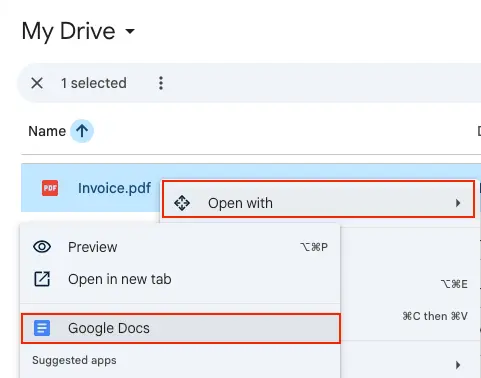
Upload the PDF to Google Drive, right-click the file, choose Open with, then select Google Docs. Drive runs OCR automatically and opens the recognised text in a new Google Doc. Follow the steps below.
➤ Upload the scanned PDF to Google Drive.
➤ Right-click the file, hover over Open with, and select Google Docs.
The recognised text appears in a new Google Docs document, where you can select, copy, or edit it.
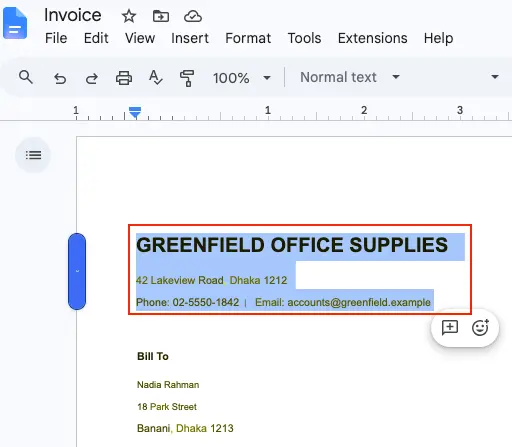
This is a useful free route when you only need the words from a scan. It works well for quoting a passage, copying text into notes, or pulling text from a simple scanned page.
But it does not give you a searchable PDF back.
Google Drive gives you editable text, but it discards the original page image and much of the page layout. The result is a Google Doc of text, not the same scanned PDF with a hidden OCR layer behind it.
So use this route when you want the text out of the scan. Do not use it when you need to archive the original scanned document as a searchable PDF.
How Do You Enable OCR in Desktop PDF Software?
Open the scanned file in a desktop editor, find the Scan or OCR menu, choose recognise text in the current file, check the recognition settings, run the process, then save the PDF.
In Adobe Acrobat Pro, the route is usually through the Scan & OCR tools. In Foxit PDF Editor, PDF-XChange Editor, and similar desktop tools, the wording may be OCR, Recognize Text, or Recognise Text, but the basic path is the same: open the scan, start recognition, choose the current file, and save the result.
The setting to check before you run it is the output type.
Choose searchable image when you want the PDF to look the same. This keeps the scanned page as the visible page and writes an invisible text layer behind it.
Choose editable text only when you want the page rebuilt as editable content. That mode can move words, change spacing, replace fonts, or make the page look different because the software is trying to re-type the scan.
This choice is easy to miss because recognition settings often sit behind a small settings button, and the default is not the same in every desktop editor.
So if your goal is to make a scanned PDF searchable, choose searchable image, run recognition, and save the file. If your goal is to edit the wording inside the page, choose editable text only after accepting that the layout may change.
How Do You OCR a Scanned PDF on a Mac?
macOS has no built-in way to add a saved text layer to a scanned PDF, so the practical routes are a browser tool or a desktop editor that offers recognition.
For the browser route, upload the scanned PDF to an OCR tool, choose the document language, run recognition, then download the searchable PDF.
For the desktop route, use a Mac PDF editor such as PDF Expert. Open the scanned file, choose the OCR or recognise-text option, run recognition, then save the file with the new text layer inside it.
The confusing part is Preview. Preview may let you select words on a scanned page because of live text, but that does not mean the PDF itself is searchable.
Live text reads the image on your screen. It can help you copy words locally, but it does not write anything into the file.
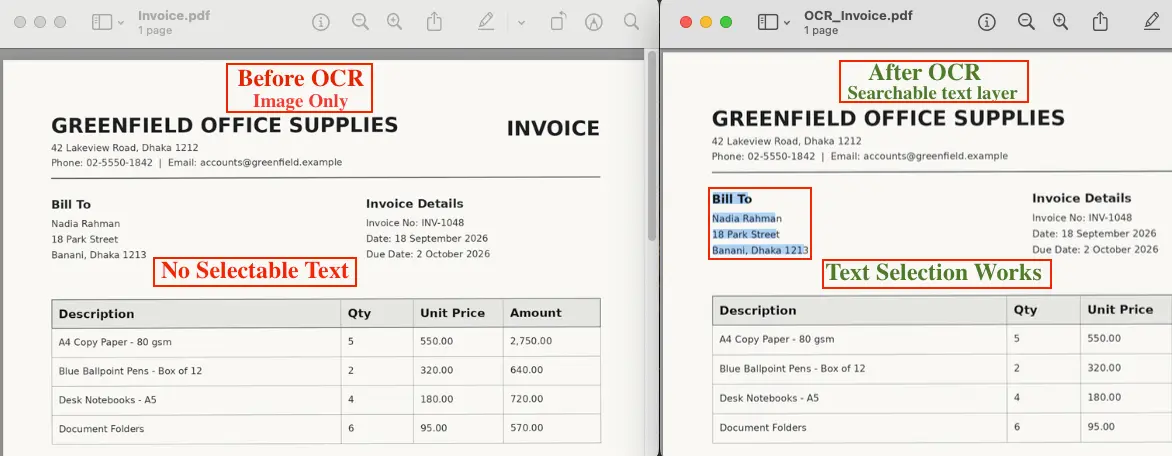
That difference matters. A Mac can often select words on a scan already, so it is easy to think the PDF has OCR.
It has not, unless a text layer was saved into the document.
Send that file to someone else, open it in another PDF viewer, or upload it to another system, and the selectable text may disappear because nothing was ever saved into the PDF.
If you need the file itself to stay searchable, do not rely on Preview’s on-screen selection. Run OCR with a browser tool or desktop editor, save the file, then test it by selecting a line and searching for a visible word.
How Do You Convert an OCR'd PDF to Word?
Run OCR first so the PDF has a text layer, then use a PDF to Word converter such as PDFNoob’s to create the Word document.
The order of operations matters: OCR then conversion.
If you convert a scan before OCR, the converter has no real text to work with. It may still produce a Word file, but it often contains one large picture per page instead of editable paragraphs.
After OCR, the converter can read the recognised text layer and rebuild the page as a Word document with editable words, headings, and paragraphs.
The layout may not be perfect. Tables, columns, spacing, headers, and unusual fonts can shift because Word documents and scanned PDFs do not store pages the same way.
So use OCR first when the file is scanned, then convert to Word. Reversing the order is a common failure because the converter may not warn you before giving you a document full of images.
How Do You Check Whether a PDF Already Has OCR?
Try to select one line of text, then search for a word you can see on the page. If both work, the PDF already has a text layer and does not need OCR.
Start with the selection test. Drag your cursor across a normal line of text. If the words highlight like real text, the page probably already has OCR or was created from digital text in the first place.
Then run the search test. Press Ctrl+F on Windows or Command+F on Mac, and search for a word that is clearly visible on the page. If the viewer finds it, the page is searchable.
If the words do not highlight, or search cannot find a visible word, that page is probably an image-based PDF page and may need OCR.
Check more than one page before deciding. A file can be a mixed document, where some pages already have text and other pages are scanned inserts.
That happens often with contracts, application packets, reports, and forms. The typed pages may pass both tests, while a scanned signature page or attached form fails.
Run this check before OCR, not after. If you run OCR over a file that already has a text layer, the software can stack a second, worse layer on top of the first one.
That double text can cause strange search results, duplicated copied text, or highlighting that no longer lines up cleanly with the page. Avoiding it is much easier than fixing it later.
How Accurate Is OCR on a Scanned PDF?
OCR is usually good on a clean, straight, high-resolution scan of ordinary printed text, and unreliable on anything faint, skewed, handwritten, low-resolution, or set in an unusual typeface.
The quality depends less on the OCR button and more on the page it is trying to read. Strong contrast, sharp letters, and good scan resolution give the recogniser clearer shapes to compare.
Problems start when the page is tilted, blurred, shadowed, compressed, or photographed from an angle. Even small skew can make a line harder to read because the characters no longer sit cleanly where the software expects them.
Do not treat recognition accuracy as one fixed percentage for every PDF. One page in a document can come through almost perfectly, while the next page creates errors in names, numbers, dates, or short words.
The main thing to watch for is character confusion. The common troublemakers are 1 against l against I, 0 against O, and rn read as m.
Those errors can survive spellcheck because they may still produce real words. A spellchecker might not know that the OCR result is wrong if the mistaken word is still a valid word.
So proofreading matters most in names, totals, dates, citations, ID numbers, addresses, and any line where one wrong character changes the meaning.
Why Can't You OCR a PDF?
Usually because the file is not what you think it is, the scan quality is too low for recognition, or the document has an editing restriction that stops the OCR tool from writing the text layer back into the PDF.
Check the restriction first. If the tool fails instantly, refuses to save, or says the file cannot be modified, the symptom points to a permission problem rather than a recognition problem.
In that case, the OCR tool may be able to read the page image, but it cannot save the new searchable layer into the document. Use an unlocked copy or a file you are allowed to modify.
Then check whether the file is actually the kind of PDF you think it is. If the words already highlight and search works, the file may already have a text layer and may not need OCR. If only some pages fail, you may be dealing with a mixed document where scanned inserts were added to typed pages.
Finally, look at the scan itself. Low resolution, blur, shadows, poor contrast, skew, handwriting, stamps, or heavy compression can all cause recognition failure.
The key difference is timing. A restriction problem often fails immediately and looks like a broken tool. A scan-quality problem usually completes but gives you bad text, missing words, strange characters, or search results you cannot trust.
In short, check whether the file is restricted, check whether it already has text, then check whether the scan is clear enough for OCR to read.
Does OCR Change How the PDF Looks?
No, not in the searchable image mode that most online OCR tools use. The scan is left exactly as it was, and the text is added as an invisible layer behind it.
That means the page appearance should not change. The same handwriting, stamps, shadows, margins, marks, and scanned paper texture stay visible on the page.
This is different from editable text mode in some desktop PDF editors. Editable text mode tries to re-type the page as movable text, so it can change fonts, spacing, line breaks, and layout.
When you use a typical online OCR tool, you are usually getting a searchable image: the page still looks like the original scan, but the words can be selected, searched, and copied.
This question comes up because OCR often appears to do nothing. You open the finished PDF, the page looks unchanged, and it feels like the tool failed.
That unchanged look is usually the correct result. The only way to confirm OCR worked is to run the selection test: drag across a clear line of text, then search for a visible word.
If selection and search work, the OCR layer exists even though the page looks the same.
How Do You Improve OCR Results?
Fix the scan, not the software. Rescan ordinary printed text at 300 dpi, straighten the page with skew correction, and make sure the contrast between the letters and background is strong before running recognition again.
Start with scan resolution. If the scan is blurry, tiny, or heavily compressed, OCR has fewer clear character shapes to read. For ordinary printed text, 300 dpi is the practical threshold.
Going lower often creates mistakes. Going above 600 dpi usually makes the file much larger without improving recognition enough to matter.
Then fix the angle. A tilted page makes lines and letters harder to recognise, so straighten the scan before OCR rather than expecting the tool to work around a tilted page.
Next, improve contrast. OCR works best when dark text sits on a light, clean background. Faded ink, shadows, grey paper, bleed-through, and low-light phone photos all make recognition weaker.
After that, check the language setting. If the document is in Spanish, French, German, or another language with accented characters, the OCR tool needs that language selected before recognition.
Finally, use cropping when the page contains stamps, logos, borders, handwritten notes, or scanner edges. Removing extra marks keeps the recogniser focused on the printed text instead of trying to read every random shape on the page.
If the result is still poor, rescan or clean the page image first, then run OCR again. A better source scan usually beats trying the same bad image in another recogniser.
What Should You Check Before You OCR a PDF?
Before you OCR a PDF, check the document language, how many files you need to process, and whether the whole page needs recognition or only one page region.
First, check whether OCR is needed at all. Try to select one line of text with your cursor. If the words already highlight, the file has a text layer, and running OCR again may only add a second, worse layer on top.
Second, check the language. OCR works better when the recogniser knows which alphabet, accents, and word patterns to expect.
Third, check how many files you have. One file is simple. A group of files needs a little more care, which the next section covers.
Fourth, check the part of the page you actually need. If you only need one table, address, or block of text, recognising a selected region may be cleaner than running OCR across the whole page.
These checks decide the next route: whether to skip OCR, set the right language, process several PDFs together, or recognise only a selected part of the page.
How Do You OCR Several PDFs at Once?
Add the files together and run one OCR pass over the file set. Each PDF should come back separately, with its own text layer added after recognition.
This is called batch processing, and it is useful when you have several scans that need the same treatment, such as invoices, forms, reports, signed contracts, or archived letters.
The main thing to check before starting is the shared language setting. Most batch OCR tools apply one language choice to the whole group, not a different language for each file.
The same is true for recognition options. If the batch is set to create searchable PDFs, apply OCR to every page, or use a specific quality setting, that choice usually applies to every file in the set.
That is fine when all the documents are similar. A folder of English invoices, for example, can usually run through one batch cleanly.
The quiet failure case is a mixed-language batch. If half the files are English and half are French, but the OCR tool is set to English, the French files may not throw an error. They may come back with confident-looking nonsense.
So batch similar PDFs together. Keep different languages, unusual scripts, and low-quality scans in separate batches, then test one finished file from each group before trusting the whole run.
If you only need to make a few scanned files searchable, use the same Make a PDF Searchable route and process them as a small batch when the language and recognition settings match.
Which Language Should OCR Be Set To?
Set OCR to the document language, not your computer language, browser language, or country setting.
The language setting tells the recogniser which alphabet, spelling patterns, word shapes, and dictionary it should expect.
That matters most when the scan includes accented characters, such as ñ, é, ü, or ç. If the wrong language is selected, OCR may drop accents, replace letters, or turn a real word into a similar-looking wrong one.
If the PDF uses one language, choose that language before running OCR. If it uses two languages, use a tool that supports more than one OCR language, or split the file into separate runs by language.
The quiet failure case is a mixed language PDF with the wrong setting. The tool may not show an error. It may return confident-looking wrong words that seem fine until you search, copy, or proofread the result.
How Do You OCR a Selected Region of a PDF?
Some desktop editors let you draw a box around part of a page and recognise only what is inside it. That way you can pull one table, address, paragraph, or form field out of a busy scan instead of processing the whole thing. Most browser tools work on whole pages only.
This is useful when the scan has a clean area you need and messy content around it. A cropped selection area gives the recogniser fewer distractions, so it is less likely to read logos, borders, handwriting, scanner edges, or background marks as text.
Use partial OCR when only one part of the page matters. For example, you might need the address block from a letter, the total from an invoice, or one table from a report.
Do not use it when you need the whole PDF to become searchable. In that case, run full-page recognition so the entire visible page gets an OCR layer.
The practical rule is to use the selected region for cleaner extraction from one part of a messy scan, and use the whole page when the final PDF needs to be searchable from top to bottom.
After region OCR, still run a quick result check. Copy the recognised text, search for one visible word from the selected area, and proofread numbers, names, and short words before trusting it.
What Are the Limits of Free OCR Tools?
Free OCR tools are usually enough to make a small scanned PDF searchable, but they often have page limits, file-size limits, weaker layout handling, and fewer language options.
The first limit is size. A free tool may only accept a certain number of pages, a smaller upload, or one file at a time. That is fine for a short form or letter, but it stops you when the PDF is a 90-page report.
The second limit is layout. Free OCR can usually add a text layer well enough for searching and copying, but tables, columns, footnotes, and sidebars may not come out in a clean reading order.
That matters because a searchable PDF is not the same as a rebuilt document. OCR can make the words searchable without recreating the table structure underneath them.
The third limit is language support. Common languages usually work better, while unusual scripts, mixed-language pages, old typefaces, or accented text may produce more mistakes.
So use a free OCR tool when you need a simple searchable PDF from a short scan. Use a stronger OCR or conversion workflow when you need batch processing, complex layouts, clean tables, or reliable text from less common languages.