


Signing a PDF places your mark on the page and, once saved correctly, folds that mark into the document itself.
For everyday forms, this usually means adding an electronic signature by typing your name, drawing it, or uploading an image of your signature. For more formal identity-backed documents, a digital signature uses a certificate to connect the file to a verified signer and detect later changes.
The part people miss is what happens before the file is fully saved or locked. A placed signature field can still behave like an editable object if it sits on top of the page instead of being merged into it.
That is where flattening matters. An unflattened signature can remain as an annotation that the recipient can drag, move, or delete. A flattened signature is merged into the page, so it is no longer a separate movable layer.
Tools such as Fill and Sign make the signing step simple, but the final check is whether the signed mark is locked into the PDF, not just visible on the screen.
This guide explains what counts as a signature, how to sign a PDF online or in Acrobat Reader, and how to add a handwritten signature. It also covers signing on a Mac or phone, sending a PDF for someone else to sign, and the reasons a PDF may sometimes refuse to accept a signature.
What Counts as a Signature on a PDF?
Two different things are called signing a PDF. An electronic signature is a picture or mark placed on the page, while a digital signature is backed by a certificate that ties the file to an identity and can detect later changes.
An electronic signature is the one used for most everyday forms. It can be typed, drawn, uploaded as an image, or placed into a signature box so the document shows that you agreed, approved, or completed that part of the form.
A digital signature is more formal. It uses identity verification and certificate-backed signing to connect the signed PDF to a specific signer and show whether the file changed after signing.
So, if someone asks you to type, draw, or upload your signature, they usually mean an electronic signature. If they ask for a certificate, verified identity, or change detection, they mean a digital signature.
For school forms, permission slips, basic business documents, internal approvals, and many routine PDFs, an electronic signature is usually enough.
For regulated, high-trust, or identity-sensitive documents, a digital signature is expected, as the signature is not just a visible mark. It also carries verification data connected to the signed file.
How Do You Fill and Sign a PDF for Free?
Upload the PDF to a signing tool, choose type, draw, or upload an image, place the signature where it belongs, then download the signed file.
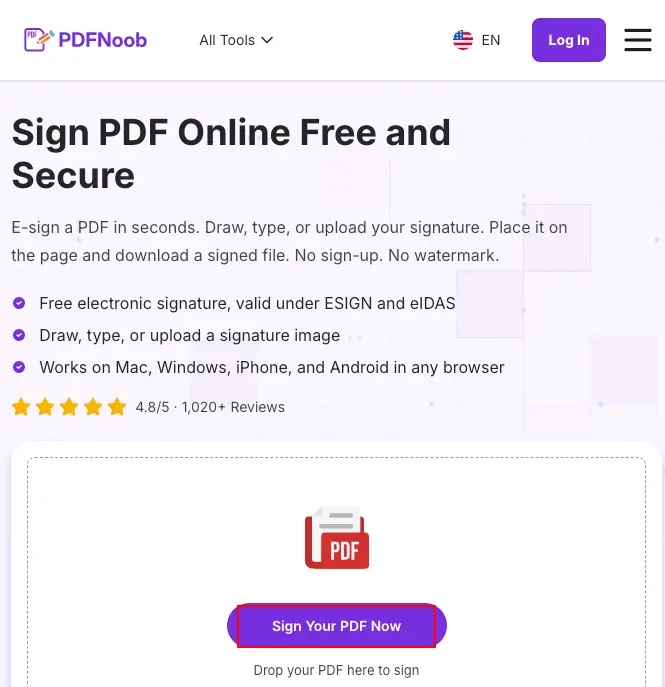
➤ Open PDFNoob’s Sign PDF tool in your browser.
➤ Click Sign Your PDF Now and select the PDF file you want to sign.
You can also drag and drop the PDF into the upload area.
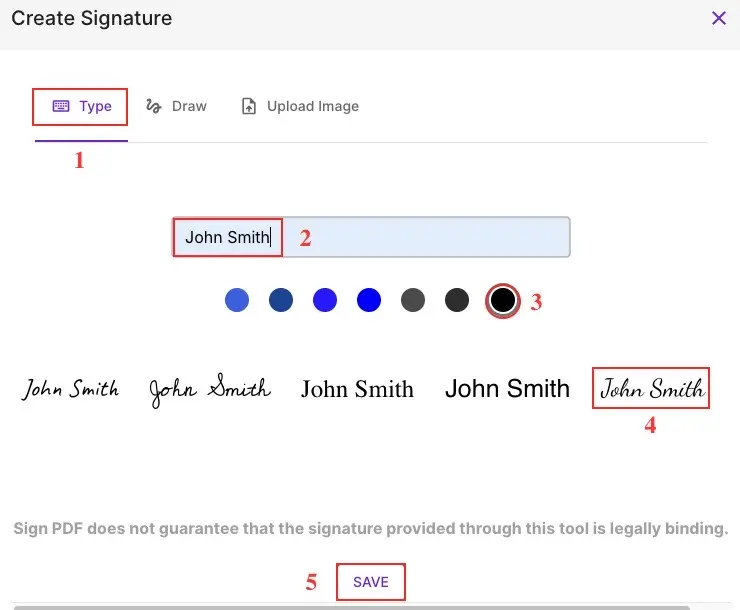
➤ Choose Type in the Create Signature window.
You can also use Draw or Upload Image if you prefer another way to create your signature.
➤ Write down your name in the text box to generate a typed signature.
➤ Select your preferred signature color and styles from the available options.
➤ Click Save to add the created signature to your PDF.
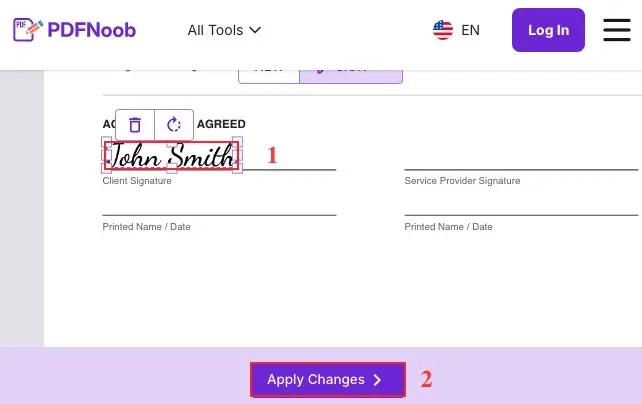
➤ Drag the signature to the appropriate signature line on the document and adjust its position or size as needed.
➤ Click Apply Changes once the signature is correctly placed.
➤ Click Download to save the signed PDF to your device.
If you need to make any further changes before finishing, hit the Back to Editing button.
No account is needed on PDFNoob, so you can fill and sign the PDF without creating a login or installing software.
Place the signature carefully before saving. Once the file is saved and downloaded, moving the signature is no longer part of the same simple edit.
If the signature is in the wrong place after saving, you usually need to reopen the PDF, adjust the signature, save again, and download a fresh copy. That is why it pays to check the position before you save.
So the flow is simple: upload, add the mark, check the position, then save only when the signature sits exactly where it should.
How Do You Add a Signature Using a PDF Reader?
Open the PDF, choose the Fill and Sign tool, then add your signature or initials by typing, drawing, or importing an image.
➤ Open the PDF file in Adobe Acrobat on your computer.
➤ Click All tools in the upper-left corner, then select Fill & Sign.
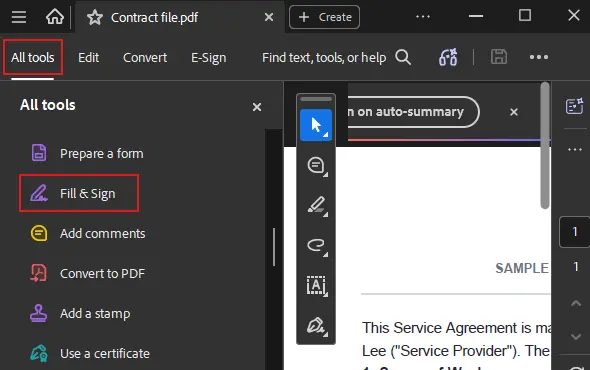
➤ In the E-Sign panel, click Add signature.
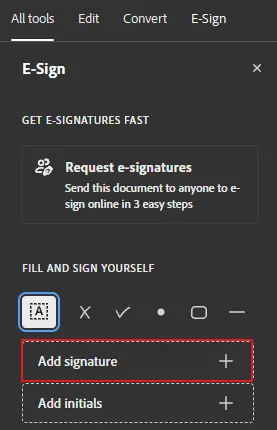
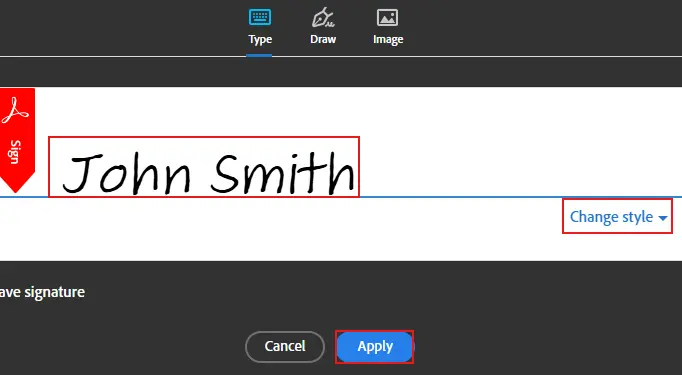
➤ Choose how you want to create the signature using Type, Draw, or Image.
➤ If you choose Type, enter your name and select Change style if you want a different signature appearance.
➤ Click Apply to add the signature to your PDF.
➤ Place the signature and then drag or resize it to fit the signature line.
➤ Click the Save icon to save the signed PDF to your computer.
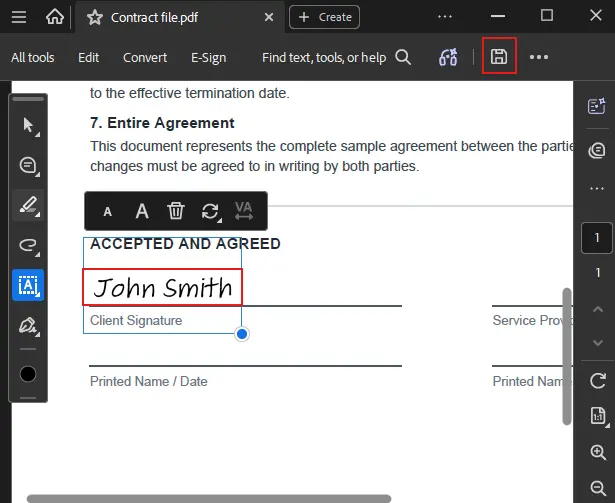
You can type your name, draw the signature by hand, or import an image of your signature if the reader supports that option. After placing it, resize the mark so it fits the form without covering nearby text.
Acrobat Pro is not required just to sign a PDF. Acrobat Reader is free, and its Fill and Sign workflow is enough for many everyday forms that only need a visible signature or initials.
Preview can also help on a Mac. The key point is that signing in a PDF reader is not the same as editing the whole PDF. You are adding a signature mark to the page, not rewriting the document content.
How Do You Add a Handwritten Signature to a PDF?
Add a handwritten signature by drawing it with a mouse, finger, or stylus, or by photographing a signature written on paper and uploading it as an image.
Drawing with a mouse works when you need a quick signature on a computer. It may not look as natural as pen on paper, but it is usually enough for simple forms, approvals, and everyday documents.
Drawing with a finger or stylus works better on a phone, tablet, or touchscreen laptop. A stylus gives more control over curves and spacing, while a finger signature is faster but can look thicker or less precise.
The third route is an uploaded image. Write your signature clearly on white paper, photograph or scan it, then upload it into the signing tool as a scanned signature.
The cleaner the photo, the better the result. Use white paper, good light, dark ink, and crop close to the signature so the tool can separate the mark from the page.
Many signing tools can remove the white area and place the signature with a transparent background. That is why a clean paper photo can sit naturally on the PDF, while a phone scan pasted straight in may look like a grey box.
So if the uploaded signature looks cloudy, boxed-in, or too dark, remake the image before placing it. A clean signature image is easier to position and looks more like it belongs on the PDF page.
How Do You Sign a PDF on a Mac?
Open the PDF in macOS Preview, open the Markup toolbar, then choose Sign to create or place a saved signature on the page.
➤ Launch the PDF in Preview, select the Markup button, choose the signature icon, then press Click Here to Begin.
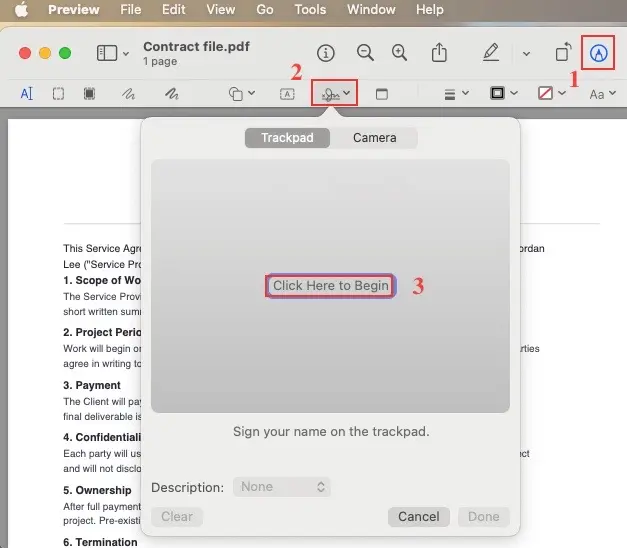
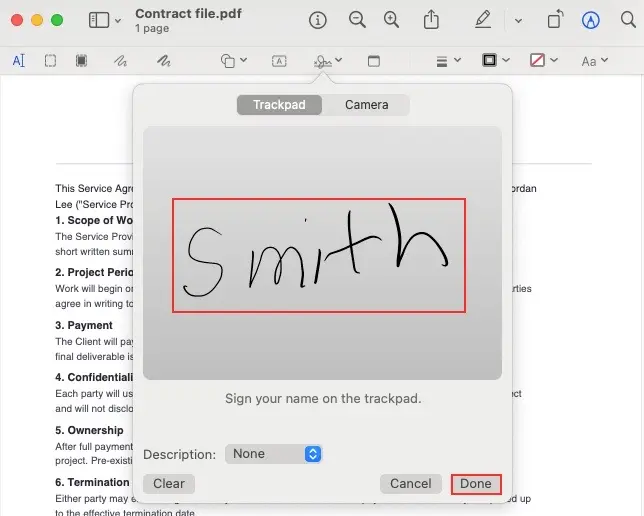
➤ Write your signature on the trackpad using your finger. When finished, press any key and click Done to save it.
➤ Drag the signature to the required signature line in the PDF.
You can resize or reposition it using the handles.
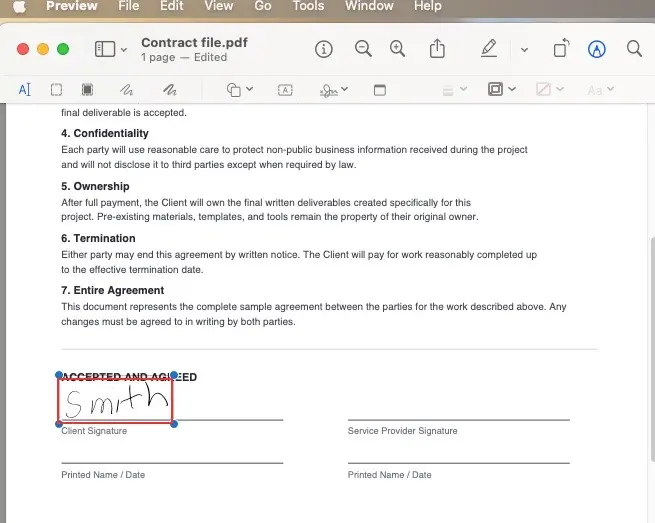
➤ Once the signature is placed correctly, click File > Save or press Command + S to save the signed PDF.
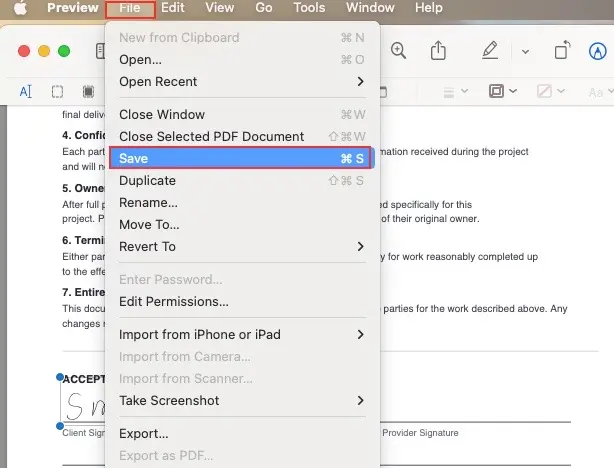
You can also use the camera option. Write your signature on white paper, hold it up to the Mac camera, and let Preview capture the mark.
After the signature is created, place it on the PDF where it belongs. Resize it if needed so it fits the signature line without covering nearby text or form details.
The useful part is reuse. Preview stores the signature as a saved signature, so you can place it into other PDFs later without drawing or scanning it again.
That makes Preview a practical Mac option when you sign forms often. Create the signature once, then drop it into future PDFs from the same Sign menu.
How Do You Sign a PDF on a Phone or Tablet?
Open the PDF in a mobile browser signing tool or a mobile PDF app, then draw the signature with your finger or stylus and download the signed file.
On iPhone, open the PDF from Files, Mail, Safari, or a cloud drive, then use a browser signing tool or a PDF app to add the signature. Place it on the correct line, resize it, and save the signed copy.
On Android, open the PDF from Downloads, Google Drive, Gmail, or another file location. Use a mobile signing tool or PDF app, draw the mark, place it on the form, and save the signed file.
A tablet gives you more control, especially when using a stylus. The larger screen makes it easier to draw a cleaner signature and place it without covering form text.
A finger signature works when speed matters, but it can look thick, shaky, or oversized if you draw while the full page is zoomed out.
Use zoom before drawing. Pinch in on the signature area first, then draw the signature at a more natural size.
This matters most on letter-size or A4 forms. A signature that looks normal on a phone screen can appear too large once the full page is viewed on a laptop, printed, or sent to someone else.
So the safest phone workflow is to zoom into the field, draw or place the signature carefully, zoom back out to check the whole page, then save and download the signed file.
How Do You Send a PDF for Someone Else to Sign?
Use a signature request flow when another person needs to sign the PDF instead of you signing it yourself.
The basic process is to upload the document, add the signer's email, place the fields they need to complete, then send the request and follow its progress.
This is different from signing the PDF yourself. When you sign your own file, you place your signature directly on the page and save the finished copy.
When you collect a signature from someone else, the signer receives a request, usually by email. They open the document, review the fields, add their signature or initials, and submit the signed version.
The request flow is useful because it can create an audit trail. That record can show who received the document, who signed it, when they signed, and whether the process was completed.
A pasted signature image does not do that. It may show a mark on the page, but it does not record who placed it, when they signed, or whether the signer actually completed the request.
Use completion tracking when the document matters enough that you need to know whether the signer has opened, signed, or finished the PDF. For casual forms, signing the file yourself may be enough. For approvals, contracts, client paperwork, or team workflows, a request flow gives a cleaner record.
Why Won't a PDF Let You Sign It?
A PDF usually will not let you sign it because the file is read-only, its document permissions block changes, it carries a security certificate, or the PDF software is out of date.
Start with the simplest check first. Close the PDF, reopen it, and try again. If the file opened from an email preview, browser tab, or cloud preview, download a local copy and open that version instead.
Next, check whether the file is read-only. A read-only file may let you view the PDF but block changes such as adding a signature, initials, or form text.
Then check the document permissions. Some PDFs are protected so viewers cannot edit, fill, annotate, or sign them unless the owner allows those actions.
After that, look for security settings or a security certificate. A certified or locked document may limit changes because the file is designed to show whether anything has been altered after certification.
The case people often misread is a flattened or secured form. If the form was flattened, the original fillable fields may no longer exist as editable boxes.
In that situation, the signing tool is not necessarily broken. The PDF may simply have no active field left to click, fill, or sign.
A software issue is the final check. If the PDF should allow signing but the option is missing, update the PDF reader, try another browser, or open the file in a different signing tool.
What Should You Check After You Sign?
Check that the signature is locked into the page rather than sitting on top of it, that the signed file works as a document record, and that you kept an unsigned copy.
The first check is placement security. Reopen the PDF after saving and try to click or drag the signature. If it moves, the signature is still behaving like an editable layer instead of being merged into the page.
That is where flattening becomes useful. A flattened signature is no longer a separate object that someone can select, move, or remove from the page.
The second check is verification. If the PDF needs to prove who signed, when they signed, or whether the file changed later, a simple pasted signature image may not be enough.
The third check is file control. Keep a clean original before signing, then save a separate signed copy for sharing, uploading, or sending back.
This gives you two versions: the unsigned file in case you need to correct or refill the form, and the signed file as the version you actually submit.
The quick test is simple. Reopen the signed PDF and try to drag the signature. If it moves for you, it may move for the recipient too.
Why Should You Flatten a Signed PDF?
You flatten a signed PDF so the signature stops being a separate object on the page. Flattening merges it into the page content, so it can no longer be selected, moved, or removed by whoever opens the file next.
Before flattening, a placed signature may sit in an annotation layer on top of the page. It can look finished, but the mark may still behave like an editable field or movable object.
Flattening removes that separate-layer behavior. The signature becomes part of the page content, closer to ink on paper than a sticker sitting on top of the document.
The practical reason is tamper resistance. If the signature stays movable, another person may be able to drag it away, resize it, or delete it after receiving the file.
A saved signature can become part of the PDF, but a placed field may still be movable before the final file is locked into the page. Those two facts are easy to treat as the same thing, which is how people end up sending a PDF that only looks finished.
After adding your signature with a Sign PDF tool, reopen the signed file and try to select the signature. Flattening is not about changing how the signature looks. It is about changing how the signature behaves inside the PDF.
Are Advanced and Qualified Electronic Signatures Legally Binding?
In most cases, yes. Electronic signatures are recognised for everyday agreements, while higher signature tiers are used when a document needs stronger identity verification.
For ordinary forms, approvals, confirmations, and routine agreements, a basic electronic signature is often enough. The signature shows the signer’s intent to approve or accept the document.
Some documents need more than that. A regulated contract, official filing, financial document, or identity-sensitive agreement may require an advanced electronic signature or a qualified electronic signature.
The difference is not only how the signature looks on the page. Higher-tier signatures are designed to connect the signer to a verified identity and protect the document against later changes.
Two terms are useful to know. eIDAS is the European framework that defines electronic signature levels, including advanced and qualified electronic signatures.
The ESIGN Act is the U.S. framework that recognises electronic signatures for many transactions when the legal requirements are met.
This does not mean every signed PDF is automatically accepted for every purpose. Some documents still require a specific signing method, identity check, witness, notarisation, or wet-ink original.
In short, a signed PDF is usually fine for everyday agreements, but check the recipient’s requirements when the document is formal, regulated, or identity-sensitive. This is general information, not legal advice.
How Do You Sign a PDF Without Printing It?
Every method in this guide avoids printing. You only need to print and scan when the recipient specifically insists on a wet-ink original or a wet signature on paper.
For normal PDF signing, you can upload the file to an online signing tool, use a PDF reader, sign in Preview on a Mac, or draw the signature on a phone or tablet.
The print-and-scan habit persists because it feels familiar. People know how to print a page, sign with a pen, and scan it back into a file, even when the same result can usually be done directly on the PDF.
The cost is quality. A scanned page often looks darker, softer, tilted, shadowed, or compressed, depending on the camera, scanner, lighting, and scan quality.
It also changes how the file behaves. Once a signed contract is scanned back in, the page often becomes an image instead of a text-based PDF page.
That means the words may still be readable to the eye, but the selectable text can disappear. You may not be able to search the contract, copy a clause, highlight text, or use the file as cleanly as before.
So skip printing unless the recipient clearly asks for ink on paper. For most everyday PDFs, signing directly keeps the file cleaner, faster to send, and easier to search later.