


A PDF bookmark labels a saved view inside a document and takes you directly to it when clicked. Instead of scrolling through dozens of pages to find a chapter, heading, or section, you can use bookmarks to jump to the information you need.
But the list you see in the bookmarks panel does not come from the PDF reader itself. The reader displays information stored inside the file's outline tree, where an outline dictionary organizes individual outline items and their navigation targets.
That is why the same PDF may display its bookmarks differently in two readers. It also explains why a bookmark can sometimes take you to the wrong page after the document has been changed.
There is an important distinction in the terminology, too. ISO 32000-1 does not define a separate user-bookmark feature. Instead, the PDF specification describes outline items, noting that they are sometimes called bookmarks. What you see in the navigation pane comes from this underlying structure.
So, what does a bookmark actually remember? More than just a page number. Its destination can include a particular position and zoom level, allowing the reader to return to a specific view of the document.
This guide starts by explaining what PDF bookmarks are and how to view them. It then explores how the file stores its outline tree, what bookmark destinations and actions do, and how nested bookmarks create a hierarchy.
You'll also learn what happens when you rename or restyle a bookmark, how to make the bookmarks panel open automatically, and how converters create bookmarks from document headings.
Finally, we'll cover why some PDFs prevent you from adding bookmarks, why existing bookmarks sometimes point to the wrong place, which accessibility and filing rules call for them, and how bookmarks differ from a table of contents. We'll also look at what happens to the outline when PDF files are merged, split, or have their bookmarks removed.
What Is a PDF Bookmark?
A PDF bookmark is an outline item, a labeled entry in the document's outline tree that contains a title and a destination. Clicking it takes you to a saved view of a page, including its position and zoom level, rather than simply jumping to a page number.
Think of it like a bookmark in a physical book, except a PDF bookmark can take you directly to the exact section you want to read.
The bookmark label does not have to match the heading or text on its destination page. For example, a bookmark named "Important Findings" could point to a page titled "Research Results." The label helps readers recognize the section, while the destination tells the PDF reader where to go.
A bookmark is also different from a highlight, an annotation, or a browser bookmark. Highlights and annotations mark content on a page, while browser bookmarks save website addresses. A PDF bookmark provides navigation within the document.
According to ISO 32000-1:2008, Section 12.3.3 (Document Outline), these navigation entries are called outline items. The W3C's WCAG 2.1 Technique PDF2 also describes bookmarks as outline entries stored in an Outline dictionary.
Because these outline entries are saved inside the PDF itself, they travel with the document when you email it, upload it, or open it in another compatible PDF reader.
However, there is an important distinction: not everything called a bookmark is stored inside the PDF.
Adobe Acrobat's Bookmarks panel works with outline items saved in the document. Some other PDF readers have a separate bookmark feature that saves your favorite locations only within that application.
For example, a bookmark created using a reader's private bookmarking feature may not appear when you open the same PDF in Acrobat. Meanwhile, the PDF's actual outline items might appear under that reader's "Table of Contents" list rather than its "Bookmarks" list.
Here is how these different features affect the file:
| What it is called | What it writes into the file |
|---|---|
| Outline item (PDF bookmark) | Stores a labeled navigation entry in the PDF's outline structure, with a destination or action |
| Reader-only bookmark | Usually writes nothing into the PDF; the reader saves the location in its own application data |
| Annotation | Adds a page annotation, such as a note or highlight, rather than an entry in the outline tree |
| Internal link | Adds a link annotation that takes readers to another location in the document without creating an outline entry |
This explains why a bookmark may appear in one application but disappear in another. The reader might be showing its own saved locations rather than the PDF's actual outline.
If you want bookmarks to travel with your PDF, they need to be saved as outline items in the document itself.
How Do You View PDF Bookmarks?
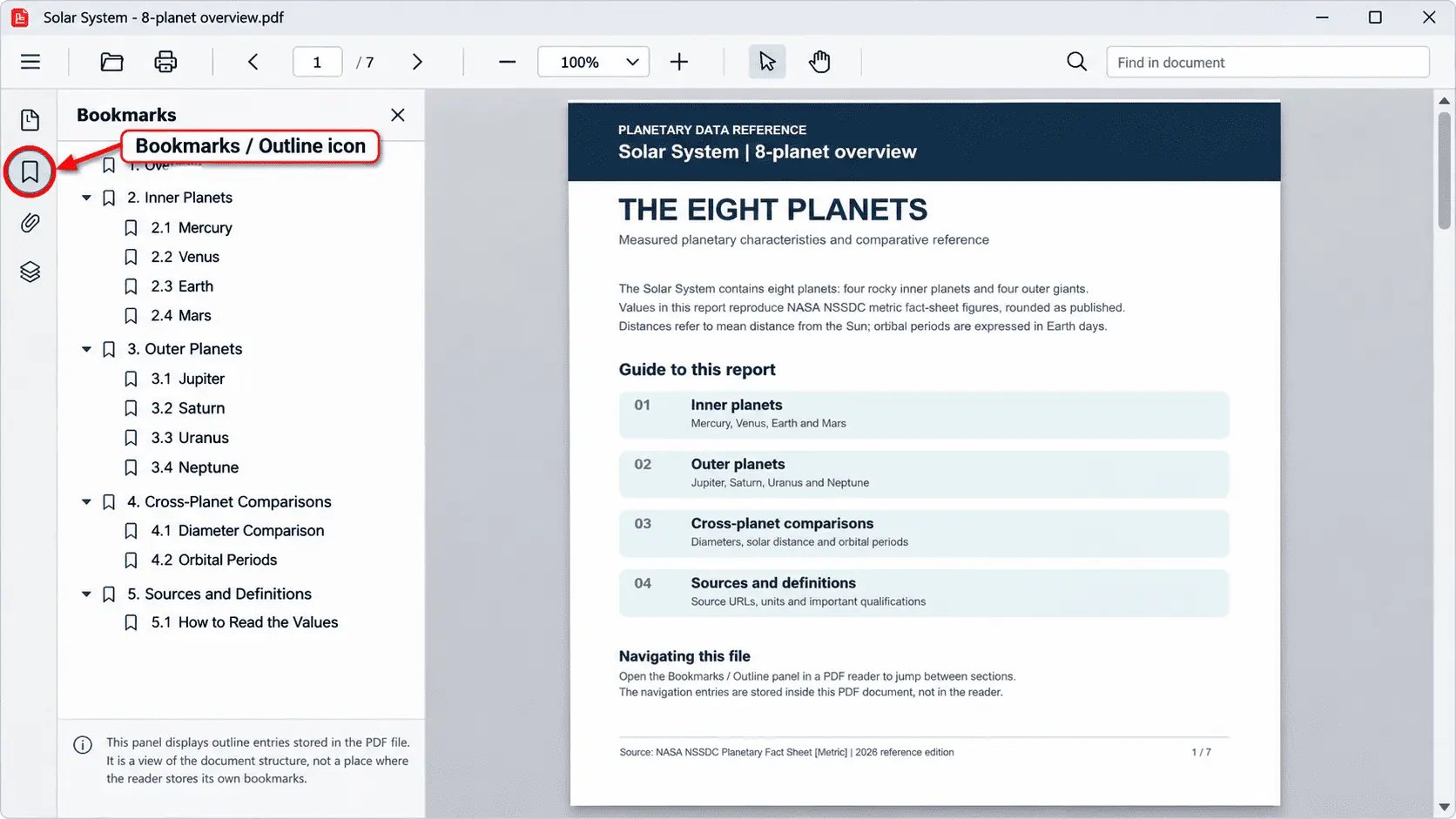
You can view PDF bookmarks by opening the navigation pane along the left side of a PDF reader and clicking the bookmark or ribbon-shaped icon. If the document contains bookmarks, they appear as a list of sections you can click to jump to different parts of the file.
Different PDF readers use different names for the same panel. You might see it labeled Bookmarks, Outline, Contents, Index, or Document Outline. Although the names vary, they generally refer to the navigation entries stored in the PDF's outline tree.
On a desktop PDF reader, look for the bookmark icon along the left edge of the window. In a web browser or mobile PDF viewer, you may need to open a sidebar toggle or navigation menu before the bookmark list becomes visible.
Once the panel opens, click any bookmark to move to its saved destination. If the document has nested bookmarks, you can expand the main entries to reveal the sections beneath them.
But what if the bookmarks panel opens and shows nothing?
An empty panel usually means the PDF has no outline entries stored inside it. The reader may support bookmarks perfectly well, but it cannot display a document outline that the file does not contain.
There is also a difference between an empty panel and a missing panel. If your PDF reader supports an outline view but displays no entries, the document may have no bookmarks. If the reader does not support PDF outlines at all, the option to open the panel may be unavailable.
You can check the difference without relying on a particular software menu:
- Open the same PDF in two different readers that support document outlines.
- Find and open the bookmarks or outline panel in both.
- Compare what appears. If both panels are empty, the PDF likely has no outline dictionary. If bookmarks appear in one reader but not the other, the difference may come from how the readers support or display the outline.
Viewing existing bookmarks does not require a paid PDF editor. Common free PDF readers can display a document's outline when they support the feature.
The key point is that the bookmarks panel shows navigation information already stored in the PDF. Opening the panel does not create bookmarks or save new locations in the document.
How Does a PDF File Store Its Outline Tree?
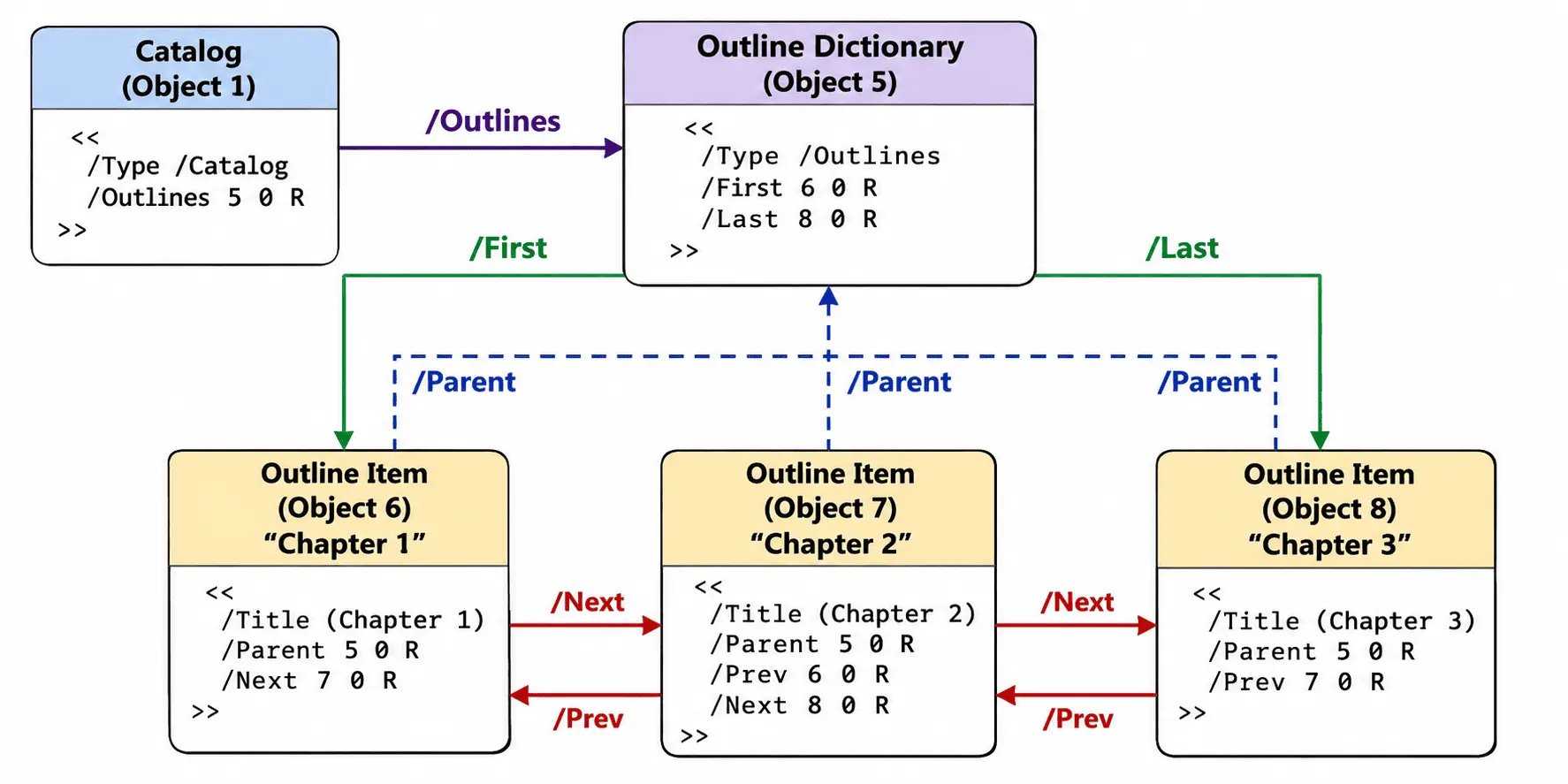
A PDF's document catalog contains an Outlines entry that points to an outline dictionary, which serves as the root of a doubly linked tree of outline item objects. Each item uses references such as Parent, Prev, Next, First, and Last to connect with other bookmarks in the tree.
This means PDF bookmarks are not stored as a simple list. Instead, the file contains a network of object references that tells the PDF reader which bookmarks belong together, which appear first, and which sit underneath others.
According to ISO 32000-1:2008, Section 7.7.2, the document catalog uses the Outlines entry to identify the document's outline. Section 12.3.3, including Tables 152 and 153, describes how the outline dictionary and individual bookmark entries are organized.
The main outline dictionary contains four important entries:
- Type: Identifies the dictionary as an outline dictionary, using the value Outlines.
- First: Points to the first top-level bookmark in the outline tree.
- Last: Points to the last top-level bookmark.
- Count: Records the total number of visible outline items across the hierarchy, including open descendants.
Each bookmark then has its own dictionary containing the information needed to display it and connect it to the rest of the tree.
The main entries are:
- Title: Stores the bookmark's visible label, such as "Chapter 1" or "Introduction."
- Parent: Points to the item's parent, which may be the outline dictionary or another bookmark.
- Prev and Next: Point to the previous and next bookmarks at the same level.
- First and Last: Point to the first and last child bookmarks beneath the current item.
- Count: Records information about the item's descendants and whether its branch is expanded or collapsed.
- Dest: Identifies the saved view that the bookmark opens when clicked.
- A: Holds an action dictionary when the bookmark performs an action instead of using a direct destination.
- SE: References a structure element in the PDF's tagged structure tree, connecting the bookmark to the document's logical content. This association is what makes it a tagged bookmark.
- C: Stores the color used to display the bookmark's label.
- F: Stores styling flags, such as bold or italic text.
These entries work together to create the hierarchy you see in the bookmarks panel.
For example, suppose a PDF contains two main bookmarks, "Introduction" and "Chapter 1", with "Section 1.1" nested under Chapter 1.
The outline dictionary's First entry points to Introduction, while Last points to Chapter 1. Introduction's Next points to Chapter 1, and Chapter 1's Prev points back to Introduction. Chapter 1 then uses its own First and Last entries to identify Section 1.1 as a child.
This is why moving a bookmark is more complicated than changing its position in a visible list. When you move an item between branches, the PDF editor must update its Parent, Prev, and Next references, along with any affected First and Last references in the surrounding items.
If these connections are not updated correctly, a bookmark can appear in the wrong position or become disconnected from its intended branch.
The outline tree is a network of connected PDF objects, not merely a list of chapter names. The reader turns those stored connections into the expandable navigation panel you see on screen.
What Does a Bookmark Destination Store?
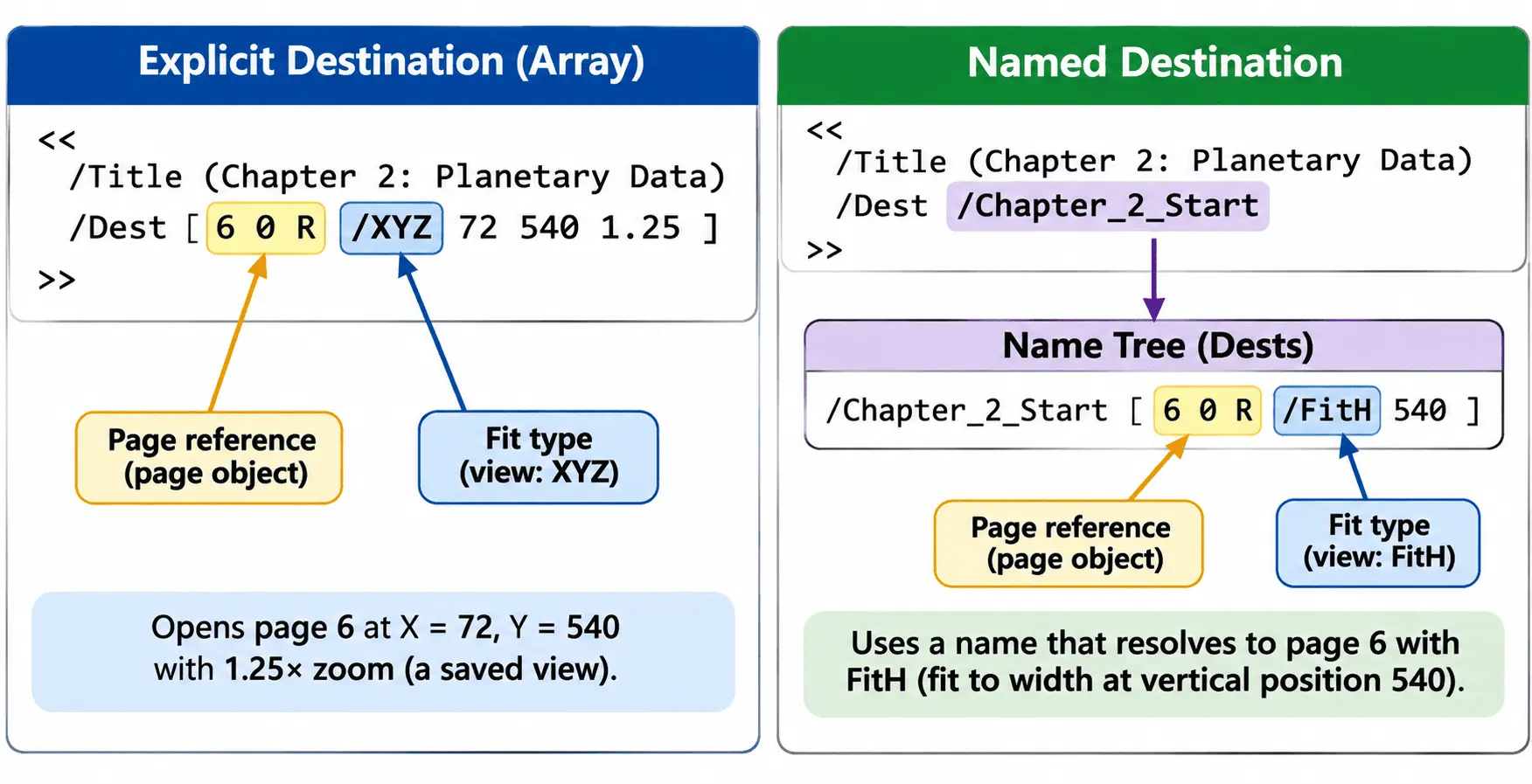
A PDF bookmark destination stores a page and a specific view of that page, not just a page number. An explicit destination uses an array that begins with a reference to a page object, followed by a fit type and any coordinates needed to control where the page appears and how much of it is visible.
That is why clicking a bookmark can take you to the middle of a page, position a heading at the top of the screen, or change the zoom level. The bookmark remembers how the reader should display the destination, not simply which page to open.
According to ISO 32000-1:2008, Section 12.3.2.2, explicit destinations can use several view types: XYZ, Fit, FitH, FitV, FitR, FitB, FitBH, and FitBV.
The most flexible is XYZ, which accepts three values: left, top, and zoom. These control the horizontal position, vertical position, and zoom factor of the saved view.
For example, an explicit destination might look like this:
[23 0 R /XYZ 0 720 null]
Here, 23 0 R refers to a page object, XYZ identifies the view type, and the remaining values describe the position and zoom. The null zoom tells the reader to keep the current magnification rather than force a new one.
This matters when moving through a long document. A well-configured bookmark can take you directly to a heading without suddenly enlarging the page to 400%.
Other fit types handle the view differently. Fit displays the whole page within the window, while FitB fits the page's visible content. FitH, FitV, FitBH, and FitBV fit the page or its content horizontally or vertically, using a position value where needed. FitR uses a rectangular area defined by coordinates.
But a bookmark does not always store an explicit destination array.
It can also use a named destination, which replaces the direct array in the bookmark with a name that the PDF resolves to a destination definition.
Under ISO 32000-1:2008, Section 12.3.2.3, these names can be resolved through the Dests name tree inside the document catalog's Names dictionary. Older PDFs may instead use a direct Dests entry in the catalog.
For example, a bookmark could refer to a destination named Chapter_2_Start. The PDF then looks up that name to find the page and view it should open.
This separation makes named destinations useful when a document changes. If pages are inserted, removed, or reordered, an editor can update the named destination's target without changing every bookmark that uses its name.
An explicit destination points directly to a particular page object. It can become broken if an editing operation removes or replaces that object without updating the bookmark. Simply changing the page's position does not necessarily break the reference, as long as the original page object remains intact.
Neither destination type needs a printed page number to navigate. Explicit destinations use page-object references, while named destinations resolve through a name to the appropriate page and view.
What Does a Bookmark Action Do?
A PDF bookmark can perform an action instead of opening a saved destination. This allows a bookmark to open another PDF file, visit a website, run a command in the PDF reader, or submit a form rather than simply jump to a page.
The difference lies in how the bookmark is stored inside the document.
An outline item can contain an A entry, which points to an action dictionary describing what should happen when someone clicks the bookmark. Alternatively, it can contain a Dest entry that identifies a saved page view.
According to ISO 32000-1:2008, Table 153, these two entries are mutually exclusive. A single outline item can use either A or Dest, but not both.
Different actions tell the PDF reader to perform different tasks:
| Action type | What the reader does when clicked |
|---|---|
| Go-to action (GoTo) | Opens a specified destination within the same PDF document. |
| Remote go-to action (GoToR) | Attempts to open a destination in another PDF file. |
| URI action (URI) | Opens a web address using the reader's supported link-handling behavior. |
| Named action (Named) | Requests a supported viewer command, such as moving to the next or previous page. |
A bookmark can also contain a form-submission action, such as SubmitForm, which attempts to send form data to a specified address. Whether it works depends on the PDF reader's capabilities and security settings.
This means a bookmark is not always a shortcut to another part of the same document. A remote go-to action can lead to a different file, while a URI action can take the reader outside the PDF entirely.
For example, imagine a bookmark labeled "Supporting Research" that opens a research website instead of a page inside the document. It is effectively a web link presented as a bookmark in the navigation panel.
However, clicking that bookmark may not always produce the expected result. Some PDF readers block external actions, display security warnings, or do not support certain action types. An unsupported or blocked action may appear to do nothing.
There is another important consequence of how actions are stored.
Suppose a bookmark originally takes you to Chapter 3 using its Dest entry. You then edit the bookmark in Adobe Acrobat and assign it an action that opens a website.
The bookmark no longer uses its original page destination because the action replaces it. Clicking the bookmark now attempts to open the website instead of Chapter 3.
This is not necessarily a problem with the PDF editor. The file format does not allow the same outline item to contain both Dest and A.
Adobe Acrobat's bookmark action settings provide a way to assign supported actions, but changing what a bookmark does can also change where it takes the reader.
The key difference is simple: a destination tells the reader which saved page view to display, while an action tells it what operation to perform. Understanding that distinction helps explain why some bookmarks navigate within a PDF, and others behave like links or commands.
How Do Nested Bookmarks Build a Hierarchy?
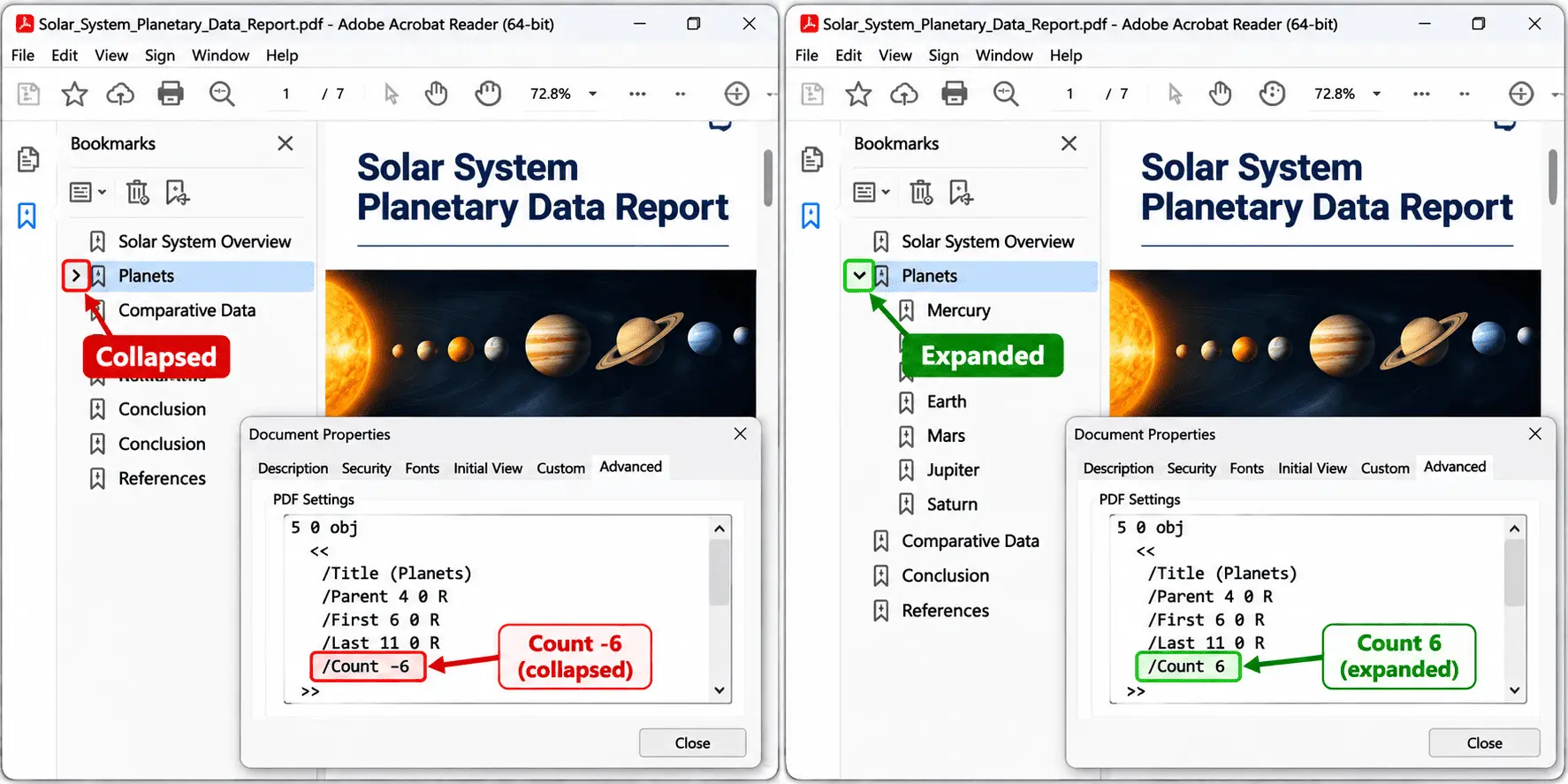
Nested PDF bookmarks build a hierarchy through stored connections between parent items and child items. Each child outline item uses its Parent entry to identify the bookmark above it, while the parent uses First and Last entries to identify its children.
This structure creates the expandable outline hierarchy you see in a PDF reader's bookmarks panel.
For example, a document might have a top-level bookmark called "Chapter 1", with two sub-bookmarks named "1.1 Introduction" and "1.2 Research Methods". Chapter 1 acts as the parent, while the two sections are its children.
The PDF format does not set a fixed limit on how deeply bookmarks can be nested. However, an outline with more than three levels can become difficult to navigate, especially on smaller screens. Keeping the hierarchy simple makes it easier for readers to find the section they need.
According to ISO 32000-1:2008, Table 153, an outline item's Count entry helps determine whether its child bookmarks appear expanded or collapsed.
The sign of Count is particularly important:
- Positive Count: The bookmark is open, and the value indicates how many descendant outline items are currently visible beneath it.
- Negative Count: The bookmark is closed, and its children are hidden. The absolute value indicates how many descendants would become visible when that branch is opened.
For example, if Chapter 1 contains two child bookmarks with no further nesting, a stored Count of 2 means the branch starts expanded. A value of -2 means it starts in a collapsed state.
This explains why some PDFs open with their bookmark sections already expanded while others show only the main chapters. The initial state can be recorded in the file's outline structure rather than being determined solely by the reader's preferences.
Expanding or collapsing a nested bookmark changes which child entries are displayed, but it does not change their destinations. When that state is saved into the PDF, the Count entry reflects it. Simply expanding a branch while viewing the file does not necessarily rewrite the document.
Moving a bookmark to a different level involves more than changing its appearance.
When you drag a bookmark beneath another one in a PDF editor, the software may need to update Parent, Prev, Next, First, and Last references across several outline items. If those connections are updated incorrectly, an entire branch can become disconnected or appear under the wrong parent.
The best starting point for a clear bookmark hierarchy is the source document's heading structure. For example, Heading 1 can become a top-level bookmark, Heading 2 its child, and Heading 3 a deeper nested entry.
A well-organized PDF outline follows the document's actual section hierarchy, making navigation easier without creating unnecessary levels.
What Happens in the File When You Rename or Restyle a Bookmark?
Renaming a PDF bookmark changes only its Title string, leaving its destination unchanged. Restyling a bookmark changes its C color array or F style flag, but neither operation changes where the bookmark takes you.
Every outline item has a title string that determines the text displayed in the bookmarks panel. This bookmark label does not have to match the heading on the destination page.
For example, an automatically generated bookmark might say "Chapter 1," even though the heading on the page reads "Project Background." You can rename it to "Chapter 1: Project Background" without changing the page or position it opens.
According to ISO 32000-1:2008, Table 153, a bookmark's appearance is controlled by three entries:
- Title: Stores the text displayed in the bookmarks panel. Changing it updates the label without affecting the destination.
- C: Stores a color array containing three RGB values between 0.0 and 1.0. These values control the bookmark text's red, green, and blue components. If C is absent, the default color is black.
- F: Stores a style flag that controls the appearance of the label. Bit 1 is the italic flag, while bit 2 is the bold flag. Both can be enabled to display bold italic text.
Here is how these changes affect a bookmark:
| Before | After | What changes in the file |
|---|---|---|
| Chapter 1 | Chapter 1: Project Background | Only the Title string changes |
| Chapter 1 (black) | Chapter 1 (blue) | The C color array changes |
| Chapter 1 in regular text | Chapter 1 in bold | The F style flag changes |
None of these changes updates the bookmark's destination or action.
For instance, if a bookmark opens page 12 before you rename it, it will still open the same saved view afterward. Changing its color or making the label bold also leaves its navigation target untouched.
Longer bookmark titles can make a document easier to navigate because readers can identify sections without guessing what short labels mean. Many PDF readers wrap long titles within the panel, although the exact display depends on the application.
There is an important difference between changing a bookmark's appearance and changing its structure.
Renaming or recoloring a bookmark is a label-only operation. In contrast, dragging it beneath another bookmark changes its position in the outline tree, while assigning a new destination changes where it points.
Those structural or navigation changes require updating additional information and can cause problems if the editor handles them incorrectly.
So, you can rename, recolor, or restyle a bookmark without changing where it leads. Just remember that moving a bookmark or changing its target is a different operation, with different consequences for the document's navigation.
How Do You Show the Bookmarks Panel Automatically?
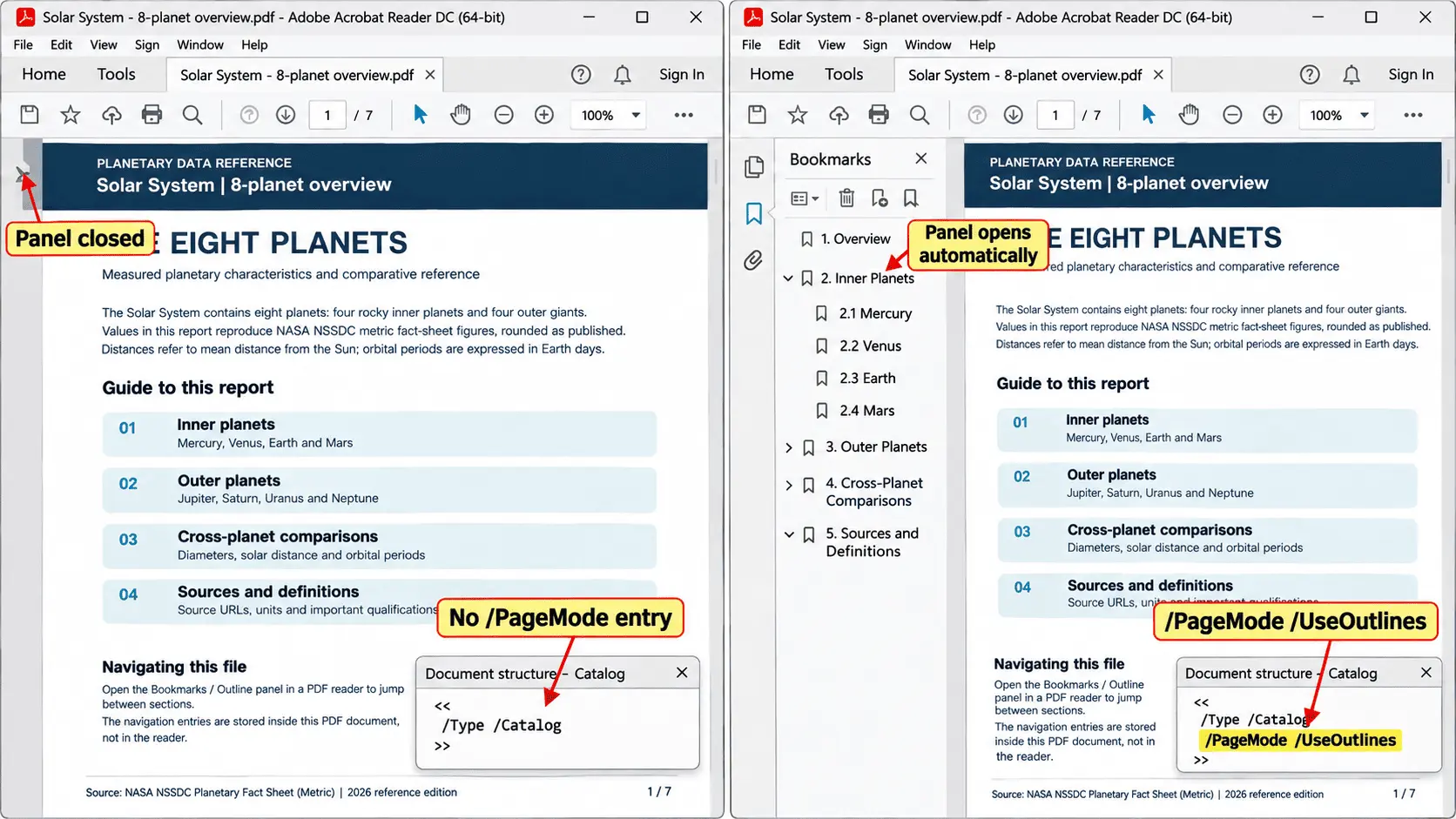
A PDF can open with its bookmarks panel already visible when the document catalog contains a PageMode entry set to UseOutlines. This setting is saved inside the PDF itself, so compatible readers can display the bookmarks panel automatically without requiring someone to open it manually.
The PageMode entry controls the document's initial view, including which navigation panel should appear when the file opens.
According to ISO 32000-1:2008, Section 7.7.2, the following values determine how a PDF should initially be displayed:
- UseNone: Opens the PDF without showing the bookmarks panel or page thumbnails. This is the default when PageMode is absent.
- UseOutlines: Opens the document with its outline or bookmarks panel visible.
- UseThumbs: Opens the page thumbnails panel instead of the bookmarks panel.
- FullScreen: Opens the document in full-screen mode, hiding normal window controls.
- UseOC: Opens the optional content or layers panel. This option was introduced in PDF 1.5.
- UseAttachments: Opens the attachments panel. This option was introduced in PDF 1.6.
To make the bookmarks panel appear automatically, open the PDF in an editor that supports document opening settings. Look for an Initial View option, often located under Document Properties, and choose a navigation setting such as "Bookmarks Panel and Page".
The editor then saves the corresponding PageMode value in the PDF's document catalog.
This is different from changing your PDF reader's viewer preferences. A reader preference generally applies to how that application behaves, while the document's PageMode setting travels with the file when you share it.
For example, if you set UseOutlines in a PDF and email it to someone, a compatible reader can open the document with its bookmarks panel already displayed, even though the recipient has never changed their own reader settings.
However, automatic bookmark display is not guaranteed in every PDF reader. Some browser-based viewers and mobile applications handle document opening settings differently or ignore them entirely. The file may contain UseOutlines, but the reader might still open with the sidebar closed.
There is also an accessibility benefit. W3C WCAG 2.1 Technique PDF2 recommends configuring bookmarked PDFs to display their bookmarks by default, making it easier for readers to locate sections in long documents. This is an advisory best practice, not a requirement that every PDF must meet.
The important distinction is that PageMode belongs to the PDF document, not to an individual reader's settings. It tells compatible readers how the document should open, although the final display still depends on the reader's support.
How Does a Converter Create Bookmarks Automatically?
A PDF converter automatically creates bookmarks from the heading styles used in the original document. When bookmark creation is enabled, Heading 1 becomes a top-level outline item, Heading 2 becomes its child, and the converter builds an outline tree that follows the document's style hierarchy.
For example, imagine a Word document with "Chapter 1: Introduction" formatted as Heading 1 and "Research Objectives" formatted as Heading 2. When exported correctly, the PDF can contain a main bookmark for Chapter 1 with Research Objectives nested beneath it.
However, text that looks like a heading does not automatically become a bookmark.
Making a line of text larger, bold, or a different color only changes its appearance. A converter that generates bookmarks from styles looks for actual heading styles, not just visual formatting. This means a document can have several chapters with large, bold titles and still produce a PDF with an empty bookmarks panel.
The export settings also matter. Even when your source document uses the correct headings, you must enable the option to create bookmarks during PDF conversion. Some word processor export methods do not enable this option by default.
According to W3C WCAG 2.1 Technique PDF2, particularly Examples 1, 2, and 4, bookmarks can be created through word processor heading structures and outline-based document organization. A consistent heading hierarchy helps produce a useful navigation structure in the exported PDF.
Here is how different source documents affect bookmark generation:
| What is in the source document | What appears in the PDF bookmarks panel |
|---|---|
| Properly styled headings such as Heading 1 and Heading 2 | A nested bookmark hierarchy, when bookmark export is enabled |
| Manually formatted text that only looks like headings | No automatically generated bookmarks from heading styles |
| No heading styles anywhere in the document | Usually an empty bookmarks panel when using heading-based export |
| A scanned page containing only an image of text | No automatically generated heading bookmarks unless additional processing identifies the headings |
A PDF created from a scanned page has another limitation. Because the source contains images rather than structured headings, an ordinary style-based converter has no heading information from which to build an outline.
Some software can analyze recognized text or derive bookmarks from an existing table-of-contents page. However, this approach is generally less reliable than using properly styled headings in the original document because the software must infer which text represents a section title.
The best way to prevent missing bookmarks is to check your source file before converting it.
Open the document's own navigation or outline view in your word processor. If the main headings and subheadings appear in the correct order, the document has a usable structure for heading-based bookmark generation.
If the navigation view is empty, check whether the titles use actual heading styles rather than manually applied formatting. Then review the PDF export settings to ensure bookmark creation is enabled.
The document's tagged structure is related to its logical organization, but tagged content and PDF bookmarks are not automatically the same thing. A converter must still create the outline entries needed for the bookmarks panel.
So, styled headings can produce PDF bookmarks; text that merely looks like a heading cannot produce them through ordinary heading-style conversion. Checking the source document first helps you avoid exporting a long PDF only to find its bookmarks panel empty.
Why Can't You Add a Bookmark to Some PDFs?
You may be unable to add a PDF bookmark because the file's document permissions restrict changes, you are using a PDF reader instead of an editor, or the document has a digital signature or certification that could be affected by modifying its outline.
A bookmark is part of the PDF's internal structure. Adding one changes the document's outline tree, so restrictions that prevent certain document modifications can also prevent you from creating bookmarks.
However, viewing existing bookmarks and adding new ones are different operations.
A PDF may display its bookmarks normally while the option to add another bookmark remains unavailable. This can happen because the file restricts editing or because the application does not support bookmark creation.
Some PDFs have a permissions password, also called an owner password, that restricts editing without preventing you from opening or reading the document. You might never see a password prompt, yet certain editing controls remain disabled.
These restrictions can affect different operations separately. For example, a PDF may allow annotations, such as comments and highlights, while restricting document assembly operations that modify its structure. Bookmark creation can be affected by those restrictions.
Signed documents require additional care. Adding an outline item changes the PDF, which may invalidate an existing digital signature or violate the restrictions of a certified document. If the document must remain signed or certified, check what changes are permitted before editing it.
Sometimes, the problem is simply the application. A reader application may display existing bookmarks without offering tools to create or modify them. In that case, opening an unrestricted PDF in an editor that supports bookmark creation may solve the problem.
Use this table to identify what might be preventing you from adding bookmarks:
| What you see | What may be causing it | What to do next |
|---|---|---|
| Bookmarks panel is empty | The PDF may have no outline entries, or the application may not be displaying them | Check the file in another outline-compatible reader, then use a bookmark-capable editor if you need to create entries |
| Existing bookmarks appear, but Add Bookmark is greyed out | Editing permissions, signature restrictions, or a reader-only application may prevent changes | Check the PDF's security settings and confirm that your application supports bookmark editing |
| A bookmark appears after you add it but disappears when you save and reopen the PDF | The editor may not have saved the outline correctly, or the updated outline may not be connected through the catalog's Outlines entry | Save a separate copy, reopen it, and check whether the outline remains; if necessary, try a different bookmark-capable editor |
According to ISO 32000-1:2008, Section 12.3.3, bookmarks are stored as outline items within the document's outline structure. The document permissions model described in Section 7.6 determines which changes an application is allowed to make.
This also explains why an editor can sometimes show a newly added bookmark during your editing session, only for that bookmark to disappear after saving. The tool may have failed to preserve the new outline item or update the catalog's Outlines reference correctly.
The important distinction is between a bookmark you cannot view and one you cannot add. An empty panel usually concerns the document's existing outline, while a disabled editing control points toward permissions or missing editing capabilities.
Before trying another tool, check the PDF's security settings and confirm that you are using an application that supports bookmark creation. That will help you identify whether the restriction comes from the file or the software.
Why Does a Bookmark Point to the Wrong Destination?
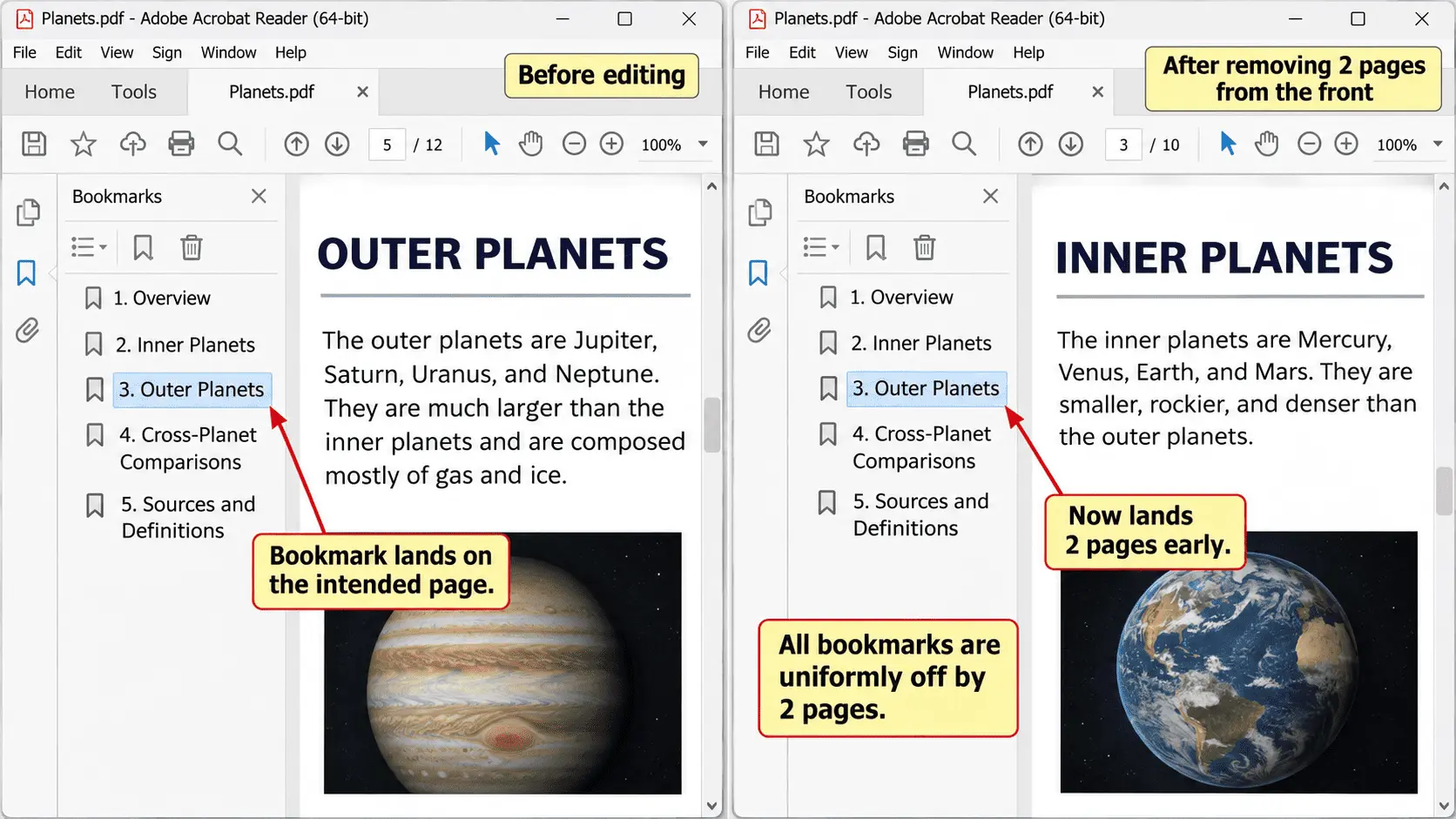
A PDF bookmark can point to the wrong destination when the page object reference stored in its destination no longer identifies the intended page. This can happen after pages are inserted, removed, or reordered if the software editing the PDF fails to preserve or update the bookmark's destination correctly.
An explicit destination points to a particular page object inside the PDF's page tree, not simply to a numbered position in the document. According to ISO 32000-1:2008, Section 12.3.2.2, this reference identifies the page the reader should display when the bookmark is clicked.
Normally, inserting or reordering pages does not break a bookmark if the editor preserves the original page objects and their references. Problems arise when a tool rebuilds the page tree, replaces page objects, or incorrectly remaps the destinations.
For example, imagine a bookmark named "Chapter 3" that originally opens the beginning of Chapter 3. After a document-editing operation, the bookmark might open Chapter 2 instead because its destination was incorrectly assigned to another page.
If the original target page was deleted, the bookmark may stop working entirely. Some PDF readers ignore the broken destination, while others may attempt to display a nearby surviving page. A dangling reference to a missing page object is one possible cause of this behavior.
But a bookmark can also open the correct page and still show the wrong part of it.
An XYZ destination can store horizontal and vertical coordinates along with a zoom value. If the page's crop box changes or page rotation is altered, the stored coordinates may no longer place the intended heading at the top of the screen. In that case, the page reference may still be correct, but the saved viewing position is not.
You can often narrow down the problem by checking whether the bookmarks are wrong in the same way:
- Every bookmark is off by the same number of pages: A page insertion or deletion may have been followed by incorrect destination remapping. For example, a tool may have recreated destinations using outdated page positions.
- Only a few bookmarks point to the wrong pages: Their individual destinations may have been changed, deleted, or mapped incorrectly during editing.
- Bookmarks open the correct pages but show the wrong section: The problem is more likely related to destination coordinates, zoom, page rotation, or the crop box.
- A bookmark does nothing when clicked: Its destination may refer to a page object that no longer exists.
A consistent page offset is a useful clue, not proof that inserting or deleting pages automatically shifted every bookmark. Properly maintained page-object references continue to identify their intended pages even when those pages move within the document.
Readers also sometimes confuse this with broken PDF bookmarks.
If you see "Error! Bookmark not defined." printed on a PDF page, the message usually comes from a broken bookmark or cross-reference field in the original word processor document, such as Microsoft Word. It is not an error generated by the PDF's outline tree. The source document's fields need to be corrected before exporting again.
The key is to identify what went wrong: the target page, the saved viewing position, or the source document's references. Checking whether all bookmarks are affected or only a few can help you determine whether the document needs its destinations repaired or should be exported again from the original file.
What Are the Rules for Electronic Bookmarks?
Electronic bookmarks are not mandatory for every PDF. However, WCAG 2.1 accessibility guidance recommends them for navigating long documents, while certain court and government e-filing rules require bookmarks for sections, exhibits, or attachments.
The important difference is that accessibility guidance treats bookmarks as a recommended practice, while specific filing rules can make them a requirement.
W3C WCAG 2.1 Technique PDF2, titled "Creating bookmarks in PDF documents," relates to Success Criterion 2.4.5 (Multiple Ways). This criterion concerns providing more than one way to locate content within a set of web pages.
However, Technique PDF2 is advisory, not mandatory. A document can meet WCAG requirements without using this particular technique, provided the relevant success criteria are satisfied through other acceptable methods.
The technique applies to tagged PDF documents and recommends bookmarks for documents longer than a few pages or those containing many sections. Its purpose is to give readers a clear way to locate information without scrolling through the entire file.
It also recommends configuring a bookmarked PDF to display its bookmarks panel automatically when the document opens.
This is particularly useful for people navigating with a keyboard or screen reader, provided their PDF reader supports the outline. A well-organized bookmark hierarchy can act as a document map, helping readers understand the structure and move between sections.
Court filing requirements work differently.
Some courts require electronic bookmarks because legal filings often contain multiple sections, supporting documents, and exhibits. Instead of manually searching through hundreds of pages, a reviewer can select a descriptive bookmark and jump directly to the relevant material.
For example, California Rules of Court, rule 8.74, requires electronic bookmarks for headings, subheadings, and document components in covered electronic filings. Bookmarks for exhibits and attachments must include identifying information and a brief description.
Here is how the two types of guidance compare:
| Guidance source | What it actually asks for |
|---|---|
| W3C WCAG 2.1 Technique PDF2 | Advises using bookmarks in long tagged PDFs to help readers locate content. It supports Success Criterion 2.4.5 but is not required for WCAG conformance. |
| Court and government e-filing rules | May require bookmarks for sections, exhibits, attachments, or other components, usually with descriptive labels. The exact requirements depend on the jurisdiction and filing type. |
Not every court follows the same rules. Before submitting an electronic document, check the relevant court's current filing instructions to confirm which sections need bookmarks and how they should be named.
The distinction is simple: PDF bookmarks are an accessibility best practice, but they become mandatory when a particular filing rule requires them. In both situations, a clear outline helps people find information more efficiently.
How Does a PDF Table of Contents Differ From PDF Bookmarks?
A PDF table of contents is content printed on a document page, while PDF bookmarks are navigation entries stored in the file's outline tree and displayed in a sidebar panel. Both help readers find sections, but they work through different parts of the PDF.
A table of contents usually appears near the beginning of a document. It lists chapters, sections, and their page numbers, just like the contents page of a printed book. Because it is part of the document's visible content, it remains available when you print the PDF.
PDF bookmarks work differently. They appear in a reader's navigation sidebar rather than on the document page itself. You can click a bookmark to open its saved destination, but the bookmarks panel does not appear on printed pages.
There is another important difference: a table of contents is not automatically clickable.
For a table-of-contents entry to work as an interactive link, it needs a link annotation that points to the appropriate destination. Without that link, the entry is ordinary text, even if it includes a page number.
Bookmarks already have navigation behavior through their stored destinations or actions, so readers can click them directly in a compatible PDF viewer.
Here is how the two compare:
| Feature | PDF table of contents | PDF bookmarks |
|---|---|---|
| Where it appears | On a visible document page | In the reader's sidebar or bookmarks panel |
| When the PDF is printed | Remains visible on the printed page | Does not appear as part of the printed content |
| How navigation works | Clickable only when the entries have link annotations | Clickable through their stored destinations or actions in a compatible reader |
| How it is edited | Changed as page content, with links updated separately when necessary | Changed by editing outline items and their properties |
One source of confusion is that some PDF readers label the bookmark navigation panel "Table of Contents." Despite the name, that sidebar displays the document's outline entries, not necessarily the table-of-contents page.
The two navigation systems can also be generated from each other. A converter may create PDF bookmarks from a document's existing headings or table of contents. Other tools can use bookmark titles and destinations to build a visible contents page.
However, generating one from the other does not keep them permanently connected.
The outline dictionary does not contain a required reference to the table-of-contents page, and the printed contents page does not directly identify the outline items. Its clickable entries use link annotations, which are separate from the bookmark structure.
As a result, editing the document can leave the table of contents and bookmarks pointing to different places. For example, if you insert several pages before Chapter 3, the printed page number in the contents list may become outdated even when the bookmark still opens the correct chapter.
This is why you should check both navigation systems after changing the document.
The distinction becomes especially important when PDFs are merged, split, or edited to remove bookmarks. Merging can combine or discard outline trees, splitting can leave bookmarks pointing outside the remaining pages, and removing bookmarks changes the outline without removing the printed table of contents.
So, if it appears on the printed page, it is document content; if it appears only in the reader's sidebar, it belongs to the outline. A long PDF intended for both screen reading and printing benefits from having both, with their destinations and page references checked separately.
What Happens to Bookmarks When Two PDFs Are Merged?
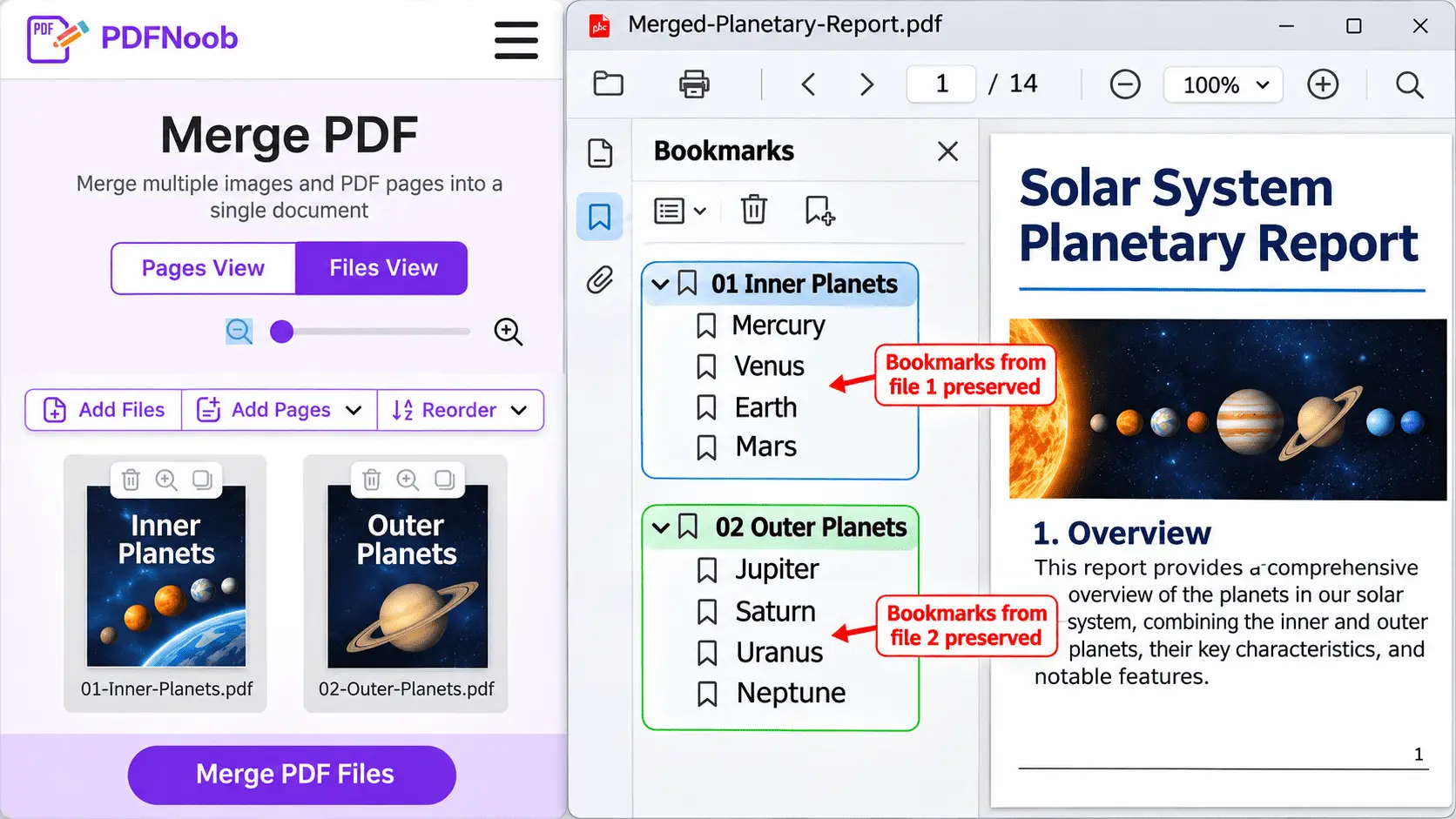
When two PDFs are merged correctly, the combined document preserves both original outline trees under a single outline dictionary, with each bookmark's destination updated to reference the correct page in the merged file. If a merge tool only combines page content without preserving the outline, the resulting PDF may open with an empty bookmarks panel.
When you merge PDF files, check the bookmarks panel immediately after saving the result. You should see the bookmarks from both source documents, with the first document's entries followed by those from the second.
The two original outline trees usually remain separate source branches rather than mixing their bookmarks together. Some PDF merging tools also place each source branch beneath a new top-level item named after the original file.
For example, if the first PDF contains bookmarks for "Introduction" and "Chapter 1," while the second contains "Chapter 2" and "Conclusion," a successful merge should preserve all four entries.
However, not every PDF merging tool preserves bookmarks.
If the merged document shows only the first PDF's bookmarks, the tool may have copied the second document's pages without rebuilding its outline entries. If the entire bookmarks panel is empty, the tool may have discarded both source outlines.
There is a useful way to check the result. The outline dictionary's Count entry records the number of currently visible outline items. In a straightforward merge that preserves both original trees without adding new grouping entries or changing their expanded states, the combined Count should equal the sum of the original visible counts.
For example, if the first PDF has three visible bookmarks and the second has four, the merged outline should contain seven visible entries under those conditions. Additional file-name bookmarks or changes to collapsed branches can affect the count, so the visible entries should also be checked.
Destination remapping matters just as much as preserving the bookmark titles. A merged PDF might display every bookmark but still open the wrong page if the tool fails to connect an entry to its intended page object in the new document.
That is why checking the bookmarks panel immediately after merging is important. Open entries from both source files and confirm that they lead to the correct sections before making further changes.
If the second document's bookmarks are missing, the merged file may no longer contain the original outline information needed to restore them. The better solution is to return to the original PDFs and merge them again using a tool that preserves bookmark structures.
A successful PDF merge should preserve both the bookmark hierarchy and its navigation targets, not just combine the pages into one file.
Why Do Bookmarks Break When Pages Are Split?
PDF bookmarks can break when a document is split because each output part contains only some of the original pages. If a bookmark points to a page that ends up in another file, its destination is no longer available in that output. Depending on the splitting tool, the bookmark may disappear or remain as a dead entry that does nothing when clicked.
A properly designed PDF splitter handles this through outline pruning. It removes bookmarks whose target pages are no longer in the output file and updates the surviving entries so they continue to open the correct destinations.
For example, imagine a 30-page PDF containing bookmarks for five chapters. If the document is divided into three smaller files, each output should contain bookmarks relevant to the pages it holds.
However, not every splitting tool updates the outline correctly.
Some tools copy the original bookmark tree into every output file without checking whether the destinations still exist. As a result, a two-page document might display bookmarks for all five chapters, even though most of those chapters are no longer present.
Nested bookmarks can create another problem. If a parent bookmark is removed while one of its child bookmarks remains, the splitter must reconnect that child to a valid parent. Otherwise, it can leave an orphaned branch with a broken hierarchy.
Here is what different splitting results tell you:
| What the splitter did to the outline | What the bookmarks panel looks like in each output part | What to do next |
|---|---|---|
| Pruned the outline correctly | Each part shows only bookmarks that point to pages contained in that file | Open a few bookmarks in each part to confirm their destinations |
| Copied the entire outline into every part | Smaller files still display bookmarks for chapters that exist only in other parts | Use a splitter that updates or removes invalid bookmark entries |
| Removed the outline completely | The bookmarks panel is empty, even when the original document contained bookmarks | Return to the original PDF and use a bookmark-preserving tool if navigation must be retained |
| Removed parents without reconnecting children | Some nested bookmarks appear in the wrong place, disappear, or fail to expand correctly | Rebuild the affected hierarchy or repeat the operation with a tool that handles outline pruning |
After you split a PDF, check the bookmarks panel in every output part, not just the first.
This matters because a splitting tool might correctly prune the first file's bookmarks but accidentally copy the original outline into later files. The first part may look correct while the remaining parts contain dead entries.
The same issue can occur when you extract PDF pages into a separate document. A bookmark pointing to a page outside the extracted page range cannot continue working unless its destination is updated to a valid page in the new file.
The important check is whether each output file contains bookmarks for its own pages. If a bookmark points to content that exists only in another part, the splitting process has not preserved that navigation correctly.
How Do You Remove Bookmarks From a PDF?
Removing a PDF bookmark deletes its outline item from the document's outline tree, and the editor reconnects the neighboring bookmarks around the removed entry. If you delete a parent item, its child bookmarks are usually removed too, unless the editor allows you to move or promote them to a higher level. The actual PDF pages remain untouched.
When a bookmark is deleted, the editor updates the outline's connections so the remaining entries still appear in the correct order. This changes the document's navigation structure, not its visible page content.
For example, imagine a PDF with three bookmarks: "Introduction," "Chapter 1," and "Conclusion." If you remove "Chapter 1," the outline should reconnect Introduction directly to Conclusion.
If Chapter 1 also contains bookmarks for Sections 1.1 and 1.2, deleting the parent may remove those entries as well. An editor that supports promoting child bookmarks can keep them by moving them to another level of the outline.
When every bookmark is removed, the PDF is left with an empty outline. Depending on how the editor saves the file, its outline dictionary may remain empty, or the document catalog's Outlines entry may be removed entirely. The bookmarks panel will then have no document outline entries to display in a PDF reader.
People commonly remove bookmarks for two reasons. First, a PDF converter may generate unwanted entries, such as repeated headings or incorrectly labeled sections, leaving the bookmarks panel cluttered.
Second, a PDF may be republished as a shorter document, but its original bookmarks still refer to chapters that are no longer included. In this situation, it may be cleaner to extract PDF pages into a fresh document rather than manually removing dozens of outdated bookmarks. Check the new file's outline afterward to make sure it contains only relevant entries.
However, removing bookmarks does not remove every form of navigation from a PDF.
If your document has a clickable table of contents, its entries may still work because they use separate link annotations on the page. Deleting the outline items does not remove those links.
Removing bookmarks also does not automatically change the document's PageMode setting. A PDF configured to open with its bookmarks panel visible may still request that panel, even after its entries have been deleted. Removing the outline is also unlikely to reduce the file size meaningfully, since bookmarks usually occupy only a small amount of document data.
Before removing bookmarks, save an untouched copy of the PDF. Once you save the edited file and upload or share it, you may no longer be able to undo the deletion without an earlier version.
The key distinction is that deleting bookmarks removes navigation entries, not document pages or other links. If the PDF still jumps between sections after its bookmarks have been removed, the navigation may be coming from link annotations rather than the outline tree