


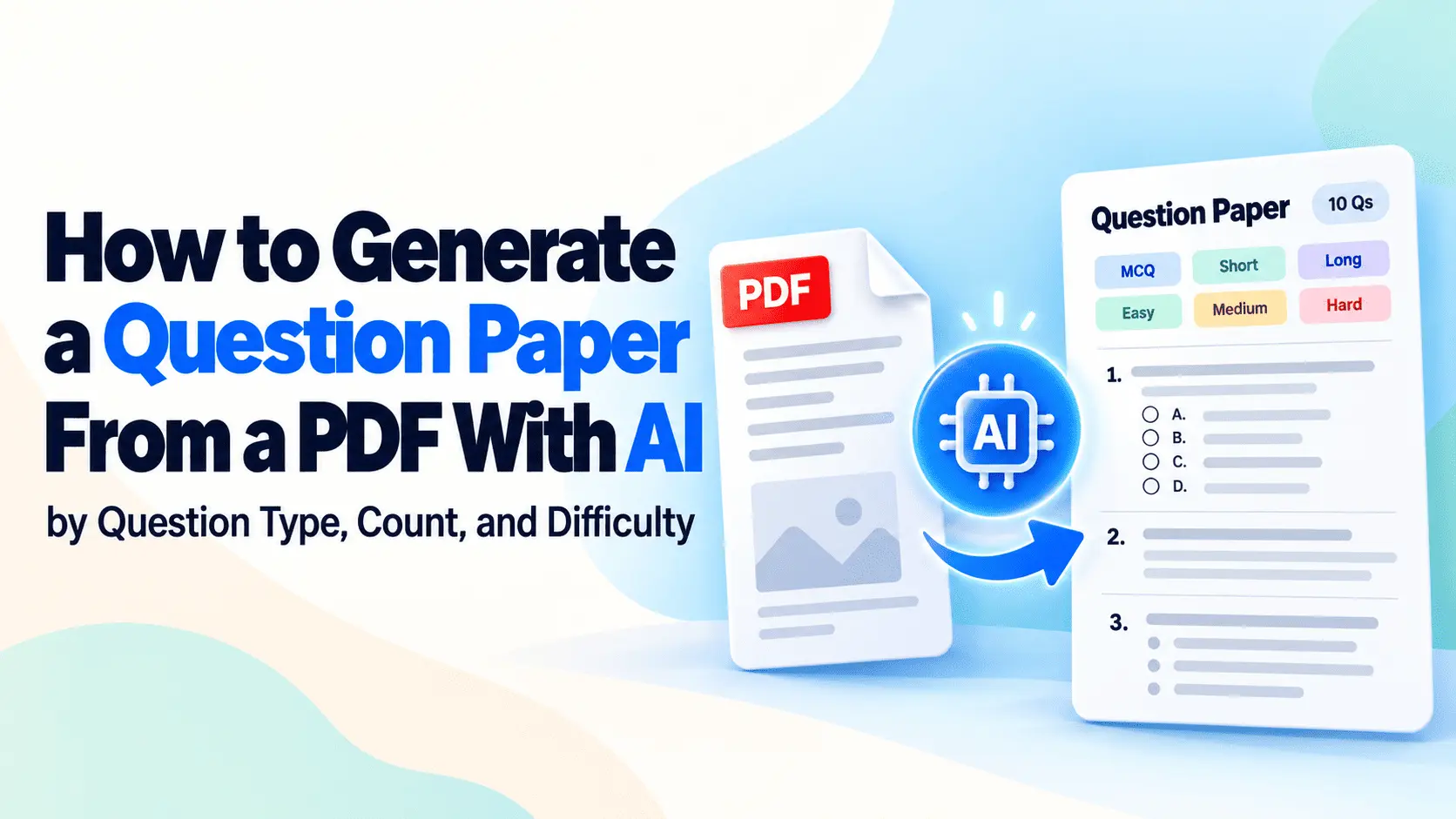
An AI question paper generator reads the PDF you provide and creates questions from the facts and explanations on its pages. Instead of selecting a board, class, and chapter from a prebuilt question bank, you start with your own source document, so the questions can follow the actual topics and wording your students have studied.
You can begin by choosing the question type, such as multiple-choice, true-false, short-answer, or long-answer. Next, set the question count based on how much useful information the PDF contains. As a rough starting estimate, a mixed 20-mark question paper may need around 6–10 pages of substantial textbook content to support varied questions without repeating the same facts. The actual amount depends on the chapter's depth and the marks assigned to each question.
You can also adjust the difficulty level to create simple recall questions or more challenging questions that require students to apply what they have learned. However, harder questions need closer attention because AI may introduce information that the original PDF does not support.
Before using the generated paper, check each question and its answer key against the source, correct weak multiple-choice options, and remove repeated or unclear questions. If a PDF produces no questions, check whether it contains readable text or only scanned images.
You can then prepare a printable question paper or transfer the questions into an online quiz, keeping the answer key separate from the student copy. Check the generator's tool page for any requirements associated with downloading the results.
AI can speed up the first draft, but you still need to review questions manually for accuracy and syllabus coverage. This guide explains how to generate, adjust, verify, and export questions from your PDF while deciding which parts of the paper setting still need human judgment.
How Do You Generate a Question Paper From a PDF Online?
Upload your PDF to an AI question generator, choose the question type and question count, generate the questions, then review them before using the paper.
The generator reads the text in your source document, rather than copying its page layout. It uses the chapter's definitions, facts, and explanations to create questions. Your original PDF remains unchanged on your device.
➤ Open the PDFNoob AI Question Generator and click Browse Files or drag your PDF into the tool.
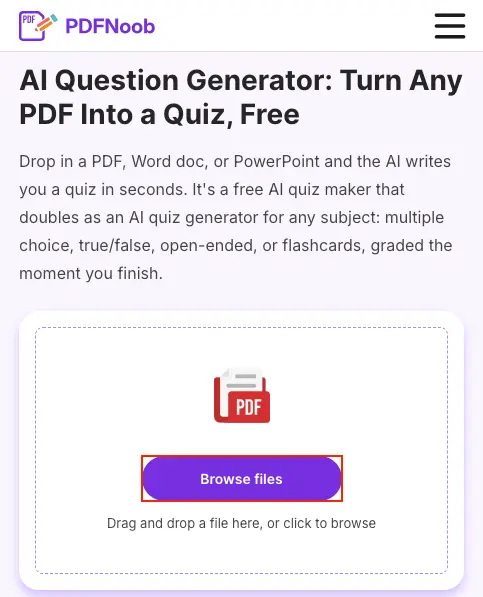
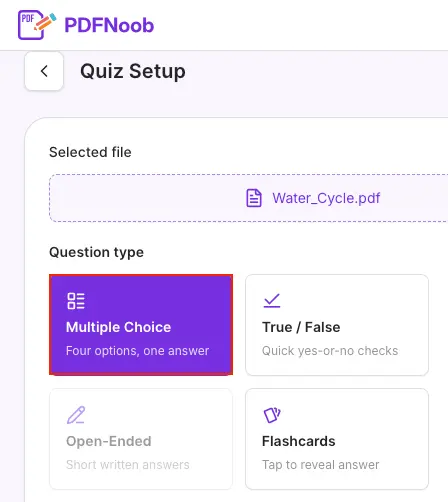
Once your file is uploaded, the Quiz Setup page will appear.
➤ Under Question type, select Multiple Choice to generate questions with four options and one correct answer.
You can also choose True/False or Flashcards.
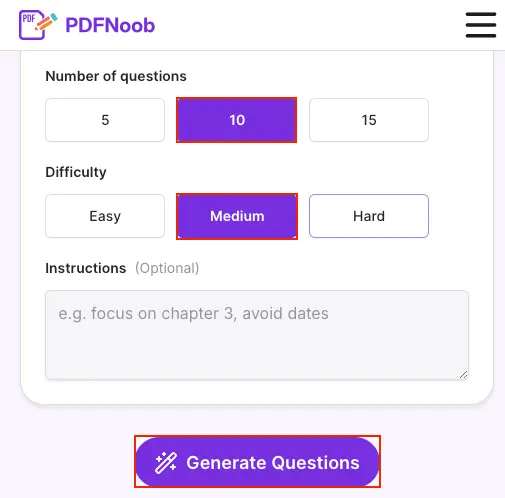
➤ Under Number of questions, choose 5, 10, or 15 questions.
➤ Under Difficulty, select Easy, Medium, or Hard based on your needs.
➤ In the optional Instructions box, enter specific requirements, such as focusing on a particular chapter or avoiding dates.
➤ Click Generate Questions to create your quiz.
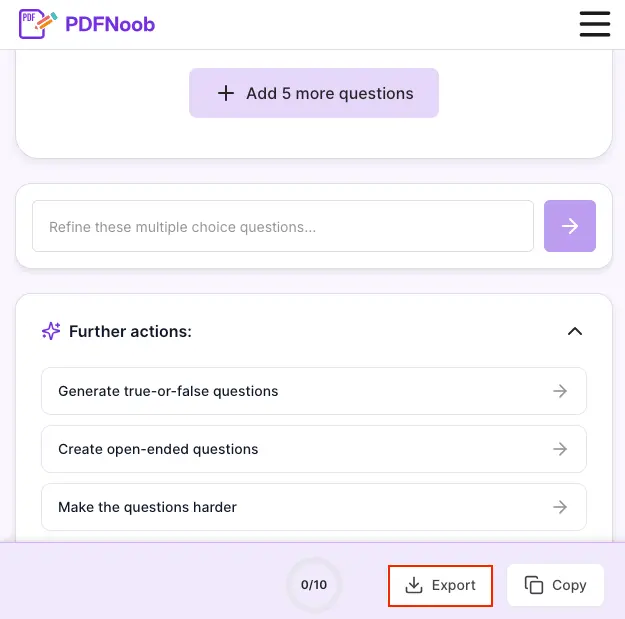
Review the generated questions and their answer options. You can click Add 5 more questions to expand your quiz. You can also use the refinement box to enter instructions for improving the questions.
Under Further actions, you can choose options such as Generate true-or-false questions, Create open-ended questions, or Make the questions harder.
➤ Click Export to get the questions.
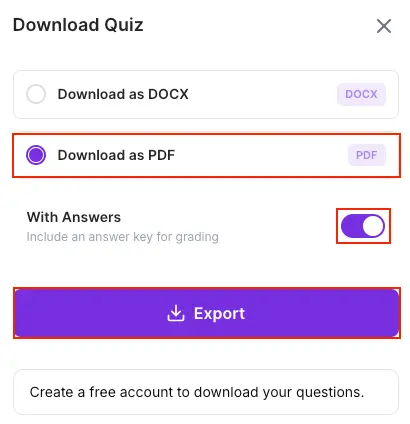
➤ In the Download Quiz window, select Download as PDF to get the questions as PDF.
➤ Turn With Answers on to include an answer key, or turn it off to download questions without answers.
➤ Finally, click Export to proceed with the download.
Open the downloaded PDF to check the generated questions. Also, check the correct answer and AI Analysis displayed below each question.
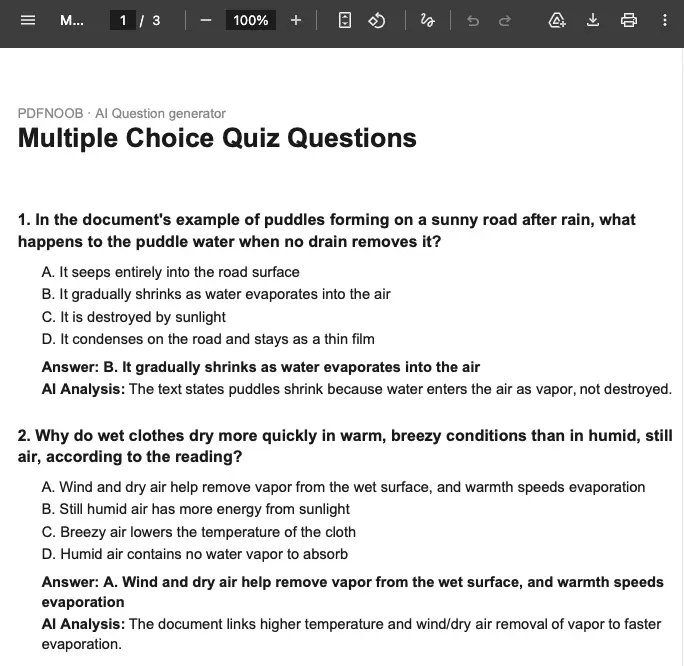
When we tested a three-page water-cycle chapter with 10 Multiple Choice questions at Medium difficulty, the first pass returned 10 questions, and all of them could be used without any editing. The questions may cover definitions, key concepts, and explanations from different pages, but they still need checking before they become a usable question paper.
The main advantage of generating questions from your own PDF is that the questions can follow the wording and topics in the material your students actually studied. A traditional question bank may use a different chapter outline or syllabus wording, even when the subject is the same.
The first result is therefore a draft based on your material, not a finished assessment. Review the questions against the PDF before using them with students.
Which Question Types Can a Question Paper Generator Produce?
An AI question paper generator can create multiple-choice questions, true-false questions, fill-in-the-blank questions, short-answer questions, and long-answer questions, with flashcards available in some tools.
Each question type tests a different skill and requires a different amount of marking. A multiple-choice question mainly tests recognition and can be marked automatically when a correct answer key is provided. A short-answer question tests whether students can recall and explain information in their own words.
So it usually needs human marking. Long-answer questions require even more judgment because students may express the same correct idea in different ways. Before setting one, prepare a mark scheme showing which points earn marks.
Not all question types are equally reliable when generated from a PDF. Factual multiple-choice and fill-in-the-blank questions are often the easiest to use because their answers can be found directly in the source text.
However, questions asking students to compare, explain relationships, or evaluate ideas usually need more rewriting. The source may explain two concepts separately without providing enough information to support the comparison.
Flashcards and practice tests generally present these same questions in a different format for studying or assessment, rather than requiring a separate kind of question generation.
The table below ranks the five main question types by how much editing their AI-generated versions typically need.
| Question type | What it tests | Who marks it | How often the generated version needs editing |
|---|---|---|---|
| Multiple-choice question (MCQ) | Recognition of facts, definitions, and concepts | Automatically with a verified answer key, or manually on paper | Low to medium: Factual questions are often usable, but incorrect options need checking |
| Fill-in-the-blank question | Recall of specific words, terms, or facts | Automatically for clearly defined answers, or manually | Low: Usually needs minor editing to remove unclear blanks or multiple possible answers |
| True-false question | Recognition of correct and incorrect statements | Automatically with an answer key, or manually | Medium: Statements may be too obvious, misleading, or only partly true |
| Short-answer question | Recall and explanation in the student's own words | Usually a teacher or examiner | Medium to high: Wording and expected answers may need clarification |
| Long-answer question | Detailed explanation, comparison, application, or evaluation | A teacher or examiner using a mark scheme | High: Often needs rewriting to match the source, expected depth, and available marks |
These are practical editing expectations, not fixed accuracy rates. The quality of the source PDF and the way each question is written can change how much correction is needed.
For a paper that needs minimal editing, start with factual MCQs or fill-in-the-blank questions. Review each true-false question for statements that are only partly correct, and check that every short-answer or long-answer question can be answered using the uploaded material.
The more explanation or judgment a question requires, the more carefully you should review it before including it in the final paper.
How Much Source Text Does a 20-Mark Question Paper Need?
As a working estimate, 3–4 pages of ordinary textbook prose can support about 10 usable factual questions, while a mixed 20-mark question paper may need around 6–10 pages of substantial content, and sometimes more when it includes application or long-answer questions.
A 20-mark paper also needs broader source material than a set of 20 factual multiple-choice questions because students must explain or apply ideas, not simply recognize facts.
However, the page count alone does not tell you how many questions a PDF can support. What matters is how much useful information the source document contains.
For example, a 15-page textbook chapter may have a table of contents, diagrams, exercise lists, page headers, and several pages of illustrations. These take up space but may provide little usable prose for generating questions. If only six pages contain explanations, definitions, and facts, you should base your question count on those six pages rather than all fifteen.
Use this table as a starting point when deciding how many questions to generate.
| Source length (usable prose) | Realistic question count | Question types it supports |
|---|---|---|
| 1–2 pages | About 3–5 questions | Simple MCQs, true-false, and fill-in-the-blank questions |
| 3–4 pages | About 8–10 questions | Factual MCQs, fill-in-the-blank, and short recall questions |
| 5–6 pages | About 12–16 factual questions | MCQs, true-false, and straightforward short-answer questions |
| 6–10 pages | About 10–14 mixed questions for a 20-mark paper | MCQs, short-answer, and some application or long-answer questions |
These ranges are planning estimates, not fixed limits. A fact-rich chapter may support more distinct questions, while a chapter built around one main concept may support fewer.
You can tell when you have requested too many questions from too little source text. A repeated question may appear in different words, such as asking for the definition of a concept twice.
The generator may also create questions about chapter headings or image captions instead of the actual explanations. In MCQs, you may notice the same incorrect options appearing across several questions.
When this happens, correct the source-to-question balance in this order:
- Narrow the chapter or topic scope: Focus the generation on the paragraphs that directly cover the concepts you want to test, rather than expecting questions from every section.
- Reduce the question count: If the source supports only eight distinct questions, requesting twenty is likely to produce repetition or weak questions.
- Add more relevant source text: Include the next section of the textbook, then generate again if you still need a longer paper.
For a 20-mark paper, you might choose six one-mark recall questions, five two-mark short-answer questions, and one four-mark application question. That gives you 12 questions worth 20 marks, rather than forcing the generator to produce 20 separate questions.
Set the question count according to the amount of usable information, not the number of pages in the PDF. If the generator begins repeating facts or recycling answer options, you have probably reached the limit of what that source can support.
How Do You Set the Difficulty of a Class 10 or Class 12 Question Paper?
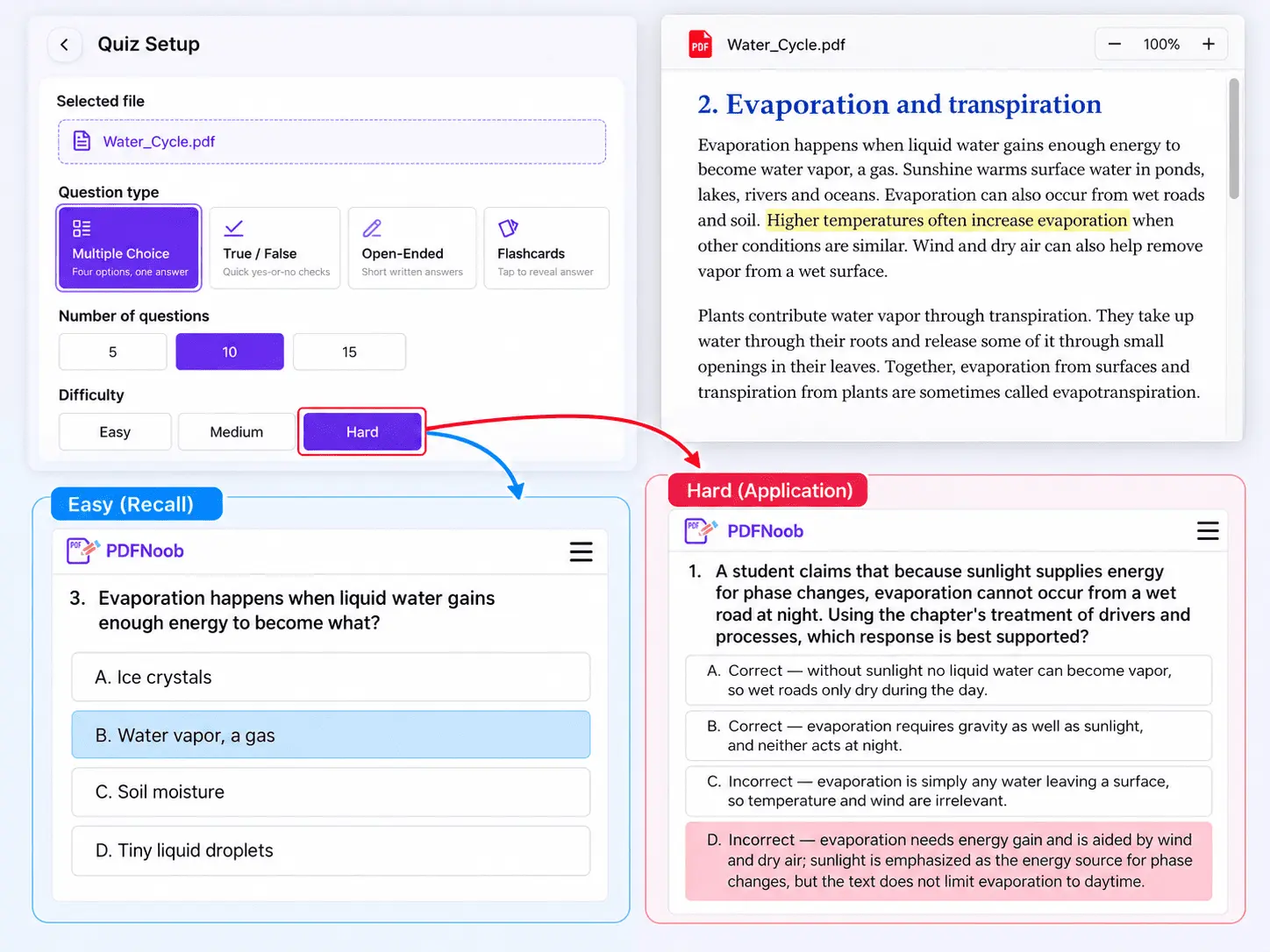
Set the difficulty level and state the grade level together when generating a question paper, so the AI knows which vocabulary and depth of understanding to target for Class 10 or Class 12 students. In the PDFNoob AI Question Generator, choose Easy, Medium, or Hard under Difficulty, then type the class in the Instructions box, for example “Class 10 CBSE science, board exam style”.
Difficulty changes what students need to do with the information in your PDF. An easy recall question asks for a fact or definition stated directly in the chapter. A harder application question asks students to use that information in a new situation or connect two ideas from the text.
For example, if a chapter explains that higher temperatures increase evaporation, an easy question might ask which factor increases the rate of evaporation. A harder question could ask students to explain why wet clothes dry faster on a hot day.
The harder question requires more reasoning, but it also gives the generator more room to make mistakes. It may combine ideas incorrectly or introduce information the original PDF does not support. As you increase the difficulty, expect to spend more time checking and rewriting generated questions.
For a board-style question paper, use two generation passes instead of trying to produce every difficulty level at once.
First, generate a block of easy, one-mark recall questions to test definitions, facts, and basic concepts. Then generate a second block of medium- or hard-level application questions that require students to explain relationships or apply what they have learned. Combine the two sets into one paper and check that the questions match the intended class and syllabus.
However, choosing a harder setting cannot make the source material more advanced. A chapter written for Class 10 will not automatically produce a suitable Class 12 paper just because you select a greater difficulty. If the PDF contains only basic definitions, the generator has limited information for creating deeper questions.
A useful rule is to stop increasing the difficulty when the generated questions can no longer be answered using the uploaded chapter alone. If two consecutive harder questions require unsupported facts or major rewriting, return to the previous difficulty level or provide more detailed source material.
How Do You Review and Revise a Generated Question Paper?
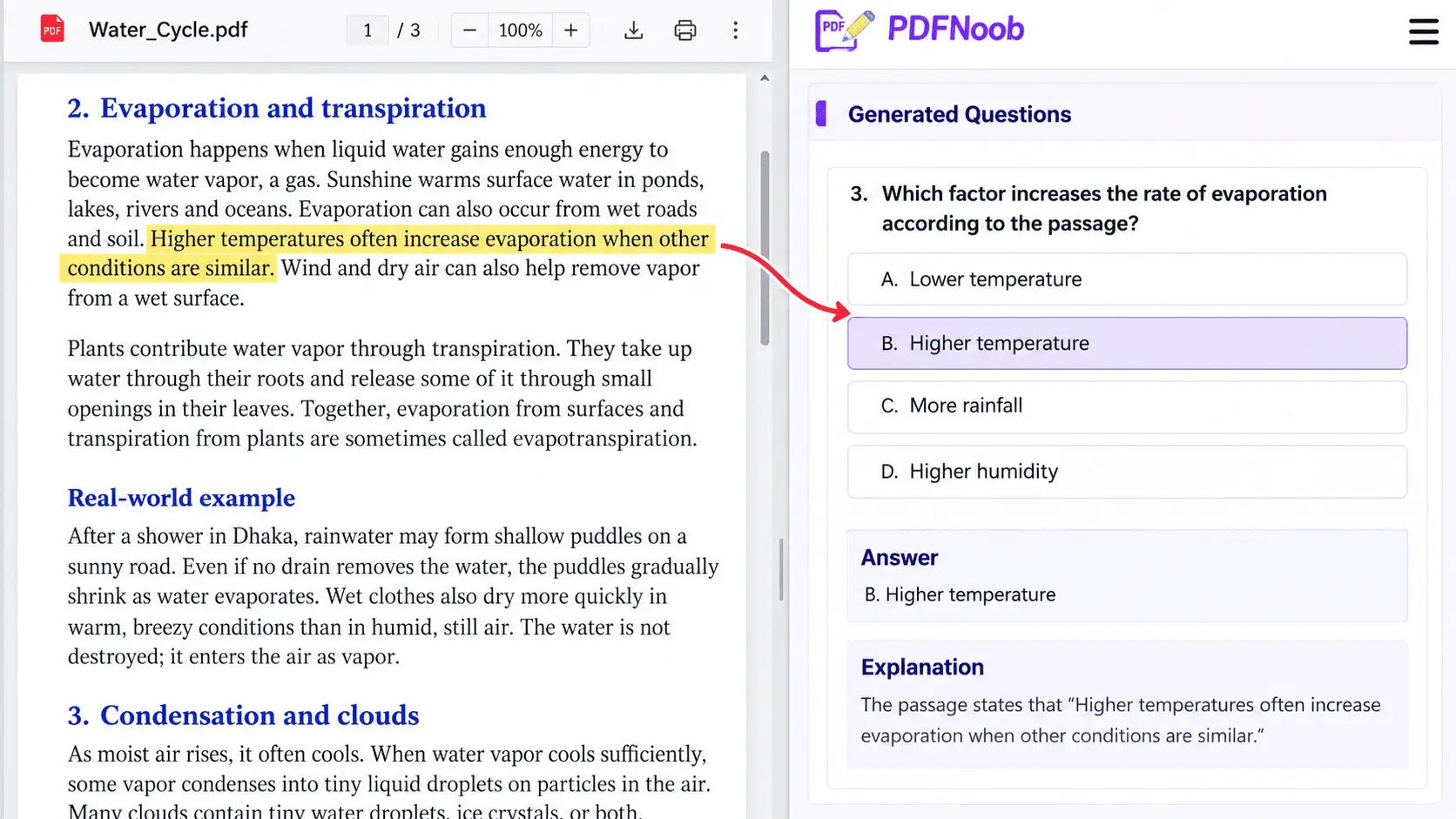
Check every generated question against the page it came from before using the paper, and treat the answer key as something you must verify rather than assuming it is correct.
An AI generator can produce a question that sounds reasonable but is not supported by your PDF. It may also select an answer that is only partly correct or overlook another valid option. That is why verification needs to happen before you share the paper with students.
Use this three-step routine for every question:
- Find the supporting sentence: Locate the source paragraph in your PDF and identify the exact sentence that makes the question answerable. If you cannot find supporting information in the document, do not accept the question simply because the answer sounds correct.
- Check the answer key: Compare the marked answer with the supporting sentence. Make sure it is the only answer the source supports. For short-answer or long-answer questions, check that the expected response includes the relevant facts without adding unsupported information.
- Check the other options: For multiple-choice questions, confirm that every incorrect option is genuinely wrong according to the source, not just less likely than the marked answer. If two options could both be correct, rewrite the question or replace one of the options.
Pay particular attention to two common problems.
The first is a question that has a correct answer but cannot be answered using your uploaded document. For example, the AI might ask about a historical event mentioned nowhere in the chapter. The information could be true, but the generator has supplied it from outside the source. Remove the question or replace it with one supported by the PDF.
The second is an ambiguous question with two defensible answers. This can happen when the source uses broad wording or describes a concept without making a clear distinction. Even if the generator marks one answer as correct, students may reasonably choose another. Rewrite the question to remove the ambiguity or leave it out of the paper.
For a 20-question paper containing mostly factual MCQs and short-answer questions, allow roughly 30–45 minutes for a careful first review. That gives you about one to two minutes per question, plus some time for corrections. Papers with complex application or long-answer questions may take longer.
Do not skip this step just because the questions look polished. A clear sentence is not necessarily an accurate question, and a confident-looking answer key is not proof that the answer is right.
A generated question is ready to use only when you can point to the source text that supports its answer and rule out other defensible answers.
What Makes a Generated MCQ Stem or Distractor Weak?
A weak question stem asks something the source page does not clearly answer, while a weak distractor is an incorrect option that no student would seriously consider choosing.
AI-generated multiple-choice questions can look complete but still contain problems that make them too easy, confusing, or unfair.
The stem is the part that asks the question. It becomes weak when it includes the correct answer in its wording or contains so much background information that students spend more time reading than answering. Sometimes it uses a negative stem that forces students to work out what is not correct. These problems can test reading tricks instead of the knowledge you want to assess.
The answer options need just as much attention. A distractor may be noticeably longer or shorter than the other choices, giving students an unintended clue. Sometimes the AI creates an option that is almost identical to the correct answer, making both defensible. Other times, it adds clearly unrelated choices that students can eliminate immediately.
When two of the four options are obviously wrong, the question becomes a two-option guess rather than a useful test of understanding. Good item quality depends on having one clearly supported answer and other plausible options that reflect mistakes students might realistically make.
You can fix these problems while reviewing the generated questions. The following examples use a sample chapter explaining that evaporation turns liquid water into vapor, condensation turns vapor into droplets, precipitation brings water back to the ground, and runoff carries water over land.
| Weak generated item | Same item fixed, with the change explained |
|---|---|
| Answer revealed in the stem: "Condensation changes water vapor into droplets. Which process changes water vapor into droplets?" | Fixed: "Which process changes water vapor into liquid droplets?" |
| Change: Remove the sentence that reveals the answer. Keep the four process names as answer options, with condensation as the correct choice. | |
| Overly long stem: "When studying the water cycle, which contains several important processes involving water changing form and moving between different parts of the environment, students learn about the process that changes liquid water into vapor. What is this process called?" | Fixed: “Which water-cycle process changes liquid water into vapor?” |
| Change: Remove unnecessary background information. The correct answer remains evaporation. | |
| Confusing negative stem: "Which process does NOT change water vapor into droplets?" Options: A) Evaporation; B) Condensation; C) Precipitation; D) Runoff. | Fixed: "Which process changes water vapor into droplets?" Options: A) Evaporation; B) Condensation; C) Precipitation; D) Runoff. |
| Change: Replace the negative wording with a direct question that has one correct answer: B) Condensation. | |
| Uneven option lengths: "Which process changes liquid water into vapor?" A) Evaporation, the process through which liquid water changes into a gaseous state; B) Condensation; C) Precipitation; D) Runoff. | Fixed: "Which process changes liquid water into vapor?" A) Evaporation; B) Condensation; C) Precipitation; D) Runoff. |
| Change: Keep all options similar in length and structure so the correct answer does not stand out. | |
| Near-duplicate answers: "Which process changes water vapor into droplets?" A) Condensation; B) Water vapor condensing; C) Evaporation; D) Runoff. | Fixed: "Which process changes water vapor into droplets?" A) Condensation; B) Precipitation; C) Evaporation; D) Runoff. |
| Change: Replace the near-copy of the correct answer with a different process, leaving only one defensible answer. | |
| Implausible distractors: "Which process brings water from clouds back to the ground?" A) Precipitation; B) Photosynthesis; C) Alphabetizing; D) Long division. | Fixed: "Which process brings water from clouds back to the ground?" A) Precipitation; B) Evaporation; C) Condensation; D) Runoff. |
| Change: Replace unrelated options with other water-cycle processes that students could realistically confuse. |
As you read through generated MCQs, check the stem first. Remove anything that gives away the answer, shorten unnecessary wording, and turn confusing negative questions into direct ones.
Then inspect the distractors. Keep the options similar in length and grammatical structure, remove near-duplicates, and replace obviously unrelated answers with believable alternatives.
A strong MCQ should have one clearly correct answer supported by the PDF and distractors that are plausible but definitely incorrect. If you cannot achieve both, revise the item or leave it out of the question paper.
Why Does a PDF Sometimes Convert Into No Questions at All?
A PDF question generator may return no questions because its pages contain no readable text, or a copy restriction prevents the tool from extracting that text.
The most common cause is a scanned or photographed document. A scanned page may look like it contains ordinary words, but it is actually an image without a text layer. The generator cannot read those words as text, so it has little or nothing to use for creating questions.
Other problems can cause the same result. A PDF with copying restrictions may block text extraction even when the words are visible. A slide deck or diagram-heavy document may contain headings, pictures, and labels but very little explanatory text. A very short PDF may simply lack enough information to support meaningful questions.
You can identify the likely problem in less than a minute. Open the PDF and try selecting a complete sentence with your cursor. If the words highlight individually, the document probably contains selectable text. If you can only select the whole page as an image, it may be a scan without a text layer. If the words highlight but cannot be copied, check whether the PDF has extraction restrictions.
Use the following table to identify the problem and decide what to do next.
| What you see | Why it happens | What to do next |
|---|---|---|
| The PDF looks readable, but no words can be selected | A scanned or photographed page contains images of words without a text layer | Add a text layer to the scan, then generate the questions again |
| The text is visible or selectable, but the generator cannot extract it | A copy restriction may prevent the tool from reading the file | Obtain permission to extract the content or use an authorized, unrestricted copy |
| The PDF contains mostly slides, diagrams, or short labels | There is not enough explanatory prose to support useful questions | Provide the relevant prose sections instead of relying on diagram-heavy pages |
| The PDF contains only a few sentences | The source does not contain enough facts or explanations for the requested questions | Add more relevant content or reduce the number of questions |
For scanned documents, the OCR PDF article covers how to make the words readable by a tool. If you already have a text-based PDF and need to separate the useful content from the rest of the document, the PDF to Text article explains text extraction.
A scanned board question paper or a phone photo of handwritten notes can be especially misleading because the words are easy for a person to see but may not be available as text to the generator.
Before trying another question generator, check whether your PDF contains enough extractable text. Fixing the source file is often more useful than repeating the same generation attempt.
How Do You Turn the Generated Paper Into Google Forms or a Printable PDF?
Print the generated question paper as a PDF when students will take the exam on paper, or move the questions into Google Forms when you want answers collected online and objective questions marked automatically.
Each option has a different advantage. A printable paper supports multiple-choice, fill-in-the-blank, short-answer, and long-answer questions without requiring students to have internet access. However, the teacher must collect and mark the completed papers manually.
Google Forms is more useful when you need automatic marking. It can score multiple-choice questions and fill-in-the-blank answers when the expected responses are clearly defined. However, longer written answers still need human review, and students need internet access to complete and submit the form.
| Destination | What it marks for you | What it cannot handle |
|---|---|---|
| Google Forms | Automatically marks multiple-choice questions and exact-match fill-in-the-blank answers when the correct answers and points are configured | Cannot reliably grade long-answer explanations automatically; requires students to complete the quiz online |
| Printable PDF | Nothing automatically; teachers or examiners mark the completed papers | Cannot collect responses or calculate scores automatically, although it supports all question types without internet access |
To turn the generated questions into Google Forms, first review the questions and their answer key. Then transfer the questions into a Google Forms quiz, choose the appropriate response format for each one, and enter the correct answers and marks. For multiple-choice questions, carry over the correct option and its distractors. For fill-in-the-blank questions, check which answer variations should be accepted.
Since the question generator and the quiz platform are usually separate tools, you may need to copy or import the questions rather than expecting them to appear in Google Forms automatically. Test the completed quiz before sharing it with students to confirm that the answers and scores work correctly.
For a printable exam, prepare two separate files: one containing the questions for students and another containing the answer key for the teacher. Export the student paper as a PDF with clear question numbering, marks, and enough space for written answers.
Never include the answer key in the PDF given to students. Keep it as a separate document so it can be used for marking after the assessment.
The choice depends on how the exam will be conducted. Use Google Forms when automatic scoring and online submissions matter most. Use a printable PDF when students need to write on paper, answer longer questions, or take the exam without internet access.
Which Is Better for a Question Paper, AI Generation or Manual Paper Setting?
AI generation is better for creating a quick first draft, while manual paper setting is better for choosing questions that match the syllabus, the lessons taught, and the students' abilities. The most practical approach is to combine both: let AI prepare the initial questions, then have a teacher review and finalize the paper.
AI can produce a draft question paper from an uploaded PDF much faster than a teacher can write every question from scratch. It can turn definitions, explanations, and facts into different question types, giving the paper setter a useful starting point.
However, speed does not guarantee good syllabus coverage. AI cannot reliably tell which of two correct facts received more attention in class or which topics deserve more marks. If it only receives one chapter, it cannot balance questions across an entire syllabus it has not seen. Some generated questions may also need rewriting because they are too simple, unclear, or different from what students were taught.
Manual paper setting takes longer, but a teacher can select questions based on the lessons covered, the expected difficulty, and the marks assigned to each topic. This makes it easier to create a balanced paper that tests what students were actually expected to learn.
The difference becomes clearer when you compare the tasks involved.
| Task | AI generation | Manual setting | Who should do it |
|---|---|---|---|
| Create the first draft | Produces questions quickly from the uploaded document | Requires more time to write and organize questions | AI for the initial draft |
| Match the taught syllabus | Follows the supplied material but cannot know which topics the class emphasized | Uses knowledge of lessons taught and learning objectives | Teacher for final selection |
| Revise and balance questions | May produce useful questions alongside items that need rewriting | Can adjust wording, difficulty, and marks using classroom judgment | AI for drafting; teacher for final revisions |
| Verify answers and take responsibility | Can suggest an answer key but cannot be accountable for incorrect answers | Can verify answers and approve the completed assessment | Teacher or responsible paper setter |
The realistic choice is not AI or manual setting. Use AI to prepare the first draft, then apply the source-checking and review process covered earlier to make sure the questions are accurate and appropriate for the class.
Accountability remains with the person approving the final paper. If a generated question has two correct answers, covers an untaught topic, or contains a wrong answer key, the teacher who signs off on the paper is responsible for correcting it before students receive it.
Use AI to save time on drafting, but keep syllabus decisions, final question selection, and approval in human hands.
How Do You Make a Question Paper With an Answer Key?
Generate the questions and answer key together in the same pass, because creating the key separately can lead to answers that do not match the questions or their order.
When preparing the paper, ask the AI question generator to include the correct answer for each question. For multiple-choice questions, the key should identify the correct option. For short-answer and long-answer questions, it should provide the expected response and the main points needed for marking.
However, a useful answer key should include more than the correct letter or response. Each answer should also have a brief answer explanation and a reference to the sentence or page in the original PDF that supports it.
For example, if Question 5 has option B as the correct answer, the key should also identify where that answer appears in the uploaded chapter. This helps the teacher verify the answer and resolve disputes without searching through the entire document. If the generator does not provide source references, add them during your review.
Keep the answer key separate from the student copy so students receive only the questions, instructions, and marks.
Before downloading, check the AI Question Generator tool page for the available download options and any requirements.
A trustworthy answer key isn't just a list of correct options. It should show where each answer comes from, so teachers can verify the information before using it to mark students' work.
How Do You Generate Questions From a Scanned PDF Question Paper?
Add a text layer to the scanned PDF first, then generate the questions, because an image-only scan gives the AI question generator no readable words to work with.
The added text layer makes the words readable by a tool rather than only visible to a person. However, a blurry or unclear scanned page may produce incorrect text, which can lead to inaccurate questions.
Even a single character error can change a word into something that never appeared in the original book. The generator may then create a question about that incorrect word, making it especially important to check the questions against the original scanned pages.
For making the document searchable, use the OCR PDF tool. Once the text layer is available, generate your questions and review them against the source.
Checking generated questions is especially important with scanned PDFs, because their text may contain recognition errors that would not normally occur in a born-digital document.
How Do You Turn a PDF Chapter Into Text for a Question Generator?
Extract only the page range you want to examine and give those pages to the AI question generator instead of uploading the entire textbook.
When you upload a complete book, the generator may select information from different chapters, even if you only want questions about one topic. It can also create questions from front matter, indexes, or exercise answers that were never meant to be part of the assessment.
For example, if you want to test students on Chapter 5 of a science textbook, provide only the pages containing that chapter. This keeps the questions focused on the definitions, explanations, and concepts students actually studied.
You can also use a plain text version of the selected textbook chapter. However, plain text may lose tables and diagrams, so it cannot reliably support questions that require students to interpret those elements. For extracting text from a PDF, use the PDF to Text tool.
Narrowing the source can also reduce repeated questions. If you use the same generator with the same settings on one chapter instead of an entire textbook, you may get fewer duplicates because the AI is no longer drawing from multiple chapters that repeat similar facts or definitions.
The goal is to give the generator only the material you want students to be tested on. A focused source helps produce more relevant questions and reduces unnecessary repetition.