


A fillable PDF form contains named form fields that let you type answers, select options, and save the information inside the same file. Each typed entry becomes part of the document's stored form data, so you can complete the form without printing it or writing by hand.
But how do you know whether the PDF already open on your screen is actually fillable? Try pressing Tab in a compatible PDF viewer. If the cursor moves into an input box, the document has interactive fields. If nothing happens, the file may have no fields, or the viewer may not support them. A scanned document can look exactly like a fillable form while containing nothing you can type into.
The important thing to understand is that fillable describes the file, not the software. The same AcroForm document may show highlighted input boxes in one PDF viewer but appear unresponsive in another.
This guide explains what a PDF form contains, how to identify real fields with a simple keyboard test, which field types you may encounter, and what makes a form interactive rather than flat. You'll also learn how to fill a form that already has fields, add answers when it has none, complete forms on a phone or from an email attachment, and understand why they sometimes behave differently in web browsers.
We'll then cover what happens when you save or flatten your answers and when a PDF form is more useful than a web form. PDFNoob does not offer a dedicated form filler, so where a document has no editable fields, we'll explain how its PDF editor can help you place text over the printed form instead.
What Is a PDF Form?
A PDF form is a PDF whose pages contain interactive field widgets, such as named text boxes, check boxes, and buttons, that you can click or type into. The information you enter is stored inside the same file, alongside the page where the fields appear.
A PDF is a fixed-layout page format, and adding form fields does not change that. The document still opens as an ordinary PDF, but its interactive controls let you enter information without changing the printed layout.
Every interactive PDF form has two important parts. The first is the visible field widget, such as the box you click to enter your name. The second is an entry in the document's form field dictionary, which stores the field's name, type, and value.
For example, you might see a box labeled "Applicant Name" on the page. Behind it, the PDF can store a text field named applicant_name, together with whatever the applicant types into that box.
The difference matters because a box that looks fillable is not necessarily a real form field. Some PDFs contain only printed lines and shapes that resemble input boxes.
| What you see on the page | What the file stores |
|---|---|
| A box drawn beside "Applicant Name" | A text field named applicant_name that stores the entered name |
| A tick box graphic beside an option | A check box with an on or off state |
| A grey button labeled "Submit" | A push button with an assigned action |
| A printed line for entering information | Nothing interactive; the line is only part of the page layout |
PDF forms can also use two different technologies: AcroForm and XFA.
AcroForm is the interactive form model defined in the core PDF specification. It stores form fields and their values within the PDF's document structure.
An XFA form, or XML Forms Architecture form, uses an XML-based form layer that Adobe introduced with Acrobat 6. XFA was later deprecated in PDF 2.0, documented in ISO 32000-2.
This distinction helps explain why two files described as PDF forms may behave differently. A reader might support ordinary AcroForm fields but fail to display an XFA form correctly, even though both files have the .pdf extension.
The key difference is not how the form looks, but what the file contains. A real PDF form stores interactive controls and their values, while a page with only printed boxes gives you nowhere to enter form data.
How Do You Tell If a PDF Form Is Fillable or a Picture of a Form?
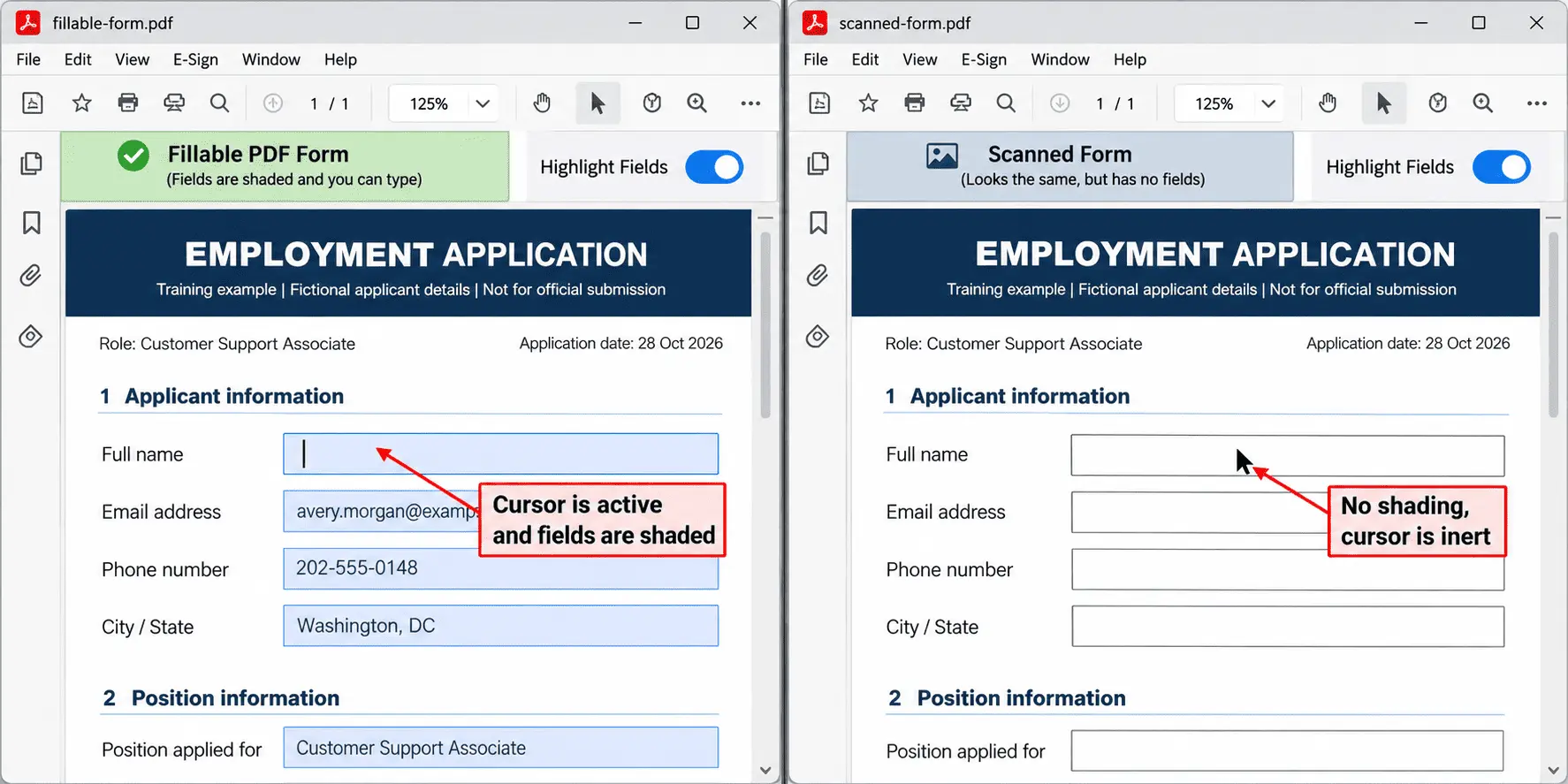
Open the PDF in a reader that supports interactive forms and press Tab. If the cursor jumps into a box and a blinking caret appears, the file has real form fields. If Tab does nothing inside the page, the boxes may simply be part of a printed or scanned form, with nowhere to type.
You can confirm this using the field highlight option available in many desktop PDF readers. When you turn it on, the reader shades the interactive fields so you can see exactly where information can be entered. If the boxes remain unshaded, they may only be shapes drawn on the page. Try another form-supporting reader before assuming the file has no fields.
There is one more test, especially useful for a scanned page. Drag your cursor across a line of printed text. If you can highlight individual words, the PDF contains a text layer. If you cannot select the words and the page behaves like a single image, you are probably looking at a scan.
These checks help you identify three possible situations:
- Fields present: Tab moves the cursor into an input box, and the field highlight option reveals where you can enter information. You can fill the form directly.
- No fields, but real text: The printed words can be selected, but the boxes do not respond to Tab. The PDF contains text without interactive form fields, so you need to place your answers over the printed lines.
- No fields and no text: Neither the boxes nor the printed words can be selected. The page is likely an image-only scan, so you must add text over the form rather than type into existing fields.
All three are read-only tests. Pressing Tab, switching field highlighting on, and selecting printed text do not change the PDF's contents.
The Tab test works because interactive PDF forms have a tab order that controls how keyboard focus moves between fields. In a form with working AcroForm controls, Tab has fields to move between. A page containing only printed boxes has no such controls to receive focus.
That is why two PDFs can look identical while behaving differently. One contains actual fields; the other only shows what those fields would look like on paper.
What Are the Field Types in a PDF Form?
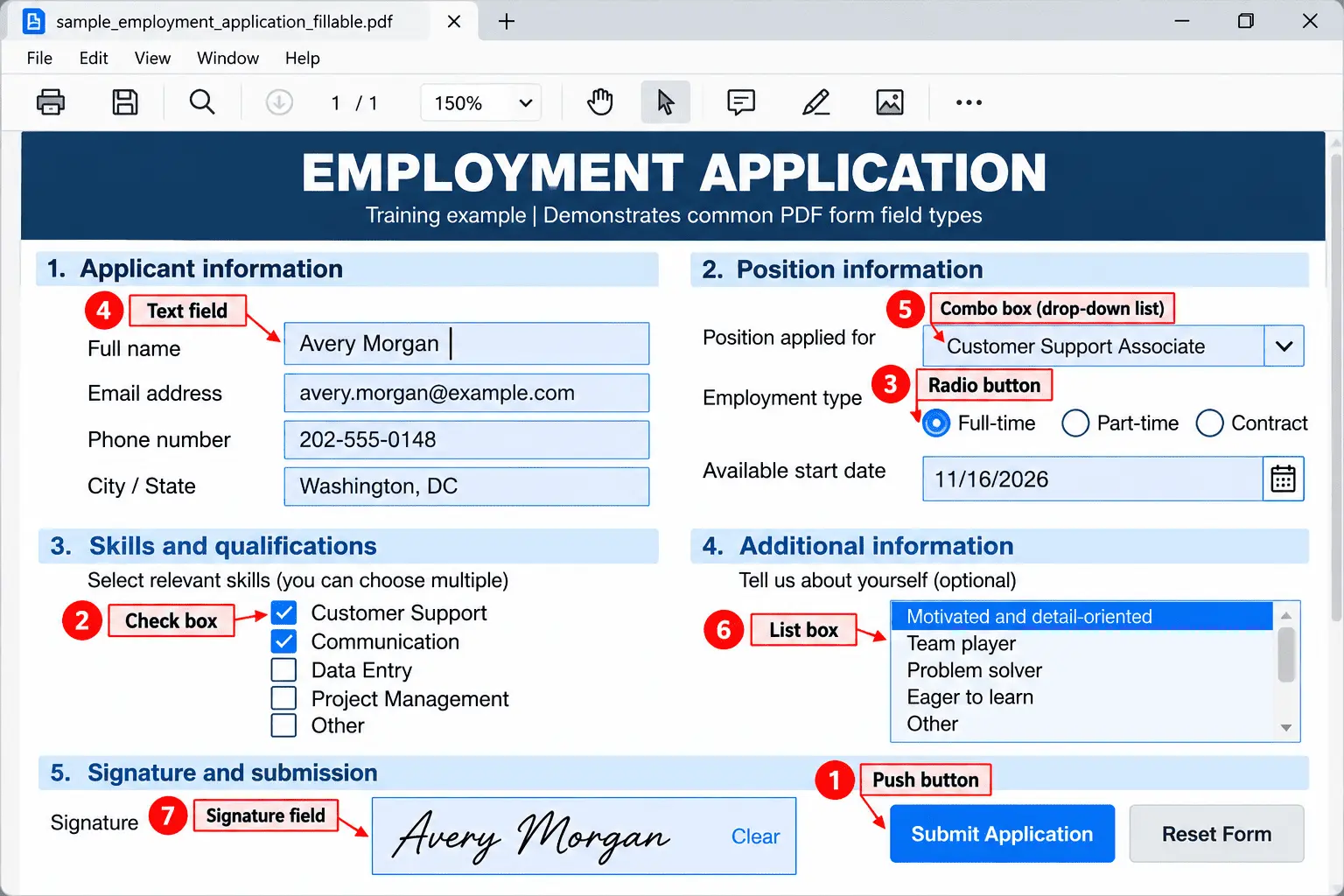
The PDF specification defines four form field types: button, text, choice, and signature. These appear on the page as seven controls: push buttons, check boxes, radio buttons, text fields, drop-down combo boxes, scrolling list boxes, and signature fields.
You may remember the highlighted boxes from the previous section. Each of these controls is an interactive field that can appear when field highlighting is turned on, although what happens when you click it depends on its type.
Here are the seven controls you may find in a fillable PDF form:
- Push button: A button you click to perform an action, such as submitting or resetting a form. Unlike a text field or check box, a push button does not store an answer. Its behavior depends on the action assigned by the form creator.
- Check box: A small square you can tick to select an option. Check boxes work independently, so you can usually select several in the same section. For example, a form asking which languages you speak might let you select English, French, and Spanish together.
- Radio button: A round control used when you must choose only one answer from a group. For example, selecting one preferred contact method from Email, Phone, and Post. Unlike check boxes, radio buttons in the same group are mutually exclusive. However, if a form creator sets up the group incorrectly, you might be able to select two options that should not be selected together.
- Text field: A box where you enter information such as your name, address, or explanation. A text field may accept a single line or multiple lines. Some fields have character limits, require a specific date or number format, or automatically shrink the text to fit the available space.
- Combo box: A drop-down menu that lets you select an answer from a predefined list. For example, choosing your country from a list of countries. Some combo boxes also let you type a different answer, but only if the form creator has enabled that option.
- List box: A visible list of choices that you can scroll through. Unlike a combo box, a list box displays its options directly rather than hiding them inside a drop-down menu. Depending on its settings, it may allow you to select one or several items.
- Signature field: A designated area for adding a digital signature to the PDF. Unlike ordinary input fields, a signature field can apply restrictions that lock the document once it is digitally signed. This helps protect the signed information from unauthorized changes.
These seven controls belong to the four main field types. Push buttons, check boxes, and radio buttons all belong to the button category. Single-line and multi-line text inputs belong to the text category, while combo boxes and list boxes belong to the choice category. Digital signature fields make up the fourth type.
Some fields also have additional rules. A required field is marked as information the form expects you to complete, although enforcement depends on the viewer or submission process. A read-only field may display information but does not allow you to change it.
Knowing these differences helps you understand why one box accepts typing, another allows several selections, and another permits only one answer. It also makes it easier to recognize a poorly configured form before submitting it.
What Makes a PDF Form Interactive Instead of Flat?
A PDF form is interactive when the file contains a form dictionary listing fields you can click, type into, or select. It is flat when those interactive fields are absent, leaving only printed boxes and lines on the page.
The confusing part is that an interactive form and a flat PDF can look exactly the same. Both may show spaces for your name, address, and signature, but only the interactive version contains actual fields that accept and store your answers.
You will usually come across three different states:
- Interactive PDF form: The document contains live fields that respond when you click them or press Tab. You can enter answers directly, and the form stores them as field values.
- Flat PDF with real text: The page contains readable, selectable words, but no interactive fields. For example, a form exported from Microsoft Word may have printed labels and empty boxes without letting you type inside them.
- Scanned PDF image: The entire page is stored as an image, including its printed labels and boxes. Without a text layer, you cannot select individual words or enter answers into existing fields.
The difference comes from what the file stores behind the visible page. An interactive form has field definitions that give its input boxes a purpose. A flat document may contain only a page content stream describing the printed text, lines, and shapes, without any fields for collecting answers.
Flattening is one operation that can turn an interactive form into a flat document by making its field contents part of the page.
To identify which state your PDF is in, use the Tab and text-selection tests from the previous section.
| PDF state | Tab does something | Text can be selected | What to do next |
|---|---|---|---|
| Interactive | Yes, when opened in a compatible reader with live fields | Usually, if the page also contains a text layer | Fill the existing fields and save the document |
| Flat with text | No fields to move into | Yes, you can select individual words | Use a PDF editor to place your answers over the printed lines |
| Scanned image | No fields to move into | No, the page is only an image | Use optical character recognition (OCR) first if you need searchable text, then add your answers over the page |
The easiest way to distinguish the last two is to drag your cursor across a printed sentence. If individual words highlight, the document has selectable text even though it may have no form fields. If nothing highlights and the page behaves like a photograph, you are likely viewing an image-only scan.
A flat PDF is not necessarily a scanned PDF. A flat form can contain perfectly searchable text without any interactive fields, while a pure scan contains neither selectable words nor live fields.
That distinction matters because the next step is different. With a flat text-based form, you can place answers over the existing lines. With an image-only scan, you may need OCR to make the printed content readable by software before working with it further.
How Do You Fill In a PDF Form That Already Has Fields?
Open the form in a desktop or mobile PDF reader, click the first field or press Tab, and start typing your answers. Use Tab to move to the next field and Shift+Tab to return to the previous one. Once you have completed the form, choose Save, not Print, so your answers remain editable inside the PDF.
Start with the text fields and work through the document in order. You can select check boxes and radio buttons with your mouse or keyboard. If a required field is left empty, some forms will highlight it or display a warning when you try to submit the document. However, not every PDF reader enforces these rules, so check that you have completed all the necessary fields yourself.
Leave the signature until last. If the form requires a digital signature, changing an answer afterward may invalidate it.
You can also fill the form using these keyboard shortcuts:
- Tab: Move the keyboard focus to the next interactive field.
- Shift+Tab: Return to the previous field.
- Space: Select or clear a focused checkbox, or select a radio button within a group.
- Enter: Activate a focused button or confirm an action, depending on the PDF reader. In a multi-line text field, it may insert a new line instead.
Entering answers does not normally change the document's name or printed layout. The PDF keeps its existing pages, labels, and field positions; only the stored values change.
However, there is an important difference between saving the completed form and overwriting the original. If you save directly over the blank document, you may lose your untouched copy. Instead, use Save As to create a saved copy with a recognizable name, such as Application_Completed.pdf, while keeping the original blank form for future use.
Be careful when using the Print option. Choosing Print to PDF usually creates a new document with your answers fixed onto the page rather than stored in editable fields. That may be suitable for sending a final copy, but it makes correcting the answers much harder because the original fields are no longer available in the printed output.
There is another useful feature of interactive forms that many people overlook: form data can sometimes be saved separately from the PDF itself.
Compatible PDF applications can export answers into an FDF (Forms Data Format) or XFDF (XML Forms Data Format) file. These files store the field values separately, allowing them to be imported into another copy of the same form without typing everything again.
For example, suppose an office issues an updated version of the same employee information form every quarter. If the field names remain compatible, previously exported FDF or XFDF data can be imported into the new form, saving time on repeated entries. This depends on the PDF application's support for importing and exporting form data.
Keep your blank form, your completed PDF, and any exported form data separate. That way, you can correct an answer, reuse existing information, or complete the form again without starting from scratch.
How Do You Fill a PDF Form That Has No Fields at All?
You cannot fill a PDF form that has no interactive fields because there is nothing to type into. Instead, you need to add your own text on top of the page using a PDF editor, positioning each answer over the printed lines or empty boxes.
Start by opening the document in a PDF editor. Once the file is loaded, place a text box over the first printed line where an answer belongs. Type your information, adjust the type size to match the surrounding text, and position the answer so it fits naturally within the form.
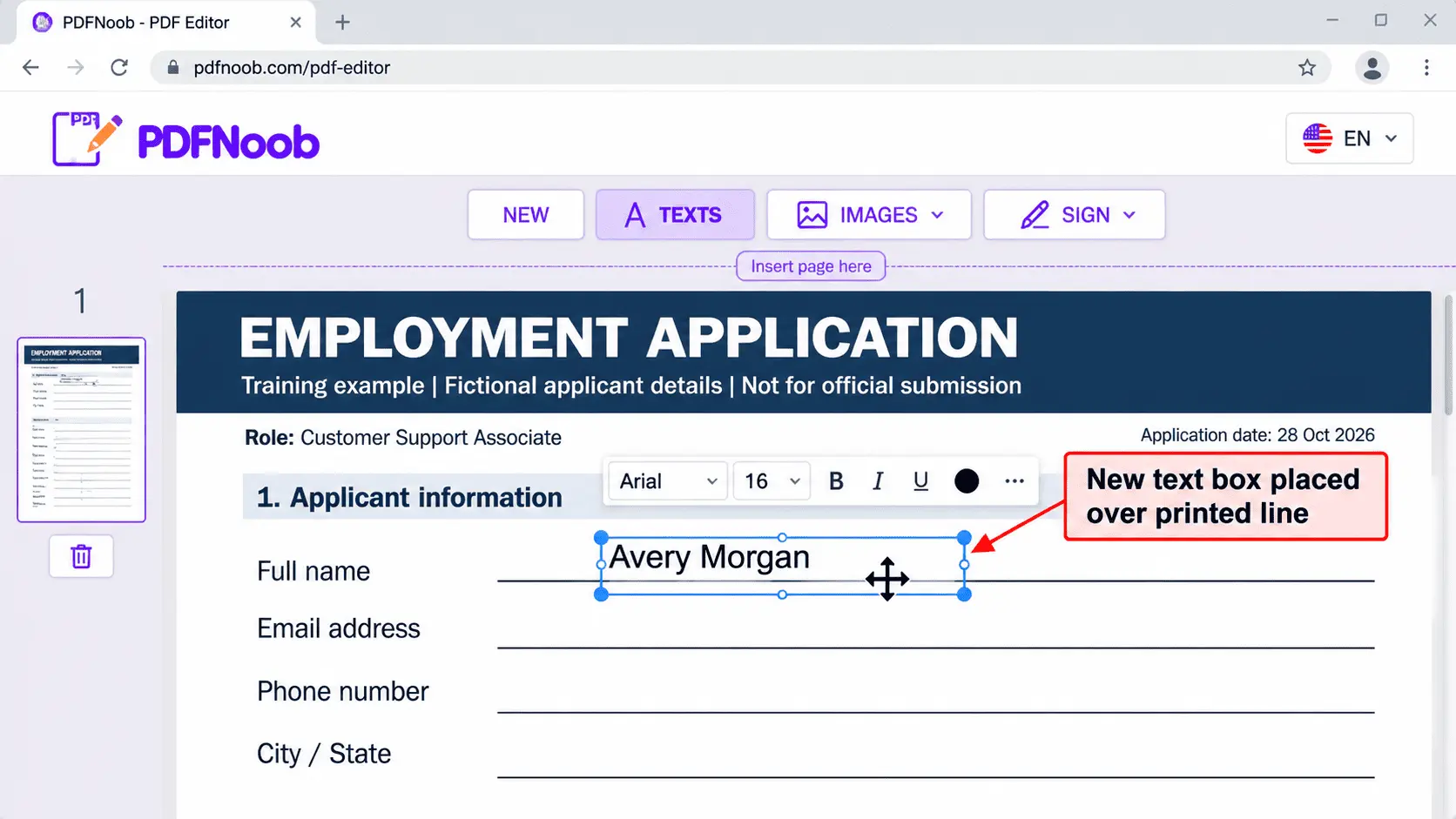
Repeat this for the remaining spaces, then save a separate copy of the completed document. Keep the original blank PDF unchanged in case you need to correct an answer or fill it out again.
This method works for a non-fillable PDF, including scanned forms that look like ordinary paperwork but have no clickable input fields. However, it is important to understand what you are actually doing: PDFNoob's PDF editor places text on the page; it does not turn the document into an interactive form.
If you would rather avoid adding text digitally, you have two other options:
- Print and scan: Print the document, fill it out by hand, and scan the completed pages back into a PDF. This takes extra time and requires access to a printer and scanner or a scanning app.
- Request a fillable copy: Ask the organization that issued the form whether it has a version with interactive fields. This is usually more convenient, although a fillable version may not be available.
There is also a limitation to typing over a form that you should know before sending it.
In a real fillable form, each answer is stored as a field value that compatible software can recognize. When you place text over a field-less PDF, the added information becomes part of the page content stream instead. The recipient's software sees your answers as ordinary page content, not as structured form data.
That means the answers cannot be validated, automatically totalled, or exported as form-field data the way they can in an interactive PDF. They can also move out of alignment if someone later changes their position while editing the document.
A typed-on form may look exactly like a completed fillable PDF, but it does not behave like one. It is suitable when you simply need to complete and return a document, but it cannot replace interactive fields when the recipient needs to process your answers automatically.
How Do You Fill a PDF Form on a Phone?
Open the file in a mobile PDF app that supports interactive forms rather than relying on the preview inside your mail or chat app. Many previews display the PDF page without activating its fields, making a fillable form appear as though there is nowhere to type.
On an iPhone or iPad, you can start with the built-in Files app or another document app that supports PDF forms. On Android, use a PDF reader or a cloud drive app with form-filling support. Whether the fields respond depends on the app and the type of form you are opening.
| Device or app | Do the fields respond? | What to do instead |
|---|---|---|
| iPhone or iPad | Built-in file and document apps can support form fields, but some PDFs may not work correctly | Open the file in a PDF app that supports interactive forms if the built-in viewer does not respond |
| Android | A PDF reader or cloud drive app may allow you to select fields and enter answers | Try a dedicated PDF app with form-filling support if the current viewer only displays the page |
| Mail or chat preview on either platform | The preview pane may show the form without allowing field interaction | Open the same PDF in a form-compatible app instead of relying on the preview |
Once the form opens correctly, tap the first field and start typing. Small boxes can be difficult to select on a phone, especially when several fields are close together. Pinch to zoom in before tapping, so your finger hits the right field tap target instead of the box next to it.
The on-screen keyboard can create another problem. It may cover the field you are typing into, making it difficult to see whether your answer fits. Scroll the page until the active field is visible above the keyboard, and check the entered text before moving to the next box.
But what if the fields still do not respond?
Open the same PDF in two different apps on the same phone. If the fields work in one app but not the other, the problem is with the first app's ability to display or activate the form, not with the file itself.
If neither app lets you enter information, do not immediately assume the PDF has no fields. Open the document in a compatible desktop PDF reader and try the Tab test explained earlier. If Tab moves between input boxes, the form contains interactive fields even though your phone apps did not activate them.
You can complete and save the form on your phone, but open the saved file once on a larger screen before sending it. Check that every answer is visible, especially text entered into small boxes or fields near the bottom of a page.
A form that appears unfillable on your phone is not necessarily a non-fillable PDF. Sometimes changing the app is all you need to make its existing fields work.
How Do You Fill Out a PDF Form That Was Emailed to You?
Download the email attachment to your device, open the downloaded PDF in a proper PDF reader, fill in the fields, save it under a new name, and attach that completed file to your reply. Avoid filling the form directly inside your email app's preview.
The mail client preview is where things often go wrong. Many email apps display the PDF page without activating its interactive fields. As a result, the form may look like an ordinary document with empty boxes, even when those boxes are actually fillable.
Follow these four steps to complete and return the form correctly:
- Download the PDF attachment: Save the file to your computer or phone instead of working in the email preview. On a desktop, check your Downloads folder or the location selected by your browser. On a phone, look in Files, Downloads, or your device's file manager. If you skip this step, you may end up trying to fill a preview that does not support the form fields.
- Open the downloaded copy in a PDF reader: Use an application that supports interactive PDF forms and click the first field to enter your information. On a desktop, press Tab to check whether the fields respond, using the test explained earlier. Test the downloaded copy, not the email preview. Otherwise, you might incorrectly assume the file has no fillable fields.
- Save the completed form with a new name: Once you have entered your answers, save a separate file with a clear saved file name, such as Application_Completed.pdf. Reopen the saved PDF and confirm that your answers are still visible. If you skip this check, you could send a file that looks complete in your editor but has missing answers when reopened.
- Attach the saved file to your email reply: Return to the original message, choose Reply, and add the completed PDF as your reply attachment. Check the filename before sending. If you select the original attachment instead of your completed copy, the recipient will receive a blank form, and your email app may not warn you.
The most important part is knowing which file you are sending. Your original attachment and the completed PDF may look identical in your file manager, especially if you have not renamed the finished version.
Always reopen your saved PDF and attach that exact file to your reply. This simple check helps prevent the frustrating situation of completing an entire form only to send the blank original back to the person who requested it.
Why Does a Fillable PDF Form Behave Differently in a Web Browser?
A fillable PDF form may behave differently in a web browser because the browser uses its own browser PDF engine instead of the PDF reader installed on your device. These built-in viewers support common form fields, but they may not recognize every feature or form technology used in the document.
Most browsers can handle ordinary text fields, check boxes, and radio buttons. You can click a field, enter information, and select options much like you would in a desktop PDF reader.
However, some forms use an XML form layer called XFA, which many browser PDF engines do not support. This is why certain government or official PDF forms open to a grey placeholder page displaying a message such as "Please wait" and asking you to open the document in another PDF reader.
If this happens, download the PDF and open the downloaded copy in a compatible desktop reader rather than continuing in the browser.
| Works in a browser | Needs a desktop reader |
|---|---|
| Ordinary AcroForm text fields for entering names, addresses, and other information | XFA forms that depend on an XML form layer unsupported by the browser |
| Standard check boxes and radio buttons for selecting answers | Forms that show a grey "Please wait" placeholder instead of their actual fields |
| Basic form filling when the browser supports the fields and saves their values correctly | Forms whose saved answers appear blank because the viewer does not regenerate their visible appearance |
Another problem happens when you fill a PDF directly inside a browser tab. The information may appear while the document is open, but closing the tab does not necessarily save those answers to a file. To avoid losing your work, download the document, complete it in a compatible reader, and save the filled copy to your device.
But there is a more confusing situation: you fill every field, save the PDF, and the recipient opens it only to find blank boxes.
This can happen because PDF forms store two related pieces of information. The first is the actual field value, such as the name you entered. The second is an appearance stream, which tells the PDF viewer how that value should look on the page.
Some PDF applications save the field value without updating its visible appearance. They may use a setting called NeedAppearances in the form dictionary to indicate that the viewer should generate or refresh those appearances.
If the recipient's viewer ignores that setting, it may display an empty field even though your answer is still stored in the PDF. The information has not necessarily disappeared; the viewer may simply have failed to display it.
When this happens, reopen the saved PDF in a compatible desktop reader and check whether the answers appear. If they do, save the document again using an application that correctly updates field appearances, then verify the new copy before sending it.
A blank-looking PDF does not always mean your answers were lost. Sometimes the browser cannot display the form correctly, while other times the stored values and their visible appearances are out of sync. Understanding that difference can save you from filling out the entire form again.
What Happens to Your Answers When You Save or Flatten a PDF Form?
Saving a fillable PDF keeps your answers as live field values that you can change or export later, while flattening turns those answers into ordinary page content. Once the form is flattened, its interactive fields no longer exist, so the answers cannot be edited or extracted as form data.
The choice depends on whether you still need to make changes.
Save the form while you are still working on it. Your typed answers, selected check boxes, and other field values remain available for correction. You can reopen the PDF, update an answer, and save it again without starting over.
Flatten the form when you need a final copy that no longer allows recipients to change answers through the original form fields. The completed information becomes part of the page instead of remaining inside editable boxes.
However, flattening is a one-way conversion for those fields. You cannot simply reopen a flattened form and restore its original interactive controls. Keep an unflattened copy in case you need to correct an answer or reuse the form later.
A common mistake is using Print to PDF instead of Save. Creating a new PDF through the print dialogue typically produces a flattened version, even if you never selected a flattening option. The print output may look exactly like the original completed form, but its answers are no longer stored in live fields.
Here is what changes when you flatten a form:
| What happens | Live fields (Saved PDF) | Flattened form |
|---|---|---|
| Tab moves into a box | Yes, the cursor moves between interactive fields | No, the original fields are gone |
| Answers can be corrected | Yes, by editing the stored field values | Not as form values; changes require editing the page content |
| Answers can be exported as data | Yes, using compatible form-data tools | No, the original field values are no longer available for form data export |
| Looks identical when printed | Yes | Yes, when the field appearances are preserved correctly |
If you are wondering how to turn a fillable PDF into a regular PDF, flattening is the operation that does it. It removes the interactive fields and leaves their visible answers as ordinary page content.
You can confirm the difference yourself using the Tab test from earlier in this guide. Open the flattened copy in the same PDF reader and press Tab. If the original fields were successfully flattened, the cursor will no longer jump between those input boxes.
This gives you a simple way to check whether your answers are still editable form data or have become part of the page.
Keep the saved, unflattened PDF for future corrections and use the flattened version when you need a final document without live form fields. Both may look the same, but only one preserves your answers as editable data.
Where Do PDF Forms Get Used, and When Is a Web Form Better?
PDF forms work best when the printed layout matters and the completed document needs to be kept as a record, especially for government and banking paperwork. A web form is usually better when collecting, checking, and processing the answers matters more than preserving the appearance of the page.
Think about completing an official document for a bank or government office. The PDF keeps the same layout as the paper version, so you can see exactly where each answer belongs. You can download it, complete it without creating an account or staying connected to the internet, and keep an identical record copy for yourself.
This makes PDF forms useful when an organization expects a specific document format. Offline completion is another advantage, particularly when you need to work on the form before submitting it later.
A web form handles information differently. Instead of giving you a document to complete and return, it collects your answers through an online page. It can check required fields, flag incorrect entries as you type, and send your web form submission directly into a database. There is also no completed file for you to accidentally lose or attach incorrectly.
Many organizations now combine both methods. You complete a web form online, and the system generates a PDF copy of your submission afterward. That gives the organization structured data while giving you a document to keep as proof of what you submitted.
In India, the PDF forms people look for most are specific government and financial documents they need to download and complete. Some of the most common are:
- PAN card form: for applying for a new PAN.
- PAN correction form: for changing or correcting the details on an existing PAN.
- Aadhaar update form: for updating the details on your Aadhaar record.
- Form 15G (now Form 121): the declaration that asks for no TDS on income such as interest or a PF withdrawal. Form 121 replaced Forms 15G and 15H from 1 April 2026.
- Birth certificate form: for registering a birth or getting a birth certificate.
- Form 60 (now Form 97): the declaration for certain transactions when you do not have a PAN.
- SBI KYC form: for updating the KYC details on an SBI account.
- Ration card form: for applying for a ration card or changing its details.
The pattern is clear: in India, a PDF form is usually an official document you download and fill in, not a form you build yourself.
So, which format should you choose?
| Choose a PDF form when | Choose a web form when |
|---|---|
| The printed layout must stay consistent. Government, banking, or other official paperwork may need to match a prescribed page format. | The answers matter more than the layout. You mainly need to collect information in a structured format. |
| You need offline completion. The document can be downloaded, filled out locally, and submitted later. | You need immediate validation. Required fields, formats, and missing answers can be checked while users type. |
| You need a record copy. Both the person completing the form and the organization can keep the same completed document. | You need direct database submission. Answers can enter an online system without manually transferring them from a document. |
| The process requires a completed document. A specific PDF may need to be printed, signed, attached, or retained. | You want a simpler submission process. Users can submit answers online without managing, saving, or returning separate files. |
The main drawback of the PDF approach is what happens after someone completes it. If an organization collects returned PDF documents without a system for extracting their form data, someone may still need to read the answers and enter them into another system.
A web form can avoid that extra step by collecting the information in a structured format from the beginning.
Choose a PDF when the completed document itself matters. Choose a web form when the information needs to move quickly into an online system. If you need both, a web form that generates a PDF record offers a practical middle ground.
How Do You Fill a Downloaded Government Form PDF That Has No Fields?
Treat a downloaded government form without interactive fields as a picture of a form. Press Tab to check whether any fields respond, then use a PDF editor to place your answers over the printed lines and save a separate copy, keeping the original download untouched.
Many government forms are published as a scanned form or a print-ready layout, meant for printing rather than for filling on screen. They may contain spaces for your name, address, or identification number without having actual fields you can type into.
Before making changes, keep an untouched original of the official download. If you later flatten the completed copy, removing or correcting the added answers may be difficult without returning to the blank document.
Also, check the issuing authority's instructions. Some government forms must be completed by hand, signed physically, or submitted in a specific format. Adding text digitally does not necessarily mean the office will accept the completed document.
If digital completion is allowed, you can type your answers onto the page with our PDF editor. Follow the text-placement method explained earlier, and aim for a close type size match with the printed labels so your answers line up with them. The earlier editor screenshot shows how to position text over a form that has no interactive fields.
This situation is especially common with Indian government paperwork. Many of the forms people look for most, including PAN card forms, Aadhaar update forms, and Form 15G (now Form 121), are official downloads meant to be printed and completed, not templates to build.
However, the download page will not tell you whether a particular government PDF has interactive fields. That is why checking the downloaded file comes first. If it has no fields, confirm the issuing authority’s requirements before adding your answers and returning the completed copy.
How Do You Sign a PDF Form Once You Have Filled It In?
Sign your PDF form last, after completing every field, because changing an answer after signing can invalidate a digital signature.
Before signing, check which type of signature the recipient requires. A signature drawn with your mouse, finger, or stylus is not the same as a digital signature placed in a PDF signature field.
A drawn or typed signature image is simply a visible mark added to the page. It may be acceptable when the recipient allows a handwritten-style electronic signature, but the image alone cannot prove who signed the document or whether its contents changed afterward.
A digital signature works differently. It uses a digital certificate and a cryptographic document hash to protect the signed content. When the signature is verified, the PDF reader checks whether the signed information has changed. Editing an answer afterward can cause the signature to be reported as invalid or the document to be flagged as modified.
| Signature type | What it proves | When it is accepted |
|---|---|---|
| Drawn or typed signature image | Shows a visible signature but does not independently verify the signer's identity or protect the document against changes | When the recipient accepts a visual electronic signature |
| Digital signature field | Uses a certificate and cryptographic verification to identify the signing certificate and detect changes to the signed content | When the recipient requires a certificate-based digital signature |
If your PDF already contains an empty signature field, that is a sign that the form expects a certificate-based digital signature rather than just an image of your name.
If the recipient accepts a visible electronic signature, you can explore how to sign a PDF online. For a required certificate-based signature, use a compatible PDF signing application and the appropriate digital certificate.
The signing order matters because a digital signature protects the document as it existed when you signed it. If you change an answer afterward, the verified content no longer matches the signed version, so you may need to correct the form and sign it again.
Complete your answers, check them carefully, and then sign. This avoids having to repeat the signing process simply because one field needed correcting.
Can You Turn a Filled PDF Form Back into an Editable Document?
Yes, you can turn a filled PDF form into a word processor document to recover its answers as editable text, but the original interactive form fields will not survive the conversion.
When you convert a completed PDF to Word, the converter attempts to recreate the page using editable text. Your entered answers may appear as ordinary words alongside the form's printed labels, allowing you to change the wording, copy information, or reuse it elsewhere.
However, the converted document is no longer a working PDF form. Its field structure, including field names, input rules, and automatic calculations, is lost. Even if the converted page looks similar to the original, you cannot simply click the old form boxes and expect them to behave as interactive fields.
Here is what generally survives document conversion:
- Text: Yes. Printed content and saved answers can become editable text, provided the converter recognizes them correctly.
- Layout: Mostly. The page may retain its general structure, although spacing, tables, and alignment can change.
- Field names: No. The original form-field identifiers are not preserved as working form controls.
- Validation: No. Rules such as required entries, date formats, and character limits no longer function as PDF form rules.
- Calculations: No. Automatic totals or calculations attached to PDF form fields do not remain functional.
Converting a filled form is useful when you want to reuse its wording, copy completed answers into a report, or make changes that go beyond entering information into existing boxes.
You can convert a PDF to Word when you need an editable document rather than an interactive form. Check the converted file carefully, especially the answers and layout, because conversion results can vary.
But if you want another blank copy of the same form, conversion is usually the wrong approach. Return to the blank original instead. It preserves the proper fields and saves you from trying to rebuild the document.
This distinction matters because making a PDF editable and making a PDF fillable are two different tasks.
Many people who want an editable PDF actually want to turn it into a Word document, not fill in a form. These are two different jobs with two different tools, and mixing them up is why people convert a form and then wonder where the boxes went.
An editable Word document lets you change the text, while a fillable PDF lets you enter structured answers into designated fields. Choose conversion when you need to edit or reuse the document's content, and keep the original PDF when you need its interactive form functionality.