


Reverse PDF Pages Online and Free
Flip the page order of a PDF right in your browser. Reverse the whole document with one click, or drag pages into any order you want — same content, same quality, no sign-up.
- Free PDF page reverser. No account required.
- One-click full reverse, plus drag-and-drop to put any page exactly where you want it.
- Works on any device — Mac, Windows, iPhone, or Android — in any web browser.

Drop PDF file here
Up to 50 MB per file · 2 pages minimum · Free
Nothing is uploaded. Your file is processed on your device and never leaves your browser.

Processed On Your Device
Nothing is uploaded — the whole reorder runs in your browser, and we never see your file's contents.

Full Reverse or Manual Drag
Reverse everything with one click, or drag any page to the exact spot you want.

No Quality Loss
Only the page order changes. Nothing is re-rendered or re-compressed.

No Sign-Up, No Watermark
Free. No trial. No email gate. No branding on your document.
How To Reverse PDF Page Order
Three steps to flip a PDF. No installs. No accounts. No hidden limits.
Upload Your PDF
Drag and drop the PDF file into the box above, or pick it from your device. It needs at least two pages and must be under 50 MB. The page numbers are listed in order as soon as the file is read.
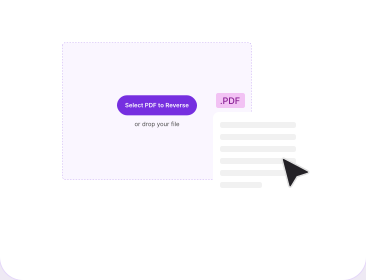
Reverse or Drag Pages Into Order
Click Reorder to flip the whole document instantly, or drag any page — or a multi-selected group — to the exact position you want. The grid updates immediately so you can check the result.
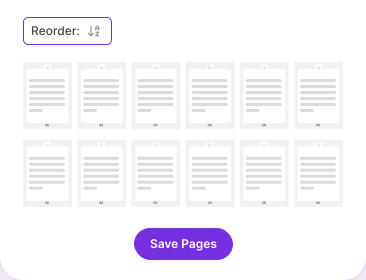
Download the Reversed PDF
Click Save Pages, then Download. It arrives as originalname_reversed.pdf by default (you can rename it), with the same content, orientation and file quality as the PDF you uploaded.
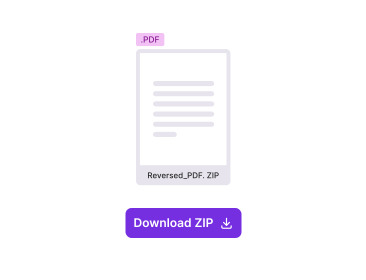
Why Reverse PDF Pages With PDFNoob?
What a page-reversal tool should be able to do, and what most of them cannot.

Drag Any Page, Anywhere
Most free reverse tools only flip the whole file. Select one page — or several with Shift or Ctrl/Cmd-click — and drag them exactly where you want. It's the difference between fixing one badly scanned section and re-sorting a whole document by hand.

You See the Pages First
Every page is shown as a thumbnail in its real document order before you touch anything, so you can see exactly what you're moving instead of guessing where a section starts.

Nothing Is Re-Rendered
Reversing rewrites the page order, not the pages. Text stays selectable and searchable, images keep their resolution, and page size and orientation come through unchanged.

Fully Reversible
Click Reorder again on the result and you're back where you started. Your original file is never modified — the tool always writes a new file rather than editing yours in place.

Privacy by Design
Your file never leaves your browser — there's no upload, so nothing sits on a server to protect or delete. Files are never used to train AI, which is not universal among free PDF tools; it's worth reading their privacy notices before you upload elsewhere.

No App, No Sign-Up
Runs in any web browser on any device. Nothing to install, no account, no daily cap you find out about after uploading, and no watermark on the finished file.
About Reversing the Page Order of a PDF
A PDF file keeps its pages in an internal list called the page tree. Putting the pages in reverse order means rewriting that list back to front while every page object stays exactly as it was. Nothing is redrawn, re-compressed or converted, which is why a reversed file is the same size and the same quality as the original and why the operation takes about as long as it takes to save the file. Understanding that also explains the tool's page limit and the one thing reversing genuinely cannot preserve.
Full Reverse and Manual Drag-and-Drop, Compared
Full reverse is the obvious operation: a ten-page PDF document becomes 10, 9, 8, 7, 6, 5, 4, 3, 2, 1 — the reverse of the order you started with, applied with a single click of the Reorder toggle. Manual drag-and-drop is the more precise tool. Select one page, or a block of pages with Shift-click or Ctrl/Cmd-click, and drag it to the exact spot you want — the rest of the document doesn't move. Both the toggle and the drag preview update the page grid instantly, so you can check the result before you save.
When Reversing Actually Fixes Something
Three situations account for most of it. The first is a backwards scan: sheet-fed scanners commonly stack the output face-up, so the digitised file runs last page to first, and a double-sided document scanned in two passes often ends up with one half reversed, which is exactly the case manual drag-and-drop solves — reorder just the affected pages without touching the rest. The second is printing. A printer that stacks face-up hands you a reversed pile, so reversing the file first means the printout comes out collated and you skip the manual sort. The third is documents assembled newest-first, such as appended logs, statements or meeting minutes, which read far better oldest-first once flipped.
What Reversing Cannot Preserve
One honest caveat. Page content, orientation and document metadata survive the operation, but anything that refers to an absolute page position does not follow the page it pointed at. A table of contents that reads "see page 12" still says page 12, and bookmarks or internal links keyed to a page number will now land somewhere else. This is inherent to reordering pages in any tool, not a shortcoming of this one, and it is why reversing is best done before a document is indexed, linked or shared rather than after. If a file has a heavy internal link structure, moving just the affected pages with drag-and-drop is far safer than flipping the whole thing.
Working Beyond the Page Limit
Reverse PDF handles documents up to 500 pages. If a document runs longer than that, split the work: use Split PDF to cut the file into sections, reverse or reorder each section here, then rebuild it with Merge PDF in the order you want. It sounds fiddly and takes about a minute in practice, and it keeps every operation well inside limits that exist so a long job cannot fail halfway through and hand you a half-written document.
Related PDF Tools
Other tools you might need today.


Frequently Asked Questions
Common questions about reversing the page order of a PDF.
How Do I Reverse the Page Order of a PDF?
Upload the PDF above, then click Reorder. The last page becomes the first, the first becomes the last, and everything in between flips with them — the new order shows instantly in the page grid. Click Save Pages and the finished file downloads as originalname_reversed.pdf by default (you can rename it). No account is needed and nothing is watermarked.
Can I Move Just Some Pages Instead of Reversing the Whole PDF?
Yes. Select one page, or a group of pages with Shift-click or Ctrl/Cmd-click, and drag them to a new position in the grid — everything outside your selection stays exactly where it was. The Reorder toggle only flips the entire document; dragging is how you make a smaller, targeted change.
How Many Pages Can I Reverse at Once?
Up to 500 pages in a single file. If your document is longer, use Split PDF to cut it into sections, reverse or reorder each section here, then rebuild the file with Merge PDF in the order you want.
Why Would I Reverse a PDF's Page Order?
The commonest reason is a scan that came out backwards, which happens with sheet-fed scanners and with double-sided documents scanned in two passes. The other is printing: printers that stack face-up leave you with a reversed pile, and reversing the file first means the printout comes out collated. Some archived reports also arrive newest-page-first and read better flipped.
Does Reversing a PDF Reduce Its Quality?
No. Reversing changes only the order in which pages are listed inside the file. Nothing is re-rendered, re-compressed or rasterised, so text stays selectable, images keep their original resolution, and the page size and orientation of every page are preserved exactly.
What Happens to Links, Annotations and Metadata?
Page content, orientation and document metadata are carried across to the reversed file wherever the source PDF allows it. Note that anything tied to an absolute page position, such as a table of contents that says "see page 12" or a bookmark pointing at a page number, will now point somewhere else. That is inherent to reordering, not to this tool.
Can I Reverse a Password-Protected PDF?
Yes. If the file is encrypted, you'll be prompted for the password before the page grid loads — enter it and continue reversing normally. If you don't have the password, remove the protection first with our Unlock PDF tool.
Can I Undo a Reverse?
Yes. Reversing is its own inverse: open the reversed file, click Reorder again, and you're back to the original order. Your original file is never modified — the tool always produces a new file when you save.
Is It Safe to Reverse a PDF Online?
Yes — more than most online tools. Reverse PDF runs entirely in your browser: your file is never uploaded to our servers, so there's nothing to intercept in transit and nothing sitting on a server to delete. We never see your file's contents, and we never use them to train AI, which is worth checking in the privacy notice of any free PDF tool before you upload a document you care about.
Does the Reversed PDF Have a Watermark?
No watermark, ever. No sign-up, no trial, and no page cap that appears only after you have uploaded. The reversed file is a clean document with nothing added to it.